During my first few minutes using Scrivener 2, I kept thinking the most apt comparison was “word processor on steroids.” But that’s not quite accurate. For one, there are no negative side effects here—save for the commitment the user will have to put in to learn a flexible, layered, and impressive program. And Scrivener is about as far from a word processor as LeBron James is now from Miami.
How Quickly Could I Get Started? (In About 40 Minutes)
I had a paper due this weekend for a grad school class I’m taking. I wanted to use Scrivener to write it, since I thought it would simplify the process. Yes, Scrivener processes words, but it’s really a program for writing project management. Its product page says:
Enter Scrivener: a word processor and project management tool that stays with you from that first, unformed idea all the way through to the final draft. Outline and structure your ideas, take notes, view research alongside your writing and compose the constituent pieces of your text in isolation or in context. Scrivener won’t tell you how to write—it just makes all the tools you have scattered around your desk available in one application, leaving you free to focus on the words.
Scrivener is fast and easy to install. When you open it for the first time, you see an interactive tutorial you can work through:
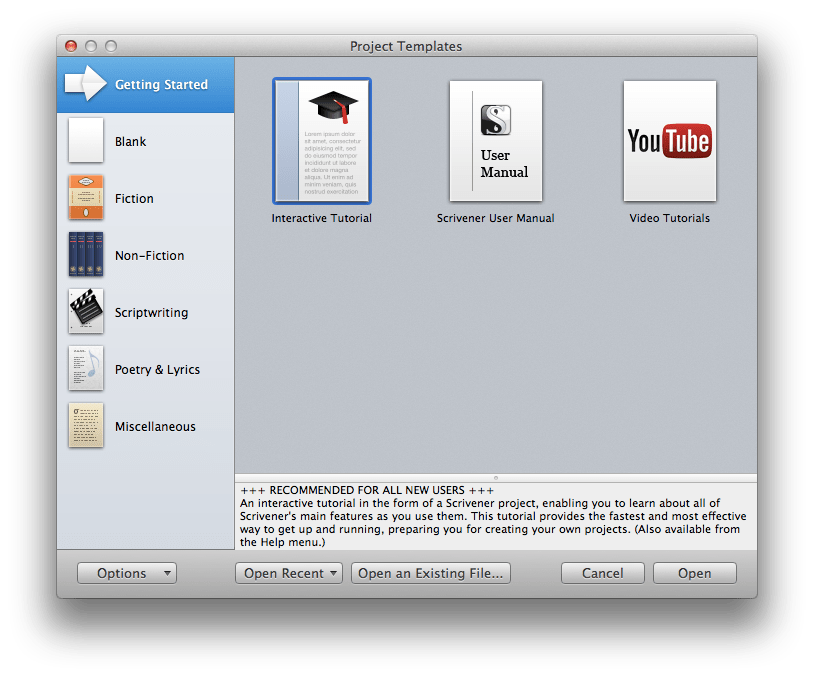 But it says it will take “couple of hours if you go through it thoroughly,” and I needed to get started sooner than that on the paper. (I’ll go through the whole tutorial as soon as I can; it’s really well done.)
There are also tutorial videos here. A lot of them. I’ll admit to being somewhat overwhelmed at first. Scrivener is, after all, the kind of program you need to spend at least a little time to learn how to use, even if you’re already relatively computer-savvy. But it promises to be time well spent.
As an experiment, I decided to watch the ten-minute overview (the first video at the link above, “An Introduction to Scrivener”) to see if it was enough to get me “up and running as quickly as possible,” as the video description suggested. I had never used Scrivener before this month.
Sure enough—10 minutes later (plus another 30 minutes or so searching the forums, help files, and user manual) I was up and running, using Scrivener for the first time to complete a grad school writing assignment.
Writing a Paper More Efficiently
The paper I was writing requires multiple sections and is a topic I’d written about before. I also had some readings to integrate into the paper. And, of course, I wanted to keep the syllabus and specific requirements in front of me as I wrote.
So, after opening a preset template based on the Chicago Manual of Style, I got my project ready. Here’s what it looks like in Scrivener. To you Scrivener power users: this is a pretty basic setup, and I’m still learning what all I can do. To you who are not familiar with Scrivener: I’ll note below what each of the portions of the screenshot is. (Click on image to enlarge.)
 The leftmost column is the Binder. This looks a bit like a Mac’s Finder folders. Here is where I laid out my paper. The preset template took care of the “Title Page” and “Works Cited” formatting; I just had to fill them in. I outlined the “Main Content.” Underneath that is “Research,” a set of .pdfs and other files I dragged in. Instead of switching between Preview, Word, and multiple windows in multiple programs, I could access everything I needed from the “Binder,” once I put it there. This meant that once I took a few minutes to set up the project, I only needed this one app open to complete the writing assignment, start to finish.
The “Ideas” section in the Binder, by the way, allows you to do a virtual version of creating notecards, for later rearrangement and integration into the paper.
 The middle panes (the largest ones) comprise the Editor, which is where I wrote the paper. One really cool thing about this is you can have it all be one big pane, or you can open two panes at once. In the above screenshot, I’m writing my paper in the top editor pane and accessing a previous writing for reference in the bottom pane.
At right is the Inspector. This is versatile and can be used to select one of six different sub-panes. In the view above I have open a short synopsis of the section I’m writing (here I copied from the assignment so I knew what I was supposed to be writing), as well as some general Project Notes I wanted to keep before me for each section of the paper.
After I had written the paper, I selected Compile from the File menu, and Scrivener gave me a myriad of easy-to-navigate options for how I wanted to export my paper into a word processor for final formatting. I exported it to Word and only had to do a very few tweaks to have my paper come out properly formatted–including the footnotes.
More to Follow
Literature & Latte kindly supplied me with a license of Scrivener for the purposes of review. There is much, much more to the program than what I have outlined above, and I’ll write more later. I came to Scrivener this week just wondering if I could learn its basics fast enough to use it right away to write a paper, and in a way that would save me time compared to my normal workflow. This was very much the case when I had finished. I only wish I had known about the program much sooner in my graduate studies!
Want to check it out? (I recommend it.) Here you can download a free trial, for Mac or Windows. (It’s a generous trial period, too.) You can read more about Scrivener’s features here.

 1. OmniFocus
 2. TextExpander
 3. Accordance
 4. Scrivener


 Words on the Word