This is Why I’m Behind on my 2015 Bible-in-a-Year Reading Plan

JPS Torah ExodusThe reason I’m so far behind on my Bible in a Year reading plan is that I’ve been reading Genesis, Exodus, and Leviticus via the JPS Torah Commentary volumes. No, I’m not reading the Hebrew alongside the English–it’s just that the introductions, essays, and verse-by-verse notes are so gripping and elucidating, that I am moving more slowly through the Torah than my plan dictates. (I’m still on track for Bible in Two Years–maybe.)

With the exception of a few chapters, my recent reading of Exodus was all from Nahum Sarna’s volume, which, like other JPS Torah volumes, has all of the following:

  • the full Hebrew text of Exodus, with vowel points and cantillation marks,
  • an English translation (the Jewish Publication Society’s New JPS translation)
  • commentary that addresses the text and its background at the section-by-section, phrase-by-phrase, and word-by-word level
  • an introduction and excursuses
  • sewn binding and beautiful construction

Sarna begins with just a 5-page (!) introduction. Leviticus in the same series, by contrast, has a 30-page introduction. Sarna discusses the book’s title, the division of Torah readings, the book’s setting and events, and it’s “contents and character.” Broadly speaking, Sarna divides Exodus like this:

  1. Exodus 1:1-15:21–oppression and liberation
  2. Exodus 15:22-18:27–toward Sinai
  3. Exodus 19-40–at Sinai

He notes that Exodus’s “influence is due to the special orientation and perspective of Exodus. It is a document of faith, not a dispassionate, secular report of the freeing of an oppressed people.” (Again–I love this guy’s writing style.)

Sarna blends what I experienced as a faith-filled and a critical approach to understanding Scripture. He understands God in the book as “the sole actor, the only initiator of events.” In addition to verse-by-verse and phrase-by-phrase commentary (sometimes down to the word level), Sarna sets up each chapter with a short introduction, which is always good and always useful.

The glossary, which takes up almost as many pages as the introduction, gives a really helpful orientation to readers like me, who keep needing reminders on the distinctions between Talmud and Targum, Mishnah and Mekhilta, Rambam and Ramban.

Sarna’s Exodus commentary does not initially seem to be as thorough as his Genesis volume. (Here there are six as opposed to 30 excursuses at the back of the commentary.) On the other hand that short introduction allows the reader to get into the text right away with Sarna, who makes up for the initial brevity of his work along the way. In the end I found that the comments really did seem to be just the right amount of detail for the kind of reading I was doing of the text–Sarna had addressed nearly all my questions by the time I made it through Exodus 40.

And Sarna’s comments are delivered beautifully. On Israel’s response of faith to the LORD’s “wondrous power” in Exodus 14:31, Sarna writes:

“Faith” in the Hebrew Bible is not belief in a doctrine or subscription to a creed. Rather, it refers to trust and loyalty that finds expression in obedience and commitment.

The commentary on the following chapter of Exodus 15–the one with the “Song at the Sea”–is one of the most moving, incisive, and compelling commentary sections I’ve ever read… and why I’m so far behind on that reading plan!

By way of critique, I only offer two things: (1) a few places could have benefited from more exegetical or grammatical-historical detail and (2) having Sarna’s detailed outline of Exodus all in one place–beyond what’s in the Table of Contents and section headings throughout the book–would have enhanced the introduction. His passage divisions are clear enough throughout the book, but I found myself wanting a summary sketch of Exodus all in one place for quick reference.

When I preach or teach on Exodus (or when I just want to remember what I sensed God speaking to me when reading through Exodus this spring), I will reach first for this exceptional volume.

If you want to look more in-depth with me at the body of the commentary, I interacted a bit with Sarna’s take on the 10 plagues here.


Many thanks to the folks at University of Nebraska Press/Jewish Publication Society for sending me the copy of the Exodus commentary for review. The book’s JPS product page is here; you can order it through Nebraska Press here. Find it on Amazon here.

Prefer an electronic edition? Accordance has the JPS Torah Commentary here.

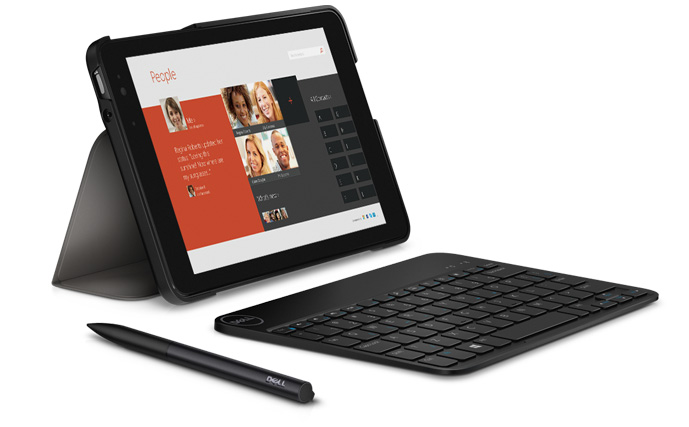
A Review of the Dell Venue 8 Pro Tablet


Image via Dell
Image via Dell


I’ve been impressed by the Dell Venue 8 Pro in my use of it these past few months. I recorded my initial impressions here.

This post completes my two-part review of the device by way of a three-question Q and A session. (Leading up to this review I’ve benefited from conversations with R. Mansfield, who knows the Dell Venue 8 Pro–hereafter, DV8P–well.)


How Does the Dell Venue 8 Pro Compare to an iPad?


See… I knew you were going to ask that question! Here are five points of comparison.

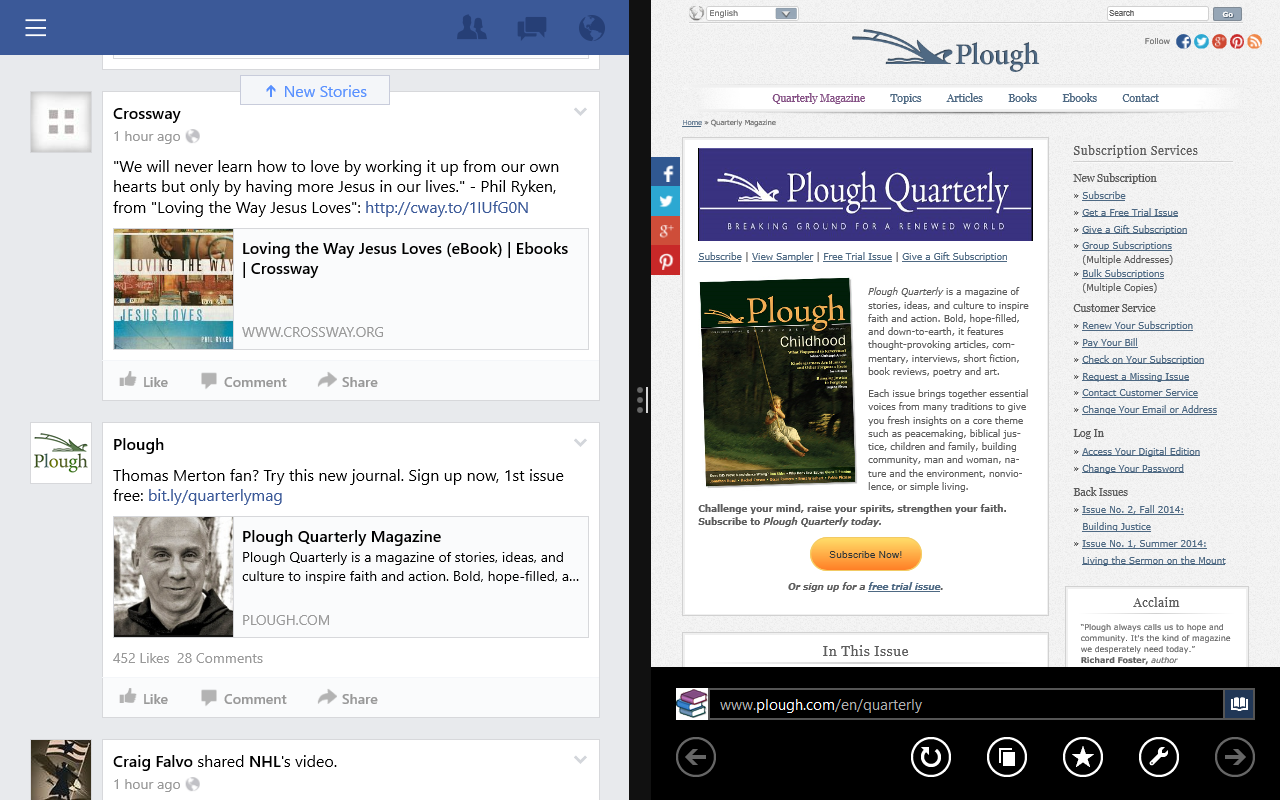
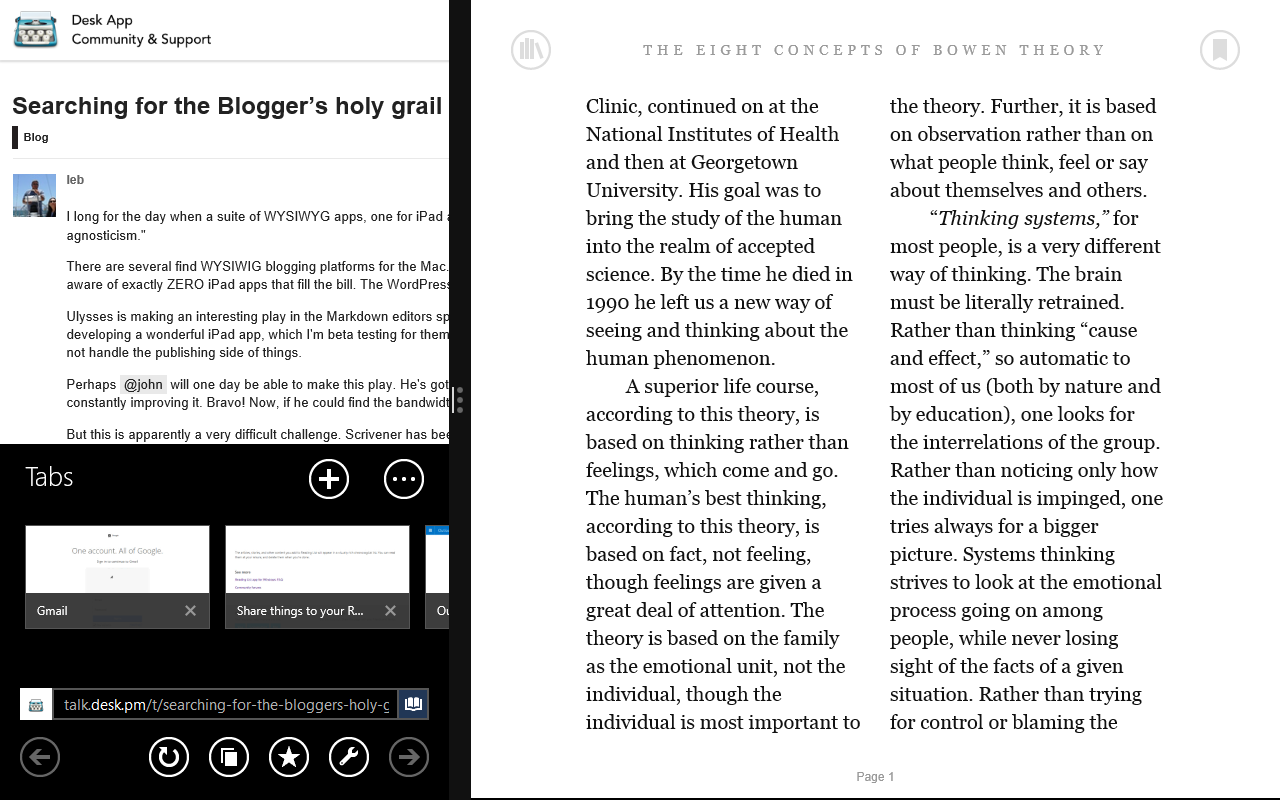
First, the iPad still does not allow the user to view and use more than one app on the screen at a time. Why this continues to be the case is unclear to me, but the DV8P lets you have two apps open at once. So you can read an article from your Facebook feed without leaving Facebook. Or you can go to a Web link that pops up in a Kindle book you’re reading, while not having to leave and then navigate back to the Kindle app. Advantage: DV8P.

Second, the DV8P is more compact than a full-sized iPad, but close in dimensions to the iPad Mini. The DV8P is longer and skinnier, by a little bit. Its 8-inch screen size (measured diagonally) just edges out the iPad Mini’s 7.9 inches. To hold it feels about the same as the iPad Mini, though. Advantage: Both.

Third, the Dell Venue Pro is both tablet and personal computer. You can use it as both. You can run full-on Windows programs from the Desktop side, which Apple’s iOS on iPad does not permit.

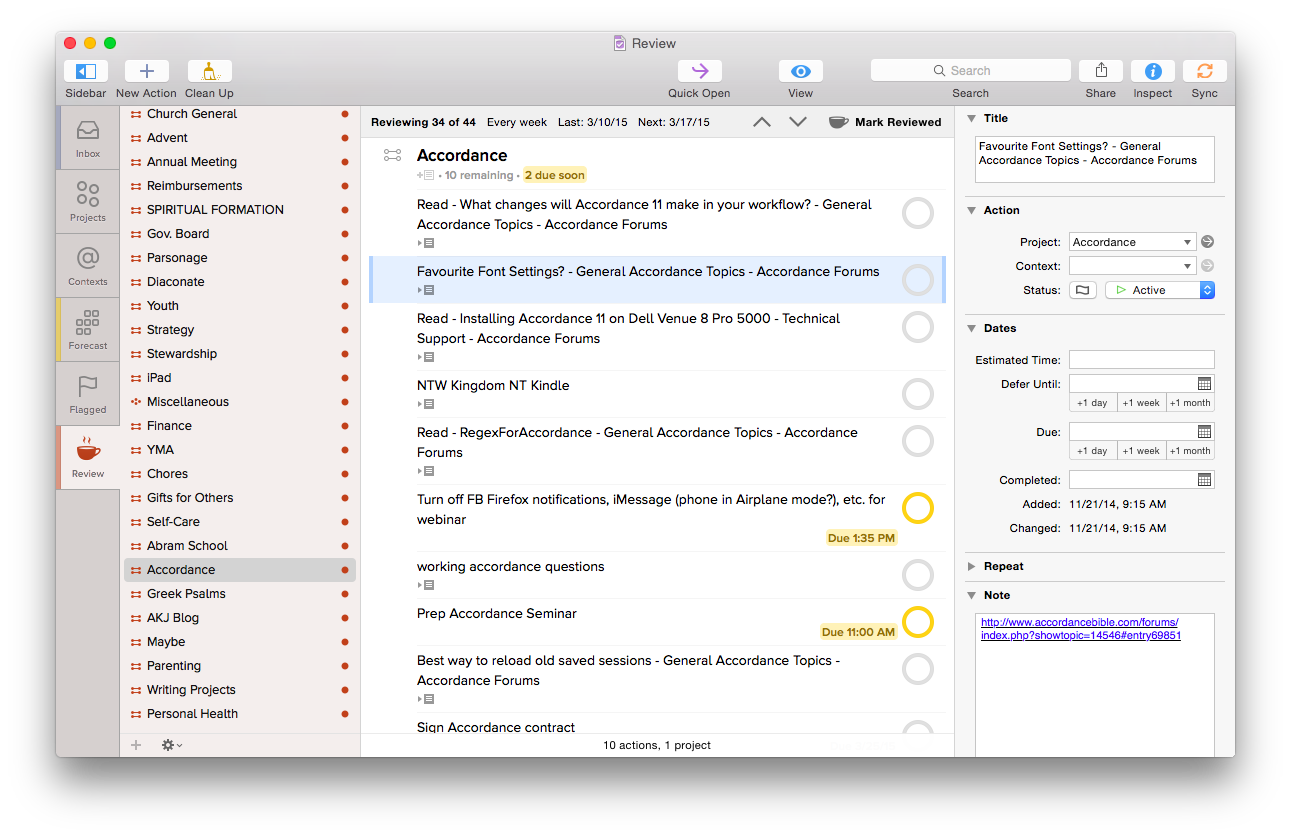
I love being able to access full-bodied programs on this little tablet. Much as I appreciate Accordance’s iOS mobile app, for example, being able to use the full desktop version–but not having to be at a desktop or laptop–is awesome. Advantage: DV8P.

Fourth, the gesture-based interface of the iPad gives the user more options. Or is more intuitive. Or something. I know “intuitive” is a fuzzy word in software and hardware reviews. Of course, I’m way more used to an iPad than the Dell Venue Pro, but the former is easier to just pick up and tap and swipe your way around. Advantage: iPad Mini.

Finally, battery life on the 8 Pro leaves something to be desired, especially in comparison with the iPad Mini. Battery life when the device is in use is fine, but it does not hold charge very well when it idles/sleeps. If I put the tablet to sleep with full battery life, don’t use it at all for a couple days, then come back to it, it’s completely out of charge. I’ve never had this issue with the iPad mini. (And I’m not the only DV8P user to notice this, either.) Advantage: iPad Mini.


Does it Replace a Computer?


Because you have the computing capabilities of a desktop computer in your hands, one could think about the Dell Venue 8 Pro as a possible replacement for a computer.

With the loaner review unit Dell sent me, they also included a stylus (with a responsive point) and a keyboard. Each of these are essential companions when using Windows and navigating full-bodied programs like Word or Accordance or whatever else. (Not the least reason for which is that the touch points on Windows apps are too small for even tiny fingers.)


Accordance
Accordance on the DV8P (click or open in new tab/window to enlarge)


Being able to use–on a portable tablet–programs/apps that you could until now have to get to a desktop or laptop to use… is really sweet. If you don’t want to be limited by Android’s environment or iOS apps, the tablet-as-computer could make sense.

However, a limitation is in the memory size. The Dell Venue 8 Pro comes in 32GB or 64GB models, but even the latter is too small to make this your one-and-only computer (think: lots of images and movies stored). The Dell Venue 11 Pro model, however, has a hard drive up to 256 GB, which is definitely workable for making the DVP your only computing device.

Speaking of, here are the specs of the machine (compared to the 11) from Dell:


Screen Shot 2015-04-28 at 9.47.25 PM


Does Abram K-J of Words on the Word
Recommend this Device?


I would be too tied to the Apple app ecosystem to be able to move all my work over to the DV8Pro, much as I like the device. I’d have no way to run OmniFocus, for example. Or Nisus Writer Pro. I could easily still access Evernote, and other such apps.

But if you’re already rocking in the Windows free world, with no Mac or iOS-only apps to consider, this small but powerful device is worth looking into. (I can’t say from experience how it compares to the Microsoft Surface.) It’s reasonably priced, too. And while I experienced more learning curve with the Dell Venue 8 Pro than I did when I first picked up an iPad, after a while it becomes intuitive, and convenient to have more computing power than one would expect in a tablet.


Thanks to the fine folks at Dell for loaning me a Venue 8 Pro 5000 Series Tablet to test for the review. Check out the Dell tablet page here.

The Last To-Do App You’ll Ever Need: OmniFocus

OmniFocusYou know that creeping suspicion that some of your strangest idiosyncrasies could not possibly be shared by anyone else ever?

You’re usually wrong.

Case in point: it turns out I’m far from the only one who has had about a dozen different to-do apps on his phone in the last couple months. But it’s a bad idea to use multiple apps to organize tasks. All the better if you can track everything through one clearinghouse.

OmniFocus is that place for me. In more than half a year of daily use (exception: techno-Sabbath), I’ve only found one real flaw in the program (sync is not seamless). Otherwise OmniFocus (a.k.a. OF) does everything I want a task management app to do, and many things I didn’t know I would want such an app to do.


First Things First: Learn OmniFocus Language


There’s a lot to OmniFocus. To get a quick overview, check out this video, or this one, which explains the fundamental OF concept of “perspectives,” ways of organizing and accessing your tasks.

Or skip the videos and read this one-paragraph simplification of what you need to know about OF terminology before using it:

Projects help you break a bigger endeavor down into its component actions. Projects can be Sequential (you have to do action 1 before you can do action 2) or Parallel (it doesn’t matter in which order you do the individual tasks). For that matter Projects can just have what Omni refers to as loosely-related but not interdependent “Single Actions,” like a grocery shopping list. Contexts allow you to organize actions according to the things/people/environment you need to do them: Office, iPad, Internet, Computer, Car (careful!), etc. The Forecast view shows your tasks chronologically in one place–I spend most of my time in this view. Or you can just make a quick entry in the Inbox, and then decide how to categorize it later.


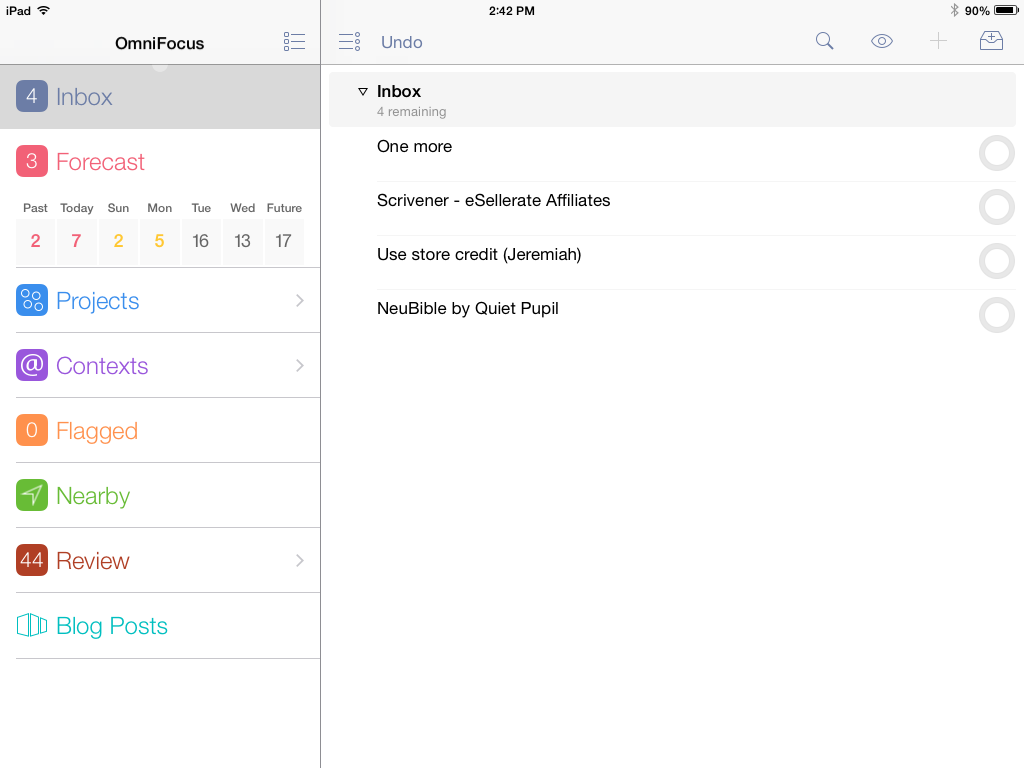
iPad, showing various perspectives and Inbox
iPad, showing various perspectives and Inbox (“Blog Posts” is a “custom perspective” available with iPad Pro version)


The Inbox is the starting point–OmniFocus suggests that you take some time to just “brain dump” everything there and then assign Contexts and Projects, due dates and duration times later.

Using OF requires some patience and learning, but is worth the investment of time if you’re serious about project and task management.


Contexts in iPad
Contexts perspective in iPad


OmniFocus is Ubiquitous Across Devices and Apps


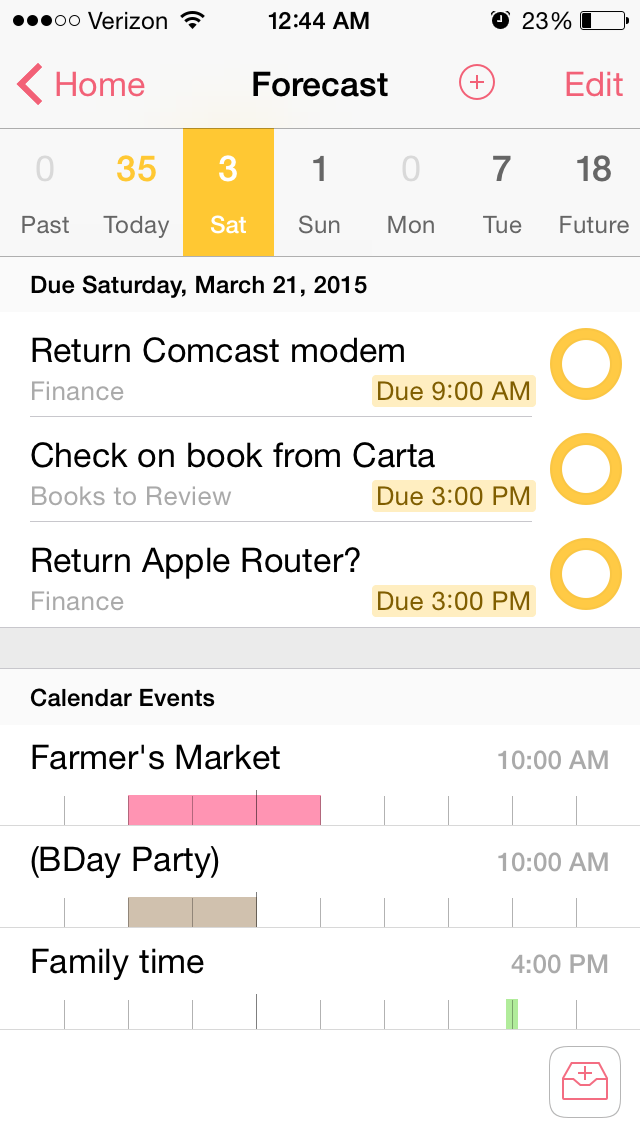
OF syncs automatically across Mac, iPad, and iPhone. When you are in the Forecast perspective, both the iOS apps and the OSX app allow you to see your Calendar Events right next to your actions for the day:


iPhone Forecast View
iPhone Forecast perspective


I even figured out, using their Clip-o-Tron 3001, how to turn Mac Mail messages into tasks with a keyboard shortcut. (Email inboxes are not a good place to keep tasks, you realize.)

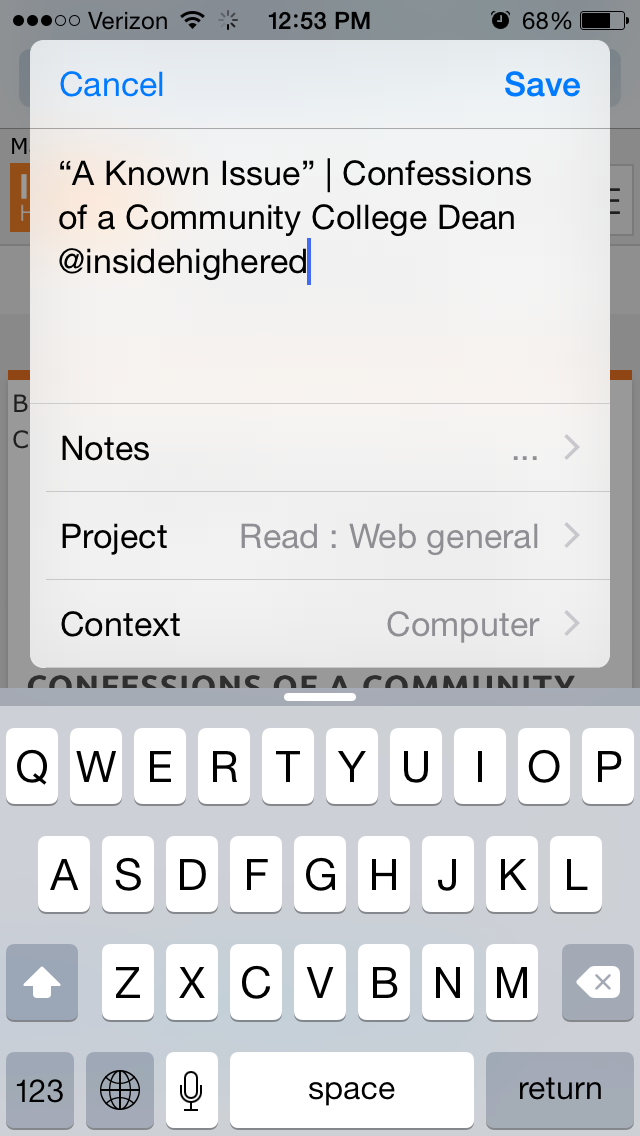
And I love the Share Extension in iOS8. From almost any app I can create an OmniFocus task. I do this regularly. I see something I like, so share to OF:


iPhone Share 1


From Safari, for example, the Note is automatically populated with the article link, and I can set the Project and Context:


iPhone Share 2


One lack in the Share Extension is the ability to assign a due date from the screen shown above–you have to manually open OmniFocus if you want to do that. However, the more I use OmniFocus, the more convinced I am to only set due dates if absolutely necessary–you can always look through undated tasks in your weekly review, which OF makes really easy with their excellent Review perspective:


OmniFocus for Mac Review Perspective
OmniFocus for Mac Review perspective


What if you’re on a library computer or PC or purchased OF for Mac only and see something on your phone that needs to become a task?

OmniFocus gives you your own unique email address, to which you can email a task. This “Mail Drop” feature helps get the user close to Inbox Zero on email, too, since you can just forward a Gmail message to OmniFocus, where it will end up in your OF for future processing. In other words, you can input OmniFocus tasks from anywhere.

And TextExpander helps here. That app allows you to type your own abbreviations that then expand into text of your choosing. With TextExpander enabled, I write “.omni” and my OmniFocus task capture email address (which is neither short nor memorable) pops up right away.

Another way you can input tasks? Connect your OmniFocus in iOS to the Reminders app, then you can tell Siri to remind you something, and it goes into OmniFocus. Awesome!


Bonus: It Does Photos and Voice Memos


The iOS OF apps even allow attachments to tasks. If I’m processing paperwork and need to set a reminder to pay a bill, I can just take a picture of the bill from OF and save it to a task. Whenever I pull that task up on my computer or other device, the photo will be there.

You can also tap on the “Attachments” tab to record a voice memo, and save a task that way.


Limitations


There are some limitations to using OmniFocus, though not many, and far fewer than other task management apps. Its sync function, which uses Omni servers, operates with a delay. Though sync is supposed to be seamless, it doesn’t function with the same instantaneous speed as, say, Apple’s native Reminders app. On the ground level this means that if I work through a task list on my computer but don’t have the OF iPhone app open (even though background refresh is on), I will still get outdated task notifications on my phone until the sync properly takes place. This is a daily frustration, even if a minor drawback compared to all the other robust features.

The workaround for this is to manually sync the app each time I update it, to make sure it’s up-to-the-minute. OmniFocus has made improvements here since I started using it, but I hope it will soon match what other apps do by way of syncing speed.

OmniFocus is not cheap–they’re working on making their iOS app universal (very soon), but in the meantime, there is a separate Mac app, iPad app, and iPhone app available for purchase. It’s not on Windows or Droid.

However, if (a) you have a complex set of roles, priorities, and tasks to manage, (b) you don’t feel fully on top of them, and (c) you’re willing to take the time to learn OF, it’s well worth the purchase price. One could probably get by with OF on just one platform, too, though if funds permit, having it on a mobile device and a desktop is an advantage.


Made with Care: Some More Thoughtfully Designed Features


Perspectives sidebarThe longer I use OmniFocus, the more I appreciate some little features. Just the other day I noticed for the first time that in your perspectives sidebar on Mac, if there are items in that perspective to process, a little colored bar on the left highlights that perspective.

The image at left tells me I am due my Review, that there are items in the Forecast (i.e., scheduled actions), and that there are some entries in my OmniFocus Inbox needing attention.

There are lots of nice little touches like this–the color of your task circles, for example, varies depending on the status of the task (whether flagged, due soon, overdue, repeated, etc.).

And one of the best intangibles for me has been the ease of accessing the help manuals. Sure, you can get impressive help information from within the app, but OmniFocus has made their iPhone, iPad, and Mac help manuals available as free iBooks downloads so you can annotate them to your heart’s content.

Also, using Control-Option-Space on Mac, you can open a Quick Entry pop-up to enter an Inbox item. As long as OF is open, you can do this from anywhere on your computer.

Two more sweet little features I love about the iPhone version–there’s a little “+” icon for an new Inbox entry on just about any screen within the app, so adding tasks is easy, no matter where you are in the app. And once you add a task in iPhone or iPad, you can not only Save it, but can tap on “Save +” to go right to a new task entry. In other words, you can add a task and not be sent back to your Inbox, but keep adding task after task. I find this feature essential when I’m using OF to track action steps in meetings.

I could go on. Lots of people have! It seems that explaining OmniFocus is its own third-party cottage industry.


TL;DR version? (I know–I am supposed to put that at the top of the post.) OmniFocus is an amazing app, designed with care, and more than any other tool has helped me to greatly improve personal productivity. With a good system in place, I spend less time worrying about what I’m forgetting and more time doing what I know I’m supposed to do.


Thanks to the fine folks at Omni Group, the makers of OmniFocus, for giving me downloads for the Mac and iOS apps for this review. See my other AppTastic Tuesday reviews here.

I Don’t Have an iPhone 6, but Here is a Review of Anker’s Ultra Protective Case for iPhone 6

Anker Ultra Protective Case With Built-in Clear Screen Protector for iPhone 6


The iPhone 6 upgrade never happened, but Anker had already sent the review sample of a sweet iPhone 6 case. I told them I’d still post about the thing, reviewing it as best as I could.

The Anker Ultra Protective Case With Built-in Clear Screen Protector for iPhone 6 appears to achieve that rare balance in mobile device cases between lightness and durability. You put its front screen protector and back casing on separately. It’s not a heavy case at all, so I doubt your hand will get sore even after playing too many minutes of games on your encased phone! The case adds only 0.15 inches and 1.6 ounces to the dimensions of the iPhone 6.

The openings for the charger cord and earbuds appear to be cleanly cut:


Anker iPhone 6 case openins
Image via Amazon/Anker product page


Anker says the case was “drop tested 6 times from 3 feet onto its corners and back on a hard concrete floor without sustaining any damage.” Presumably this test took place with the iPhone 6 in it.

As much as you think you will just be careful and never drop your phone… you WILL drop your phone. This case has some good grip to it, so your phone is unlikely to slip out of your hands, but if so, you may get lucky and still have a working phone after the drop!

Especially for the $15.99 current price at Amazon, this kind of protection is a good idea.

  Thanks to Anker for the review sample, offered for my honest impressions.

Readdle’s PDF Expert 5 is 50% Off

PDF Expert 5 by Readdle is on sale for $4.99 (50% off) right now. Here’s my video review from last fall of PDF Expert 5 on an iPhone (make sure you use the settings gear in the embedded video to watch in HD; you can also view full screen). The app is universal, which means you buy it once and then can use it on iPad and iPhone. Go here to find the discounted app.


That Time My 2-Year-Old Daughter Gave Me a Writing Tip in Scrivener

Our daughter is in the Terrific/Terrible Twos stage.

The terrible: she does things like write on the new kitchen floor in permanent marker. She leaves tons of tiny fingerprints on the MacBook and almost pushes the TV off its stand because she thinks they are both touch screens. She changes her own diaper and *tries* to flush its contents down the toilet herself. (Okay–this last one isn’t all bad–potty training, here we come!)

The terrific: sometimes, when she presses random keys on the laptop keyboard, instead of making the computer freeze, she discovers new tips. (Far more terrific than that, of course, is the fact that she is an amazing and wonderful human being.)

The other day she saw this little guy in the toolbar when I had Scrivener open for some work I was doing:


Scrivener Compose Icon


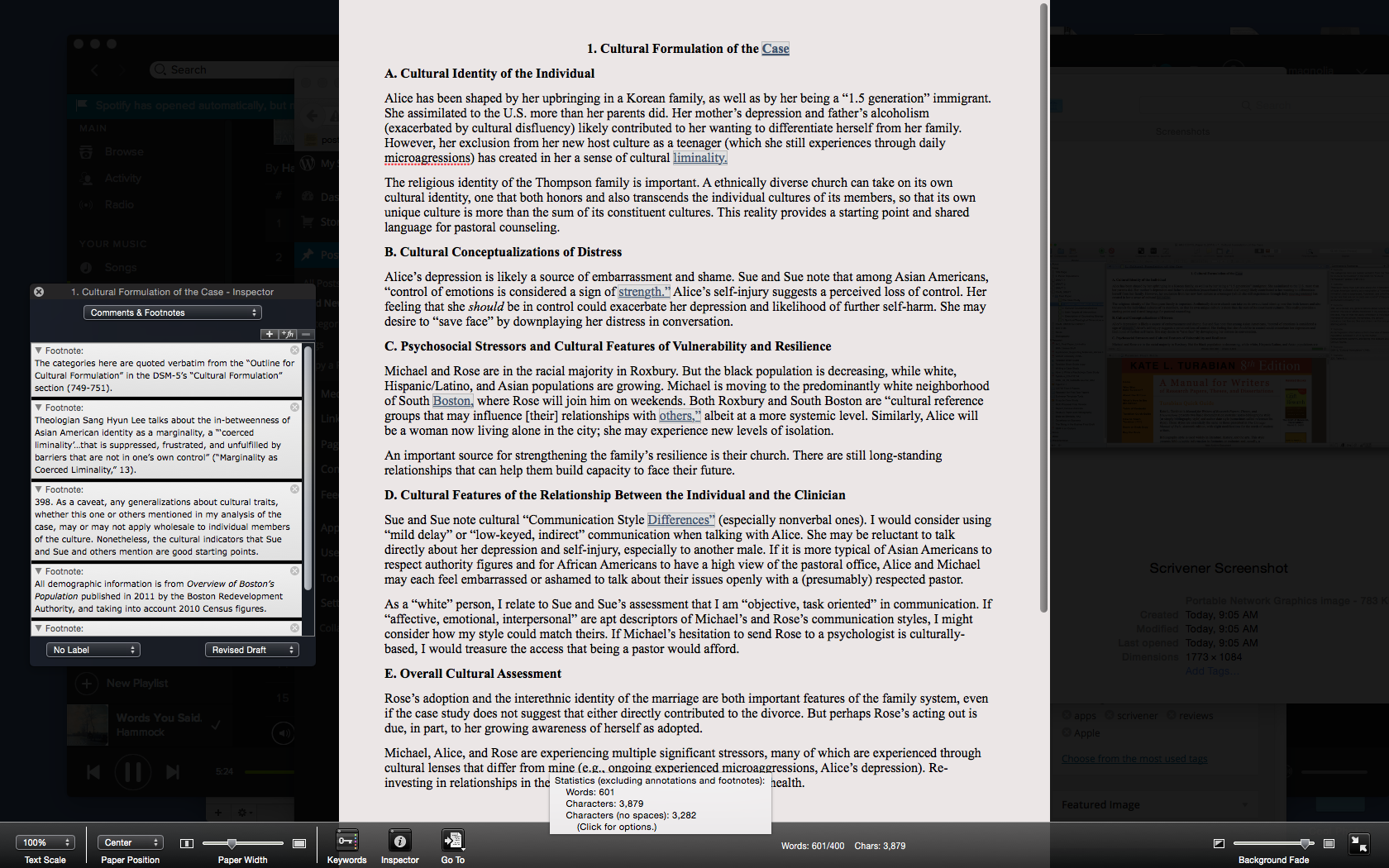
She tried to tap it (no Scrivener for iPad… but soon, I hear!). Then between the two of us, we clicked it and Scrivener went from this view:


Scrivener Screenshot
Click or open in new tab to enlarge


to this one:

Scrivener Composition Mode
Click or open in new tab to enlarge


Yes, Scrivener can go into full screen, but this is something a little different–a composition mode where you can just write. You’ll see at the bottom (a toolbar which goes away if you want it to) that I can still pull up essentials like the footnote window on the left. Or I can move all that out and just focus on writing.

I’ve used Scrivener for more than a year now and don’t think I’ve ever clicked on “Compose.”

So… thank you, two-year-old daughter, for helping your dad learn more about a program he uses all week, and for simplifying my workflow!

Want to check Scrivener out? (I recommend it, and offer my thanks to the folks that make it for the review license.) Here you can download a free trial, for Mac or Windows. (It’s a generous trial period, too.) You can read more about Scrivener’s features here.

Review: How to Invest Your Time Like Money

How to Invest Your Time Like MoneyEven if you got only one thing out of Elizabeth Grace Saunders’s How to Invest Your Time Like Money, her idea of a Why are you awake? alarm makes the 75-page ebook well worth the purchase.

But there’s a lot more sage advice packed into the highly readable offering by HBR Press.

Saunders’s basic premise is a simple but compelling one: “You need to learn the skills to invest your time like money.” She elaborates:

When you invest your time as if it were money, you look at the reality of how much time you have available and the truth of activities’ time cost. You then make decisions that allow you to get out of time debt. And with this balanced budget in hand, you can then set up the structure to consistently invest your time in what’s most important.

Five chapters and an inspiring epilogue help the reader to consider how to best use her or his time in the service of identified values and priorities:

1. Take Control of Your Time and Your Life
2. Identify Your Time Debt
3. Create a Base Schedule
4. Set Up Automatic Time Investment
5. Maximize Your Time ROI
Epilogue: Remember What You’re Working For

I’ve read enough time management books to nearly expect the kind of introductory statement in the first chapter: “Most time management methodologies fail….” However, Saunders really does offer a unique angle on time management, writing, “Time, like money, must be invested to work for you now and support your ideal future.” This is what sets Saunders’s book apart from other task management writing. She boldly begins: “What will need to change is you.”

She helps the reader address psychological “barriers to success,” such as accepting the role of victim of other people’s expectations, playing the rescuer (and therefore taking on other people’s tasks), or even somehow thinking “a sane and sustainable schedule with (gasp!) free time” is an undeserved luxury.

I can imagine a hurried executive reading, “Accept the past and forgive yourself” and balking at an emotions-based approach, but I think Saunders is right on the money. We can’t fix how we manage our time without taking a careful, hard look at what’s behind our time-spending (and time-wasting habits).

So only after a full chapter devoted to examining the ways we undermine our effectiveness–and suggesting practical ways to combat this–does Saunders write:

Now you’re mentally and emotionally primed to authentically evaluate your time investment. So, it’s time to take a serious look at whether you’re in time debt and, if so, how you can move toward a balanced budget.

For the rest of the book, Saunders serves as the temporal equivalent of a financial advisor. What turned me on to the book in the first place is an excerpt HBR posted, where Saunders suggests a “formula to stop you from overcommitting your time.”

Chapters 2 through 5 then walk the reader through setting both a daily and weekly “time budget” and schedule. Saunders suggests how to help the actual match the envisioned. (One juicy nugget, via Arianna Huffington: “You can complete a project by dropping it.”) There is a difference, Saunders notes, between, “Do I have to do this?” and, “Do I have to do this now?

Even as the author deftly guides the reader through the nuts and bolts of scheduling, she continues to keep an eye on some of the deep-down causes that prevent us from spending time well:

[Y]ou need to uncover what’s at the bottom of your emotional resistance so that you can let go of it and make time investment decisions that serve your greatest and highest good.

Each chapter ends with a really helpful summary checklist, making it easy to translate ideas into actionable progress.

One thing that seems to be missing in this book is more specific advice on how to tally how much time various tasks will take. After all, part of the issue is that we often underestimate how long it will take to complete a task. Saunders does give advice here (a section called, “Improve Your Estimation of Time Costs”), though it is largely of the just estimate via trial-and-error variety.

That said, there may simply not be much else to do but to follow her sound advice to track one’s time to be able to “look back at the totals for similar past projects for data on realistic estimates.”

Even in book form Saunders is interpersonally and psychologically sensitive and insightful. And she so often calls the reader back–in an inspiring way–to the big picture:

In the end, getting the best return on your investment is not about whether you got the most tasks done but about whether you put time and effort into what’s most important to you.

By all means, go download this book right now. Schedule five 20-minute blocks to read it (this is what I did, and it worked great). And then schedule some more time to sit down with your calendar and put into practice all that Saunders recommends.


Thanks to HBR Press for the review copy of this awesome, succinct ebook. Find it here on Amazon, here at HBR’s site, and learn more about the book here at Elizabeth Grace Saunders’s site.


I Just Found a New Life Habit: “Why Are You Awake?” Alarm

How to Invest Your Time Like MoneyI just found a new life habit: a daily “Why are you awake?” alarm on my phone, set to 30 minutes before the time I want to go to bed.

The idea comes from a short ebook I just read, How to Invest Your Time Like Money, by Elizabeth Grace Saunders (published by Harvard Business Review Press).

Saunders’s idea is simple but brilliant. She makes this point about habits:

Habits reduce the amount of time that you spend deciding what to do, lower the energy needed to take action, and ensure that you’re spending time on what’s most crucial.

Applying the idea to the decision we make each day as to when to go to sleep, she writes:

How do you make going to sleep a routine so you have fewer decisions to make and more hours resting? (This is the question all parents ask about their children’s bedtime routine but rarely direct toward themselves.)

A very simple approach is to set a “Why are you awake?” alarm on your phone for fifteen to thirty minutes before your ideal bedtime. This reminds you what time it is and prompts you to get ready for bed, unless you’re doing an activity that’s worth losing sleep over.

I set this new alarm in my phone just minutes after reading this section of the book.

Speaking of which… my “Why are you awake?” alarm just went off five minutes ago–sharing such a simple but brilliant idea is surely worth losing five minutes of sleep over… but off to bed now!


Thanks to HBR Press for the review copy of this awesome, succinct ebook. Find it here on Amazon, here at HBR’s site, and learn more about the book here at Elizabeth Grace Saunders’s site. Full review forthcoming!

Dell Venue 8 Pro: Initial Impressions

Image via Dell
Image via Dell


Now that I can quickly remember which is the Windows button and which is the Power button, I’ve been having a lot of fun testing out a Dell Venue 8 Pro. I come to it from an iPad mini, which is comparable in size, so it’s taken some getting used to.

Here are four things I’ve been impressed by so far.


1. The weather app is awesome.


Yes, this is a small thing, but I’ve found the iOS weather apps (whether native or third-party) to be wanting. The pre-installed weather app in the Venue Pro, however, is really fun:


Hour-by-hour, how are my Chicago friends feeling? (COLD)


You can even CHECK THE RADAR. Whoa.


Including time-specific animation


I don’t find myself needing to double-check weather.com. This app offers anything I’d want to know, including warnings and watches issued by the National Weather Service.


2. You can view two open apps at once, side-by-side.


I know, I know. That should be a given for a tablet in 2015. But it’s not available on iPads, so it’s been cool to be able to, say, scroll through a Facebook newsfeed while checking out links in a separate pane:


2 Screens 2


This is also useful if I want to read a book in Kindle and have a Web browser open. Yes, it’s the first time in many years that I’ve used Internet Explorer (!), but as browsers go, it works fine:


2 Screens 1


You can resize each of the two apps/panes so that the screen looks how you want it.


3. Speaking of Kindle, that app plays nicely with Windows.


This is a minor thing, too, but the Kindle iOS app does not allow you to purchase Kindle books from within the app. Here you can:


Kindle App


4. It’s a tablet. It’s a computer.


You get the convenience of an app-filled tablet, combined with the power of a full-on computer using Windows 8. Much as I like the iOS version of Accordance, you get to use its full desktop version here on the Venue 8:


Accordance


When you use the desktop side of the tablet, having a stylus to get at the smaller touch points on the screen is essential.

I’ll post more later. For now, while it hasn’t replaced my iPad mini for daily use, I’m really enjoying the Venue 8 Pro.


Thanks to the fine folks at Dell for loaning me a Venue 8 Pro 5000 Series Tablet to test for the review. Check out the Dell tablet page here.

The JPS Bible Commentary on Exodus: Sarna Does it Again

JPS Torah ExodusI’ve come to Nahum Sarna’s JPS Torah Commentary on Exodus with high expectations. His Genesis volume in that series is one of the best commentaries I’ve read (on any book of the Bible).

So far, after spending long periods of my last Sabbath with the book, it’s lived up to expectations.

While I work on a review of the full volume, here are a couple compelling sections of Sarna’s commentary on the 10 plagues:

The present narrative is a sophisticated and symmetric literary structure with a pattern of three groups each comprising three plagues. The climactic tenth plague possesses a character all its own. The first two afflictions in each triad are forewarned; the last always strikes suddenly, unannounced. Furthermore, in the case of the first, fourth, and seventh plagues Pharaoh is informed in the morning and Moses is told to “station” himself before the king, whereas in the second of each series Moses is told to “come in before Pharaoh,” that is, to confront him in the palace. Finally, in the first triad of plagues it is always Aaron who is the effective agent; in the third, it is always Moses.

Having this literary outline in mind made me really appreciate the narrative artistry of Exodus in a way I might have otherwise missed.

Not only does Sarna offer expert literary analysis, his writing itself is lucid and reads more like a compelling novel than what you might expect from a technical commentary. That Chaim Potok is the literary editor of the JPS Torah Commentary does not hurt, either! It shows.

Sarna strikes an interesting balance between (a) reading the plagues as God’s using natural events and (b) reading the plagues as purely supernatural. Regardless of how the reader understands the text in this regard, Sarna highlights the theological import of the plagues:

The controlling purpose behind this literary architecture is to emphasize the idea that the nine plagues are not random vicissitudes of nature; although they are natural disasters, they are the deliberate and purposeful acts of divine will–their intent being retributive, coercive, and educative. As God’s judgments on Egypt for the enslavement of the Israelites, they are meant to crush Pharaoh’s resistance to their liberation. They are to demonstrate to Egypt the impotence of its gods and, by contrast, the incomparability of YHVH, God of Israel, as the one supreme sovereign God of Creation, who uses the phenomena of the natural order for His own purposes.

Plague by plague Sarna returns to this theme and draws it out.

I’m 12 chapters in (out of 40) and am appreciating Sarna’s wisdom on Exodus as much as his excellent work on Genesis. More to follow.


Many thanks to the folks at University of Nebraska Press/Jewish Publication Society for sending me the copy of the Exodus commentary for review. The book’s JPS product page is here; you can order it through Nebraska Press here. Find it on Amazon here.

Prefer an electronic edition? Accordance has the JPS Torah Commentary here.