Writing My First Paper Using Scrivener

During my first few minutes using Scrivener 2, I kept thinking the most apt comparison was “word processor on steroids.” But that’s not quite accurate. For one, there are no negative side effects here—save for the commitment the user will have to put in to learn a flexible, layered, and impressive program. And Scrivener is about as far from a word processor as LeBron James is now from Miami.

How Quickly Could I Get Started? (In About 40 Minutes)

I had a paper due this weekend for a grad school class I’m taking. I wanted to use Scrivener to write it, since I thought it would simplify the process. Yes, Scrivener processes words, but it’s really a program for writing project management. Its product page says:

Enter Scrivener: a word processor and project management tool that stays with you from that first, unformed idea all the way through to the final draft. Outline and structure your ideas, take notes, view research alongside your writing and compose the constituent pieces of your text in isolation or in context. Scrivener won’t tell you how to write—it just makes all the tools you have scattered around your desk available in one application, leaving you free to focus on the words.

Scrivener is fast and easy to install. When you open it for the first time, you see an interactive tutorial you can work through:

Scrivener_Getting StartedBut it says it will take “couple of hours if you go through it thoroughly,” and I needed to get started sooner than that on the paper. (I’ll go through the whole tutorial as soon as I can; it’s really well done.)

There are also tutorial videos here. A lot of them. I’ll admit to being somewhat overwhelmed at first. Scrivener is, after all, the kind of program you need to spend at least a little time to learn how to use, even if you’re already relatively computer-savvy. But it promises to be time well spent.

As an experiment, I decided to watch the ten-minute overview (the first video at the link above, “An Introduction to Scrivener”) to see if it was enough to get me “up and running as quickly as possible,” as the video description suggested. I had never used Scrivener before this month.

Sure enough—10 minutes later (plus another 30 minutes or so searching the forums, help files, and user manual) I was up and running, using Scrivener for the first time to complete a grad school writing assignment.

Writing a Paper More Efficiently

The paper I was writing requires multiple sections and is a topic I’d written about before. I also had some readings to integrate into the paper. And, of course, I wanted to keep the syllabus and specific requirements in front of me as I wrote.

So, after opening a preset template based on the Chicago Manual of Style, I got my project ready. Here’s what it looks like in Scrivener. To you Scrivener power users: this is a pretty basic setup, and I’m still learning what all I can do. To you who are not familiar with Scrivener: I’ll note below what each of the portions of the screenshot is. (Click on image to enlarge.)

Scrivener Paper LayoutThe leftmost column is the Binder. This looks a bit like a Mac’s Finder folders. Here is where I laid out my paper. The preset template took care of the “Title Page” and “Works Cited” formatting; I just had to fill them in. I outlined the “Main Content.” Underneath that is “Research,” a set of .pdfs and other files I dragged in. Instead of switching between Preview, Word, and multiple windows in multiple programs, I could access everything I needed from the “Binder,” once I put it there. This meant that once I took a few minutes to set up the project, I only needed this one app open to complete the writing assignment, start to finish.

The “Ideas” section in the Binder, by the way, allows you to do a virtual version of creating notecards, for later rearrangement and integration into the paper.

Scrivener LogoThe middle panes (the largest ones) comprise the Editor, which is where I wrote the paper. One really cool thing about this is you can have it all be one big pane, or you can open two panes at once. In the above screenshot, I’m writing my paper in the top editor pane and accessing a previous writing for reference in the bottom pane.

At right is the Inspector. This is versatile and can be used to select one of six different sub-panes. In the view above I have open a short synopsis of the section I’m writing (here I copied from the assignment so I knew what I was supposed to be writing), as well as some general Project Notes I wanted to keep before me for each section of the paper.

After I had written the paper, I selected Compile from the File menu, and Scrivener gave me a myriad of easy-to-navigate options for how I wanted to export my paper into a word processor for final formatting. I exported it to Word and only had to do a very few tweaks to have my paper come out properly formatted–including the footnotes.

More to Follow

Literature & Latte kindly supplied me with a license of Scrivener for the purposes of review. There is much, much more to the program than what I have outlined above, and I’ll write more later. I came to Scrivener this week just wondering if I could learn its basics fast enough to use it right away to write a paper, and in a way that would save me time compared to my normal workflow. This was very much the case when I had finished. I only wish I had known about the program much sooner in my graduate studies!

Want to check it out? (I recommend it.) Here you can download a free trial, for Mac or Windows. (It’s a generous trial period, too.) You can read more about Scrivener’s features here.


A $5 Electronic Septuagint (and other sundry items)

Olive Tree logo

Olive Tree is offering a three-day sale on 200+ items. Among them is a $4.99 New English Translation of the Septuagint (NETS). Lots of commentary series and sets are deeply discounted, some half off. The Archaeological Study Bible notes (with full color images) are $9.99.

You can find more details here.

If you’re curious about Olive Tree or have never used it, find my reviews here.

What BibleWorks on iPad looks like

The headline is not in error. BibleWorks does not make an app for iPad, still, but Parallels has just released an app called Parallels Access that allows you to use an iPad to access any computer–PC or Mac, desktop and laptop alike. They write:

Parallels Access ‘applifies’ your Windows and Mac applications, letting you remotely access and experience them as if they were made for iPad.  Tapswipe, pinch and scroll any Mac or PC software application – even if they were not optimized for the iPad – and get more done on-the-go!

More about the Parallels Access app is here. It’s free in the App Store, and you get a two-week free trial. After that it’s a fairy expensive (as apps go) subscription rate of $80/year. I hope to offer further insights about the app in the future on this blog, but for now, I’m pretty impressed that you can use your desktop and laptop programs as if they were (more or less) native to the iPad.

And more to the interests of this particular blog, here is what BibleWorks (using Mac Public Preview) on iPad (!) looks like, via Parallels Access (click to enlarge):

BW on iPad

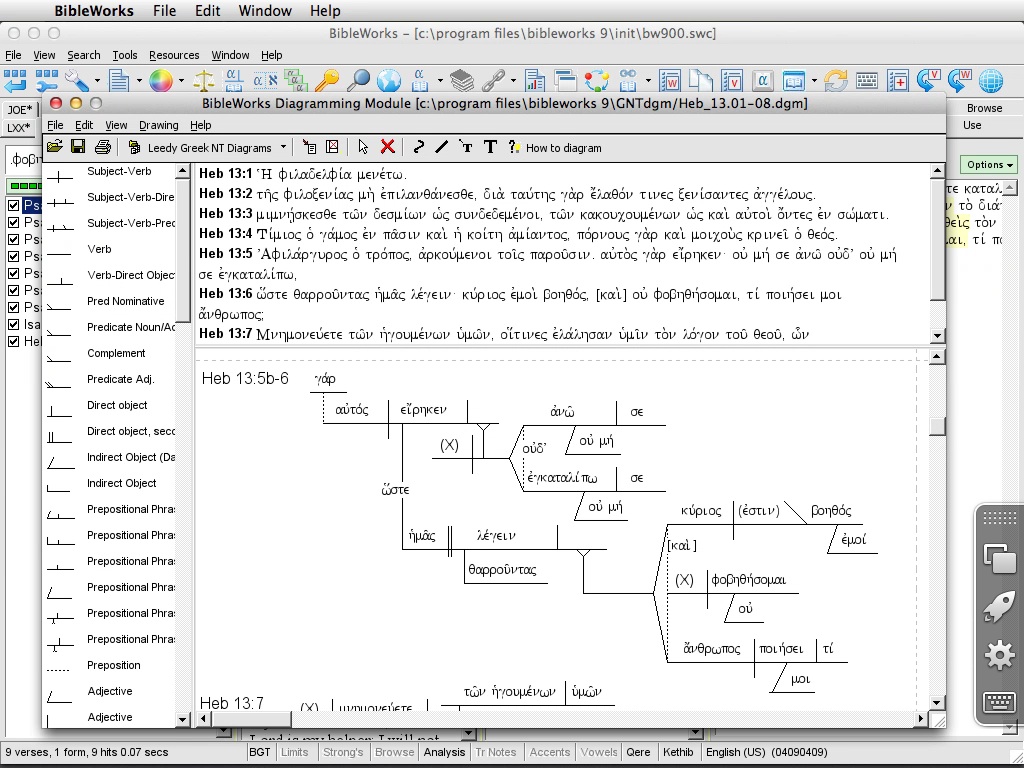
Here are the sentence diagrams. Click to enlarge, and notice how crisp everything looks. (This is on an iPad mini.)

bw diagrams

Most remarkable to me is that the Use Tab feature works–in the desktop/laptop version of the program, this works by hovering over a word. In the Parallels Access version of BibleWorks, a single click on a word in the Browse Window activates the feature.

Astounding. As my friend and long-time college roommate would say: We’re in the future.

The NA28 Greek NT in Olive Tree’s Bible Study App: Initial Impressions, on a Mac

Which Bible software program should I buy? My answer to that question continues to be the most-visited post at Words on the Word. In it I offer a comparative review of BibleWorks (9), Logos (4 and 5), and Accordance (10).

A fourth popular Bible study software is by Olive Tree. Their “Bible Study App” works in the following platforms:

iPad
iPhone
Mac on Lion
Windows 8
Windows Desktop
Android

I’ve installed the app on a Mac and an iPad, and have received the NA28 Greek New Testament to review. In a short series of posts, I’ll report on the Bible Study App, and how it allows users to interact with the NA28 text and critical apparatus. Here I review the Mac version, using a MacBook laptop.

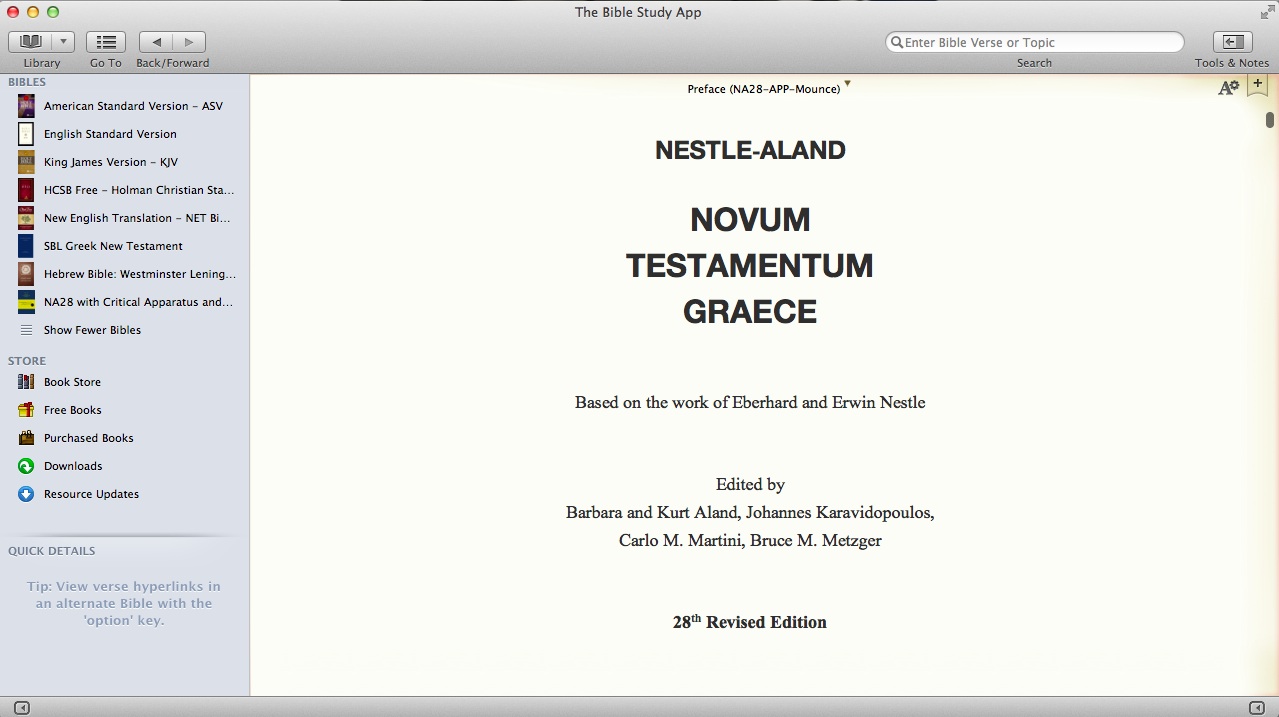
My opening screen, when I open the NA28 from my Library, looks like this (click to enlarge):

Opening Screen

The interface of the left sidebar resembles that of the Mac Finder windows. In addition the sidebar affords immediate (in-app) access to the Olive Tree store. Once you click on “Book Store,” you see a screen that slightly resembles the iTunes store:

Store

You can hide the sidebar and hide or customize the toolbar on top.

By clicking on the “Tools & Notes” icon on the top right (from the first screen shot above), I can open a second window (Olive Tree calls this “the split window”):

Split Window

I have several options at the top of the split window: Resource Guide, Notes, etc.

With the NA28 open, I quickly found four ways to navigate to a given verse–each of the three shown below, as well as a right-click option to select a verse.

Go To

For the NA28 with apparatus, I open the text in the left window and the apparatus in the right. Clicking on a word or hovering over it will show its morphological information (i.e., parsing and gloss) either through a pop-up menu (when clicking) or through the “Quick Details” at bottom left in the shot below (when hovering):

morphology info

Getting right to work within the program (with just the occasional reference to help files and a quick start guide) was easy enough. I didn’t find getting the two windows side-by-side to be as quickly intuitive as I would have liked, but I don’t know yet whether that’s a weakness in the program or just my newness to it. The interface is clean and visually appealing. I’ve already been impressed with all that’s available in the Olive Tree store.

More to come. In the meantime, Olive Tree has a blog post of their own on using the NA28 here.

Thanks to Olive Tree for the NA28 with Critical Apparatus, Mounce Parsings, and Concise Dictionary for the purposes of this blog review. You can find that product here

Basics of Biblical Greek vocabulary iPad app, reviewed

IMG_1048

Vocabulary cards have done wonders for my efforts to learn Greek and Hebrew. (And, really, anything else I put on a two-sided card.) Over the coming weeks and months, I’ll be reviewing a number of Greek and Hebrew vocabulary apps for iOS, with the iPad specifically in view. Today I review Zondervan’s Basics of Biblical Greek Vocabulary Cards app.

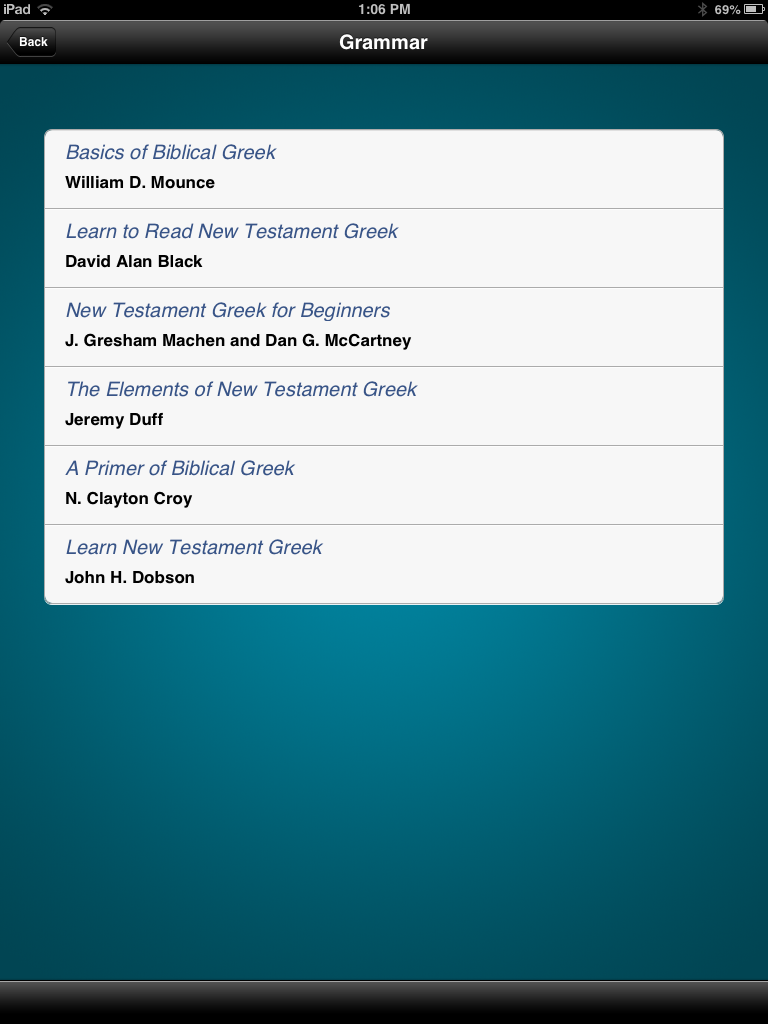
The above picture is the opening screen, following the branding and design of the popular textbook by William D. Mounce. Yet it is additionally keyed to five other popular beginning Greek grammars. This makes the app flexible to a number of students, so that they can be learning their exact vocabulary lists as presented by any of these textbooks. You can select the a book in the settings section:

IMG_0136

Words first appear on the screen like this:

IMG_1050

Then by tapping or swiping up or down, the English meaning is revealed:

IMG_1049

Swiping left or right from a Greek word goes just through the Greek words and doesn’t show English. (Tapping the double arrow keys at the bottom of the screen does the same.)

From what I can tell, the gloss (English “meaning”/equivalent) stays the same regardless of which grammar you select. This may be a rights or permission issue–that Zondervan would just use Mounce’s word glosses, even with the other grammars–but users of other textbooks besides Mounce’s should be aware of this.

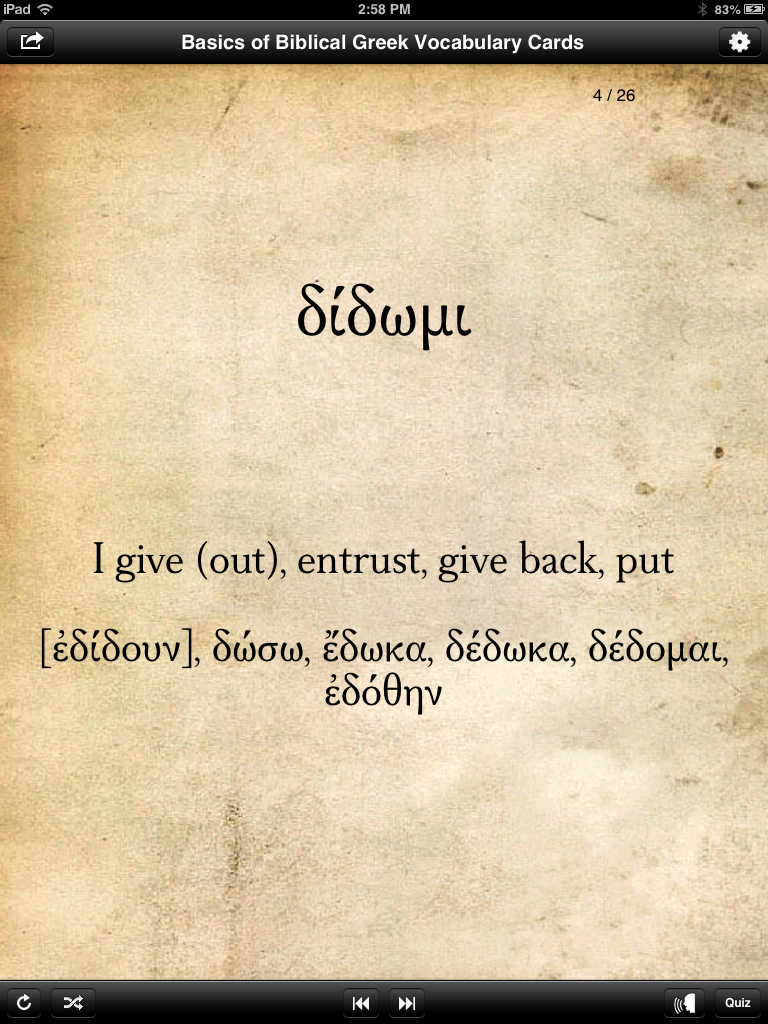
Verbs helpfully come with principal parts, displayed once you tap or swipe to show the English:

IMG_0137

Note also the audio icon on the bottom right of the screen above (just to the left of the “Quiz” button). For any given card, tapping on that icon plays an audio pronunciation of the word, which is a nice add-on, compared to the print cards. You can also set pronunciations to “on” in the preferences section, so that you automatically hear it every time you show a new word.

There is a glitch when switching to landscape mode. The same card as above looks like this in landscape orientation:

IMG_0138

That’s a pretty noticeable bug for such a simple and common function/gesture on an iPad, so I hope Zondervan fixes it soon. Along similar lines, another un-iPadlike bit of behavior is that if you close a case/cover to put your screen to sleep while the app is open, when you wake up the iPad, it shows the opening screen every time. It does remember your place, but to see the opening screen in such an instance seems odd. I don’t know of any other apps that do that.

Here is the “Sort” screen that shows all the ways you can customize the set of cards you want to go through. This is the app’s greatest strength.

IMG_0139

As you can see, you can sort not only by grammar, but also by chapter. For someone going sequentially through a textbook, this is a good feature. (It has the same effect as just “pulling” given chapters from one’s vocab card deck, though note that you can only select consecutive chapters here.) You can also quiz yourself by a single part of speech: “any,” noun, verb, adjective, adverb, preposition, or particle.

There are frequency settings, too, so that one can easily isolate words that appear just 50 to 100 times in the New Testament, for example.

I experienced it as a fairly significant loss (compared to the print cards) that these cards do not have frequency information on them. On the print cards you can see how many times a word appears in the Greek New Testament. Here there is no way to do so. You can set the frequency of what words you’ll study, but if you selected words with 50-500 occurrences, there would be no way to differentiate from within that set. The best you can do is to study a set within a range of frequencies by descending frequency (i.e., with most frequent words coming first in the “deck” you create for yourself).

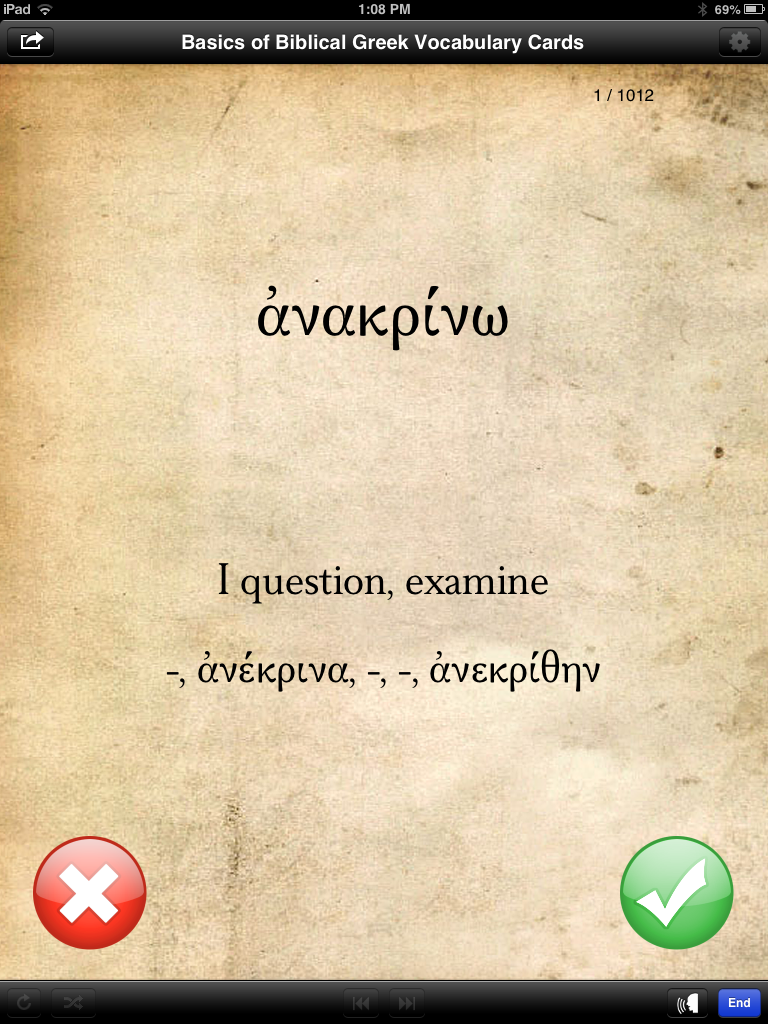
Here’s what a card looks like when you send it into “Quiz Mode”:

IMG_0140

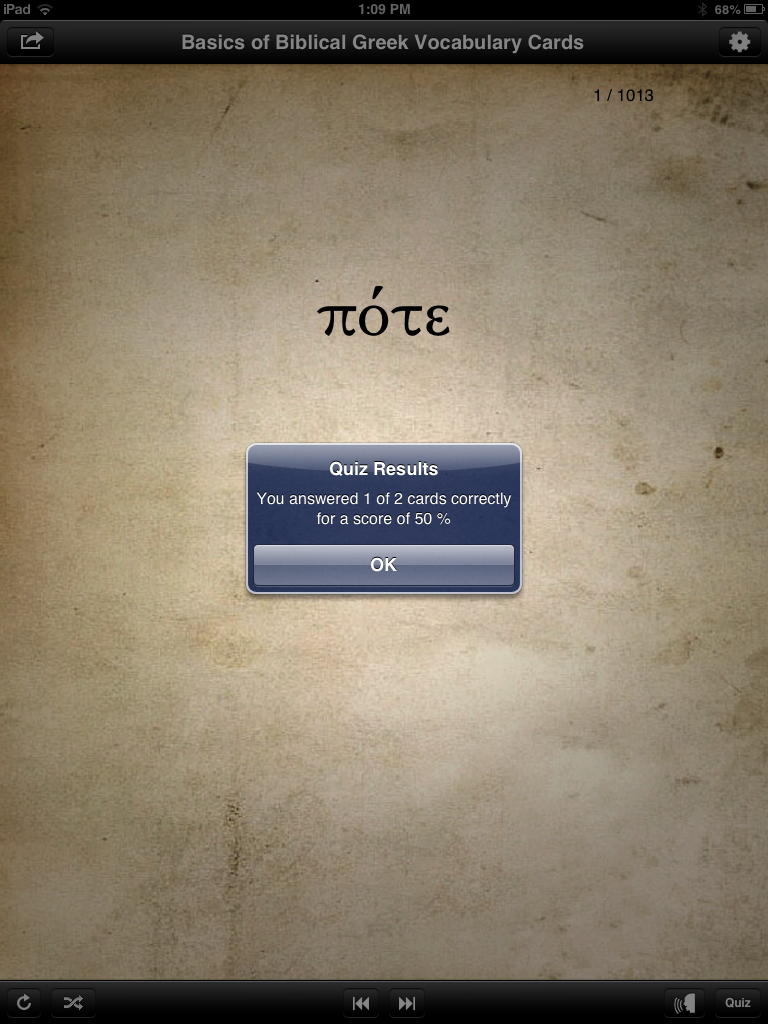
This feature works well and is a good way to track progress. You see the Greek first, then tap or swipe to see the English, then tap the red X or green check mark to show if you got it right or wrong. Then the app tracks your answers for a quiz score when you’re done:

IMG_0141

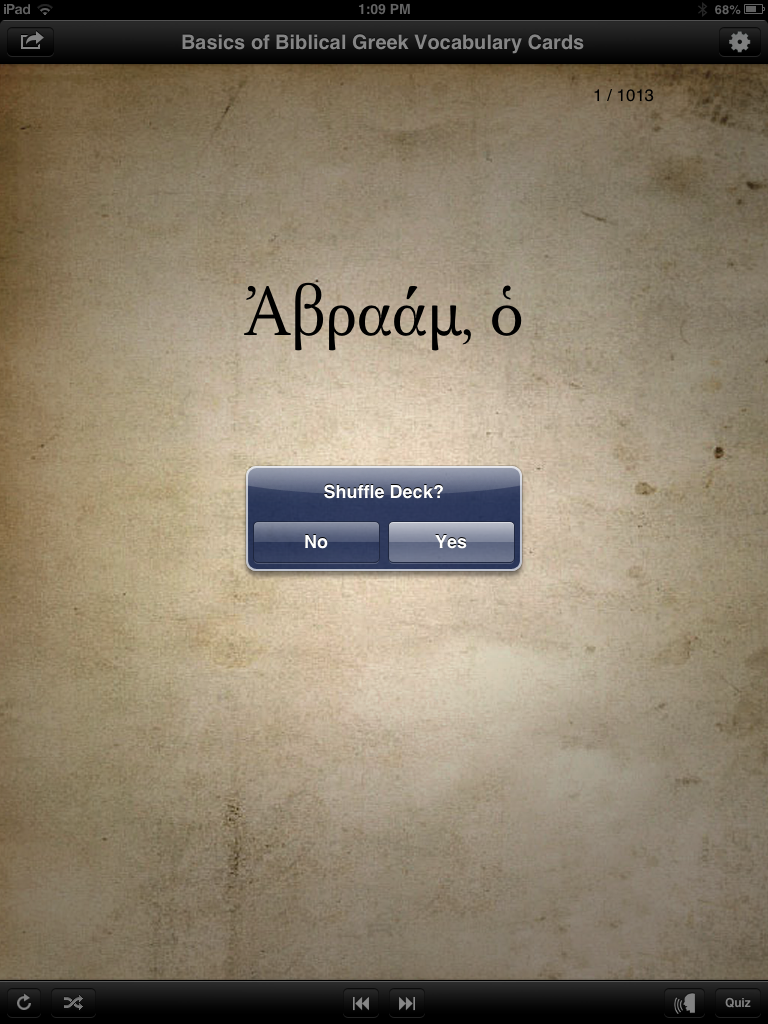
Using the icons at the bottom left of the above shot, you can either reset or shuffle a given deck:

IMG_0143

At $20, the Basics of Biblical Greek app is more expensive than most iPad apps a person would buy. There are other vocabulary app options on the market that do a similar thing (with even more customizability) for a lower price. I’ll explore some of those options in the future. I’m not convinced that the $20 is warranted with the app in its current iteration–I’d like to see a fix of the landscape mode option, as well as the addition of frequency statistics for individual words. The font is easy to read (though not the same font as used in Mounce’s materials), and the audio pronunciation is a nice addition.

8/27/13 UPDATE: I’ve heard from a developer that an update to the app will be released very soon that includes word frequency counts on the individual cards, fixes the landscape orientation bug shown above, and an English to Greek vocabulary card function. (This last one is a great idea, especially.) I know the developers are open to suggestions, so if you have used this app and have any ideas, feel free to leave a comment here. Future updates to the app will include additional features, as well.

The app is here, via the iTunes store. If and as it receives any future updates, I’ll post about them here.

Thanks to Zondervan for the complimentary app, given to me for the purposes of a review, with no expectations or pressures as to the content of this review.