1Writer: The Best Text Editor (and Blogging App!) for iOS

1Writer Icon


1Writer has been living in both my iPhone and iPad docks for a number of months now. It’s high time I wrote a proper review! It’s easily my favorite text editing app for iOS.


About 1Writer


Here’s a paragraph description of the app from the 1Writer site:

1Writer provides a distraction free writing environment. You can create and edit plain text or Markdown files. It does have many features including inline Markdown preview, word count, dark theme, TextExpander support, insert photo, an extra keyboard row, and many more. The extra keyboard row is a convenient row of buttons for navigation, formatting, special characters and actions. See the formatted results with inline Markdown preview while you write and a full, rich-text preview when you’re done.

My favorite feature is its ability to insert images right from an iOS device, making it the first iOS app I’ve found that is actually suitable for blogging.


1Writer: The Pros


Sync

Whether you want to use Dropbox or iCloud, 1Writer has excellent syncing capabilities. I have a couple Dropbox folders I sync to 1Writer, which is now where I keep blog post drafts. I can update a document from iPhone or iPad–or even use a Mac to update a draft with an OS X Markdown app.


Images!!!

You can blog from 1Writer. It has been surprisingly difficult to find an iOS app that can do this well, including WordPress’s native blogging app. One downside is that you can’t resize the images once you insert them into the post, so it’s still not as flexible as blogging with images through the WordPress Web interface on OS X. The fastidious among us may want to double-check layout in WordPress itself before posting anyway, so this is not a deal-breaker, if not ideal.


Works Great with an External Keyboard

You can type CMD-B for bold and CMD-I for italics, and it both inserts the markdown markup and shows you the inline preview. Not even Editorial can do this. You can also insert links with a keyboard shortcut.


Built-in Web Browser

Because 1Writer has a built in Web browser, you can search for images without even leaving the app, and then insert them into your document. There is also a really nice hyperlinking functionality, and you don’t have to leave 1Writer to find a link you want to include in a document or Web post. One especially nice touch is once you’ve got a link copied, the hyperlink button gives you the pop-up option of just pasting the clipboard contents (your link), so you can save a tap there.


Built-in Web Browser


Great-Looking Interface

The interface is easy to look at for a long time when writing:


1Writer Text


Tagging System

1Writer has a built-in tagging system, so you can even more easily organize your documents.


Tags 1


Tags 2


Actions

Like Drafts 4, 1Writer has a number of actions you can perform on your text. Whether you want to use a pre-installed action to export your document as plain text or PDF, or install something from the 1Writer action directory, there’s not much missing here.


Actions


My personal favorite action is “Jump to Section,” which allows you to navigate by headings. This is especially useful for long documents where you quickly want to go between sections. The interface of this feature is not quite as smooth as Editorial’s similar function, but it still gets the job done.


iOS9-Ready

Speaking of Editorial… that’s a fine app, but it’s still not iOS9-ready. 1Writer is, so you can utilize Slide Over and Split View functions.


Customizable Keyboard Row

There’s an extra, customizable keyboard row–including the ability to assign a character or even action to a button.


Top-Notch Developer

The developer is amazingly responsive. He totally knows what he’s doing, and has built an excellent app already. Insofar as there are small, desired improvements, he takes feedback seriously.


1Writer: Just a Few Minor Drawbacks


The built-in Web browser does not allow for multi-tabbed browsing. I found this to be a limitation, though since iOS9, when I want to search the Web, I tend to do it via Safari in Split View with 1Writer open separately anyway.

Another drawback: you can’t sync actions between devices. You have to manually set this up in any iOS device you use. Documents themselves sync perfectly, of course, just not these custom actions.


Concluding Evaluation


There are people who swear by Drafts (I am one!) and Editorial (there’s a lot to like about that app). But 1Writer is exceedingly underrated. (Though that may change now that Viticci reviewed it!) If you’re a blogger, especially, this is the app that will finally allow you to blog from your iOS device.

It’s (no question) the best thing on iOS for bloggers. And maybe even the best note-taking app, too.

You can find it in the App Store here. And, yes, I did write much of this post in 1Writer, exported the Markdown to HTML (from 1Writer), and then published.


Thanks to 1Writer for the review copy of the app, given to me for this review but with no expectation as to its content.

Notebook Review: Rustic Ridge Classic Leather Journal

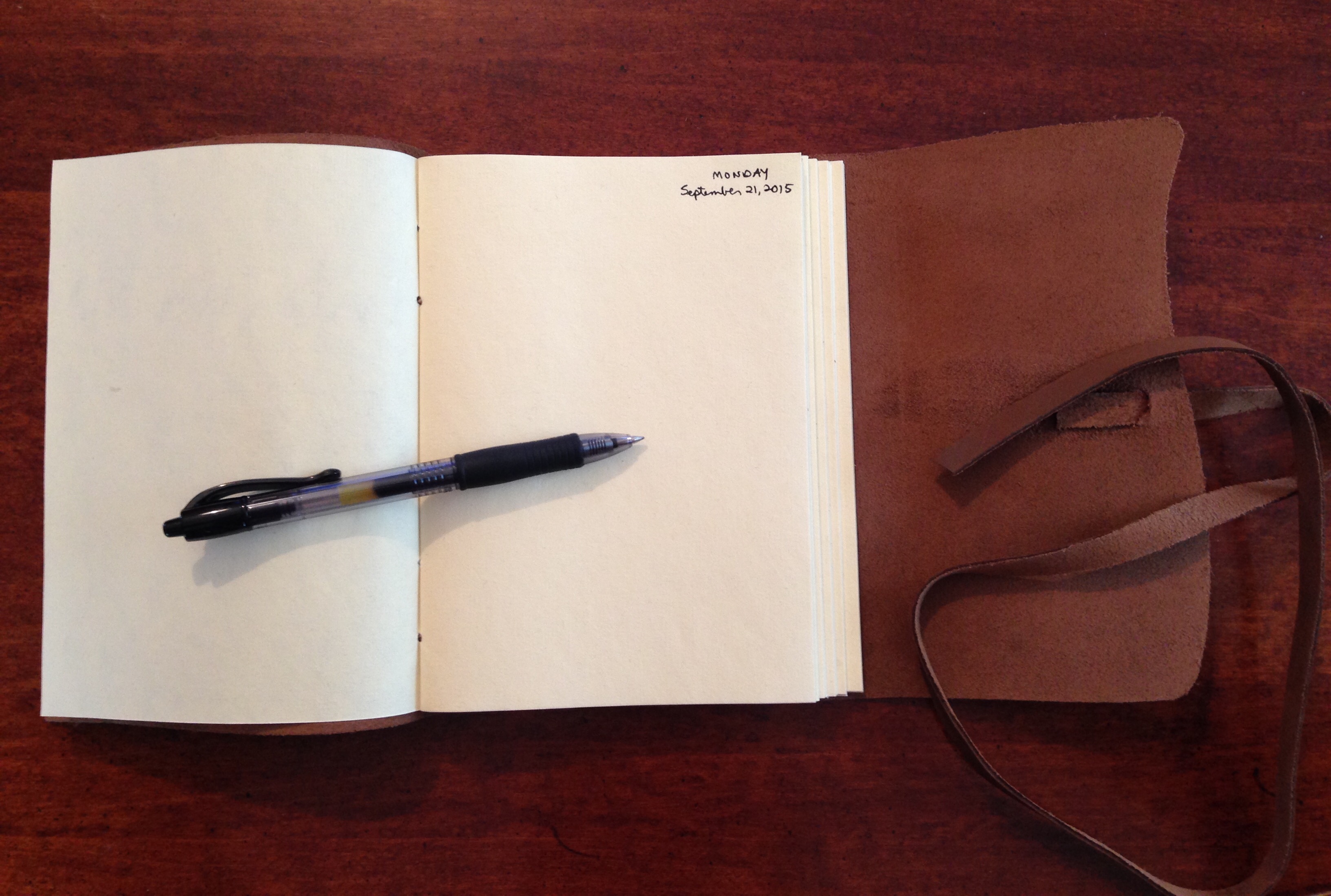
Front View


I’m back to writing in a journal again. It’s not that I haven’t been writing or reflecting these past few years–it’s just that I’ve been using other formats. But it’s hard (impossible?) to beat the distraction-free mode of a pen and nice journal.

Rustic Ridge Leather makes a classic leather journal that I’ve been using this fall. It’s made well without an accompanying exorbitant price tag. My Rustic Ridge journal is 5×7, which is probably my ideal size–portable yet big enough to feel like I have a good amount of space on the unlined pages.

You can see in the image above that it’s got a leather wrap tie closure. When I was a frequent journal-writer back in the day, I used to avoid those ties as much as possible. But this one has grown on me. There’s something almost ritualistic now about unwrapping it to start writing and then wrapping it back up again when I’m done.

Here’s what it looks like inside:


With Pen


The bleed-through is a little noticeable but largely limited, even with a Pilot G2 07 gel pen.


Limited BleedThrough


And check out the cool-looking binding (which, more important, shows its craftsmanship):


Binding View


It makes for an aesthetically enjoyable writing experience: before, during, and after.

The leather–as leather–had some imperfections I didn’t love:


Inside Flap


I’m no tanner, so I don’t know how avoidable something like the above would be, but I do understand that real leather has imperfections, so no worries, really. I learned from Rustic Ridge that my journal is “chrome-tanned” and has a buffed finish, which gives it its soft feel. There is not the oil finish sometimes applied to leather, so this journal didn’t have what I associate with a “leather” smell, but it’s just the applied oil that I’m not smelling. (Whatever treatment was applied did smell sort of chemically.)

Of course the leather journal lays flat right away, a question one might have with a hardcover journal. That’s a plus. And the cream-colored pages (acid-free) match the leather perfectly, so that the coloring is just right.

I am using the 200-page journal (i.e., 100 sheets of paper), but there is also a 400-page version (200 sheets). And, yes, I do hope to fill it up by the end of 2016! No need to look elsewhere for a great journal writing experience–this one has got me covered.

Find all Rustic Ridge’s leather journals here. They make other products, too, like photo albums. You can purchase the classic leather journal above using this link.


Many thanks to the fine folks at Rustic Ridge Leather for the journal for review! Check them out here.

Baron Fig: Put Your Confidant Notebook in Leather

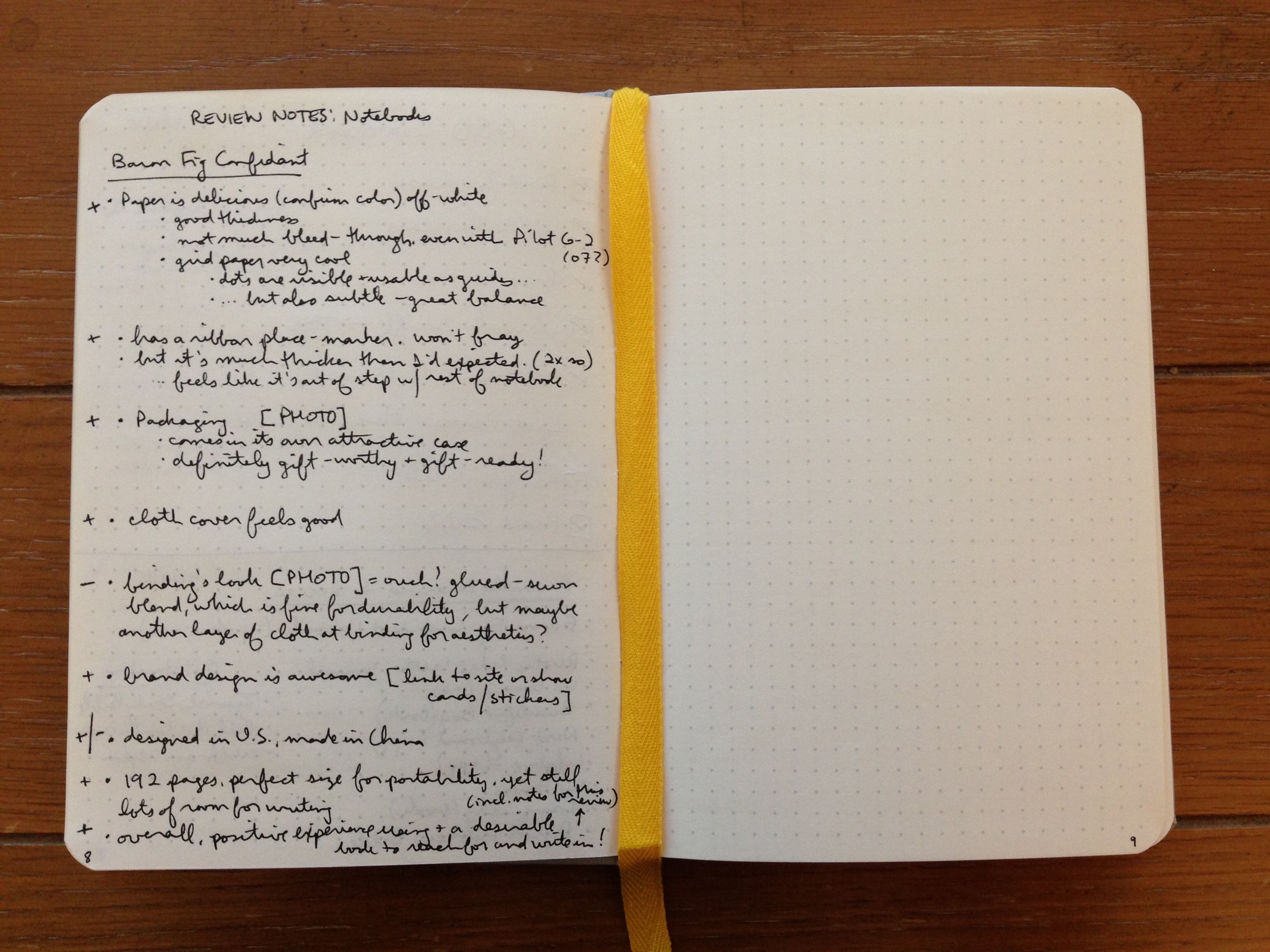
The inside of a Baron Fig Confidant is exactly what I want in a notebook: off-white paper, perfect thickness (no bleed-through with my Pilot G2 07 gel pen), and an option for dot grid paper. It looks like this:


Confidant Page Up Close


When I reviewed the Confidant notebook, I was generally impressed with it, but not with the aesthetic of the binding:


Binding


Today, however, Baron Fig announced a leather slip case for the Confidant. It looks awesome:


Screengrab from Baron Fig's site
Screengrab from Baron Fig’s site


The Guardian notebook cover is here. (And here‘s my original review of the Confidant.)

An Amazing Way to Index Your (Paper) Notebook

Baron Fig Confidant with writing


As far as I can tell, there are three ways to organize your catch-all notebook you carry around with you:

  1. Realize that you’re taking notes chronologically anyway, so just flip through by dated entry and hope you find what you are looking for.
  2. Number your pages (or get a notebook with numbered pages) and then keep the first three pages clear for your running Table of Contents.
  3. Use a tagging system, like you would in Evernote.

Yeah, I know. The last one didn’t seem possible to me either. But then I read this. (You’re welcome.)

Baron Fig’s Confidant Notebook, Reviewed

The first thing I noticed about Baron Fig’s Confidant notebook is that the paper is a delicious off-white. The paper’s thickness is perfect: there’s not very much writing bleed-through at all, even when using a Pilot G2 07 gel pen. That’s probably my first desideratum in a notebook, and Baron Fig nails it here.

The Confidant comes with blank paper, ruled paper, or dot grid paper, which is what I reviewed for review. The grey dots are visible and usable as guides for diagramming or sketching or writing… but they’re also subtle enough to stay out of your way. A great balance here.


Confidant Page Up Close


The Confidant lays flat, just as Baron Fig claims, though sometimes a bit of pushing down on the pages is required for them to stay flat. But this will happen naturally as you’re writing or sketching anyway. The binding itself lays flat as you’d hope. As you can see:


Baron Fig Confidant with writing
You guessed it: I started this blog post in my Confidant notebook


The acid-free paper means the book is built to last. And the dimensions just feel perfect to me: 5.4 by 7.7 inches. It’s 192 pages, with 12 pages at the back of the journal which are perforated. In other words, it’s enough space to keep you supplied for a while, but not so much that you’ve got a bulky journal to carry around. The portability is right on.

The cloth cover looks and feels good. The binding is sewn (yes!), which is, of course, one reason it lays flat so well.

I was not as impressed with the aesthetic of the binding: I thought it could have used maybe a thicker piece of cloth to cover up the binding construction that is so easily visible? I might just be missing that the look is intentional, but it didn’t appeal to me.


Binding


But let me step back for a moment. The packaging is top-notch. The notebook comes in its own attractive case, so that it’s gift-ready:


Confidant Gift Box


And as design goes, these folks are impressive. (See their Website here, for example.) Here’s a little clip from the insert that comes inside the box with the journal:


Confidant Design


The Confidant notebook comes with a ribbon for marking your place. I greatly appreciated this. It is about twice the thickness of most other ribbon markers, though, so it felt to me like it was out of step with the rest of the notebook. I have gotten used to this over time.

*******

Overall, the critiques above notwithstanding, I’ve had a positive experience using the Confidant, which gives me a notebook I really do want to reach for and write in! It goes with me in my satchel just about everywhere I go now.

You can learn more about the Confidant here and order it here.

Bonus paragraph: Baron Fig also makes the pocket-sized Apprentice notebook, which I think is an A+ in its class. It fits perfectly into even small pockets and isn’t a nuisance there. I’ve been carrying one of those around, too, so I don’t have to whip out a device every time I want to write down an action item I’ve committed to. The 3.5″ by 5″ little guy comes in a three-pack. More info on the Apprentice notebook is here; you can order here.


Many thanks to the awesome people at Baron Fig for the notebooks for review! Check them out here.

iA Writer 3, Just Released for iOS and OS X

iA Writer


iA Writer is a popular plain-text, Markdown writing app. Perhaps its most salient feature is its simplicity, which it achieves without sacrificing quality. I may be making you fine readers read too many writing and productivity app reviews, so for this one, I’ll just send you the relevant links so you can check out more.

Here‘s iA’s write-up of the app, with lots of details and links. Here it is in the Mac Store, and here it is in the iOS App Store. (They even have an Android version!)

WriteRight: Synonyms (and More) for iOS

You can almost make the iPad your only computing device if you’re a writer. You can certainly make it your primary one, especially if you’ve got a good external keyboard. The multi-tasking option of the upcoming iOS 9 will be another step forward for those who wish to go the iPad-only route.

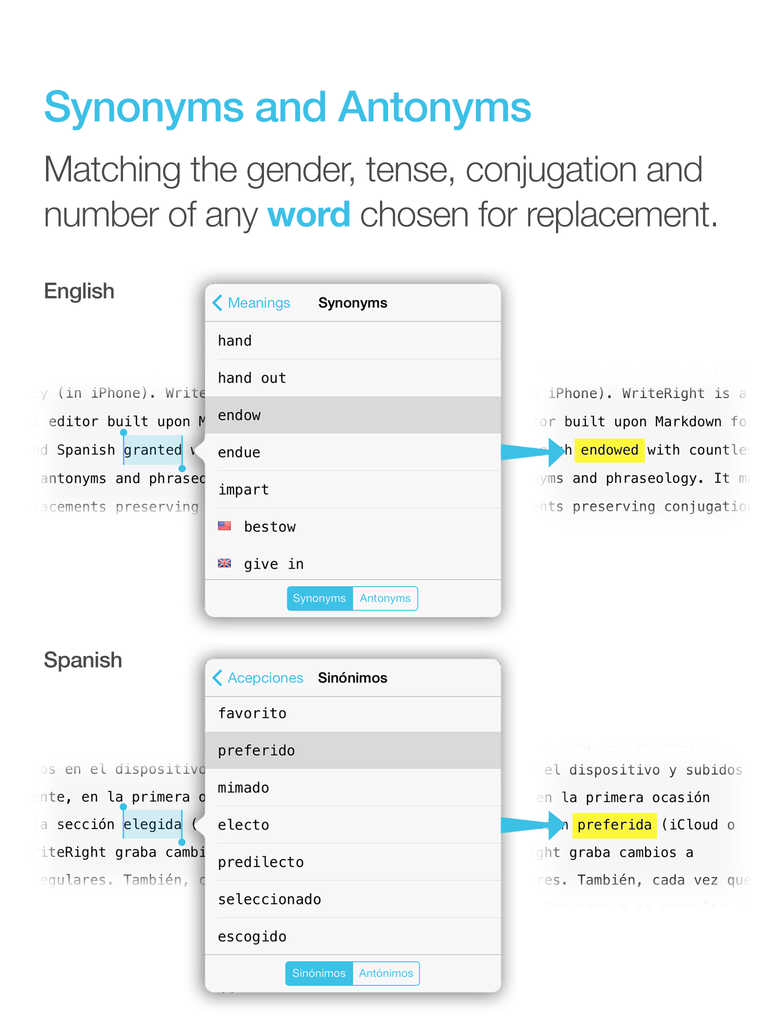
That said, the built-in operating system does not have a way to fetch synonyms for you. You can tap on a word and select “Define,” but there’s no synonym option.

That’s where WriteRight comes in:

Alt text

What I Like About WriteRight


It’s a plain-text, Markdown-enabled writing app. On the one hand, the App Store has a lot of these. On the other hand, it has some unique features. For instance, I click on the gear icon in the extended keyboard, and I see little gear icons above a couple words. Tapping one of those gives me phrase substitution suggestions:


phrase substitution


The extended keyboard is succinct–just one screen on an iPad in landscape mode. But if you tap on an asterisk, for example, you get multiple Markdown options:


Markdown options


There’s a handy find-and-replace feature, too, something lacking (or not easily accessible) in other similar apps:


Find and replace


And, of course, the synonym/antonym feature is a boon to writers. It’s available in both English and Spanish.


Synonyms


Integration with iCloud and Dropbox is implemented well. And because you’re dealing with Markdown, you can easily work on the same document via Dropbox in WriteRight and many other writing apps. I could finish a document, for example, on Ulysses on my computer, if I wanted to.

The real-time word count (and character count, for that matter) is easy to see and helps with any writing targets you may have.

The app in general feels well-designed. It’s got some nice touches that the regular user will enjoy discovering along the way–like the option to swipe left and right for undo/redo, and a number of other minor features that enhance the writing experience.


What I Find Lacking


Between Drafts and Editorial and 1Writer, I’ve become used to inline Markdown previews, which WriteRight does not have. It’s not a huge loss, but you do have to be comfortable reading Markdown, or else going back and forth a lot between the Edit and Preview windows, if you want to see what your finished text will look like. The multiple Preview options are nice, but inline Markdown preview in a future revision would be handy. If this is a deal-breaker for you, you might struggle to use WriteRight.

I happen to like the Menlo font, but I sometimes like to write using other fonts–WriteRight doesn’t give you the option to change what font you use in the Edit window, i.e., where you do your writing. You can change font size but not style.


That said–even if I’m not jumping to switch to using WriteRight as a primary writing app, its unique features and Cloud-sync capability mean that it has its place as a nice pre-publishing app, to use after I’ve written all my text and before I export and print (or save, or send on to someone). At $2.99, the synonym/antonym and find-and-replace features make it a useful tool in the writer’s tool belt.

Find the app (for iPad and iPhone) in the App Store here.


Thanks to the makers of WriteRight for the free download for the purposes of review.

Voice Dictate a Mind Map (MindNode+Drafts+Siri=Whoa.)

You can make a mind map with no hands in just three steps on an iPhone.

To voice dictate a mind map, you need:

  • an iPhone or iPad with Siri
  • the amazing app Drafts 4
  • mind mapping app MindNode

The Drafts action you’re going to need is “Open in….”

I’ve given this action (which comes already installed with Drafts) its own “Run Action” key on the customizable Drafts keyboard, with its own icon from the emoji keyboard. My keyboard in Drafts looks like this:


Voice MN_Keyboard


Now the amazing part, and it’s just three steps:


1. Outline the text of your mind map in Drafts.


Here’s a bit of voice-dictated text:


Voice MN_Draft


To get going, use Siri to record what will be your first node.

To get to a second node, simply say, “New line, new line” and say what your next node will be.

If you want to do sub-nodes (i.e., “children”) after you have dictated your main/parent node, say, “New line,” and then have Siri indent your sub-node with the “tab key” command. Then dictate that sub-node or child.

You can add more parent, child, and sibling topics similarly.


2. Run your “Open in…” action in Drafts.


I simply tap my “Run action” key, which automatically triggers the “Open in…” action:


VoiceMN_Open in


Select Mind Node and…


3. View your mind map in MindNode.


Voice MN_Map


Because of MindNode’s iCloud-enabled sync setup, you can now view (and modify) your mind map in iOS or OSX platforms.

Joey Lawrence put it best:


The above is an adaptation/re-posting of a previous post on voice dictating a mind map. That post used the app iThoughts, but I learned shortly after posting that even though MindNode doesn’t have the x-callback-url support that iThoughts does, Drafts’s “Open in…” feature makes the same process possible with just one extra tap. Rad.

How to Voice Dictate a Mind Map on Your iPhone

iThoughts icon
iThoughts mind mapping app


You can create a mind map with no hands in just three steps on an iPhone.

Before you voice dictate your mind map, you need:

Then head to the Drafts action directory to pick up this nice little callback url to install to Drafts. If you click this link from your iOS device, you can have it install the action right to Drafts. (More on iThoughts and x-callback-url options here.)

I’ve assigned this action its own “Run Action” key on the customizable Drafts keyboard, with the label MM. My keyboard in Drafts looks like this:


Mind Map Key


Now the fun part, and it’s just three steps:


1. Outline the text of your mind map in Drafts.


Here’s what I’ve just voice dictated:


Text in Drafts for Mind Map


To get going, use Siri to record what will be your first node (“topic” in iThoughts parlance).

To get to a second node, simply say, “New line, new line” and say what your next node/topic will be.

If you want to do sub-nodes (i.e., “children” topics) after you have dictated your main/parent topic, say, “New line,” and then have Siri indent your sub-node with the “tab key” command. Then dictate that sub-node or child topic.

You can add more parent, child, and sibling topics similarly. (iThoughts has a nice terminology overview here.)


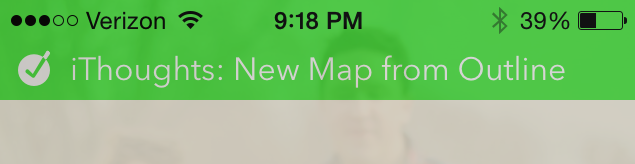
2. Run your “iThoughts: New Map from Outline” action in Drafts.


I simply tap my “Run action” key, which automatically opens my draft in iThoughts as a mind map–and does it so quickly, I can barely catch a screenshot of the dialogue!


New Map from Outline


3. View your mind map in iThoughts.


Here it is
Here it is


Because of iThoughts’s sync setup, you can now view (and modify) your mind map in iOS or OSX platforms.

If this isn’t amazing tech, I don’t know what is.

UPDATE: I’ve just learned you can achieve this same effect with MindNode, my current go-to app. It doesn’t have as rich x-callback-url support, but you can make a mind map from voice-dictated text using the “Open in…” feature in Drafts. Very cool.


Thanks to the good people of toketaWare, for giving me a download of iThoughts for iOS and OSX for review purposes. More on that app to follow.