App Review: Tempo Training Log for Runners

Tempo is an iOS training log for runners. It’s simpler than apps like Runtastic and Runkeeper, but it more than makes up for its fewer features with an excellent visual layout—the best of any running app I’ve seen.

Tempo doesn’t track runs in real time, but it pulls data from the iOS Health app. It’s explicitly designed to be a companion to the Apple Watch Workout app, but I’ve been testing it with my Health app, which receives workout data from both Runkeeper and Garmin Connect. In other words, Apple Watch or not, your running app or fitness watch can help you access at least 90% of Tempo’s features.

Here’s what the Dashboard looks like:


This is all the data I want in a running log, all in one place. You get year-to-date mileage, monthly mileage, and weekly mileage. You also can see “Last 365” (days), “Last 30,” and “Last 7.”

Underneath those top two rows is your “Intensity Trend,” which is the best way I’ve seen in any app to quickly scan through training patterns.

If you upgrade to Premium (easily the cheapest annual subscription I’ve seen in the App Store—$6.99/year), you get an Intensity Log that shows you data well before the most recent month:


A “Cumulative Graph” gives you another way to compare mileage (and pace!), week over week or month over month:
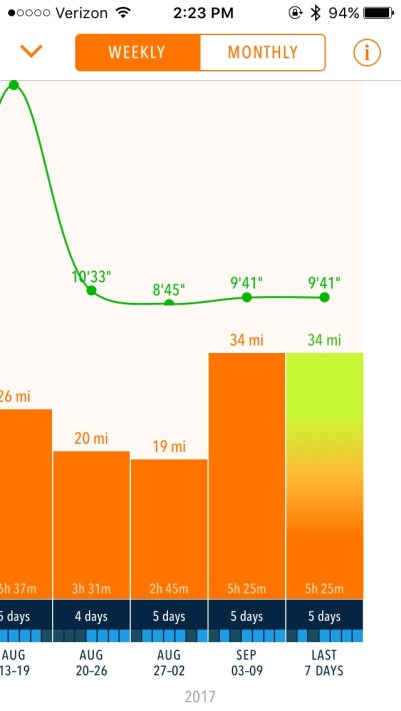


(My pace was thrown off by tracking some walks I didn’t intend to track. Oops!)

Here’s a sequence of weeks with pace above it—a great combination:
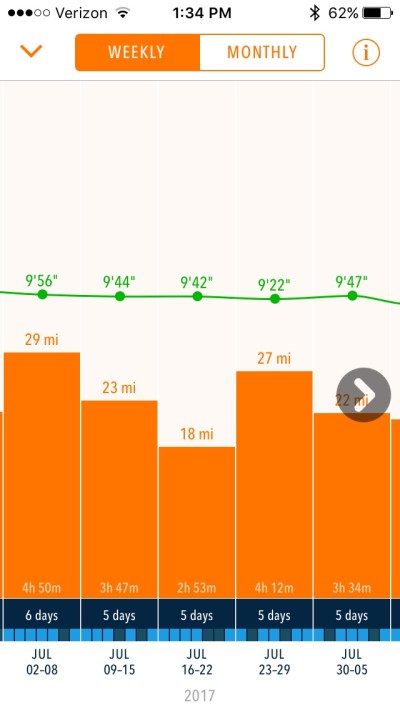


Also unique to the Premium version is “Trending Averages,” which look like this:


You can see all your runs as a list (“Runlog”—available to free users, too):


That button in the top right allows you to filter your runs. You can add notes to each activity, as well as tag it with your own tags (a Premium feature), even multiple ones (“Trail,” “Long run,” etc.).


Each individual run displays more activity if you click it:


If you have an Apple Watch (again—the assumption behind this app) you’ll get splits. If you’re connected to a device with a heart rate monitor, you’ll see that info, too. You can add any of your own notes, as well.

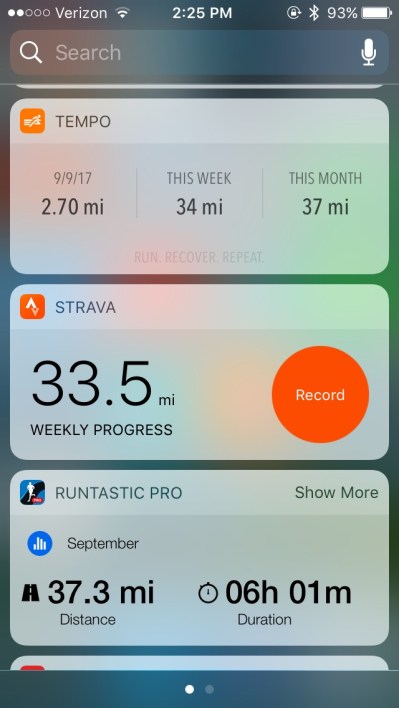
The Today widget is also really great, although seeing it next to Strava’s reinforces that the font is smaller than ideal. All the same, the widget gives you your last run, your weekly milage, and your monthly mileage—more data than other apps’ widgets provide.


There are two things Tempo lacks compared to other apps like Runkeeper or Strava:

  1. Social components
  2. Real-time run tracking

More and more, however, I see these as a strength. The app is focused—it’s a graphical training log, a digital version of what you might otherwise keep in a pocket notebook to track all your runs. Only this looks way better, and automatically imports your runs, as long as you have a watch or phone app that can feed data to Health. If you do run with a watch, you can run phoneless and still have all your data in a great-looking display.

The lack of social interaction on the app (you can’t connect via Tempo to friends) could also be a strong point, especially since Tempo seems intent on guarding user privacy. That’s not always the case with other similar apps.

Here’s some copy from the developer on privacy and lack of ads:

Tempo is built with privacy as a core principle. Your data is yours; we will never claim it, sell it, or share it with anyone. Tempo is for focussing on running and recovery without ad distractions, so it only has a paid model. You can download and try it for free, but your running will significantly benefit from pro features available with Tempo Premium.

It’s worth nothing that Runtastic Premium (advertised as ad-free) now regularly has Adidas clothing ads in my activity feed. I can’t remove them, and support acknowledges that they are there, but won’t admit that the ads are… well… ads. Which show up in ad-free Premium. No such detritus with Tempo.

The developer of Tempo is also a runner, and I think he’s succeeded in his aim to give you “your running visualized to delight you, motivate you, inspire you, and help you achieve your running goals.” Knowing mid-month that I’ve covered 50 miles is nice, but it’s even more motivating to know what I’ve done in the last 30 days, which Tempo shows you.

By the way (if I may sound off for a moment), the Health app on iOS has the worst layout of any Apple app. It’s as bloated and hard to navigate as iTunes is on a laptop. So if you do run with an Apple Watch, Tempo will relieve you from having to review data via the Health app—a continual exercise in frustration.

Tempo is free and available here. The Premium version is cheap and helps support further development. You can even try all the Premium features with a 14-day free trial.

If you want to read more of Tempo’s story, go here.


Thanks to the developer for the upgrade to Premium so I could review the app. I’ll be re-subscribing, for sure.

Race Recap: Around Cape Ann 25K


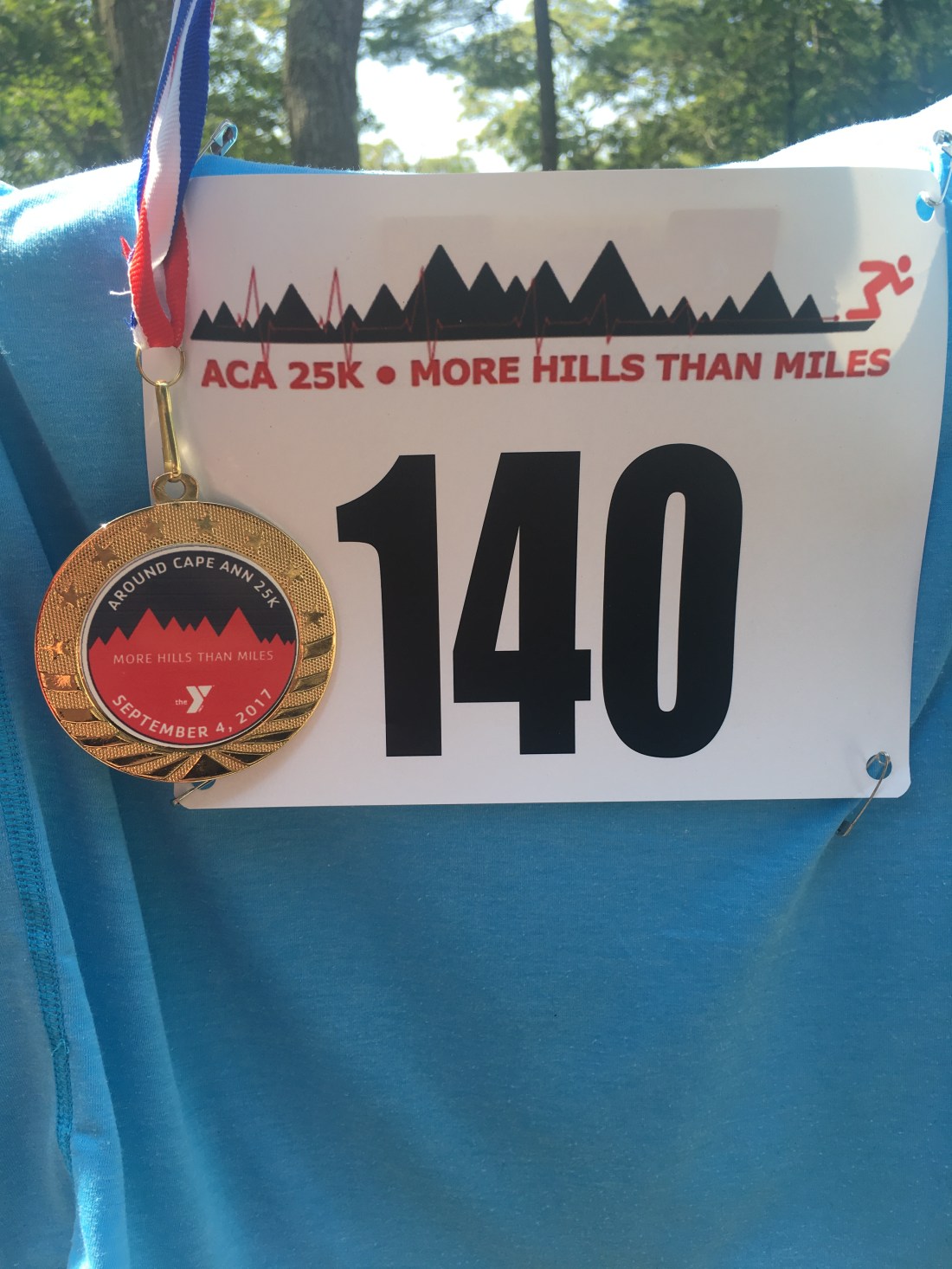
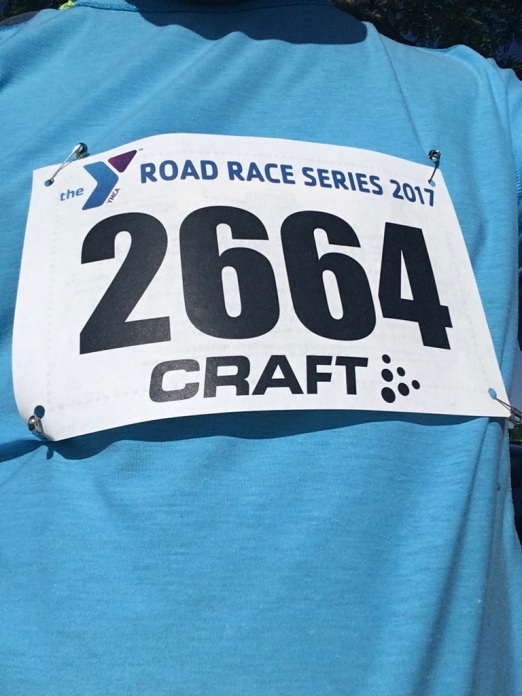
Yesterday I pushed myself to run a race that was 3.5 miles longer than anything I had practiced in training—and I’m really glad I did! On Labor Day 2017 I ran the Around Cape Ann 25K.

The 15.5-mile course is gorgeous… and really hilly. “More hills than miles” is the race’s motto. It sports 16 major hills, though most of the race feels like a series of rolling hills; not much of it is flat.

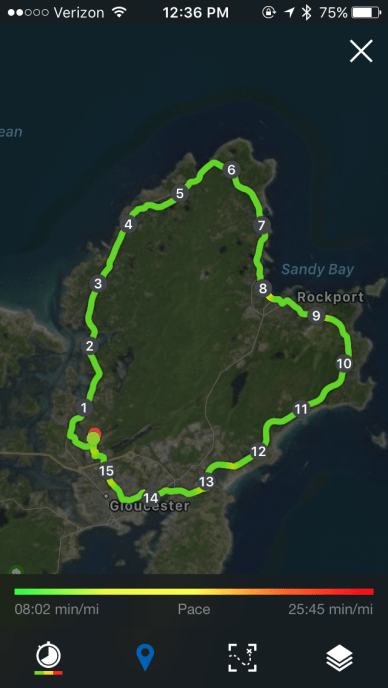
The route hugs the coastline, and I could see ocean for most of the first half of the race:


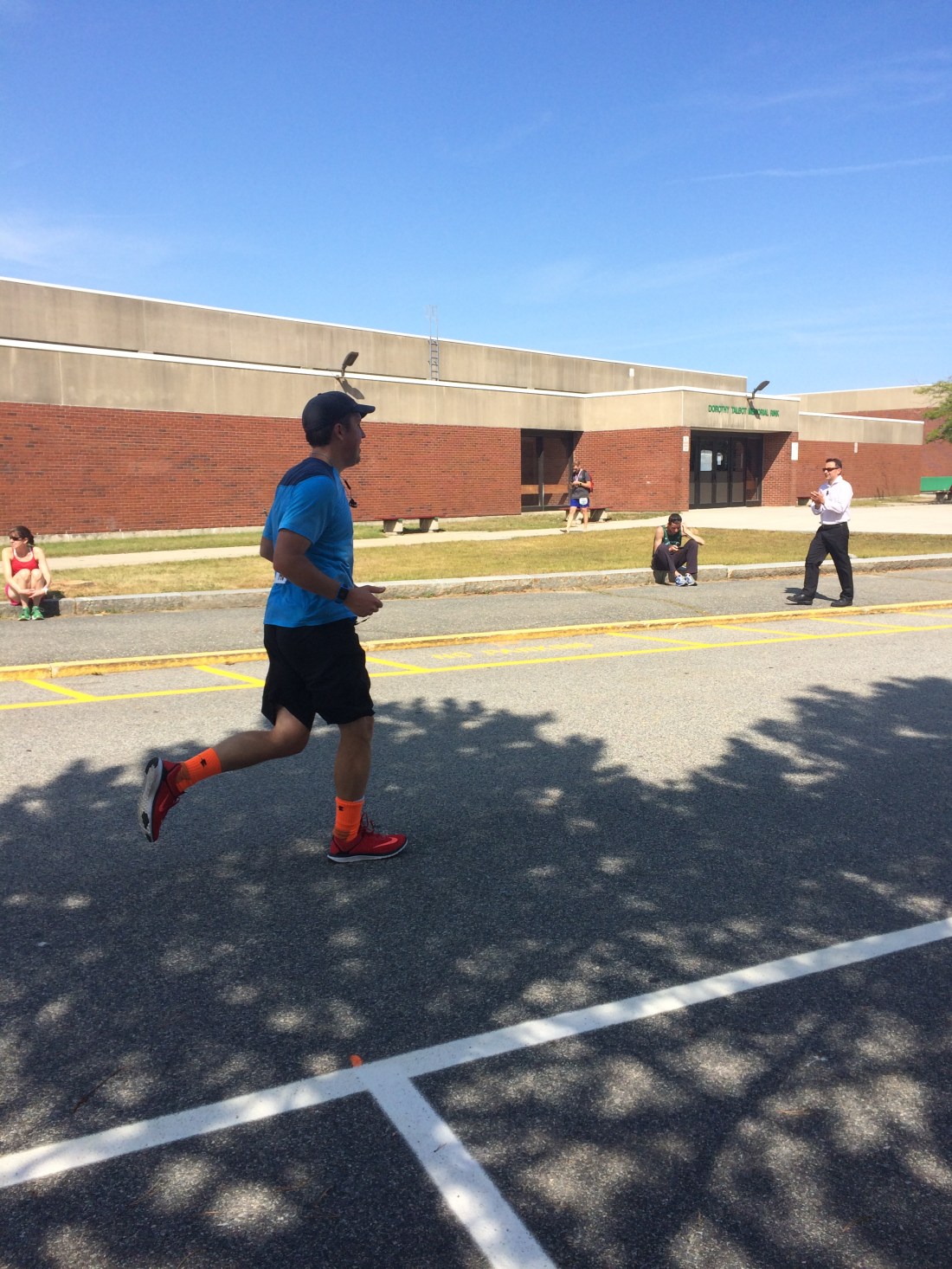
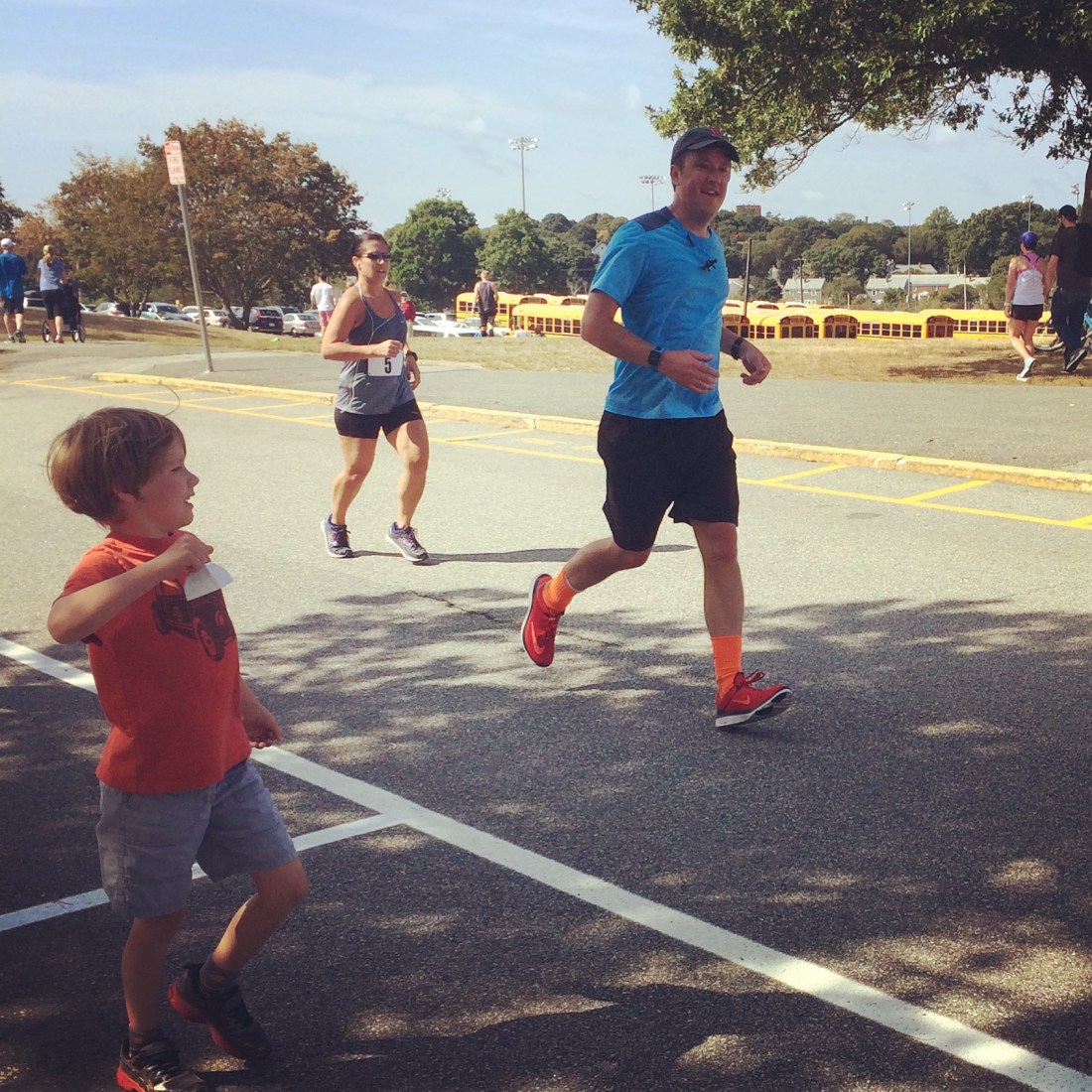
I didn’t run with my phone, but my wife caught these action shots. She and the kids met me three times along the way and at the finish line—their encouragement was huge!

Here I am running:


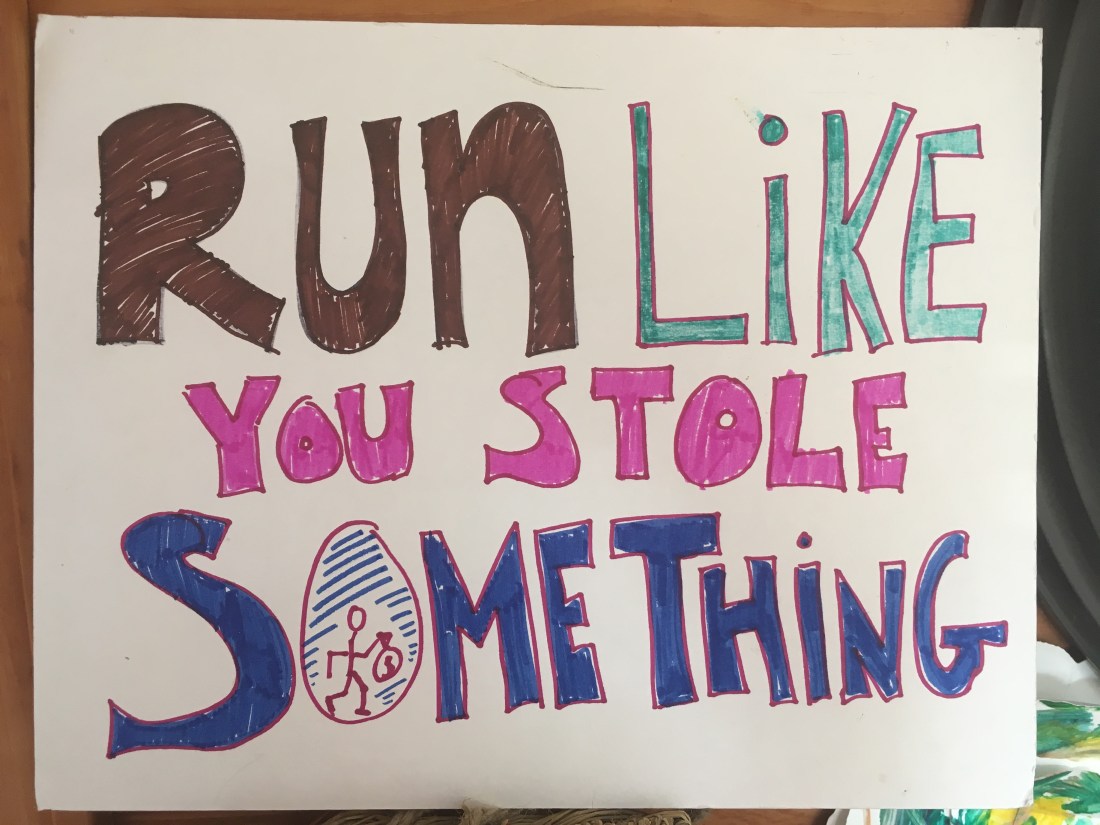
And the fam made me signs! My wife held this one up with a police officer standing right next to her.


Pre-Race Training


In the two months that I trained for the race (yeah… 12 weeks would have been better) I ran 101 miles per month, and did long runs almost every week of 6, 7, 8, 9, 10, 11, and then 12 miles. For the most part my long runs increased by a half mile or mile each week. (Usually by a mile—a little aggressive.)

In May I ran 6 miles twice. It wasn’t until June that I ran 7 miles (just once!) and then 8 (also just once!). In July I did a 10-mile run and 11-mile run, as well as getting my fastest 10K time at the end of the month. In August I stepped it up a bit with two 11-milers and a 12-miler. Kudos to my friend Nate for helping me realize that was enough of a base to sign up for the race—realizing it would be a challenge!

That 12-mile run (12 days before the 25K) was awful. I was a little dumb on the timing—it was the middle of the day, and the temperature was approaching 80. I had a water bottle with me, but had drunk it all by mile 9. I’d kept a sub-10 pace for the first six miles, but then my last six mile splits were more like 12/11/12/12/13/13. I was dehydrated and experienced some heat exhaustion.

I knew that was probably going to be my last long run before the big 15.5-miler, and it left a bad taste in my mouth and had me anxious. I had to keep telling myself it was just a fluke. I hadn’t signed up for the race yet and (briefly) considered skipping it after that.

Thankfully, the week before the race (last week) I got my fastest 5K time twice within two days. (I’m finally at the 25 minute mark!) In between those two fast runs I ran with Patrick R., which pumped me up big time. (Check out his running blog here. It’s good stuff.) Then I had a practice shake-out run of four miles where I practiced what I planned to be my 10:15 race pace. I felt great, so was confident heading into the race.


How the 25K Race Went


I ran just about the race I had hoped/planned to run. After running my last six “long run” miles at a 12-minute and 13-minute pace, I decided to start between a 10:00 and 10:30 pace and keep it that way as long as I could.

The last 2.5 miles of the race were tough. I felt good about it overall, though. It was a great challenge, and it feels awesome to have met it.


My chip time was a 10:34 pace. I stopped for the bathroom and to re-tie my shoes, so according to my watch, my actual running time was 10:18 per minute. I will be the first to acknowledge that is not fast (you have to scroll—ahem—pretty far down the results to see my name). But I had some of my best miles at miles 9 and 10, right after a huge hill I powered up.

And I met my goal of a 10:00-10:30 running pace! If there is one lesson I’ve learned with running more recently (actually, there are dozens of lessons) it’s that my primary competition is myself. And I ran the race I wanted to run. That feels huge.

I was so glad the race started at 8:00 a.m. It was barely 60 degrees then. It definitely warmed up along the way, but I don’t know that it ever got past 70.


On Faith and Running


I asked a few friends before the race for some good running mantras. And scoured the Internet. Here are a few I used:

  • I’ve got this
  • This hill ain’t nothing
  • Just one more song (this one is ironic because I kept the music off until about mile 8! I never could have done that a year ago)
  • “Run the mile you’re in” (my favorite—best running advice ever, and some great life advice, too)
  • It’s not like my legs are going to fall off
  • All I can do is keep moving forward (this is technically not true—I could’ve stopped and quit!)
  • This is enjoyable. I enjoy this! (“praying shapes believing,” right?)

Then on Sunday—the day before the 25K—our worship leader introduced the song “Your Grace Is Enough” by saying there is hardly any better mantra than this. !!!

So that became a running mantra, too, especially in the last half when it became clear I wasn’t going to blow away my pace goal, but was merely going to meet it. I kept saying, “Your grace is enough.” “Your grace is enough.” If I never meet this goal, it’s okay, because I already have received the best gift there is—the love of God in Jesus. Sure, running goals are still important, but God’s grace is enough, and present with me no matter how I do. I find that incredibly reassuring—and actually a truth that will help me run faster in the long run anyway.

“Come, Holy Spirit” also turned out to be a really good running “mantra” that never even occurred to me until I was about 10 miles in. I’m a pastor, so I feel a little embarrassed that it took me so long to figure that one out, but praying, “Come, Holy Spirit” is one of the best ways I know to try to invite God into my run—or to heighten my awareness of God’s presence that is already there. I prayed it for a few tenths of a mile, and the combination of that prayer, God’s answering it, and the lush ocean scenery led to a pretty powerful experience of the Holy Spirit as I ran.


What’s Next


I think race recaps are supposed to be shorter than this, but this is my first one, so thanks if you’ve read this far.

It’s a truism of running that we runners (pretend to) regret signing up for the race we’re slogging through, only to plan for the next one as soon as we cross the finish line.


My brain was kind of mushy at the end of the race, but by evening as I enjoyed a cool beverage, I’d already set my next goal: to run a half marathon with a pace of under 10:00 minutes per mile. That’s two fewer miles than I just did and 20 seconds per mile faster. I’d love to get a sub-2-hour half marathon time at some point. Hopefully this time next year I’ll be writing up that race recap.

Garmin Vívoactive 3: Officially Announced!

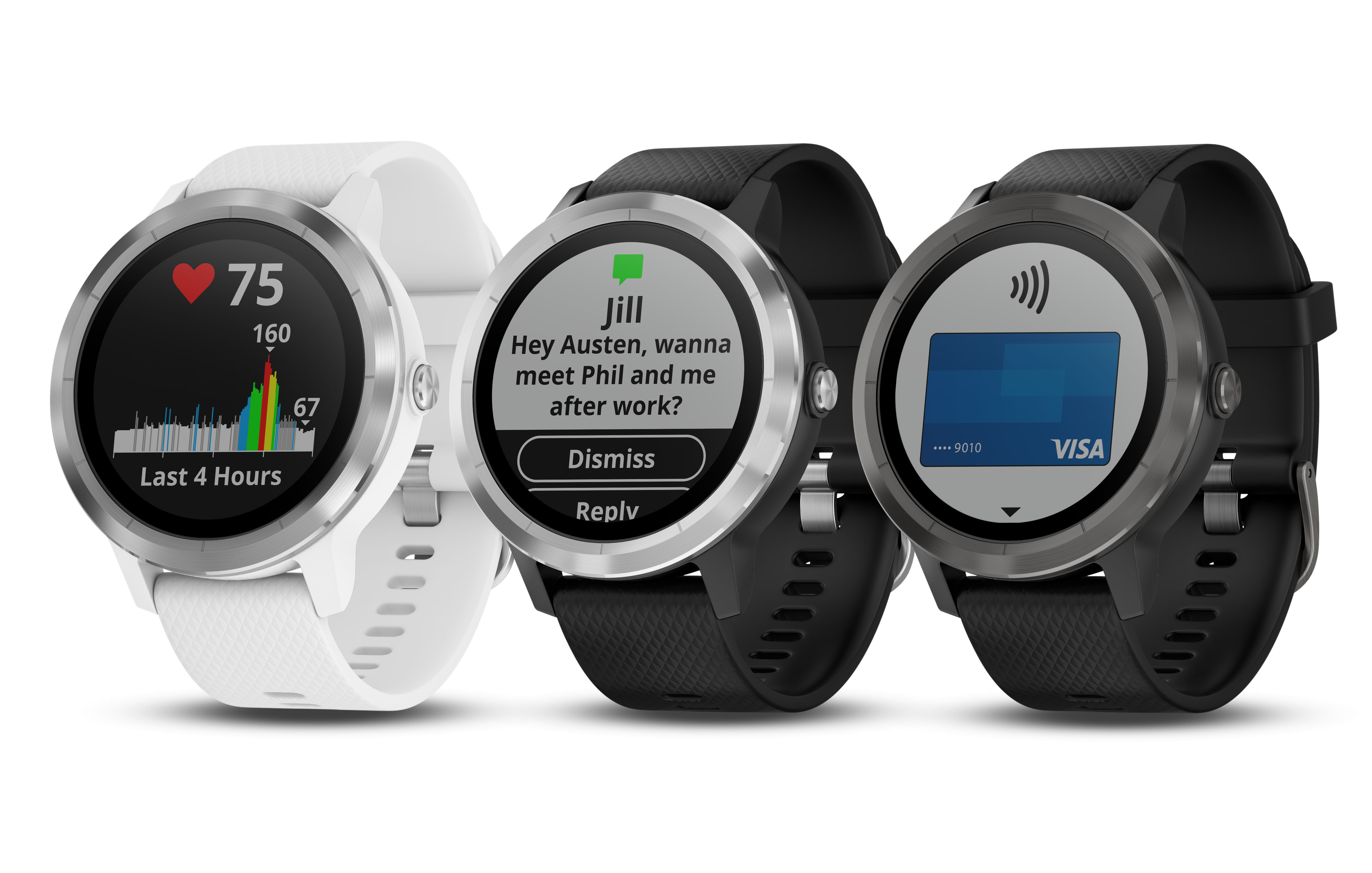
Image via Garmin

Garmin just issued a press release on the Vívoactive 3 (as well as two other watches). Read it here, and find the product page (with pricing info) here.

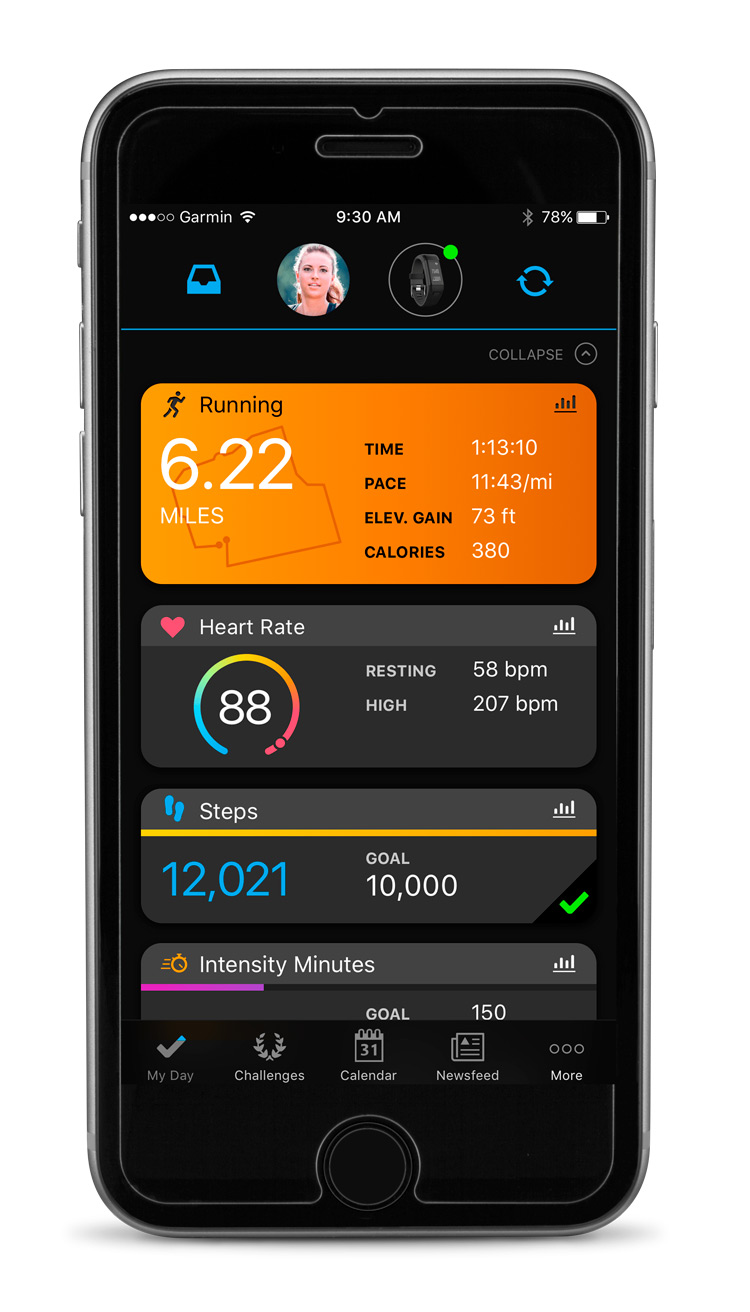
One other neat addition (that has yet to be realized) is what looks like a much-needed refresh to the accompanying mobile app:

Image via Garmin

What’s New in the Garmin Vívoactive 3


Screenshot 2017-08-30 16.27.55
Image via Garmin Vívoactive 3 Manual


Garmin has not yet announced their new Vívoactive 3 smartwatch, but Dave Zatz today pointed out a link to a full PDF of the Vívoactive 3 PDF manual. (Here; link active at time of posting.)

Tech site SlashGear picked up one major new feature: the addition of Garmin Pay, which enables you to make credit or debit card payments from your watch.

For those of us who are more interested in the fitness aspects of the watch, here are some highlights I picked up from reading through the user manual—I’m sure Garmin will make their own official announcement this week.

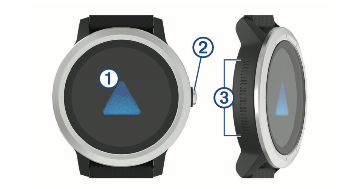
The Vívoactive 3 is a touchscreen device. But there’s also something I’ve never seen on a watch before: what Garmin is calling “Side Swipe Control,” a grooved, touch-sensitive area on the side/body of the watch. (Number 3 in image below.)


Screenshot 2017-08-30 16.08.12
Image via Garmin Vívoactive 3 Manual


It’s a great idea, especially since touch screens are notoriously difficult to navigate mid-sweaty workout. By contrast, the Side Swipe Control allows you to “slide up or down along the textured area to scroll through widgets, data screens, and menus.”

You can navigate widgets, data screens, and menus via touchscreen, too, but having this additional way to do it seems to be one of the major contributions this watch makes.

Here are some other new features, compared to previous Vívoactive models:

  • VO2 Max estimates (“on the device, your VO2 max. estimate appears as a number, description, and level on the gauge”)
  • a new “stress level” metric (based on daily heart rate variability)
  • ability to calibrate treadmill distance—I don’t remember previous Vívoactives having this, but it’s welcome addition, since the Vívoactive HR (now called “Vívoactive 2”) was quite inaccurate on treadmill activities
  • ability to view personal records from the watch itself
  • use of GPS to mark and save a location, then navigate back to it (the TomTom Spark 3 has this, but now it’s on a Garmin—cool!)
  • compass “with automatic calibration”
  • customizable watch faces, so you can select which data fields display

It’s still the multi-sport, activity tracking, wrist-based heart rate monitor watch the previous models were. Steps are counted, sleep is tracked, weather is displayed, move alerts remind you to get up when you’ve been sitting an hour, and more.

Screenshot 2017-08-30 16.08.17
Image via Garmin Vívoactive 3 Manual

If you were hoping that the Vívoactive 3 would add stand-alone music playing, the manual does not suggest that capability.

I used the Vívoactive HR for a while, but ended up returning it. The watch itself was good, but the Bluetooth connection kept dropping, the weather was consistently a few hours or days off, and the rectangular look was a little unpleasant. The Vívoactive 3 is certainly more aesthetically pleasing than previous models!

No idea what the price point will be, but I’ll post again when release is official.

Deep Work… for Parents?


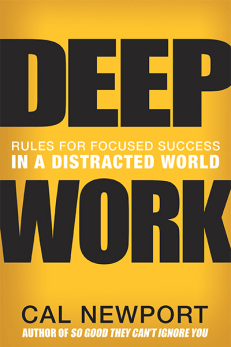
A working mom and productivity app publicist Tweeted, “How to do #DeepWork even when you have deep responsibilities (spoiler alert: that means kids) – by @lvanderkam.”

The accompanying image was Vanderkam’s right-on-the-money critique of Cal Newport’s Deep Work, which held up Carl Jung as an example for shutting himself off to do “deep work.” Translation: he neglected his kids?

Newport starts by writing (in a laudatory fashion) about Carl Jung secluding himself in a tower so he could ponder his breakthrough ideas. Newport notes that there were sacrifices involved in his decision. For instance, it “reduced the time he spent on his clinical work.” Not mentioned: when Jung bought this retreat property in 1922, he and his wife had five children. It’s safe to say locking himself off from the world locked himself off from those responsibilities. And while perhaps that was par for the course for a man in 1922 (and maybe especially for Jung, who was allegedly an unfaithful husband), someone had to be around the family.

Newport is a working father, but as journalist Brigid Schulte suggests in Overwhelmed: How to Work, Love, and Play When No One Has the Time, working fathers don’t carry the same load at home as working mothers. Maybe Newport has this all worked out with his family and work in a fair and agreeable way. But as I’m reading it, Schulte’s work is making a strong case that the ability to perform deep work is a gendered phenomenon. Culturally (in the U.S., at least) it’s still easier for dads than moms to get away and carve out large blocks of uninterrupted, focused time.

Be that as it may, “deep work” for any engaged parent can be hard to come by. Working from home is a beautiful thing, but how often have I felt tinges of guilt as I told my children I couldn’t play right now because I was working, barely glancing up from the computer to let them know? In that case both the work and (more important) the child receive less than what I would hope to give.

Someone needs to write a Deep Work for Parents book. Who knows? Maybe that will be Newport’s follow-up. And Vanderkam has great ideas here. (Her website is sub-titled, “Writing about Time Management, Life, Careers & Family.”)

How about you, working parents who read this blog? How do you get focused, high-level work done when your “job” isn’t your only job? How do you handle interruptions if you work from home? How do you find energy to cook dinner and do bedtime routines after working all day outside the house?

All ideas welcomed in the comments below.

The Busy Pastor’s Guide to Inbox Shalom

Screenshot 2017-07-24 14.58.10


I’ve recently had a new article published at CTPastors.com: “The Busy Pastor’s Guide to Inbox Shalom.”

It begins:

A ministry supervisor once told me a quick way to lose respect in ministry: Don’t return people’s phone calls. The same holds true for email.

The article suggests how pastors (or anyone) can reset to Inbox Zero in two minutes, and then recommends some strategies for keeping your Inbox in a state of shalom.

You can read the whole article here.

Brand New Accordance Webinar I’m Leading Tomorrow on the Septuagint


Tomorrow I am leading a brand new Accordance Bible Software webinar: Studying the Septuagint with Accordance.

The session will cover as many of these topics as we’ll have time for in an hour:

• Septuagint resources in Accordance
• Setting up an LXX and Greek NT Workspace
• The New Testament’s use of the Old Testament
• LXX Reading for vocabulary acquisition
• Reading the Septuagint with Göttingen editions
• Advanced: Hebrew-Greek translation equivalents and the MERGE search (as time permits)

I’m looking forward to this one. Sign up info is here.


A Thorough Review of Runkeeper (Go)


I may have been premature when I said Runtastic has the best running app on the market. Don’t get me wrong—it’s a great app, and I still use it regularly.

But Runkeeper—especially in its “Go” (premium) version—is a more versatile and aesthetically pleasing and powerful app.

In this review I’ll cover Runkeeper via these categories:

  1. Runkeeper on iPhone
  2. Training Plans (and Runkeeper Go)
  3. Personal Records and Goal Setting
  4. Runkeeper’s Web Interface
  5. Bells and Whistles
  6. What’s Missing
  7. Pay for Pro: Yes or No?


1. Runkeeper on iPhone


The most likely point of entry to the Runkeeper world is through the iOS App Store (or Android).

Although Runkeeper isn’t as economical with screen space as Runtastic is, Runkeeper looks great on a phone:


You’re definitely not going to miss any of your stats at a glance! A recent update made them nice and huge. You can also see a live map of where you’re going, provided you give Runkeeper permission to track your location when you’re using the app.

Once you’re finished with a workout, you can see a nice summary of your run:


With splits, too:


Each activity automatically saves the weather. You can add notes, track shoe mileage, and even tag a fellow Runkeeper user you might have run with:


You can add multiple photos of your run to an activity:


There’s even a setting to engage Runkeeper’s “Pocket Track” to automatically track your movement. You don’t even have to start an activity, for example, for it to track a walk:


It’s a little less immediate than in other running apps to get right away to your last activity–often the purpose for which I’m opening the app. You have to tap on the “Me” section, scroll down through a not-quite-optimized screen a bit, then tap on “Activities” to pull up the list.

The app also features a social component, so you can view friends’ activity. (This feature is much more robust than that of Runtastic.)
 

2. Training Plans (and Runkeeper Go)

 
The training plans in Runkeeper are awesome. I clicked on a “challenge” that popped up one day, and based on my previous runs, it smartly recommended my average 5K time, which would be a base for the training. Love it.


After working through the five interval-based runs, my sixth run in the ASICS Pace Academy Challenge did, in fact, have me showing some improvement.


The app also features audio coaching, which is especially useful in knowing when to adjust your pace on an interval run. The audio cues for interval runs are perfectly clear and well executed.

You can change the voice. I like Boston Fan, who invites me to the packie for a couple of beeahs after the run. Drill Instructor is pretty cool, too. You can adjust the volume and even how often your audio cue comes up—whether by distance (every mile or two or five) or duration (every x minutes). You can specify which stats it gives you, too—time, distance, average pace (the ones I use), split pace, even average and current heart rate (this works because I can link my Garmin with built-in HR monitor to the app!).

You can set up your own intervals and training plans, based on a goal time. Some of these plans are available without the premium Runkeeper Go; others require the subscription.


And you can even get a weather report showing atop your training plan!


Runkeeper Go also adds the ability to compare workouts. I could hardly believe a little iPhone app could do this, but you can select two different runs, for example, and see how they compare at various points.


Go also gives you “progress insights,” so you can quickly see (in chart form) your average pace over time, mileage per month, and even track weight over time.
 

3. Personal Records and Goal Setting

 
Runkeeper does a nice job of keeping track of all your personal records in one place. And where you haven’t achieved a personal best (for a half marathon, say), you can tap on training plan options.


The opening screen on the iPhone app also has a row with your records showing.


New records show up right away, if you beat them:


And you get an email!


One huge lack is that if you beat your 5K time but then run another kilometer, your run won’t count as a 5K.

There was one run where I got a new fastest 5K, which showed up as a badge in the activity:


But you’ll see it says my “Fastest 5K” is 27:29 under the badge, whereas that was the time for that activity, which was 3.2 miles. The 5K itself (at an 8:35 pace) would have been more like 26:42.

Oddly, it still does register properly as my fastest 5K pace, as seen in the comparison screen here:


What I really want to see is how long the first 3.1 miles/5K of this activity was (duration), showing under my record badge wherever it appears, so I know what my fastest 5K time actually is. Support told me I can edit the map and delete the overage, but that feels like more work than I should have to do to track a fastest time.

The app also supports goal setting, including exercising a certain number of times a week, losing a certain number of pounds by a certain date, and more. I use this feature regularly.
 

4. Runkeeper’s Web Interface

 
With Runkeeper (unlike Runtastic) you can bulk export your data, so that the app does not hold your running info hostage, so to speak. I love this about the app. You can export individual activities and a whole date range–right to a spreadsheet, if you want to make your own platform-agnostic running log.

You can access your feed (also available on the phone)…


… as well as all your activities:


Your Web dashboard is basically your own feed that includes activity, personal records, and goal progress.

You can also use the site to manually log a run and access any routes you’ve saved.
 

5. Bells and Whistles

 
Here is a sampling of additional features available in Runkeeper:

  • you can see your average pace for this week vs. last week (or this month vs. last month) in the “Me” part of the app–same with total miles. I use this often
  • you can track indoor runs with “Stopwatch Mode”
  • there’s the ability to share to social media with run stats and photo (see here)
  • you can track mileage for a pair of shoes
  • you can tag your runs. The longer I use Runkeeper, the more I make use of this feature. The tags are pre-selected (you can’t make your own), but you can tag long runs, speed runs, races, etc. And then you can filter activities by run type. Sadly, and for some odd reason, you can’t see these tags on the Web site
  • activity splits are easy to see, whether per mile, or per predetermined interval


6. What’s Missing

 
You can’t see an activity’s weather details in Web view, even though it shows on the iPhone app. (Runtastic has it in both places, and I’d expect more features, not fewer, on a Website.)

There is no iPhone Today widget, which would be a cool addition, even if only to see total miles for the week or month.

The app is a data hog. In this image, I was using Runtastic to track my 8-mile run, and only opened Runkeeper at the end so it could pull in data from my Garmin and sync the run. Runkeeper used far more data than Runtastic to accomplish far less.


If you turn data off for the app (I do), you’ll see this message after your run, each and every time, until you reach Internet:


It’s not the end of the world, but if you’re on a limited data plan, turn data off for the app. The GPS can still track you and make everything work as needed.
 

7. Pay for Pro: Yes or No?

 
For most users, the free version of Runkeeper will do just fine. But if you’re trying to up your game with in-app training plans and want the added metrics of run comparison and progress “insights,” Go is well worth exploring. All the features are listed here:


Details at this link.

All in all, Runkeeper is not a perfect app and doesn’t do everything I’d wanted, but it looks great, works well, has powerful options, and is (from what I can tell) the best running app on the market. I’ve been using Runtastic and Runkeeper in tandem—import/export options make it not that cumbersome to track runs in both places. But if you’re just starting running and want to try an app, go for Runkeeper, and see what you think.


Thanks so much to the folks at Runkeeper who set me up with a trial of Premium so I could review the app! Check it out here.

Lee Irons’s Greek NT Syntax Guide, Reviewed

One of my favorite seminary classes was a Greek exegesis course in the book of Hebrews. The Greek of that book is difficult! Hebrews can even be a challenging read in English translation.

Part of our required assignment was to keep a translation and exegesis notebook, translating much of the book verse-by-verse, with our own comments on the vocabulary, grammar, and theology.

In those days Charles Lee Irons had a boatload of free PDFs on his Website, syntax guides for each book of the Greek New Testament. I printed out his Hebrews guide and kept it close at hand.

Now, some years later, Irons has turned his helpful work into a full book: A Syntax Guide for Readers of the Greek New Testament (Kregel, 2016).

This new resource is beautifully produced:


Irons’s goal is to help the reader toward fluid reading of the Greek New Testament: “to assist readers of the Greek New Testament by providing brief explanations of intermediate and advanced syntactical features of the Greek text.” The focus is on grammar and how words work together, rather than vocabulary helps for individual words per se.

In addition, should a sentence in the GNT lose the reader due to length, word order, or idiom, Irons’s guide provides the needed translation. Here’s an example:


Irons has created the book to be used in tandem with a reader’s GNT (see here or here), or with Kregel’s excellent New Reader’s Lexicon of the GNT.

The book’s size and production is such that it fits right with other GNTs:


Here it is next to a larger Reader’s GNT:


The binding appears to be sewn. This is as hoped for with a book that a reader might want to use for many years.


One pleasant surprise is how often Irons details Hebraisms and keeps an eye on the Septuagint and its influence on the GNT. He does that right from the beginning, in fact, as with this entry for Matthew 1:2

1:2 | Ἀβραὰμ ἐγέννησεν τὸν Ἰσαάκ = LXX 1 Chron 1:34 – note the unexpected definite article τόν before the name of the person begotten, and so throughout vv. 2–16. Formula used in the LXX genealogies: x ἐγέννησεν τὸν y (see LXX Gen 5:6 ; 10:8 ; 1 Chron 2:10ff)

Here is a full sample page:


It is difficult to imagine an intermediate Greek reader working through the New Testament with just a Greek text and this book… as the author notes, the Syntax Guide is best used with a Reader’s GNT where infrequently occurring vocabulary is already glossed. And of course a book of this brevity will (inevitably) include grammatical matters that Irons does not comment on—it covers fewer words and phrases, for example, than “Max and Mary” (A Grammatical Analysis of the Greek New Testament).

But in the dozens of Greek chapters I read with just a Reader’s GNT and Irons’s book at hand, there were very few times when I had a grammatical question Irons didn’t treat.

You can check out a longer excerpt of the book here. And you can purchase it at Amazon here or through Kregel here.


Thanks to Kregel for the review copy, given for the purposes of this write-up, but with no expectation as to the content of my review.

A Mind Map of Revelation’s Letter to Smyrna

Last week I posted the mind map I made to help me visualize the letter to Ephesus in Revelation 2:1-7.

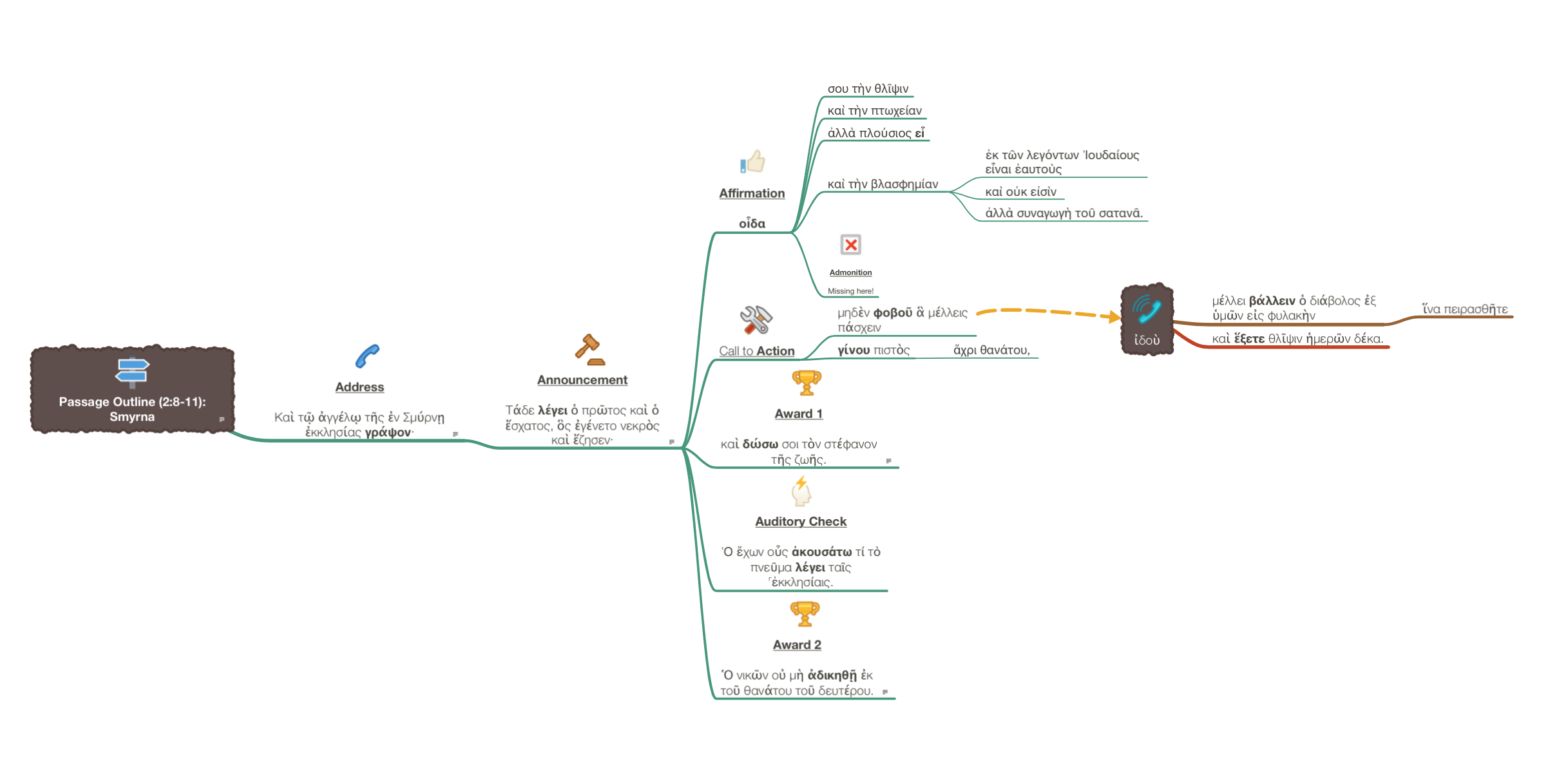
Here is my mind map of Greek Revelation 2:8-11, the letter to Smyrna. Interesting to see how the structure of this “oracle” is both similar to and different from the letter to Ephesus.


As with last time, this passage outline definitely informed my sermon outline, but the latter differs quite a bit from the former. If you want to hear these sermons, by the way, you can subscribe or listen to the podcast here.