It’s been a quiet week at Words on the Word. Don’t worry–I’ve been working on some future posts, not the least of which is a review of the new Caspian record. In the meantime, just for fun, here are the top six posts that keep people coming back to the blog, based on traffic, in increasing order.
iA Writer is a popular plain-text, Markdown writing app. Perhaps its most salient feature is its simplicity, which it achieves without sacrificing quality. I may be making you fine readers read too many writing and productivity app reviews, so for this one, I’ll just send you the relevant links so you can check out more.
Here‘s iA’s write-up of the app, with lots of details and links. Here it is in the Mac Store, and here it is in the iOS App Store. (They even have an Android version!)
Our family has read a lot of alphabet books in our day–now I’m working on letters with Kid #3 (!). We read through Almost an Animal Alphabet the other day, which she sincerely enjoyed. (The Yeti is my favorite–and, I think, what makes it only almost an all-animal alphabet.)
The illustrations are creative and fun, and the book is both educational (as you’d hope) and funny. Check it out via POW! Books here, or here on Amazon.
You can almost make the iPad your only computing device if you’re a writer. You can certainly make it your primary one, especially if you’ve got a good external keyboard. The multi-tasking option of the upcoming iOS 9 will be another step forward for those who wish to go the iPad-only route.
That said, the built-in operating system does not have a way to fetch synonyms for you. You can tap on a word and select “Define,” but there’s no synonym option.
It’s a plain-text, Markdown-enabled writing app. On the one hand, the App Store has a lot of these. On the other hand, it has some unique features. For instance, I click on the gear icon in the extended keyboard, and I see little gear icons above a couple words. Tapping one of those gives me phrase substitution suggestions:
The extended keyboard is succinct–just one screen on an iPad in landscape mode. But if you tap on an asterisk, for example, you get multiple Markdown options:
There’s a handy find-and-replace feature, too, something lacking (or not easily accessible) in other similar apps:
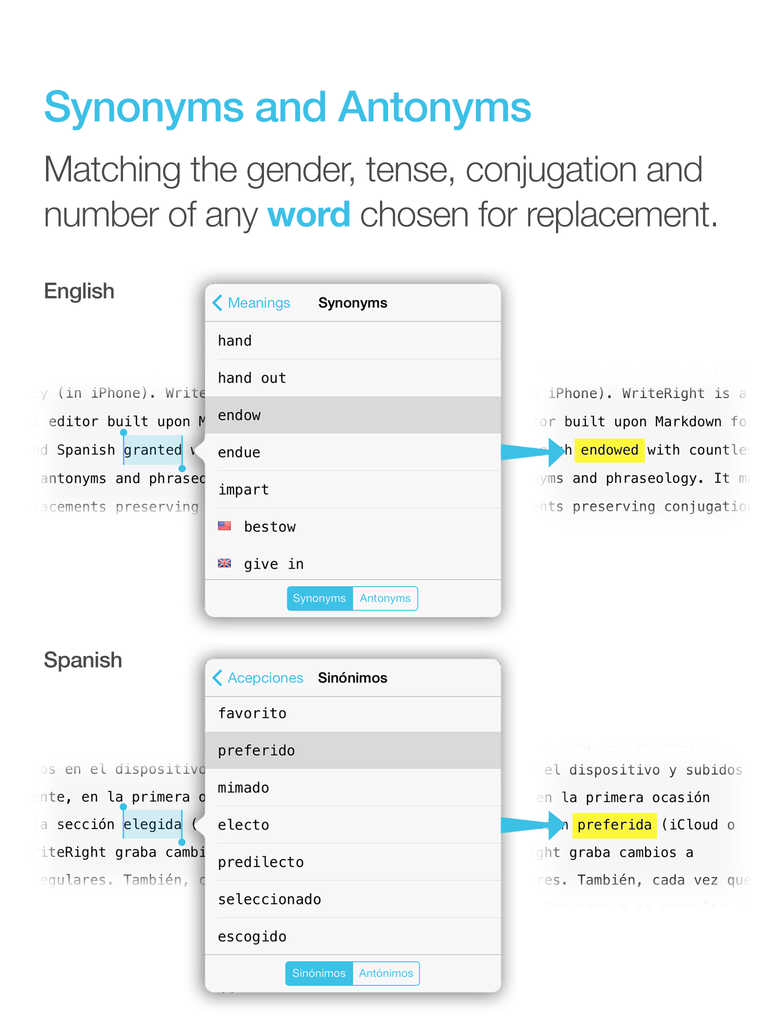
And, of course, the synonym/antonym feature is a boon to writers. It’s available in both English and Spanish.
Integration with iCloud and Dropbox is implemented well. And because you’re dealing with Markdown, you can easily work on the same document via Dropbox in WriteRight and many other writing apps. I could finish a document, for example, on Ulysses on my computer, if I wanted to.
The real-time word count (and character count, for that matter) is easy to see and helps with any writing targets you may have.
The app in general feels well-designed. It’s got some nice touches that the regular user will enjoy discovering along the way–like the option to swipe left and right for undo/redo, and a number of other minor features that enhance the writing experience.
What I Find Lacking
Between Drafts and Editorial and 1Writer, I’ve become used to inline Markdown previews, which WriteRight does not have. It’s not a huge loss, but you do have to be comfortable reading Markdown, or else going back and forth a lot between the Edit and Preview windows, if you want to see what your finished text will look like. The multiple Preview options are nice, but inline Markdown preview in a future revision would be handy. If this is a deal-breaker for you, you might struggle to use WriteRight.
I happen to like the Menlo font, but I sometimes like to write using other fonts–WriteRight doesn’t give you the option to change what font you use in the Edit window, i.e., where you do your writing. You can change font size but not style.
That said–even if I’m not jumping to switch to using WriteRight as a primary writing app, its unique features and Cloud-sync capability mean that it has its place as a nice pre-publishing app, to use after I’ve written all my text and before I export and print (or save, or send on to someone). At $2.99, the synonym/antonym and find-and-replace features make it a useful tool in the writer’s tool belt.
Find the app (for iPad and iPhone) in the App Store here.
Thanks to the makers of WriteRight for the free download for the purposes of review.
I’ve made no secret of my love of Jewish Publication Society’s works. The JPS Torah Commentaries have greatly enhanced my reading of the first five books of the Bible. I have particularly appreciated the seamless blend of critical scholarship and devotional posture that series offers.
In 2013 JPS published a massive, three-volume set, Outside the Bible:Ancient Jewish Writings Related to Scripture. The print edition has 3,302 pages. Accordance is the only Bible software program to have made the electronic edition available; it releases today.
Outside the Bible (hereafter referred to as OTB) covers an impressive array of Jewish extrabiblical texts from the 6th century B.C. to the 2nd century A.D. The texts in OTB are ones that were “for various reasons, taken off the official Jewish bookshelf.”
************
The editors of Outside the Bible are Louis H. Feldman, James L. Kugel, and Lawrence H. Schiffman. The skilled lineup of contributors includes: Harold W. Attridge, David E. Aune, John J. Collins, David A. deSilva, Michael V. Fox, Emanuel Tov, Benjamin G. Wright III, and many others.
Broadly speaking, the editors and contributors treat writings from the following groupings:
The Septuagint
The Apocrypha and Pseudepigrapha
Philo
Josephus
Dead Sea Scrolls
OTB begins with some of the best, most succinct introductory material you can find on each corpus. Emanuel Tov, for example, gets right to the heart (using few words) of the potentially vexing concept of LXX translation technique:
When trying to analyze the Hebrew and Aramaic words, the translators could not resort to tools such as dictionaries or other sources of lexical information; they had to rely on their living knowledge of these languages and on exegetic traditions relating to words and contexts. … By the same token, the identification of difficult words was often guided by the context. Such a procedure frequently was little more than guesswork, especially in the case of rare and unique Hebrew words.
Practically speaking the reader finds explanatory comments like this one (from 1 Samuel 2) throughout OTB:
*there is none holy besides you Cf. the MT: “There is no rock like our God.” As elsewhere in the LXX, the translator avoids the description of God as a “rock,” possibly because he did not like the comparison of God to a stone, and instead stresses his holiness as in the first part of the verse.
When it comes to the texts themselves, here is how OTB is organized:
Each text in Outside the Bible is preceded by a brief introduction that gives a summary of its contents, a history of its composition and transmission, its significance for Jewish (and sometimes Christian) history and biblical interpretation, and a guide to reading that highlights specific issues for understanding the text. A short list of additional readings points the interested reader to more detailed or focused treatments of the text.
You can see the Table of Contents here, via Accordance Mobile:
Included in OTB is an entire commentary on 1 Maccabees and 2 Maccabees, among other texts. Here is David A. deSilva, offering the reader of OTB guidance for working through 4 Maccabees:
The author gives two important cues concerning how to read his work. First, he asks us to read it as an essay that offers both argumentation and exemplary evidence for the proposition that the religiously trained mind can gain the upper hand over all the contrary forces within us and outside us that drag us away from doing what we know to be best before God. Second, he invites us to join him in admiring the outstanding achievements of nine Jewish martyrs, whose courageous and praiseworthy example rivals that of the heroes of any other culture or tradition and can encourage us to hold fast to virtue in our lesser contests.
I could multiply examples of how OTB strikes an excellent balance of brevity and substance. One could open the pages of OTB, having never heard of the Damascus Document–or any of more than 150 other texts–and walk away with a solid understanding of that writing’s legal and theological teachings.
OTB has a nice focus not only on the extrabiblical texts as such; it also addresses their import for biblical interpretation. Further, the editors and contributors are careful to point out how these non-canonical texts function as windows into the culture and beliefs of Judaism in the Second Temple period.
And the interplay OTB highlights between Judaism and Christianity is fascinating:
Philo’s writings had practically no influence on Judaism as it developed after the destruction of the Temple in 70 CE and the disastrous Jewish revolt in Egypt in 115–117 CE. … On the other hand his writings were warmly embraced by early Christian thinkers, who saw in him a kindred spirit. They were attracted to his use of the Greek Bible and the allegorical method, as well as to doctrines such as the transcendence of God, the creation of the cosmos, the Logos, and providence.
Anyone wanting to further chase down what OTB has to say about Christianity can perform a search to instantaneously pull up all the instances of “Christian,” “Christianity,” or even, “Christ.” (The search to use is simply Christ* in the English Content search field in Accordance.)
…which leads to why Outside the Bible is a resource especially suited for the Accordance format.
************
One obvious reason a person would want to consider the Accordance module (and not just the print edition) is the portability factor. JPS books tend to be bound beautifully and constructed well, so there’s nothing to complain about in their aesthetics. But you can’t really take 3,300 pages of awesomeness to the library, coffee shop, or office with you, at least not easily. Keeping OTB on a laptop, iPad, and/or iPhone is appealing.
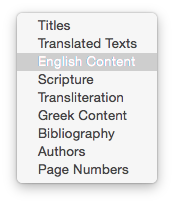
Another benefit to OTB on Accordance is the extensive system of tagging and hyperlinking the developers have used. For one, you can adjust the search field to search OTB in all of the following ways:
For another, where there is commentary on the texts, the Accordance module allows you to view it simply by hovering over a hyperlink. Causing my mouse to rest on an asterisk shown in the text of the Prayer of Manasseh calls up the corresponding commentary in the Instant Details at the bottom of the screen:
(click to enlarge image)
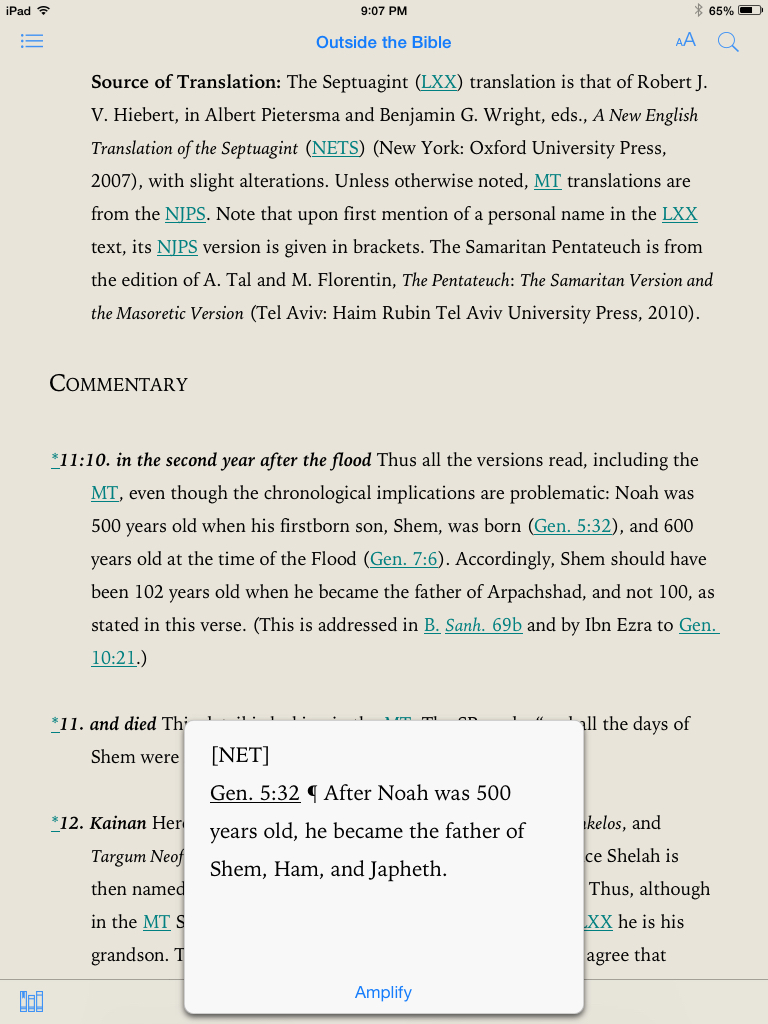
Hyperlinked content is, of course, just a tap away on the iPad:
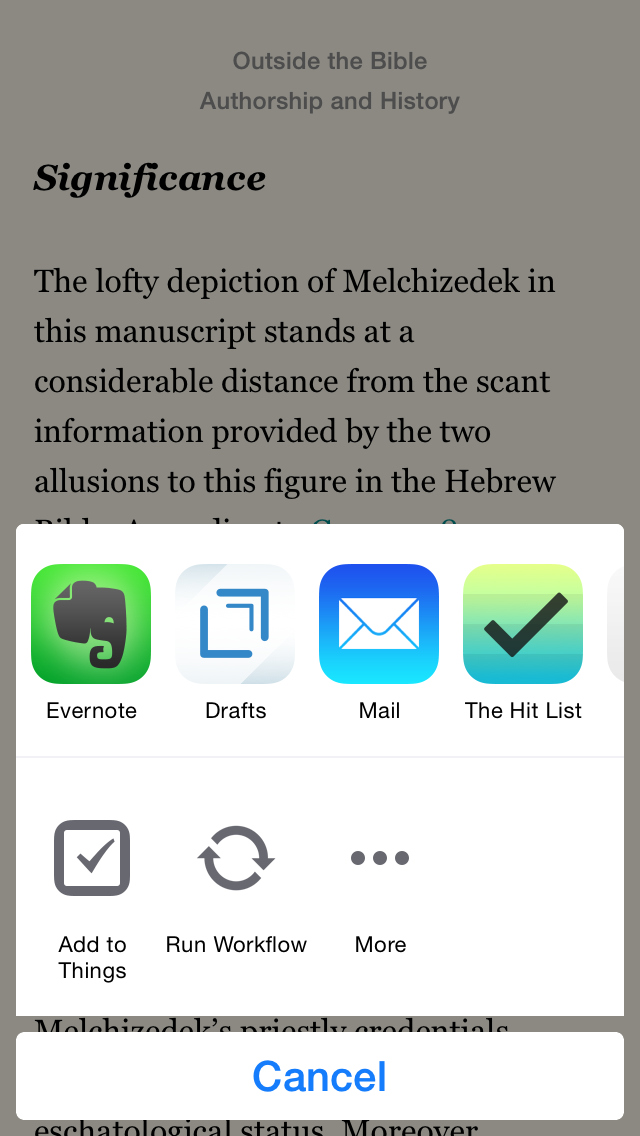
You can search just certain sections of OTB for a given word. You can highlight, take notes, and even share text via the share sheets in iOS–maybe you want to send some selected wording to Evernote or Drafts as part of your research. Just a few taps get me from 11QMelch (Melchizedek) into Drafts, a primary hub for my iOS research:
Using the share sheet, one could email information to oneself or others, or even share on social media. (And what says “rewritten Bible” better than Facebook and Twitter, amirite?)
************
Treat yourself to a perusal of the Table of Contents and some material on Jubilees (which interacts with Genesis) by following this link to a PDF excerpt. And, by all means, do go check out this majestic resource in Accordance here. Students, professors, and pastors… Jews, Christians, and agnostics–all who can access Outside the Bible are indebted to its editors and contributors for a thorough and engaging resource.
Thanks to Accordance for the review copy of Outside the Bible in Accordance 11. See my other Accordance posts (there are many) gathered here.
To help her prepare, she’s taking an MCAT prep course through Kaplan Test Prep. Here are some of the books I’ve seen her working through regularly the last months:
Enjoy the structure, support, and convenience of learning from an engaging, score-qualified MCAT instructor in an online classroom environment. Off-camera instructors are also available during every class to answer your private questions in real-time. Plus. you’ll get additional live instruction from our highest-rated MCAT experts via The MCAT Channel.
As she draws near the testing date, I think it’s the full-length practice tests that have been most useful–a dozen are included. You receive your score right away, with a chance to work through missed questions. There’s plenty of good science content, of course, and the test-taking tips and strategies offer an extra boost in preparation.
The course includes many hours of live, interactive, and pre-recorded video instruction. I’ve also seen my wife take advantage of the MCAT Channel, which is live instruction above and beyond the regular weekly course time. Eric Chiu, Executive Director of Pre-Medical Programs at Kaplan, puts it this way:
And we’re the only company that offers the MCAT Channel. It makes available live instruction, six days a week: Monday through Thursday evenings, and Saturday and Sunday afternoons, as well as weekday summer afternoons. Students can log in to the channel if they need more help. This allows students to pinpoint where they need content review. We place our most expert (10 best, top-rated by others) instructors here. The MCAT Channel allows students to get questions answered in real time.
(Read more of part 1 of my interview with Eric here.)
Here are some more initial impressions from the course, courtesy of the course-taker herself:
It’s well-structured and well-staffed
It’s flexible, but to take advantage of the offering, it requires a significant investment of time–for the class, the homework, and the reading
The staff are encouraging and available–they want to be in touch to help
The online course has been technically smooth, even though we have an old computer (2008! going strong… sort of)
The program and videos have all streamed smoothly
There’s helpful information about applying for med school and AAMC updates
Instructors are knowledgeable
The course includes very helpful online resources with instructions and encouragement to use them
We’ll write more about individual components of the course later on, as well. Learn more about the Live Online MCAT Prep course here.
Many thanks to Kaplan for giving us access to the Live Online MCAT Prep course for the purposes of offering an unbiased review. More to follow.
The video is of professional quality. You don’t even really think about this as you watch, which is a good thing. It is just David Sparks, his OmniFocus (Mac and iOS, excellent explanations, and you.
Sparks covers all of the basics, and then some. You get in-depth tutorials on how to use Due Dates (sparingly!) or Defer Dates, navigating your way through Projects, what Contexts are and how to use them, keeping your Inbox clear, integrating OF with other workflows like email and TextExpander, and much more. From Capture to Review, the Field Guide has it covered.
There are two nice touches that I especially appreciated:
Sparks is funny. You see him working on a project called Flat Earth Manifesto in the video. But he avoids the pitfall that some tech writers get into, which is being overly cute or annoyingly glib. He uses humor perfectly.
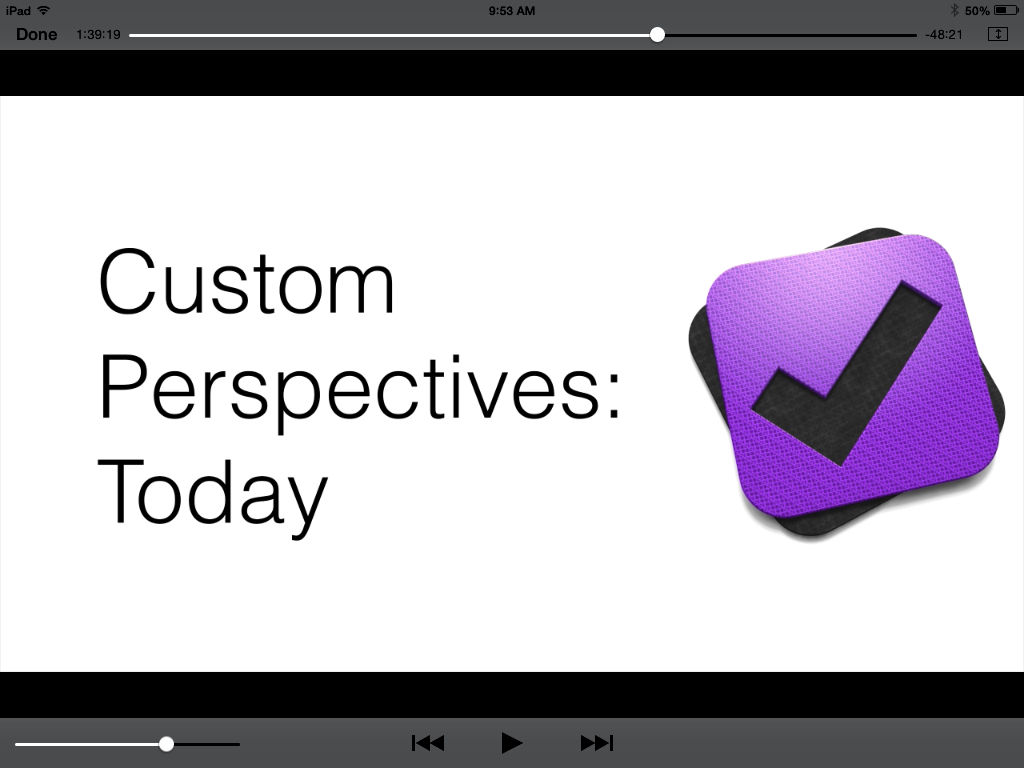
He shows you some of his unique Custom Perspectives in OF. This alone may be worth the price of the field guide. I have already copied his settings that he shows to set up my own Perspectives like his. Even though I have been using the app for a good while now, and consider myself fairly proficient with it, my productivity with OmniFocus has definitely increased since adding these Perspectives.
As you can see in the above shot, you can navigate by chapter, and scroll through all of them to see a sort of Table of Contents of the whole Field Guide.
Here is a short clip so you can get a feel for the approach and content.
Learning OmniFocus is an investment of time. Some people will balk at spending money to learn how to use the software they already spent good money on. But for $10, with well over two hours of top-notch content, the serious OmniFocus user should get to this field guide as soon as possible. Easily 5/5 stars.
A prayer for schools and students from the Book of Common Prayer, “For Schools and Colleges”:
O Eternal God, bless all schools, colleges, and universities [and especially ______.], that they may be lively centers for sound learning, new discovery, and the pursuit of wisdom; and grant that those who teach and those who learn may find you to be the source of all truth; through Jesus Christ our Lord. Amen.
A new breed of task management app seems to be proliferating in the App Store as of late: the habit tracker.
The idea behind a habit-building app is not just to help you cross things off your list, but to actually build the kinds of repetitive practices you’d like to be a part of your everyday life.
Streaks is one such app, and perhaps the one with the most aesthetically pleasing presentation.
What I Like About Streaks
The first thing to appreciate about Streaks is its layout:
You can change colors from the default orange to 11 other options:
As you complete (or miss) habits, the app makes it easy to access statistics from the main screen with just a tap. Check this out:
The reminders are customizable, so they can be as obtrusive or unobtrusive as you want them to be, depending on what you need to get your habits in place:
Checking off habits is satisfying. You just hold down the circle till it fills in:
If you missed a day, Streaks knows it:
There are a ton of habit icons from which to choose, and they look better than any I’ve seen in other comparable apps (some of which are just icon-less lists):
Setting up habits is quite easy:
What I Found Lacking
Probably the biggest miss in the app is that there is no way to adjust a habit you forgot to check off more than one day ago. If you missed marking a habit yesterday, you’re all set, but you can’t check off habits you completed two days ago but didn’t note. I lost some streaks this way (at least within the app) when I was on vacation last month. I was completing habits, but not on my phone as often as usual; there’s no way to adjust to get your statistics to reflect such a reality.
I would love for future updates to Streaks to include some sort of sound when you fill in a habit circle. This is just personal preference, though.
Streaks maxes out at six habits that you can be tracking at a time. The developers have a reason for this–it’s hard to maintain more habits than that on a regular basis, but the limitation does not allow for as great user control as some other apps do.
One other lack: you can’t make a habit to do something, say, three times a week, without also having to specify the days. So I can have “Exercise” three times a week, but only if I assign days (Monday, Wednesday, and Friday)–I couldn’t set it up for any three days.
Final Words and Where to Get the App
Limitations notwithstanding, Streaks is easily one of the three best habit-tracking apps for iOS. It’s clearly designed with the user experience in mind, which makes charting habits through this app fun. As long as you can stay on top of tracking your practices each day, Streaks is a worthy aid in helping establish regular life patterns.

















 Words on the Word