5 iPad Apps I Use Every Day

Here are 5 iPad apps I use every* day:

 

Calendars 5 icon1. Calendars 5

Readdle‘s Calendars 5 seamlessly integrates both tasks and appointments into an aesthetically pleasing display. Moving things around and making new entries is really simple, too–just drag and drop or tap. Most of the time when I’m creating a task, setting an appointment, or checking something off, I want to do it quickly and with as few taps as possible. Calendars 5 makes that possible. View options on iPad are Tasks, Day, Week, Month, and Year. See my full review of the app here.

Calendars 5 has widgets in the iOS 8 “Today” view, so you can look at your day with a single swipe down on your iPad.
 

OmniFocus-for-iPad-10242. OmniFocus 2

This is the only app to make both this list and my 351 Words on 4 Mac Apps I Use Every Day. The integration of OmniFocus 2 on iPad and OmniFocus on Mac is tight. There’s a slight delay in the sync function (which uses Omni servers), but otherwise what I update in one place updates in the other. And, because I can link it to Apple’s Calendar and Reminders, which both sync with Readdle’s Calendars 5, the latter (see above) syncs quite nicely with OmniFocus. You can keep it updated easily via Siri voice commands, too.

OmniFocus 2 allows for more complex project management. Projects and Contexts are a great way to break a bigger endeavor down into its component steps (Projects), or organize them according to the environs in which you do them (Contexts): Office, iPad, Computer, Errands, etc. The Forecast view shows you both appointment and tasks in one place. Or you can just make a quick entry in the Inbox, and then decide how to categorize it later.

Read more about OmniFocus 2 for iPad here.
 

3. BlogPad Pro

It still needs to be updated to work more smoothly in iOS 8, but BlogPad Pro is a far easier app to write a blog post on than WordPress’s own app. (Words on the Word is a WordPress blog.) You can start new posts, edit existing posts that you started on a computer, moderate comments, and check blog stats. The layout looks like the app belongs in iOS 6, but I actually sort of like that heavier look. Here are a few screenshots from their app page:

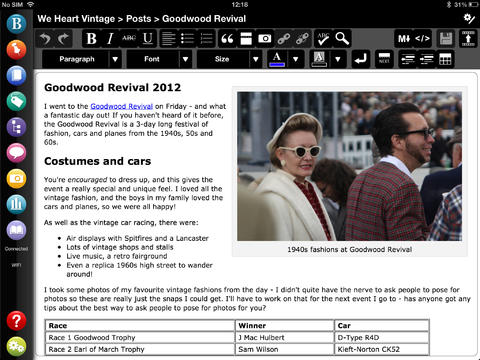
 

BlogPadPro 1


BlogPadPro 2


4. Mail

I haven’t really explored options for good third-party mail clients, but I like Apple’s native Mail app. There’s nothing flashy to it, but it is functional and easy to navigate.
 

5. Sky Force 2014

I’m not all productivity apps. The one iPad game I play is Sky Force 2014. It’s fun, challenging, and a great way to zone out. And… it’s free!

 

Time drain of choice....
Time drain of choice….


You might also like to read 351 Words on 4 Mac Apps I Use Every Day. Next I’ll post about the iPhone apps I use most.


*Disclaimer: Some days I don’t use the iPad mini at all, but when I do, the above are the first ones I tap on. Thanks to Readdle, Omni Group, and BlogPadPro for the review downloads of Calendars 5, OmniFocus 2, and BlogPadPro, respectively.

Nisus Writer Pro: The (2014) Kansas City Royals of Word Processing

No offense to Microsoft Word and Apple’s Pages, but neither one had really hit the spot for a go-to Mac word processor for me. Even after years of using Word, drawing a table or making columns seems harder than necessary. And the new Pages is clunky and seems like it wants to hide my saved documents from me.

KC RoyalsI started using Scrivener this summer, but, as Scrivener is the first to acknowledge, that program is not designed for tweaking the layout and final draft of a document. A number of Scrivener users I interact with recommend Nisus Writer Pro.

I’ve been using it regularly for about a month, and see no need to use another word processing program from now on. Nisus Writer Pro is to my word processing what the Kansas City Royals are to baseball right now: fresh, fun, powerful, and totally adept at getting the job done.

It’s a sophisticated program, with a lot of customization options I’ve barely begun to use. But the first time I used it I was able to almost immediately–without even reading the Help!–get my document to do the handful of things I wanted it to do.

So far, like the KC Royals, Nisus Writer Pro has a 1.000 winning percentage with me. Here are 6 things about NWP I really like, one for each of the Royals’ playoff wins as of the time of this post’s being published:


1. The layout is clean and easy to navigate right away


Check it out (click to enlarge):


NWP Document


At the very top of the screenshot you’ll see the Word Count in the footer (i.e., of every page). This is easy to set up–the Insert menu gives you the option to insert Automatic Numbers there, one of which is the word count, which I like to have in front of me as I whittle down my weekly sermons to something that will keep all of us awake.


2. Native file format is RTF


This means your NWP documents are fairly universal. You can open aforementioned Word (.docx) documents easily. Pages (.pages) is another story, but I think I’m over it.

One bummer (not Nisus’s fault): finding a good app for iPad that plays nicely with .rtf files is difficult, so I’m still looking for a consistent way to get from iOS to my Dropbox-saved NWP documents. (Textilus has been recommended; I’m working on getting that up and running now.)


3. The customizable palette groups get the job done


Setting up margins, headers, footers, even multiple-columned documents is easy to do via the palettes (the bar on the right of the document above). AND… you can create your own palette, customized with the tasks and functions from the Palette Library that you most use. Here’s one I created:


NWP AKJ Palette


You can also hide the palette so you’ve just got the document in front of you. Via palettes you control styles, font/formatting, tables, drawing, etc.


4. Bibliography made easy


One of the drop-down menus has an “Activate Bookends” command. There’s some nifty integration between that program and Nisus Writer Pro.


Strong, Fast
Strong, Fast

5. Support is strong


NWP’s User Guide clocks in at 500 pages. Yes, I read it all for this review–no, not really. But it’s an invaluable reference. Download it here. The staff I’ve interacted with is really great. And there are active user forums.


6. Nisus Writer Pro is fast


This late 2008 MacBook o’ mine is the little (computer) engine that could. But it’s slowing down. Word and Pages (sorry, Microsoft and Apple! I didn’t intend to use your products as foils) both run sluggishly sometimes on this machine, but Nisus Writer Pro never has. It starts right up, closes right down, and never is glitchy in between.


You can see a lot more of the features of Nisus Writer Pro here, where you can also download a free 15-day trial, while you await Game 3 of Royals vs. Orioles.


The folks at Nisus kindly supplied me with a license of NWP for the purposes of review.

7 New Features in Accordance 11

Acc 11_Simply Brilliant_logo


Accordance 11 has a projected release date of late October.

So far, via the Accordance Forums and their Facebook page, they have revealed 5 new features of Accordance 11 in advance of its release. (Actually 7ish, if you count a couple you can see in their podcast–see #6 and #7 below.) I use Accordance nearly every day, so expect a full review of 11 when it comes.

Everything in this post comes from something Accordance has publicly mentioned or shown; I have no insider info about new features, and if I did, I wouldn’t blog it anyway. 🙂 But, read on….


1. New categories for organizing Tools

As Accordance puts it, “23 new and useful categories for your books for better organization and easier access.”


23 Tools Categories


2. “Search All” has changed to “Research”

A forum post by a staffer cryptically says, “Search All is now Research, but the biggest difference can be found in the results!” See photo here. UPDATE: It’s no longer cryptic. Check this out.


3. Selective Easy Install (i.e., install only what you want)

This gives the user at last “the ability to selectively choose which titles to install from Collections or bundled titles.” See here for a screenshot.


4. New Collections

Here you can compare what’s in the new Collections. You can upgrade now, with the promise of a download of Accordance 11 when it’s ready.


5. Custom Upgrade pricing

An Accordance blog post explains clearly here how the new upgrade pricing system works.

And Dr. Tim Jenney shows off the new Collections in this podcast:


6. Take your own notes on Tools

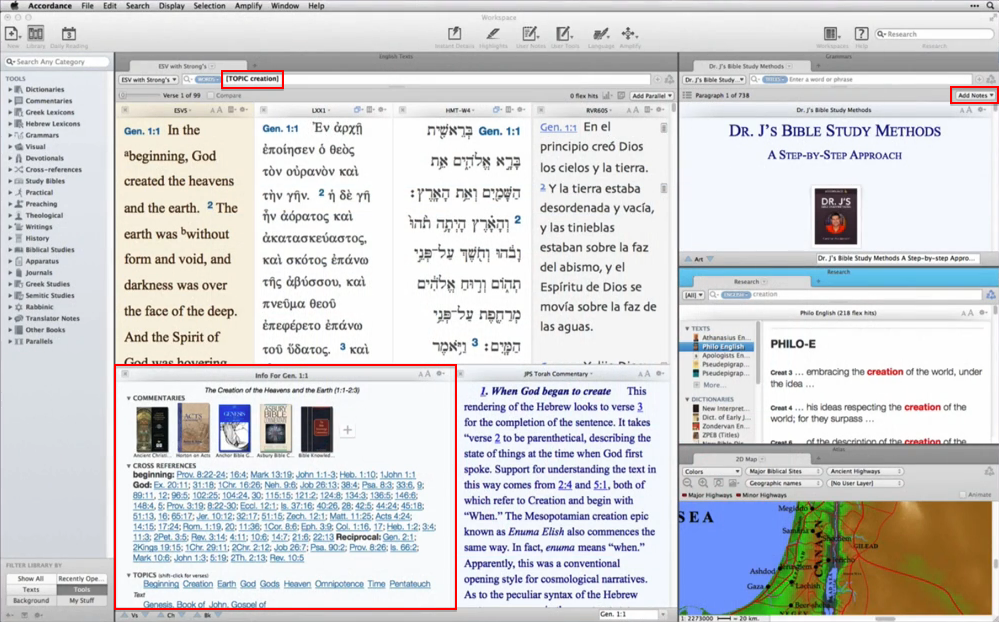
It would appear from Dr. J’s setup in the podcast above that users can now take their own notes on Tools (commentaries, books, dictionaries, etc.). This has not been possible so far in Accordance. It’s a welcome addition.


7. Some kind of verse-by-verse passage guide

Logos has a Passage Guide (at least since Logos 4) that helps you quickly see all your resources that correspond to the passage or verse you are studying. It appears from Dr. J’s setup that Accordance 11 will introduce something similar. Can’t wait to see it–given how good Accordance programmers are at writing code, I’m sure it will move very quickly with the user through a passage.


Here, by the way, is a screen grab from the podcast, highlighting some of the above–the “TOPIC” search Dr. J’s Workspace has seems keyed somehow to the passage guide (or whatever Accordance will call it). It’s low-res, so go watch the first 30 seconds of the podcast in HD, pause it, and see for yourself.


Acc 11_Dr. J Workspace_New


More to come….

Accordance 11: Coming (Very) Soon

Accordance 11 Collections


Accordance 11 is coming soon. Very soon–by the end of October.

In an email announcement today, Accordance noted:

Exciting news! We are preparing our next major upgrade for release towards the end of October. During the next several weeks we’ll be telling you more about Accordance 11 and the many advances it will bring to your studies.


This week we are announcing the exciting new modules that are being added to each Version 11 Collection. Each of these Collections includes Accordance 10 and 11, so you can use Accordance 10 now, and get 11 immediately upon release.

New to the store already in Accordance 11 is the chance to “Custom Upgrade,” which provides users with a discounted collection rate if they already own modules contained in that collection.

See the announcement here.

They haven’t said much yet about what Accordance 11 contains, but today’s newsletter does note “23 new and useful categories for your books for better organization and easier access” in Tools, as shown here:


23 Tools Categories


I use Accordance every day (or almost every day). Accordance 10 is already an excellent program. Can’t wait to see what 11 brings. Subscribe to this blog or check back to hear more as it unfolds.

351 Words on 4 Mac Apps I’ve Been Using Every Day

Here are 4 Mac apps I use every day:

OmniFocus1. OmniFocus

This is turning into Organize-Me Central. I figured out today how to install extensions in Firefox and Chrome on OSX, so that I can save any Web article I want to read later as an action step in Omni Focus. It syncs seamlessly across Mac, iPad, and iPhone, too. There’s a bit of a learning curve to it, but I’ve made the decision to try to run all of my tasks, appointments, and notes through OmniFocus.

I even figured out, using their Clip-o-Tron 3001, how to turn Mac Mail messages into tasks with a keyboard shortcut. (Email inboxes are not a good place to keep tasks, you realize.)

OmniFocus 2 for iPad just came out, and works very well so far with iOS 8. Check out their site here.

TextExpander_icon2. TextExpander

TextExpander does something simple but sweet: it allows you to type text abbreviations that automatically expand into something larger. There are some preset “Snippets,” as well as the option to create your own. For example, “ddate” will insert the current date into any document. I’ve even got “.autoreply” set to convert to this text (I’m using TextExpander for the below):

Thanks for writing. I’m out of the office and away from email Tuesday. I’ll get back to you as soon as possible after that.

Thanks,

Abram K-J

It’s also available on iPhone and iPad, and you can sync your Snippets across devices. Pretty awesome. Read more about it here.

accordance 10 lamp3. Accordance

I’ve written a lot about Accordance, including a six-part review of Accordance 10. It’s my go-to Bible software on Mac.

Accordance is on Windows now, too, and has an iOS app for iPad and iPhone. Find Accordance on the Web here.

Scrivener Logo4. Scrivener

What a word processing program! (But, also, so much more). Writers love this app, and I can see why. I recorded my initial impressions of Scrivener here (where I used it to write a paper). It’s my primary organizing tool each week for sermon writing.

Check out Scrivener here. No iOS apps… yet.

Soon I’ll post about some handy iOS apps I’ve been using.

Free Download of New Mac OS X Yosemite (Beta)

OS X Yosemite

Today Apple announced its new OS X update, Yosemite, to be released this fall. They have also offered free access to the beta version, which is available not only to developers but also to others.

Check out more about Yosemite at the Apple site here, from which the above screen capture comes. The full press release is here.

More information about the Beta Seed Program is here. Here’s what you’ll see once you sign up:

OS X Yosemite Beta

As with any beta testing, there are caveats to consider, but those who want access to the new OS this summer can check it out:

To join the OS X Beta Program, just sign up using your Apple ID. When the beta software is ready, you’ll receive a redemption code that will allow you to download and install OS X Yosemite Beta from the Mac App Store. Then go ahead and start using it. When you come across an issue that needs addressing, report it directly to Apple with the built-in Feedback Assistant application.