
Accordance 11 (coming soon) has released a comparison chart where you can see what’s in the different Collection packages. Check it out here.
See also Accordance’s announcement here and my post about Accordance 11 here.
Accordance 11 (coming soon) has released a comparison chart where you can see what’s in the different Collection packages. Check it out here.
See also Accordance’s announcement here and my post about Accordance 11 here.

Accordance 11 is coming soon. Very soon–by the end of October.
In an email announcement today, Accordance noted:
Exciting news! We are preparing our next major upgrade for release towards the end of October. During the next several weeks we’ll be telling you more about Accordance 11 and the many advances it will bring to your studies.
This week we are announcing the exciting new modules that are being added to each Version 11 Collection. Each of these Collections includes Accordance 10 and 11, so you can use Accordance 10 now, and get 11 immediately upon release.
New to the store already in Accordance 11 is the chance to “Custom Upgrade,” which provides users with a discounted collection rate if they already own modules contained in that collection.
See the announcement here.
They haven’t said much yet about what Accordance 11 contains, but today’s newsletter does note “23 new and useful categories for your books for better organization and easier access” in Tools, as shown here:

I use Accordance every day (or almost every day). Accordance 10 is already an excellent program. Can’t wait to see what 11 brings. Subscribe to this blog or check back to hear more as it unfolds.
 Having a good way to keep track of and annotate PDFs across multiple devices is important to me. PDF Expert 5 makes it easy, with a quick, high-powered, and intuitive app. It works great in iOS 8 already. The book I use in the video review below is a good one in its own right. It’s called Learning from Life: Turning Life’s Lessons into Leadership Experience, by Marian N. Ruderman and Patricia J. Ohlott. You can find it at the Center for Creative Leadership here or here, as part of CCL’s Ideas into Action Guidebook series. Here’s PDF Expert 5 on an iPhone (make sure you use the settings gear in the embedded video to watch in HD; you can also view full screen):
Here are a couple of shots of what it looks like on an iPad.
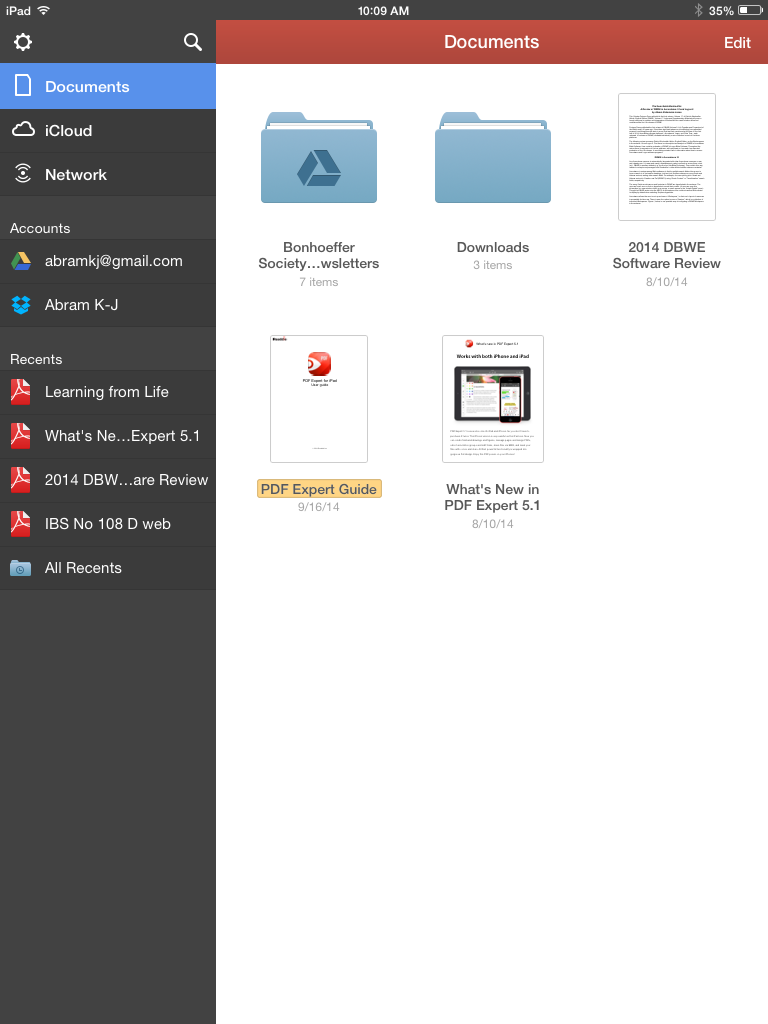
Especially useful on iPad is the ability to have multiple documents open at once as tabs:

Thanks to the folks at Readdle for the chance to review! Learn more about PDF Expert here. (P.S. I made the video above using the handy Reflector app. Reflector mirrors your iOS device to a computer, from which you can record your screen.)
Here are 4 Mac apps I use every day:
 1. OmniFocus
This is turning into Organize-Me Central. I figured out today how to install extensions in Firefox and Chrome on OSX, so that I can save any Web article I want to read later as an action step in Omni Focus. It syncs seamlessly across Mac, iPad, and iPhone, too. There’s a bit of a learning curve to it, but I’ve made the decision to try to run all of my tasks, appointments, and notes through OmniFocus.
I even figured out, using their Clip-o-Tron 3001, how to turn Mac Mail messages into tasks with a keyboard shortcut. (Email inboxes are not a good place to keep tasks, you realize.)
OmniFocus 2 for iPad just came out, and works very well so far with iOS 8. Check out their site here.
 2. TextExpander
TextExpander does something simple but sweet: it allows you to type text abbreviations that automatically expand into something larger. There are some preset “Snippets,” as well as the option to create your own. For example, “ddate” will insert the current date into any document. I’ve even got “.autoreply” set to convert to this text (I’m using TextExpander for the below):
Thanks for writing. I’m out of the office and away from email Tuesday. I’ll get back to you as soon as possible after that.
Thanks,
Abram K-J
It’s also available on iPhone and iPad, and you can sync your Snippets across devices. Pretty awesome. Read more about it here.
 3. Accordance
I’ve written a lot about Accordance, including a six-part review of Accordance 10. It’s my go-to Bible software on Mac.
Accordance is on Windows now, too, and has an iOS app for iPad and iPhone. Find Accordance on the Web here.
 4. Scrivener
What a word processing program! (But, also, so much more). Writers love this app, and I can see why. I recorded my initial impressions of Scrivener here (where I used it to write a paper). It’s my primary organizing tool each week for sermon writing.
Check out Scrivener here. No iOS apps… yet.
Soon I’ll post about some handy iOS apps I’ve been using.
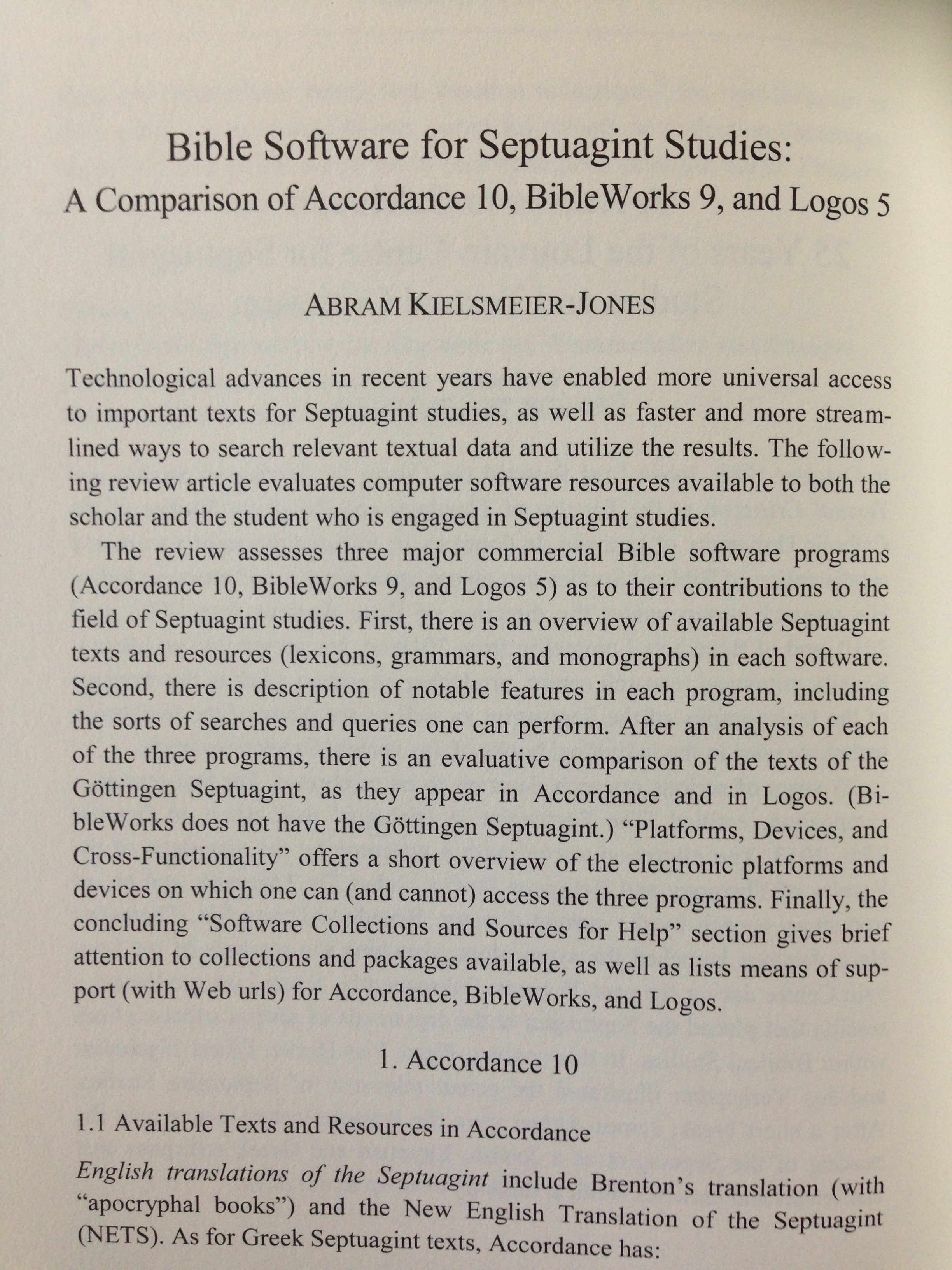
I’ve just come home to the new Journal of Septuagint and Cognate Studies (JSCS) in my mailbox. This volume (vol. 47, 2014) publishes an extensive comparative review I wrote of Bible software programs for Septuagint studies. In the review I consider and evaluate Accordance 10, BibleWorks 9, and Logos 5.
I’m excited to see it in press! Here are the journal cover, the contents, and the first page of the review. You can subscribe to JSCS at this link.


 Especially since Eerdmans has a large number of resources in production right now at Logos Bible Software, I’ve started paying more attention to Logos’s Pre-Publication program.
Logos puts titles into “Pre-Pub” to help gauge user interest in various resources. When users pre-order a resource, that helps to cover the cost of production. If/when enough users pre-order, the title goes into development and the user gets it at the discounted pre-pub price when it “ships” (i.e., when it is completed).
Here is a short description from Logos’s Pre-Pub About page:
Prices start low and increase over time so the sooner you pre-order, the less you pay. We don’t charge you until your pre-order is ready, and we’ll send you a reminder email a few weeks before. If you decide you don’t want the resource anymore, you can cancel your pre-order at any time.
Here is a compilation of the newest Pre-Pub titles. (This one from Oxford University Press is pricey but looks good; here is When God Spoke Greek, which had enough pre-pub orders that it’s already under development and will probably ship within a month.)
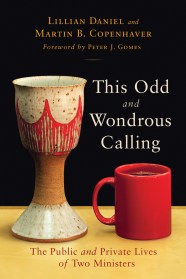
Here is the Pre-Pub list sorted by Progress or “ship date,” so you can see which ones are almost ready to go–with the pre-order discount still applying, at least for now. There’s a bunch of Eerdmans stuff that will go out on August 6, including this collection that looks especially useful to pastors, including the book that is pictured above.
Here’s a short overview video of how Pre-Pub in Logos works:
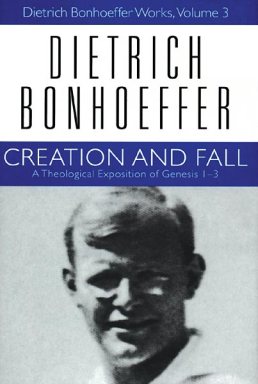
You may have read Bonhoeffer on the Sermon on the Mount, but did you know that he has a compelling and inspiring set of published lectures of Genesis 1-3, too?
Already at the age of 19, Bonhoeffer was laying the groundwork for what would become Creation and Fall: A Theological Exposition of Genesis 1-3. In an early essay he talked about God as the one
for whom the terms “God spoke” and “it became so” are identical.
In Creation and Fall this idea reaches fuller expression:
That God creates by speaking means that in God the thought, the name, and the work are in their created reality one. What we must understand, therefore, is that the word does not have ‘effects’; instead, God’s word is already the work. What in us breaks hopelessly asunder–the word of command and what takes place–is for God indissolubly one. With God the imperative is the indicative.
This month Logos Bible Software offers Creation and Fall for free. I haven’t read the whole thing, but what I have read has helped even familiar chapters of Scripture come alive in new ways. Highly recommended.
You can find Creation and Fall for Logos here. As part of the same promotion, Logos is also offering Bonhoeffer’s Fiction from Tegel Prison for $0.99.
If you’re not already set up with Logos, feel free to message me here, and I’ll tell you how to do it.
Scrivener is 50% off at the Mac App Store right now. Not sure how long this sale will last, but it’s now $22.99, which is well worth the value Scrivener looks to provide, especially to writers. I posted about writing a paper with Scrivener here. The link to the sale in the App Store is here. (HT: Brian Renshaw for pointing it out!)
During my first few minutes using Scrivener 2, I kept thinking the most apt comparison was “word processor on steroids.” But that’s not quite accurate. For one, there are no negative side effects here—save for the commitment the user will have to put in to learn a flexible, layered, and impressive program. And Scrivener is about as far from a word processor as LeBron James is now from Miami.
I had a paper due this weekend for a grad school class I’m taking. I wanted to use Scrivener to write it, since I thought it would simplify the process. Yes, Scrivener processes words, but it’s really a program for writing project management. Its product page says:
Enter Scrivener: a word processor and project management tool that stays with you from that first, unformed idea all the way through to the final draft. Outline and structure your ideas, take notes, view research alongside your writing and compose the constituent pieces of your text in isolation or in context. Scrivener won’t tell you how to write—it just makes all the tools you have scattered around your desk available in one application, leaving you free to focus on the words.
Scrivener is fast and easy to install. When you open it for the first time, you see an interactive tutorial you can work through:
 But it says it will take “couple of hours if you go through it thoroughly,” and I needed to get started sooner than that on the paper. (I’ll go through the whole tutorial as soon as I can; it’s really well done.)
There are also tutorial videos here. A lot of them. I’ll admit to being somewhat overwhelmed at first. Scrivener is, after all, the kind of program you need to spend at least a little time to learn how to use, even if you’re already relatively computer-savvy. But it promises to be time well spent.
As an experiment, I decided to watch the ten-minute overview (the first video at the link above, “An Introduction to Scrivener”) to see if it was enough to get me “up and running as quickly as possible,” as the video description suggested. I had never used Scrivener before this month.
Sure enough—10 minutes later (plus another 30 minutes or so searching the forums, help files, and user manual) I was up and running, using Scrivener for the first time to complete a grad school writing assignment.
The paper I was writing requires multiple sections and is a topic I’d written about before. I also had some readings to integrate into the paper. And, of course, I wanted to keep the syllabus and specific requirements in front of me as I wrote.
So, after opening a preset template based on the Chicago Manual of Style, I got my project ready. Here’s what it looks like in Scrivener. To you Scrivener power users: this is a pretty basic setup, and I’m still learning what all I can do. To you who are not familiar with Scrivener: I’ll note below what each of the portions of the screenshot is. (Click on image to enlarge.)
 The leftmost column is the Binder. This looks a bit like a Mac’s Finder folders. Here is where I laid out my paper. The preset template took care of the “Title Page” and “Works Cited” formatting; I just had to fill them in. I outlined the “Main Content.” Underneath that is “Research,” a set of .pdfs and other files I dragged in. Instead of switching between Preview, Word, and multiple windows in multiple programs, I could access everything I needed from the “Binder,” once I put it there. This meant that once I took a few minutes to set up the project, I only needed this one app open to complete the writing assignment, start to finish.
The “Ideas” section in the Binder, by the way, allows you to do a virtual version of creating notecards, for later rearrangement and integration into the paper.
 The middle panes (the largest ones) comprise the Editor, which is where I wrote the paper. One really cool thing about this is you can have it all be one big pane, or you can open two panes at once. In the above screenshot, I’m writing my paper in the top editor pane and accessing a previous writing for reference in the bottom pane.
At right is the Inspector. This is versatile and can be used to select one of six different sub-panes. In the view above I have open a short synopsis of the section I’m writing (here I copied from the assignment so I knew what I was supposed to be writing), as well as some general Project Notes I wanted to keep before me for each section of the paper.
After I had written the paper, I selected Compile from the File menu, and Scrivener gave me a myriad of easy-to-navigate options for how I wanted to export my paper into a word processor for final formatting. I exported it to Word and only had to do a very few tweaks to have my paper come out properly formatted–including the footnotes.
Literature & Latte kindly supplied me with a license of Scrivener for the purposes of review. There is much, much more to the program than what I have outlined above, and I’ll write more later. I came to Scrivener this week just wondering if I could learn its basics fast enough to use it right away to write a paper, and in a way that would save me time compared to my normal workflow. This was very much the case when I had finished. I only wish I had known about the program much sooner in my graduate studies!
Want to check it out? (I recommend it.) Here you can download a free trial, for Mac or Windows. (It’s a generous trial period, too.) You can read more about Scrivener’s features here.
Today Apple announced its new OS X update, Yosemite, to be released this fall. They have also offered free access to the beta version, which is available not only to developers but also to others.
Check out more about Yosemite at the Apple site here, from which the above screen capture comes. The full press release is here.
More information about the Beta Seed Program is here. Here’s what you’ll see once you sign up:

As with any beta testing, there are caveats to consider, but those who want access to the new OS this summer can check it out:
To join the OS X Beta Program, just sign up using your Apple ID. When the beta software is ready, you’ll receive a redemption code that will allow you to download and install OS X Yosemite Beta from the Mac App Store. Then go ahead and start using it. When you come across an issue that needs addressing, report it directly to Apple with the built-in Feedback Assistant application.


