Readdle’s PDF Expert 5 is 50% Off

PDF Expert 5 by Readdle is on sale for $4.99 (50% off) right now. Here’s my video review from last fall of PDF Expert 5 on an iPhone (make sure you use the settings gear in the embedded video to watch in HD; you can also view full screen). The app is universal, which means you buy it once and then can use it on iPad and iPhone. Go here to find the discounted app.


That Time My 2-Year-Old Daughter Gave Me a Writing Tip in Scrivener

Our daughter is in the Terrific/Terrible Twos stage.

The terrible: she does things like write on the new kitchen floor in permanent marker. She leaves tons of tiny fingerprints on the MacBook and almost pushes the TV off its stand because she thinks they are both touch screens. She changes her own diaper and *tries* to flush its contents down the toilet herself. (Okay–this last one isn’t all bad–potty training, here we come!)

The terrific: sometimes, when she presses random keys on the laptop keyboard, instead of making the computer freeze, she discovers new tips. (Far more terrific than that, of course, is the fact that she is an amazing and wonderful human being.)

The other day she saw this little guy in the toolbar when I had Scrivener open for some work I was doing:


Scrivener Compose Icon


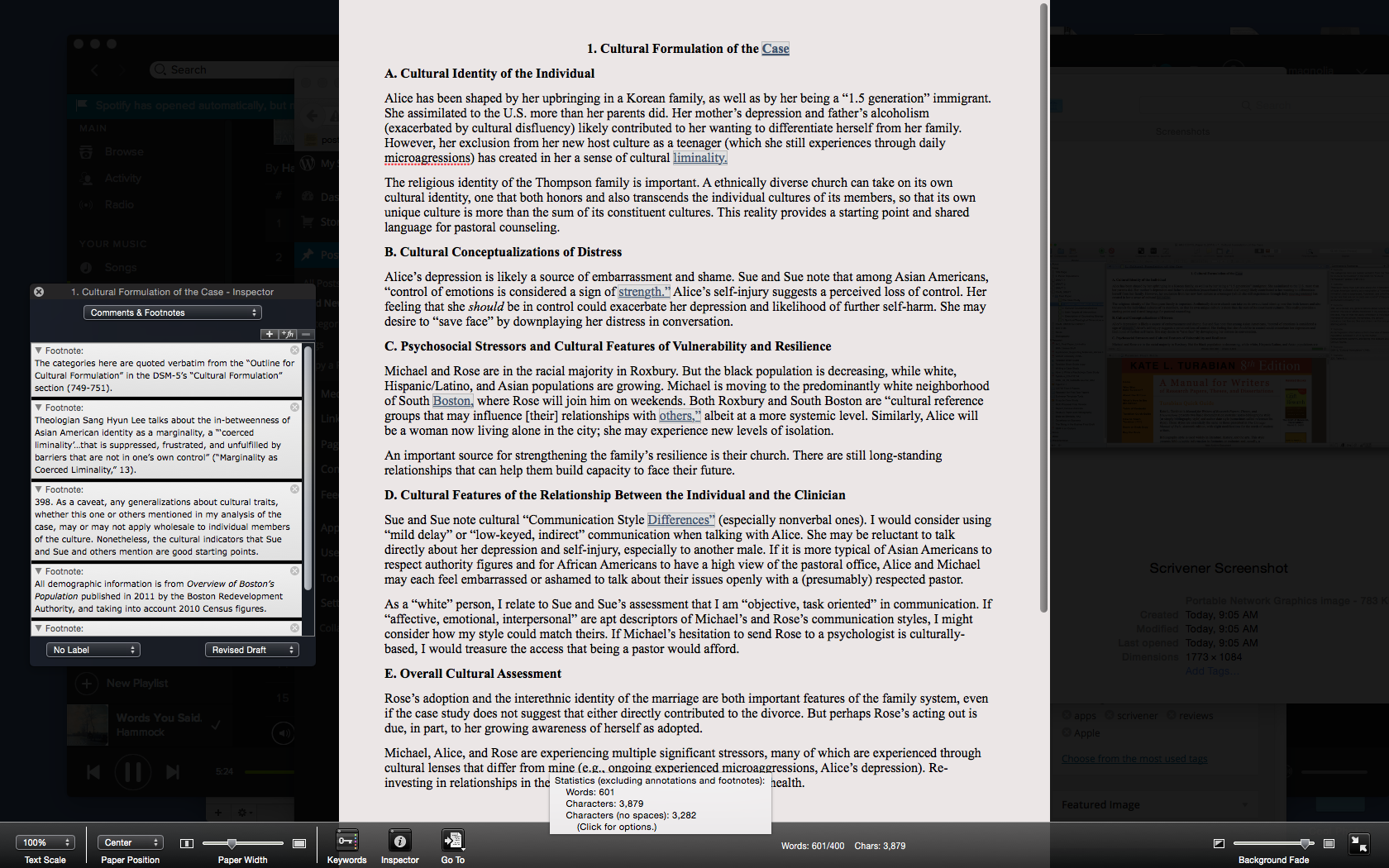
She tried to tap it (no Scrivener for iPad… but soon, I hear!). Then between the two of us, we clicked it and Scrivener went from this view:


Scrivener Screenshot
Click or open in new tab to enlarge


to this one:

Scrivener Composition Mode
Click or open in new tab to enlarge


Yes, Scrivener can go into full screen, but this is something a little different–a composition mode where you can just write. You’ll see at the bottom (a toolbar which goes away if you want it to) that I can still pull up essentials like the footnote window on the left. Or I can move all that out and just focus on writing.

I’ve used Scrivener for more than a year now and don’t think I’ve ever clicked on “Compose.”

So… thank you, two-year-old daughter, for helping your dad learn more about a program he uses all week, and for simplifying my workflow!

Want to check Scrivener out? (I recommend it, and offer my thanks to the folks that make it for the review license.) Here you can download a free trial, for Mac or Windows. (It’s a generous trial period, too.) You can read more about Scrivener’s features here.

AppTastic Tuesday: Ulysses (Part 1)

Ulysses-Mac-1024x1024


There are two things that seem to be all the rage in the world of writing and software: (1) Markdown and (2) “distraction-free” writing environments.

I’m more interested in the latter than in the former—I’m actively trying to root out distractions wherever they may be found. But Markdown is easy, everywhere, and seems a good way to explore learning other, more complex coding languages.

Ulysses offers both, and then some, with the goal of eliminating anything that takes the writer away from her or his craft of constructing words, sentences, and stories.

In fact, I’ve written and edited this post in Ulysses, then exported it as html into my WordPress blog.

In this review post and a second follow-up entry soon to follow, I write about:

  1. Getting Text Into Ulysses
  2. Ulysses as a Writing Environment
  3. Getting Text Out of Ulysses
  4. Ulysses as a Writing Experience


1. Getting Text Into Ulysses


Good writers need good tools, so a serious scribe will take time to track down a trustworthy tool, but one does want to be able to just open whatever program and start writing.

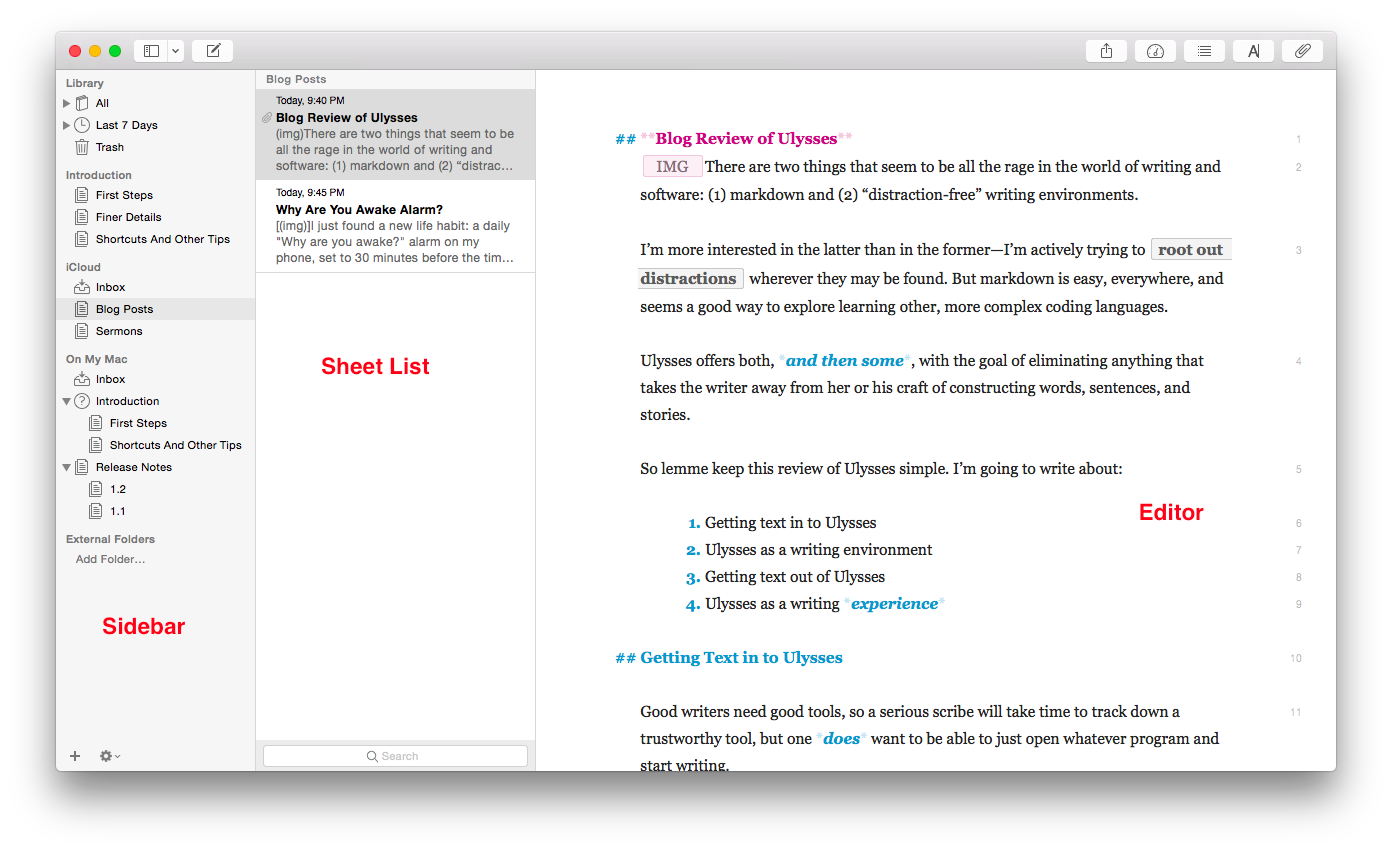
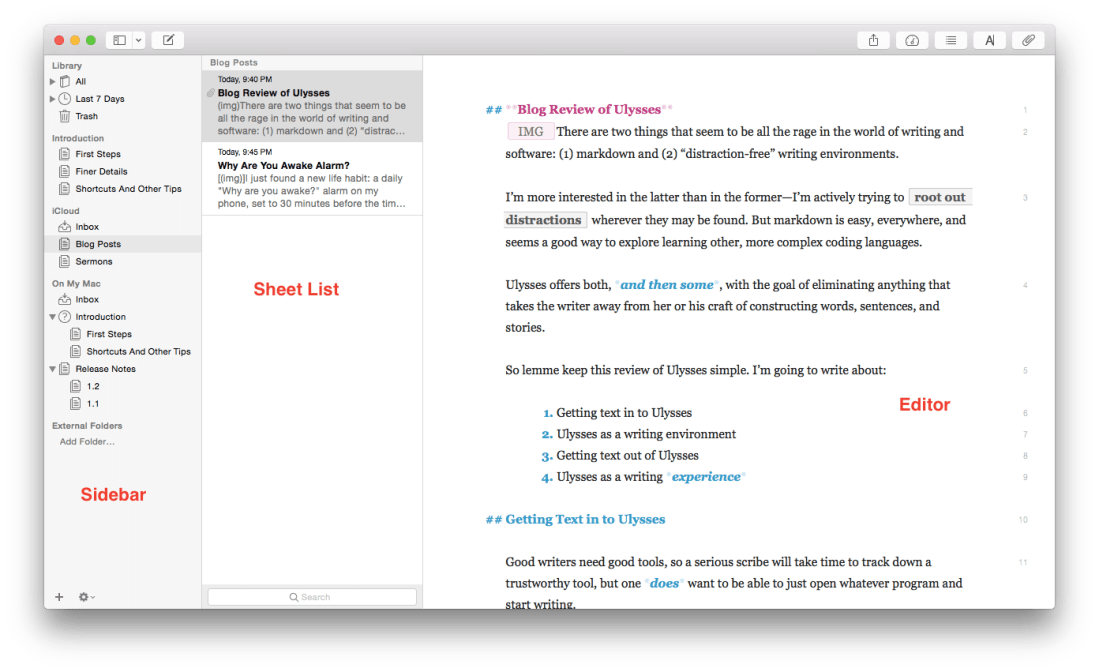
Getting to a new Sheet (Ulysses’s more-or-less equivalent of a document) is easy, even with no experience of the app, so one can just start writing in the default three-pane workspace:
 

Ulysses Three Panes


The Editor is where the magic happens (i.e., you write the stuff). Using keyboard shortcuts or the menu bar, you can have one, two, or three panes visible. If you’re really hunkering down, you might not need to see your Sheet List, so can go to the Editor Only view.

However many panes you want to see at once (and Ulysses also allows multiple Windows open at once), starting to write in Ulysses is easy.

But what about importing text you’ve already got somewhere else?

Easy (mostly). You can copy-paste, even preserving formatting, or you can import a file wholesale by dragging it from a Finder window into the Ulysses sidebar, if it’s of the kind Ulysses will recognize. (My .zrtf Nisus Writer Pro tests did not work, but Ulysses did accept a sample .rtf file and even a Microsoft Word .docx file.)


2. Ulysses as a Writing Environment


So you can get writing right away in Ulysses, either from scratch or from pre-existing projects in (some) other formats. That’s a plus.

Writing in Ulysses itself has been a very positive—even a focusing and relaxing—experience. More on that in the next post. Ulysses as a writing environment requires some effort to learn.

For example, there’s the terminology (Sheets, Groups, Filters), though that’s pretty easy to pick up right away. And there’s the three-pane layout—though Mac Mail and other apps have prepped users for that. There’s also the lack of tie-in to the Mac Finder and files with file names.

That has taken some getting used to, but it’s not cumbersome by any means. In fact, Ulysses’s powerful search option (⌘-O) has meant I can always find anything I am looking for—quickly.

One nice touch in the app is that there are three Groups full of explanatory Sheets that tell you just about all you need to get started:

  1. First Steps
  2. Finer Details
  3. Shortcuts And Other Tips

Here’s what they look like (in the easy-on-the-eyes Dark Mode with Dark Theme):


Ulysses Dark Mode


They’re like help files, only more fun and experiential.

Note also the fourth pane at far right, where I have added some Keywords (“I read this”—I have used that as a label to track my progress through the help Sheets) as well as a Note. Via this Attachments Bar you can also add an image or set a word count writing goal for yourself.

And the app can do some pretty sweet stuff. Here’s a sampling:

  • You can select a couple of Sheets and “glue them together” using ⌘J, which is good for putting chapters or sections together
  • You can split a Sheet into two Sheets, which is what I’ve done with this blog post that started as one and now will be in two parts
  • From the Editor (the pane where you do the writing) you can go up and down your various Sheets using the ⌥⌘↓/↑ keyboard shortcuts
  • The Show Markup option (keyboard shortcut= ⌘-9) is really helpful, especially to folks like me who are new to Markup
  • Did I mention how easy on the eyes the Dark Theme/Dark Mode option is for nighttime writing?
  • You can make comments to yourself using Markup that will show in the Editor pane but won’t export when you’re ready to publish

There are many more features listed here.

The few things that at first seemed like limitations in Ulysses were, in fact, easy to pull off by selecting the right menu item.

I haven’t been able to find anything like navigation arrows in the toolbar—having these readily visible would easily allow one to move between Sheets and search results without having to have two app windows open at once, but there may be a solution I just haven’t found yet.

So far, though Ulysses has required some adjustment to my workflow, I’ve really been enjoying writing in it.

My Ulysses Statistics are telling me this post has exceeded 900 words, so I’ll write more next time about (3) Getting Text Out of Ulysses (i.e., export functions) and (4) Ulysses as a Writing Experience.


Thanks to The Soulmen Gbr, developers of Ulysses, for giving me a download for the review. See my other AppTastic Tuesday reviews here.

Review: How to Invest Your Time Like Money

How to Invest Your Time Like MoneyEven if you got only one thing out of Elizabeth Grace Saunders’s How to Invest Your Time Like Money, her idea of a Why are you awake? alarm makes the 75-page ebook well worth the purchase.

But there’s a lot more sage advice packed into the highly readable offering by HBR Press.

Saunders’s basic premise is a simple but compelling one: “You need to learn the skills to invest your time like money.” She elaborates:

When you invest your time as if it were money, you look at the reality of how much time you have available and the truth of activities’ time cost. You then make decisions that allow you to get out of time debt. And with this balanced budget in hand, you can then set up the structure to consistently invest your time in what’s most important.

Five chapters and an inspiring epilogue help the reader to consider how to best use her or his time in the service of identified values and priorities:

1. Take Control of Your Time and Your Life
2. Identify Your Time Debt
3. Create a Base Schedule
4. Set Up Automatic Time Investment
5. Maximize Your Time ROI
Epilogue: Remember What You’re Working For

I’ve read enough time management books to nearly expect the kind of introductory statement in the first chapter: “Most time management methodologies fail….” However, Saunders really does offer a unique angle on time management, writing, “Time, like money, must be invested to work for you now and support your ideal future.” This is what sets Saunders’s book apart from other task management writing. She boldly begins: “What will need to change is you.”

She helps the reader address psychological “barriers to success,” such as accepting the role of victim of other people’s expectations, playing the rescuer (and therefore taking on other people’s tasks), or even somehow thinking “a sane and sustainable schedule with (gasp!) free time” is an undeserved luxury.

I can imagine a hurried executive reading, “Accept the past and forgive yourself” and balking at an emotions-based approach, but I think Saunders is right on the money. We can’t fix how we manage our time without taking a careful, hard look at what’s behind our time-spending (and time-wasting habits).

So only after a full chapter devoted to examining the ways we undermine our effectiveness–and suggesting practical ways to combat this–does Saunders write:

Now you’re mentally and emotionally primed to authentically evaluate your time investment. So, it’s time to take a serious look at whether you’re in time debt and, if so, how you can move toward a balanced budget.

For the rest of the book, Saunders serves as the temporal equivalent of a financial advisor. What turned me on to the book in the first place is an excerpt HBR posted, where Saunders suggests a “formula to stop you from overcommitting your time.”

Chapters 2 through 5 then walk the reader through setting both a daily and weekly “time budget” and schedule. Saunders suggests how to help the actual match the envisioned. (One juicy nugget, via Arianna Huffington: “You can complete a project by dropping it.”) There is a difference, Saunders notes, between, “Do I have to do this?” and, “Do I have to do this now?

Even as the author deftly guides the reader through the nuts and bolts of scheduling, she continues to keep an eye on some of the deep-down causes that prevent us from spending time well:

[Y]ou need to uncover what’s at the bottom of your emotional resistance so that you can let go of it and make time investment decisions that serve your greatest and highest good.

Each chapter ends with a really helpful summary checklist, making it easy to translate ideas into actionable progress.

One thing that seems to be missing in this book is more specific advice on how to tally how much time various tasks will take. After all, part of the issue is that we often underestimate how long it will take to complete a task. Saunders does give advice here (a section called, “Improve Your Estimation of Time Costs”), though it is largely of the just estimate via trial-and-error variety.

That said, there may simply not be much else to do but to follow her sound advice to track one’s time to be able to “look back at the totals for similar past projects for data on realistic estimates.”

Even in book form Saunders is interpersonally and psychologically sensitive and insightful. And she so often calls the reader back–in an inspiring way–to the big picture:

In the end, getting the best return on your investment is not about whether you got the most tasks done but about whether you put time and effort into what’s most important to you.

By all means, go download this book right now. Schedule five 20-minute blocks to read it (this is what I did, and it worked great). And then schedule some more time to sit down with your calendar and put into practice all that Saunders recommends.


Thanks to HBR Press for the review copy of this awesome, succinct ebook. Find it here on Amazon, here at HBR’s site, and learn more about the book here at Elizabeth Grace Saunders’s site.


The Best Bible Atlas Ever, Cheaper Than It’s Ever Been

Front Cover


The best Bible atlas ever, Carta’s Sacred Bridge, is now cheaper than it’s ever been, thanks to a new distribution partnership between Carta Jerusalem and Hendrickson Publishers.

You can find it, for under $90, here at Hendrickson’s site. The accompanying younger sibling volume, Carta’s New Century Handbook and Atlas of the Bible, is $37.

HT: Brian Davidson.

I Just Found a New Life Habit: “Why Are You Awake?” Alarm

How to Invest Your Time Like MoneyI just found a new life habit: a daily “Why are you awake?” alarm on my phone, set to 30 minutes before the time I want to go to bed.

The idea comes from a short ebook I just read, How to Invest Your Time Like Money, by Elizabeth Grace Saunders (published by Harvard Business Review Press).

Saunders’s idea is simple but brilliant. She makes this point about habits:

Habits reduce the amount of time that you spend deciding what to do, lower the energy needed to take action, and ensure that you’re spending time on what’s most crucial.

Applying the idea to the decision we make each day as to when to go to sleep, she writes:

How do you make going to sleep a routine so you have fewer decisions to make and more hours resting? (This is the question all parents ask about their children’s bedtime routine but rarely direct toward themselves.)

A very simple approach is to set a “Why are you awake?” alarm on your phone for fifteen to thirty minutes before your ideal bedtime. This reminds you what time it is and prompts you to get ready for bed, unless you’re doing an activity that’s worth losing sleep over.

I set this new alarm in my phone just minutes after reading this section of the book.

Speaking of which… my “Why are you awake?” alarm just went off five minutes ago–sharing such a simple but brilliant idea is surely worth losing five minutes of sleep over… but off to bed now!


Thanks to HBR Press for the review copy of this awesome, succinct ebook. Find it here on Amazon, here at HBR’s site, and learn more about the book here at Elizabeth Grace Saunders’s site. Full review forthcoming!

Sermon Preparation in Action: Online Webinar by Abram K-J

Accordance Live Online Training


I’ll be presenting an online training webinar–Sermon Preparation in Action–twice for Accordance Bible Software in the coming weeks.

The webinar is free, and you can register here. The one-page outline of what I’ll cover is here.

The first session is this coming Monday, March 9, at 2:00 p.m. EST. Those registrations are almost full, so you can also register for the second session (the content is the same) on Monday, March 23 at the same link.

Accordance has quite a few other online trainings coming up. Check them all out.

AppTastic Tuesday: Say & Go

Old Confidant
Old Confidant

Back in the days before Facebook and iPhones, I walked around my college campus with a mini-cassette recorder to capture my freshman year pontificating about all aspects of life. It’s amazing how lengthy and involved some of those reflections were.

After a while I started holding forth verbally less and rocking out musically more, using the recorder to get all my songwriting ideas down right away.

For as advanced as the iPhone is–and it includes a built-in voice memo recording app–it wasn’t until I started using the app Say & Go that I started treating the phone as a suitable replacement for that Sony tiny tape recorder.

First, let me show you how I use the app, then I’ll show you a few of the under-the-hood settings you can tweak.

A brilliant idea comes my way, I grab my phone, and launch Say & Go:


From Skitch


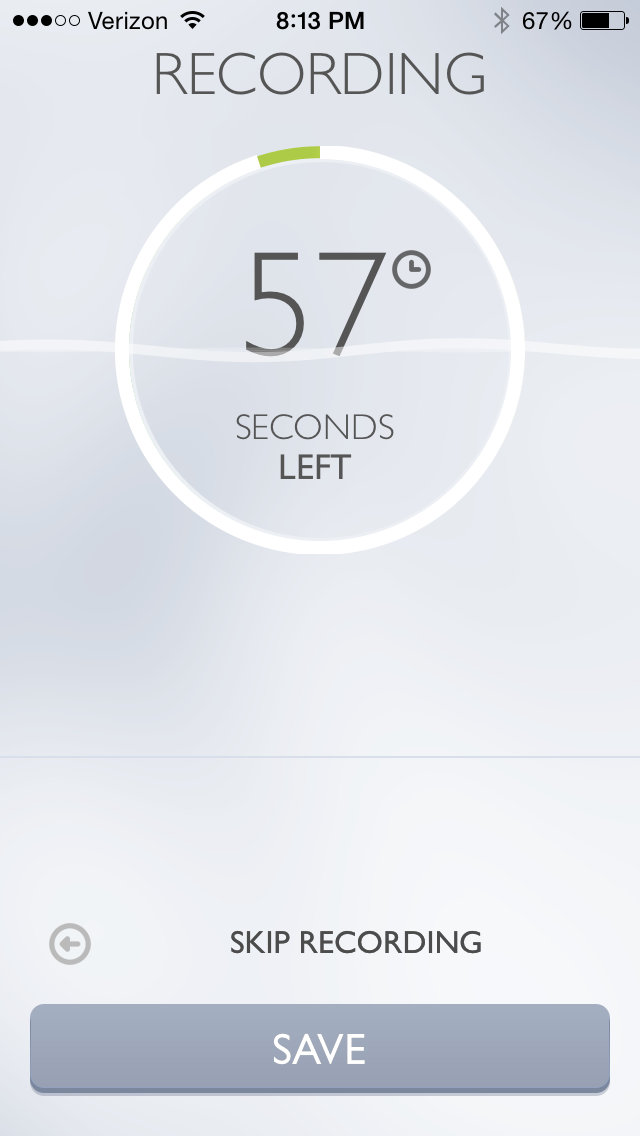
Because of how I have the app configured, the second I tap the app icon, it starts recording:


IMG_3272


The app intentionally limits recording length to anywhere between 4 and 15 seconds. I find 9 seconds is a good amount of time to get most ideas down. But what if I want to record a song snippet?

I can simply swipe right or tap on “Longer Recording” in the image above to get a minute-long option:


IMG_3273


As if this isn’t sleek enough (and what a sweet, elegant layout this app has), the best part of the app is what’s next: I can now send my recording to an email address of my choosing, or set the app to save the recording to my Dropbox or… wait for it… to Evernote.


IMG_3276


All I had to do was enter my Evernote email-to address in the “Default E-mail Recipient” line above. Now, after a single tap on the icon on my home screen, all my recordings go straight into Evernote as soon as the recording time runs out. Impressive.

There are a few other customizable settings. In the short workflow described above, I have “Autostart” enabled, but you don’t have to:


IMG_3275


And here are some of the other settings you can adjust:


IMG_3274


It’s a brilliantly designed and useful app. Read more about it here.


Thanks to Dawid Pietrala, the developer of Say & Go, for giving me a download for the review. Check out the app’s iOS page here. See my other AppTastic Tuesday reviews here.

Book Notice: The T&T Clark Companion to the Septuagint


I8 months ago I learned about the T & T Clark Companion to the Septuagint. It has now been released as an ebook in pdf form, available here, with the hard copy to be published very soon. You can pre-order through Bloomsbury here or through Amazon here.

The Companion is unique in Septuagint studies in that it offers a “handy summary of features for each of the Septuagint books” of the Bible. Here’s part of the publisher’s description of the book:

This Companion provides a cutting-edge survey of scholarly opinion on the Septuagint text of each biblical book. It covers the characteristics of each Septuagint book, its translation features, origins, text-critical problems and history. As such it provides a comprehensive companion to the Septuagint, featuring contributions from experts in the field.

And here’s a snippet from Genesis, via the Google Book preview:


LXX Companion Genesis

I’m looking forward to checking it out–it looks like it will be a welcome contribution for those of us who want to learn more about the Septuagint.

“Ultra-Premium Mac Bundle” (8 Apps at 91% Off)

Ultra-Premium Mac Bundle

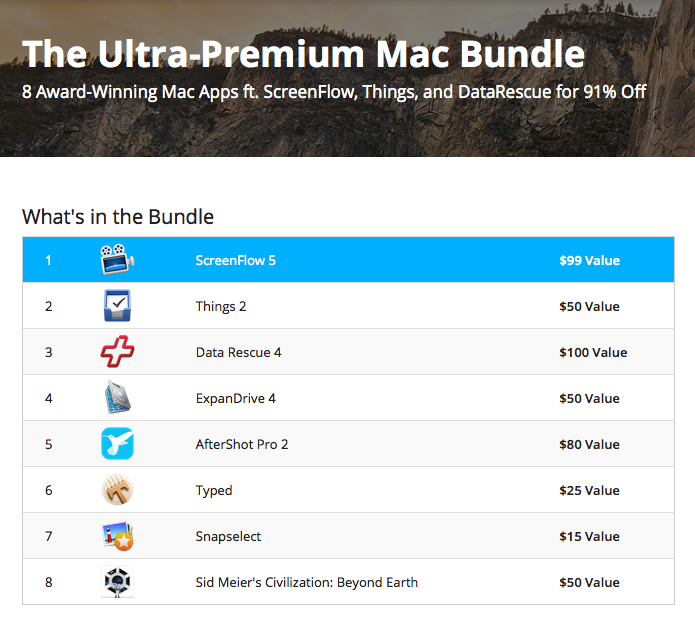
StackSocial is offering a bundle of 8 Mac Apps for $44.99. You can even use code ULTRA5 at checkout for an extra $5 off.

Things2, a sleek task management app, is part of the bundle. It alone retails for $50. Also included is the otherwise $99 ScreenFlow 5, a robust piece of software for screencasting and video editing on Mac.

Find the deal, with more details on each of the included apps, here.