Never Make Another Keyboard Typo Again

TextExpander_icon


Next to OmniFocus and Accordance, TextExpander has become one of my most frequently open computer and iOS applications.

It’s not that typing is all that hard, per se, but there are some things (TextExpander calls them “Snippets”) that we tend to hammer out frequently on a keyboard:

  • An address
  • A signature
  • An out-of-office auto-reply
  • Directions to your house
  • Repeated typos!

TextExpander does just what its name suggests: it allows you to type text abbreviations that automatically expand into pre-selected text. So I can write “.omni” and my long OmniFocus task capture email address pops up instantaneously.

You can even have a Snippet include hyperlinked text and bold formatting. If I (theoretically) had become mildly obsessed with using OmniFocus to track all my tasks and projects lately, I might save the snippet “oomni” to expand to the following:

OmniFocus 2 allows for more complex project management. Projects and Contexts are a great way to break a bigger endeavor down into its component steps (Projects), or organize them according to the environs in which you do them (Contexts): Office, iPad, Computer, Errands, etc. The Forecast view shows you both appointment and tasks in one place. Or you can just make a quick entry in the Inbox, and then decide how to categorize it later.

(Note–the above paragraph came from the snippet.)

There’s also a wonderful “Accented Words” section so that I can always type résumé correctly (snippet is resume’) without having to remember how to type accents. There’s a nice “HTML and CSS” pre-defined set of snippets, too, which are useful in blogging, Website writing, etc.

The most amazing feature? You can create a snippet and then have the cursor positioned in the middle of the expansion. This could be useful, for example, when you’re citing the same source in a research paper, but need to just change the page number with each citation.

The Preferences let you make some nice customizations. Here are a few:


TextExpander Preferences


The iOS version–TextExpander Touch–is universally useful now that iOS 8 supports third-party keyboards. You can use it (via switching keyboards) in Gmail, text messaging (“;txt” can expand to mean, “leaving soon, home in five minutes”), and more. The keys don’t pop up/out as much as the regular iOS keyboard does; it’s not a very easy keyboard to type in. But if you’re not using it as a primary keyboard and are just typing your snippet abbreviations into it, it works well enough.


IMG_2126


And, conveniently, TextExpander on Mac and TextExpander Touch can sync all your snippets seamlessly and automatically.

Learn more about the Mac app here and the iOS version (for iPad and iPhone) here.


The folks at Smile Software kindly supplied me with a license of TextExpander and TextExpander Touch for the purposes of writing this review, but with no expectation as to its content.

5 iPad Apps I Use Every Day

Here are 5 iPad apps I use every* day:
 

Calendars 5 icon1. Calendars 5

Readdle‘s Calendars 5 seamlessly integrates both tasks and appointments into an aesthetically pleasing display. Moving things around and making new entries is really simple, too–just drag and drop or tap. Most of the time when I’m creating a task, setting an appointment, or checking something off, I want to do it quickly and with as few taps as possible. Calendars 5 makes that possible. View options on iPad are Tasks, Day, Week, Month, and Year. See my full review of the app here.

Calendars 5 has widgets in the iOS 8 “Today” view, so you can look at your day with a single swipe down on your iPad.
 

OmniFocus-for-iPad-10242. OmniFocus 2

This is the only app to make both this list and my 351 Words on 4 Mac Apps I Use Every Day. The integration of OmniFocus 2 on iPad and OmniFocus on Mac is tight. There’s a slight delay in the sync function (which uses Omni servers), but otherwise what I update in one place updates in the other. And, because I can link it to Apple’s Calendar and Reminders, which both sync with Readdle’s Calendars 5, the latter (see above) syncs quite nicely with OmniFocus. You can keep it updated easily via Siri voice commands, too.

OmniFocus 2 allows for more complex project management. Projects and Contexts are a great way to break a bigger endeavor down into its component steps (Projects), or organize them according to the environs in which you do them (Contexts): Office, iPad, Computer, Errands, etc. The Forecast view shows you both appointment and tasks in one place. Or you can just make a quick entry in the Inbox, and then decide how to categorize it later.

Read more about OmniFocus 2 for iPad here.
 

3. BlogPad Pro

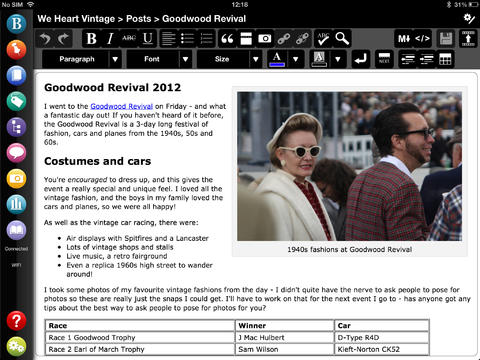
It still needs to be updated to work more smoothly in iOS 8, but BlogPad Pro is a far easier app to write a blog post on than WordPress’s own app. (Words on the Word is a WordPress blog.) You can start new posts, edit existing posts that you started on a computer, moderate comments, and check blog stats. The layout looks like the app belongs in iOS 6, but I actually sort of like that heavier look. Here are a few screenshots from their app page:


BlogPadPro 1


BlogPadPro 2


4. Mail

I haven’t really explored options for good third-party mail clients, but I like Apple’s native Mail app. There’s nothing flashy to it, but it is functional and easy to navigate.
 

5. Sky Force 2014

I’m not all productivity apps. The one iPad game I play is Sky Force 2014. It’s fun, challenging, and a great way to zone out. And… it’s free!


Time drain of choice....
Time drain of choice….


You might also like to read 351 Words on 4 Mac Apps I Use Every Day. Next I’ll post about the iPhone apps I use most.


*Disclaimer: Some days I don’t use the iPad mini at all, but when I do, the above are the first ones I tap on. Thanks to Readdle, Omni Group, and BlogPadPro for the review downloads of Calendars 5, OmniFocus 2, and BlogPadPro, respectively.

Calendars 5: A Better Calendar App for iPhone and iPad

Calendars 5At first I scoffed a bit at the idea of another calendar app for iOS. What’s wrong with Apple’s native “Calendar” app?

Well, it’s a fine app, and it gets the job done. You can sync your schedule across multiple devices–it’s how my family keeps our days and weeks organized. I add an event and it populates in any other place that my wife or I would check it.

Its interface feels a little less streamlined or smooth than one would like, but a calendar app is a calendar app, right?

Well, yes, for the most part. But Readdle’s Calendars 5 app is even better than the Calendar app that comes pre-installed on every iPhone and iPad. Look at this:


IMG_2039
Calendars 5 in iPhone


(Independence? We celebrate it twice around here.)

If I had a lot more events on June 28, I would simply swipe right gently to reveal them, while the whole rest of the screen/week would stay in place. This is the Week view, the one I use most often. There are also Tasks, List, Day, and Month views. You can easily tap (or just drag and drop) your way into creating new items or making schedule changes.

What is the Tasks view, you ask? It’s anything in your Reminders app! So from your calendar app (without switching to another app), you can see your tasks. (Integrated work flow is the only way to really get stuff done effectively, I think.)

You can even see on June 28 above: Calendars 5 combines appointments and tasks into each day, so you can easily keep track of everywhere you have to be and everything you have to do.

Once you set up sync (also very easy), anything that you change in Calendars 5 also updates in your iCal/Calendar app (and vice versa), and any task you add here updates in your Reminders app (and vice versa). This means you can say, “Siri, remind me tomorrow to…,” and if you it synced, the reminder shows up in your calendar view right in Calendars 5.

It never occurred to me that I’d have less mental clutter by using a single mechanism (app) to track appointments and tasks. Maybe I sound overly ebullient, but… this is a really sweet app. You should get it if you can.

Thanks to the folks at Readdle for the gratis download codes for the review, given with no expectation as to what I’d write. Though now that I’ve used Calendars 5, I’d pay for it if I had to. It’s been that helpful to me–and it looks really good, too.

You can get Calendars 5 here. $6.99 may feel like a lot for an app, but you get it on both iPad and iPhone (and they sync), so if you rock both devices, it’s like two-for-the-price-of-one.

Calendars 5 is also part of Readdle’s Ultimate Productivity Bundle, which includes PDF Expert 5 (I like that app, too–see my video review here). The Bundle comes with the elegant Scanner Pro and Printer Pro, that lets you print wirelessly from your iOS devices. See the discounted Bundle in action here, and check out purchase information here.

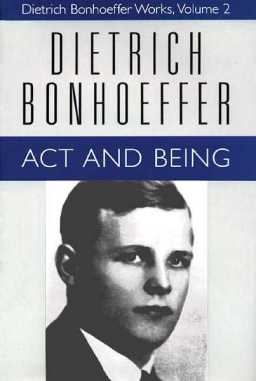
One-Day Olive Tree Sale: Dietrich Bonhoeffer Works (16 Volumes) for $99

Bonhoeffer in Olive Tree


Today (Wednesday), Dietrich Bonhoeffer Works, English Edition (DBWE, 16 volumes) are $99 in Olive Tree Bible software. I have not seen DBWE in Olive Tree, but have reviewed the app here.

Their iOS and desktop apps are free, so if you like Bonhoeffer and have the cash, this is probably the best price for his complete works in English that one will ever find. (It does not include the just released Volume 17.)

Video Review of PDF Expert 5 on iOS8

PDF Expert 5 icon Having a good way to keep track of and annotate PDFs across multiple devices is important to me. PDF Expert 5 makes it easy, with a quick, high-powered, and intuitive app. It works great in iOS 8 already. The book I use in the video review below is a good one in its own right. It’s called Learning from Life: Turning Life’s Lessons into Leadership Experience, by Marian N. Ruderman and Patricia J. Ohlott. You can find it at the Center for Creative Leadership here or here, as part of CCL’s Ideas into Action Guidebook series. Here’s PDF Expert 5 on an iPhone (make sure you use the settings gear in the embedded video to watch in HD; you can also view full screen):  


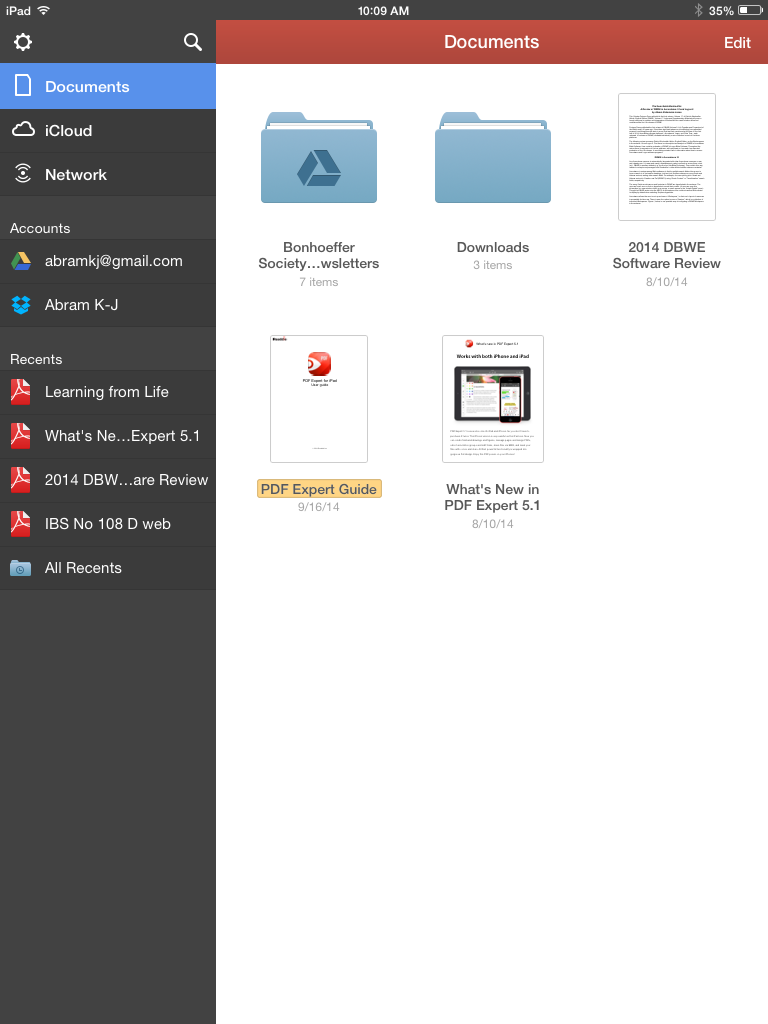
Here are a couple of shots of what it looks like on an iPad.  


Documents Screen  


Especially useful on iPad is the ability to have multiple documents open at once as tabs:  


Reading Screen  


Thanks to the folks at Readdle for the chance to review! Learn more about PDF Expert here. (P.S. I made the video above using the handy Reflector app. Reflector mirrors your iOS device to a computer, from which you can record your screen.)

351 Words on 4 Mac Apps I’ve Been Using Every Day

Here are 4 Mac apps I use every day:

OmniFocus1. OmniFocus

This is turning into Organize-Me Central. I figured out today how to install extensions in Firefox and Chrome on OSX, so that I can save any Web article I want to read later as an action step in Omni Focus. It syncs seamlessly across Mac, iPad, and iPhone, too. There’s a bit of a learning curve to it, but I’ve made the decision to try to run all of my tasks, appointments, and notes through OmniFocus.

I even figured out, using their Clip-o-Tron 3001, how to turn Mac Mail messages into tasks with a keyboard shortcut. (Email inboxes are not a good place to keep tasks, you realize.)

OmniFocus 2 for iPad just came out, and works very well so far with iOS 8. Check out their site here.

TextExpander_icon2. TextExpander

TextExpander does something simple but sweet: it allows you to type text abbreviations that automatically expand into something larger. There are some preset “Snippets,” as well as the option to create your own. For example, “ddate” will insert the current date into any document. I’ve even got “.autoreply” set to convert to this text (I’m using TextExpander for the below):

Thanks for writing. I’m out of the office and away from email Tuesday. I’ll get back to you as soon as possible after that.

Thanks,

Abram K-J

It’s also available on iPhone and iPad, and you can sync your Snippets across devices. Pretty awesome. Read more about it here.

accordance 10 lamp3. Accordance

I’ve written a lot about Accordance, including a six-part review of Accordance 10. It’s my go-to Bible software on Mac.

Accordance is on Windows now, too, and has an iOS app for iPad and iPhone. Find Accordance on the Web here.

Scrivener Logo4. Scrivener

What a word processing program! (But, also, so much more). Writers love this app, and I can see why. I recorded my initial impressions of Scrivener here (where I used it to write a paper). It’s my primary organizing tool each week for sermon writing.

Check out Scrivener here. No iOS apps… yet.

Soon I’ll post about some handy iOS apps I’ve been using.

Apple’s iOS 8 is Live (Just Make Sure You’ve Got Room for It)

iOS 8


With the iPhone 6 now shipping, iOS 8 has just gone live.

MacRumors has two really great roundups that detail the features of the new operating system for iPad and iPhone. Here is their main roundup page. And here they note “some of the more interesting but smaller additions and refinements made to Apple’s mobile operating system throughout the beta testing period.”

A couple highlights from the article:

Identify songs – Siri now includes Shazam integration. If you ask Siri, “What song is playing?”, it will cause her to listen to the ambient sound, using Shazam to identify music.

Find which app is using the most battery life – iOS 8 includes a new Settings option that allows you to view battery usage by app, monitoring the battery drain of specific apps so those that draw a lot of power can be shut down. As of beta 2, it also displays how much battery is drained when there’s no cellular coverage.

Also, there is an improved keyboard:

Described as Apple’s “smartest keyboard ever,” QuickType is designed to offer word suggestions while typing. As a user is typing, the keyboard will provide words and phrases that a user is likely to choose next, even taking into account the different writing styles a person might use in different apps like Mail and Messages.

I’m especially curious to check out the Health app.

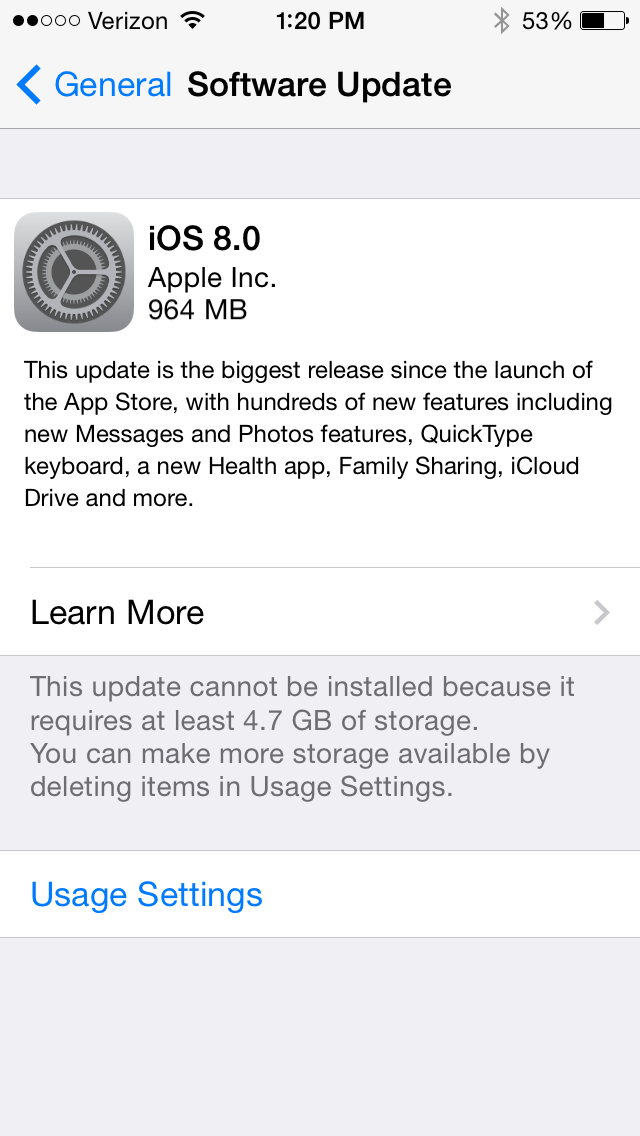
Just make sure you’ve got plenty of room for the install:


iOS 8 install


UPDATE: A friend on Twitter clarifies that you can download the new iOS if your device is connected to a computer, in which case you don’t need to clear up all the space required for the installation.

Size Comparison of iPhone 6 vs. iPhone 6 Plus

iPhone 6 sizes

The iPhone 6 just set a new pre-order record for Apple phones. The biggest question folks who are in the market will probably have is: How big is the iPhone 6? vs. How big is the iPhone 6 Plus?

There’s a handy printout you can download here to see what an iPhone 5, iPhone 6, and iPhone 6 Plus all look like next to each other.

Or you could do what this guy did.

And the Winner Is…

iWerkz Keyboard Folded

Congratulations to Rick Mansfield, winner of the MyWerkz foldable Bluetooth keyboard. I used a random number generator to select the winner. Way to go, Rick, and enjoy! (P.S. See his nifty blog here.)

I’ll post my review of the keyboard soon. Until then, see my gathered tech gear posts here. Thanks to all who entered and shared.