MindNode–>OmniOutliner: Quite a Combo!

All of a sudden I’m hooked on mind mapping. It’s been a really productive way for me to make sense of the texts I speak on each week. Here’s how I’ve made structural sense of the David and Bathsheba account:


David and Bathsheba (click to enlarge image)


(If that image doesn’t work well for you, click here to see a zoomable version.)

(Next up: trying to outline thought processes in other parts of my life using mind mapping.)

I’m not at the point of being able to write a whole sermon via mind map (and may never go that route), so my next step is exporting to text.

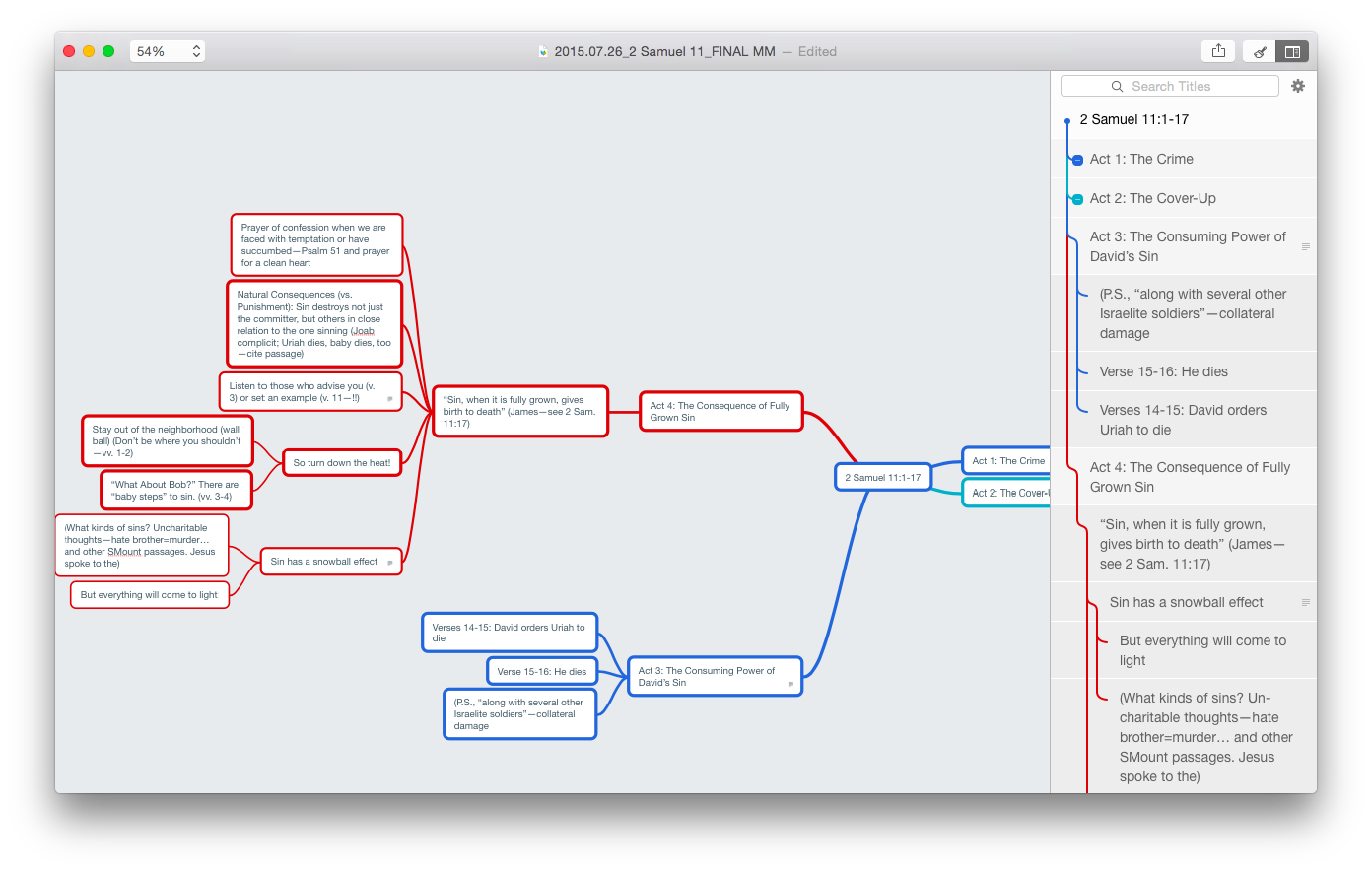
MindNode makes that exceedingly easy, as I mentioned here. In MindNode 2.0 for Mac, you can always view a text outline of your map right next to all those nodes, sub-nodes, and connecting lines:


Mind Map with Outline
Note outline at right


By the way–that’s a lot to look at on one screen. MindNode has a lovely “Fit to Mind Map” zoom selection, so you can have your mind map fill the application screen. For large and multi-noded apps, that’s a great setting.

Now exporting the map to multiple options is easy. Last week I exported to .rtf, dumped the text into Scrivener, and worked from there. Export options are robust in MindNode, as are import options. I could even easily import some random thoughts from Scrivener’s cousin, Scapple, right to MindNode.

This week, however, I wanted to live dangerously. I.e., I wanted to try OmniOutliner for fleshing out my outline, once I had the content figured out in MindNode. So I exported my mind map from MindNode as .opml and opened in OmniOutliner:


What my mind map looks like in OmniOutliner
What my mind map looks like in OmniOutliner (click to enlarge)


Awesome!! All right there, as it should be. All the points and sub-points are in order. The text outline that was already in MindNode is now in OmniOutliner, with everything in its right place. Even the notes popovers in MindNode (sweet new 2.0 for Mac feature) come in to OmniOutliner as notes (the grey font next to the notebook icon, in the image above).

At this point I can work from the outline in OmniOutliner. You’ll see in the image above that I’ve added a “RESEARCH” section to allow me to do just that.

OmniOutliner has similarly robust export options. I can make a couple tweaks to fine-tune the formatting in my export, and then open the finalized, annotated outline in a word processor of choice. Very nice!

I’ve been experimenting with workflow for sermon preparation lately, a little more than usual. I’ll still do my research with Accordance as my primary hub. But for the initial outlining process and the final writing process, MindNode and OmniOutliner seem to be making a great team.

One other huge bonus that both apps have in common: they are fully cross-platform across Mac, iPad, and iPhone, so I can jot down ideas wherever and whenever inspiration strikes.


Thanks to the good people of IdeasonCanvas, for giving me a download of MindNode for iOS and OSX for review purposes. And thanks to The Omni Group for OmniOutliner Pro, also for review purposes (more to come). See my other AppTastic Tuesday reviews here.

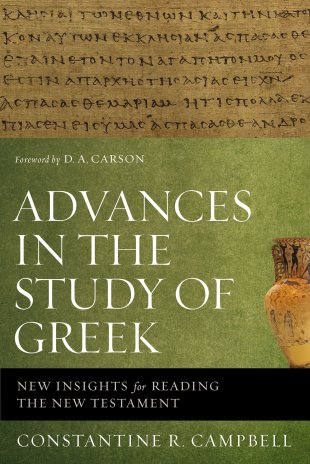
Book Note: Advances in the Study of Greek

Advances in the Study of Greek


I really appreciated Constantine R. Campbell’s Basics of Verbal Aspect in Biblical Greek. Yes, I read it cover to cover. And no, it was not even for a book review or class! Just for fun. I don’t know enough to wade intelligently into the minutiae of the verbal aspect debate, but I do know that Campbell presented his view succinctly and clearly in that work. I felt like I had a good, basic grasp on aspect after working through that book.

Now Advances in the Study of Greek releases this month. It surveys the thoughts, studies, and work of many Greek scholars. It’s got a chapter on aspect, but covers much more territory than just that.

Here is the description from the publisher’s page:

Advances in the Study of Greek offers an introduction to issues of interest in the current world of Greek scholarship. Those within Greek scholarship will welcome this book as a tool that puts students, pastors, professors, and commentators firmly in touch with what is going on in Greek studies. Those outside Greek scholarship will warmly receive Advances in the Study of Greek as a resource to get themselves up to speed in Greek studies. Free of technical linguistic jargon, the scholarship contained within is highly accessible to outsiders.

Advances in the Study of Greek provides an accessible introduction for students, pastors, professors, and commentators to understand the current issues of interest in this period of paradigm shift.

I’m looking forward to reading it and writing the review, which will be published in an upcoming issue of Bible Study Magazine. Check out the book here.

Ulysses 2.1 for Mac and iPad: Just Released

Ulysses-Mac-1024x1024


Ulysses–writers’ darling when it comes to apps–has just received a significant update to version 2.1.

Some highlights (click the hyperlinked text for more on each):


Writing Goals on iPad (Image Via Ulysses/The Soulmen)


2.1 does not add to iPad the Mac functionality where you can navigate your sheet by headings, so users will have to hope for that in future updates.

All the same, this is a worthy update. If you can live with .docx export replacing .rtf export, Ulysses users will want to update right away.

Find Ulysses for iPad here, for Mac here. I reviewed Ulysses in two parts here and here, where you can see more screenshots and read more about its features.

Ulysses offers a free trial of its Mac version here.

Free Online Tutorial on Sermon Prep, Thursday at Noon (with Accordance)

Acc 11_Simply Brilliant_logo


I’ll be presenting an online training webinar–Sermon Preparation in Action–tomorrow (Thursday the 16th) at 12 noon (EST) for Accordance Bible Software.

The webinar is free, and you can register here.

Accordance has quite a few other online trainings coming up. Check them all out.

Accordance 11 Collections Are On Sale

Image via www.AccordanceBible.com
Image via http://www.AccordanceBible.com


Accordance is offering a 20% discount on all their Collections:

Get in gear with our Back to School Sale. We are kicking off seven week of savings with a 20% off sale on Accordance Collections. Collections are the best way to build one’s Accordance Library. If you are new to Accordance, you will want to select the Collection that is best suited to your work. If you are a longtime Accordance user, consider upgrading to the next Collection level using Accordance’s new Custom Upgrades.

You can compare what’s available at the chart here.

See also my review of Accordance 11 here. It’s a top-notch program.

Caspian: Live at the Larcom

Caspian
Image via band Website


Last night I went to a screening of Caspian’s Live at the Larcom concert film. Here’s a short write-up from the hosting venue (The Cabot):

Live at the Larcom is a 2-hour concert film chronicling CASPIAN’s momentous 10-year anniversary performance on October 18, 2014 at the Larcom Theatre in Beverly, MA. Performed in chronological order spanning all 4 of their studio albums, the set features both well known and rarely played songs by the band, captured in sweepingly atmospheric, reverent fashion by director Ryan Mackfall (Mastodon, Defeater) of Crashburn Media from London, UK.

The sound was amazing, the lights perfect, and the music and performance were incredibly moving. (And the Cabot Theater is itself lovely.) Caspian does both heavy and beautiful well, and often both at the same time. Their dynamic range is truly impressive. I’ve never seen them live, but when I closed my eyes at this film screening, I could easily imagine myself in the room with them.

Here’s the trailer (you’ll have to click through if you’re reading this post via email or other feed):


Here’s the set list:

1.) Cigarette
2.) Quovis / Further Up / Further In
3.) Moksha
4.) The Dove / ASA
5.) Ghost of The Garden City
6.) Malacoda
7.) Concrescence
8.) Sycamore
9.) Gone In Bloom and Bough
10.) Halls of The Summer
11.) Fire Made Flesh
12.) Hymn For The Greatest Generation

Check out “Gone in Bloom and Bough” (yes, it’s 10 minutes–all of it awesome):


Find Live at the Larcom available for purchase here on Blu-Ray and here as a digital download.

My First Time Using Mind Mapping

Some folks swear by mind mapping, a way to get ideas down on paper and visually display their interconnections beyond what just a text editing file can do.

I haven’t found it as easy a medium, but this last week I tried mind mapping my sermon outline before writing out the manuscript, and found the process really helpful. I used the app MindNode to do it, which I review today.


A Simple Mind Map of The Fifth Discipline


Here’s a simple mind map for understanding Peter Senge’s five disciplines in The Fifth Discipline:


5 Disciplines on an iPhone


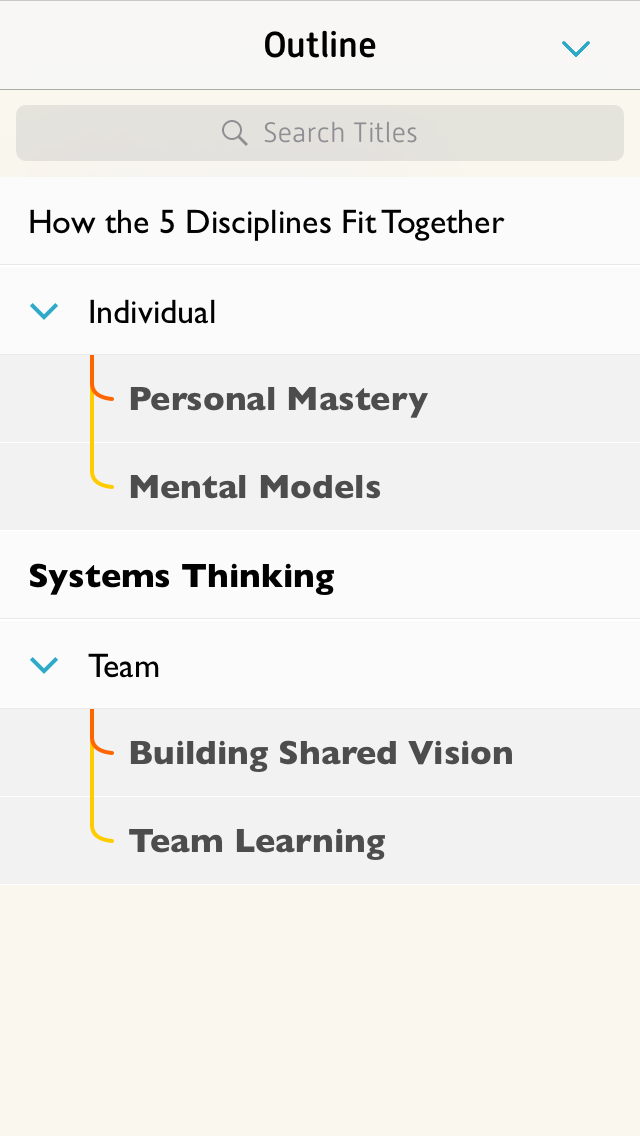
What’s really cool is what you can do with this mind map in MindNode (iOS) once you have it. You can see a text-based outline, which can expand or collapse levels:


iOS Mind Map Outline


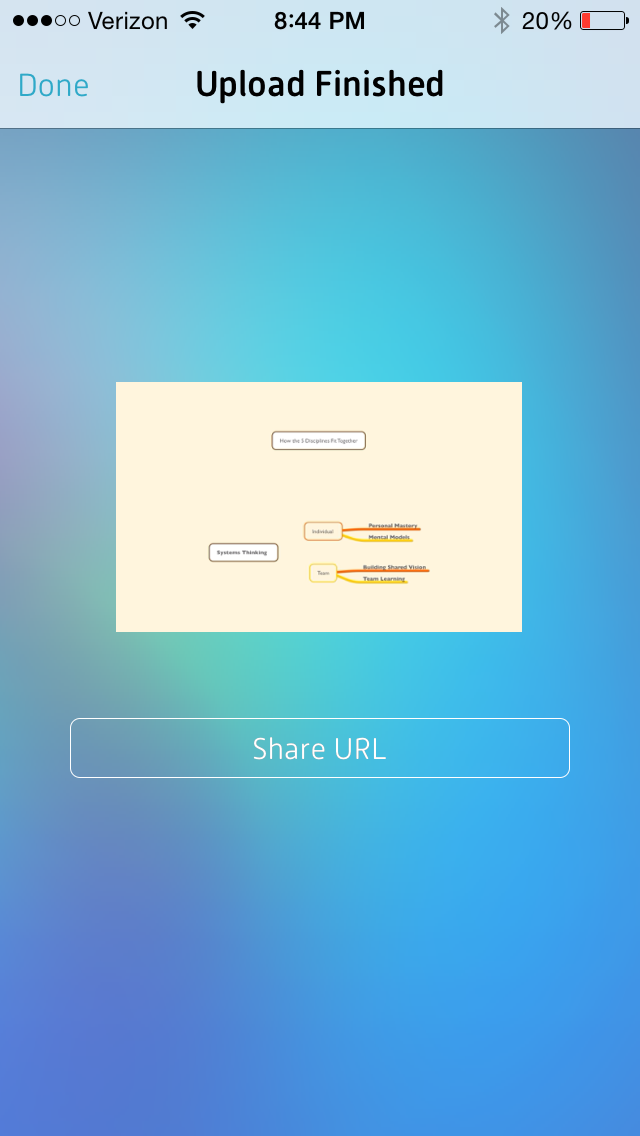
And you can export to MyMindNode, where you can view and publish your map on the Web:


Upload to MyMindNode 2


You can then share the link to your mind map


I was hoping to embed the above mind map right here in this post, but WordPress.com does not support plug-ins or a good deal of third-party embeds (dah!), so I simply can give you this hyperlink to see what it looks like.


More Complex Mind Mapping


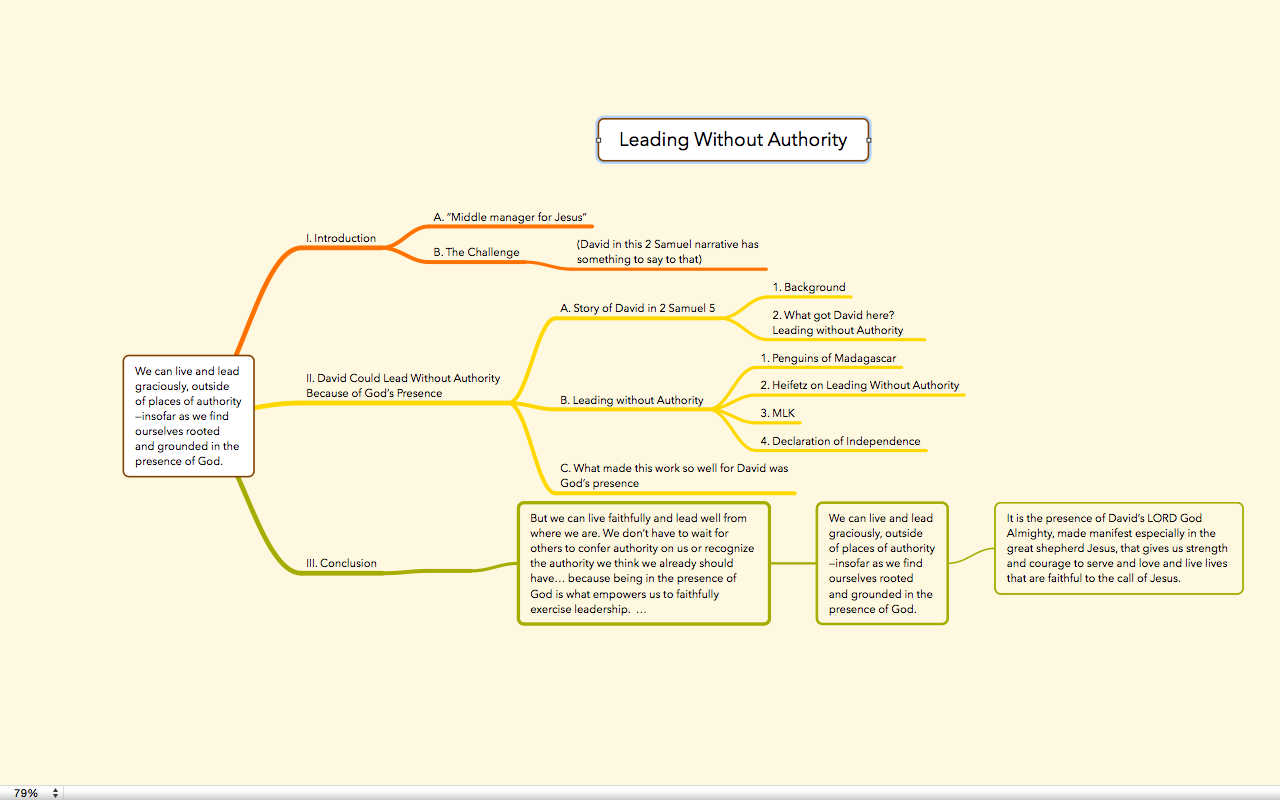
I used MindNode to map out my sermon outline this last Sunday. When I was done it looked like this:


ScreenShot from OSX app MindNode Pro (click to enlarge)


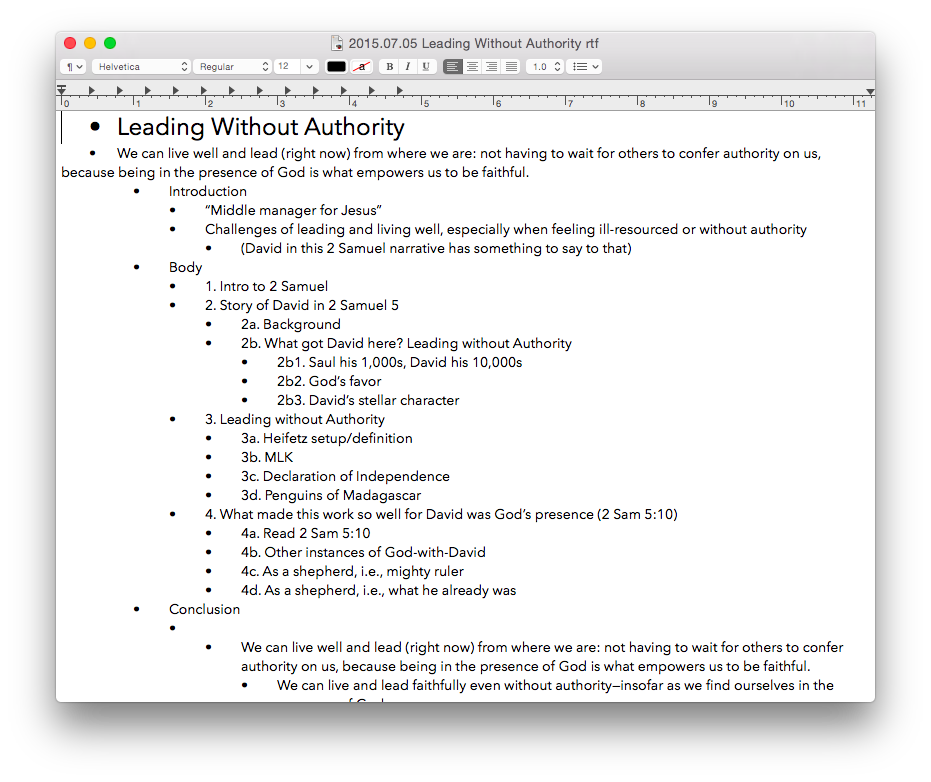
And then I thought: oops. How I am going to get this into Scrivener without re-typing everything? At first I just dragged a .png image file into Scrivener so I could see the mind map as I worked on next steps. Then I realized I could actually export it not only as a PDF or image, but as a text file. (!!)

It looked like this:


Export to text


…which was sweet, because then I could just copy and paste to Scrivener and write my manuscript into my outline, started in MindNode.

By the time I was done writing the manuscript, I’d pared down the outline a bit. Editing in MindNode was easy, so that the final map looked like this:


Final Sermon MindMap


Nodes, Parents, Siblings, Etc.: All Easy to Use


There’s a lot more to mind mapping, not the least of which is learning some terminology (nodes, parents, siblings, children, etc.). The best place to start is the MindNode Web page here. The iOS User Guide is also a great way to get to know the app; that is here.

MindNode offers iCloud and Dropbox support. iCloud has its issues (sync hanging), but MindNode has the best and most succinct troubleshooting guide I’ve seen.

Styles, fonts, and colors are all customizable. And it seems a rare treat for a writing app to exist (and be well-designed and executed) on iPhone, iPad, and Mac. Of course, for a large mind map one will probably choose Mac (or iPad) over iPhone, but moving between devices is easy. There is no Apple device on which you cannot access and edit your mind map. There’s even an accompanying Apple Watch app.

There are some other really nice touches, too, like being able to “fold and unfold” nodes, the equivalent to expand/collapse in a table of contents, for example. You can hide all of a nodes’ children if you need to clear up some screen real estate, and just as easily unhide them. You can also add notes to a node for storing even more information without having to display it.

Perhaps the best thing about MindNode is how easy it was for me to make both of the above mind maps before reading any of the support material. Moving nodes, connecting them, disconnecting them, changing fonts, dragging things around, exporting, and more… all of this was really intuitive and easy to come by both on OSX and iOS.

So… I’ll keep trying mind mapping for the outlining stage of writing. MindNode has much more still to uncover, and I’m looking forward to future use. A brilliantly executed app.


Thanks to the good people of IdeasonCanvas, for giving me a download of MindNode for iOS and OSX for the review. Check out the app’s iOS page here and the Mac app (MindNode Pro) here. Note that MindNode Pro for OSX has now been updated to MindNode2. See my other AppTastic Tuesday reviews here.

Full PDF: Comparative Review of Software for Septuagint Studies

JSCS (2014) Cover
JSCS (2014) Cover


I’ve received permission to post the full .pdf of my comparative review of software for Septuagint studies. It appears in volume 47 (2014) of the Journal of Septuagint and Cognate Studies (JSCS). In the review I consider and evaluate Accordance 10, BibleWorks 9, and Logos 5, specifically with an eye toward their use and resources in the field of Septuagint studies.

Since I wrote that review, new versions of each of those programs have appeared: Accordance 11, BibleWorks 10, and Logos 6. Perhaps the biggest change worthy of mention is that BibleWorks now offers as part of its program the New English Translation of the Septuagint.

Here is the offprint of my review.

You can subscribe to JSCS and see information about the International Organization for Septuagint and Cognate Studies (IOSCS) at this link. Journal Table of Contents are on Eisenbrauns’s site here.

HoursTracker Pro for iOS, Reviewed

HoursTracker Pro App Icon


HoursTracker has seen more than 1 million downloads from the App Store since its 2009 release. I’ve been using HoursTracker Pro for a couple months now, so report back to you here, with a look at some key features.


Clocking in and out

 
This is the main job of any time-tracking app (obvs), and it’s executed nicely here.


Clocking in
Clocking in


Clocking out
Clocking out


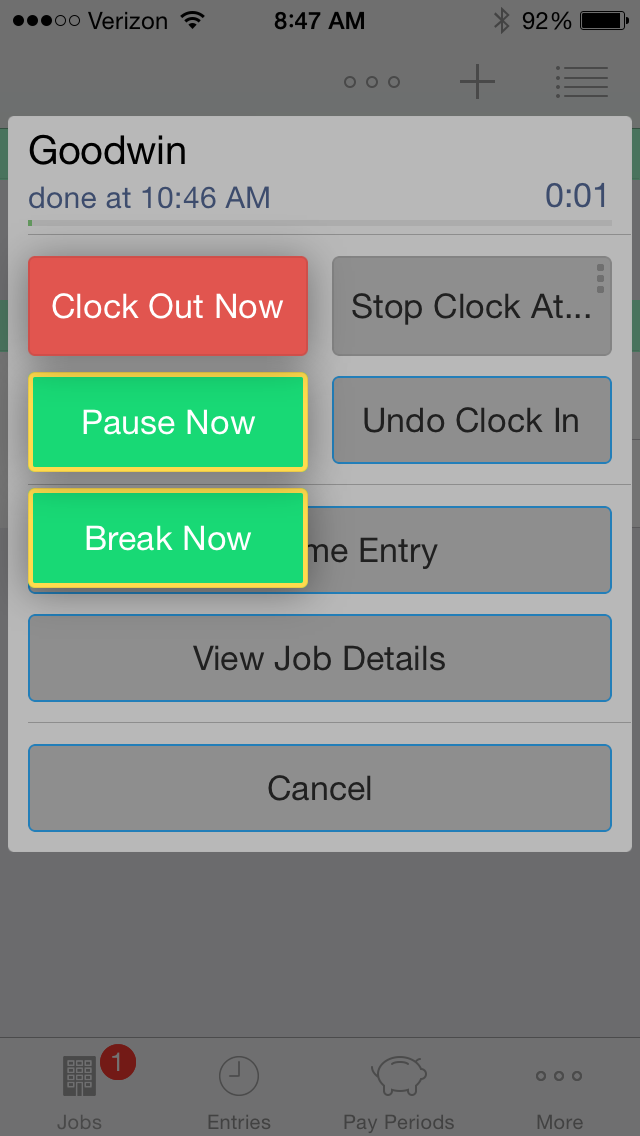
It’s easy to add a break, or just pause the timer. You hold the “Clock Out Now” button for more options to appear:


Take a Break


Tag and filter your work

 
Tags and filters offer a sophisticated way to manage and pare down the data you see. You can toggle various filters on and off, as desired.

See some of what’s possible here:


Get notifications that you’ve worked a set number of hours

 
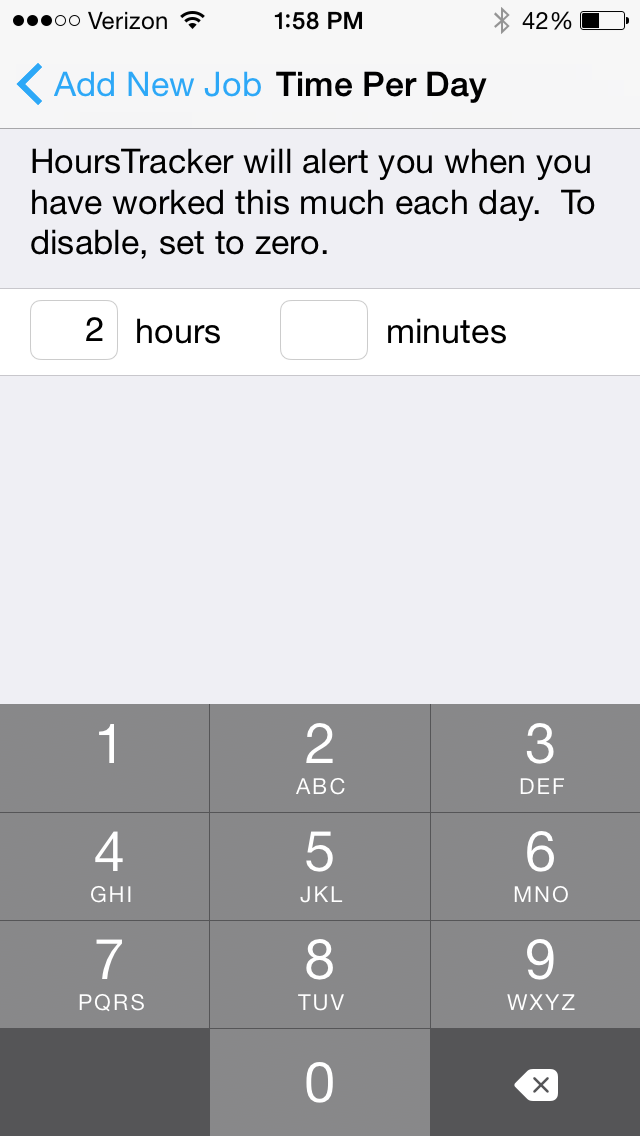
This is particularly cool. You can decide you want to work two hours on a certain job, then the app will track it for you.


Set time per day


Then it will let you know when two hours is up, even giving you warnings beforehand:


Notification of Time


Notification of Time 2


I think this has been my favorite part of the app.


Invoicing?


Although HoursTracker Pro allows you to track work done for specific clients at whatever rates you like, it does not include an invoicing feature. You can export your timesheet data, but the app could be even more of a one-stop shop–especially for consultants–if it were to add automatic invoicing options in a future release.


Export options are really good


Data export options are really good. With just a few taps (and within seconds), you can have an email in your inbox with all your timesheet data as a .csv file that includes duration, break times, notes you entered for a given job, tags, and more.


It’s customizable


HoursTracker is quite customizable–taking notes and using tags and filters make this a sophisticated app. Here’s what the Settings section looks like:


HTP Settings


In conclusion


If you want to try before you buy (the Pro app is $9, here,) HoursTracker is free here.

The Pro version is probably more than someone would want to sink into an app, if they were only tracking a job or two. But if…

  • you are tracking multiple jobs or projects, and
  • you want a way to tag and customize your data, and
  • you want to be able to access a clean and robust export

…you’ll want to check out HoursTracker. Spend some time with the free version, and then you can decide whether you want to pay for the full Pro version.

Happy time tracking! If you are a time logger, HoursTracker gives you an aesthetically pleasing environment for recording time, as well as has enough features for you to get it to do just about anything you need.


Thanks to the good people of HoursTracker, for giving me a download of HoursTracker Pro for the review. Check out the app’s iOS page here (Pro) and here (free). See my other AppTastic Tuesday reviews here.

2Do Task Management App: Free This Week in App Store

2do-128The exquisitely designed 2Do app is Apple’s App of the Week in the iOS App Store. It’s usually $15 but is now free. The accompanying Mac app is 50% off, too.

I’ve reviewed Things and OmniFocus, and will soon review 2Do.

For now I can simply say: this is one of the most robust and beautifully designed apps I’ve seen on iPhone or iPad. The developers have–with their imagination and execution–far exceeded what one sees in a typical iOS app.

Read all about the iOS features here. Download it free (for a few more days) here.