Caspian has been on heavy (and I mean: heavy) rotation ever since I saw a screening of their concert film Live at the Larcom.
They’ve got a new record coming out this fall, which I suspect will be excellent.
Here’s the track list, with names that portend some epic soundscapes:
01. Separation No. 2
02. Ríoseco
03. Arcs of Command
04. Echo and Abyss
05. Run Dry
06. Equal Night
07. Sad Heart of Mine
08. Darkfield
09. Aeternum Vale
10. Dust and Disquiet
I’ll report back as soon as I can. In the meantime, you can pre-order here or here, and listen to the first released track below (you’ll have to open the post if you’re reading on email or RSS):
Then head to the Drafts action directory to pick up this nice little callback url to install to Drafts. If you click this link from your iOS device, you can have it install the action right to Drafts. (More on iThoughts and x-callback-url options here.)
I’ve assigned this action its own “Run Action” key on the customizable Drafts keyboard, with the label MM. My keyboard in Drafts looks like this:
Now the fun part, and it’s just three steps:
1. Outline the text of your mind map in Drafts.
Here’s what I’ve just voice dictated:
To get going, use Siri to record what will be your first node (“topic” in iThoughts parlance).
To get to a second node, simply say, “New line, new line” and say what your next node/topic will be.
If you want to do sub-nodes (i.e., “children” topics) after you have dictated your main/parent topic, say, “New line,” and then have Siri indent your sub-node with the “tab key” command. Then dictate that sub-node or child topic.
You can add more parent, child, and sibling topics similarly. (iThoughts has a nice terminology overview here.)
2. Run your “iThoughts: New Map from Outline” action in Drafts.
I simply tap my “Run action” key, which automatically opens my draft in iThoughts as a mind map–and does it so quickly, I can barely catch a screenshot of the dialogue!
3. View your mind map in iThoughts.
Here it is
Because of iThoughts’s sync setup, you can now view (and modify) your mind map in iOS or OSX platforms.
If this isn’t amazing tech, I don’t know what is.
UPDATE: I’ve just learned you can achieve this same effect with MindNode, my current go-to app. It doesn’t have as rich x-callback-url support, but you can make a mind map from voice-dictated text using the “Open in…” feature in Drafts. Very cool.
Thanks to the good people of toketaWare, for giving me a download of iThoughts for iOS and OSX for review purposes. More on that app to follow.
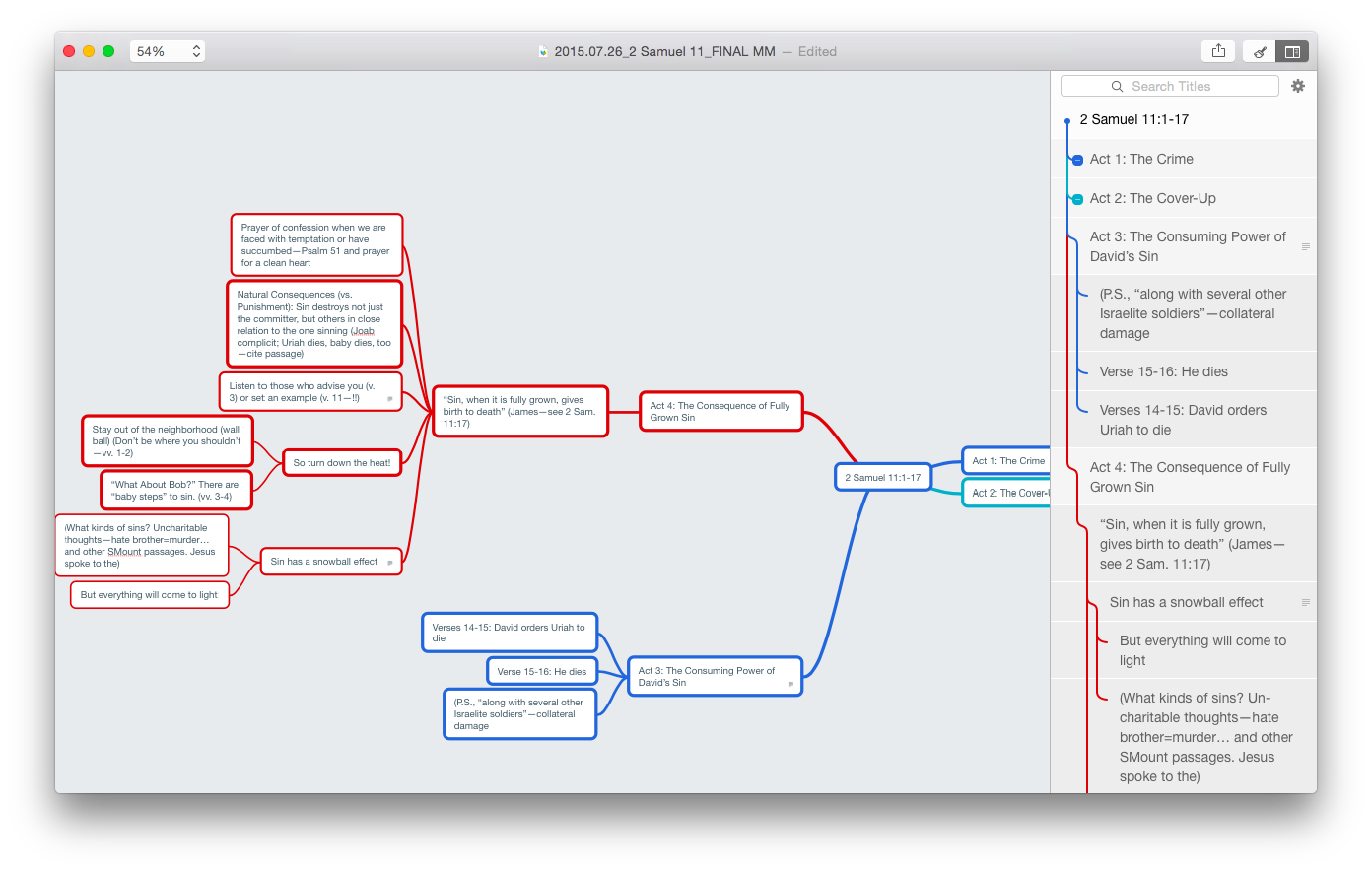
All of a sudden I’m hooked on mind mapping. It’s been a really productive way for me to make sense of the texts I speak on each week. Here’s how I’ve made structural sense of the David and Bathsheba account:
David and Bathsheba (click to enlarge image)
(If that image doesn’t work well for you, click here to see a zoomable version.)
(Next up: trying to outline thought processes in other parts of my life using mind mapping.)
I’m not at the point of being able to write a whole sermon via mind map (and may never go that route), so my next step is exporting to text.
MindNode makes that exceedingly easy, as I mentioned here. In MindNode 2.0 for Mac, you can always view a text outline of your map right next to all those nodes, sub-nodes, and connecting lines:
Note outline at right
By the way–that’s a lot to look at on one screen. MindNode has a lovely “Fit to Mind Map” zoom selection, so you can have your mind map fill the application screen. For large and multi-noded apps, that’s a great setting.
Now exporting the map to multiple options is easy. Last week I exported to .rtf, dumped the text into Scrivener, and worked from there. Export options are robust in MindNode, as are import options. I could even easily import some random thoughts from Scrivener’s cousin, Scapple, right to MindNode.
This week, however, I wanted to live dangerously. I.e., I wanted to try OmniOutliner for fleshing out my outline, once I had the content figured out in MindNode. So I exported my mind map from MindNode as .opml and opened in OmniOutliner:
What my mind map looks like in OmniOutliner (click to enlarge)
Awesome!! All right there, as it should be. All the points and sub-points are in order. The text outline that was already in MindNode is now in OmniOutliner, with everything in its right place. Even the notes popovers in MindNode (sweet new 2.0 for Mac feature) come in to OmniOutliner as notes (the grey font next to the notebook icon, in the image above).
At this point I can work from the outline in OmniOutliner. You’ll see in the image above that I’ve added a “RESEARCH” section to allow me to do just that.
OmniOutliner has similarly robust export options. I can make a couple tweaks to fine-tune the formatting in my export, and then open the finalized, annotated outline in a word processor of choice. Very nice!
I’ve been experimenting with workflow for sermon preparation lately, a little more than usual. I’ll still do my research with Accordance as my primary hub. But for the initial outlining process and the final writing process, MindNode and OmniOutliner seem to be making a great team.
One other huge bonus that both apps have in common: they are fully cross-platform across Mac, iPad, and iPhone, so I can jot down ideas wherever and whenever inspiration strikes.
Thanks to the good people of IdeasonCanvas, for giving me a download of MindNode for iOS and OSX for review purposes. And thanks to The Omni Group for OmniOutliner Pro, also for review purposes (more to come). See my other AppTastic Tuesday reviews here.
I really appreciated Constantine R. Campbell’s Basics of Verbal Aspect in Biblical Greek. Yes, I read it cover to cover. And no, it was not even for a book review or class! Just for fun. I don’t know enough to wade intelligently into the minutiae of the verbal aspect debate, but I do know that Campbell presented his view succinctly and clearly in that work. I felt like I had a good, basic grasp on aspect after working through that book.
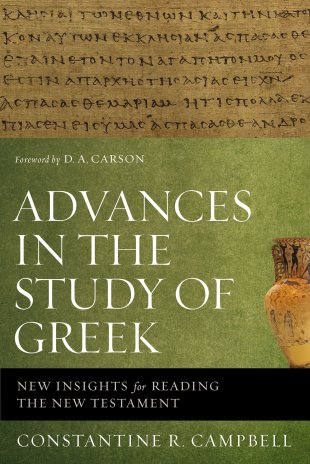
Now Advances in the Study of Greek releases this month. It surveys the thoughts, studies, and work of many Greek scholars. It’s got a chapter on aspect, but covers much more territory than just that.
Advances in the Study of Greek offers an introduction to issues of interest in the current world of Greek scholarship. Those within Greek scholarship will welcome this book as a tool that puts students, pastors, professors, and commentators firmly in touch with what is going on in Greek studies. Those outside Greek scholarship will warmly receive Advances in the Study of Greek as a resource to get themselves up to speed in Greek studies. Free of technical linguistic jargon, the scholarship contained within is highly accessible to outsiders.
Advances in the Study of Greek provides an accessible introduction for students, pastors, professors, and commentators to understand the current issues of interest in this period of paradigm shift.
I’m looking forward to reading it and writing the review, which will be published in an upcoming issue of Bible Study Magazine. Check out the book here.
Writing Goals on iPad (Image Via Ulysses/The Soulmen)
Ability to export to Pages–this .docx export ability is great (and includes Word), but unfortunately instead of offering it alongside .rtf export, that latter option has been eliminated now (leaving Nisus Writer Pro behind)
2.1 does not add to iPad the Mac functionality where you can navigate your sheet by headings, so users will have to hope for that in future updates.
All the same, this is a worthy update. If you can live with .docx export replacing .rtf export, Ulysses users will want to update right away.
Find Ulysses for iPad here, for Mac here. I reviewed Ulysses in two parts here and here, where you can see more screenshots and read more about its features.
Ulysses offers a free trial of its Mac version here.
I’ll be presenting an online training webinar–Sermon Preparation in Action–tomorrow (Thursday the 16th) at 12 noon (EST) for Accordance Bible Software.
Accordance is offering a 20% discount on all their Collections:
Get in gear with our Back to School Sale. We are kicking off seven week of savings with a 20% off sale on Accordance Collections. Collections are the best way to build one’s Accordance Library. If you are new to Accordance, you will want to select the Collection that is best suited to your work. If you are a longtime Accordance user, consider upgrading to the next Collection level using Accordance’s new Custom Upgrades.
You can compare what’s available at the chart here.
See also my review of Accordance 11 here. It’s a top-notch program.
Last night I went to a screening of Caspian’s Live at the Larcom concert film. Here’s a short write-up from the hosting venue (The Cabot):
Live at the Larcom is a 2-hour concert film chronicling CASPIAN’s momentous 10-year anniversary performance on October 18, 2014 at the Larcom Theatre in Beverly, MA. Performed in chronological order spanning all 4 of their studio albums, the set features both well known and rarely played songs by the band, captured in sweepingly atmospheric, reverent fashion by director Ryan Mackfall (Mastodon, Defeater) of Crashburn Media from London, UK.
The sound was amazing, the lights perfect, and the music and performance were incredibly moving. (And the Cabot Theater is itself lovely.) Caspian does both heavy and beautiful well, and often both at the same time. Their dynamic range is truly impressive. I’ve never seen them live, but when I closed my eyes at this film screening, I could easily imagine myself in the room with them.
Here’s the trailer (you’ll have to click through if you’re reading this post via email or other feed):
Here’s the set list:
1.) Cigarette
2.) Quovis / Further Up / Further In
3.) Moksha
4.) The Dove / ASA
5.) Ghost of The Garden City
6.) Malacoda
7.) Concrescence
8.) Sycamore
9.) Gone In Bloom and Bough
10.) Halls of The Summer
11.) Fire Made Flesh
12.) Hymn For The Greatest Generation
Check out “Gone in Bloom and Bough” (yes, it’s 10 minutes–all of it awesome):
Find Live at the Larcom available for purchase here on Blu-Ray and here as a digital download.
Some folks swear by mind mapping, a way to get ideas down on paper and visually display their interconnections beyond what just a text editing file can do.
I haven’t found it as easy a medium, but this last week I tried mind mapping my sermon outline before writing out the manuscript, and found the process really helpful. I used the app MindNode to do it, which I review today.
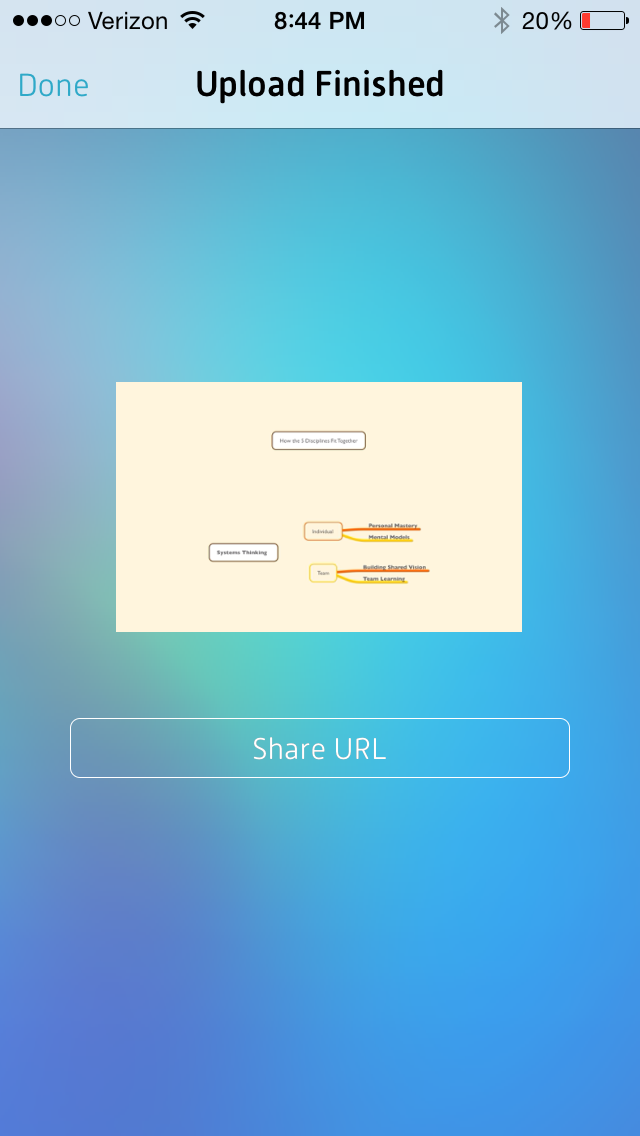
A Simple Mind Map of The Fifth Discipline
Here’s a simple mind map for understanding Peter Senge’s five disciplines in The Fifth Discipline:
5 Disciplines on an iPhone
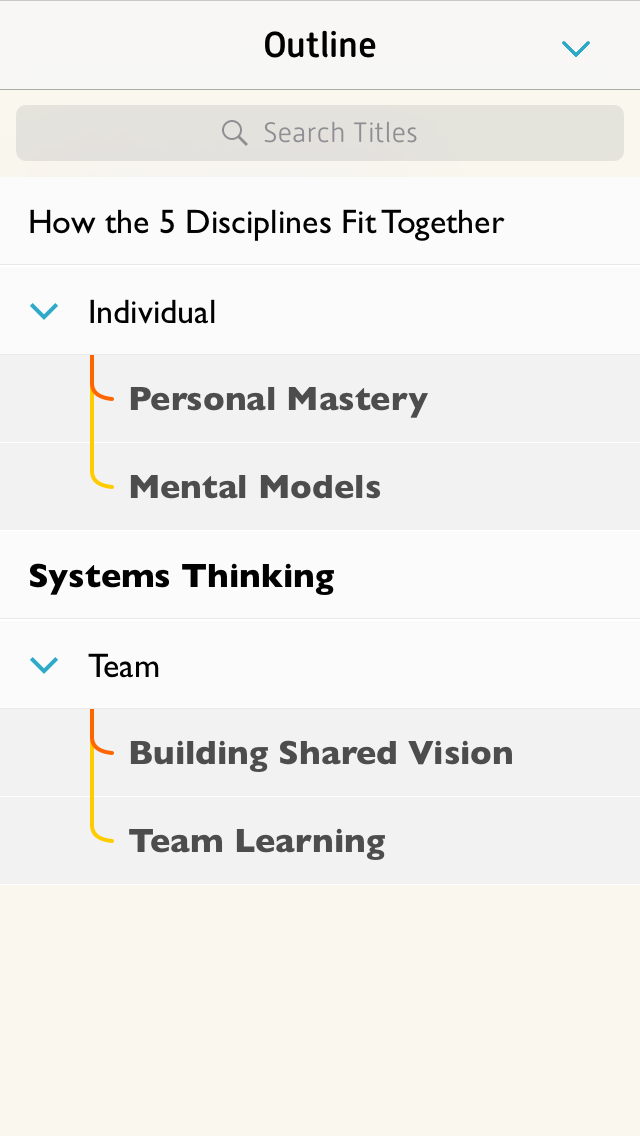
What’s really cool is what you can do with this mind map in MindNode (iOS) once you have it. You can see a text-based outline, which can expand or collapse levels:
And you can export to MyMindNode, where you can view and publish your map on the Web:
You can then share the link to your mind map
I was hoping to embed the above mind map right here in this post, but WordPress.com does not support plug-ins or a good deal of third-party embeds (dah!), so I simply can give you this hyperlink to see what it looks like.
More Complex Mind Mapping
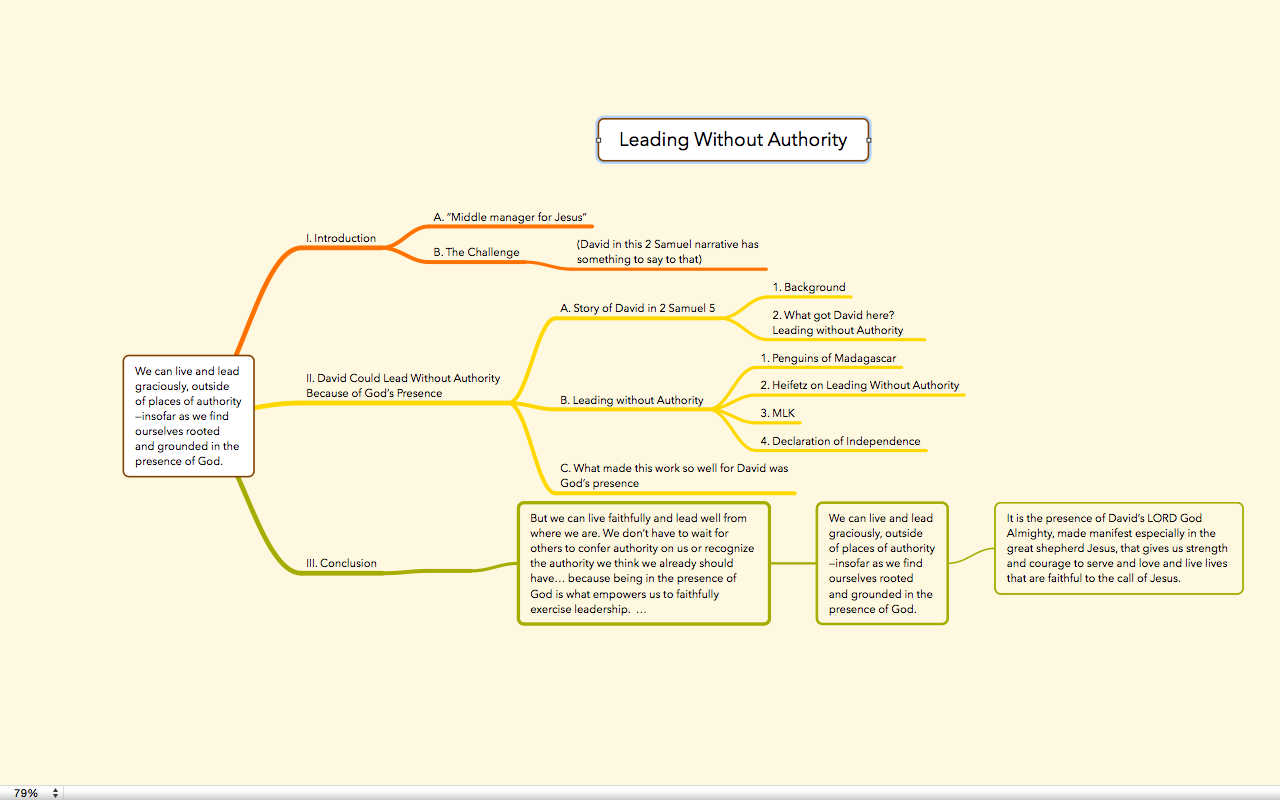
I used MindNode to map out my sermon outline this last Sunday. When I was done it looked like this:
ScreenShot from OSX app MindNode Pro (click to enlarge)
And then I thought: oops. How I am going to get this into Scrivener without re-typing everything? At first I just dragged a .png image file into Scrivener so I could see the mind map as I worked on next steps. Then I realized I could actually export it not only as a PDF or image, but as a text file. (!!)
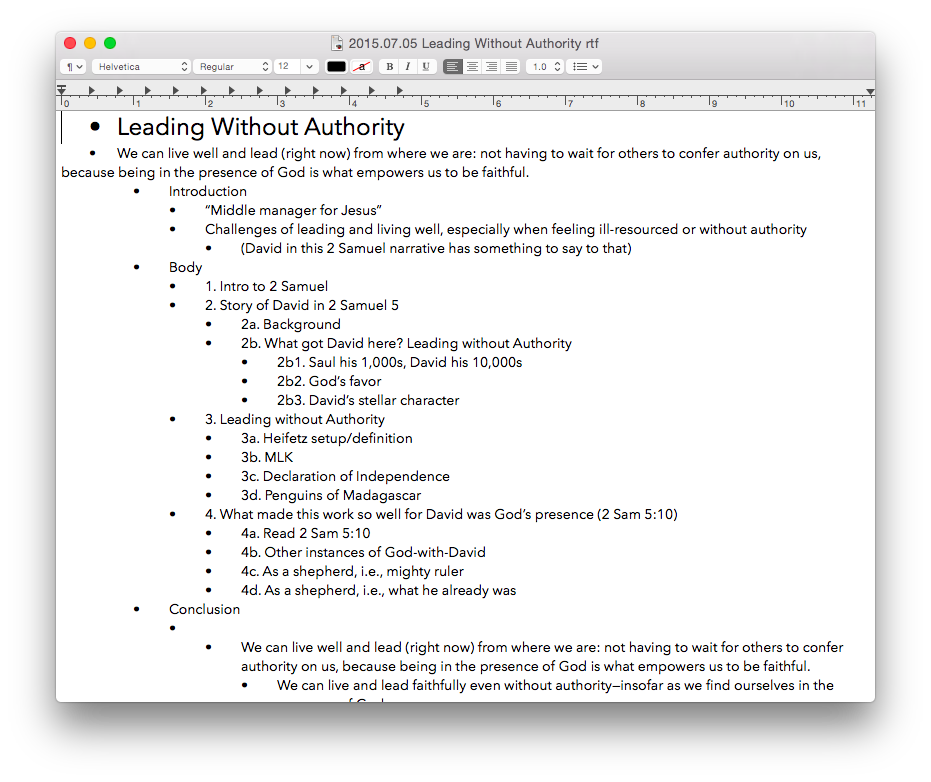
It looked like this:
…which was sweet, because then I could just copy and paste to Scrivener and write my manuscript into my outline, started in MindNode.
By the time I was done writing the manuscript, I’d pared down the outline a bit. Editing in MindNode was easy, so that the final map looked like this:
Nodes, Parents, Siblings, Etc.: All Easy to Use
There’s a lot more to mind mapping, not the least of which is learning some terminology (nodes, parents, siblings, children, etc.). The best place to start is the MindNode Web page here. The iOS User Guide is also a great way to get to know the app; that is here.
Styles, fonts, and colors are all customizable. And it seems a rare treat for a writing app to exist (and be well-designed and executed) on iPhone, iPad, and Mac. Of course, for a large mind map one will probably choose Mac (or iPad) over iPhone, but moving between devices is easy. There is no Apple device on which you cannot access and edit your mind map. There’s even an accompanying Apple Watch app.
There are some other really nice touches, too, like being able to “fold and unfold” nodes, the equivalent to expand/collapse in a table of contents, for example. You can hide all of a nodes’ children if you need to clear up some screen real estate, and just as easily unhide them. You can also add notes to a node for storing even more information without having to display it.
Perhaps the best thing about MindNode is how easy it was for me to make both of the above mind maps before reading any of the support material. Moving nodes, connecting them, disconnecting them, changing fonts, dragging things around, exporting, and more… all of this was really intuitive and easy to come by both on OSX and iOS.
So… I’ll keep trying mind mapping for the outlining stage of writing. MindNode has much more still to uncover, and I’m looking forward to future use. A brilliantly executed app.
Thanks to the good people of IdeasonCanvas, for giving me a download of MindNode for iOS and OSX for the review. Check out the app’s iOS page here and the Mac app (MindNode Pro) here. Note that MindNode Pro for OSX has now been updated to MindNode2. See my other AppTastic Tuesday reviews here.
I’ve received permission to post the full .pdf of my comparative review of software for Septuagint studies. It appears in volume 47 (2014) of the Journal of Septuagint and Cognate Studies (JSCS). In the review I consider and evaluate Accordance 10, BibleWorks 9, and Logos 5, specifically with an eye toward their use and resources in the field of Septuagint studies.
You can subscribe to JSCS and see information about the International Organization for Septuagint and Cognate Studies (IOSCS) at this link. Journal Table of Contents are on Eisenbrauns’s site here.