This Will Be 2015’s Album of the Year


Imagine if The Lassie Foundation covered a suite of Badly Drawn Boy songs, with 1996 James Iha (Smashing Pumpkins) sitting in on guitar and vocals.

And then sprinkle in an Eno/Lanois influence. Among other awesomeness.

The new record from Teen Daze–whom I’d never heard from till last week–is stellar.

NPR’s First Listen has the forthcoming Morning World available to stream in its entirety. Listen and read more about the album here.

Two Soul-Piercing Gems from David Allen (Getting Things Done 2.0)

GTD 2The wedding of productivity literature and thoughtful anthropology (let alone spirituality) seems to be woefully uncommon, but David Allen strikes me as a spiritually attuned writer. That’s why I think it’s no stretch to call some of his insights into personal productivity “soul-piercing.” Or, at least, one can better provide oneself good soul care when implementing Allen’s GTD (Getting Things Done) principles.

Readers of this blog know of my new-found use of OmniFocus, which is really just one possible tool (out of several) that helps one practice Getting Things Done.

Here are two total gems from Allen’s new, re-tooled GTD 2.0:

What you do with your time, what you do with information, and what you do with your body and your focus relative to your priorities–those are the real options to which you must allocate your limited resources. The substantive issue is how to make appropriate choices about what to do at any point in time. The real work is to manage our actions.

He says this as a reaction to talk of “managing time” or even “managing priorities.” Allen says you can’t manage time (“you don’t manage five minutes and wind up with six”) and don’t manage priorities (rather, “you have them”). That seems at first like semantics, but his point is:

Things rarely get stuck because of lack of time. They get stuck because what “doing” would look like, and where it happens, hasn’t been decided.

So the focus becomes managing our actions. And this is still relative to our priorities.

Phew. Love it. (Also, guilty as charged.)

Here’s the second gem:

Getting things done requires two basic components: defining (1) what “done” means (outcome) and (2) what “doing” looks like (action). And these are far from self-evident for most people about most things that have their attention.

I’m (actually, finally) reading Getting Things Done cover to cover. It’s already a breath of fresh air. Find it here.

Voice Dictate a Mind Map (MindNode+Drafts+Siri=Whoa.)

You can make a mind map with no hands in just three steps on an iPhone.

To voice dictate a mind map, you need:

  • an iPhone or iPad with Siri
  • the amazing app Drafts 4
  • mind mapping app MindNode

The Drafts action you’re going to need is “Open in….”

I’ve given this action (which comes already installed with Drafts) its own “Run Action” key on the customizable Drafts keyboard, with its own icon from the emoji keyboard. My keyboard in Drafts looks like this:


Voice MN_Keyboard


Now the amazing part, and it’s just three steps:


1. Outline the text of your mind map in Drafts.


Here’s a bit of voice-dictated text:


Voice MN_Draft


To get going, use Siri to record what will be your first node.

To get to a second node, simply say, “New line, new line” and say what your next node will be.

If you want to do sub-nodes (i.e., “children”) after you have dictated your main/parent node, say, “New line,” and then have Siri indent your sub-node with the “tab key” command. Then dictate that sub-node or child.

You can add more parent, child, and sibling topics similarly.


2. Run your “Open in…” action in Drafts.


I simply tap my “Run action” key, which automatically triggers the “Open in…” action:


VoiceMN_Open in


Select Mind Node and…


3. View your mind map in MindNode.


Voice MN_Map


Because of MindNode’s iCloud-enabled sync setup, you can now view (and modify) your mind map in iOS or OSX platforms.

Joey Lawrence put it best:


The above is an adaptation/re-posting of a previous post on voice dictating a mind map. That post used the app iThoughts, but I learned shortly after posting that even though MindNode doesn’t have the x-callback-url support that iThoughts does, Drafts’s “Open in…” feature makes the same process possible with just one extra tap. Rad.

You Asked and Asked, Now It’s Coming: A Septuagint Reader

LXX decalOn the one hand, the burgeoning field of Septuagint studies still has few enough publications that any new work is potentially significant. On the other hand, there still seems to be an acute need for works that bridge the gap between New Testament Greek readers and LXX specialists.

Resources like †Rod Decker’s Koine Greek Reader (which pays decent attention to the Septuagint) or even the old Conybeare and Stock (which has some LXX portions with explanatory footnotes) are few and far between.

I’ve been asking Kregel for probably three years now whether they’d consider publishing a dedicated Septuagint reader. Little did I know one was already in the works.

It releases this fall. Karen Jobes is its author. Here’s some copy from Kregel that describes the book:

Interest in the Septuagint today is strong and continues to grow. But a guidebook to the text, similar to readers and handbooks that exist for students of the Greek New Testament, has been lacking. Discovering the Septuagint: A Guided Reader fills that need. Created by an expert on the Septuagint, this groundbreaking resource draws on the editor’s experience as an educator to help upper-level college, seminary, and graduate students cultivate skill in reading the Greek Old Testament.

This reader presents, in canonical order, ten Greek texts from the Göttingen Septuaginta Vetus Testamentum Graecum and the Rahlfs-Hanhart Septuaginta critical edition. It explains the syntax, grammar, and vocabulary of more than 700 verses from select Old Testament texts representing a variety of genres, including the Psalms, the Prophets, and more.

The texts included in this volume were chosen to fit into a 15-week semester, reading about 50 verses a week. The texts selected 1) Are examples of distinctive Septuagint syntax or word usage and/or 2) Exemplify the amplification of certain theological themes or motifs by the Septuagint translators within their Jewish Hellenistic culture and/or 3) Are used significantly by New Testament writers.

More specifically:

  • Each study includes:
    • Introduction—briefly discussing the particular Greek text and its key features.
    • English translation—using the New English Translation of the Septuagint.
    • Text notes—providing verse/phrase–level explanations of the Greek syntax and grammar.
    • Use in the New Testament.
    • Select bibliography.
  • Parses more difficult verbal forms, gives alternate ways of reading the text, and discusses significant critical issues of the text.
  • Calls attention to vocabulary and syntax unique to the Septuagint.
  • References standard Septuagint grammars, lexicons, and other resources.

No cover art yet, but the book is a-coming. You’ll hear more here later.

Now You Have to Pay to Email to Evernote, But Here’s a Workaround (EverMail)

Evermail

One of Evernote‘s best features is being able to email notes directly into Evernote. They give you an email address, and if you get an email that you want to file away for reference, you can send it right to Evernote. (You can even, if you word your subject line correctly, tag it and put it in a specific notebook.)

However, Evernote recently announced that you’d have to sign up for one of their paid plans if you wanted to keep your heretofore free email address. It’s not a huge sum, but I don’t plan to upgrade–I just don’t need the larger upload storage space at this point, which also comes with the paid upgrade.

Enter EverMail.

The Mac Mail plug-in from ChungwaSoft was available long before Evernote changed their pricing structure, and I used it regularly then. Now it’s an essential part of my workflow.

Here’s how it works.


1. I get an email, the contents of which I want to file in Evernote.


An email about the Septuagint. What could be better?


Look again at the image above–at the top right you’ll see the Evernote elephant icon. That’s because I have EverMail installed in my Mac Mail app.


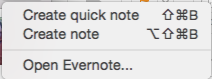
2. I click the EverMail icon, which gives me three options.


2_Create a Note


3a. I choose “Create quick note,” which I can select with mouse/trackpad or via keyboard shortcut.


4_Quick Save


I can quickly save my email to any notebook. The shot above doesn’t show it, but I now have it set up to default to my “Inbox” notebook in Evernote.


3b. I select “Create note” to further customize my email/note before sending to Evernote.


3_Edit Note


From here I can not only select the desired Notebook and tags, I can set a reminder, adjust the Note title, add my own notes to the link I’m saving, and even include email attachments so they save to Evernote, too.

This is actually even an improvement on emailing to Evernote, because now I don’t have to remember the right subject line syntax for adding tags and sending to a proper Notebook. I can do everything from within Mac Mail and not even have to open Evernote.

Once you install EverMail, you’ll see it in your Mail toolbar:


Mail Menu Bar


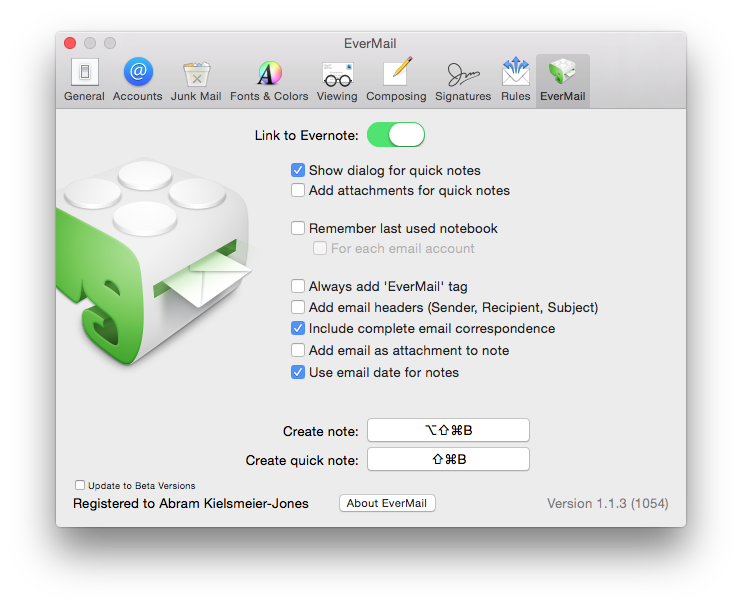
And here are the settings–EverMail puts itself right into your Mac Mail Preferences:


Settings


I mentioned free earlier. EverMail is not free, but at $13.95, you’ve got yourself a permanent email-to-Evernote solution that you don’t have to keep paying for each month.

Setup and use have both been exceedingly easy. I’m a big fan of the app. Check it out here.


Thanks to the good people of ChungwaSoft for giving me a download of EverMail for review purposes.

Advances in the Study of Greek: New Book. It’s Awesome.

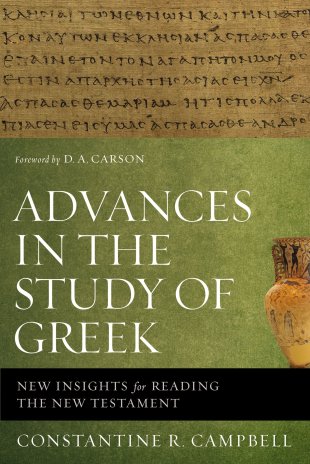
Advances in the Study of Greek


Now that I’ve spent considerable time with Advances in the Study of Greek (book announcement here), I’m reporting back to say: It’s awesome.

I have a review submitted for an upcoming issue of Bible Study Magazine.

Two observations that didn’t fit into that review, with one that did:

  1. Campbell’s writing is good. Compelling, clear, cogent, coherent, etc.
  2. He has a further reading section after each chapter, and his footnotes point to even more related literature that I already want to check out.
  3. I didn’t expect there to be as many practical, exegetical examples as there were, but this made me more engaged with the book, and helped me see more explicitly how its contents could better inform my sermon preparation.

Advances in the Study of Greek is available now. Check out the book here.

Lifeline for iOS: Rescuing Taylor from a Lonely Planet

Lifeline


Lifeline begins with your receiving a transmission from “Taylor,” a man or woman who is stranded (and alone…?) on a strange planet. Maybe “game” is the wrong moniker for this app–it’s really more of an interactive experience, similar to the Choose Your Own Adventure novels of days gone by.


Lifeline: The Basics


It starts like this:


IMG_4300


And away you go! From here on out, it’s as if you’re interacting with Taylor, complete with realistic overnight pauses in communication as s/he goes to sleep for the night.

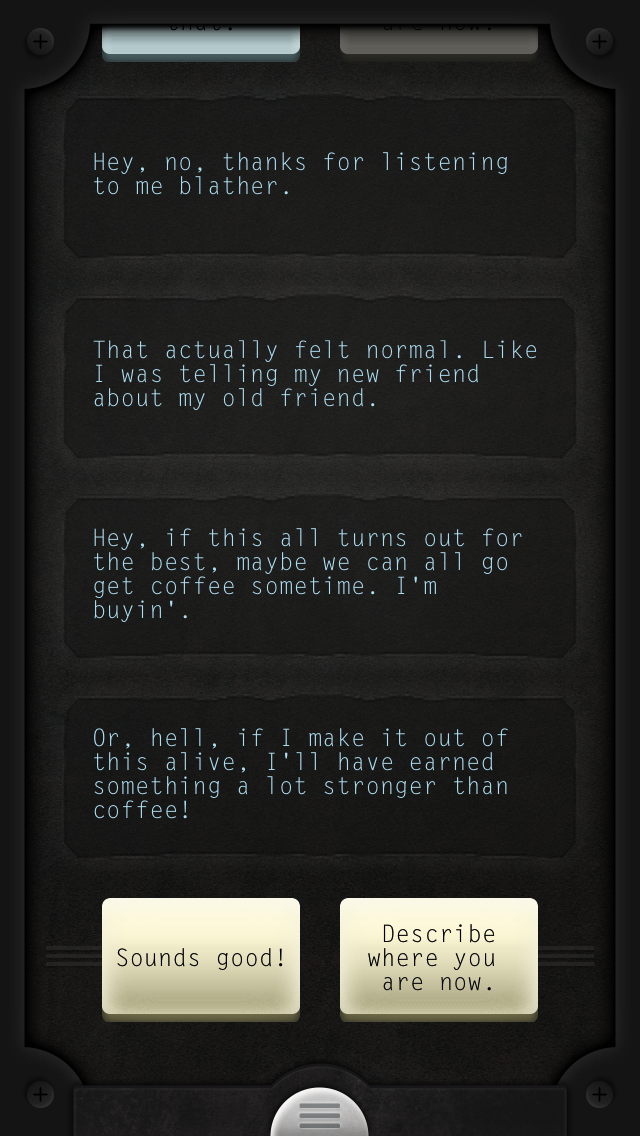
Taylor’s funny, even amidst dreary circumstances:
 

IMG_4303


Your first choice with fairly serious consequences comes early in the game:
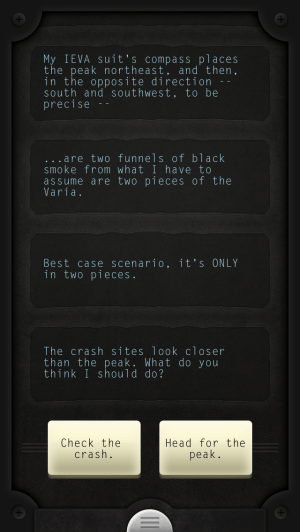
 

IMG_4304


Off Taylor goes, and you wait:


IMG_4307


One of the coolest things about the app is the on-screen notifications you get even when you’re not “playing”:


IMG_4308


You can even respond without unlocking your phone:


IMG_4329


For the most part Taylor will do what you say, though it is not uncommon to have your wisdom second-guessed. After a little banter, though, Taylor will ultimately follow the path you suggest.


Evaluation (Insignificant Spoilers Below)


I had way more fun playing Lifeline that I thought I would. And I was much more drawn into the story than I expected to be.

The pacing of the story (i.e., how often you receive notifications and the real-life waiting time overnight or while Taylor is walking somewhere) is nearly flawless. You really have to spend three to four days to get Taylor to the end. Well… unless you make bad decisions early on.

I was actually pretty happy with myself that I got Taylor safely off the planet on the first try.
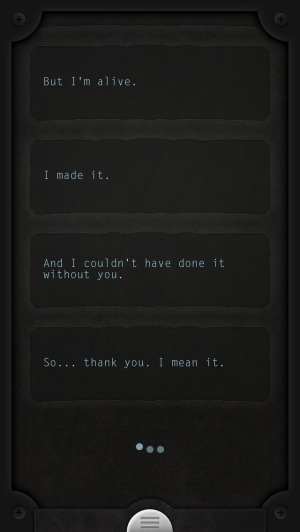
 

IMG_4341


After you finish the story you get the option to go back again, this time with no delays, which is a really nice way to quickly try other paths.


IMG_4342


When I went back to try new scenarios, I realized that you can get him/her killed the first day pretty easily!

The phone notifications are just like any other app’s notifications, though when you’re immersed in the game they sort of feel like text messages. There is no sound with the message notification, and I couldn’t find a way to change this setting. At first I found this a bit frustrating, but was actually glad for it as the days went on, so that I wasn’t constantly interrupted by Taylor. (You can adjust notifications in the settings otherwise.)

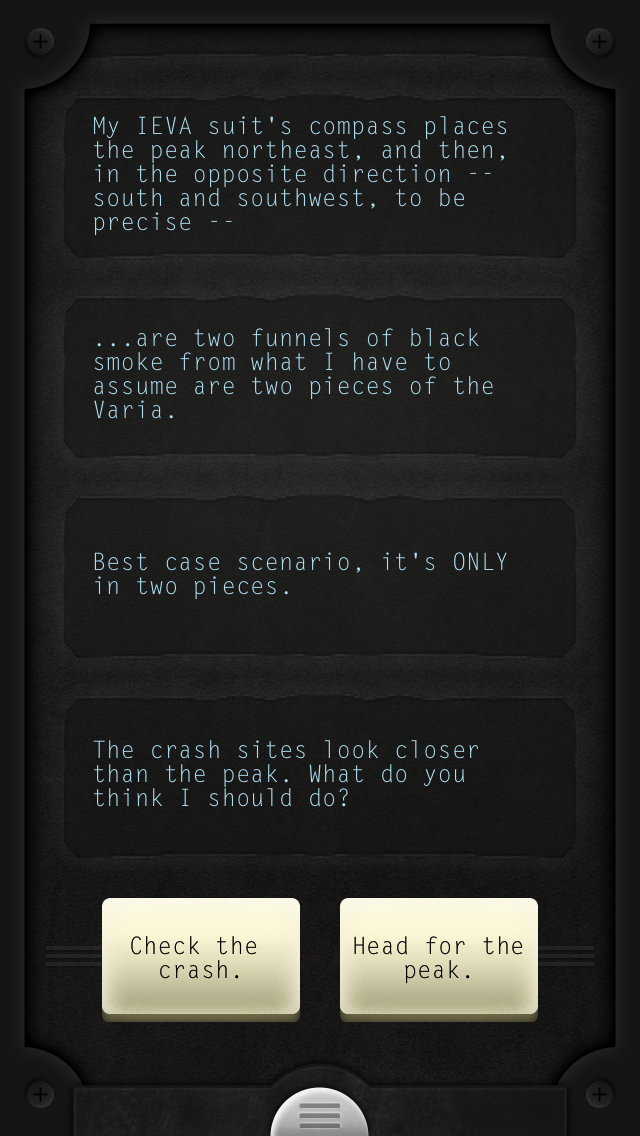
One mildly vexing thing about the game is that it’s not uncommon that after you make a decision for Taylor, s/he confirms that it was a good (or maybe not-good) decision by giving you more detail about surroundings… detail s/he already had and that would have been very useful before offering advice! E.g.:


IMG_4315


But I can’t tell if this is a frustration with the game-writing or the character. Not a big deal either way.

Lifeline is great. It’s available in the iOS App Store right now (see here). It’s also available on other platforms, and rumor has it that Lifeline 2 is coming soon…. Check out the game in more detail here. And go here for a fascinating behind-the-scenes write-up.


Thanks to the good people of Big Fish Games for giving me a download of Lifeline for review purposes. Find my other Apptastic Tuesday reviews here.


New Caspian Record: Dust and Disquiet

Dust and Disquiet


Caspian has been on heavy (and I mean: heavy) rotation ever since I saw a screening of their concert film Live at the Larcom.

They’ve got a new record coming out this fall, which I suspect will be excellent.

Here’s the track list, with names that portend some epic soundscapes:

01. Separation No. 2
02. Ríoseco
03. Arcs of Command
04. Echo and Abyss
05. Run Dry
06. Equal Night
07. Sad Heart of Mine
08. Darkfield
09. Aeternum Vale
10. Dust and Disquiet

I’ll report back as soon as I can. In the meantime, you can pre-order here or here, and listen to the first released track below (you’ll have to open the post if you’re reading on email or RSS):


How to Voice Dictate a Mind Map on Your iPhone

iThoughts icon
iThoughts mind mapping app


You can create a mind map with no hands in just three steps on an iPhone.

Before you voice dictate your mind map, you need:

Then head to the Drafts action directory to pick up this nice little callback url to install to Drafts. If you click this link from your iOS device, you can have it install the action right to Drafts. (More on iThoughts and x-callback-url options here.)
I’ve assigned this action its own “Run Action” key on the customizable Drafts keyboard, with the label MM. My keyboard in Drafts looks like this:


Mind Map Key


Now the fun part, and it’s just three steps:


1. Outline the text of your mind map in Drafts.


Here’s what I’ve just voice dictated:


Text in Drafts for Mind Map


To get going, use Siri to record what will be your first node (“topic” in iThoughts parlance).

To get to a second node, simply say, “New line, new line” and say what your next node/topic will be.

If you want to do sub-nodes (i.e., “children” topics) after you have dictated your main/parent topic, say, “New line,” and then have Siri indent your sub-node with the “tab key” command. Then dictate that sub-node or child topic.

You can add more parent, child, and sibling topics similarly. (iThoughts has a nice terminology overview here.)


2. Run your “iThoughts: New Map from Outline” action in Drafts.


I simply tap my “Run action” key, which automatically opens my draft in iThoughts as a mind map–and does it so quickly, I can barely catch a screenshot of the dialogue!


New Map from Outline


3. View your mind map in iThoughts.


Here it is
Here it is


Because of iThoughts’s sync setup, you can now view (and modify) your mind map in iOS or OSX platforms.

If this isn’t amazing tech, I don’t know what is.

UPDATE: I’ve just learned you can achieve this same effect with MindNode, my current go-to app. It doesn’t have as rich x-callback-url support, but you can make a mind map from voice-dictated text using the “Open in…” feature in Drafts. Very cool.


Thanks to the good people of toketaWare, for giving me a download of iThoughts for iOS and OSX for review purposes. More on that app to follow.

I Love to Run vs. I Love to NOT Run

I Hate Running


I have fallen off the wagon a bit these last 10 days or so with regard to running. Nothing to be proud of, I know. Today I realized something frustrating (but true):

I love not going for a run.

It feels good to not have to wake up super-early to exercise, or figure out how I’m going to schedule a jog in a day with multiple other demands.

But then I went for a run today, and remembered:

I love going for a run.

Ah, these blasted competing values. I get caught in the crossfire every time!


I Love Running


But I do love running, even though I also love not running, and that feeling–as long as I can keep remembering it–will get me out there again in the next day or two.