I never did get the 2048 tile. I’ve beaten the last boss on Sky Force, but there are still parts of the game I haven’t unlocked.
While I’ve found lots of ways to use the mobile iOS device productively (I’m looking especially at you, OmniFocus), I have also been on the lookout for good diversions.
Enter Threes.
The obvious comparison is to 2048, but this game has more character. The numbers, for example, have names:
Say Hello to Threejay
If you look closely at the 6 and the 3 on the bottom row, you can see they’ve got little faces, too. And–the best part of the game–they make sounds and talk to you when you move them around to add them together: “Hi!”, “Hello!”, “Hey, guys!”, “Okay,” “Sup?”, etc. Sometimes a tile might even growl at you. (Right now my three kids are laughing at the sound effects and repeating them while my wife plays. I need to finish this post and get back to the game!)
The 1 tile can only be added to the 2 tile, and vice versa.
Tiles with numbers 3 and up each combine with the same number (3 with 3, 6 with 6, 12 with 12, etc.).
The game offers a really simple, quick tutorial to get you started.
Here’s what a board-in-progress looks like:
Being able to see the next tile (by color–at the top of the screen) is a nice advantage.
There’s a good sense of humor throughout the game (already noted above). Even the “Clear Scores” option says, “This will clear the data but not the memories.”
And you get confetti when it tallies up your final score, after you are out of moves:
It’s fun for the whole family, kids to adults. 2048 was free, but this is easily worth the $1.99, which gets you the app both on iPhone and iPad. Find it here.
Thanks to the maker of Threes for giving me a download for the review.
May Prof. Rodney Decker rest in peace. One of his final contributions (gifts) to the Greek-learning community was this exciting new grammar, which I just received in the mail from Baker Academic yesterday:
Here is the description from Baker’s site:
This in-depth yet student-friendly introduction to Koine Greek provides a full grounding in Greek grammar, while starting to build skill in the use of exegetical tools. The approach, informed by twenty-five years of classroom teaching, emphasizes reading Greek for comprehension as opposed to merely translating it. The workbook is integrated into the textbook, enabling students to encounter real examples as they learn each new concept. The book covers not only New Testament Greek but also the wider range of Bible-related Greek (LXX and other Koine texts). It introduces students to reference tools for biblical Greek, includes tips on learning, and is supplemented by robust web-based resources through Baker Academic’s Textbook eSources, offering course help for professors and study aids for students.
Looks great! After a quick flip through, what stands out most is that the vocabulary lists at the end of each chapter include frequency counts for both the New Testament and the Septuagint.
For $19 (until 9:00 a.m. EST on Wednesday, October 29), Amazon’s Fire TV Stick is on sale:
Fire TV Stick connects your HDTV to a world of online entertainment. With a huge selection of movies and TV episodes, voice search that actually works, and exclusive features like ASAP and Prime Music, Fire TV Stick is an easy way to enjoy Netflix, Amazon Instant Video, Hulu Plus, low-cost movie rentals, live and on-demand sports, music, photos, games, and more.
According the the product page, you plug the stick in at your HDMI port, connect to the Internet, and then watch any number of shows and movies and subscription services through your TV.
(Words on the Word is an Amazon affiliate, which means Amazon pays us back with a portion of any referrals. We would have posted about the Fire TV Stick anyway.)
Logos 6 sports a number of new features. Here are my favorite ones so far. Click on any image or open in a new tab to see it larger.
1. Interactives
This is the most impressive part of Logos 6, in my view.
I would have loved to have the interactive “Psalms Form and Structure” when preaching through the Psalms this past summer. You can click on any of the Psalm bubbles above to get a structural outline and more information. As you can see in the left sidebar, you can sort the Psalms visually by genre (really helpful), attribution (author), and more. Out of all the Interactives, this one is my favorite: visually appealing and really practical. There’s also an Interactive for the Proverbs.
Searching your Logos library for “type:Interactive” pulls up all the Interactive resources in Logos 6. Here are a few more worth highlighting:
Bible Outline Browser: for any given Bible passage, it shows you any Bible text outlines in your library, so you can compare various ways of dividing the text.
Morphology Charts: if you’re looking at a Hebrew or Greek Bible text, you can click to see all the biblical uses of a given lemma in its various forms, and with frequency. A great feature for language learning.
Text Converter: it takes any Greek or Hebrew you put in and automatically translates it for you. As much as I try to use Greek and Hebrew, I’m still not very good at writing or reading them in their transliterated forms. This is a really handy resource. P.S. Handy tip of the day: You can already transliterate online, via Logos, free.
Hebrew Cantillation Structural Diagrams (!): uses the cantillation marks in the Hebrew Bible “as a clue to the structure” to turn the passage into a “hierarchical flow diagram.”
Here’s Logos’s video of the Psalms Form and Structure:
2. Factbook
It’s not the CIA, and it’s not Facebook, although it does sort of function like an amalgamation of the two (in a good way).
Factbook looks and feels like one of the Guides (Exegetical or Passage) Logos has, and updates what in Logos 5 was called Bible Facts.
Basically any noun (people, places, things, Bible books, events, etc.) pulls up a corresponding Factbook panel. If I’m researching Isaac, for example, typing “Isaac” into Factbook will pull up multiple collapsible hyperlinked sections where I can learn more about him: events in which he’s involved, resources in my library in which he appears (that I can click on for more), even a nifty “Referred to as” sub-section, so I can find all his mentions as “my son,” which is important for understanding Genesis 22, for example.
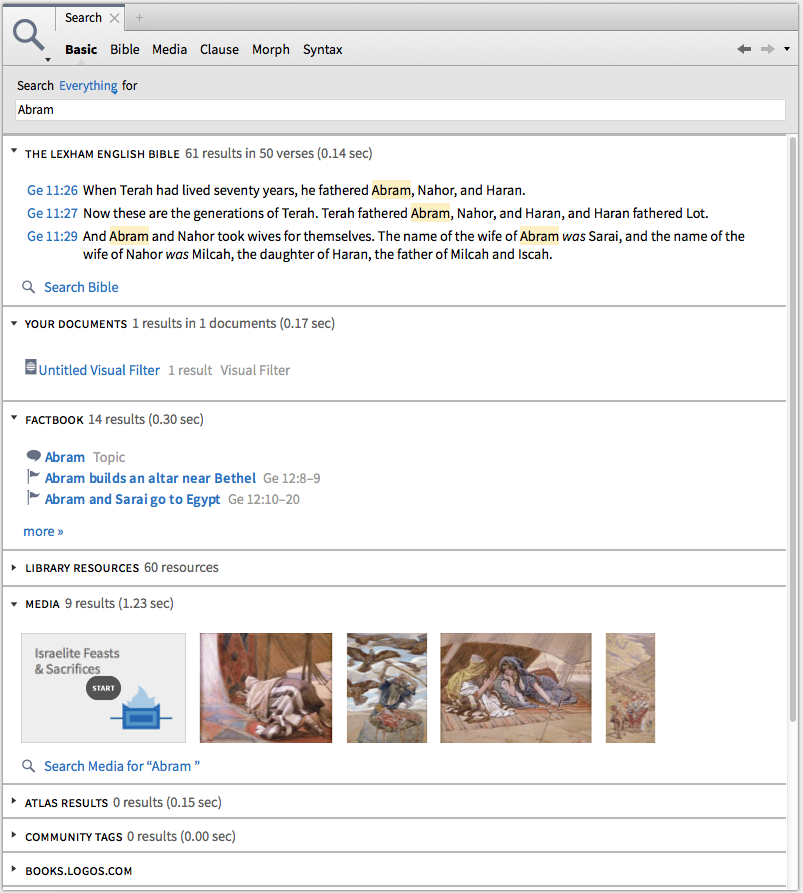
3. Search Everything
You can search across Bibles and commentaries and resources. Here are hit results, all of which are hyperlinked and can be explored for more, when I search everything for Abram:
The new Inline Search feature (watch it in action here) is pretty cool, too.
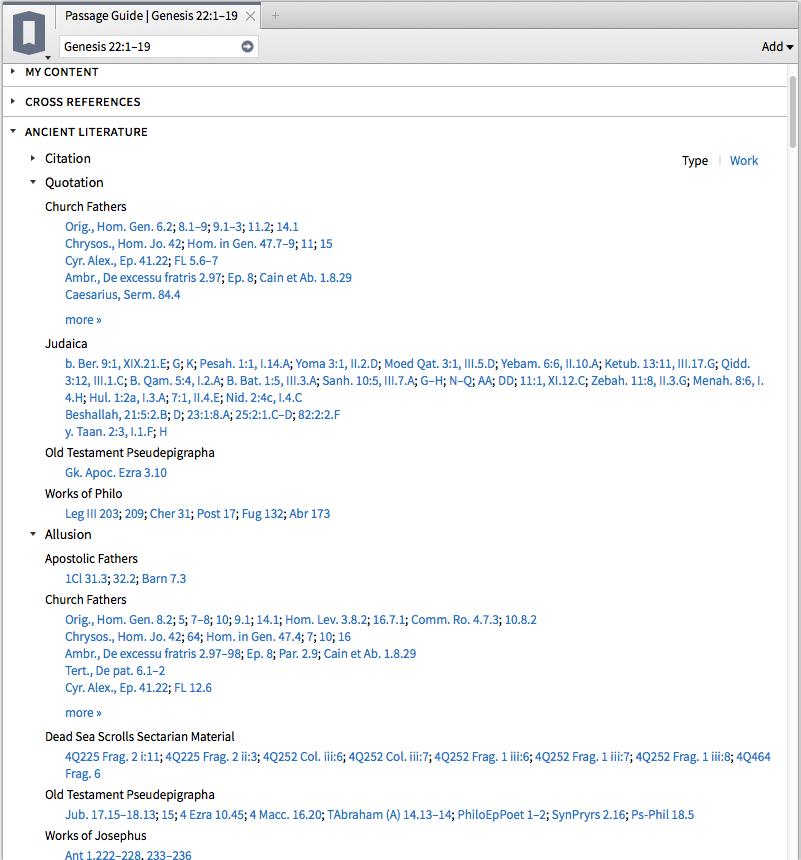
4. Ancient Literature / Cultural Concepts
These are two new sections that can be accessed in the Guides (Passage Guide, Exegetical Guide, and Sermon Starter Guide is how I’ve gotten them). Have a look, and note that Ancient Literature is even sub-divided into Quotations, Allusions, and more:
and:
Need for Speed
I run Logos 6 on an early 2008 iMac, but with a hard drive that’s been replaced in the last year. As a point of comparison, Accordance runs well on the same machine and returns search results quickly.
Logos’s lack of comparative speed on a Mac (even newer ones) improved between Logos 4 and 5. And you can see that the search times in the Search Everything query above are quite fast and impressive. However, it’s not uncommon even in Logos 6 for what I would consider a simple search to take 3 to 5 seconds (or more) to return results. The frequent Indexing and “Preparing Your Library” messages on startup are a pain that I really hope Logos pays attention to improving (or eliminating), especially for Mac users.
I do understand from the Logos forums that PC users and those with Solid State Drives see faster performance, but I would use Logos more often if it had consistently faster overall performance.
Interactives for Sermon Preparation
All that said, the Interactives alone (which are not sluggish) make Logos 6 worth the price of the upgrade. Sure, you can Google “Israelite Feasts and Sacrifices” and hope for the best. Or you can open the Interactive in Logos and see (and sort) this:
And this:
How to Get Logos 6
Check out Logos 6 here, and use the promo code ABRAMKJ6 when you checkout with for 15% off base packages.
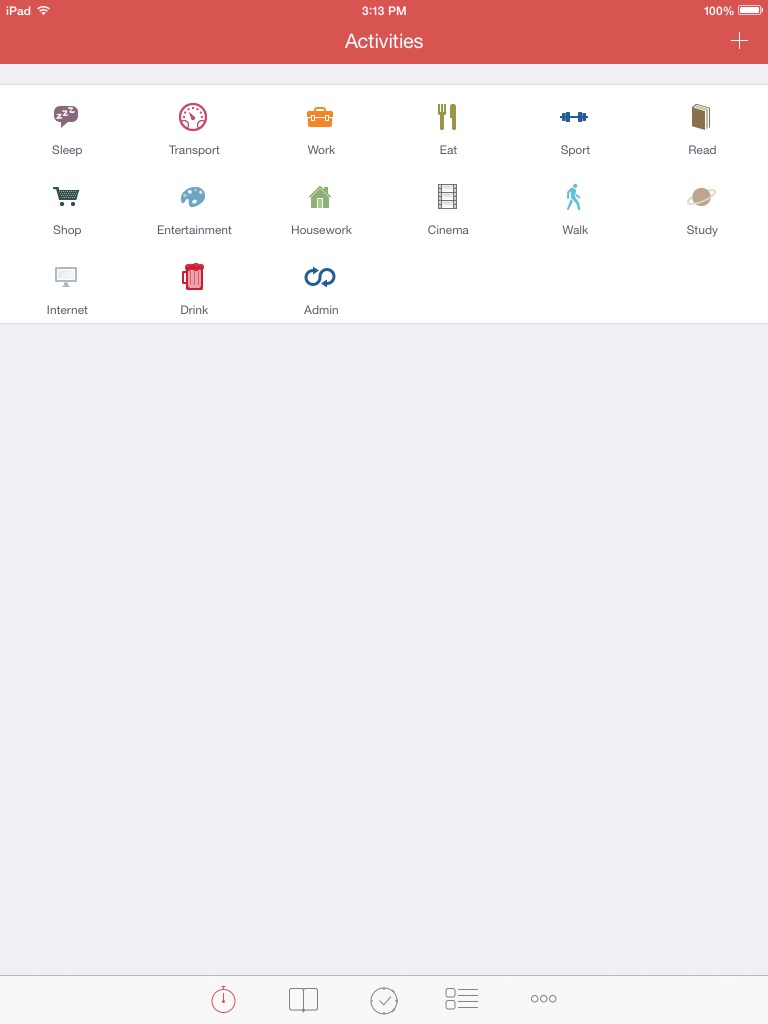
A solid time-tracking app for iPad and iPhone–aTimeLogger 2–is free for a limited time.
I’ve made some use of Hours (iPhone only), OfficeTime (iOS and OSX), and StopWatch Plus (OSX). Expect a report back. For now, you can download aTimeLogger, since it’s free at the moment, and see what you think.
Here is a list of features from the developer’s write-up:
– easy and intuitive interface
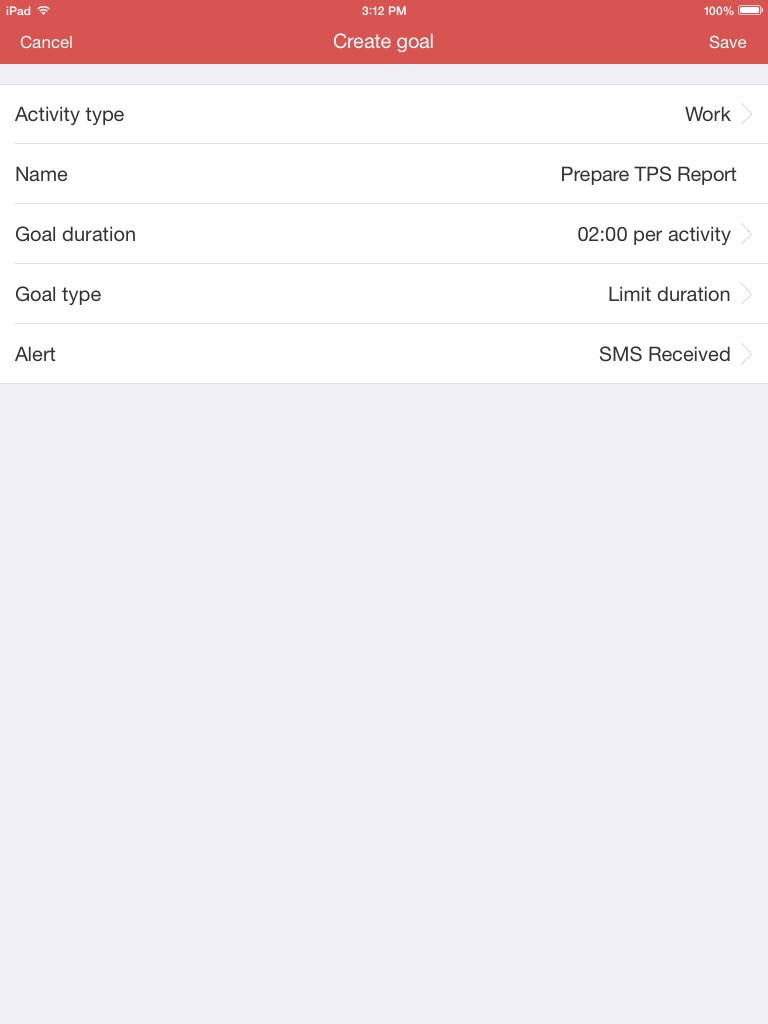
– goals
– pause/resume activities
– groups
– simultaneous activities (enable them in Settings)
– many statistics available in form of graphs and pie charts
– reports in different formats (CSV and HTML)
– backup and restore
– a huge number of icons for activity types and ability to upload custom icons
– the best support 🙂
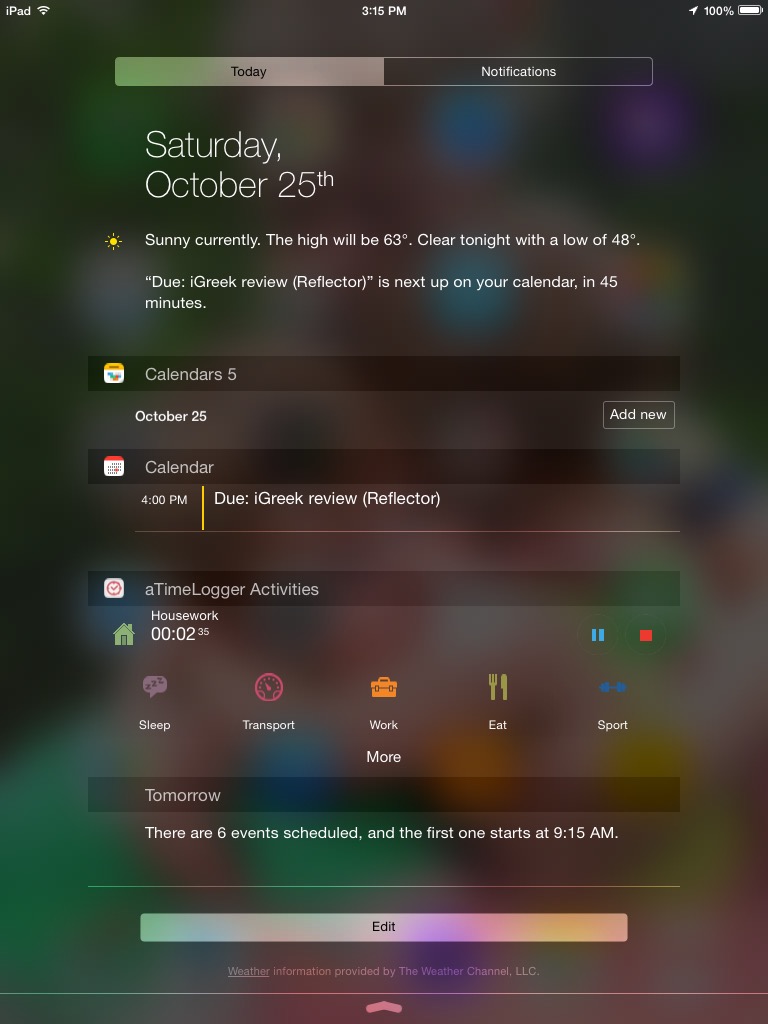
The layout is clean and the app fairly easy to figure out how to use. With iOS 8 aTimeLogger 2 introduced widgets so that you can just swipe down on your screen (without unlocking it) to update your time logs.
Grandma and Grandpa, this post is mostly for you. (Others: feel free to keep reading if you want.)
My seven-year-old son received a LEGO Store gift card from his grandparents. So we went on a Saturday morning to the LEGO Store to pick out a couple of sets. I’ve always been an indecisive shopper, and he showed some signs of that (how could you not?), but made a good decision that he stuck by.
One of the sets he got includes Batman and the Flash. Here’s his build of the Batmobile:
The best part is he’s been sharing quite nicely with his brother!
Here, by the way, is the set. Thank you, Grandma and Grandpa!
As often as I use Logos Bible Software for personal study, preaching, and teaching preparation, I’ve found the easily digestible guides by Morris Proctor to speed up my learning process in ways that even regular weekly use can’t. When Logos 5 first released, I read and reviewed Proctor’s “What’s New?” guide. And in my review of Logos 5 Gold, I found that guide and his two-volume Logos Bible Software Training Manual to be immensely helpful, especially in explaining the newly released (at that time) Bible Sense Lexicon.
That two-volume set is now on sale for 50% off. The product page describes it:
Volume 1 covers the necessary features you need to know to jumpstart your mastery of this incredible Bible study tool. Includes 33 chapters and 220 pages.
Volume 2 picks up where Volume 1 leaves off. The additional sections (242 pages) continue to help you unleash the power of Logos Bible Software 5.
It’s kind of ironic that the best one-stop shop of a training manual for Logos in 2014 would be a print edition (which is not available in Logos itself), but I actually have appreciated having that format. (And it’s cheaper and easier to get to than seminars, though I’m sure those are useful, too.) Having the manual in print makes it easier to keep focused on the software as I’m trying out the things the guide suggests.
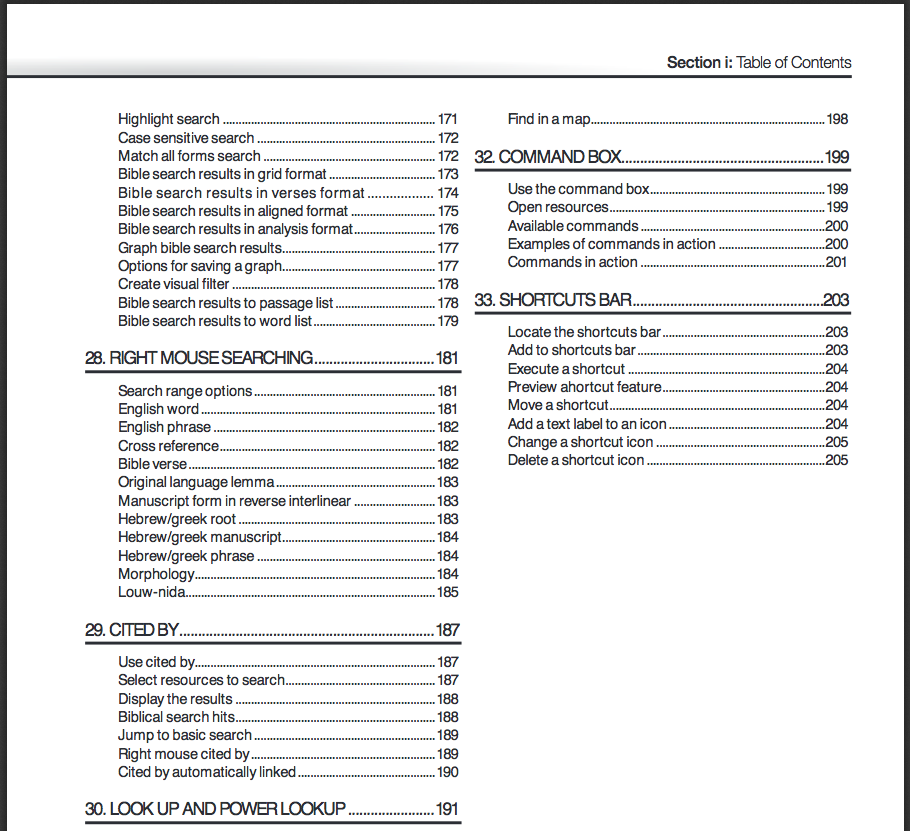
Just to give you an idea of the level of detail, here’s a snapshot of the Table of Contents for volume 1:
I felt at times when using the manual that the author was selling the product to the reader (“And there’s even more,” he notes on “Bible Searching,” and, “Those days are long gone,” he says about parallel printed editions of Bibles). I just chalked this up to his enthusiasm for the software, which is, indeed, an asset. (Though I still use plenty of books in print.)
Proctor’s explanations are clear, simple, and accompanied by screenshots that are well-labeled and easy to follow. The guides offer excellent attention to detail, including the suggestion of keystroke shortcuts to perform different tasks. Follow this link to see some of Proctor’s blog posts at Logos, which are similar in content and style to what’s in the manual. Having a spiral-bound binding is nice, too, because it means the books lay flat when set next to the computer you’re using.
You can check out a multi-page sample of the manual here, and find the product at MP Seminars’ site. Definitely recommended if you want to learn Logos 5.
So I’m simply going to post a picture, leave a few links, publish this post, and close the computer so I can get to reading. Here it is–it just came in the mail today:
Thank you to Baylor University Press and thank you already to Prof. Reggie L. Williams for writing what looks to be an awesome book. Its full title is–get ready–Bonhoeffer’s Black Jesus: Harlem Renaissance Theology and an Ethic of Resistance.
Dietrich Bonhoeffer championed a radical interpretation of Jesus and ethics that was validated by his resistance to the Nazis and his execution by them.
I’ll post a review of it (and of the also exciting Bonhoeffer as Youth Worker) before Christmas. Find Bonhoeffer’s Black Jesushere (Amazon) or here (Baylor).
It’s not that typing is all that hard, per se, but there are some things (TextExpander calls them “Snippets”) that we tend to hammer out frequently on a keyboard:
An address
A signature
An out-of-office auto-reply
Directions to your house
Repeated typos!
TextExpander does just what its name suggests: it allows you to type text abbreviations that automatically expand into pre-selected text. So I can write “.omni” and my long OmniFocus task capture email address pops up instantaneously.
You can even have a Snippet include hyperlinked text and bold formatting. If I (theoretically) had become mildly obsessed with using OmniFocus to track all my tasks and projects lately, I might save the snippet “oomni” to expand to the following:
OmniFocus 2 allows for more complex project management. Projects and Contexts are a great way to break a bigger endeavor down into its component steps (Projects), or organize them according to the environs in which you do them (Contexts): Office, iPad, Computer, Errands, etc. The Forecast view shows you both appointment and tasks in one place. Or you can just make a quick entry in the Inbox, and then decide how to categorize it later.
(Note–the above paragraph came from the snippet.)
There’s also a wonderful “Accented Words” section so that I can always type résumé correctly (snippet is resume’) without having to remember how to type accents. There’s a nice “HTML and CSS” pre-defined set of snippets, too, which are useful in blogging, Website writing, etc.
The most amazing feature? You can create a snippet and then have the cursor positioned in the middle of the expansion. This could be useful, for example, when you’re citing the same source in a research paper, but need to just change the page number with each citation.
The Preferences let you make some nice customizations. Here are a few:
The iOS version–TextExpander Touch–is universally useful now that iOS 8 supports third-party keyboards. You can use it (via switching keyboards) in Gmail, text messaging (“;txt” can expand to mean, “leaving soon, home in five minutes”), and more. The keys don’t pop up/out as much as the regular iOS keyboard does; it’s not a very easy keyboard to type in. But if you’re not using it as a primary keyboard and are just typing your snippet abbreviations into it, it works well enough.
And, conveniently, TextExpander on Mac and TextExpander Touch can sync all your snippets seamlessly and automatically.
Learn more about the Mac app here and the iOS version (for iPad and iPhone) here.
The folks at Smile Software kindly supplied me with a license of TextExpander and TextExpander Touch for the purposes of writing this review, but with no expectation as to its content.
We are big fans around here of The LEGO Movie. My then-six-year-old offered a review of The Official Movie Handbook and the Junior Novel. My favorite two parts of that interaction were: “Emmet…falls out of a tower that, like, goes past heaven,” and his description of Bad Cop as “a bad police.” (No, I’m the only one who watches The Wire around here.)
DK’s Essential Guide does a great job of covering the movie. It has colorful two-page spreads of the main characters (Emmet, Wyldstyle, Benny, and more), as well as sections like “Emmet’s Big Idea” and “Everything is Awesome,” so you can learn all the lyrics to the movie’s catchy tune. “To the Kraglizer” shows both Benny’s Spaceship and Emmet’s Construction Mech–you get to see not just scenes of the movie, but the sets as they are currently packaged and offered by LEGO now.
A two-page “Behind the Scenes” section closes the book with Q and A, including such questions as “How much of The LEGO Movie set was developed as real LEGO models?”
The book is a bedtime (and daytime) favorite with my four-year-old and seven-year-old. They keep coming back to it. It’s great for bedtime reading, because, although we can’t read all 64 pages before bed, I can tell the kids we’ll read three characters, which can easily keep us engaged for 10 minutes. There’s a lot to pore over here. (MetalBeard’s short “Guide to Pirate Speak” on page 47 was fun.)
Lots of entertainment is waiting to be had here–our DK Essential Guide to the Cars movie is a well-loved household item, now missing its fold-out insert (from so much love). The LEGO Movie: The Essential Guide is already similarly appreciated around here, though all the pages are so far still in tact!
Thanks to DK Publishing for the review copy, given with no expectation as to the content of the review. Find The Lego Movie: The Essential Guide here at Amazon (affiliate link) or here at DK’s site.

 I never did get the 2048 tile. I’ve beaten the last boss on Sky Force, but there are still parts of the game I haven’t unlocked.












 Words on the Word