Launch Center Pro: Usually $5, Get it Free

It’s got to be the best tagline I’ve ever seen in the App Store:

Launch actions, not just apps.

If you are interested a free code for the paid app that does this, read on….


The “just” in that tagline is precisely placed, too, because Launch Center Pro can launch both apps and actions. But its ability to launch actions is what sets it apart. With minimal effort required for setup, I open up Launch Center Pro (hereafter, LCP) on ye ole phone to see these options:


Yes, that’s right. I can message (or call) my wife, text my whole family, post a selfie (I don’t really do that), enter a new Calendars 5 event, and much more with a single tap.

“It’s like speed dial for everyday tasks,” the app description rightly claims.

Already included in the app (though customizable) is a slew of app search options:


You can create your own actions via the Action Composer, which requires zero knowledge of Apple’s x-callback-url functionality, even though it utilizes it.


My phone allows me just four apps in the dock. LCP is so handy, I moved the Phone app to my home screen, and put LCP in its place in the dock. If that doesn’t speak to an app’s utility—that I use it more than I place calls on my phone—I don’t know what does.

I can’t recommend it highly enough. It’s not just a five-star App (though it is that, too), but LCP is a really smart innovation that will simplify repeated actions on your phone. See it in action in this short video.

It’s been priced as high as $4.99 recently. Right now it’s $2.99 for iPhone in the App Store. There is a separate iPad version, too, which can sync with the iPhone LCP.

But you want a chance to get the app free, you say? You came to the right place. Thanks to good folks at Contrast, who make the app, I’ve got a promo code for the iPhone version to give away.

Just comment here (and make sure you type in your email address, which goes undisplayed) for a chance at winning the code… share this post (and comment where you did) for a second entry. I’ll announce the winner some time this weekend. Leave your comment where it says, “What do you think?” below.

Launch Center Pro supports a ton of apps, too.

All of Joy of Cooking’s Recipes, On Your Phone

http://a2.mzstatic.com/us/r30/Purple5/v4/0c/24/75/0c24758d-bcc6-2a84-1e00-9e308d7b5740/icon175x175.jpegDid you know that you can get the entirety of Joy of Cooking in your iPhone or iPad?

The iconic and ever-useful cookbook would be hard to improve upon in its print edition (though some duct would help ours), but the iOS app does just that.

It’s currently on sale through New Year’s Day, $4.99 at the App Store. EDIT: They’ve changed the price twice since I posted. As of 12/22, it’s $6.99.

If I procure the app unto myself, I shall report back, but for now here’s a bit of what it claims to be able to do:

• Universal app supports both iPhone and iPad.

• Thousands of recipes and reference materials cover everything from enchiladas to lemon meringue pie.

• All materials are included in the app. No internet access is required.

• Pre-set digital timers enable you to get each recipe just right.

• Let the app speak each step aloud so you can concentrate on cooking, rather than reading.

• Navigate each recipe with simple voice commands. No need to touch the screen with sticky fingers!

• Thousands of photos and illustrations leave nothing to interpretation.

• Built-in menu-maker allows you to create a menu and use it to
navigate among recipes while you cook; you can even print it out or
email it to your guests.

• Joy of Cooking classic red bookmarks help you keep track of several recipes at once.

• The Favorites list lets you store recipes that you want to cook again and again.

• Shopping lists can be created easily from one or more recipes.

• The Sleep-Block feature prevents your iPad from sleeping when you just want to cook.

• A switch to enable metric units can adapt recipes to your preference.

• A built-in conversion calculator makes it easy to substitute just
about anything. Want to know how many teaspoons are in a half-cup? That
answer, and many others, is just a few taps away.

…and more.

Here are a couple screenshots from the App Store:


Read more about this impresive-looking app here.

My New External Brain: Evernote

Evernote Icon


I’ve finally seen what all the Evernote fuss is about: It’s more impressive than almost any other productivity app I’ve used, and a basic account is free.

The company claims a lot for its app:

Evernote makes modern life more manageable by letting you easily collect and find everything that matters. From work notes and to-do lists to recipe collections and travel plans, add everything to Evernote to help you get organized without the effort.

But it’s so easy to access from any other app on any device, and so well-organized that it really can help you remember (or, rather, access) everything.

For example, do you want to file away the information in an email in a safe place, but not lose it among hundreds of email folders? Email it to your custom-created Evernote address, and it automatically files in your default notebook.

Do you want to make a simple shopping list with check marks and tap them as you go? Evernote can do that.

Do you have a bill you need to pay, and want to remind yourself of that unfortunate reality, but also have the relevant info at hand? Just take a picture of your bill with Evernote, add in a few comments, and it all saves in one place. You can even set a time-basd reminder to a note.

EvernoteAre you trying to make sense out of that stack of recipe notecards, and want to have it all in one easily accessible location for next time you cook? You can take photos of everything and file it in a “Recipes” notebook in Evernote. You can even tag your recipes with primary ingredients or nutritional details, so that pulling up your “Protein” tags gives you some good ideas for dinner.

There are at least a dozen more ways I’m using Evernote now every day to organize myself. I highly recommend it.

If you want to try it, you can register for free here. Going to that link also gives you and me both a free month of Premium, which adds some nice features like (get ready): keyword searching the three pages of text you just photographed from your favorite textbook. Yes, Evernote can do that.

But you don’t really need Premium to get a lot of utility out of it. It’s free, no strings attached.

It’s not perfect, of course. But I have yet to run into a limitation for the many ways I’ve already put it to use. Check it out and see what you think.

App Santa–Sweet iOS Apps on Sale

App Santa


I’m not sure how the actual St. Nick would feel about iTechnology, but App Santa offers a surprisingly large selection of excellent iOS (and Mac) apps for sale, starting today.

A few highlights of apps I use (and like):

  • PDF Expert 5 ($6.99, from $9.99)
  • Scanner Pro ($2.99, from $6.99), which I use regularly for e-filing
  • Calendars 5 ($2.99, from $6.99), even better than Apple’s native Calendars app
  • TextExpander Touch ($2.99, from $4.99)

And a few apps that I haven’t reviewed (but will soon) that look sweet:

  • Drafts 4 ($4.99, from $9.99), “where text starts on iOS”
  • Launch Center Pro ($0.99, from $4.99), the tag line of which is, “Launch actions, not just apps”
  • Screens ($13.99, from $19.99). This morning after having it installed for less than a minute, I was using a tiny little phone to control a big desktop computer. Amazing!
  • MindNode ($4.99, from $9.99): a smooth mind mapping app, which I’ll post about more in coming months

Find them all (and others) here.

TextExpander Touch On Sale for $1.99 in the App Store

Text Expander TouchNow that I’ve made it through Black Friday without (a) buying anything or (b) blogging about any sales….

TextExpander Touch is on sale at the App Store for $1.99. Given how long it can take to type long swaths of text on an iPad or iPhone, TextExpander is a great time-saver, especially for stock replies or snippets (e.g., if you email directions to your house a lot).

Here is my review of TextExpander. You can find the app for sale here.

Review of Anker 10W Home and Travel Wall Charger

Anker Plug
Anker 10W (2A) Home and Travel USB Wall Charger


I’ve been testing and using a fast, reliable, and highly portable wall charger from Anker lately: the Anker 10W (2A) Home and Travel USB Wall Charger.

Any USB cable connects to it, so you can charge your iPhone (of any generation), iPad, Samsung, etc.

Here are a few things I like about it:

  • It charges a device quickly
  • It doesn’t get hot when plugged in (one of my Apple chargers does)
  • The prongs fold in–especially useful for travel or putting it in a pocket
  • It’s compact and lightweight (under two ounces)
  • Sleek and simple design
  • There’s an 18-month warranty

I haven’t found anything so far that’s not to like. The wall charger seems built well and looks to last a long time. It’s $7.99 at Amazon.

It’s especially suited and recommended for those who travel often, and need a charger that is quick and easy to pack up.


Thanks to Anker for the review sample, offered for my honest impressions. The case reviewed above can be found at Amazon here.

Threes: New Addictive iPad/iPhone App to Play

Threes IconI never did get the 2048 tile. I’ve beaten the last boss on Sky Force, but there are still parts of the game I haven’t unlocked.

While I’ve found lots of ways to use the mobile iOS device productively (I’m looking especially at you, OmniFocus), I have also been on the lookout for good diversions.

Enter Threes.

The obvious comparison is to 2048, but this game has more character. The numbers, for example, have names:


Say Hello to Threejay


If you look closely at the 6 and the 3 on the bottom row, you can see they’ve got little faces, too. And–the best part of the game–they make sounds and talk to you when you move them around to add them together: “Hi!”, “Hello!”, “Hey, guys!”, “Okay,” “Sup?”, etc. Sometimes a tile might even growl at you. (Right now my three kids are laughing at the sound effects and repeating them while my wife plays. I need to finish this post and get back to the game!)

There’s also a great music soundtrack you can toggle on or off when you play.

Threes has two basic rules:

  1. The 1 tile can only be added to the 2 tile, and vice versa.
  2. Tiles with numbers 3 and up each combine with the same number (3 with 3, 6 with 6, 12 with 12, etc.).

The game offers a really simple, quick tutorial to get you started.

Here’s what a board-in-progress looks like:


Threes Board


Being able to see the next tile (by color–at the top of the screen) is a nice advantage.

There’s a good sense of humor throughout the game (already noted above). Even the “Clear Scores” option says, “This will clear the data but not the memories.”

And you get confetti when it tallies up your final score, after you are out of moves:


4_Final Score


It’s fun for the whole family, kids to adults. 2048 was free, but this is easily worth the $1.99, which gets you the app both on iPhone and iPad. Find it here.


Thanks to the maker of Threes for giving me a download for the review.

Free (For Now) Time-Tracking App for iPhone and iPad

aTimeLogger2A solid time-tracking app for iPad and iPhone–aTimeLogger 2–is free for a limited time.

I’ve made some use of Hours (iPhone only), OfficeTime (iOS and OSX), and StopWatch Plus (OSX). Expect a report back. For now, you can download aTimeLogger, since it’s free at the moment, and see what you think.

Here is a list of features from the developer’s write-up:

– easy and intuitive interface
– goals
– pause/resume activities
– groups
– simultaneous activities (enable them in Settings)
– many statistics available in form of graphs and pie charts
– reports in different formats (CSV and HTML)
– backup and restore
– a huge number of icons for activity types and ability to upload custom icons
– the best support 🙂

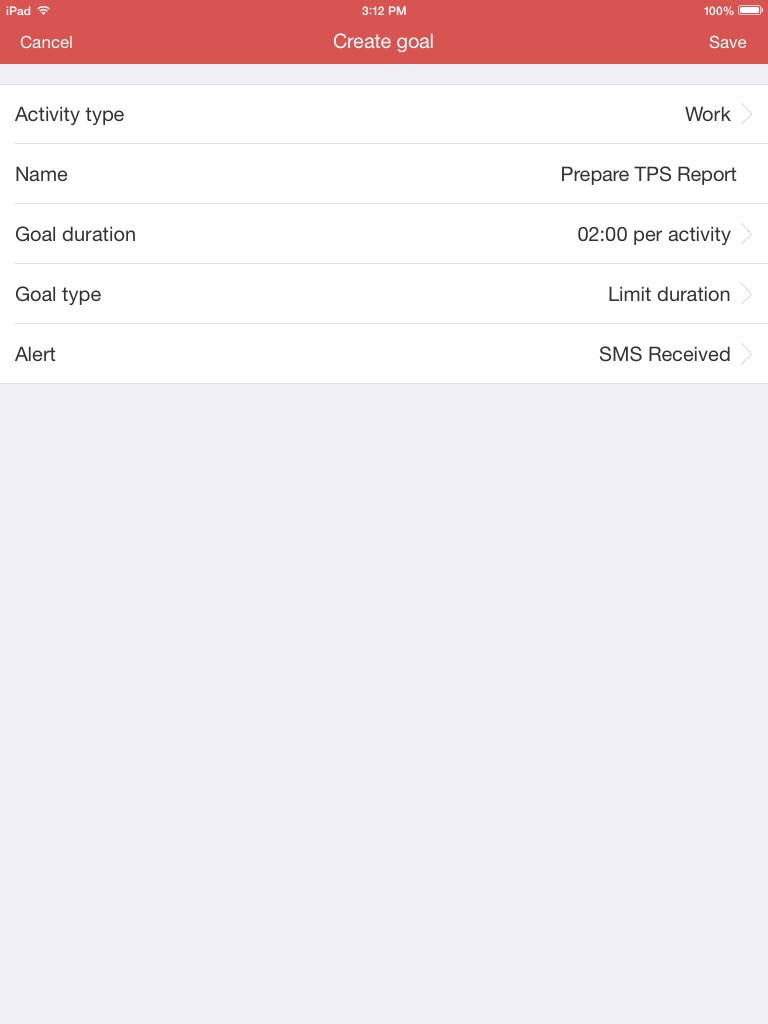
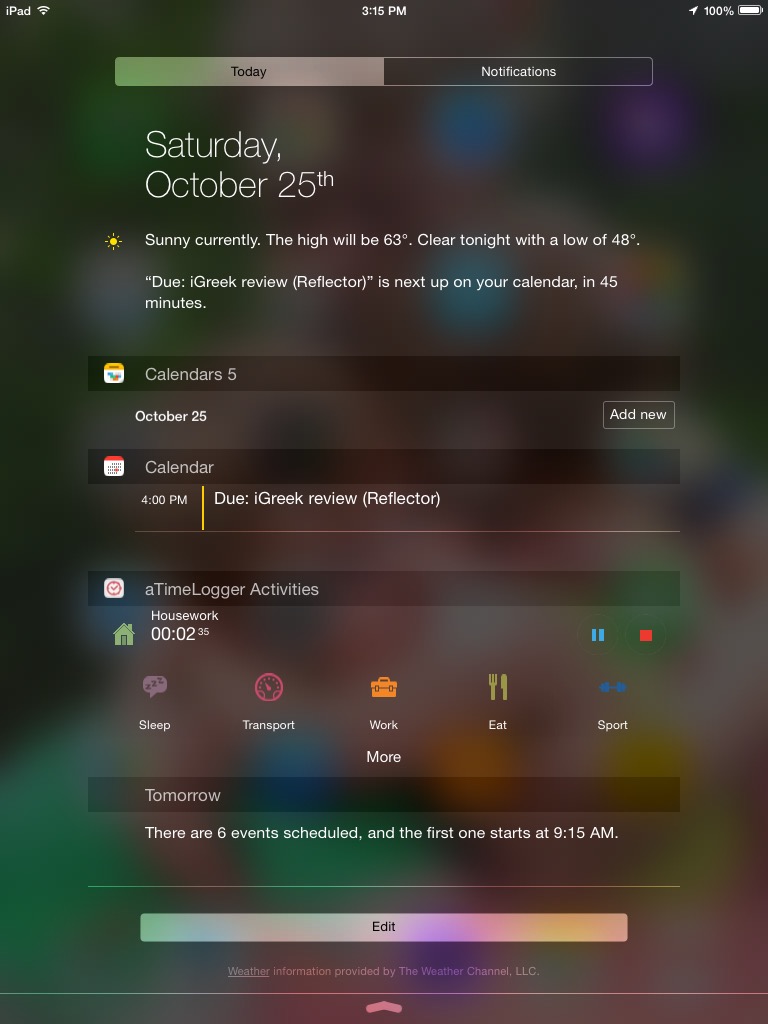
The layout is clean and the app fairly easy to figure out how to use. With iOS 8 aTimeLogger 2 introduced widgets so that you can just swipe down on your screen (without unlocking it) to update your time logs.

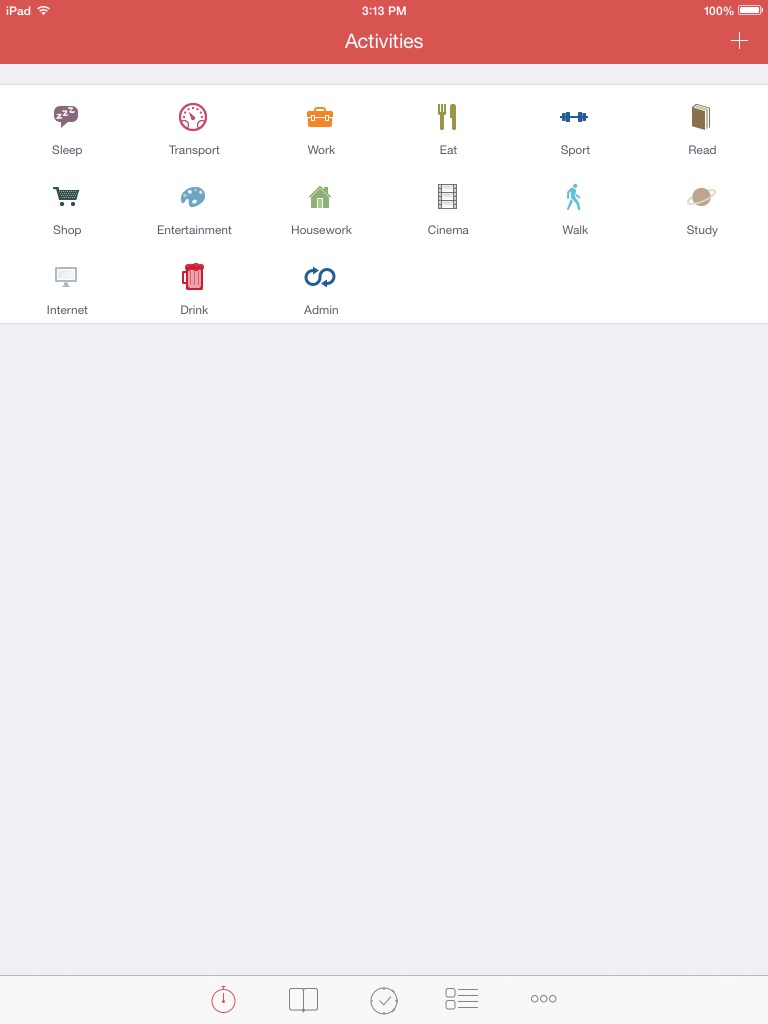
Here are a few iPad screenshots:


Create and Track a TPS Report Goal


Activities
Activities


Today View
Today View


Find the app for free (for now) here.


The developer(s) of aTimeLogger 2 kindly supplied me with a review license when it was a paid app.

Never Make Another Keyboard Typo Again

TextExpander_icon


Next to OmniFocus and Accordance, TextExpander has become one of my most frequently open computer and iOS applications.

It’s not that typing is all that hard, per se, but there are some things (TextExpander calls them “Snippets”) that we tend to hammer out frequently on a keyboard:

  • An address
  • A signature
  • An out-of-office auto-reply
  • Directions to your house
  • Repeated typos!

TextExpander does just what its name suggests: it allows you to type text abbreviations that automatically expand into pre-selected text. So I can write “.omni” and my long OmniFocus task capture email address pops up instantaneously.

You can even have a Snippet include hyperlinked text and bold formatting. If I (theoretically) had become mildly obsessed with using OmniFocus to track all my tasks and projects lately, I might save the snippet “oomni” to expand to the following:

OmniFocus 2 allows for more complex project management. Projects and Contexts are a great way to break a bigger endeavor down into its component steps (Projects), or organize them according to the environs in which you do them (Contexts): Office, iPad, Computer, Errands, etc. The Forecast view shows you both appointment and tasks in one place. Or you can just make a quick entry in the Inbox, and then decide how to categorize it later.

(Note–the above paragraph came from the snippet.)

There’s also a wonderful “Accented Words” section so that I can always type résumé correctly (snippet is resume’) without having to remember how to type accents. There’s a nice “HTML and CSS” pre-defined set of snippets, too, which are useful in blogging, Website writing, etc.

The most amazing feature? You can create a snippet and then have the cursor positioned in the middle of the expansion. This could be useful, for example, when you’re citing the same source in a research paper, but need to just change the page number with each citation.

The Preferences let you make some nice customizations. Here are a few:


TextExpander Preferences


The iOS version–TextExpander Touch–is universally useful now that iOS 8 supports third-party keyboards. You can use it (via switching keyboards) in Gmail, text messaging (“;txt” can expand to mean, “leaving soon, home in five minutes”), and more. The keys don’t pop up/out as much as the regular iOS keyboard does; it’s not a very easy keyboard to type in. But if you’re not using it as a primary keyboard and are just typing your snippet abbreviations into it, it works well enough.


IMG_2126


And, conveniently, TextExpander on Mac and TextExpander Touch can sync all your snippets seamlessly and automatically.

Learn more about the Mac app here and the iOS version (for iPad and iPhone) here.


The folks at Smile Software kindly supplied me with a license of TextExpander and TextExpander Touch for the purposes of writing this review, but with no expectation as to its content.

5 iPad Apps I Use Every Day

Here are 5 iPad apps I use every* day:
 

Calendars 5 icon1. Calendars 5

Readdle‘s Calendars 5 seamlessly integrates both tasks and appointments into an aesthetically pleasing display. Moving things around and making new entries is really simple, too–just drag and drop or tap. Most of the time when I’m creating a task, setting an appointment, or checking something off, I want to do it quickly and with as few taps as possible. Calendars 5 makes that possible. View options on iPad are Tasks, Day, Week, Month, and Year. See my full review of the app here.

Calendars 5 has widgets in the iOS 8 “Today” view, so you can look at your day with a single swipe down on your iPad.
 

OmniFocus-for-iPad-10242. OmniFocus 2

This is the only app to make both this list and my 351 Words on 4 Mac Apps I Use Every Day. The integration of OmniFocus 2 on iPad and OmniFocus on Mac is tight. There’s a slight delay in the sync function (which uses Omni servers), but otherwise what I update in one place updates in the other. And, because I can link it to Apple’s Calendar and Reminders, which both sync with Readdle’s Calendars 5, the latter (see above) syncs quite nicely with OmniFocus. You can keep it updated easily via Siri voice commands, too.

OmniFocus 2 allows for more complex project management. Projects and Contexts are a great way to break a bigger endeavor down into its component steps (Projects), or organize them according to the environs in which you do them (Contexts): Office, iPad, Computer, Errands, etc. The Forecast view shows you both appointment and tasks in one place. Or you can just make a quick entry in the Inbox, and then decide how to categorize it later.

Read more about OmniFocus 2 for iPad here.
 

3. BlogPad Pro

It still needs to be updated to work more smoothly in iOS 8, but BlogPad Pro is a far easier app to write a blog post on than WordPress’s own app. (Words on the Word is a WordPress blog.) You can start new posts, edit existing posts that you started on a computer, moderate comments, and check blog stats. The layout looks like the app belongs in iOS 6, but I actually sort of like that heavier look. Here are a few screenshots from their app page:


BlogPadPro 1


BlogPadPro 2


4. Mail

I haven’t really explored options for good third-party mail clients, but I like Apple’s native Mail app. There’s nothing flashy to it, but it is functional and easy to navigate.
 

5. Sky Force 2014

I’m not all productivity apps. The one iPad game I play is Sky Force 2014. It’s fun, challenging, and a great way to zone out. And… it’s free!


Time drain of choice....
Time drain of choice….


You might also like to read 351 Words on 4 Mac Apps I Use Every Day. Next I’ll post about the iPhone apps I use most.


*Disclaimer: Some days I don’t use the iPad mini at all, but when I do, the above are the first ones I tap on. Thanks to Readdle, Omni Group, and BlogPadPro for the review downloads of Calendars 5, OmniFocus 2, and BlogPadPro, respectively.