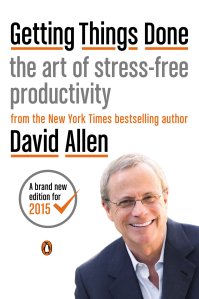
The wedding of productivity literature and thoughtful anthropology (let alone spirituality) seems to be woefully uncommon, but David Allen strikes me as a spiritually attuned writer. That’s why I think it’s no stretch to call some of his insights into personal productivity “soul-piercing.” Or, at least, one can better provide oneself good soul care when implementing Allen’s GTD (Getting Things Done) principles.
Readers of this blog know of my new-found use of OmniFocus, which is really just one possible tool (out of several) that helps one practice Getting Things Done.
Here are two total gems from Allen’s new, re-tooled GTD 2.0:
What you do with your time, what you do with information, and what you do with your body and your focus relative to your priorities–those are the real options to which you must allocate your limited resources. The substantive issue is how to make appropriate choices about what to do at any point in time. The real work is to manage our actions.
He says this as a reaction to talk of “managing time” or even “managing priorities.” Allen says you can’t manage time (“you don’t manage five minutes and wind up with six”) and don’t manage priorities (rather, “you have them”). That seems at first like semantics, but his point is:
Things rarely get stuck because of lack of time. They get stuck because what “doing” would look like, and where it happens, hasn’t been decided.
So the focus becomes managing our actions. And this is still relative to our priorities.
Phew. Love it. (Also, guilty as charged.)
Here’s the second gem:
Getting things done requires two basic components: defining (1) what “done” means (outcome) and (2) what “doing” looks like (action). And these are far from self-evident for most people about most things that have their attention.
I’m (actually, finally) reading Getting Things Done cover to cover. It’s already a breath of fresh air. Find it here.
I have fallen off the wagon a bit these last 10 days or so with regard to running. Nothing to be proud of, I know. Today I realized something frustrating (but true):
I love not going for a run.
It feels good to not have to wake up super-early to exercise, or figure out how I’m going to schedule a jog in a day with multiple other demands.
But then I went for a run today, and remembered:
I love going for a run.
Ah, these blasted competing values. I get caught in the crossfire every time!
But I do love running, even though I also love not running, and that feeling–as long as I can keep remembering it–will get me out there again in the next day or two.
HoursTracker has seen more than 1 million downloads from the App Store since its 2009 release. I’ve been using HoursTracker Pro for a couple months now, so report back to you here, with a look at some key features.
Clocking in and out
This is the main job of any time-tracking app (obvs), and it’s executed nicely here.
Clocking in
Clocking out
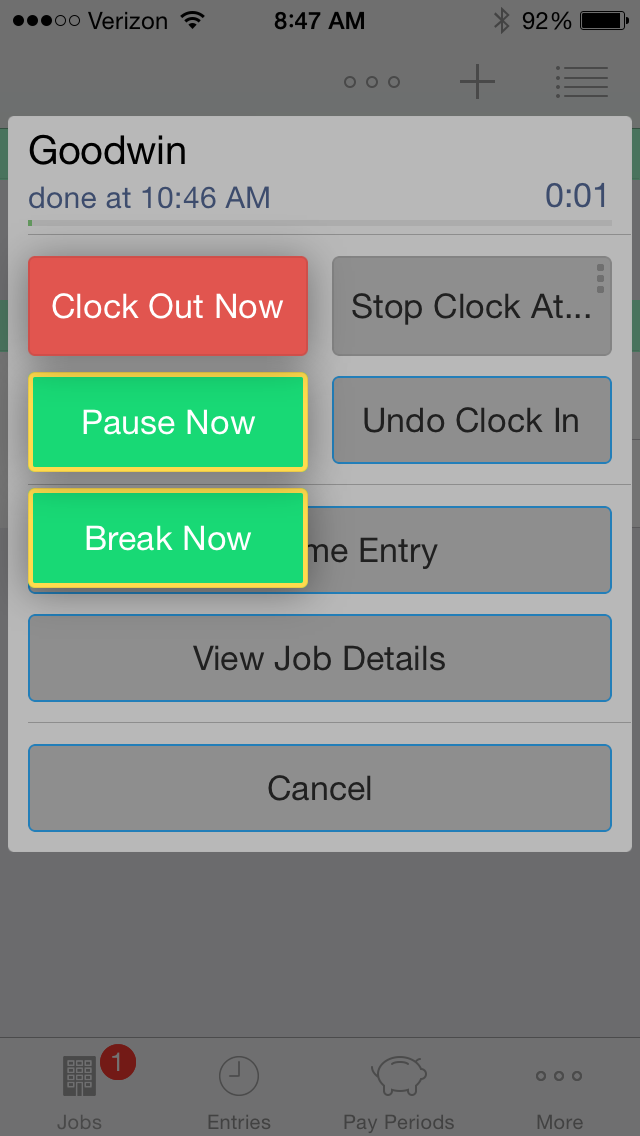
It’s easy to add a break, or just pause the timer. You hold the “Clock Out Now” button for more options to appear:
Tag and filter your work
Tags and filters offer a sophisticated way to manage and pare down the data you see. You can toggle various filters on and off, as desired.
See some of what’s possible here:
Get notifications that you’ve worked a set number of hours
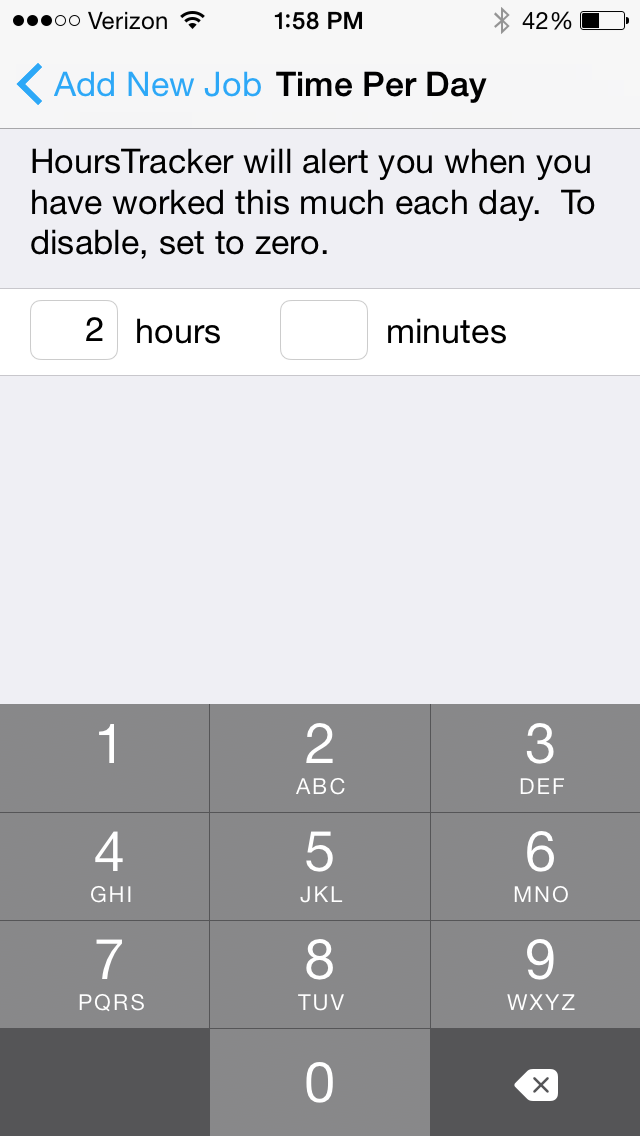
This is particularly cool. You can decide you want to work two hours on a certain job, then the app will track it for you.
Then it will let you know when two hours is up, even giving you warnings beforehand:
I think this has been my favorite part of the app.
Invoicing?
Although HoursTracker Pro allows you to track work done for specific clients at whatever rates you like, it does not include an invoicing feature. You can export your timesheet data, but the app could be even more of a one-stop shop–especially for consultants–if it were to add automatic invoicing options in a future release.
Export options are really good
Data export options are really good. With just a few taps (and within seconds), you can have an email in your inbox with all your timesheet data as a .csv file that includes duration, break times, notes you entered for a given job, tags, and more.
It’s customizable
HoursTracker is quite customizable–taking notes and using tags and filters make this a sophisticated app. Here’s what the Settings section looks like:
In conclusion
If you want to try before you buy (the Pro app is $9, here,) HoursTracker is free here.
The Pro version is probably more than someone would want to sink into an app, if they were only tracking a job or two. But if…
you are tracking multiple jobs or projects, and
you want a way to tag and customize your data, and
you want to be able to access a clean and robust export
…you’ll want to check out HoursTracker. Spend some time with the free version, and then you can decide whether you want to pay for the full Pro version.
Happy time tracking! If you are a time logger, HoursTracker gives you an aesthetically pleasing environment for recording time, as well as has enough features for you to get it to do just about anything you need.
Thanks to the good people of HoursTracker, for giving me a download of HoursTracker Pro for the review. Check out the app’s iOS page here (Pro) and here (free). See my other AppTastic Tuesday reviews here.
I’ve reviewed enough software to know over-hyped copy writing when I see it, so I was initially skeptical at the Things app’s claim to be “a delightful and easy to use task manager” (my italics).
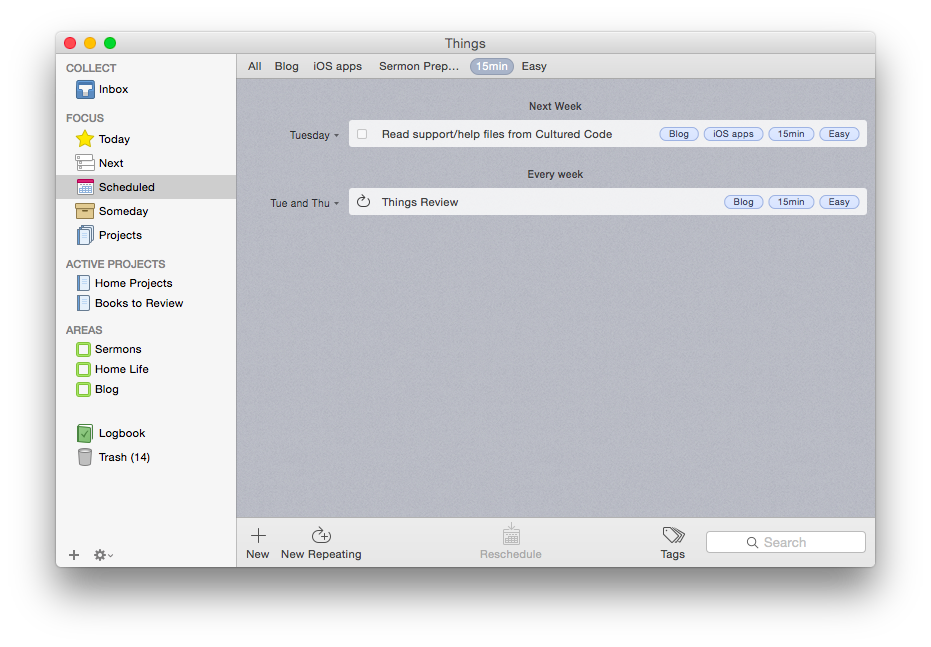
But its aesthetic and usability really are pleasing and enjoyable. The layout is very simple and clean. It has almost a cartoonish (in a comforting way) feel to it. It looks like this:
Mac OSX version (click image to enlarge)
iPhone version
Readers of this blog (especially patient ones) know that I’m a user of OmniFocus, but I’ve also been putting Things through its paces these last few months.
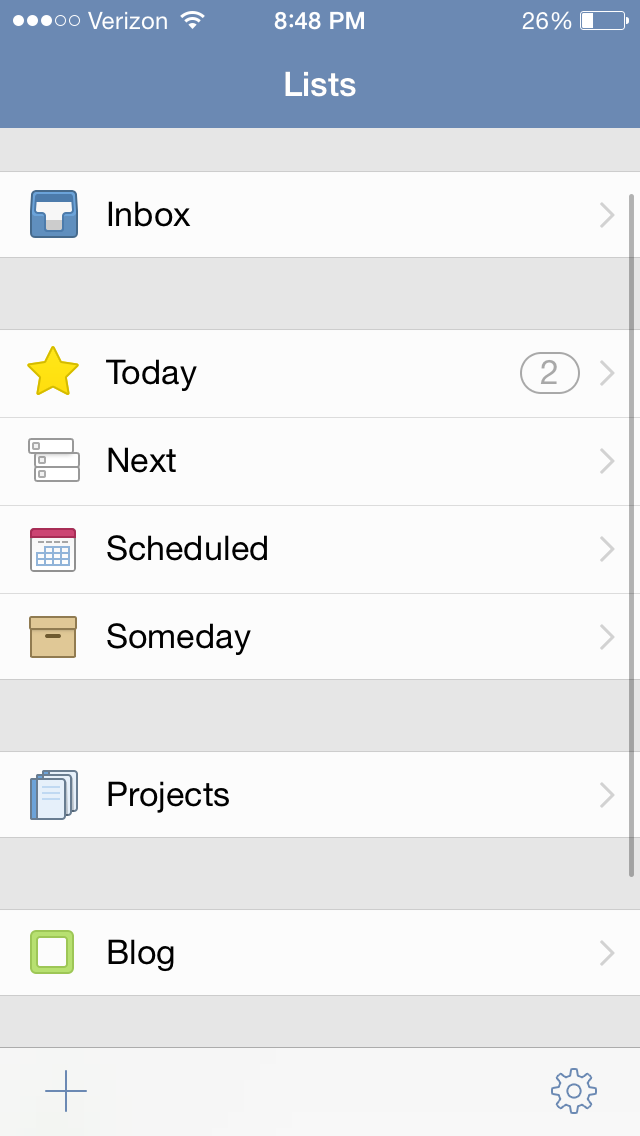
Today is the list for to-dos that you want to start before the day ends. They’re your priorities.
Next is home for all of the to-dos you could start at any time. It’s a good place to look when putting together your Today list, or when you’ve finished everything there and you need more to do.
Scheduled is for to-dos that you’d like to start on a later date, either because there’s nothing you can do to start them yet, or you’d just rather be reminded of them on a specific day.
Someday is the place for to-dos that you might like to get to, but you’re not sure when. Regularly review what you’ve added here to decide if it’s time to act.
It all starts with the Inbox, where you can put items until you’re ready to decide when to do them. Things also allows you to organize by multi-step Projects and Areas of Responsibility, as well as make extensive use of Tags.
Strengths
Things syncs instantaneously via its own cloud service across multiple devices. This makes using it on both a phone and a computer, for example, really easy—you never have to worry about an outdated notification showing up on your device. This is one of the few drawbacks of OmniFocus—if you don’t keep OF open and make sure it’s synced on all your devices, you’ll get a reminder on your iPhone to complete a task you already checked off on your computer. This is not an issue with Things, and it takes away an extra step in the task management process, so you can direct that energy to actually working through your task list.
Things is head and shoulders above other task management apps in this regard.
Things has a really nice tagging system. No GTD-style “contexts,” per se, though you could certainly use your tags as contexts if you wanted to. You can even assign sub-tags to your tags, a feature I really like. So I can tag a task under the category “Blog,” but also assign sub-tags such as “Future post” and “Learn apps.” I used this tagging system to track thank-you notes last Christmas—writing down presents (and who they were from) as we opened them, and then sorting by tag (giver) so that I knew what all I was thanking someone for when I came to their note! Handy, indeed.
The desktop app is feature-rich. As you might expect, in addition to seamless sync with the mobile apps, the desktop version of Things (pictured above) is fuller-bodied than the iOS apps. There is the Quick Entry feature, where a keyboard shortcut (no matter what app you’re using in the foreground, so long as Things is open somewhere) will let you enter a task before you forget. There is a really smooth way of accessing, displaying, and adjusting all your tags (where Things really shines). Editing a task is fast. And it looks good.
The iOS apps have a useful Today widget. Some Today widgets are better than others, and this one is good. You can view items due today, check them off (both without ever opening the app), and tap on New To-Do to be taken to the Things app to make a new entry.
Siri and Things work together (quite nicely). You can set up Things so that reminders you voice dictate to Siri go right into that app as tasks. So that you can use Things safely while driving. As OmniFocus is my task management app of choice, a comparison again is inevitable: to get Siri-generated reminders to show in OF, you have to actually open OF and let it sync. Not so in Things: the reminder goes to your Things Inbox for processing immediately.
Limitations
There are some things that Things can’t do, which I had hoped it could.
There is no way (whether in iOS or OSX) to attach photos or files to an item. I find this a noteworthy lack. In OmniFocus and Evernote you can take a photo of something and immediately set it up with a to-do reminder. Sometimes life’s “inputs” come as visuals, and taking a picture and setting a due date is easiest. That’s not doable in Things. (You can link to actual files on a desktop, but that’s not the same as attaching the file itself, and the file doesn’t show up on an iPad.) There is a “Notes” field that attaches to your to-do, which is essential, though that field just accepts text entry.
The cosmos (or just your co-workers and bosses) also like to give to-do items via email. There’s no way to automate moving from an email into a task in Things. In OmniFocus you can just forward an email to your special OmniFocus email address, and it automatically becomes a task in your inbox. Todoist, like Outlook, can let you turn an email into a task in just a click, without even having to forward it anywhere. Evernote even lets you send an email as a Note to a specific Notebook with Tags, if you phrase your subject line right. Things may add this email-in-to-Inbox feature in the future, but for now, you have to take the extra step of copy-pasting an email into a new task yourself. Not as automated as I’d have liked.
You can get to a new task via the + button on the bottom right screen on iOS—so entering a new task right away is easy—but there is not the “Save +” option that other apps offer… so you have to add an extra tap when doing a rapid-fire brain dump. (This is not as much an issue on the desktop version of the app.)
You can set up repeating tasks, but not easily. This process was not as immediately intuitive as the rest of the app is. Things’s support page (which is awesome) details how you can do it from iOS and OSX. But, wow, did I spend a lot of time figuring out the very specific way in which this must be done in Things—and a couple of methods that you’d think would get you there… don’t.
Conclusion
So many reviews of task management apps affirm that there’s a personal element to what app works best for you. One user’s “intuitive” is another user’s, “Huh?” I’ve bought into the OmniFocus methodology and layout (mostly), which is intuitive enough but not easy out of the box. Things, on the other hand, is easy to figure out how to use right away without using a manual. The “Today” part of the app functions as a sort of daily review, though I prefer OmniFocus’s Forecast and actual Review perspectives. But you might be totally different on that!
In terms of complexity and capability, I’d put Things somewhere between Reminders and OmniFocus. It’s far more robust than Reminders, but not quite the souped-up to-do app some users might need. (Although one could just use the robust tagging system to customize Things for higher levels of complexity.)
Things is well-designed, looks great, and the seamless sync is a huge plus. Try it for yourself here (download link) with a free trial.
Thanks to the fine folks at Cultured Code, the makers of Things, for giving me downloads for the Mac and iOS apps for this review. See my other AppTastic Tuesday reviews here.
I can hardly believe the technology on a little iPhone exists to do this, but this is now how I am going to take and process meeting notes from here on out.
This means I simply open the Drafts app (which is quite aesthetically pleasing, and fast, too) and take meeting notes there…including marking action steps with the checkbox keyboard shortcut key (!).
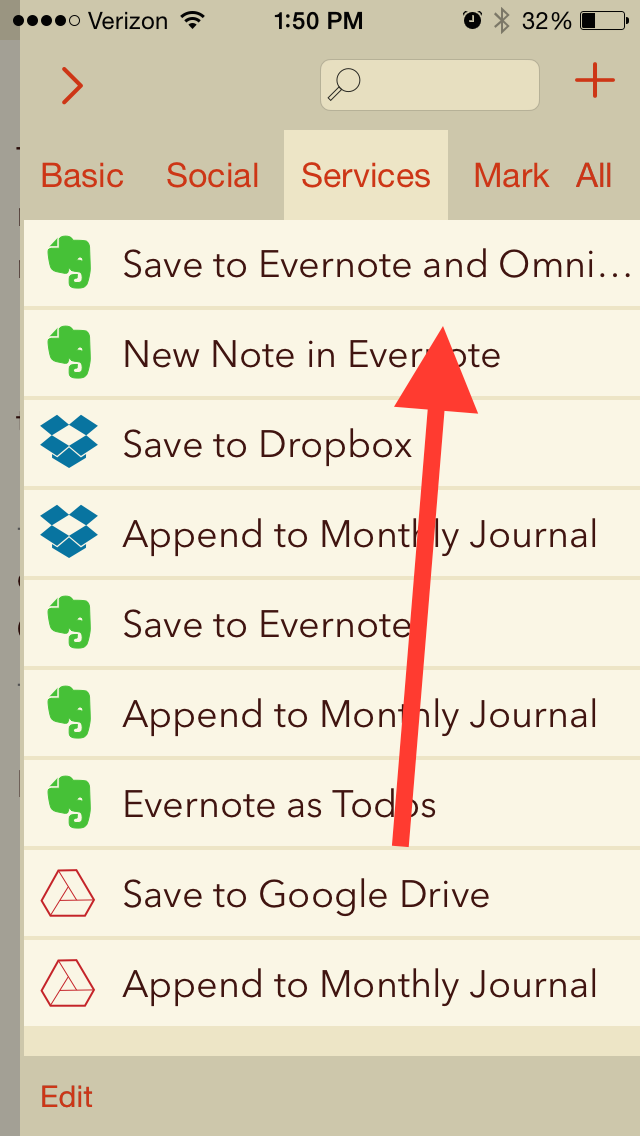
Then I tap the action above, and all my meeting notes are saved as an Evernote note, with all the checkboxes I made automatically converting to OmniFocus tasks.
Many, many thanks to Agile Tortoise for the awesome app and to @rosscatrow for the action above to install into Drafts 4. A good step forward in my ongoing quest to stay organized.
Today OmniFocus is expected to release an update that makes their iOS apps universal. The iPhone app, for the first time, will carry with it the capability to view and create custom Perspectives.
There are several upgrade paths, depending on what you’ve already purchased from Omni in the past. (Before the universal update, the iPhone and iPad apps were paid, separate purchases, with only iPad carrying a Pro upgrade version.)
It’s not the easiest upgrade process to understand, but here are two charts from Ken Case (via the Twitter) that will help:
The upgrade paths (click to enlarge)
More Options on the iPhone Version (click to enlarge)
And check out this lovely screenshot from the updated help files. You can now re-arrange your Perspectives on the phone.
Reordering Perspectives in iOS Pro
You can see everything that’s new in iOS 2.1 here. My overly eager and long-winded review of OmniFocus is here.
Provide the easiest and quickest way to get to a blank text entry screen on iPhone and iPad.
Allow you then to send or export that text to as many other apps as possible.
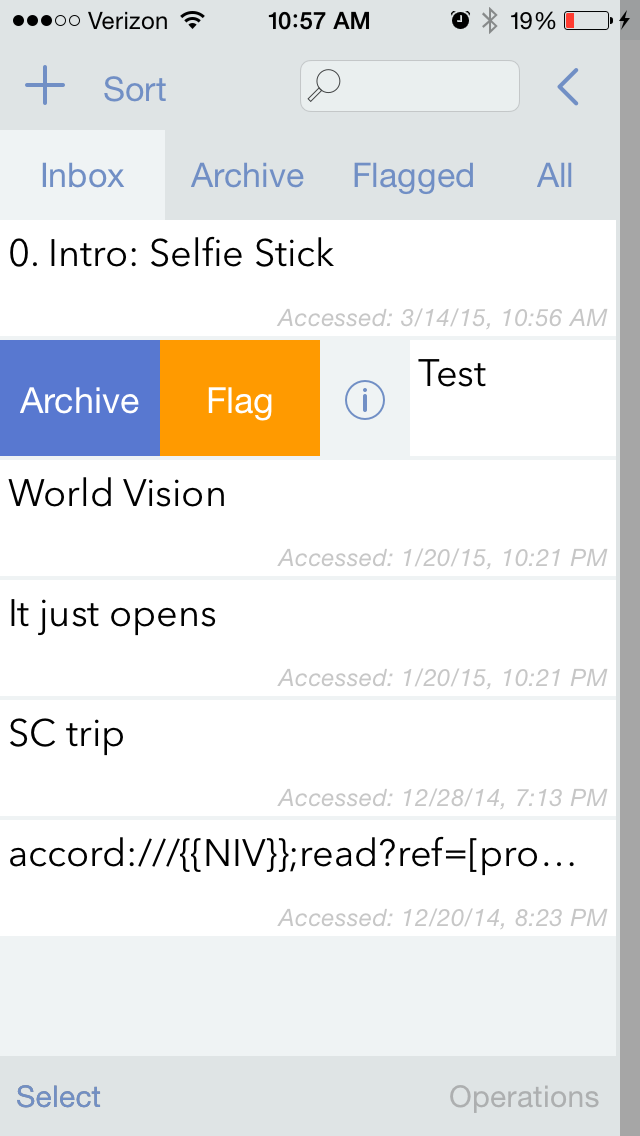
This may sound like one of those apps that developers made just because they could, but I’ve been surprised to find myself increasingly reliant on Drafts 4.
Just the last two days I used it to (a) jot down some stand-up meeting notes (which I then exported to an OmniFocus task) and (b) send an email to someone when I didn’t want to have to be distracted by unread emails in my inbox.
Open the app, and you get a blank screen, into which you can quickly type (or dictate, via Siri) text. I recently was fortunate enough to have inspiration for a sermon outline strike me when I was doing some chores around the house. Not sure what to do with this newly found locus for creativity, I quickly reached for Drafts and jotted my thoughts down:
From here I could access a wealth of sharing options:
This particular draft went into Evernote, where I could easily get it later. I could have exported it some other ways:
Also amazingly cool is that when I exported it to Reminders, Drafts made each separate line into its own task:
This is sweet enough–an app that lets you quickly jot down text and export/share to just about anywhere. But Drafts is built with an eye to detail. You can make your text look nice, too:
Note the option to have a night mode. And all those fonts!
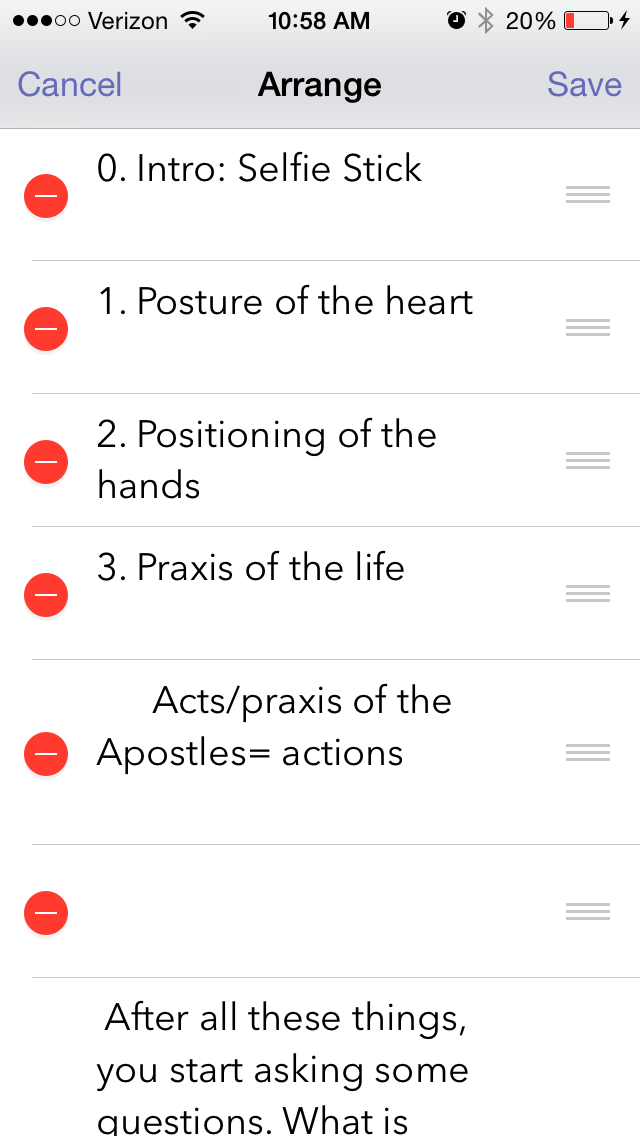
You can even re-arrange your text from within Drafts, just by virtue of having started a new line when you were entering text:
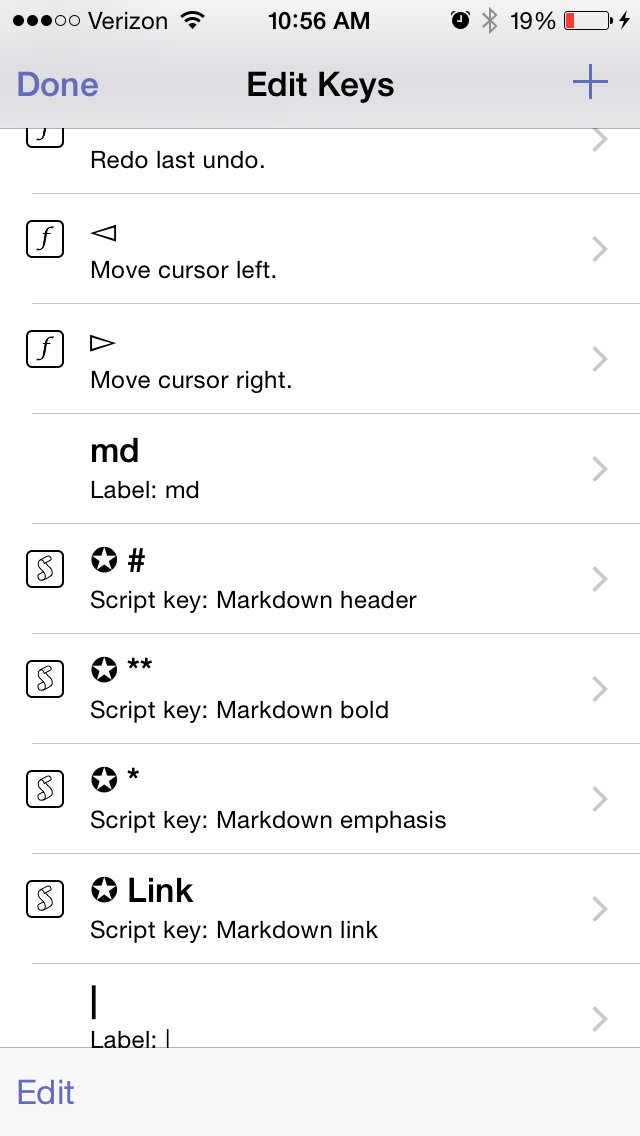
You can edit the keyboard keys that are available to you:
Note, too, the Markdown capabilities
There are quite a few settings you can adjust:
And Drafts can keep everything you enter, regardless of whether you’ve shared or exported it. (Drafts also keeps a record of where you’ve shared/exported your draft.)
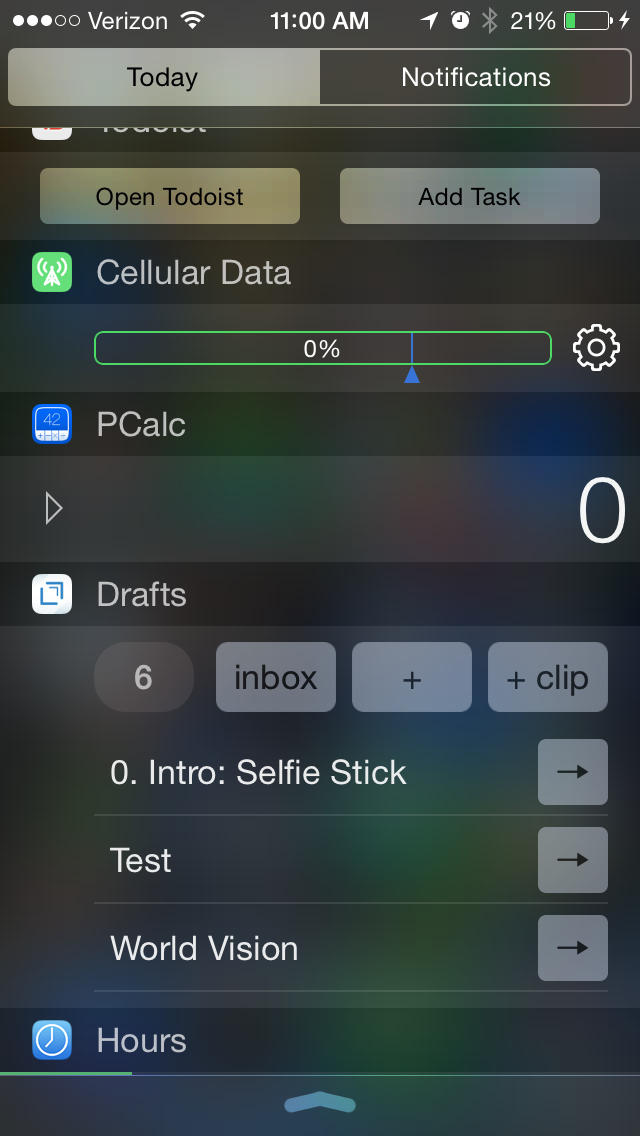
Yes, you guessed it, there’s a Today widget, too:
Drafts 4 is just as awesome on iPad (not pictured here) as it is on iPhone. The only possible downside to this app is that $9.99 is more than most iOS users are used to paying for an app. But it’s easily one of the most carefully developed and detailed apps I’ve used, and robust in its features and capabilities.
It’s well worth checking out, and has found a home in my daily workflow.
Thanks to the fine folks at Agile Tortoise, the makers of Drafts 4, for giving me a download of the app for this review. See my other AppTastic Tuesday reviews here.
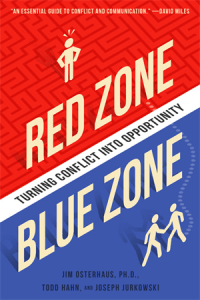
One of the people who has most influenced my understanding and practice of leadership is Dr. Jim Osterhaus. Case in point: one can survive so-called middle management by understanding a concept that Jim introduced me to (via Ron Heifetz): leading without authority.
Osterhaus’s Thriving Through Ministry Conflict, co-authored with Todd Hahn and Joe Jurkowski, offers some of the most practical advice I’ve ever read or heard on how to deal with conflict.
Most of us fear and dread conflict, at home or at work. But conflict can be your ally, not your enemy. Conflict doesn’t have to tear your family or organization apart.
Using the story of a family business leader embroiled in generational conflict, Red Zone, Blue Zone shows how to navigate conflict in a way that is healthy and leads to enhanced relationships, self-awareness, and greater leadership success. Practical response activities and personal reflection questions help the reader understand the sources of conflict, have a working command of conflict navigation principles, and be equipped to help others navigate conflict in their own lives.
You can find the book on Amazon, or at the publisher’s page linked above.
If you now find yourself or ever have found yourself in vexing conflict situations (i.e., if you are human), you should check this book out as soon as you can.
You know that creeping suspicion that some of your strangest idiosyncrasies could not possibly be shared by anyone else ever?
You’re usually wrong.
Case in point: it turns out I’m far from the only one who has had about a dozen different to-do apps on his phone in the last couple months. But it’s a bad idea to use multiple apps to organize tasks. All the better if you can track everything through one clearinghouse.
OmniFocus is that place for me. In more than half a year of daily use (exception: techno-Sabbath), I’ve only found one real flaw in the program (sync is not seamless). Otherwise OmniFocus (a.k.a. OF) does everything I want a task management app to do, and many things I didn’t know I would want such an app to do.
First Things First: Learn OmniFocus Language
There’s a lot to OmniFocus. To get a quick overview, check out this video, or this one, which explains the fundamental OF concept of “perspectives,” ways of organizing and accessing your tasks.
Or skip the videos and read this one-paragraph simplification of what you need to know about OF terminology before using it:
Projectshelp you break a bigger endeavor down into its component actions. Projects can be Sequential (you have to do action 1 before you can do action 2) or Parallel (it doesn’t matter in which order you do the individual tasks). For that matter Projects can just have what Omni refers to as loosely-related but not interdependent “Single Actions,” like a grocery shopping list. Contexts allow you to organize actions according to the things/people/environment you need to do them: Office, iPad, Internet, Computer, Car (careful!), etc. The Forecast view shows your tasks chronologically in one place–I spend most of my time in this view. Or you can just make a quick entry in the Inbox, and then decide how to categorize it later.
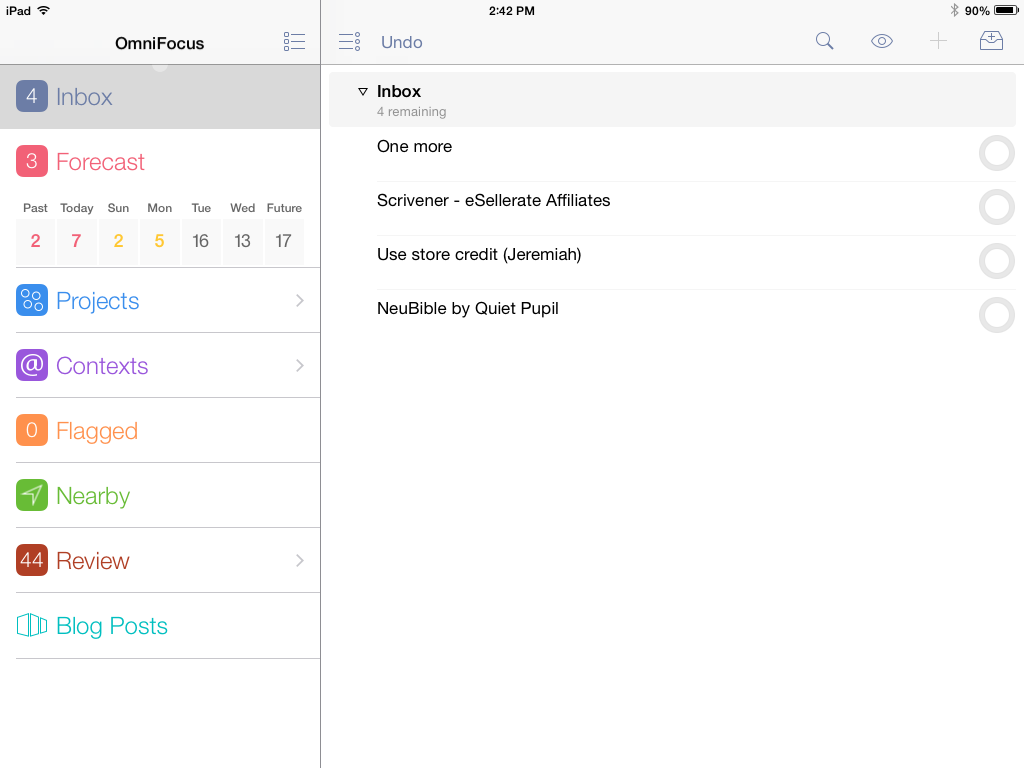
iPad, showing various perspectives and Inbox (“Blog Posts” is a “custom perspective” available with iPad Pro version)
The Inbox is the starting point–OmniFocus suggests that you take some time to just “brain dump” everything there and then assign Contexts and Projects, due dates and duration times later.
Using OF requires some patience and learning, but is worth the investment of time if you’re serious about project and task management.
Contexts perspective in iPad
OmniFocus is Ubiquitous Across Devices and Apps
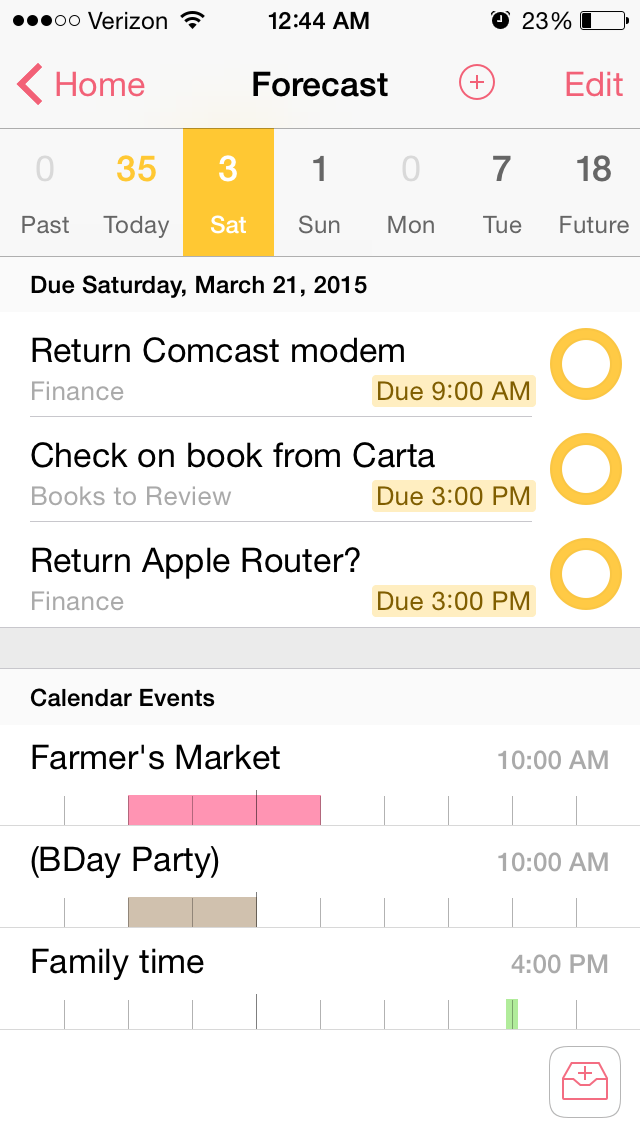
OF syncs automatically across Mac, iPad, and iPhone. When you are in the Forecast perspective, both the iOS apps and the OSX app allow you to see your Calendar Events right next to your actions for the day:
iPhone Forecast perspective
I even figured out, using their Clip-o-Tron 3001, how to turn Mac Mail messages into tasks with a keyboard shortcut. (Email inboxes are not a good place to keep tasks, you realize.)
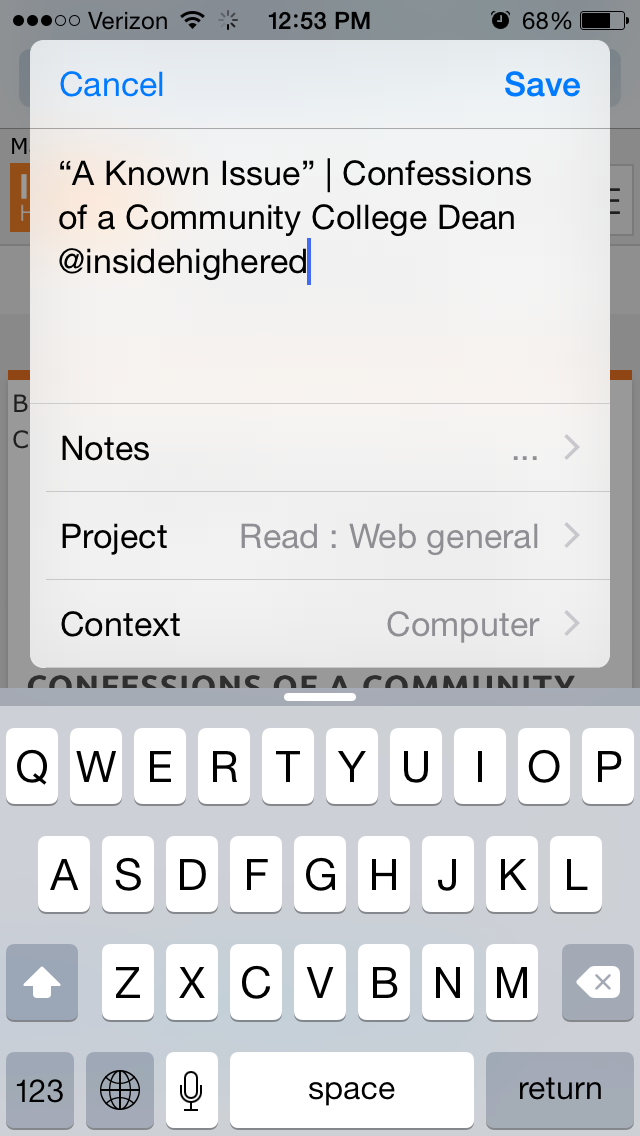
And I love the Share Extension in iOS8. From almost any app I can create an OmniFocus task. I do this regularly. I see something I like, so share to OF:
From Safari, for example, the Note is automatically populated with the article link, and I can set the Project and Context:
One lack in the Share Extension is the ability to assign a due date from the screen shown above–you have to manually open OmniFocus if you want to do that. However, the more I use OmniFocus, the more convinced I am to only set due dates if absolutely necessary–you can always look through undated tasks in your weekly review, which OF makes really easy with their excellent Review perspective:
OmniFocus for Mac Review perspective
What if you’re on a library computer or PC or purchased OF for Mac only and see something on your phone that needs to become a task?
OmniFocus gives you your own unique email address, to which you can email a task. This “Mail Drop” feature helps get the user close to Inbox Zero on email, too, since you can just forward a Gmail message to OmniFocus, where it will end up in your OF for future processing. In other words, you can input OmniFocus tasks from anywhere.
And TextExpander helps here. That app allows you to type your own abbreviations that then expand into text of your choosing. With TextExpander enabled, I write “.omni” and my OmniFocus task capture email address (which is neither short nor memorable) pops up right away.
Another way you can input tasks? Connect your OmniFocus in iOS to the Reminders app, then you can tell Siri to remind you something, and it goes into OmniFocus. Awesome!
Bonus: It Does Photos and Voice Memos
The iOS OF apps even allow attachments to tasks. If I’m processing paperwork and need to set a reminder to pay a bill, I can just take a picture of the bill from OF and save it to a task. Whenever I pull that task up on my computer or other device, the photo will be there.
You can also tap on the “Attachments” tab to record a voice memo, and save a task that way.
Limitations
There are some limitations to using OmniFocus, though not many, and far fewer than other task management apps. Its sync function, which uses Omni servers, operates with a delay. Though sync is supposed to be seamless, it doesn’t function with the same instantaneous speed as, say, Apple’s native Reminders app. On the ground level this means that if I work through a task list on my computer but don’t have the OF iPhone app open (even though background refresh is on), I will still get outdated task notifications on my phone until the sync properly takes place. This is a daily frustration, even if a minor drawback compared to all the other robust features.
The workaround for this is to manually sync the app each time I update it, to make sure it’s up-to-the-minute. OmniFocus has made improvements here since I started using it, but I hope it will soon match what other apps do by way of syncing speed.
OmniFocus is not cheap–they’re working on making their iOS app universal (very soon), but in the meantime, there is a separate Mac app, iPad app, and iPhone app available for purchase. It’s not on Windows or Droid.
However, if (a) you have a complex set of roles, priorities, and tasks to manage, (b) you don’t feel fully on top of them, and (c) you’re willing to take the time to learn OF, it’s well worth the purchase price. One could probably get by with OF on just one platform, too, though if funds permit, having it on a mobile device and a desktop is an advantage.
Made with Care: Some More Thoughtfully Designed Features
The longer I use OmniFocus, the more I appreciate some little features. Just the other day I noticed for the first time that in your perspectives sidebar on Mac, if there are items in that perspective to process, a little colored bar on the left highlights that perspective.
The image at left tells me I am due my Review, that there are items in the Forecast (i.e., scheduled actions), and that there are some entries in my OmniFocus Inbox needing attention.
There are lots of nice little touches like this–the color of your task circles, for example, varies depending on the status of the task (whether flagged, due soon, overdue, repeated, etc.).
And one of the best intangibles for me has been the ease of accessing the help manuals. Sure, you can get impressive help information from within the app, but OmniFocus has made their iPhone, iPad, and Mac help manuals available as free iBooks downloads so you can annotate them to your heart’s content.
Also, using Control-Option-Space on Mac, you can open a Quick Entry pop-up to enter an Inbox item. As long as OF is open, you can do this from anywhere on your computer.
Two more sweet little features I love about the iPhone version–there’s a little “+” icon for an new Inbox entry on just about any screen within the app, so adding tasks is easy, no matter where you are in the app. And once you add a task in iPhone or iPad, you can not only Save it, but can tap on “Save +” to go right to a new task entry. In other words, you can add a task and not be sent back to your Inbox, but keep adding task after task. I find this feature essential when I’m using OF to track action steps in meetings.
I could go on. Lots of people have! It seems that explaining OmniFocus is its own third-party cottage industry.
TL;DR version? (I know–I am supposed to put that at the top of the post.) OmniFocus is an amazing app, designed with care, and more than any other tool has helped me to greatly improve personal productivity. With a good system in place, I spend less time worrying about what I’m forgetting and more time doing what I know I’m supposed to do.
Thanks to the fine folks at Omni Group, the makers of OmniFocus, for giving me downloads for the Mac and iOS apps for this review. See my other AppTastic Tuesday reviews here.
But there’s a lot more sage advice packed into the highly readable offering by HBR Press.
Saunders’s basic premise is a simple but compelling one: “You need to learn the skills to invest your time like money.” She elaborates:
When you invest your time as if it were money, you look at the reality of how much time you have available and the truth of activities’ time cost. You then make decisions that allow you to get out of time debt. And with this balanced budget in hand, you can then set up the structure to consistently invest your time in what’s most important.
Five chapters and an inspiring epilogue help the reader to consider how to best use her or his time in the service of identified values and priorities:
1. Take Control of Your Time and Your Life
2. Identify Your Time Debt
3. Create a Base Schedule
4. Set Up Automatic Time Investment
5. Maximize Your Time ROI
Epilogue: Remember What You’re Working For
I’ve read enough time management books to nearly expect the kind of introductory statement in the first chapter: “Most time management methodologies fail….” However, Saunders really does offer a unique angle on time management, writing, “Time, like money, must be invested to work for you now and support your ideal future.” This is what sets Saunders’s book apart from other task management writing. She boldly begins: “What will need to change is you.”
She helps the reader address psychological “barriers to success,” such as accepting the role of victim of other people’s expectations, playing the rescuer (and therefore taking on other people’s tasks), or even somehow thinking “a sane and sustainable schedule with (gasp!) free time” is an undeserved luxury.
I can imagine a hurried executive reading, “Accept the past and forgive yourself” and balking at an emotions-based approach, but I think Saunders is right on the money. We can’t fix how we manage our time without taking a careful, hard look at what’s behind our time-spending (and time-wasting habits).
So only after a full chapter devoted to examining the ways we undermine our effectiveness–and suggesting practical ways to combat this–does Saunders write:
Now you’re mentally and emotionally primed to authentically evaluate your time investment. So, it’s time to take a serious look at whether you’re in time debt and, if so, how you can move toward a balanced budget.
For the rest of the book, Saunders serves as the temporal equivalent of a financial advisor. What turned me on to the book in the first place is an excerpt HBR posted, where Saunders suggests a “formula to stop you from overcommitting your time.”
Chapters 2 through 5 then walk the reader through setting both a daily and weekly “time budget” and schedule. Saunders suggests how to help the actual match the envisioned. (One juicy nugget, via Arianna Huffington: “You can complete a project by dropping it.”) There is a difference, Saunders notes, between, “Do I have to do this?” and, “Do I have to do this now?”
Even as the author deftly guides the reader through the nuts and bolts of scheduling, she continues to keep an eye on some of the deep-down causes that prevent us from spending time well:
[Y]ou need to uncover what’s at the bottom of your emotional resistance so that you can let go of it and make time investment decisions that serve your greatest and highest good.
Each chapter ends with a really helpful summary checklist, making it easy to translate ideas into actionable progress.
One thing that seems to be missing in this book is more specific advice on how to tally how much time various tasks will take. After all, part of the issue is that we often underestimate how long it will take to complete a task. Saunders does give advice here (a section called, “Improve Your Estimation of Time Costs”), though it is largely of the just estimate via trial-and-error variety.
That said, there may simply not be much else to do but to follow her sound advice to track one’s time to be able to “look back at the totals for similar past projects for data on realistic estimates.”
Even in book form Saunders is interpersonally and psychologically sensitive and insightful. And she so often calls the reader back–in an inspiring way–to the big picture:
In the end, getting the best return on your investment is not about whether you got the most tasks done but about whether you put time and effort into what’s most important to you.
By all means, go download this book right now. Schedule five 20-minute blocks to read it (this is what I did, and it worked great). And then schedule some more time to sit down with your calendar and put into practice all that Saunders recommends.
Thanks to HBR Press for the review copy of this awesome, succinct ebook. Find it here on Amazon, here at HBR’s site, and learn more about the book here at Elizabeth Grace Saunders’s site.

 The wedding of productivity literature and thoughtful anthropology (let alone spirituality) seems to be woefully uncommon, but David Allen strikes me as a spiritually attuned writer. That’s why I think it’s no stretch to call some of his insights into personal productivity “soul-piercing.” Or, at least, one can better provide oneself good soul care when implementing Allen’s GTD (Getting Things Done) principles.





















 Words on the Word