The video is of professional quality. You don’t even really think about this as you watch, which is a good thing. It is just David Sparks, his OmniFocus (Mac and iOS, excellent explanations, and you.
Sparks covers all of the basics, and then some. You get in-depth tutorials on how to use Due Dates (sparingly!) or Defer Dates, navigating your way through Projects, what Contexts are and how to use them, keeping your Inbox clear, integrating OF with other workflows like email and TextExpander, and much more. From Capture to Review, the Field Guide has it covered.
There are two nice touches that I especially appreciated:
Sparks is funny. You see him working on a project called Flat Earth Manifesto in the video. But he avoids the pitfall that some tech writers get into, which is being overly cute or annoyingly glib. He uses humor perfectly.
He shows you some of his unique Custom Perspectives in OF. This alone may be worth the price of the field guide. I have already copied his settings that he shows to set up my own Perspectives like his. Even though I have been using the app for a good while now, and consider myself fairly proficient with it, my productivity with OmniFocus has definitely increased since adding these Perspectives.
As you can see in the above shot, you can navigate by chapter, and scroll through all of them to see a sort of Table of Contents of the whole Field Guide.
Here is a short clip so you can get a feel for the approach and content.
Learning OmniFocus is an investment of time. Some people will balk at spending money to learn how to use the software they already spent good money on. But for $10, with well over two hours of top-notch content, the serious OmniFocus user should get to this field guide as soon as possible. Easily 5/5 stars.
Yep, that’s right… another Accordance Webinar coming your way! Check all of this week’s sessions out here. I’m leading this one Wednesday:
Sermon Preparation in Action Wednesday, August 26, 12:00 – 1:15 PM EDT
Learn how to tap Accordance’s power for sermon preparation from brainstorming sermon ideas to finished message.
We had a great turnout last week at the session I led on setting up workspaces. Sign up is free, even if you don’t have Accordance. Learn more and save a spot here.
There’s still time to sign up for today’s Accordance Webinar I’m leading at noon. You can sign up here. Here are the details:
Setting Up Workspaces with Abram K-J Friday, August 21, 12:00 – 1:00 PM
Abram will gear this session toward the basic-level Accordance user. The webinar is interactive throughout, offering users a chance to see how to set up, customize, and save a Workspace in Accordance.
Here is what I’ll cover:
1. Terminology: Panes, Tabs, Zones, Workspaces
2. Setting Up a Simple Workspace: Bible, Commentary, User Notes
3. Setting Up a More Robust Workspace: Multiple Bible Texts, Multiple Commentaries, and Tools
4. Creating Different Workspaces for Different Tasks
First things first–who is even doing design for Cultured Code’s app Things? Because that design team is the best in the biz. The two images in this post show as much.
Yesterday Cultured Code announced a significant improvement to how Things syncs data across devices. Once again, they’re ahead of the pack in this regard. From their blog announcement:
Shortly after Things Cloud launched, we released a feature called Local Push. It makes sync instantaneous as long as Things is open on your devices (and they’re on the same local network). But of course the app is often closed on your mobile device—so it won’t receive the push, and won’t be in sync until you manually launch the app later.
Today’s new version of Things Cloud solves this problem by sending your devices a push from the cloud (regardless of what network they’re connected to). This means that most of the time you’re in sync even before you launch the app.
And then they give you this sweet visual representation:
… which is quite nicely explained in full at their blog. Read the whole thing here.
And be on the lookout for Things 3. I’ll do my best to cover it here once it releases.
I’m pretty tied to the Apple ecosphere of apps when it comes to productivity: OmniFocus, Drafts, MindNode, Ulysses, etc. Three major exceptions are Scrivener, Evernote, and Accordance. But otherwise–whether this has happened consciously or not–most of the apps I use regularly are Mac-only.
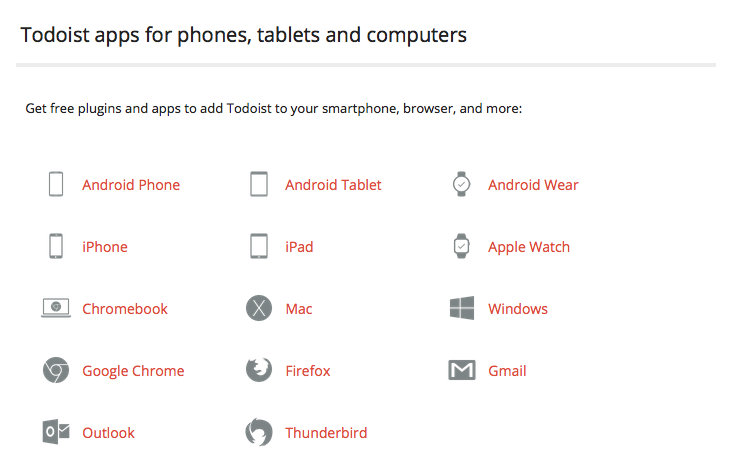
Todoist is the rare task management app that is available on every platform. And I mean every platform. It even has a Web-based interface, if you don’t want to have to fire up the app on your computer:
Not only that, it integrates with just about everything. This itself is reason to consider Todoist as a primary task management app.
In this post, I review Todoist Premium, considering at the end whether it could, for me, replace OmniFocus.
Here’s a short video from the makers of Todoist, which offers a quick overview:
What’s Awesome about Todoist
First, what’s awesome about Todoist.
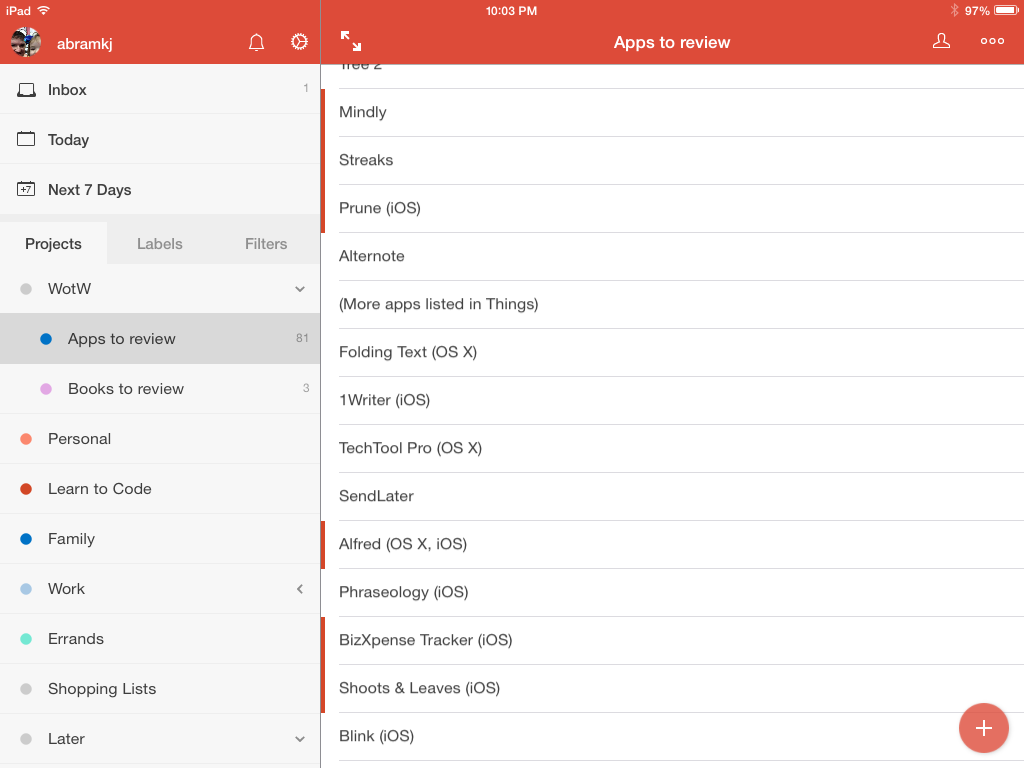
1. It looks good. Really good.
Here it is in landscape mode on an iPad mini:
At first I thought it was overly simple, sort of blasé. But the more I’ve used Todoist, the more I appreciate the layout. No clutter, easy to read, pleasing to the eyes. (And you can tweak the color scheme, too.)
2. The sync: It Just Works.
Todoist’s sync across devices is natural and fast. It’s much more like Things than (previous versions of) OmniFocus. I don’t even really think about it, which is what you hope would be true. No manual anything required.
3. Todoist is everywhere (almost).
It’s the most ubiquitous and app-integrated task management app on the market. Look, it’s even in my Firefox browser!
Click to enlarge image
There’s a Gmail plug-in, too. This, unfortunately, is only available with Chrome–which is too much of a CPU hog for me. But it looks good.
Todoist doesn’t offer a Mac Mail plug-in, but as you’ll see below, you can email a task right into a Todoist project, so that’s not a big deal.
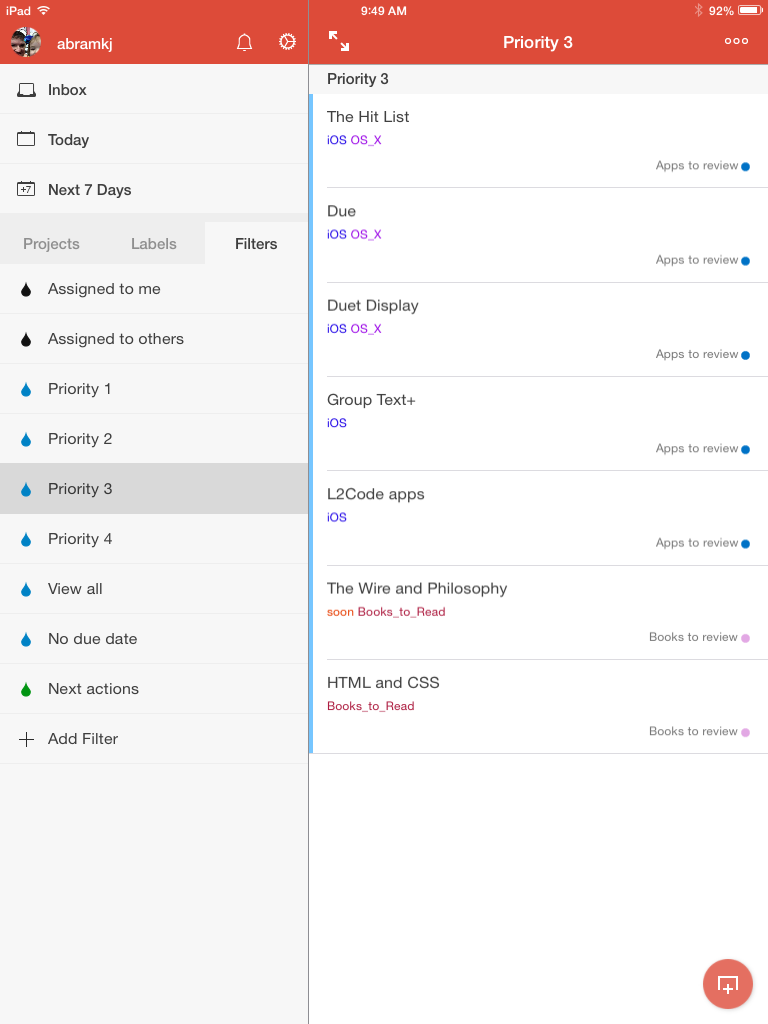
4. Labels and Filters
I don’t know Todoist like I know OmniFocus, but Labels and Filters would appear to be the app’s heart and soul. Sure, there’s an Inbox you can use for GTD-style capture (from anywhere). Yeah, you can set up different Projects for organizing your tasks. But Labels allow you to assign contexts and anything else you like to your tasks (expected task duration?). Then you can filter your tasks by Labels or priority or any other saved search:
Annoying is the fact that when you create a new Label, if there are two words or more, Todoist automatically inserts an underscore. So one label of mine is now “Waiting_For.” I’m sure I’ll get used to it, but it feels a little AOL-ish.
I’m sure there are Label and Filter ninja reading this post, and there’s much more to say about them–Todoist can do quite a bit here. So check out this page and this page for more.
5. Easy task input
Todoist understands natural language, so entering tasks intuitively is no problem. It’s easy to enter tasks in rapid-fire fashion, too, so you can do a brain dump well with Todoist.
6. Email reminders
Todoist assigns an email address to a Project of your choice, so I can email tasks (or forward actionable emails) directly to my Inbox. This is a must-have for me in a task management app. You can include attachments, too.
Speaking of email… you can also have Todoist email you reminders of your tasks. At first I thought this was redundant (well… it is). But even though I’m seeing the same task twice (maybe a GTD no-no?), I have found the added reminder helpful.
What I Don’t Particularly Like about Todoist
1. The Premium, subscription-based model
Of course. It would be ridiculous to expect a sophisticated app with task notes, attachments, email reminders, fast sync, etc. to be free. There is a free Todoist, but it’s limited. Here’s some of what is in Premium, which is about $29/year:
But I’ve never liked subscription-based models. Sure, if you work for a big company that’s paying for it, I can see it working. But what users otherwise want to pay $150 to use the app for the next five years? Other apps with one-time purchases end up being cheaper. If you don’t have Premium, or let it expire, you can no longer add notes or attachments to your tasks–serious GTDers (and other task management obsessives) will need Premium.
2. The interface is not so customizable.
You can change your start screen, but not on iOS, that I could find. You’re pretty tied in to the layout Todoist gives you.
3. For GTDers: No weekly review option
My weekly review–a built-in feature of OmniFocus–is what allows me to set due dates sparingly, a key practice for effective project and task management. Todoist’s Karma is fun, but feels gimmicky. And their GTD page has suggestions for something like a weekly review (it would be easy enough to set up a recurring task for it, employing Filters and Labels as needed), but I have gotten so used to OmniFocus’s Review function that not having one already in the app is tough. But it won’t be a deal breaker for a lot of folks.
Concluding Evaluation
If I were to stop using Apple products tomorrow, I’d get Todoist up and running right away.
How does Todoist Premium rate with apps like OmniFocus and 2Do and Things? It’s right up there, and maybe—given its cross-functionality and fast sync—the best of the batch. But the subscription model is just something I can’t latch on to. Some will have no problem with this.
When I set out to write this review, I was planning to conclude it with, “Yet another app falls short of OmniFocus….” But Todoist really doesn’t. Sure, OF beats it in some regards, but Todoist outperforms OmniFocus in other key areas.
So if you’re one of those handful of disaffected OF users, or if, heaven forbid, you’re not keeping track of your commitments in writing at all–and if you have $30/year to spend–Todoist Premium might just be your new, sole task management app.
Thanks to the fine folks at Doist, the makers of Todoist, for giving me 6 months of Todoist Premium so I could write this review. See my other AppTastic Tuesday reviews here.
The new school year is almost year. (Some folk in the South have already started!)
If you’re a pastor or professor who is looking to reinvigorate your sermon prep or teaching workflow, Accordance Bible Software is a great tool. It’s also an indispensable aid for seminarians. (Speaking of which: Back to School sale.)
This coming week Accordance is offering a host of free webinars. I’ve attended a few of these, and they’re always informative and well-done. I also teach a couple webinars now, which is a lot of fun. I’m leading one on Friday:
Setting Up Workspaces with Abram K-J Friday, August 21, 12:00 – 1:00 PM
Abram will gear this session toward the basic-level Accordance user. The webinar is interactive throughout, offering users a chance to see how to set up, customize, and save a Workspace in Accordance.
Here is what I’ll cover:
1. Terminology: Panes, Tabs, Zones, Workspaces
2. Setting Up a Simple Workspace: Bible, Commentary, User Notes
3. Setting Up a More Robust Workspace: Multiple Bible Texts, Multiple Commentaries, and Tools
4. Creating Different Workspaces for Different Tasks
The Drafts action you’re going to need is “Open in….”
I’ve given this action (which comes already installed with Drafts) its own “Run Action” key on the customizable Drafts keyboard, with its own icon from the emoji keyboard. My keyboard in Drafts looks like this:
Now the amazing part, and it’s just three steps:
1. Outline the text of your mind map in Drafts.
Here’s a bit of voice-dictated text:
To get going, use Siri to record what will be your first node.
To get to a second node, simply say, “New line, new line” and say what your next node will be.
If you want to do sub-nodes (i.e., “children”) after you have dictated your main/parent node, say, “New line,” and then have Siri indent your sub-node with the “tab key” command. Then dictate that sub-node or child.
You can add more parent, child, and sibling topics similarly.
2. Run your “Open in…” action in Drafts.
I simply tap my “Run action” key, which automatically triggers the “Open in…” action:
Select Mind Node and…
3. View your mind map in MindNode.
Because of MindNode’s iCloud-enabled sync setup, you can now view (and modify) your mind map in iOS or OSX platforms.
Joey Lawrence put it best:
The above is an adaptation/re-posting of a previous post on voice dictating a mind map. That post used the app iThoughts, but I learned shortly after posting that even though MindNode doesn’t have the x-callback-url support that iThoughts does, Drafts’s “Open in…” feature makes the same process possible with just one extra tap. Rad.
Then head to the Drafts action directory to pick up this nice little callback url to install to Drafts. If you click this link from your iOS device, you can have it install the action right to Drafts. (More on iThoughts and x-callback-url options here.)
I’ve assigned this action its own “Run Action” key on the customizable Drafts keyboard, with the label MM. My keyboard in Drafts looks like this:
Now the fun part, and it’s just three steps:
1. Outline the text of your mind map in Drafts.
Here’s what I’ve just voice dictated:
To get going, use Siri to record what will be your first node (“topic” in iThoughts parlance).
To get to a second node, simply say, “New line, new line” and say what your next node/topic will be.
If you want to do sub-nodes (i.e., “children” topics) after you have dictated your main/parent topic, say, “New line,” and then have Siri indent your sub-node with the “tab key” command. Then dictate that sub-node or child topic.
You can add more parent, child, and sibling topics similarly. (iThoughts has a nice terminology overview here.)
2. Run your “iThoughts: New Map from Outline” action in Drafts.
I simply tap my “Run action” key, which automatically opens my draft in iThoughts as a mind map–and does it so quickly, I can barely catch a screenshot of the dialogue!
3. View your mind map in iThoughts.
Here it is
Because of iThoughts’s sync setup, you can now view (and modify) your mind map in iOS or OSX platforms.
If this isn’t amazing tech, I don’t know what is.
UPDATE: I’ve just learned you can achieve this same effect with MindNode, my current go-to app. It doesn’t have as rich x-callback-url support, but you can make a mind map from voice-dictated text using the “Open in…” feature in Drafts. Very cool.
Thanks to the good people of toketaWare, for giving me a download of iThoughts for iOS and OSX for review purposes. More on that app to follow.
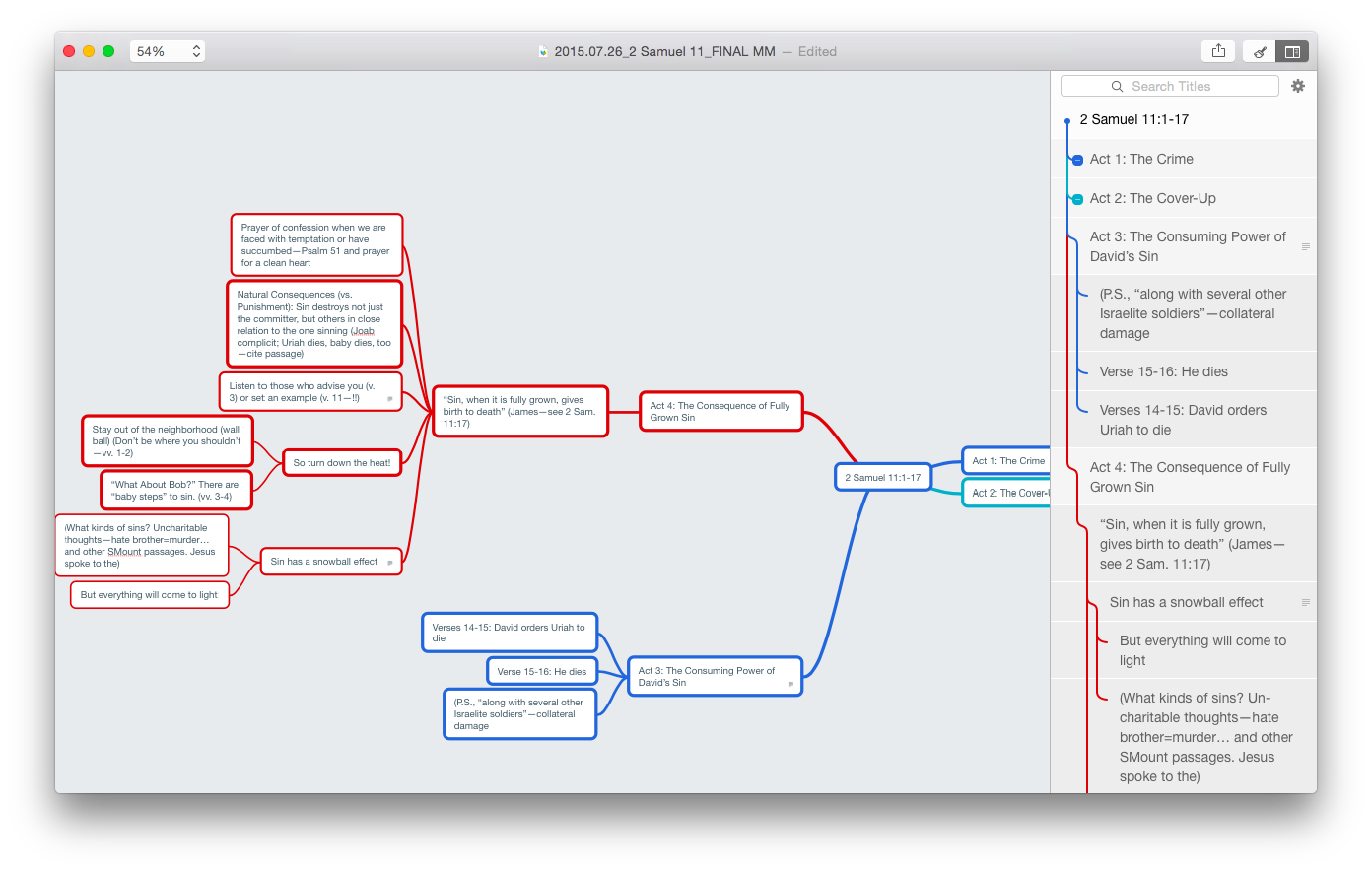
All of a sudden I’m hooked on mind mapping. It’s been a really productive way for me to make sense of the texts I speak on each week. Here’s how I’ve made structural sense of the David and Bathsheba account:
David and Bathsheba (click to enlarge image)
(If that image doesn’t work well for you, click here to see a zoomable version.)
(Next up: trying to outline thought processes in other parts of my life using mind mapping.)
I’m not at the point of being able to write a whole sermon via mind map (and may never go that route), so my next step is exporting to text.
MindNode makes that exceedingly easy, as I mentioned here. In MindNode 2.0 for Mac, you can always view a text outline of your map right next to all those nodes, sub-nodes, and connecting lines:
Note outline at right
By the way–that’s a lot to look at on one screen. MindNode has a lovely “Fit to Mind Map” zoom selection, so you can have your mind map fill the application screen. For large and multi-noded apps, that’s a great setting.
Now exporting the map to multiple options is easy. Last week I exported to .rtf, dumped the text into Scrivener, and worked from there. Export options are robust in MindNode, as are import options. I could even easily import some random thoughts from Scrivener’s cousin, Scapple, right to MindNode.
This week, however, I wanted to live dangerously. I.e., I wanted to try OmniOutliner for fleshing out my outline, once I had the content figured out in MindNode. So I exported my mind map from MindNode as .opml and opened in OmniOutliner:
What my mind map looks like in OmniOutliner (click to enlarge)
Awesome!! All right there, as it should be. All the points and sub-points are in order. The text outline that was already in MindNode is now in OmniOutliner, with everything in its right place. Even the notes popovers in MindNode (sweet new 2.0 for Mac feature) come in to OmniOutliner as notes (the grey font next to the notebook icon, in the image above).
At this point I can work from the outline in OmniOutliner. You’ll see in the image above that I’ve added a “RESEARCH” section to allow me to do just that.
OmniOutliner has similarly robust export options. I can make a couple tweaks to fine-tune the formatting in my export, and then open the finalized, annotated outline in a word processor of choice. Very nice!
I’ve been experimenting with workflow for sermon preparation lately, a little more than usual. I’ll still do my research with Accordance as my primary hub. But for the initial outlining process and the final writing process, MindNode and OmniOutliner seem to be making a great team.
One other huge bonus that both apps have in common: they are fully cross-platform across Mac, iPad, and iPhone, so I can jot down ideas wherever and whenever inspiration strikes.
Thanks to the good people of IdeasonCanvas, for giving me a download of MindNode for iOS and OSX for review purposes. And thanks to The Omni Group for OmniOutliner Pro, also for review purposes (more to come). See my other AppTastic Tuesday reviews here.
I’ll be presenting an online training webinar–Sermon Preparation in Action–tomorrow (Thursday the 16th) at 12 noon (EST) for Accordance Bible Software.














 Words on the Word