Writing Goals on iPad (Image Via Ulysses/The Soulmen)
Ability to export to Pages–this .docx export ability is great (and includes Word), but unfortunately instead of offering it alongside .rtf export, that latter option has been eliminated now (leaving Nisus Writer Pro behind)
2.1 does not add to iPad the Mac functionality where you can navigate your sheet by headings, so users will have to hope for that in future updates.
All the same, this is a worthy update. If you can live with .docx export replacing .rtf export, Ulysses users will want to update right away.
Find Ulysses for iPad here, for Mac here. I reviewed Ulysses in two parts here and here, where you can see more screenshots and read more about its features.
Ulysses offers a free trial of its Mac version here.
I’ll be presenting an online training webinar–Sermon Preparation in Action–tomorrow (Thursday the 16th) at 12 noon (EST) for Accordance Bible Software.
Accordance is offering a 20% discount on all their Collections:
Get in gear with our Back to School Sale. We are kicking off seven week of savings with a 20% off sale on Accordance Collections. Collections are the best way to build one’s Accordance Library. If you are new to Accordance, you will want to select the Collection that is best suited to your work. If you are a longtime Accordance user, consider upgrading to the next Collection level using Accordance’s new Custom Upgrades.
You can compare what’s available at the chart here.
See also my review of Accordance 11 here. It’s a top-notch program.
Some folks swear by mind mapping, a way to get ideas down on paper and visually display their interconnections beyond what just a text editing file can do.
I haven’t found it as easy a medium, but this last week I tried mind mapping my sermon outline before writing out the manuscript, and found the process really helpful. I used the app MindNode to do it, which I review today.
A Simple Mind Map of The Fifth Discipline
Here’s a simple mind map for understanding Peter Senge’s five disciplines in The Fifth Discipline:
5 Disciplines on an iPhone
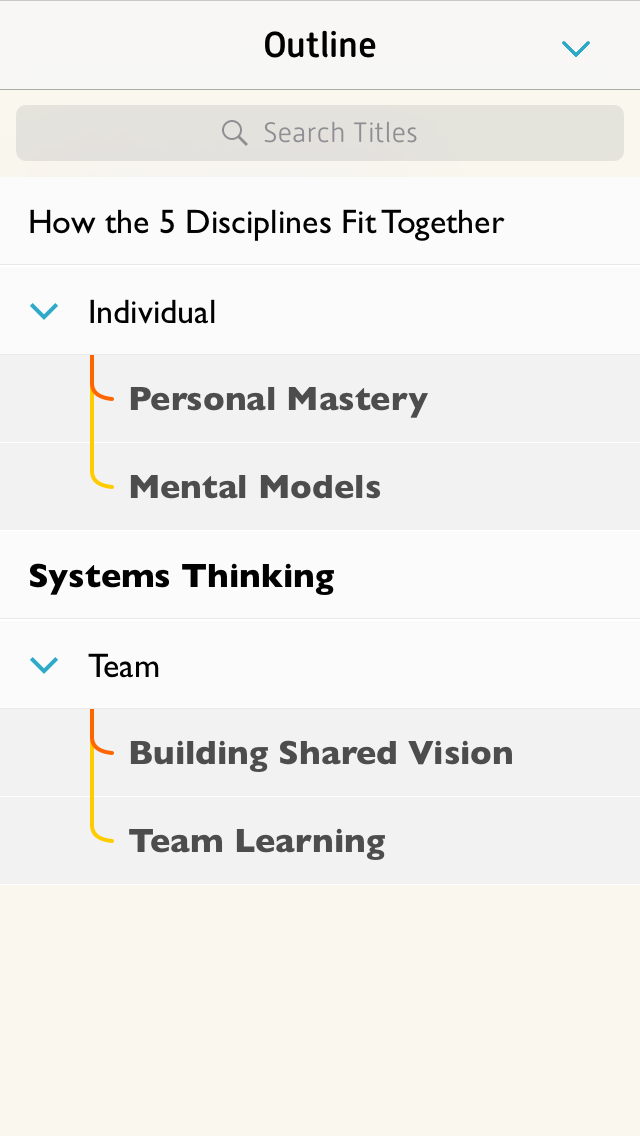
What’s really cool is what you can do with this mind map in MindNode (iOS) once you have it. You can see a text-based outline, which can expand or collapse levels:
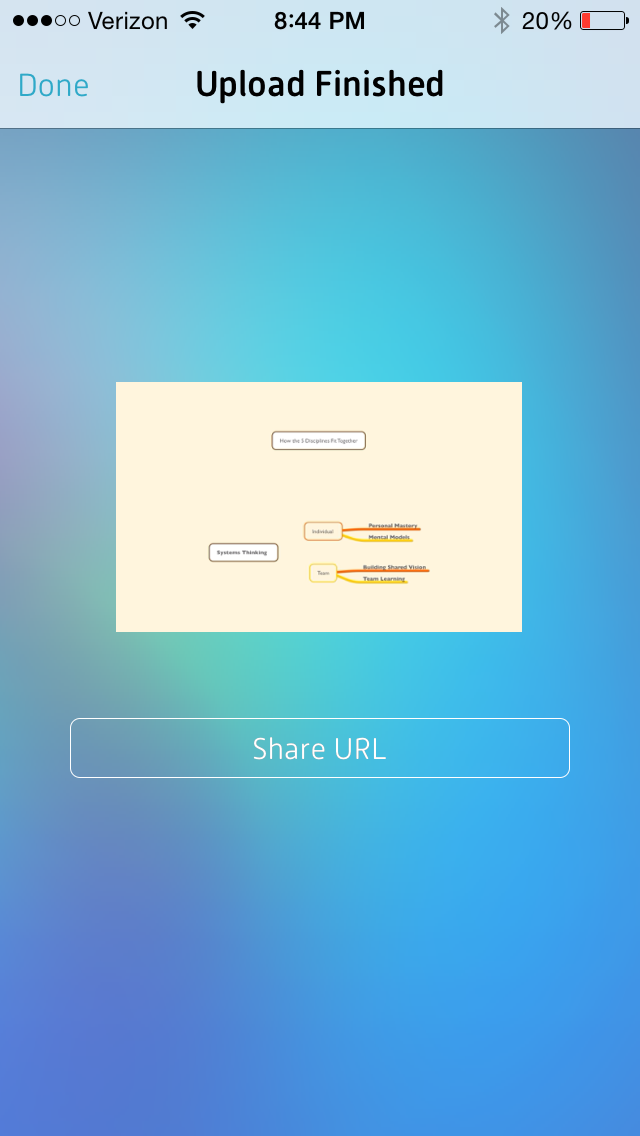
And you can export to MyMindNode, where you can view and publish your map on the Web:
You can then share the link to your mind map
I was hoping to embed the above mind map right here in this post, but WordPress.com does not support plug-ins or a good deal of third-party embeds (dah!), so I simply can give you this hyperlink to see what it looks like.
More Complex Mind Mapping
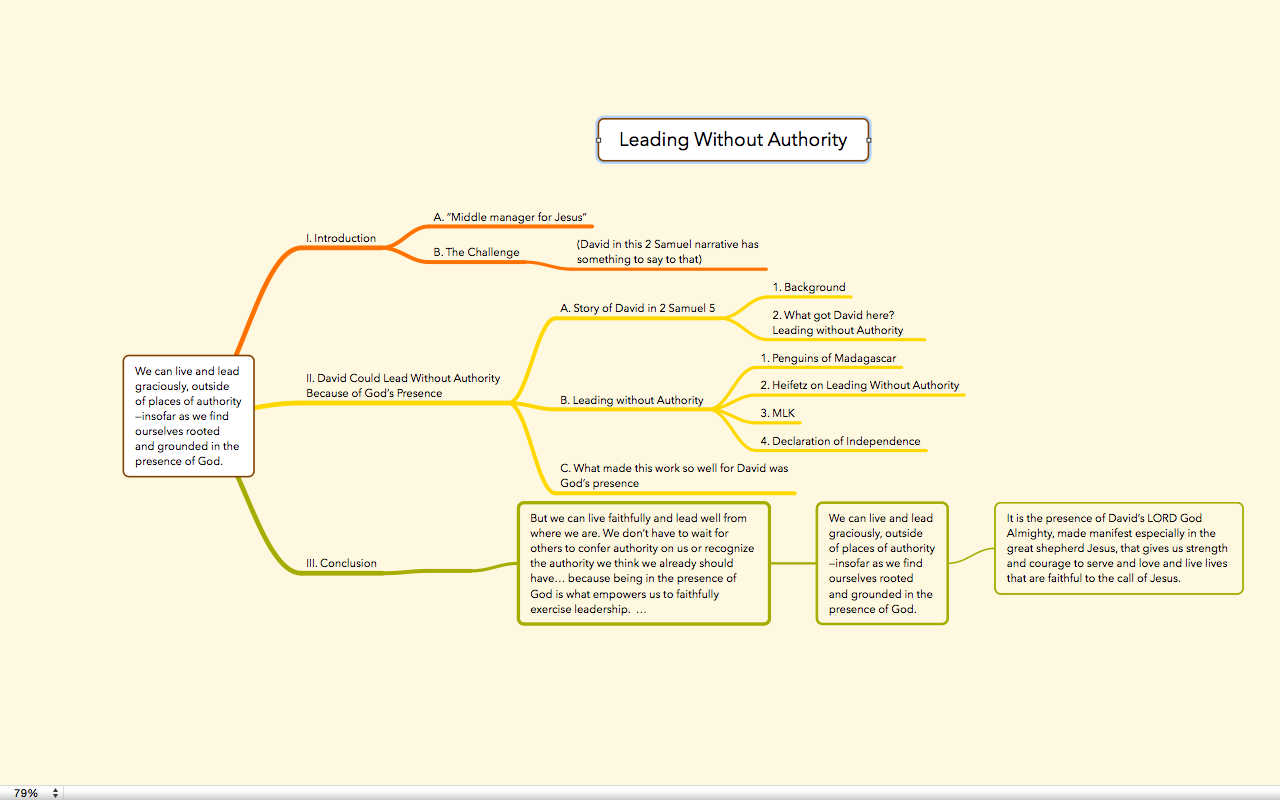
I used MindNode to map out my sermon outline this last Sunday. When I was done it looked like this:
ScreenShot from OSX app MindNode Pro (click to enlarge)
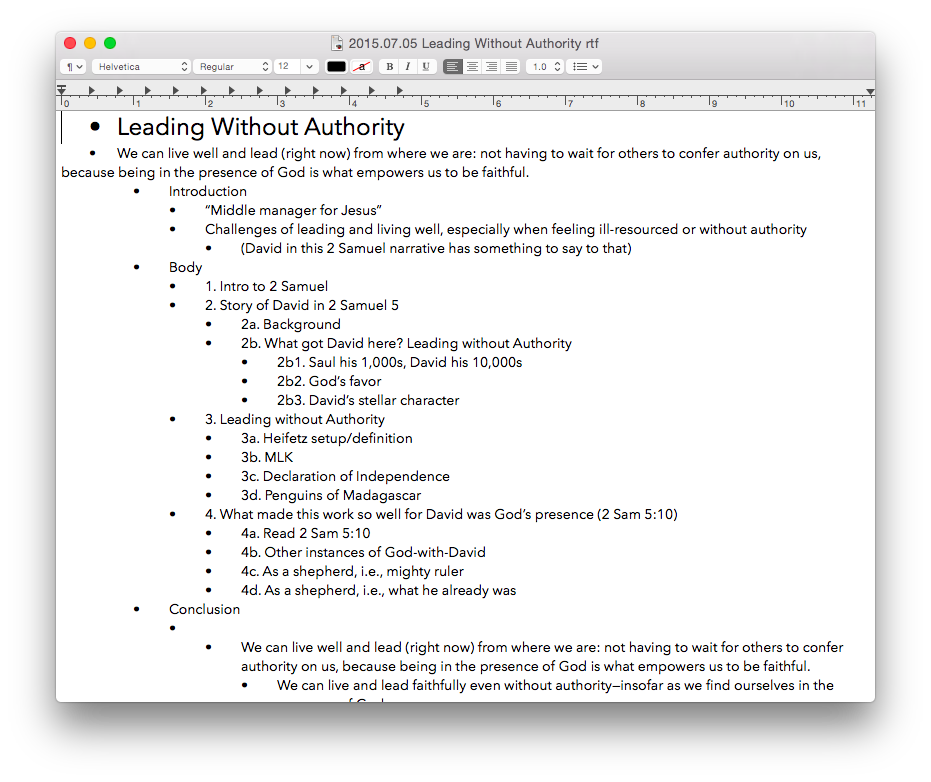
And then I thought: oops. How I am going to get this into Scrivener without re-typing everything? At first I just dragged a .png image file into Scrivener so I could see the mind map as I worked on next steps. Then I realized I could actually export it not only as a PDF or image, but as a text file. (!!)
It looked like this:
…which was sweet, because then I could just copy and paste to Scrivener and write my manuscript into my outline, started in MindNode.
By the time I was done writing the manuscript, I’d pared down the outline a bit. Editing in MindNode was easy, so that the final map looked like this:
Nodes, Parents, Siblings, Etc.: All Easy to Use
There’s a lot more to mind mapping, not the least of which is learning some terminology (nodes, parents, siblings, children, etc.). The best place to start is the MindNode Web page here. The iOS User Guide is also a great way to get to know the app; that is here.
Styles, fonts, and colors are all customizable. And it seems a rare treat for a writing app to exist (and be well-designed and executed) on iPhone, iPad, and Mac. Of course, for a large mind map one will probably choose Mac (or iPad) over iPhone, but moving between devices is easy. There is no Apple device on which you cannot access and edit your mind map. There’s even an accompanying Apple Watch app.
There are some other really nice touches, too, like being able to “fold and unfold” nodes, the equivalent to expand/collapse in a table of contents, for example. You can hide all of a nodes’ children if you need to clear up some screen real estate, and just as easily unhide them. You can also add notes to a node for storing even more information without having to display it.
Perhaps the best thing about MindNode is how easy it was for me to make both of the above mind maps before reading any of the support material. Moving nodes, connecting them, disconnecting them, changing fonts, dragging things around, exporting, and more… all of this was really intuitive and easy to come by both on OSX and iOS.
So… I’ll keep trying mind mapping for the outlining stage of writing. MindNode has much more still to uncover, and I’m looking forward to future use. A brilliantly executed app.
Thanks to the good people of IdeasonCanvas, for giving me a download of MindNode for iOS and OSX for the review. Check out the app’s iOS page here and the Mac app (MindNode Pro) here. Note that MindNode Pro for OSX has now been updated to MindNode2. See my other AppTastic Tuesday reviews here.
I’ve received permission to post the full .pdf of my comparative review of software for Septuagint studies. It appears in volume 47 (2014) of the Journal of Septuagint and Cognate Studies (JSCS). In the review I consider and evaluate Accordance 10, BibleWorks 9, and Logos 5, specifically with an eye toward their use and resources in the field of Septuagint studies.
You can subscribe to JSCS and see information about the International Organization for Septuagint and Cognate Studies (IOSCS) at this link. Journal Table of Contents are on Eisenbrauns’s site here.
HoursTracker has seen more than 1 million downloads from the App Store since its 2009 release. I’ve been using HoursTracker Pro for a couple months now, so report back to you here, with a look at some key features.
Clocking in and out
This is the main job of any time-tracking app (obvs), and it’s executed nicely here.
Clocking in
Clocking out
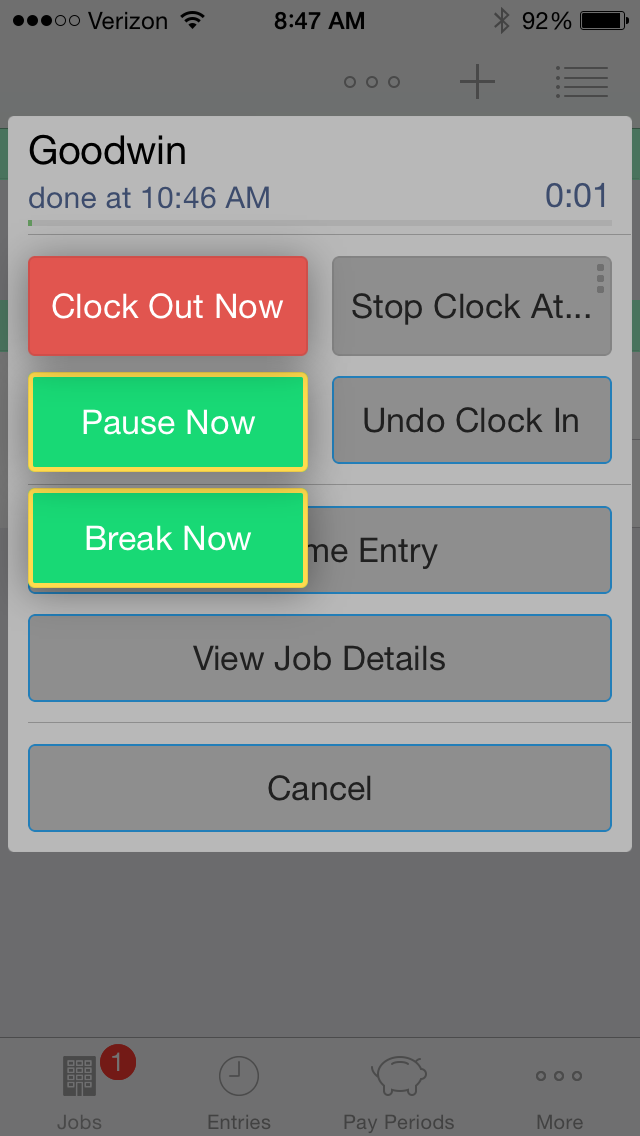
It’s easy to add a break, or just pause the timer. You hold the “Clock Out Now” button for more options to appear:
Tag and filter your work
Tags and filters offer a sophisticated way to manage and pare down the data you see. You can toggle various filters on and off, as desired.
See some of what’s possible here:
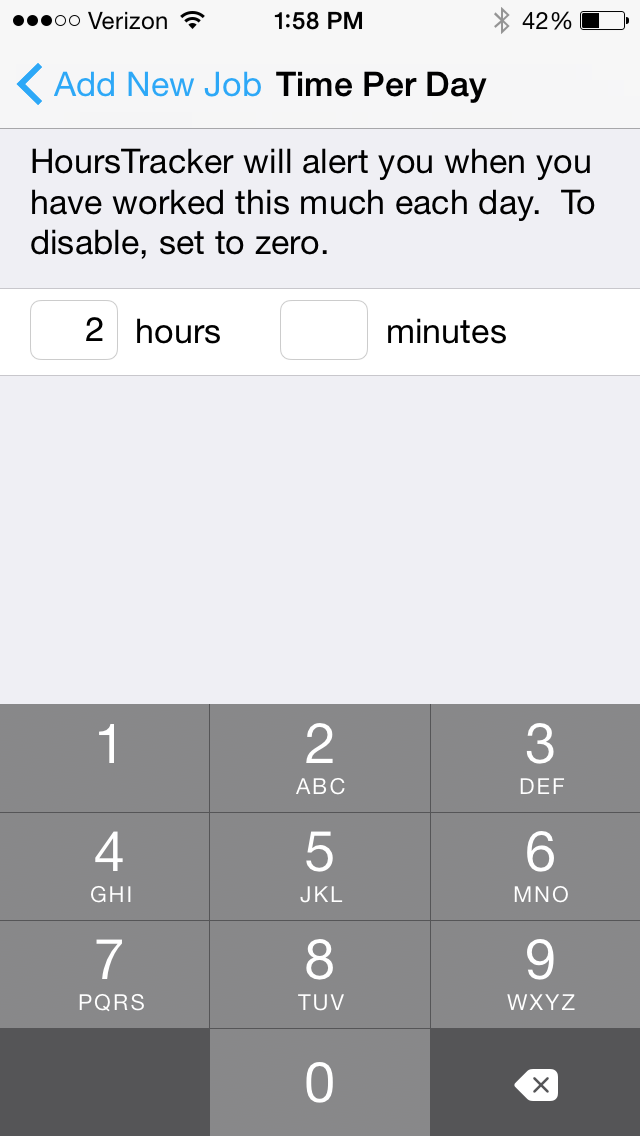
Get notifications that you’ve worked a set number of hours
This is particularly cool. You can decide you want to work two hours on a certain job, then the app will track it for you.
Then it will let you know when two hours is up, even giving you warnings beforehand:
I think this has been my favorite part of the app.
Invoicing?
Although HoursTracker Pro allows you to track work done for specific clients at whatever rates you like, it does not include an invoicing feature. You can export your timesheet data, but the app could be even more of a one-stop shop–especially for consultants–if it were to add automatic invoicing options in a future release.
Export options are really good
Data export options are really good. With just a few taps (and within seconds), you can have an email in your inbox with all your timesheet data as a .csv file that includes duration, break times, notes you entered for a given job, tags, and more.
It’s customizable
HoursTracker is quite customizable–taking notes and using tags and filters make this a sophisticated app. Here’s what the Settings section looks like:
In conclusion
If you want to try before you buy (the Pro app is $9, here,) HoursTracker is free here.
The Pro version is probably more than someone would want to sink into an app, if they were only tracking a job or two. But if…
you are tracking multiple jobs or projects, and
you want a way to tag and customize your data, and
you want to be able to access a clean and robust export
…you’ll want to check out HoursTracker. Spend some time with the free version, and then you can decide whether you want to pay for the full Pro version.
Happy time tracking! If you are a time logger, HoursTracker gives you an aesthetically pleasing environment for recording time, as well as has enough features for you to get it to do just about anything you need.
Thanks to the good people of HoursTracker, for giving me a download of HoursTracker Pro for the review. Check out the app’s iOS page here (Pro) and here (free). See my other AppTastic Tuesday reviews here.
The exquisitely designed 2Do app is Apple’s App of the Week in the iOS App Store. It’s usually $15 but is now free. The accompanying Mac app is 50% off, too.
I’ve reviewed Things and OmniFocus, and will soon review 2Do.
For now I can simply say: this is one of the most robust and beautifully designed apps I’ve seen on iPhone or iPad. The developers have–with their imagination and execution–far exceeded what one sees in a typical iOS app.
Read all about the iOS features here. Download it free (for a few more days) here.
I’ve reviewed enough software to know over-hyped copy writing when I see it, so I was initially skeptical at the Things app’s claim to be “a delightful and easy to use task manager” (my italics).
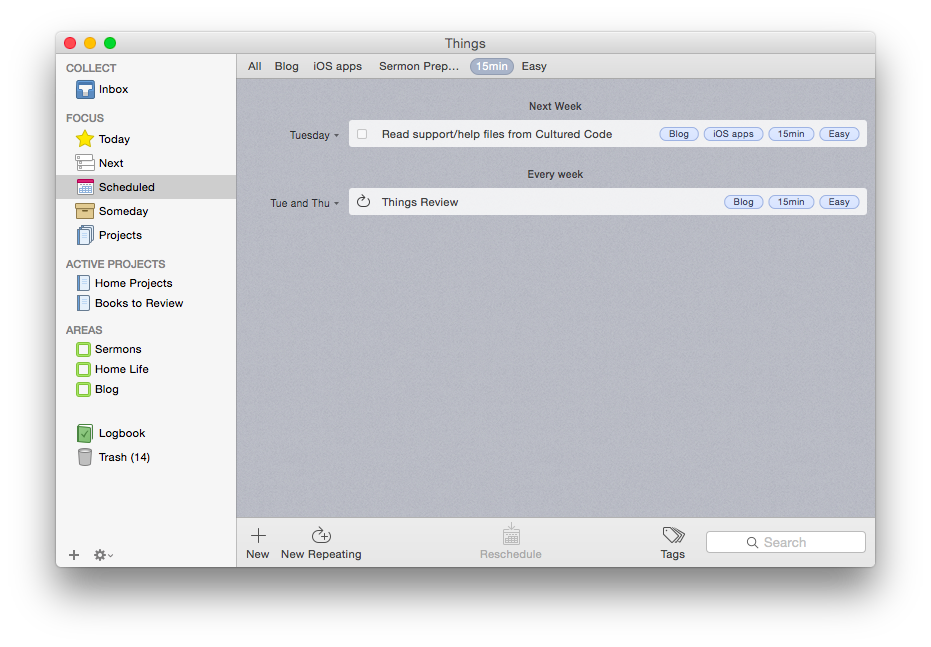
But its aesthetic and usability really are pleasing and enjoyable. The layout is very simple and clean. It has almost a cartoonish (in a comforting way) feel to it. It looks like this:
Mac OSX version (click image to enlarge)
iPhone version
Readers of this blog (especially patient ones) know that I’m a user of OmniFocus, but I’ve also been putting Things through its paces these last few months.
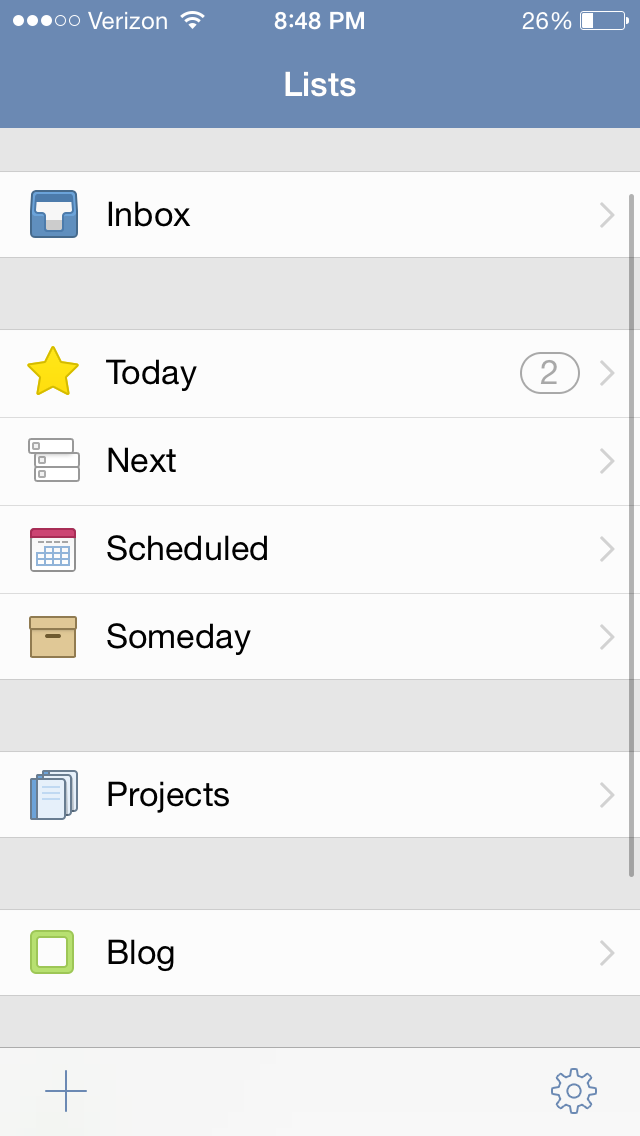
Today is the list for to-dos that you want to start before the day ends. They’re your priorities.
Next is home for all of the to-dos you could start at any time. It’s a good place to look when putting together your Today list, or when you’ve finished everything there and you need more to do.
Scheduled is for to-dos that you’d like to start on a later date, either because there’s nothing you can do to start them yet, or you’d just rather be reminded of them on a specific day.
Someday is the place for to-dos that you might like to get to, but you’re not sure when. Regularly review what you’ve added here to decide if it’s time to act.
It all starts with the Inbox, where you can put items until you’re ready to decide when to do them. Things also allows you to organize by multi-step Projects and Areas of Responsibility, as well as make extensive use of Tags.
Strengths
Things syncs instantaneously via its own cloud service across multiple devices. This makes using it on both a phone and a computer, for example, really easy—you never have to worry about an outdated notification showing up on your device. This is one of the few drawbacks of OmniFocus—if you don’t keep OF open and make sure it’s synced on all your devices, you’ll get a reminder on your iPhone to complete a task you already checked off on your computer. This is not an issue with Things, and it takes away an extra step in the task management process, so you can direct that energy to actually working through your task list.
Things is head and shoulders above other task management apps in this regard.
Things has a really nice tagging system. No GTD-style “contexts,” per se, though you could certainly use your tags as contexts if you wanted to. You can even assign sub-tags to your tags, a feature I really like. So I can tag a task under the category “Blog,” but also assign sub-tags such as “Future post” and “Learn apps.” I used this tagging system to track thank-you notes last Christmas—writing down presents (and who they were from) as we opened them, and then sorting by tag (giver) so that I knew what all I was thanking someone for when I came to their note! Handy, indeed.
The desktop app is feature-rich. As you might expect, in addition to seamless sync with the mobile apps, the desktop version of Things (pictured above) is fuller-bodied than the iOS apps. There is the Quick Entry feature, where a keyboard shortcut (no matter what app you’re using in the foreground, so long as Things is open somewhere) will let you enter a task before you forget. There is a really smooth way of accessing, displaying, and adjusting all your tags (where Things really shines). Editing a task is fast. And it looks good.
The iOS apps have a useful Today widget. Some Today widgets are better than others, and this one is good. You can view items due today, check them off (both without ever opening the app), and tap on New To-Do to be taken to the Things app to make a new entry.
Siri and Things work together (quite nicely). You can set up Things so that reminders you voice dictate to Siri go right into that app as tasks. So that you can use Things safely while driving. As OmniFocus is my task management app of choice, a comparison again is inevitable: to get Siri-generated reminders to show in OF, you have to actually open OF and let it sync. Not so in Things: the reminder goes to your Things Inbox for processing immediately.
Limitations
There are some things that Things can’t do, which I had hoped it could.
There is no way (whether in iOS or OSX) to attach photos or files to an item. I find this a noteworthy lack. In OmniFocus and Evernote you can take a photo of something and immediately set it up with a to-do reminder. Sometimes life’s “inputs” come as visuals, and taking a picture and setting a due date is easiest. That’s not doable in Things. (You can link to actual files on a desktop, but that’s not the same as attaching the file itself, and the file doesn’t show up on an iPad.) There is a “Notes” field that attaches to your to-do, which is essential, though that field just accepts text entry.
The cosmos (or just your co-workers and bosses) also like to give to-do items via email. There’s no way to automate moving from an email into a task in Things. In OmniFocus you can just forward an email to your special OmniFocus email address, and it automatically becomes a task in your inbox. Todoist, like Outlook, can let you turn an email into a task in just a click, without even having to forward it anywhere. Evernote even lets you send an email as a Note to a specific Notebook with Tags, if you phrase your subject line right. Things may add this email-in-to-Inbox feature in the future, but for now, you have to take the extra step of copy-pasting an email into a new task yourself. Not as automated as I’d have liked.
You can get to a new task via the + button on the bottom right screen on iOS—so entering a new task right away is easy—but there is not the “Save +” option that other apps offer… so you have to add an extra tap when doing a rapid-fire brain dump. (This is not as much an issue on the desktop version of the app.)
You can set up repeating tasks, but not easily. This process was not as immediately intuitive as the rest of the app is. Things’s support page (which is awesome) details how you can do it from iOS and OSX. But, wow, did I spend a lot of time figuring out the very specific way in which this must be done in Things—and a couple of methods that you’d think would get you there… don’t.
Conclusion
So many reviews of task management apps affirm that there’s a personal element to what app works best for you. One user’s “intuitive” is another user’s, “Huh?” I’ve bought into the OmniFocus methodology and layout (mostly), which is intuitive enough but not easy out of the box. Things, on the other hand, is easy to figure out how to use right away without using a manual. The “Today” part of the app functions as a sort of daily review, though I prefer OmniFocus’s Forecast and actual Review perspectives. But you might be totally different on that!
In terms of complexity and capability, I’d put Things somewhere between Reminders and OmniFocus. It’s far more robust than Reminders, but not quite the souped-up to-do app some users might need. (Although one could just use the robust tagging system to customize Things for higher levels of complexity.)
Things is well-designed, looks great, and the seamless sync is a huge plus. Try it for yourself here (download link) with a free trial.
Thanks to the fine folks at Cultured Code, the makers of Things, for giving me downloads for the Mac and iOS apps for this review. See my other AppTastic Tuesday reviews here.
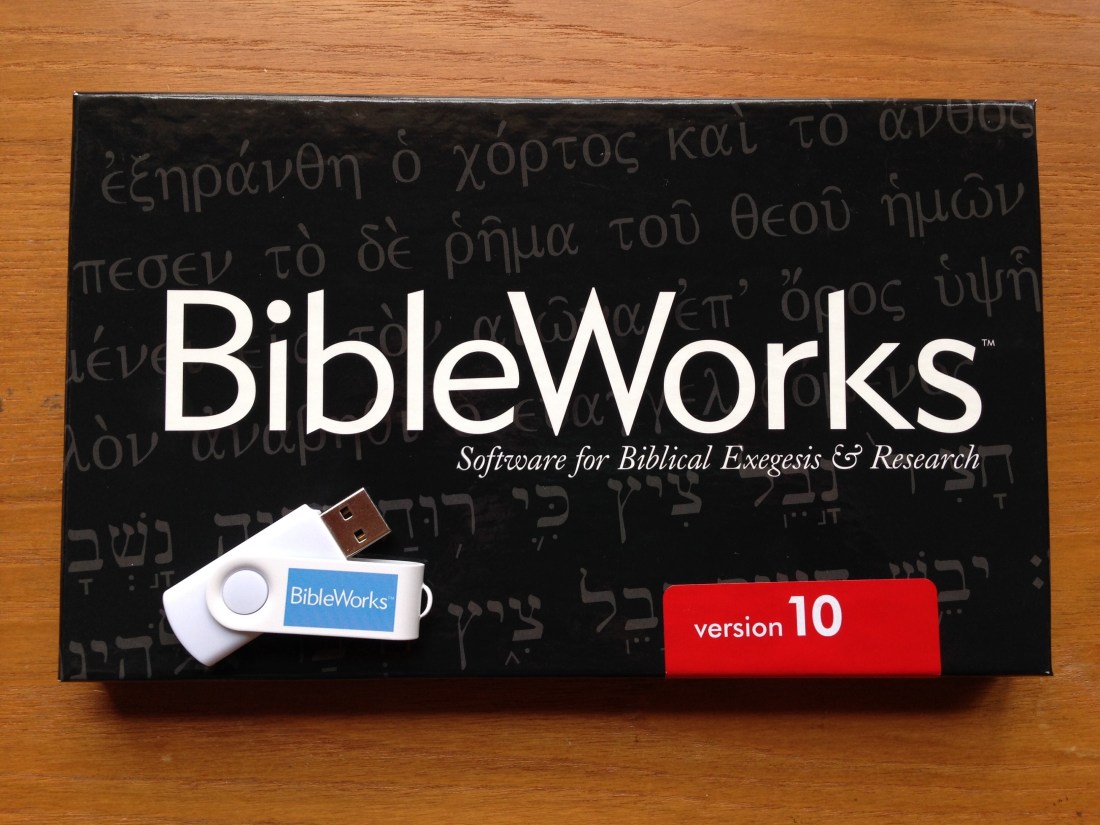
My inordinately strong appreciation of Bible software started with BibleWorks 7. BibleWorks 10 was just released, and it came yesterday to my mailbox on a thumb drive.
Go to www.bibleworks.com to see what’s new. After I’ve had a chance to install and use it, I’ll write a review here.
Accordance Bible Software has just posted the video recording of a recent webinar I taught, Sermon Preparation in Action with Accordance. Here‘s the one-page handout so you can see what I cover in the just-over one hour presentation. Live webinars are coming up, and include a Q and A time not shown in the video below. (The next one is May 21–sign up or learn more here.)
Here’s the video, with Accordance’s description below. (If you’re reading this blog post via email, you may need to go to the original post to watch the video.)
In this previously recorded webinar, pastor Abram Kielsmeier-Jones demonstrates how he uses Accordance for sermon preparation. Anyone who preaches or teaches the Bible regularly will benefit from watching Abram’s presentation. Originally recorded on April 27, 2015.
Accordance has quite a few other online trainings coming up. Check them all out.




















 Words on the Word