One of my favorite and most-used apps–MindNode–is free in the iOS App Store this week. After thinking mind mapping wasn’t for me, I tried it just over a year ago and loved it. Now it’s a regular part of my brainstorming and writing workflow.
Here‘s the link–download it while you can, for iPhone and iPad. (Regular price is something like $10.)
Last week I purchased a book at nearly full price at a wonderful independent bookseller in Minneapolis. It was, of all things, a work of fiction, a genre I don’t read much. (That may be changing.)
The book is A Man Called Ove (pronounced “OOH-vuh”) by Swedish novelist Fredrik Backman.
It begins like this:
Ove is fifty-nine.
He drives a Saab. He’s the kind of man who points at people he doesn’t like the look of, as if they were burglars and his forefinger a policeman’s flashlight. He stands at the counter of a shop where owners of Japanese cars come to purchase white cables. Ove eyes the sales assistant for a long time before shaking a medium-sized white box at him.
“So this is one of those O-Pads, is it?” he demands.
The assistant, a young man with a single-digit body mass index, looks ill at ease. He visibly struggles to control his urge to snatch the box out of Ove’s hands.
“Yes, exactly. An iPad. Do you think you could stop shaking it like that . . . ?”
Every day Ove is frustrated by a highly tech-oriented world, where IT consultants and men in white shirts run society but can’t tighten a screw or back up a moving trailer properly.
Already at 59 Ove is a grumpy old man—but not beyond hope, and maybe even lovable if the author has his way.
A Man Called Ove begins with a young family moving into the neighborhood and crashing their trailer into Ove’s mailbox. Each new day thereafter is destined to bring a new interruption to the solitary peace Ove desires.
The story is interesting, compelling, and moves along well. Beckman deftly weaves between Ove’s past and present. At first the flashbacks felt like intrusions, but then I found myself equally engaged in both the back story and the main story.
The writing is enjoyable. Backman’s use of metaphor is clever and funny. A number of chapters make use of inclusio, using the same thought (and even wording) to both open and close a scene. And the occasional clipped writing style fits well with Ove’s character, as here, where subjects drop out:
There is lots of nodding and shoving of hands into pockets—maybe just a touch more than necessary. Some coincidences, especially toward the end of the book, are a little unbelievable. And I spotted about a dozen typos, as well as a couple handfuls of places that wanted a closer edit.
Those faults do not outweigh the pleasure of reading the story. As a bonus, the layout and cover and typesetting are some of the best I’ve seen in a novel, and made me want to pick it up even more. (Though the compelling story, especially in its second half, was sufficient for keeping me engaged.)
And–get this–there’s a movie version of the book. It’s supposed to be coming to the U.S. this fall. I watched the trailer after reading the book, and it looks like it perfectly captures the essence of the characters and interactions in Backman’s story.
Here’s the publisher’s page. You can find it on Amazon here, or (better yet!) at your local independent bookseller, or even at your local library.
I’m honored to have a piece on Sabbath-keeping featured on the new CTPastors.com site. It starts out:
The lack of correlation between time at work and quality of work has been a recurring theme in Harvard Business Review over the last decade. Not long ago, I received an email newsletter with yet more research showing that working more hours does not mean working more effectively. The article cited a study where managers could not tell the difference in work output between employees who worked 80 hours a week and those who only pretended to work 80 hours a week.
The article summarized its findings with this statement….
Since starting Words on the Wordfour years ago, I’ve spent far more of my blogging energies on writing and reviewing books and apps than on marketing what I do.
I heard about Austin Kleon from Shawn Blanc. By telling you that, by the way, I’m following some of Kleon’s advice:
It’s always good practice to give a shout-out to the people who’ve helped you stumble onto good work and also leave a bread-crumb trail that people you’re sharing with can follow back to the sources of your inspiration.
Kleon’s got his own site which is worth checking out. Sitting down to write this review was the first time I’d been on it, and I’ve already got 15 tabs open that I’ll either read later or save to Evernote. A highlight: in his post on how to read more, suggestion #1 is “Throw your phone in the ocean.” Great idea. Not to mention this amazing wallpaper for your phone, to keep you off it.
Take It
Kleon organizes his book around 10 main suggestions:
1. You don’t have to be a genius.
2. Think process, not product.
3. Share something small every day.
4. Open up your cabinet of curiosities.
5. Tell good stories.
6. Teach what you know.
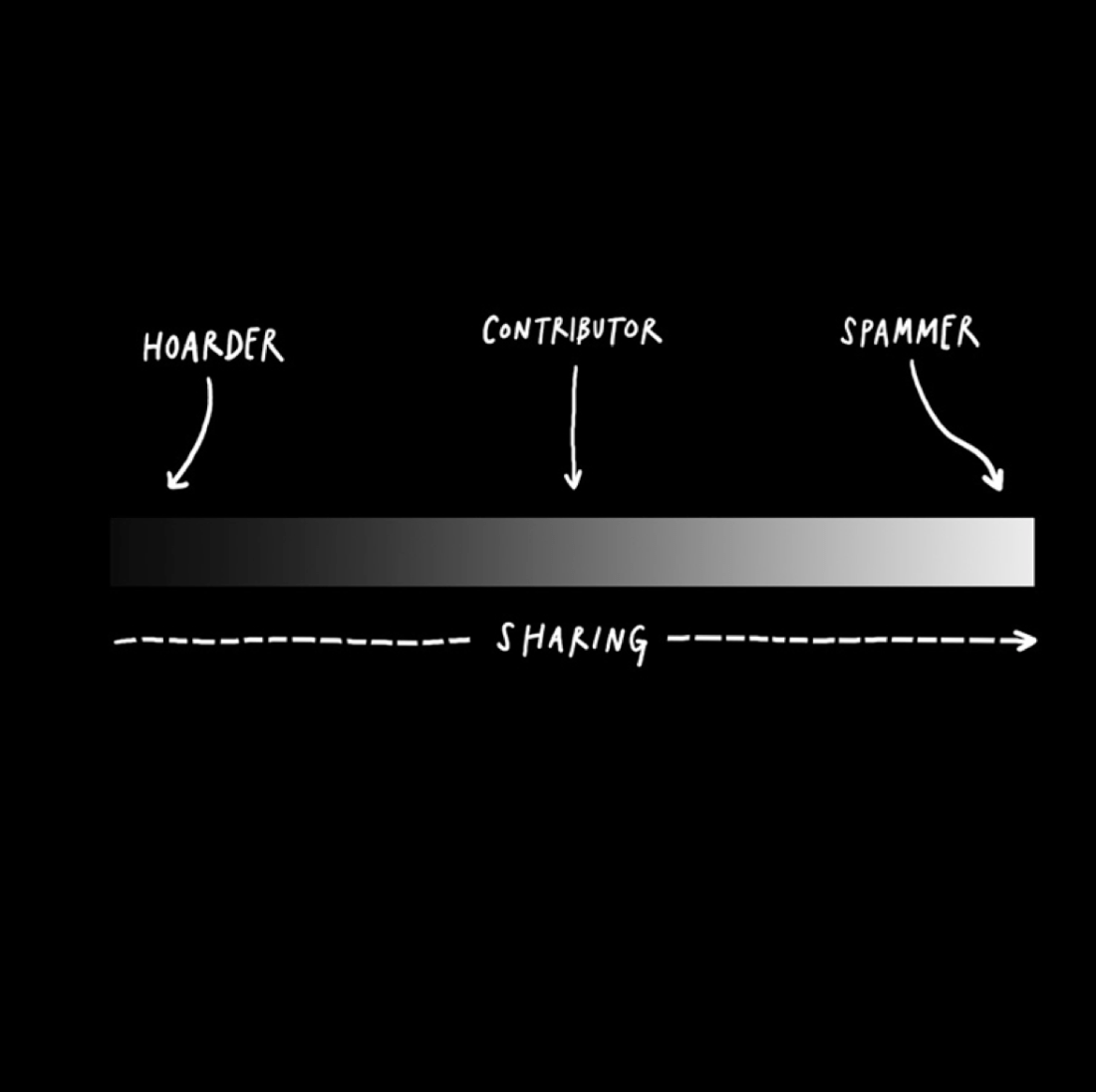
7. Don’t turn into human spam.
8. Learn to take a punch.
9. Sell out.
10. Stick around.
Chapter six, “Teach what you know,” is the shortest (barely 700 words) but best chapter.
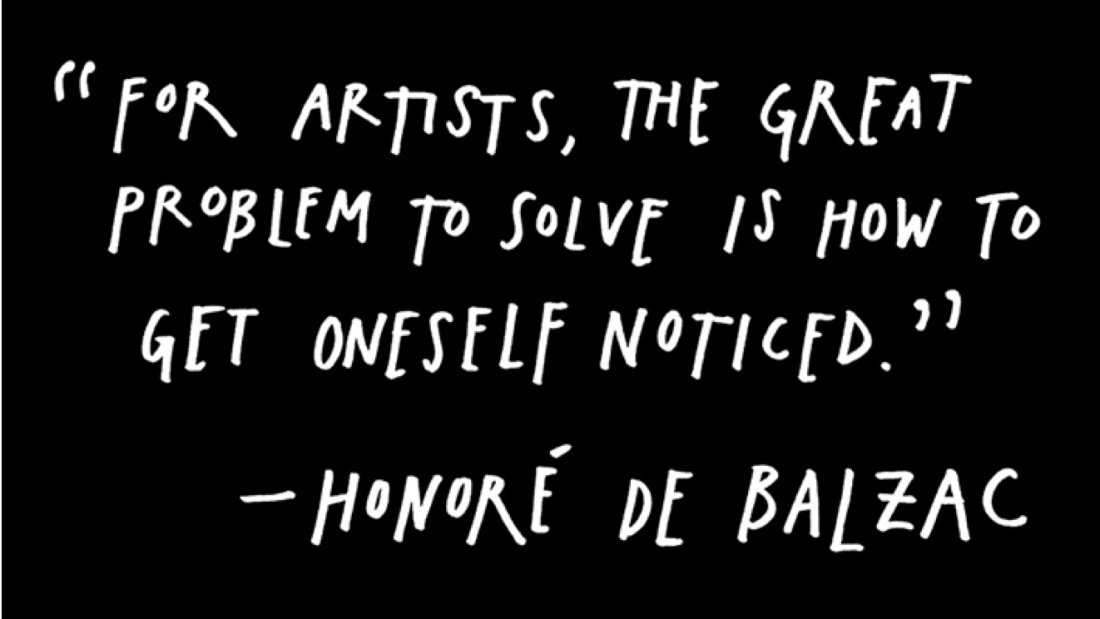
I didn’t care a whole lot for the graphics (on every other page or so), but they do make the book easier to fly through, and a few of them illustrated the points creatively. The first one is compelling:
Some others are interesting:
And there are some real gems in this book, whether they are Kleon’s or others’ words:
When Radiohead frontman Thom Yorke was asked what he thought his greatest strength was, he answered, “That I don’t know what I’m doing.” Like one of his heroes, Tom Waits, whenever Yorke feels like his songwriting is getting too comfortable or stale, he’ll pick up an instrument he doesn’t know how to play and try to write with it. This is yet another trait of amateurs— they’ll use whatever tools they can get their hands on to try to get their ideas into the world.
And:
“The stupidest possible creative act is still a creative act,” writes Clay Shirky in his book Cognitive Surplus. “On the spectrum of creative work, the difference between the mediocre and the good is vast. Mediocrity is, however, still on the spectrum; you can move from mediocre to good in increments. The real gap is between doing nothing and doing something.” Amateurs know that contributing something is better than contributing nothing.
Much of the book can be summed up by this sage advice:
The best way to get started on the path to sharing your work is to think about what you want to learn, and make a commitment to learning it in front of others.
Kleon encourages writers and artists to “become a documentarian of what you do.” That can be a “daily dispatch” (think: email newsletter) or a behind-the-scenes video on how you do what you do. Kleon says:
Once a day, after you’ve done your day’s work, go back to your documentation and find one little piece of your process that you can share.
Leave It
Kleon encourages those who quote or borrow to cite, but he falls short of a robust understanding of what plagiarism is and isn’t.
He says:
If you have a weird hybrid job, say something like, “I’m a writer who draws.” (I stole that bio from the cartoonist Saul Steinberg.)
A nice citation, but unfortunately “I’m a writer who draws” appears uncited in his book jacket bio, on his Website, on his Instagram, etc.
He shows his work on the books he reads (great idea), but then appears to copy-paste in publisher’s descriptions without citing them.
No need to lambast the guy—but I already didn’t like the title Steal Like an Artist (his first book), let alone the concept. I get it’s supposed to be a pithy way to say, “Let others influence you.” (Just like “content creation” means “writing.”) But the lack of nuance around what I consider an important issue in art creation bugged me.
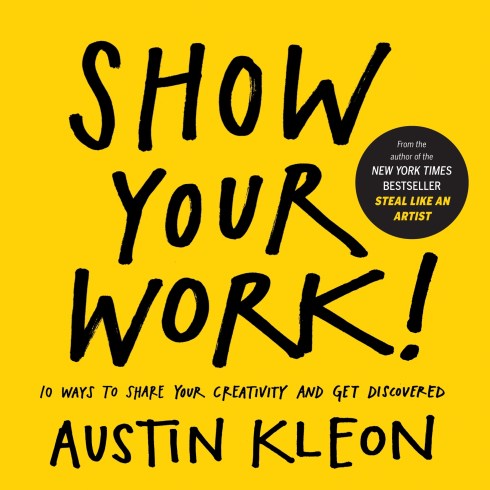
Show Your Work! is more than 200 pages, but could just as well have been a series of 10 short (albeit good) blog posts. It’s got even fewer words per page than a Rob Bell book! (All due respect to Rev. Bell….)
Image via Austin Kleon
More to the point than a low word-to-page ratio is that there are plenty of pieces of advice Kleon offers that lack specifics. For example, in his section on getting a good domain name, he says:
Buy http://www.[ insert your name here].com. If your name is common, or you don’t like your name, come up with a pseudonym or an alias, and register that. Then buy some web hosting and build a website. (These things sound technical, but they’re really not— a few Google searches and some books from the library will show you the way.)
Because this is a print book, you don’t even get the benefit of a hyperlink to start you in the right direction.
But there are other parts where in even a few words Kleon fleshes out his ideas, as in the section, “Turn your flow into stock.”
Should You Get It? (Yes.)
Even with its flaws, this book was well worth the time I spent reading and marking it up. The book gave me some good, specific action steps to pursue, in the hopes of spreading the word about the work I’m doing on this blog (and elsewhere). And it’s given me months and months of sermon illustrations, inspiring quotes, and writing prompts.
For its reasonable price, the book is worth the purchase, though this might be better checked out from the library first. One way or the other, I found the book overall to be encouraging, inspiring, and motivating.
Scrivener for iOS continues to receive rave reviews in the App Store. For good reason. Here‘s my mini-review of the app, if you want to see what the hype is about.
Scrivener for iOS
Today I’m posting just to say I’ve got a free download code to give away to one lucky reader.
To enter to win, leave a comment with what you’re writing about now. If you share a link to this post on Facebook and/or Twitter, you get a second entry. (Make sure you let me know you shared, and leave the link in the comments.)
A week is a long time to wait for giveaway results, so this one is quick–I’ll announce the winner Friday at 5:00 p.m. EST.
Scrivener is so good a writing program, I used its iOS app in beta as my primary place for writing at a recent week away. (For the record, I found no bugs.)
It’s easily the best writing app there is for Mac and Windows. (See here and here.) But its iOS companion has languished in development like a half-finished manuscript.
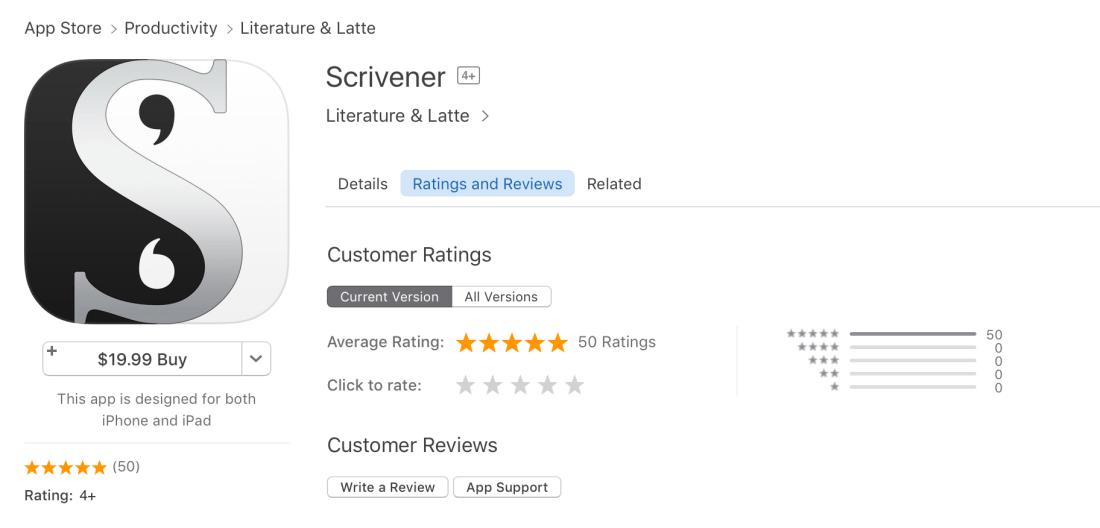
Until today. Scrivener for iOS (iPad and iPhone) is in the App Store right now. Here it is, worth more than its $19.99 price.
Already 50 5-Star Reviews!
This post was going to highlight my five most used features in Scrivener for iOS; it’s grown to eight, though there is even more than the below to appreciate about the app.
1. Goodbye, Markdown–Rich Text is Back!
No offense to Markdown (Ulysses and 1Writer are still fabulous apps), but I’m happy to have a full-bodied, rich text app on iPad, at long last. Pages is fine, but Scrivener can do so much more, since it organizes your research, supporting documents, and drafts–all in once place.
2. Pinch to Zoom Text
No need to tap through a settings screen. Just pinch (zoom) in or out to adjust the text size you’re seeing as you write. Scrivener does a great job in this way of taking advantage of the iOS platform.
3. Sync via Dropbox to the Desktop Apps
Truth be told, this is probably my #1 favorite feature–you can start working on a laptop, finish up a draft on iPad, and edit on your iPhone. This is what the many users of Scrivener have been waiting for. Ahhhhh.
4. Research: Have Your PDFs Right There
Not only can you save your research in your project you’re working on (for easy access), Scrivener remembers your place in the PDF you were viewing.
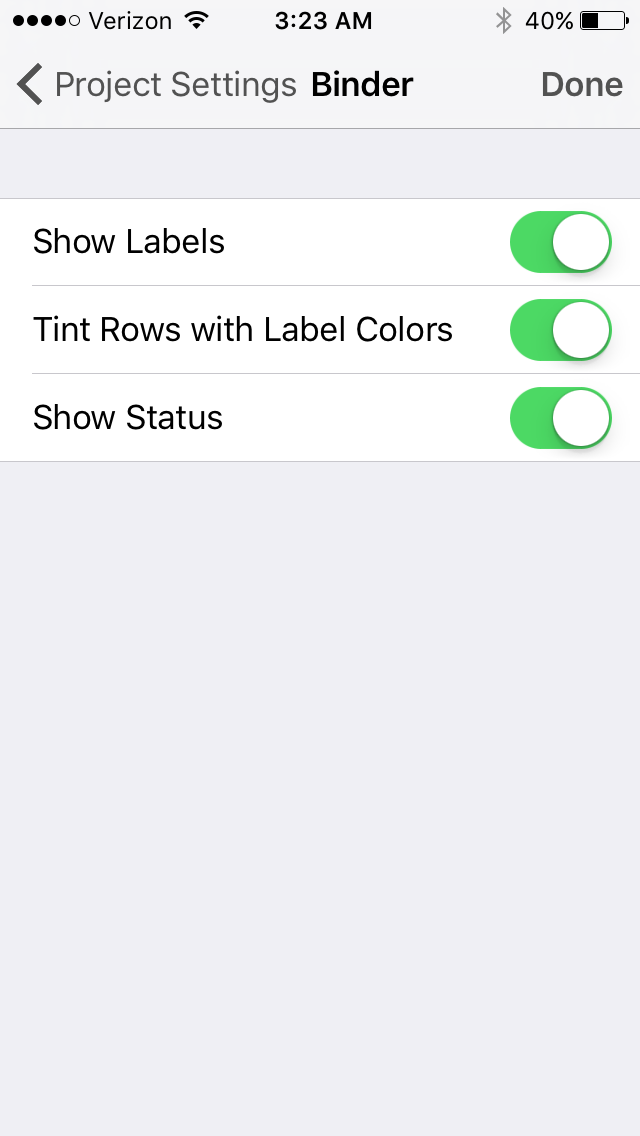
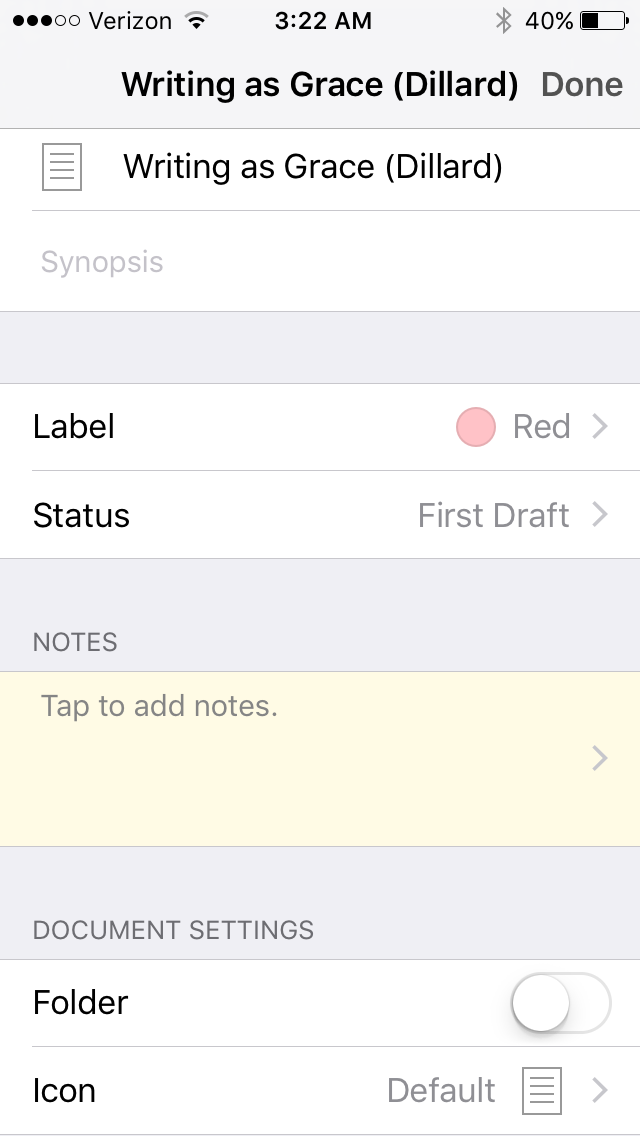
5. Set Label, Status, Icon for anything in the Binder
This will mostly appeal to Scrivener nerds, but you can label and color code your way to great visual clarity to track project progress. (I use Red to mean done (at least for now), Yellow to mean working on, and Green to mean do it!)
6. Recent and Bookmarks
Always a tap away are your recent documents and bookmarks.
7. Two Panes at Once on iPad in Landscape
The iPad app comes out of the box with Split View and Slide Over, but you can also see two panes at once when you’re using Scrivener in landscape mode. This is especially helpful if you want to write, for example, from an outline.
8. Word Count
Word and character counts are easy to access, too.
A few weeks ago I had the privilege of attending “Apart, and Yet a Part,” a writing week at Collegeville Institute in Minnesota. (I am at far right in the image above.)
Here‘s a short write-up of the week. And here is a full description of it. Days were ours to structure as we liked–for writing, reflection, walking or running around on the beautiful grounds of St. John’s University.
The people at Collegeville Institute were fantastic. The cohort of fellow writers was a smart, kind, and sensitive group of souls. The writing coach, Michael McGregor, helped me immensely. I can’t say enough good things about the week away.
My progress was more in the realm of quality (conceptual breakthroughs) than quantity (sheer word count). I’m working on a project that I might share more about on this blog down the road. (Though this article and this one offer a hint.)
What a week! I’m looking forward to hopefully taking advantage of future offerings at Collegeville.
This week’s blog sponsor is MailButler, the feature set you always wished your Mac Mail had (and that I’m glad mine does). Find out more about it here or download and try it free here.
I’m pleased to announce that this week Words on the Word is sponsored by the MailButler app from Feingeist.
I reviewed Feingeist’s Evermail app here. It’s an Evernote add-on for Mac Mail. I still use it on my work computer every day that I’m on email.
MailButler includes that add-email-to-Evernote functionality, but also offers a much more robust feature set. Here’s some of how it enhances the Mac Mail program:
Email tracking/read receipts
Conversion of email to Evernote note
Dropbox and Google Drive file integration
Undo Send (with customizable time delay)
Send Later (i.e., schedule when your email will send, so your co-workers don’t know you really wrote them that email at 2:00 a.m.)
This is the full product description from Feingeist:
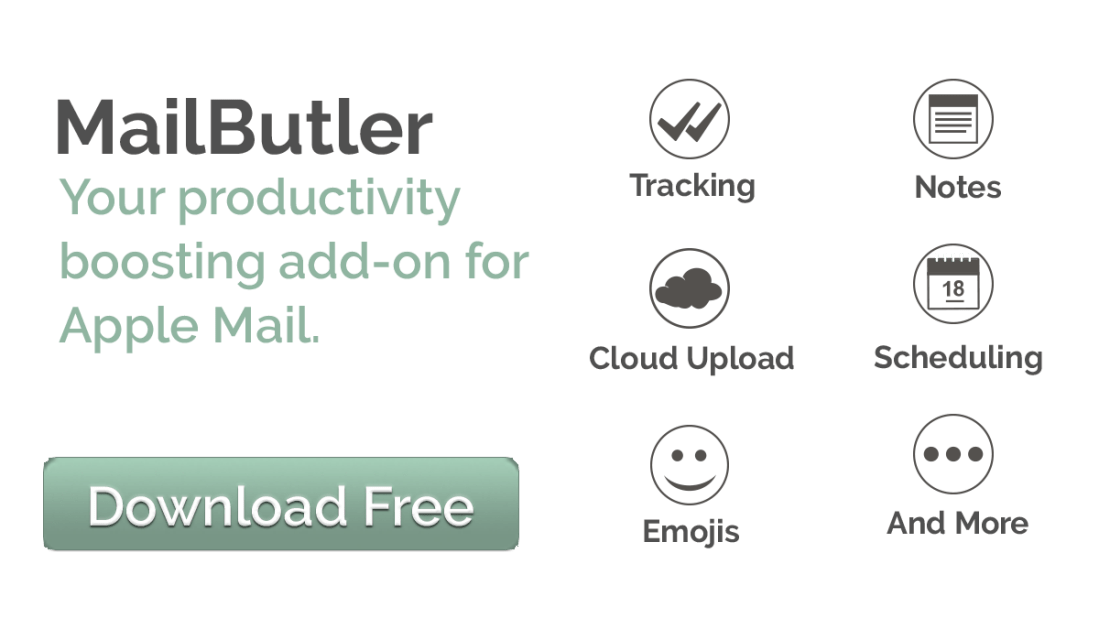
MailButler is the productivity boosting add-on for Apple Mail. It helps you organize and optimize your email correspondence, and saves you lots of common and annoying mistakes. With MailButler you have to worry about nothing, because it has your back while you’re working with Apple Mail.
Among the great options that MailButler offers is the ability to schedule, track, and undo emails, upload email attachments regardless of size, convert emails to notes, create amazing signatures, and many more. To get access to all of those features, you just need to download and install MailButler, and register a free MailButler account.
The MailButler homepage is here. You can download it directly here. Installation is free, so you can try it out with some of the actions to see what you think. If you scroll down to the bottom of the product page, you’ll see the subscription options.
Word count is by no means the best measure of effective writing, but it’s a useful metric for tracking your progress.
The Mac Word Counter app by Christian Tietze lives in the menu bar and automatically tracks your word count across apps. This is especially helpful for us writers who can’t seem to settle on a single app for writing.
Even when Word Counter is out of site, you can have its menu bar icon display your running word count for the day:
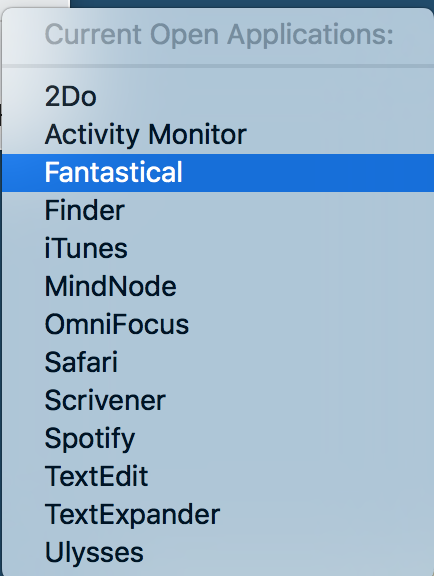
You can specify which apps you want Word Counter to track:
Once you’ve added your apps, just click on the menu bar icon to see a breakdown:
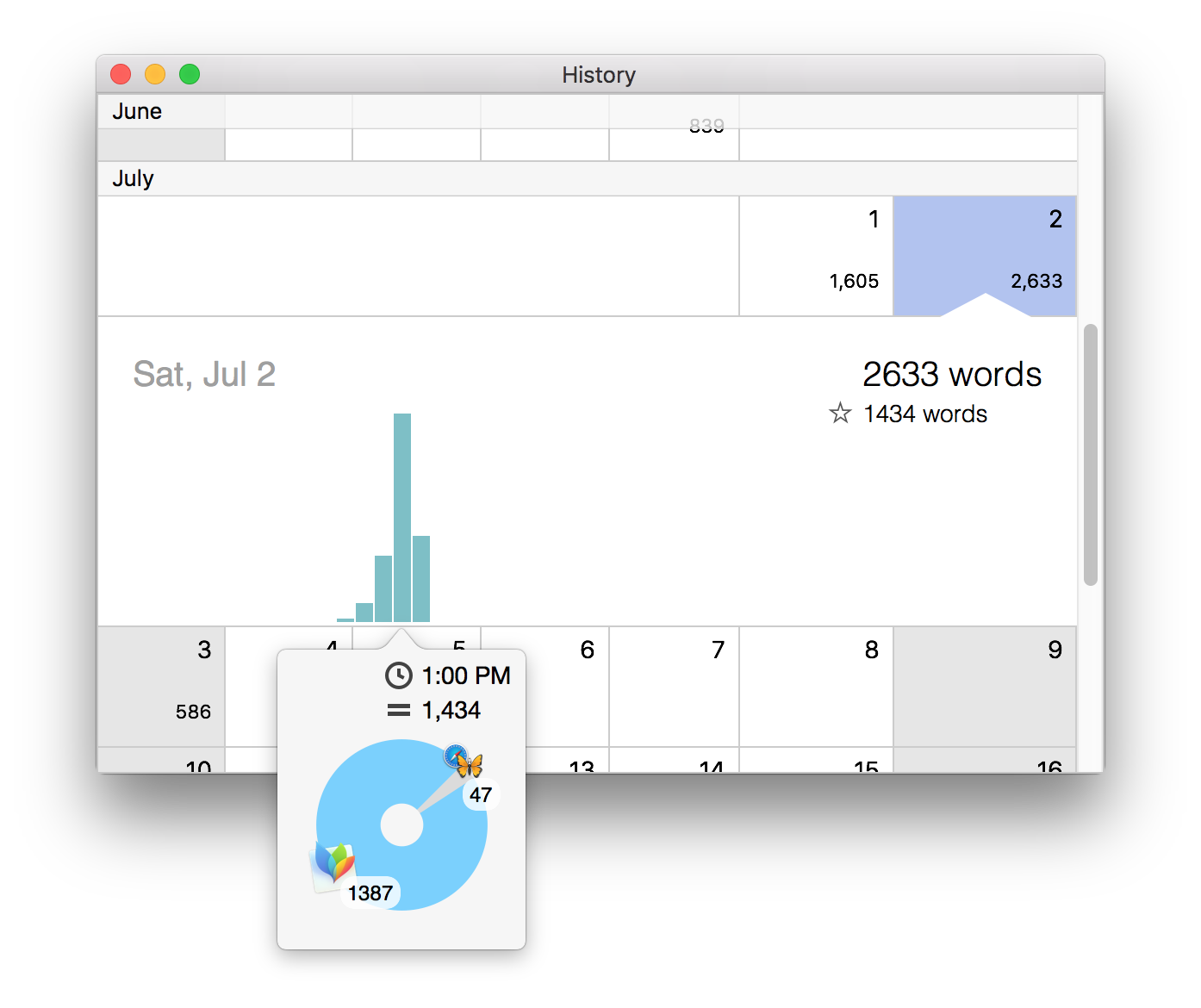
Hovering over the bars gives you an hour-by-hour, app-by-app breakdown of your progress. Very cool!
You can look at your day-by-day word count history, which is also impressively sub-divided into hours and apps:
And that’s honestly probably enough for most of us–a detailed word counting tool that is easy to access, updates automatically, and tracks multiple apps.
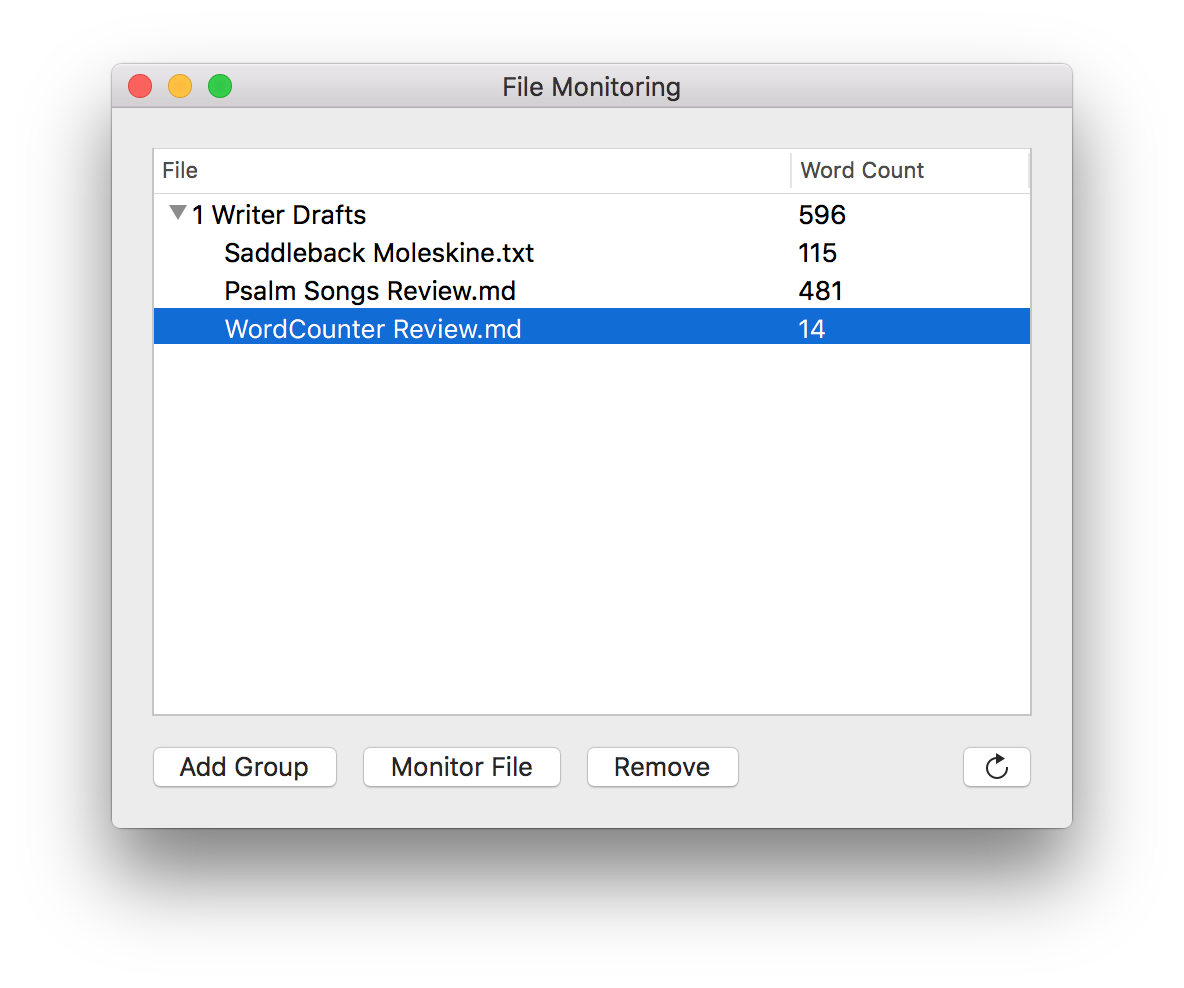
But there is also a nice additional feature of being able to track word counts on individual files. This comes in handy especially for a file you’re working on via Dropbox across multiple machines. Word Counter will track the word count for you via Dropbox, no matter what device you typed the words on.
The only downside to this feature is you have to manually refresh (icon at bottom right hand corner in the image above) to get the word count to update. (UPDATE: I’ve just learned it does refresh on its own every few minutes.)
Word Counter does provide a solution to the as-of-yet-non-existent word count feature in OmniOutliner.
The only other possible area for improvement is that when you add a file for tracking from the File Monitoring window, you have to select “Monitor File” and go find it in Finder, rather than being able to just drag and drop a file from an already-open Finder window. This would be a nice feature for a future update.
The app is easily worth its $9.99, and there’s a free 14-day trial so you can test it out. Find it here.
Thanks to the dev at Word Counter for the promo code so I could review the app.















 Words on the Word