All of a sudden I’m hooked on mind mapping. It’s been a really productive way for me to make sense of the texts I speak on each week. Here’s how I’ve made structural sense of the David and Bathsheba account:
David and Bathsheba (click to enlarge image)
(If that image doesn’t work well for you, click here to see a zoomable version.)
(Next up: trying to outline thought processes in other parts of my life using mind mapping.)
I’m not at the point of being able to write a whole sermon via mind map (and may never go that route), so my next step is exporting to text.
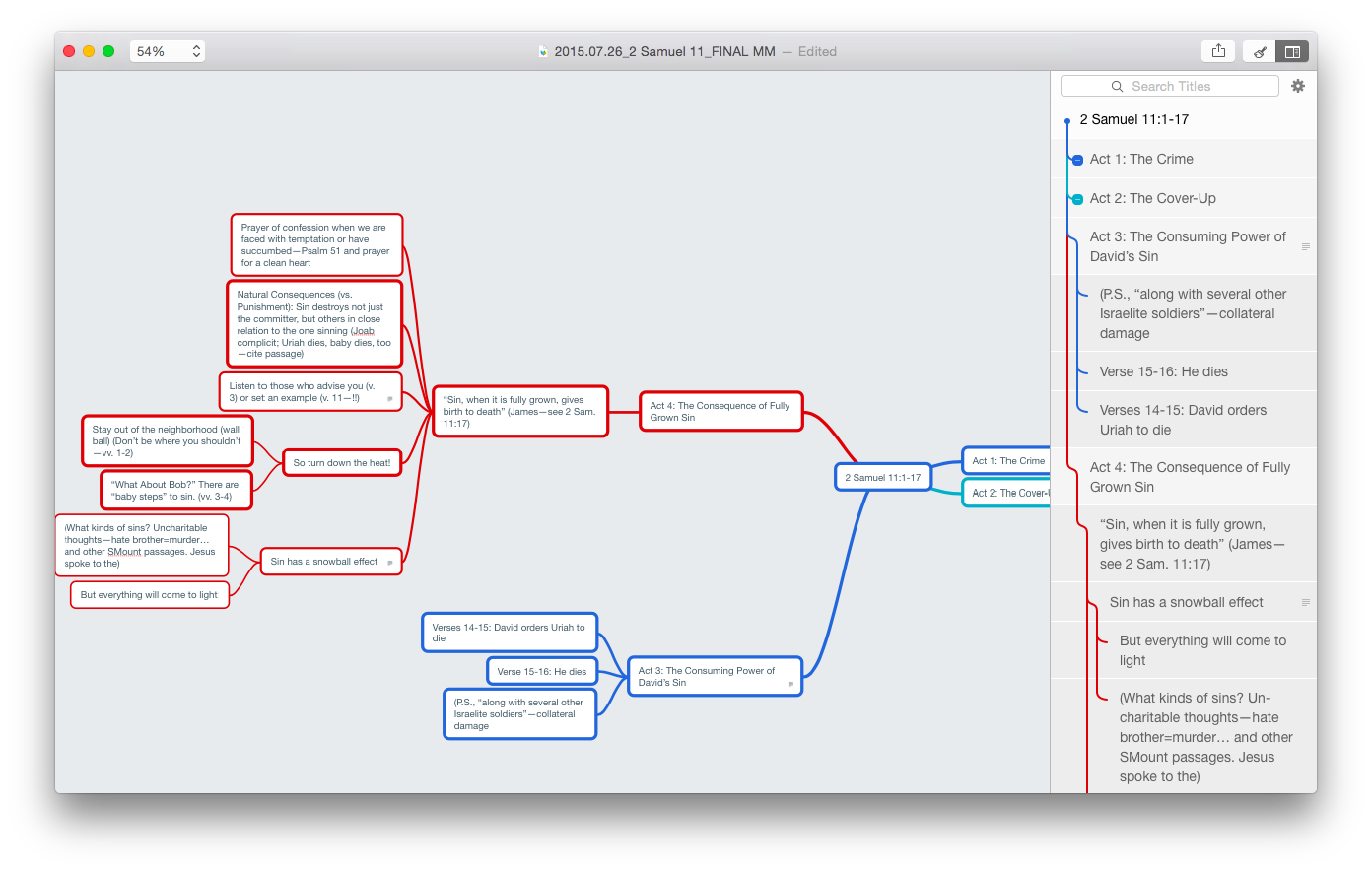
MindNode makes that exceedingly easy, as I mentioned here. In MindNode 2.0 for Mac, you can always view a text outline of your map right next to all those nodes, sub-nodes, and connecting lines:
Note outline at right
By the way–that’s a lot to look at on one screen. MindNode has a lovely “Fit to Mind Map” zoom selection, so you can have your mind map fill the application screen. For large and multi-noded apps, that’s a great setting.
Now exporting the map to multiple options is easy. Last week I exported to .rtf, dumped the text into Scrivener, and worked from there. Export options are robust in MindNode, as are import options. I could even easily import some random thoughts from Scrivener’s cousin, Scapple, right to MindNode.
This week, however, I wanted to live dangerously. I.e., I wanted to try OmniOutliner for fleshing out my outline, once I had the content figured out in MindNode. So I exported my mind map from MindNode as .opml and opened in OmniOutliner:
What my mind map looks like in OmniOutliner (click to enlarge)
Awesome!! All right there, as it should be. All the points and sub-points are in order. The text outline that was already in MindNode is now in OmniOutliner, with everything in its right place. Even the notes popovers in MindNode (sweet new 2.0 for Mac feature) come in to OmniOutliner as notes (the grey font next to the notebook icon, in the image above).
At this point I can work from the outline in OmniOutliner. You’ll see in the image above that I’ve added a “RESEARCH” section to allow me to do just that.
OmniOutliner has similarly robust export options. I can make a couple tweaks to fine-tune the formatting in my export, and then open the finalized, annotated outline in a word processor of choice. Very nice!
I’ve been experimenting with workflow for sermon preparation lately, a little more than usual. I’ll still do my research with Accordance as my primary hub. But for the initial outlining process and the final writing process, MindNode and OmniOutliner seem to be making a great team.
One other huge bonus that both apps have in common: they are fully cross-platform across Mac, iPad, and iPhone, so I can jot down ideas wherever and whenever inspiration strikes.
Thanks to the good people of IdeasonCanvas, for giving me a download of MindNode for iOS and OSX for review purposes. And thanks to The Omni Group for OmniOutliner Pro, also for review purposes (more to come). See my other AppTastic Tuesday reviews here.
Writing Goals on iPad (Image Via Ulysses/The Soulmen)
Ability to export to Pages–this .docx export ability is great (and includes Word), but unfortunately instead of offering it alongside .rtf export, that latter option has been eliminated now (leaving Nisus Writer Pro behind)
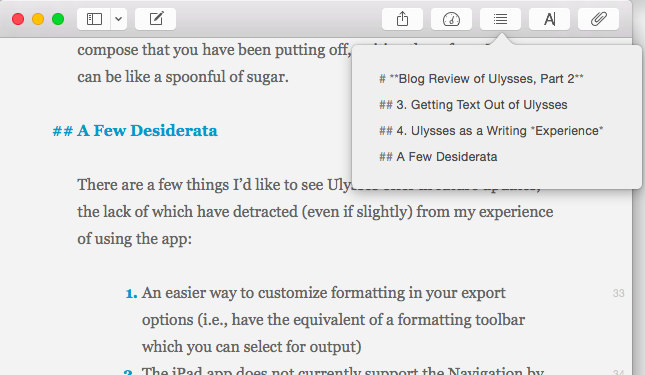
2.1 does not add to iPad the Mac functionality where you can navigate your sheet by headings, so users will have to hope for that in future updates.
All the same, this is a worthy update. If you can live with .docx export replacing .rtf export, Ulysses users will want to update right away.
Find Ulysses for iPad here, for Mac here. I reviewed Ulysses in two parts here and here, where you can see more screenshots and read more about its features.
Ulysses offers a free trial of its Mac version here.
Some folks swear by mind mapping, a way to get ideas down on paper and visually display their interconnections beyond what just a text editing file can do.
I haven’t found it as easy a medium, but this last week I tried mind mapping my sermon outline before writing out the manuscript, and found the process really helpful. I used the app MindNode to do it, which I review today.
A Simple Mind Map of The Fifth Discipline
Here’s a simple mind map for understanding Peter Senge’s five disciplines in The Fifth Discipline:
5 Disciplines on an iPhone
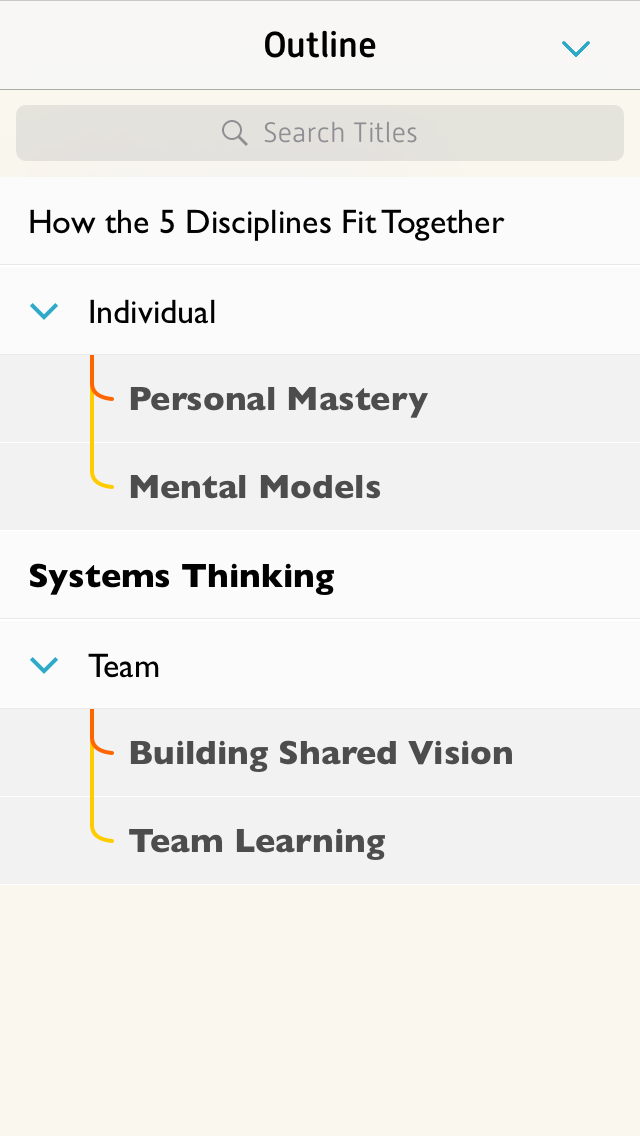
What’s really cool is what you can do with this mind map in MindNode (iOS) once you have it. You can see a text-based outline, which can expand or collapse levels:
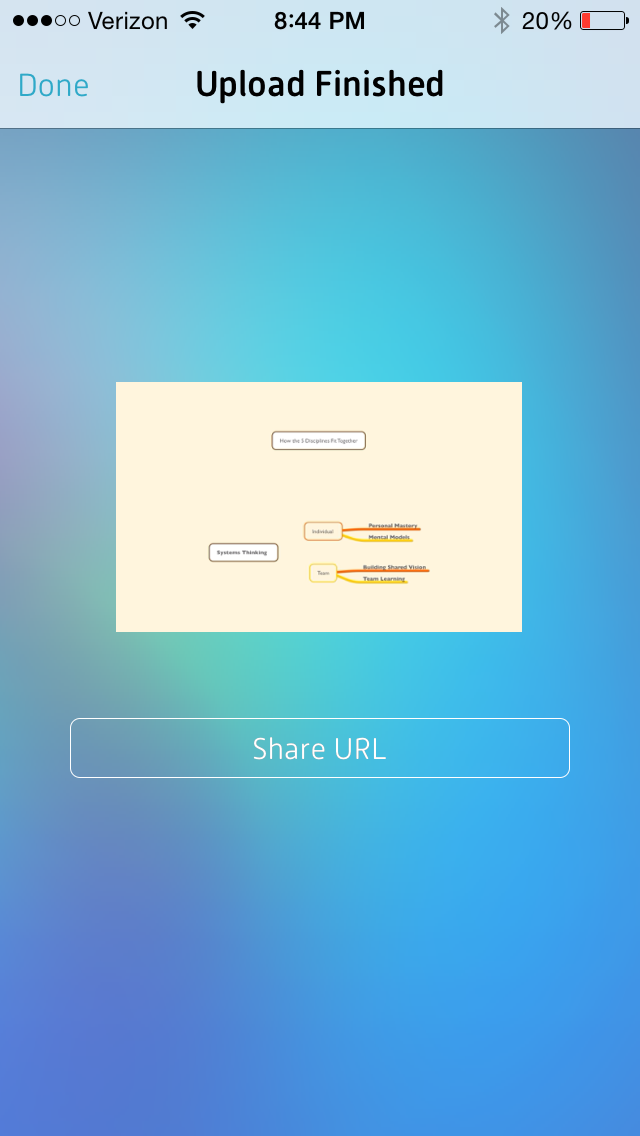
And you can export to MyMindNode, where you can view and publish your map on the Web:
You can then share the link to your mind map
I was hoping to embed the above mind map right here in this post, but WordPress.com does not support plug-ins or a good deal of third-party embeds (dah!), so I simply can give you this hyperlink to see what it looks like.
More Complex Mind Mapping
I used MindNode to map out my sermon outline this last Sunday. When I was done it looked like this:
ScreenShot from OSX app MindNode Pro (click to enlarge)
And then I thought: oops. How I am going to get this into Scrivener without re-typing everything? At first I just dragged a .png image file into Scrivener so I could see the mind map as I worked on next steps. Then I realized I could actually export it not only as a PDF or image, but as a text file. (!!)
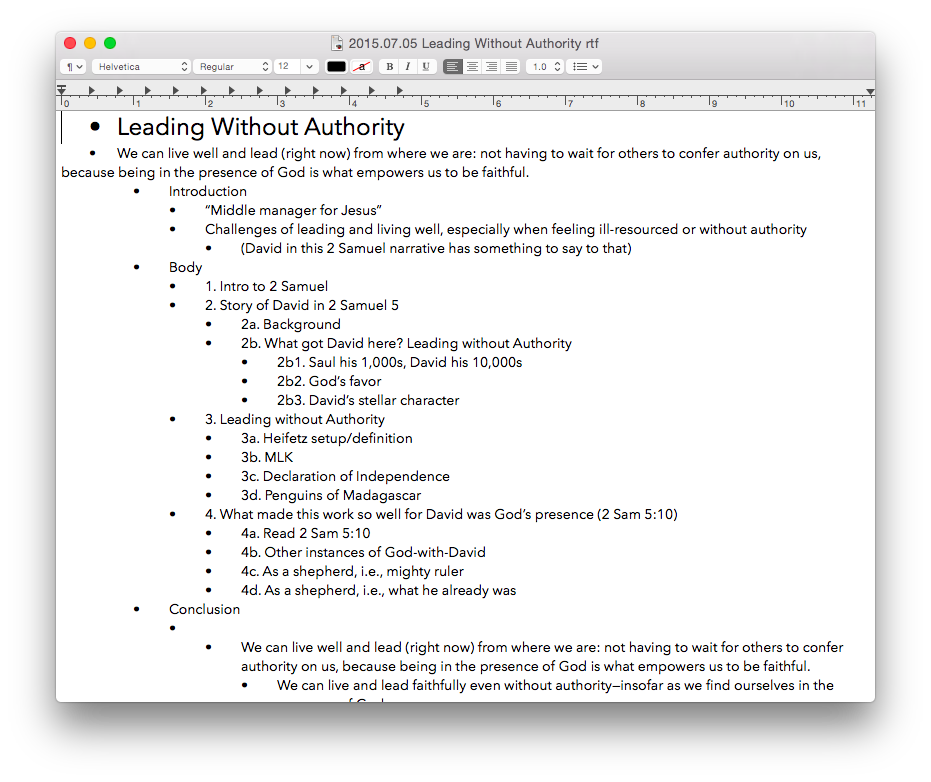
It looked like this:
…which was sweet, because then I could just copy and paste to Scrivener and write my manuscript into my outline, started in MindNode.
By the time I was done writing the manuscript, I’d pared down the outline a bit. Editing in MindNode was easy, so that the final map looked like this:
Nodes, Parents, Siblings, Etc.: All Easy to Use
There’s a lot more to mind mapping, not the least of which is learning some terminology (nodes, parents, siblings, children, etc.). The best place to start is the MindNode Web page here. The iOS User Guide is also a great way to get to know the app; that is here.
Styles, fonts, and colors are all customizable. And it seems a rare treat for a writing app to exist (and be well-designed and executed) on iPhone, iPad, and Mac. Of course, for a large mind map one will probably choose Mac (or iPad) over iPhone, but moving between devices is easy. There is no Apple device on which you cannot access and edit your mind map. There’s even an accompanying Apple Watch app.
There are some other really nice touches, too, like being able to “fold and unfold” nodes, the equivalent to expand/collapse in a table of contents, for example. You can hide all of a nodes’ children if you need to clear up some screen real estate, and just as easily unhide them. You can also add notes to a node for storing even more information without having to display it.
Perhaps the best thing about MindNode is how easy it was for me to make both of the above mind maps before reading any of the support material. Moving nodes, connecting them, disconnecting them, changing fonts, dragging things around, exporting, and more… all of this was really intuitive and easy to come by both on OSX and iOS.
So… I’ll keep trying mind mapping for the outlining stage of writing. MindNode has much more still to uncover, and I’m looking forward to future use. A brilliantly executed app.
Thanks to the good people of IdeasonCanvas, for giving me a download of MindNode for iOS and OSX for the review. Check out the app’s iOS page here and the Mac app (MindNode Pro) here. Note that MindNode Pro for OSX has now been updated to MindNode2. See my other AppTastic Tuesday reviews here.
The post headline is directed to myself. (Though I’m glad to have just downloaded Mellel on the iPad, which I’ll be reviewing shortly–couldn’t quite help myself. No, really, maybe this will be the app that cures me of writer’s block!)
But seriously: a favorite procrastinating pastime of writers is checking out the latest and greatest writing apps. Not this guy, however:
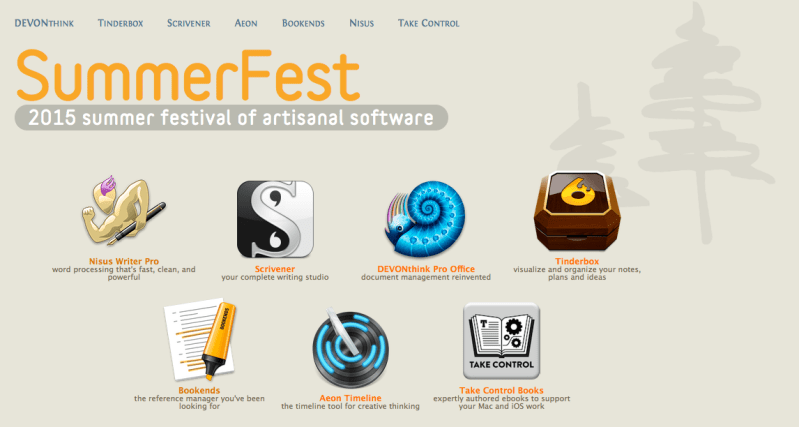
Some really sweet writing tools are on sale at 25% off:
It’s a midsummer night’s dream: seven great artisanal tools for writers and thinkers, ready for your summer work, each at a terrific price. It’s SummerFest: our annual summer celebration of hand-crafted software.
It’s the time for new plans and fresh projects and great new ideas. Whether you’re mapping out your next novel, finishing your dissertation, planning a product, or writing memories for your grandkids, we think these great tools will help.
I have made some use of Bookends and DEVONThink Pro (stay tuned to the blog for more on those). They are both well-designed, time-saving apps.
Scrivener and Nisus Writer Pro are two of my favorite, most-used apps. I rave about Scrivener here and here, and compare the unexpected awesomeness of Nisus Writer Pro to the 2014 Kansas City Royals here.
All those apps and more can be had at discount. Here is the link you want. It’s not a bundle–you can just check out whichever app(s) you like… and can also avail yourself to free trial options. SUMMERFEST2015 is the code.
I enjoy my writing medium more than ever before, now that I’m writing daily in Ulysses.
I started to review the app here; now I conclude my review of Ulysses for Mac.
3. Getting Text Out of Ulysses
You need to know a little bit about Markdown to fully utilize Ulysses. This is from their help manual, which takes the form of a series of interactive Sheets in the app:
“Ulysses uses so-called minimal markup to define, not format or style, text passages. The full list of available definitions is accessible via ⌘9, and it should have you covered left to right. From headlines to lists, to images and footnotes, you simply assign meaning to text passages by entering some easy to remember shortcuts.”
(P.S. I just used that keyboard shortcut and drop-down menu to make the above a block quote… or I could have just typed in “>” before the quotation.)
It’s taken me a little time to learn Markdown (though there’s really not that much to it), but once you have, you can take advantage of Ulysses’s export options.
Again, from the help files:
“Now for the fun part: Ulysses can output your writing to a host of standard formats, such as Plain Text, RTF, HTML, ePub and even PDF. It does so by translating your plain text input based on the definition of the minimal markup. If your brain starts to hurt, here’s a simple example…”
Markup in Ulysses
Here’s why I could write this two-part blog post series in Ulysses (using Markdown), export it to html in WordPress, and then have you read it now as if nothing ever happened: Ulysses “will translate the emphasized passage to semantically correct <em>, and the headline will be tagged with <h2>.”
The idea here is that once you know and use Markdown, you don’t really have to do much by way of thinking about formatting.
When you’re ready to export, you can click to bring up the window at right (or type the shortcut ⌘6):
From here you can preview, copy your text to clipboard, save it to a file, or open it with various apps. (I use Nisus Writer Pro to open my Ulysses sheet as a text file.) You can see your text as RTF, PDF, HTML, plain text, or even a nicely formatted ePub so you can publish your own ebook. Ulysses automatically converts your markup to its proper formatting in the finished product.
The Quick Export function is varied and rich enough, but it takes some fussing to get your text to look how you want it. (This fussing starts to defeat the purpose, in my opinion, of the supposed simplicity of using Markdown.) You can go to Preferences and add your own Styles, so can customize how your text exports, if you need more than just the default Styles Ulysses gives you.
Styles in Ulysses
But this is more effort than unaccustomed writers may appreciate having to make.
There is a Style Exchange where users post their own formatted style sheets, which you can download to your own Ulysses.
And if you do decide to go all in with Ulysses (I’m there), there is a reference guide you can work through to figure out how to make your own Styles to export just how you want.
(See also here for a succinct overview on Ulysses’s blog about exporting.)
4. Ulysses as a Writing Experience
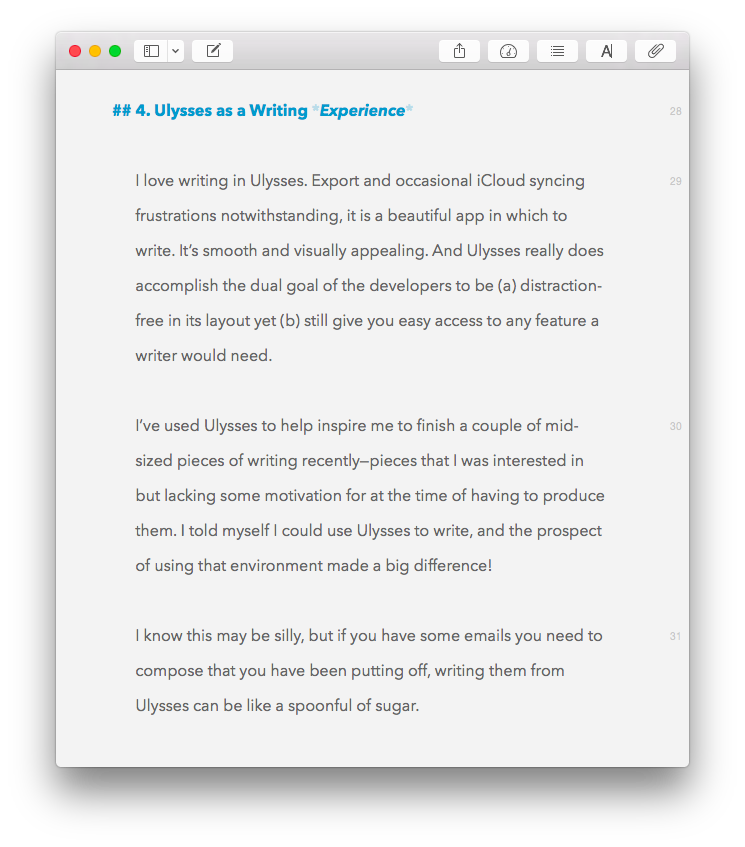
I love writing in Ulysses. Required export efforts and occasional iCloud syncing frustrations notwithstanding, it is a beautiful app in which to put down and rearrange words. It’s smooth and visually appealing. And Ulysses really does accomplish the dual goal of the developers to be (a) distraction-free in its layout yet (b) still give you easy access to any feature a writer would need.
You can keep notes and goals aligned to a given Sheet (i.e., document), and view them from the Attachments pane, or detach them and see them as their own free-floating windows. This really enhances the experience of writing in Ulysses. You can also bookmark paragraphs and favorite Sheets, so navigating through stacks of writing is easier than you’d expect.
I’ve used Ulysses to help inspire me to finish a couple of mid-sized pieces of writing recently—pieces that I was interested in but lacking some motivation for at the time of having to produce them. I told myself I could use Ulysses to write, and the prospect of using that environment made a big difference!
I know this may be silly, but if you have some emails you need to compose that you have been putting off, writing them from Ulysses can be like a spoonful of sugar.
A Few Desiderata
There are a few things I’d like to see Ulysses offer in future updates, the lack of which have detracted (even if slightly) from my experience of using the app:
I would love there to be an easier way to adjust formatting in the Quick Export options (i.e., having something like the equivalent of a formatting toolbar which you can select for output, rather than having to do it through Styles). Also, I haven’t found a way to easily adjust image sizing (from Ulysses) when exporting a Sheet to a blog post–a process itself which could stand to be more fully automated.
The iPad app does not currently support the Navigation by headings feature I so appreciate in Mac. In fact, the same icon/button is present in iPad, but does something totally different.
Navigating by Headings
I do hasten to add, however, that the Ulysses for iPad app is stellar, easily one of the best apps in the App Store and my current favorite app for iPad.
It would be lovely if there were a way to include the word count as part of the Editor screen. It’s easy enough to find it in the Statistics or Goals portion of the Attachment pane (and both of these pop-ups can be torn off and left free-floating), but a simple word count bar at the top or bottom of the Editor would be nice. The iPad app does offer something along these lines.
I believe this is mostly the fault of the iPad’s lack of support for .rtf, but getting writing from Ulysses on iPad into a format that is .rtf-ready (not to mention .rtf itself) is just about impossible. If you can hop over to Ulysses on a computer, it’s doable, but iPad alone won’t really work for moving your content to rich text.
By the way, my love for Scrivener has not changed, and it’s still a fuller-featured environment for getting lots of research and snippets organized—and has its own really nice distraction-free writing mode.
But Ulysses is on iPad now, too (Scrivener: not yet, but close-ish), and it’s beautiful on the Mac, so when I’m doing long periods of writing, I primarily use Ulysses at as many points along the way as I can.
You can download a free demo trial of Ulysses for Mac here. More about the iPad app is here. Check it out, and play around with it for a bit. It’s helped me really rediscover my love of writing.
Thanks to The Soulmen Gbr, developers of Ulysses, for giving me a download for the review. See my other AppTastic Tuesday reviews (yes, this one is a few days early) here.
Our daughter is in the Terrific/Terrible Twos stage.
The terrible: she does things like write on the new kitchen floor in permanent marker. She leaves tons of tiny fingerprints on the MacBook and almost pushes the TV off its stand because she thinks they are both touch screens. She changes her own diaper and *tries* to flush its contents down the toilet herself. (Okay–this last one isn’t all bad–potty training, here we come!)
The terrific: sometimes, when she presses random keys on the laptop keyboard, instead of making the computer freeze, she discovers new tips. (Far more terrific than that, of course, is the fact that she is an amazing and wonderful human being.)
The other day she saw this little guy in the toolbar when I had Scrivener open for some work I was doing:
She tried to tap it (no Scrivener for iPad… but soon, I hear!). Then between the two of us, we clicked it and Scrivener went from this view:
Click or open in new tab to enlarge
to this one:
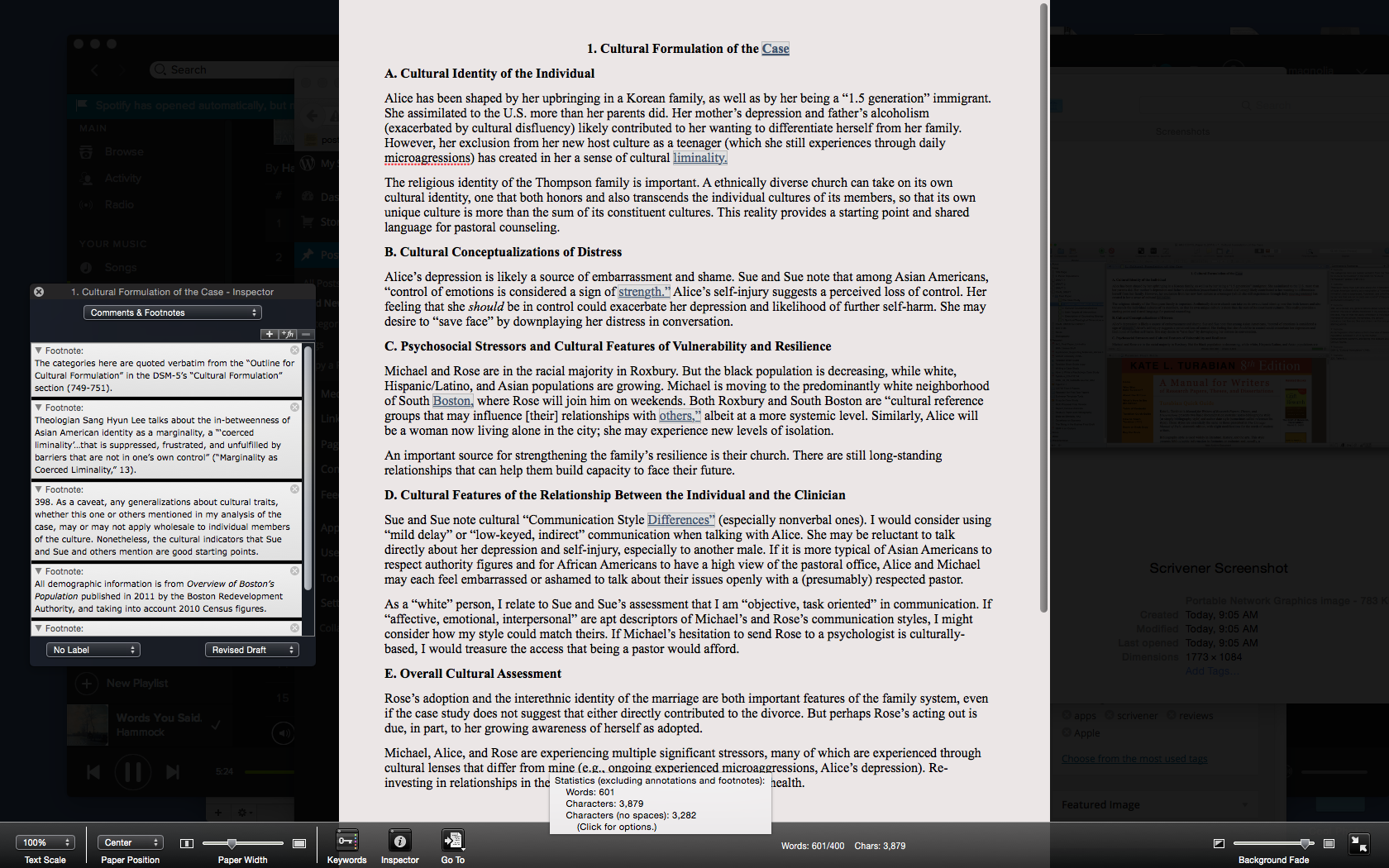
Click or open in new tab to enlarge
Yes, Scrivener can go into full screen, but this is something a little different–a composition mode where you can just write. You’ll see at the bottom (a toolbar which goes away if you want it to) that I can still pull up essentials like the footnote window on the left. Or I can move all that out and just focus on writing.
I’ve used Scrivener for more than a year now and don’t think I’ve ever clicked on “Compose.”
So… thank you, two-year-old daughter, for helping your dad learn more about a program he uses all week, and for simplifying my workflow!
Want to check Scrivener out? (I recommend it, and offer my thanks to the folks that make it for the review license.) Here you can download a free trial, for Mac or Windows. (It’s a generous trial period, too.) You can read more about Scrivener’s features here.
There are two things that seem to be all the rage in the world of writing and software: (1) Markdown and (2) “distraction-free” writing environments.
I’m more interested in the latter than in the former—I’m actively trying to root out distractions wherever they may be found. But Markdown is easy, everywhere, and seems a good way to explore learning other, more complex coding languages.
Ulysses offers both, and then some, with the goal of eliminating anything that takes the writer away from her or his craft of constructing words, sentences, and stories.
In fact, I’ve written and edited this post in Ulysses, then exported it as html into my WordPress blog.
In this review post and a second follow-up entry soon to follow, I write about:
Getting Text Into Ulysses
Ulysses as a Writing Environment
Getting Text Out of Ulysses
Ulysses as a Writing Experience
1. Getting Text Into Ulysses
Good writers need good tools, so a serious scribe will take time to track down a trustworthy tool, but one does want to be able to just open whatever program and start writing.
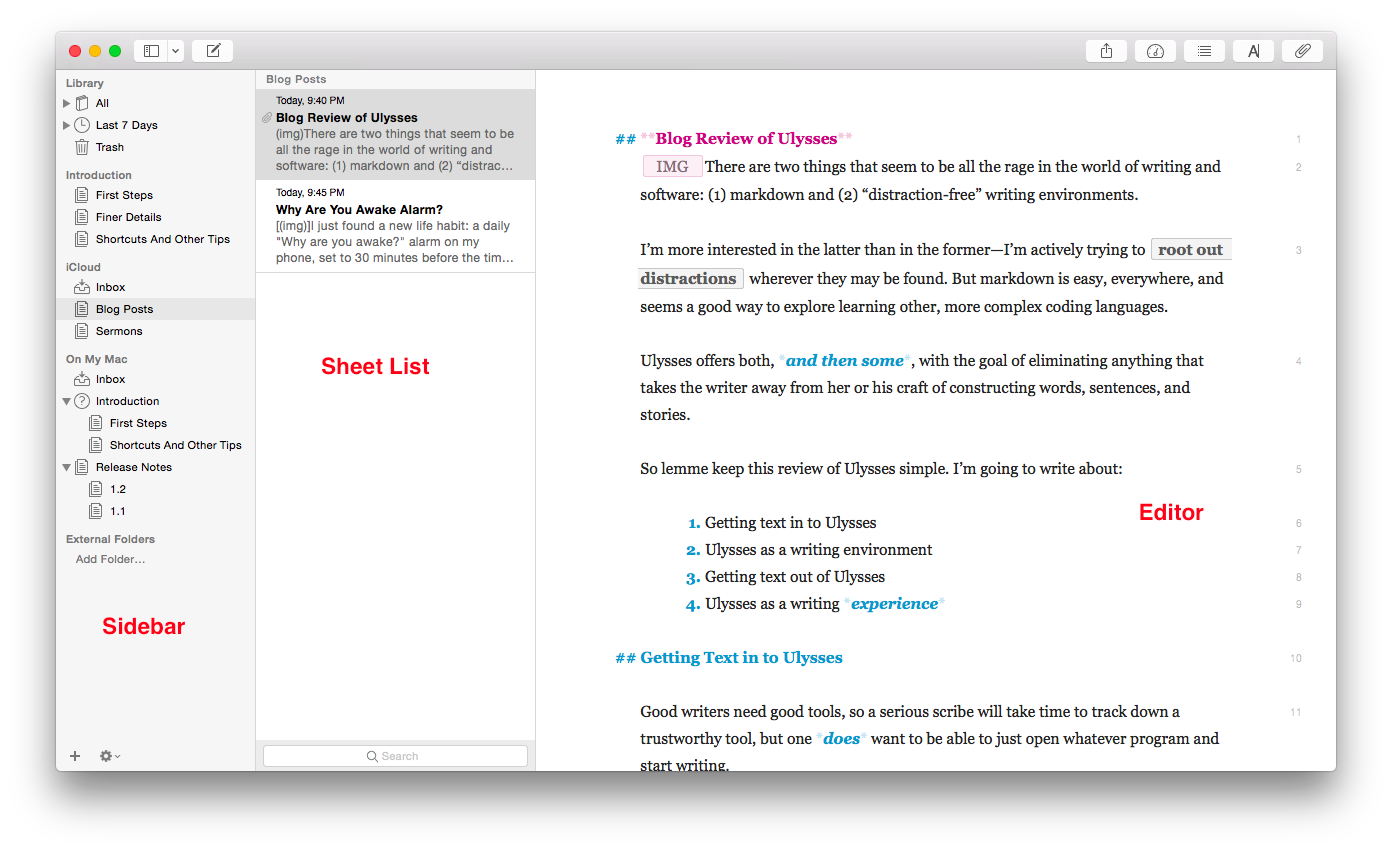
Getting to a new Sheet (Ulysses’s more-or-less equivalent of a document) is easy, even with no experience of the app, so one can just start writing in the default three-pane workspace:
The Editor is where the magic happens (i.e., you write the stuff). Using keyboard shortcuts or the menu bar, you can have one, two, or three panes visible. If you’re really hunkering down, you might not need to see your Sheet List, so can go to the Editor Only view.
However many panes you want to see at once (and Ulysses also allows multiple Windows open at once), starting to write in Ulysses is easy.
But what about importing text you’ve already got somewhere else?
Easy (mostly). You can copy-paste, even preserving formatting, or you can import a file wholesale by dragging it from a Finder window into the Ulysses sidebar, if it’s of the kind Ulysses will recognize. (My .zrtf Nisus Writer Pro tests did not work, but Ulysses did accept a sample .rtf file and even a Microsoft Word .docx file.)
2. Ulysses as a Writing Environment
So you can get writing right away in Ulysses, either from scratch or from pre-existing projects in (some) other formats. That’s a plus.
Writing in Ulysses itself has been a very positive—even a focusing and relaxing—experience. More on that in the next post. Ulysses as a writing environment requires some effort to learn.
For example, there’s the terminology (Sheets, Groups, Filters), though that’s pretty easy to pick up right away. And there’s the three-pane layout—though Mac Mail and other apps have prepped users for that. There’s also the lack of tie-in to the Mac Finder and files with file names.
That has taken some getting used to, but it’s not cumbersome by any means. In fact, Ulysses’s powerful search option (⌘-O) has meant I can always find anything I am looking for—quickly.
One nice touch in the app is that there are three Groups full of explanatory Sheets that tell you just about all you need to get started:
First Steps
Finer Details
Shortcuts And Other Tips
Here’s what they look like (in the easy-on-the-eyes Dark Mode with Dark Theme):
They’re like help files, only more fun and experiential.
Note also the fourth pane at far right, where I have added some Keywords (“I read this”—I have used that as a label to track my progress through the help Sheets) as well as a Note. Via this Attachments Bar you can also add an image or set a word count writing goal for yourself.
And the app can do some pretty sweet stuff. Here’s a sampling:
You can select a couple of Sheets and “glue them together” using ⌘J, which is good for putting chapters or sections together
You can split a Sheet into two Sheets, which is what I’ve done with this blog post that started as one and now will be in two parts
From the Editor (the pane where you do the writing) you can go up and down your various Sheets using the ⌥⌘↓/↑ keyboard shortcuts
The Show Markup option (keyboard shortcut= ⌘-9) is really helpful, especially to folks like me who are new to Markup
Did I mention how easy on the eyes the Dark Theme/Dark Mode option is for nighttime writing?
You can make comments to yourself using Markup that will show in the Editor pane but won’t export when you’re ready to publish
The few things that at first seemed like limitations in Ulysses were, in fact, easy to pull off by selecting the right menu item.
I haven’t been able to find anything like navigation arrows in the toolbar—having these readily visible would easily allow one to move between Sheets and search results without having to have two app windows open at once, but there may be a solution I just haven’t found yet.
So far, though Ulysses has required some adjustment to my workflow, I’ve really been enjoying writing in it.
My Ulysses Statistics are telling me this post has exceeded 900 words, so I’ll write more next time about (3) Getting Text Out of Ulysses (i.e., export functions) and (4) Ulysses as a Writing Experience.
Thanks to The Soulmen Gbr, developers of Ulysses, for giving me a download for the review. See my other AppTastic Tuesday reviews here.
I don’t really know much about Festivus, but in honor of it, for less than 24 hours, Nisus Writer Pro is on sale. I was pleasantly surprised by this really versatile and smooth (and high-powered) word processor when I started using it a few months ago.
Find Nisus Writer Pro here. You can also get Nisus Writer Express and a sweet Mac Mail searching program (InfoClick) on sale. I don’t think it gets priced this low, usually.
Here’s the pricing info, from the Nisus newsletter:
Nisus Writer Pro is $55 for the full version (regular price $79) and $35 for the upgrade (regular price $49). Nisus Writer Express is priced at $20, the upgrade price is just $15. InfoClick is only $10! Family Packs for both Express and Pro are also discounted. You can purchase from our store and from the Mac App Store (full versions only).
All you need to do is go to our store and buy, no coupons required. You will be happy you did as you will receive a fantastic deal on great Nisus products.
I have switched almost all of my work away from Word and Pages to Nisus Writer Pro. I highly recommend it. There are also demo/trial versions at the links above.
















 Words on the Word