I’ve reviewed enough software to know over-hyped copy writing when I see it, so I was initially skeptical at the Things app’s claim to be “a delightful and easy to use task manager” (my italics).
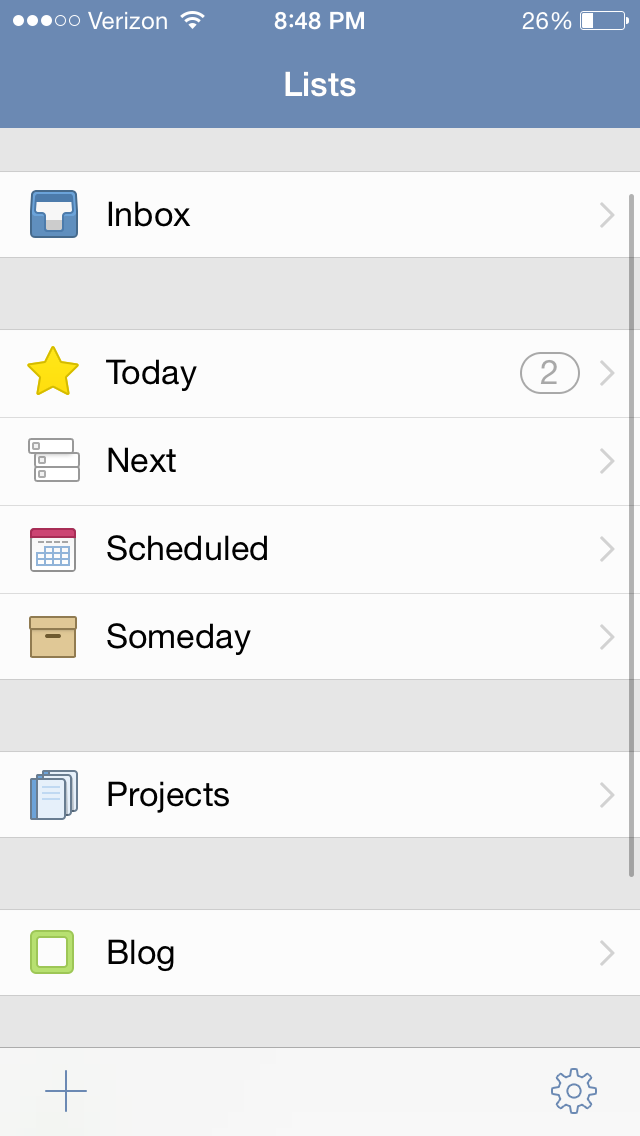
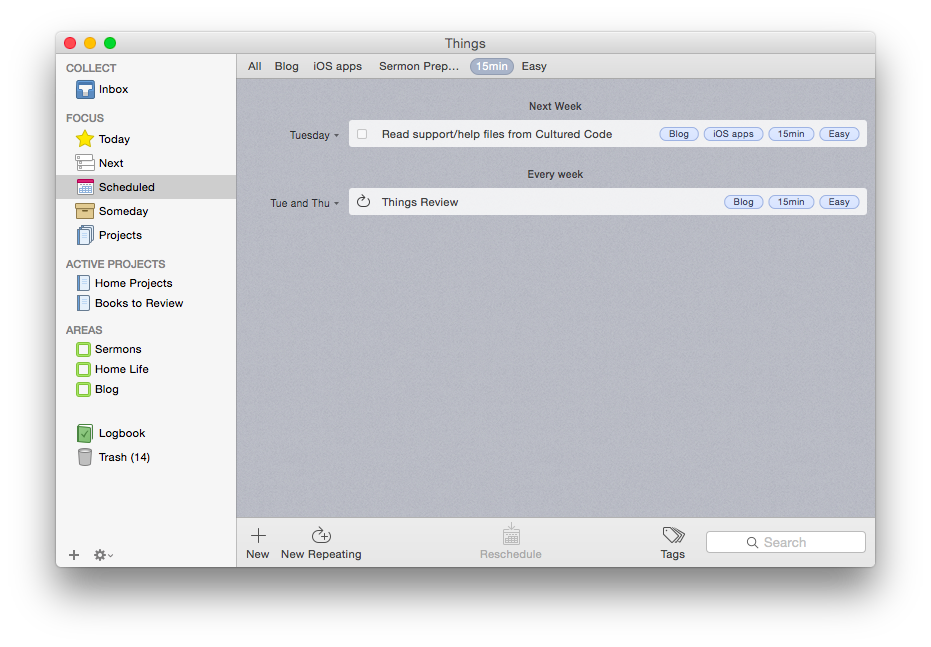
But its aesthetic and usability really are pleasing and enjoyable. The layout is very simple and clean. It has almost a cartoonish (in a comforting way) feel to it. It looks like this:
Mac OSX version (click image to enlarge)
iPhone version
Readers of this blog (especially patient ones) know that I’m a user of OmniFocus, but I’ve also been putting Things through its paces these last few months.
Today is the list for to-dos that you want to start before the day ends. They’re your priorities.
Next is home for all of the to-dos you could start at any time. It’s a good place to look when putting together your Today list, or when you’ve finished everything there and you need more to do.
Scheduled is for to-dos that you’d like to start on a later date, either because there’s nothing you can do to start them yet, or you’d just rather be reminded of them on a specific day.
Someday is the place for to-dos that you might like to get to, but you’re not sure when. Regularly review what you’ve added here to decide if it’s time to act.
It all starts with the Inbox, where you can put items until you’re ready to decide when to do them. Things also allows you to organize by multi-step Projects and Areas of Responsibility, as well as make extensive use of Tags.
Strengths
Things syncs instantaneously via its own cloud service across multiple devices. This makes using it on both a phone and a computer, for example, really easy—you never have to worry about an outdated notification showing up on your device. This is one of the few drawbacks of OmniFocus—if you don’t keep OF open and make sure it’s synced on all your devices, you’ll get a reminder on your iPhone to complete a task you already checked off on your computer. This is not an issue with Things, and it takes away an extra step in the task management process, so you can direct that energy to actually working through your task list.
Things is head and shoulders above other task management apps in this regard.
Things has a really nice tagging system. No GTD-style “contexts,” per se, though you could certainly use your tags as contexts if you wanted to. You can even assign sub-tags to your tags, a feature I really like. So I can tag a task under the category “Blog,” but also assign sub-tags such as “Future post” and “Learn apps.” I used this tagging system to track thank-you notes last Christmas—writing down presents (and who they were from) as we opened them, and then sorting by tag (giver) so that I knew what all I was thanking someone for when I came to their note! Handy, indeed.
The desktop app is feature-rich. As you might expect, in addition to seamless sync with the mobile apps, the desktop version of Things (pictured above) is fuller-bodied than the iOS apps. There is the Quick Entry feature, where a keyboard shortcut (no matter what app you’re using in the foreground, so long as Things is open somewhere) will let you enter a task before you forget. There is a really smooth way of accessing, displaying, and adjusting all your tags (where Things really shines). Editing a task is fast. And it looks good.
The iOS apps have a useful Today widget. Some Today widgets are better than others, and this one is good. You can view items due today, check them off (both without ever opening the app), and tap on New To-Do to be taken to the Things app to make a new entry.
Siri and Things work together (quite nicely). You can set up Things so that reminders you voice dictate to Siri go right into that app as tasks. So that you can use Things safely while driving. As OmniFocus is my task management app of choice, a comparison again is inevitable: to get Siri-generated reminders to show in OF, you have to actually open OF and let it sync. Not so in Things: the reminder goes to your Things Inbox for processing immediately.
Limitations
There are some things that Things can’t do, which I had hoped it could.
There is no way (whether in iOS or OSX) to attach photos or files to an item. I find this a noteworthy lack. In OmniFocus and Evernote you can take a photo of something and immediately set it up with a to-do reminder. Sometimes life’s “inputs” come as visuals, and taking a picture and setting a due date is easiest. That’s not doable in Things. (You can link to actual files on a desktop, but that’s not the same as attaching the file itself, and the file doesn’t show up on an iPad.) There is a “Notes” field that attaches to your to-do, which is essential, though that field just accepts text entry.
The cosmos (or just your co-workers and bosses) also like to give to-do items via email. There’s no way to automate moving from an email into a task in Things. In OmniFocus you can just forward an email to your special OmniFocus email address, and it automatically becomes a task in your inbox. Todoist, like Outlook, can let you turn an email into a task in just a click, without even having to forward it anywhere. Evernote even lets you send an email as a Note to a specific Notebook with Tags, if you phrase your subject line right. Things may add this email-in-to-Inbox feature in the future, but for now, you have to take the extra step of copy-pasting an email into a new task yourself. Not as automated as I’d have liked.
You can get to a new task via the + button on the bottom right screen on iOS—so entering a new task right away is easy—but there is not the “Save +” option that other apps offer… so you have to add an extra tap when doing a rapid-fire brain dump. (This is not as much an issue on the desktop version of the app.)
You can set up repeating tasks, but not easily. This process was not as immediately intuitive as the rest of the app is. Things’s support page (which is awesome) details how you can do it from iOS and OSX. But, wow, did I spend a lot of time figuring out the very specific way in which this must be done in Things—and a couple of methods that you’d think would get you there… don’t.
Conclusion
So many reviews of task management apps affirm that there’s a personal element to what app works best for you. One user’s “intuitive” is another user’s, “Huh?” I’ve bought into the OmniFocus methodology and layout (mostly), which is intuitive enough but not easy out of the box. Things, on the other hand, is easy to figure out how to use right away without using a manual. The “Today” part of the app functions as a sort of daily review, though I prefer OmniFocus’s Forecast and actual Review perspectives. But you might be totally different on that!
In terms of complexity and capability, I’d put Things somewhere between Reminders and OmniFocus. It’s far more robust than Reminders, but not quite the souped-up to-do app some users might need. (Although one could just use the robust tagging system to customize Things for higher levels of complexity.)
Things is well-designed, looks great, and the seamless sync is a huge plus. Try it for yourself here (download link) with a free trial.
Thanks to the fine folks at Cultured Code, the makers of Things, for giving me downloads for the Mac and iOS apps for this review. See my other AppTastic Tuesday reviews here.
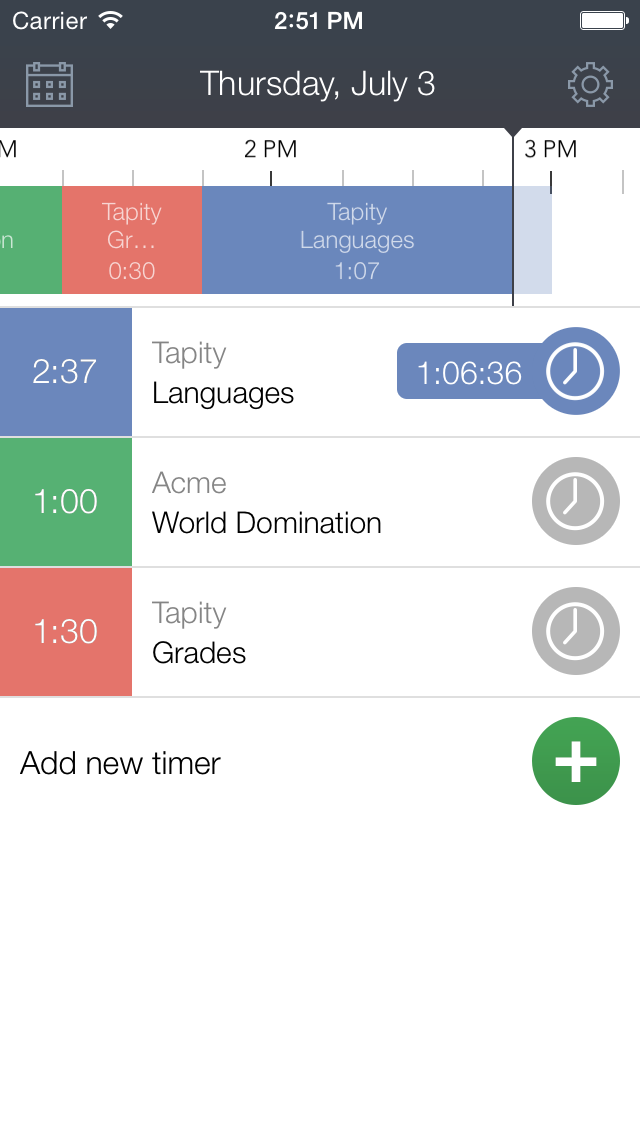
While OfficeTime is my go-to iOS app for tracking where I spend my working hours, I often use the Hours app to track my time doing chores, writing projects, and other related tasks. (I most often access it through its really handy Today widget, and just swiped down to start a timer to see how long this blog post takes!)
Normally $6.99, now the app is free, to celebrate the release of the Apple Watch and the accompanying Hours app. (P.S. What do you call apps on the Apple Watch? Applets? Seeds?)
It’s got a beautiful interface, decent exporting features, and is really easy to use without thinking about–which is as a time-tracking app should be.
Image from Tapity Press Kit
Check it out here, or read more about the app here. Also, those of you who use and enjoy it now–it’s coming to Mac soon.
Looking for a good scientific calculator that your kids (or roommate) won’t make off with, because it’s downloaded as an app to your iOS device? (Which your kids or roommate might also abscond with, but still….)
PCalc is a beautifully-designed, dynamic calculator for iPhone and iPad, available in the App Store. Below I review the definitely-worth-its-$9.99 app. There is a free, “lite” version available here.
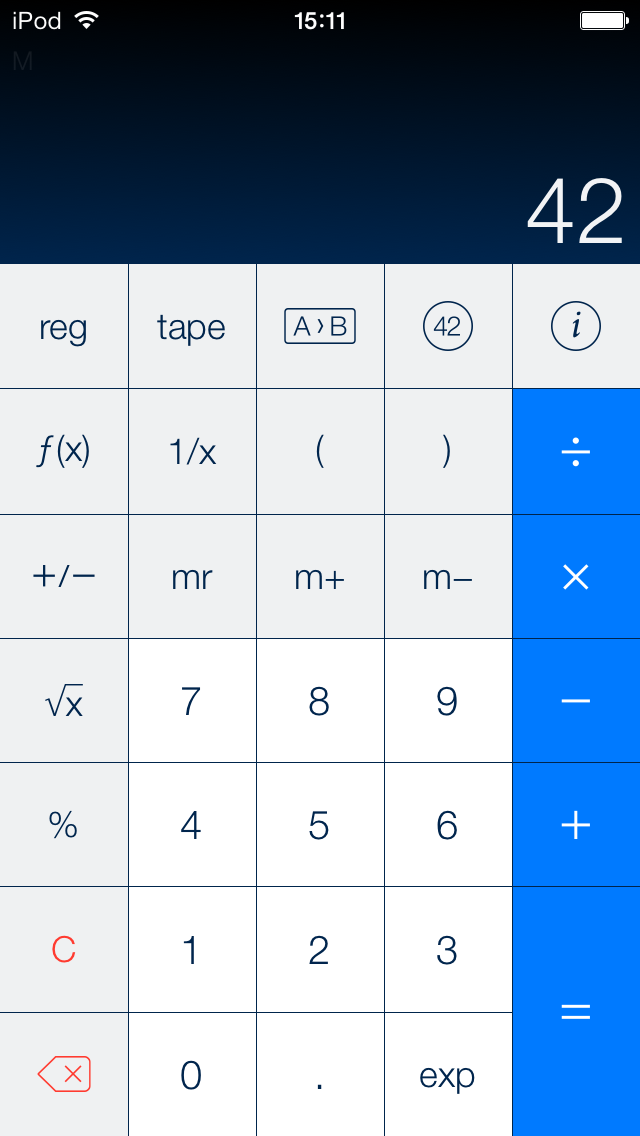
PCalc functions with zero lag, and has a really nice layout, which you can change to suit your preferences:
This image via TLA Systems Ltd.
I liked that view so much I didn’t even think to look for different display options till weeks later. But then I found this:
PCalc is ideal for scientists, engineers, students, programmers, or indeed anybody looking for a feature-rich calculator for the iPad, iPhone, or iPod touch.
It includes an extensive set of unit conversions, a paper tape, an optional RPN mode, engineering and scientific notation, as well as support for hexadecimal, octal and binary calculations.
My favorite feature–that I’ve not seen in any of the other five or six calculator apps I had downloaded and promptly deleted from my phone–is that PCalc can run conversions for you: currency, in the kitchen (good for those of us who still can’t go fluid ounces to cups, which is ALL of us), energy units and more.
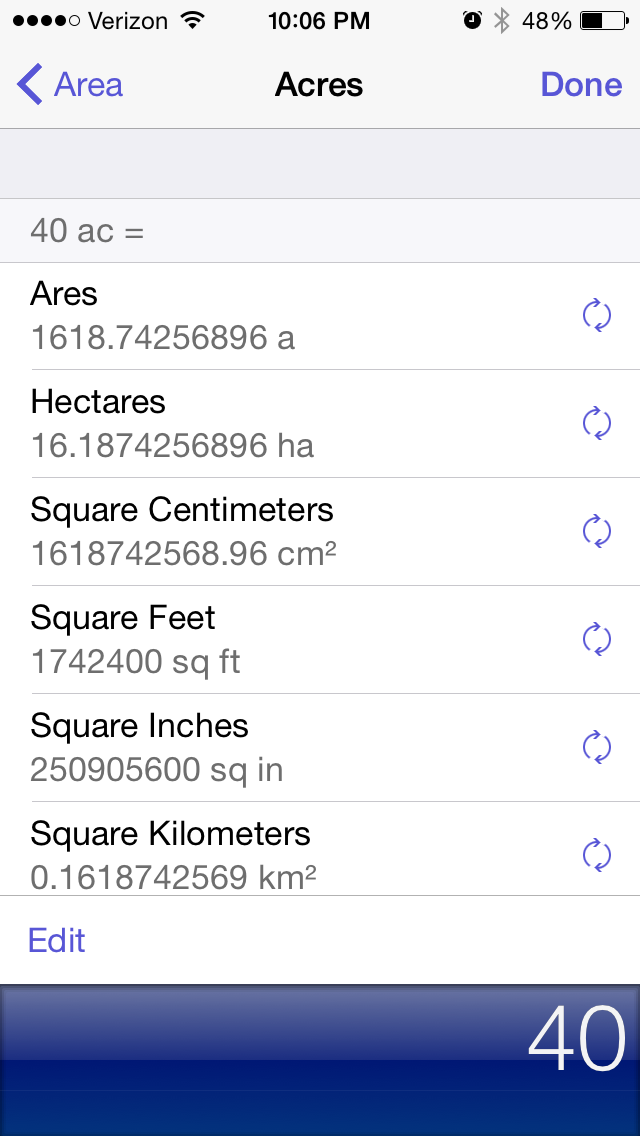
Listening to the new Kendrick Lamar, I might want to know how many square miles 40 acres is. With PCalc, I have my answer within a few taps:
It has a bunch of Constants stored, to which you can add your own:
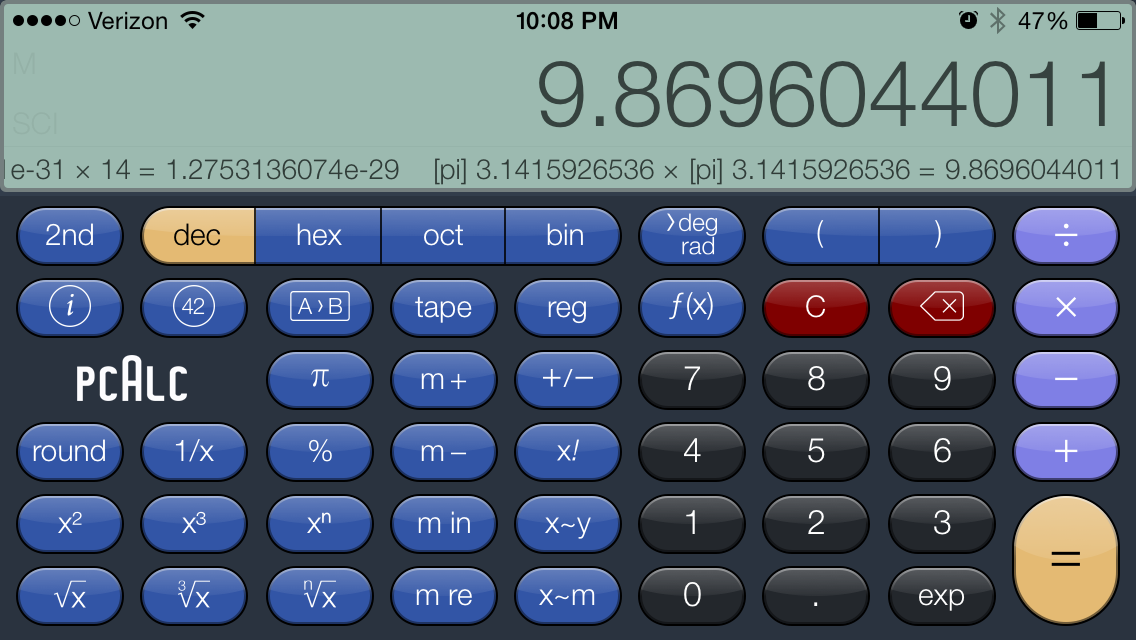
There are also a ton of functions this app can perform that I probably would have loved in my high school Calculus class, but would have trouble with now. You can do more when you rotate to landscape mode:
Note the Ticker Tape underneath the number up top… that’s your computation history! You can even swipe back from the results screen to have PCalc re-perform your last operations.
This is a highly advanced calculator. I can’t say whether science and math students can put away their TI-80-whatevers, but they should at least download PCalc first.
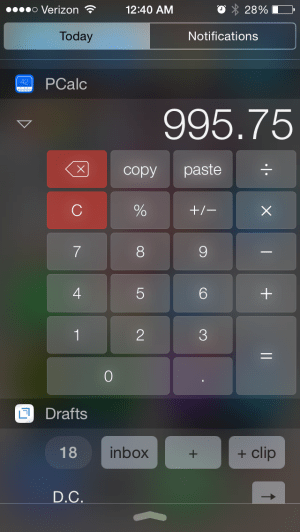
Need to quickly figure a tip, or something else? Without even unlocking your device, swipe down to the Today view and find the best-looking, most functional widget you’ll probably see on iOS 8:
Even Apple’s own Calculator app does not have access from the swipe-down Today view.
PCalc is a fantastic app, and the last non-graphing, scientific calculator app you’ll ever put on your phone. See the full feature list here, and look at many more screenshots here.
Thanks to TLA Systems, the makers of PCalc for iOS, for giving me a download of the app for this review. See my other AppTastic Tuesday reviews here.
I can hardly believe the technology on a little iPhone exists to do this, but this is now how I am going to take and process meeting notes from here on out.
This means I simply open the Drafts app (which is quite aesthetically pleasing, and fast, too) and take meeting notes there…including marking action steps with the checkbox keyboard shortcut key (!).
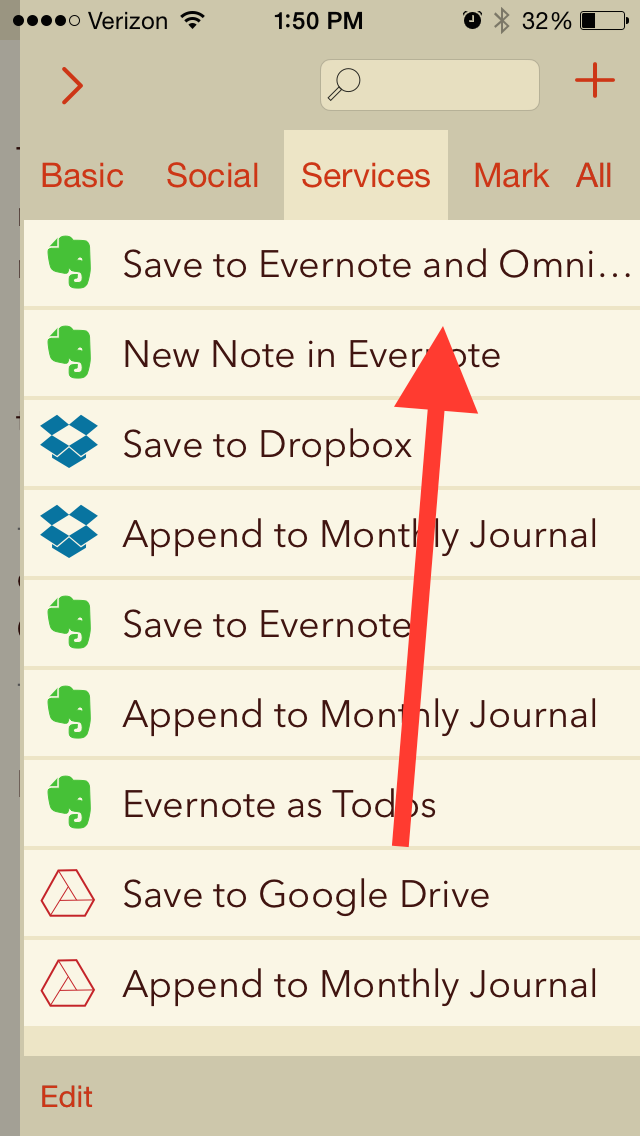
Then I tap the action above, and all my meeting notes are saved as an Evernote note, with all the checkboxes I made automatically converting to OmniFocus tasks.
Many, many thanks to Agile Tortoise for the awesome app and to @rosscatrow for the action above to install into Drafts 4. A good step forward in my ongoing quest to stay organized.
Today OmniFocus is expected to release an update that makes their iOS apps universal. The iPhone app, for the first time, will carry with it the capability to view and create custom Perspectives.
There are several upgrade paths, depending on what you’ve already purchased from Omni in the past. (Before the universal update, the iPhone and iPad apps were paid, separate purchases, with only iPad carrying a Pro upgrade version.)
It’s not the easiest upgrade process to understand, but here are two charts from Ken Case (via the Twitter) that will help:
The upgrade paths (click to enlarge)
More Options on the iPhone Version (click to enlarge)
And check out this lovely screenshot from the updated help files. You can now re-arrange your Perspectives on the phone.
Reordering Perspectives in iOS Pro
You can see everything that’s new in iOS 2.1 here. My overly eager and long-winded review of OmniFocus is here.
The best texting app in the iOS App Store is (for the moment) free.
I’m a big fan (and daily user) of Launch Center Pro, which is created by the same developers who make Group Text+.
Group Text+ makes sending texts to a pre-saved group (or individuals) really easy and fast… and it even comes with a bunch of hilarious gifs you can send! (I’ve gotten way more into this last feature than a man my age probably should….)
Provide the easiest and quickest way to get to a blank text entry screen on iPhone and iPad.
Allow you then to send or export that text to as many other apps as possible.
This may sound like one of those apps that developers made just because they could, but I’ve been surprised to find myself increasingly reliant on Drafts 4.
Just the last two days I used it to (a) jot down some stand-up meeting notes (which I then exported to an OmniFocus task) and (b) send an email to someone when I didn’t want to have to be distracted by unread emails in my inbox.
Open the app, and you get a blank screen, into which you can quickly type (or dictate, via Siri) text. I recently was fortunate enough to have inspiration for a sermon outline strike me when I was doing some chores around the house. Not sure what to do with this newly found locus for creativity, I quickly reached for Drafts and jotted my thoughts down:
From here I could access a wealth of sharing options:
This particular draft went into Evernote, where I could easily get it later. I could have exported it some other ways:
Also amazingly cool is that when I exported it to Reminders, Drafts made each separate line into its own task:
This is sweet enough–an app that lets you quickly jot down text and export/share to just about anywhere. But Drafts is built with an eye to detail. You can make your text look nice, too:
Note the option to have a night mode. And all those fonts!
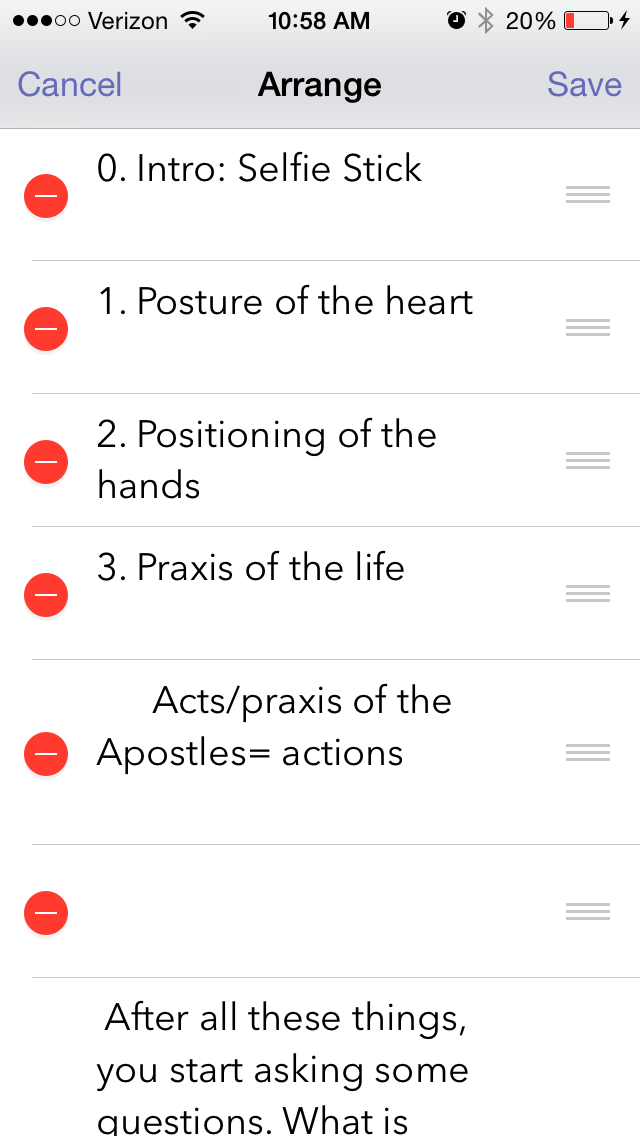
You can even re-arrange your text from within Drafts, just by virtue of having started a new line when you were entering text:
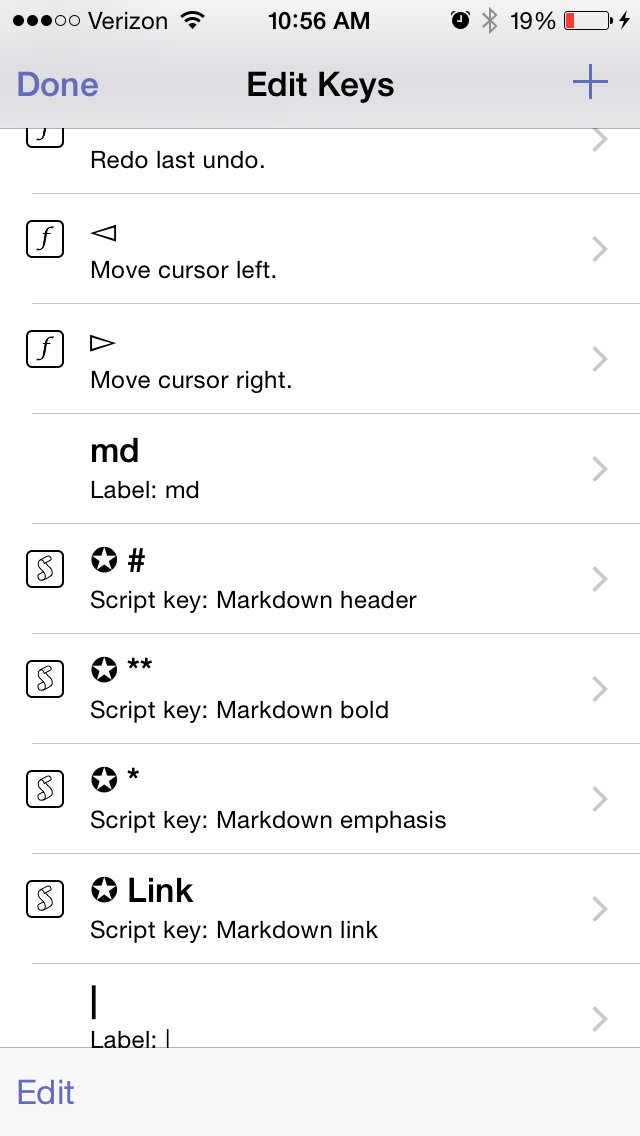
You can edit the keyboard keys that are available to you:
Note, too, the Markdown capabilities
There are quite a few settings you can adjust:
And Drafts can keep everything you enter, regardless of whether you’ve shared or exported it. (Drafts also keeps a record of where you’ve shared/exported your draft.)
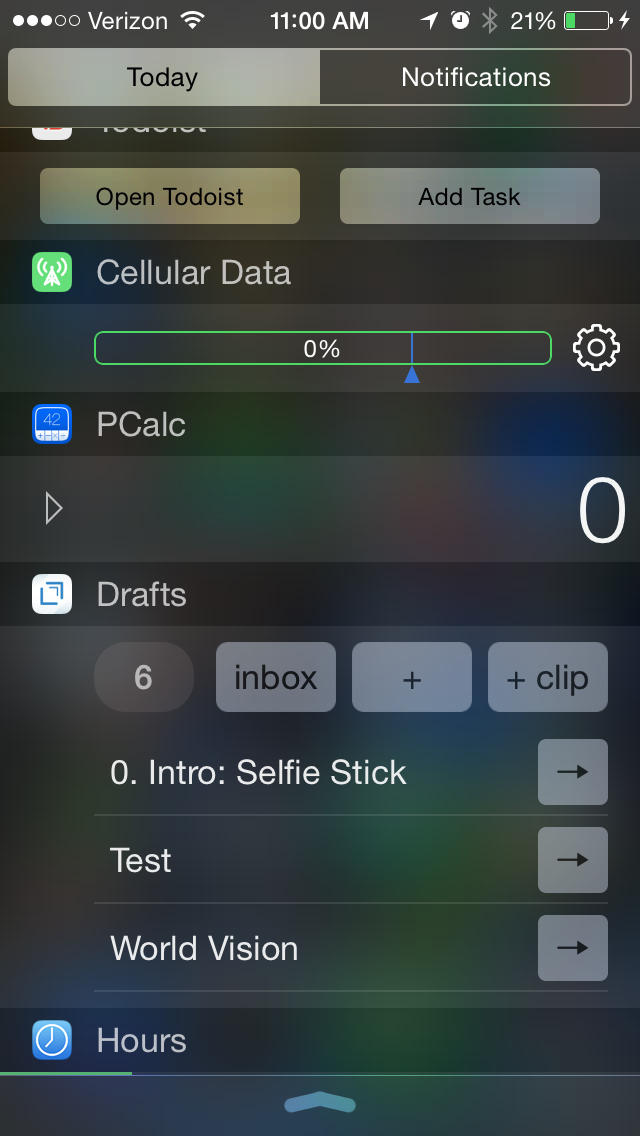
Yes, you guessed it, there’s a Today widget, too:
Drafts 4 is just as awesome on iPad (not pictured here) as it is on iPhone. The only possible downside to this app is that $9.99 is more than most iOS users are used to paying for an app. But it’s easily one of the most carefully developed and detailed apps I’ve used, and robust in its features and capabilities.
It’s well worth checking out, and has found a home in my daily workflow.
Thanks to the fine folks at Agile Tortoise, the makers of Drafts 4, for giving me a download of the app for this review. See my other AppTastic Tuesday reviews here.
You know that creeping suspicion that some of your strangest idiosyncrasies could not possibly be shared by anyone else ever?
You’re usually wrong.
Case in point: it turns out I’m far from the only one who has had about a dozen different to-do apps on his phone in the last couple months. But it’s a bad idea to use multiple apps to organize tasks. All the better if you can track everything through one clearinghouse.
OmniFocus is that place for me. In more than half a year of daily use (exception: techno-Sabbath), I’ve only found one real flaw in the program (sync is not seamless). Otherwise OmniFocus (a.k.a. OF) does everything I want a task management app to do, and many things I didn’t know I would want such an app to do.
First Things First: Learn OmniFocus Language
There’s a lot to OmniFocus. To get a quick overview, check out this video, or this one, which explains the fundamental OF concept of “perspectives,” ways of organizing and accessing your tasks.
Or skip the videos and read this one-paragraph simplification of what you need to know about OF terminology before using it:
Projectshelp you break a bigger endeavor down into its component actions. Projects can be Sequential (you have to do action 1 before you can do action 2) or Parallel (it doesn’t matter in which order you do the individual tasks). For that matter Projects can just have what Omni refers to as loosely-related but not interdependent “Single Actions,” like a grocery shopping list. Contexts allow you to organize actions according to the things/people/environment you need to do them: Office, iPad, Internet, Computer, Car (careful!), etc. The Forecast view shows your tasks chronologically in one place–I spend most of my time in this view. Or you can just make a quick entry in the Inbox, and then decide how to categorize it later.
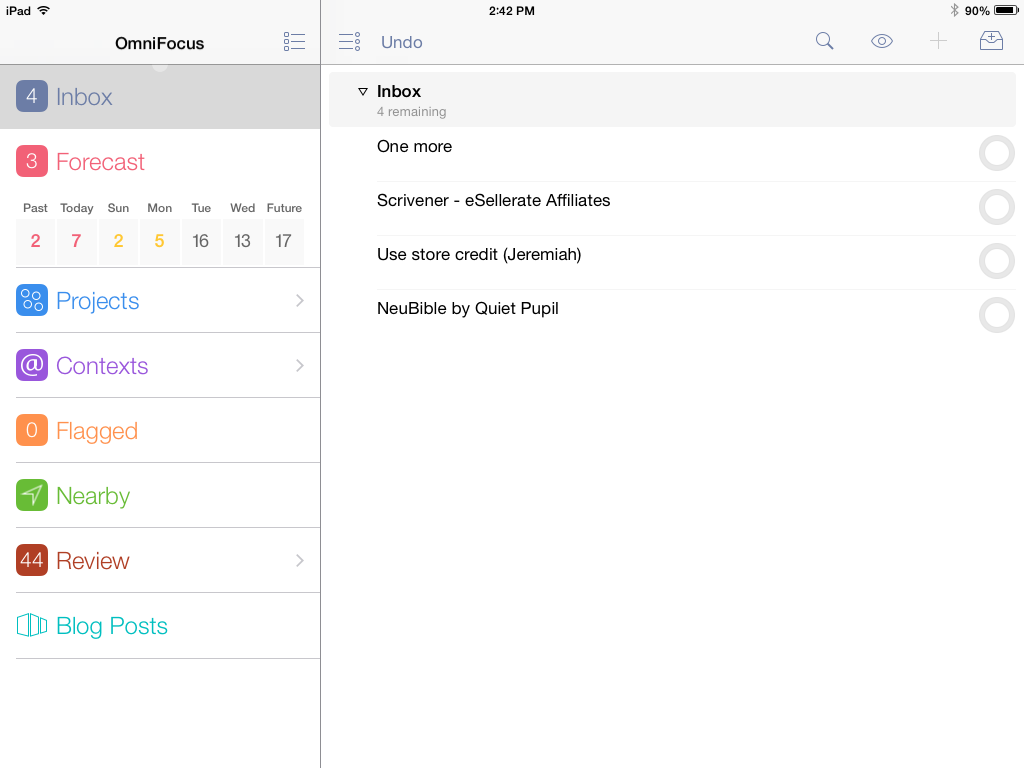
iPad, showing various perspectives and Inbox (“Blog Posts” is a “custom perspective” available with iPad Pro version)
The Inbox is the starting point–OmniFocus suggests that you take some time to just “brain dump” everything there and then assign Contexts and Projects, due dates and duration times later.
Using OF requires some patience and learning, but is worth the investment of time if you’re serious about project and task management.
Contexts perspective in iPad
OmniFocus is Ubiquitous Across Devices and Apps
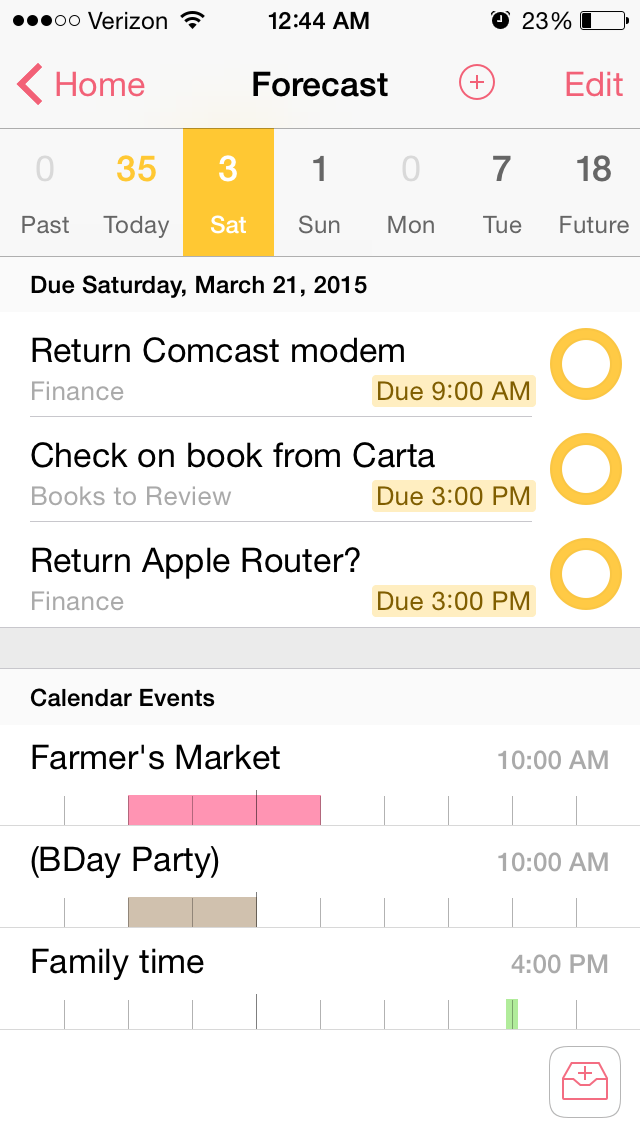
OF syncs automatically across Mac, iPad, and iPhone. When you are in the Forecast perspective, both the iOS apps and the OSX app allow you to see your Calendar Events right next to your actions for the day:
iPhone Forecast perspective
I even figured out, using their Clip-o-Tron 3001, how to turn Mac Mail messages into tasks with a keyboard shortcut. (Email inboxes are not a good place to keep tasks, you realize.)
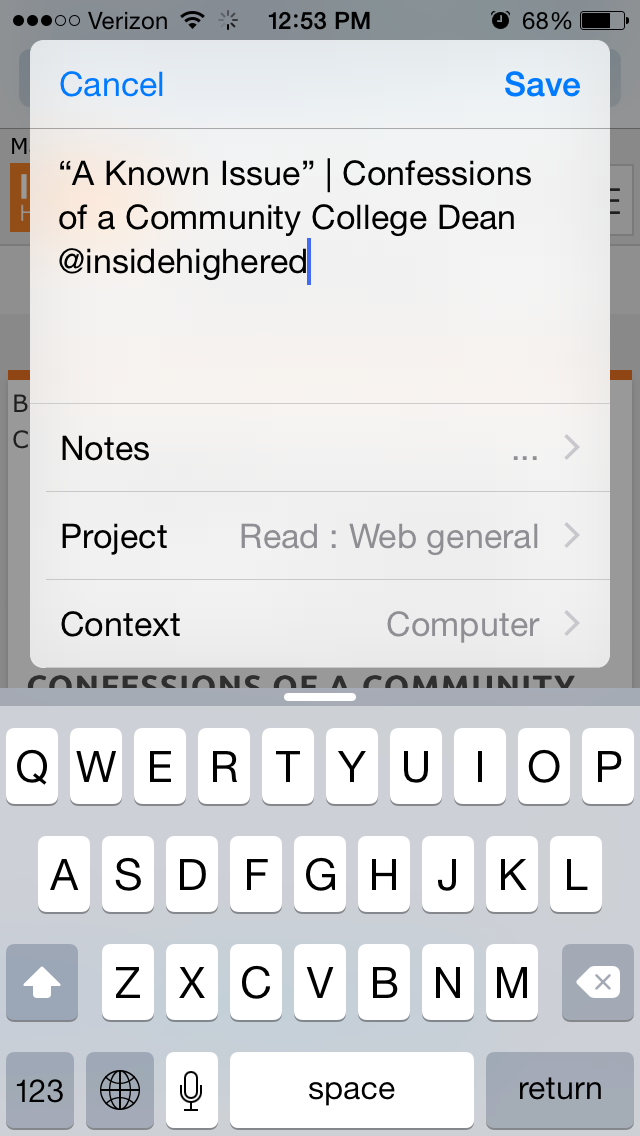
And I love the Share Extension in iOS8. From almost any app I can create an OmniFocus task. I do this regularly. I see something I like, so share to OF:
From Safari, for example, the Note is automatically populated with the article link, and I can set the Project and Context:
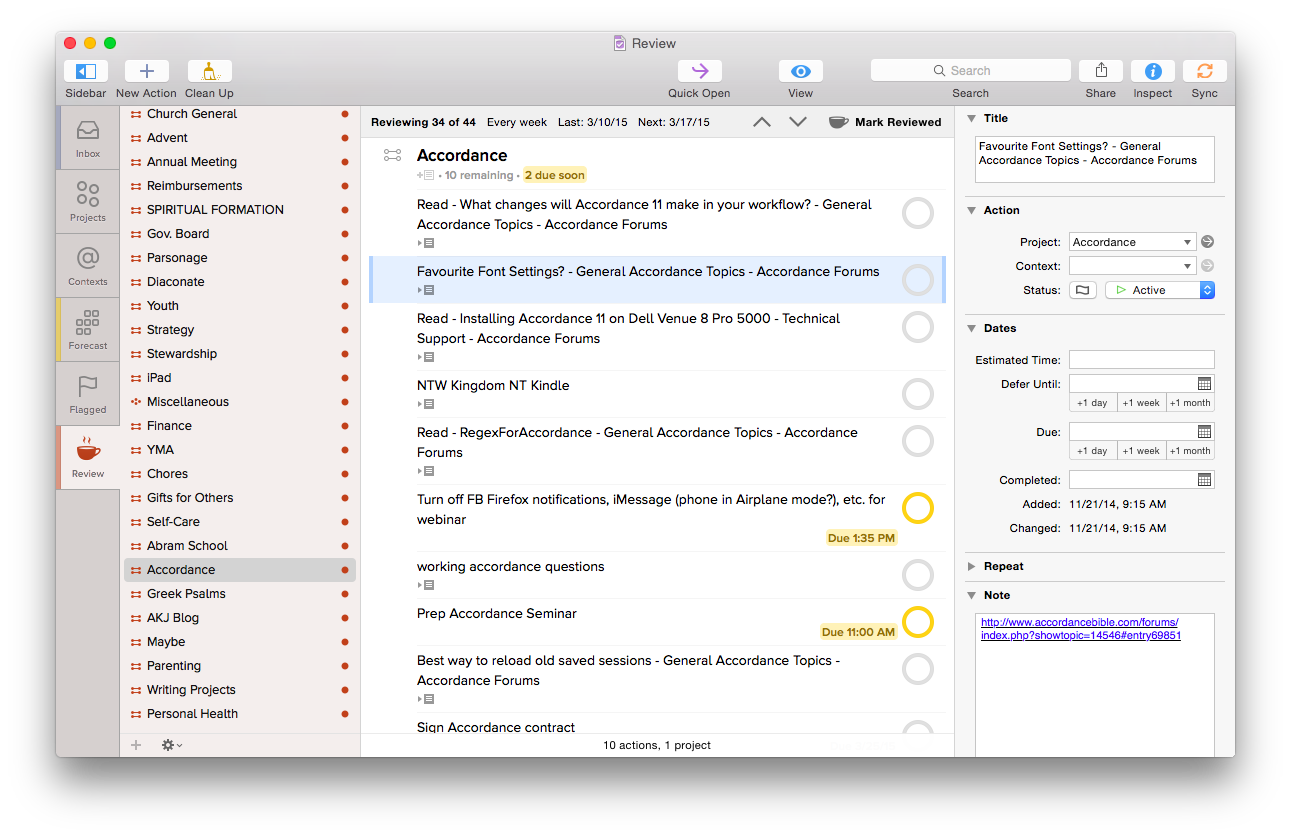
One lack in the Share Extension is the ability to assign a due date from the screen shown above–you have to manually open OmniFocus if you want to do that. However, the more I use OmniFocus, the more convinced I am to only set due dates if absolutely necessary–you can always look through undated tasks in your weekly review, which OF makes really easy with their excellent Review perspective:
OmniFocus for Mac Review perspective
What if you’re on a library computer or PC or purchased OF for Mac only and see something on your phone that needs to become a task?
OmniFocus gives you your own unique email address, to which you can email a task. This “Mail Drop” feature helps get the user close to Inbox Zero on email, too, since you can just forward a Gmail message to OmniFocus, where it will end up in your OF for future processing. In other words, you can input OmniFocus tasks from anywhere.
And TextExpander helps here. That app allows you to type your own abbreviations that then expand into text of your choosing. With TextExpander enabled, I write “.omni” and my OmniFocus task capture email address (which is neither short nor memorable) pops up right away.
Another way you can input tasks? Connect your OmniFocus in iOS to the Reminders app, then you can tell Siri to remind you something, and it goes into OmniFocus. Awesome!
Bonus: It Does Photos and Voice Memos
The iOS OF apps even allow attachments to tasks. If I’m processing paperwork and need to set a reminder to pay a bill, I can just take a picture of the bill from OF and save it to a task. Whenever I pull that task up on my computer or other device, the photo will be there.
You can also tap on the “Attachments” tab to record a voice memo, and save a task that way.
Limitations
There are some limitations to using OmniFocus, though not many, and far fewer than other task management apps. Its sync function, which uses Omni servers, operates with a delay. Though sync is supposed to be seamless, it doesn’t function with the same instantaneous speed as, say, Apple’s native Reminders app. On the ground level this means that if I work through a task list on my computer but don’t have the OF iPhone app open (even though background refresh is on), I will still get outdated task notifications on my phone until the sync properly takes place. This is a daily frustration, even if a minor drawback compared to all the other robust features.
The workaround for this is to manually sync the app each time I update it, to make sure it’s up-to-the-minute. OmniFocus has made improvements here since I started using it, but I hope it will soon match what other apps do by way of syncing speed.
OmniFocus is not cheap–they’re working on making their iOS app universal (very soon), but in the meantime, there is a separate Mac app, iPad app, and iPhone app available for purchase. It’s not on Windows or Droid.
However, if (a) you have a complex set of roles, priorities, and tasks to manage, (b) you don’t feel fully on top of them, and (c) you’re willing to take the time to learn OF, it’s well worth the purchase price. One could probably get by with OF on just one platform, too, though if funds permit, having it on a mobile device and a desktop is an advantage.
Made with Care: Some More Thoughtfully Designed Features
The longer I use OmniFocus, the more I appreciate some little features. Just the other day I noticed for the first time that in your perspectives sidebar on Mac, if there are items in that perspective to process, a little colored bar on the left highlights that perspective.
The image at left tells me I am due my Review, that there are items in the Forecast (i.e., scheduled actions), and that there are some entries in my OmniFocus Inbox needing attention.
There are lots of nice little touches like this–the color of your task circles, for example, varies depending on the status of the task (whether flagged, due soon, overdue, repeated, etc.).
And one of the best intangibles for me has been the ease of accessing the help manuals. Sure, you can get impressive help information from within the app, but OmniFocus has made their iPhone, iPad, and Mac help manuals available as free iBooks downloads so you can annotate them to your heart’s content.
Also, using Control-Option-Space on Mac, you can open a Quick Entry pop-up to enter an Inbox item. As long as OF is open, you can do this from anywhere on your computer.
Two more sweet little features I love about the iPhone version–there’s a little “+” icon for an new Inbox entry on just about any screen within the app, so adding tasks is easy, no matter where you are in the app. And once you add a task in iPhone or iPad, you can not only Save it, but can tap on “Save +” to go right to a new task entry. In other words, you can add a task and not be sent back to your Inbox, but keep adding task after task. I find this feature essential when I’m using OF to track action steps in meetings.
I could go on. Lots of people have! It seems that explaining OmniFocus is its own third-party cottage industry.
TL;DR version? (I know–I am supposed to put that at the top of the post.) OmniFocus is an amazing app, designed with care, and more than any other tool has helped me to greatly improve personal productivity. With a good system in place, I spend less time worrying about what I’m forgetting and more time doing what I know I’m supposed to do.
Thanks to the fine folks at Omni Group, the makers of OmniFocus, for giving me downloads for the Mac and iOS apps for this review. See my other AppTastic Tuesday reviews here.
Anker Ultra Protective Case With Built-in Clear Screen Protector for iPhone 6
The iPhone 6 upgrade never happened, but Anker had already sent the review sample of a sweet iPhone 6 case. I told them I’d still post about the thing, reviewing it as best as I could.
The Anker Ultra Protective Case With Built-in Clear Screen Protector for iPhone 6 appears to achieve that rare balance in mobile device cases between lightness and durability. You put its front screen protector and back casing on separately. It’s not a heavy case at all, so I doubt your hand will get sore even after playing too many minutes of games on your encased phone! The case adds only 0.15 inches and 1.6 ounces to the dimensions of the iPhone 6.
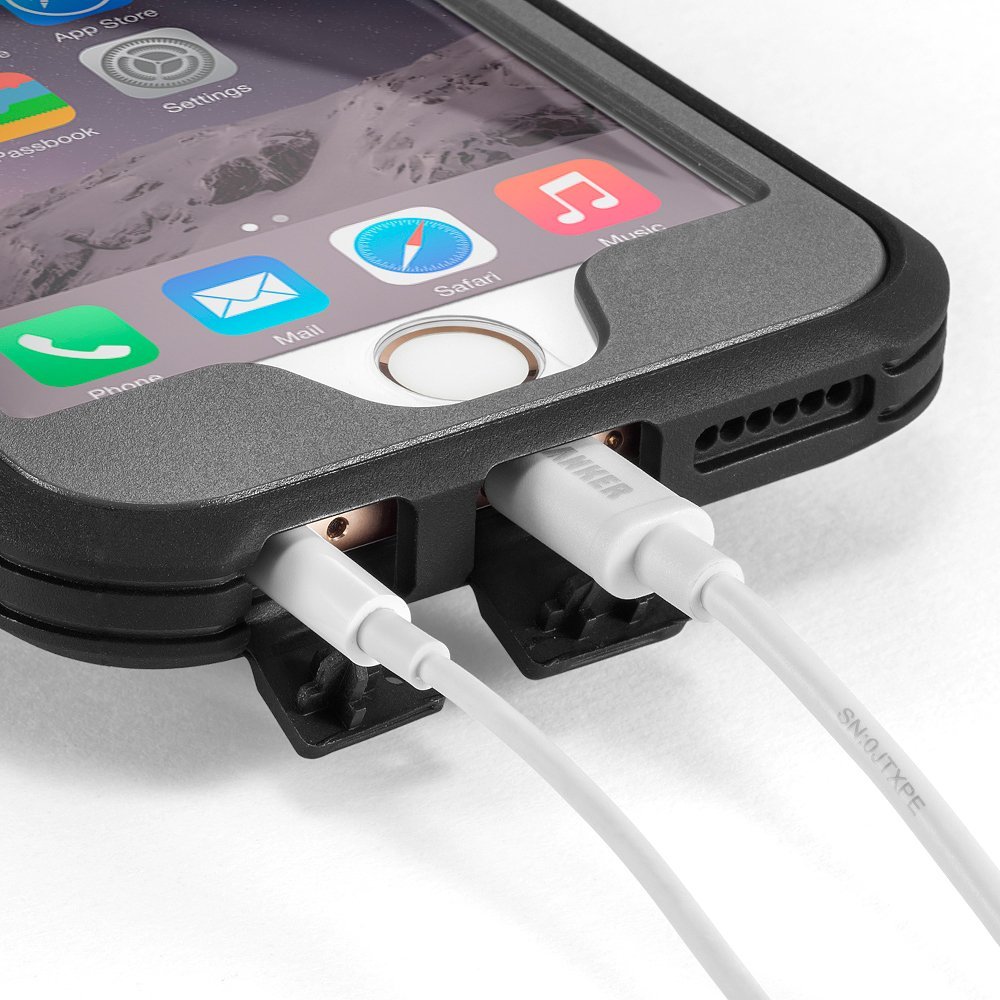
The openings for the charger cord and earbuds appear to be cleanly cut:
Image via Amazon/Anker product page
Anker says the case was “drop tested 6 times from 3 feet onto its corners and back on a hard concrete floor without sustaining any damage.” Presumably this test took place with the iPhone 6 in it.
As much as you think you will just be careful and never drop your phone… you WILL drop your phone. This case has some good grip to it, so your phone is unlikely to slip out of your hands, but if so, you may get lucky and still have a working phone after the drop!

























 Words on the Word