Get Logos 6? Making (Some) Sense of the Upgrade Process

Logos 6 Gold


Logos 6 looks good and offers some innovative, interactive tools for Bible study.

There are a lot of upgrade options. The upgrade process has not been as clear as it could be. But I think I’ve figured it out–and I was a beta tester! So if it hasn’t been clear to me, my hunch is that’s true for others, too.

In case it’s helpful to anyone else, here’s a short post on how to get Logos 6.


1. Free, Bare Bones, Later


On February 3, 2015, Faithlife (umbrella company for Logos) will make its Logos 6 engine free. It won’t have the datasets (mentioned below), nor the Interactives (see here), but I believe it will have basic improvements like the Search Everything and notes upgrades.


2. Crossgrade: Keep Your Current Library, Get Some (or All) of the New Features


Check out Logos 6’s new features here. I mentioned in my review of Logos 6 that the Interactives are, I think, the best part.

There are three crossgrade levels, and they’re pricier than you’d expect. They’re all noted and compared here. Crossgrades don’t give you new books, but they get you the Logos 6 engine (i.e., software), as well as its new features, interactive resources, media, and datasets. (I’m especially impressed at the moment by the Propositional Flow Outline.) As one of Logos’s pages puts it: “The crossgrade packages allow you to power your existing library with the new Logos 6 features.”


3. Base Package: Buy a Bigger Library, Get Some (or All) of the New Features


This is where it gets confusing. You can buy a Base Package–and previous purchases count toward your customized dynamic pricing–that gives you new texts, books, etc. and that gives you some or all (depending on the Base Package level) of the datasets, media, and interactive resources.

So if you bought Logos 5 Gold, Logos 6 Gold will cost you money, but not nearly as much as if you’re buying for the first time. Logos 6 Gold supplies you with all the new datasets and features, as well as some new books and commentaries.

For Base Packages you can choose from Starter, Bronze, Silver, Gold, all the way up through the Collector’s Edition. If you buy Bronze, for example, you get new books and some of the new datasets and interactive resources in Logos 6, but not all.

Making your decision more potentially difficult is that Logos offers denomination-based base packages at various levels.

All the Base Packages are detailed here. Especially useful is this interactive Base Package comparison chart.

UPDATE: Get 15% off base packages here, or use the promo code ABRAMKJ6 when you checkout with a base package in your Logos cart.


Logos 5 had what was acknowledged by the company to be an unclear rollout and upgrade process. The Logos 6 rollout has been better, but still could have been clearer (and should be simpler, perhaps with less options?).

The best single, succinct summary Logos has published on upgrading can be found here.

See more at the home page for Logos 6.

Threes: New Addictive iPad/iPhone App to Play

Threes IconI never did get the 2048 tile. I’ve beaten the last boss on Sky Force, but there are still parts of the game I haven’t unlocked.

While I’ve found lots of ways to use the mobile iOS device productively (I’m looking especially at you, OmniFocus), I have also been on the lookout for good diversions.

Enter Threes.

The obvious comparison is to 2048, but this game has more character. The numbers, for example, have names:


Say Hello to Threejay


If you look closely at the 6 and the 3 on the bottom row, you can see they’ve got little faces, too. And–the best part of the game–they make sounds and talk to you when you move them around to add them together: “Hi!”, “Hello!”, “Hey, guys!”, “Okay,” “Sup?”, etc. Sometimes a tile might even growl at you. (Right now my three kids are laughing at the sound effects and repeating them while my wife plays. I need to finish this post and get back to the game!)

There’s also a great music soundtrack you can toggle on or off when you play.

Threes has two basic rules:

  1. The 1 tile can only be added to the 2 tile, and vice versa.
  2. Tiles with numbers 3 and up each combine with the same number (3 with 3, 6 with 6, 12 with 12, etc.).

The game offers a really simple, quick tutorial to get you started.

Here’s what a board-in-progress looks like:


Threes Board


Being able to see the next tile (by color–at the top of the screen) is a nice advantage.

There’s a good sense of humor throughout the game (already noted above). Even the “Clear Scores” option says, “This will clear the data but not the memories.”

And you get confetti when it tallies up your final score, after you are out of moves:


4_Final Score


It’s fun for the whole family, kids to adults. 2048 was free, but this is easily worth the $1.99, which gets you the app both on iPhone and iPad. Find it here.


Thanks to the maker of Threes for giving me a download for the review.

First Look at Logos 6: New Features and Screenshots

Logos 6 is Here


Logos 6 launches today.


The Best of What’s New in Logos 6


Logos 6 sports a number of new features. Here are my favorite ones so far. Click on any image or open in a new tab to see it larger.


1. Interactives


L6 Psalms Form and Structure


This is the most impressive part of Logos 6, in my view.

I would have loved to have the interactive “Psalms Form and Structure” when preaching through the Psalms this past summer. You can click on any of the Psalm bubbles above to get a structural outline and more information. As you can see in the left sidebar, you can sort the Psalms visually by genre (really helpful), attribution (author), and more. Out of all the Interactives, this one is my favorite: visually appealing and really practical. There’s also an Interactive for the Proverbs.

Searching your Logos library for “type:Interactive” pulls up all the Interactive resources in Logos 6. Here are a few more worth highlighting:

  • Bible Outline Browser: for any given Bible passage, it shows you any Bible text outlines in your library, so you can compare various ways of dividing the text.
  • Morphology Charts: if you’re looking at a Hebrew or Greek Bible text, you can click to see all the biblical uses of a given lemma in its various forms, and with frequency. A great feature for language learning.
  • Text Converter: it takes any Greek or Hebrew you put in and automatically translates it for you. As much as I try to use Greek and Hebrew, I’m still not very good at writing or reading them in their transliterated forms. This is a really handy resource. P.S. Handy tip of the day: You can already transliterate online, via Logos, free.
  • Hebrew Cantillation Structural Diagrams (!): uses the cantillation marks in the Hebrew Bible “as a clue to the structure” to turn the passage into a “hierarchical flow diagram.”

Here’s Logos’s video of the Psalms Form and Structure:


2. Factbook


It’s not the CIA, and it’s not Facebook, although it does sort of function like an amalgamation of the two (in a good way).

Factbook looks and feels like one of the Guides (Exegetical or Passage) Logos has, and updates what in Logos 5 was called Bible Facts.

Basically any noun (people, places, things, Bible books, events, etc.) pulls up a corresponding Factbook panel. If I’m researching Isaac, for example, typing “Isaac” into Factbook will pull up multiple collapsible hyperlinked sections where I can learn more about him: events in which he’s involved, resources in my library in which he appears (that I can click on for more), even a nifty “Referred to as” sub-section, so I can find all his mentions as “my son,” which is important for understanding Genesis 22, for example.


L6 Isaac Factbook


3. Search Everything


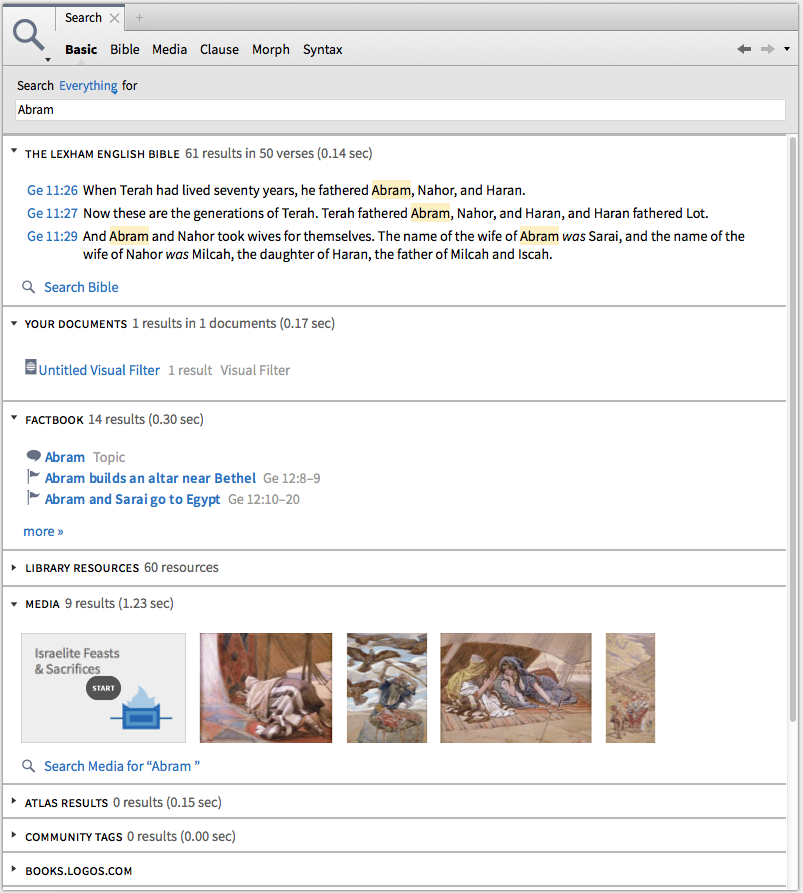
You can search across Bibles and commentaries and resources. Here are hit results, all of which are hyperlinked and can be explored for more, when I search everything for Abram:


L6 Search Everything Abram


The new Inline Search feature (watch it in action here) is pretty cool, too.


4. Ancient Literature / Cultural Concepts


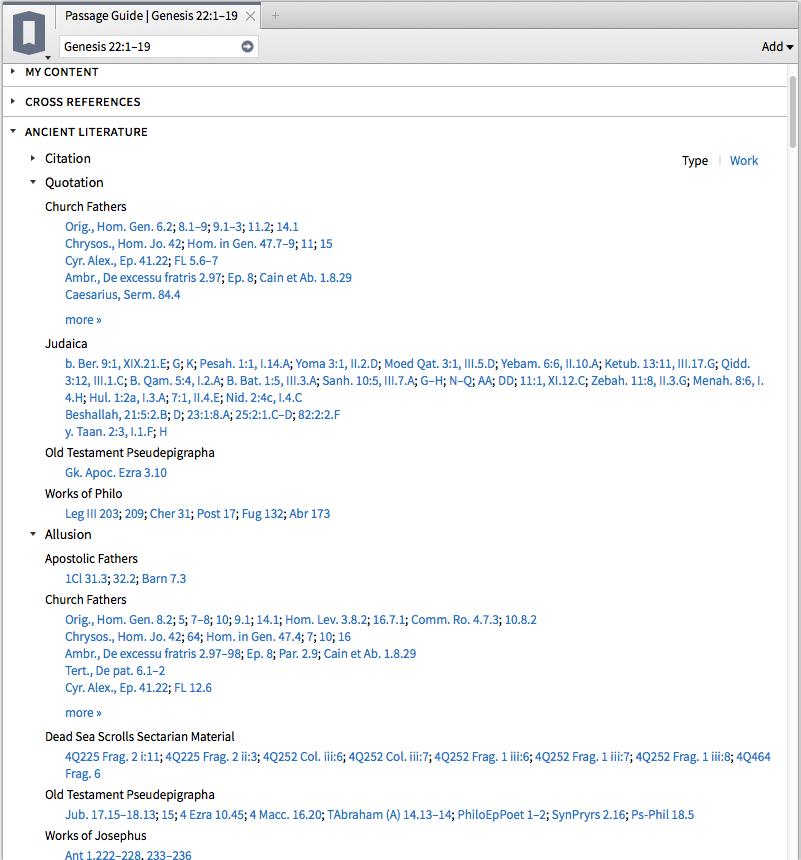
These are two new sections that can be accessed in the Guides (Passage Guide, Exegetical Guide, and Sermon Starter Guide is how I’ve gotten them). Have a look, and note that Ancient Literature is even sub-divided into Quotations, Allusions, and more:


L6 Ancient Literature


and:


L6 Cultural Concepts


Need for Speed


I run Logos 6 on an early 2008 iMac, but with a hard drive that’s been replaced in the last year. As a point of comparison, Accordance runs well on the same machine and returns search results quickly.

Logos’s lack of comparative speed on a Mac (even newer ones) improved between Logos 4 and 5. And you can see that the search times in the Search Everything query above are quite fast and impressive. However, it’s not uncommon even in Logos 6 for what I would consider a simple search to take 3 to 5 seconds (or more) to return results. The frequent Indexing and “Preparing Your Library” messages on startup are a pain that I really hope Logos pays attention to improving (or eliminating), especially for Mac users.

I do understand from the Logos forums that PC users and those with Solid State Drives see faster performance, but I would use Logos more often if it had consistently faster overall performance.


Interactives for Sermon Preparation


All that said, the Interactives alone (which are not sluggish) make Logos 6 worth the price of the upgrade. Sure, you can Google “Israelite Feasts and Sacrifices” and hope for the best. Or you can open the Interactive in Logos and see (and sort) this:


L6 Israelite Feasts


And this:


L6 Israelite Sacrifices


How to Get Logos 6


Check out Logos 6 here, and use the promo code ABRAMKJ6 when you checkout with for 15% off base packages.

Or you can click the banner below:


Logos 6


UPDATE: More on how to upgrade here.


Thanks to Logos for the chance to use Logos 6 as a beta tester.

Free (For Now) Time-Tracking App for iPhone and iPad

aTimeLogger2A solid time-tracking app for iPad and iPhone–aTimeLogger 2–is free for a limited time.

I’ve made some use of Hours (iPhone only), OfficeTime (iOS and OSX), and StopWatch Plus (OSX). Expect a report back. For now, you can download aTimeLogger, since it’s free at the moment, and see what you think.

Here is a list of features from the developer’s write-up:

– easy and intuitive interface
– goals
– pause/resume activities
– groups
– simultaneous activities (enable them in Settings)
– many statistics available in form of graphs and pie charts
– reports in different formats (CSV and HTML)
– backup and restore
– a huge number of icons for activity types and ability to upload custom icons
– the best support 🙂

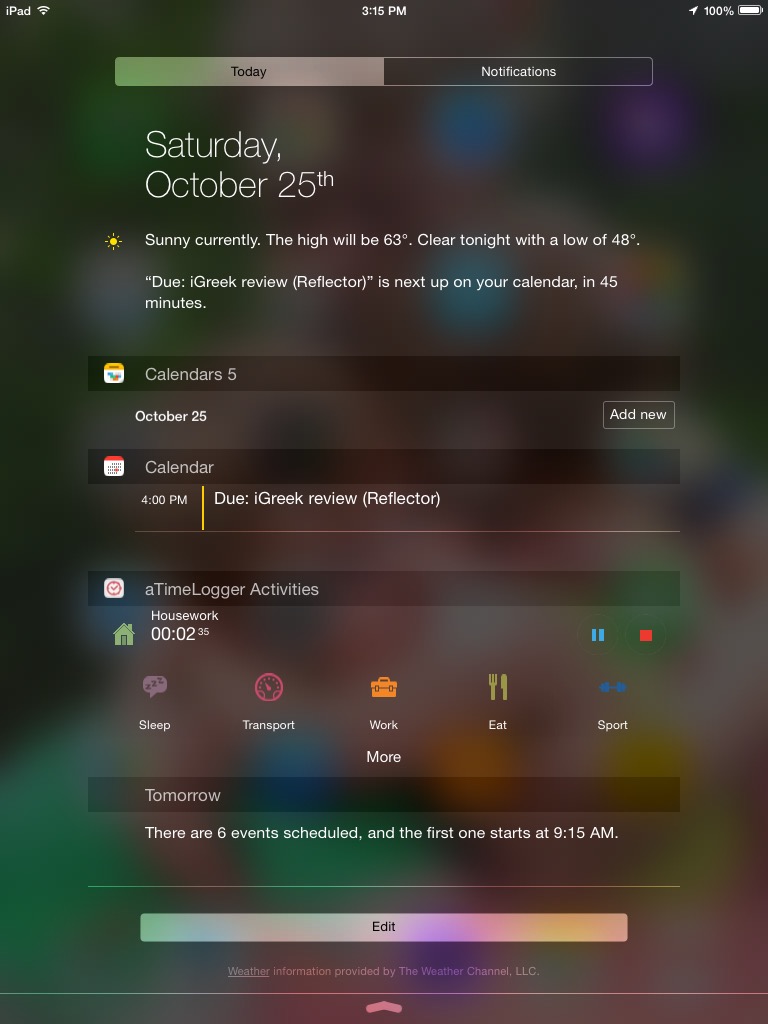
The layout is clean and the app fairly easy to figure out how to use. With iOS 8 aTimeLogger 2 introduced widgets so that you can just swipe down on your screen (without unlocking it) to update your time logs.

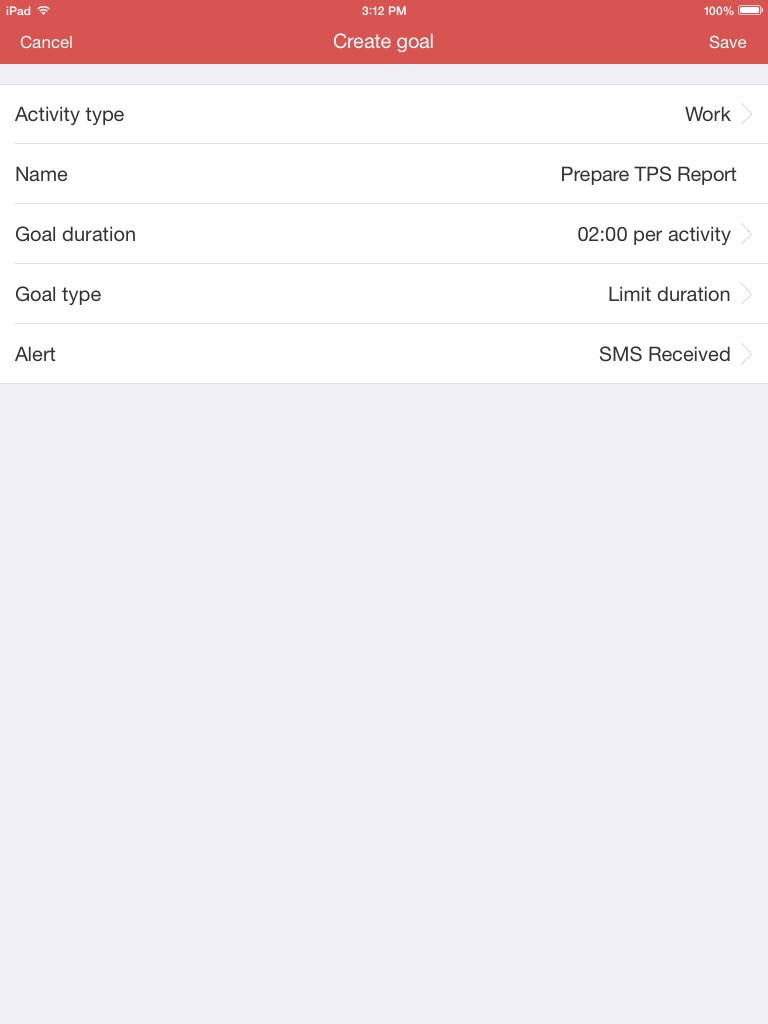
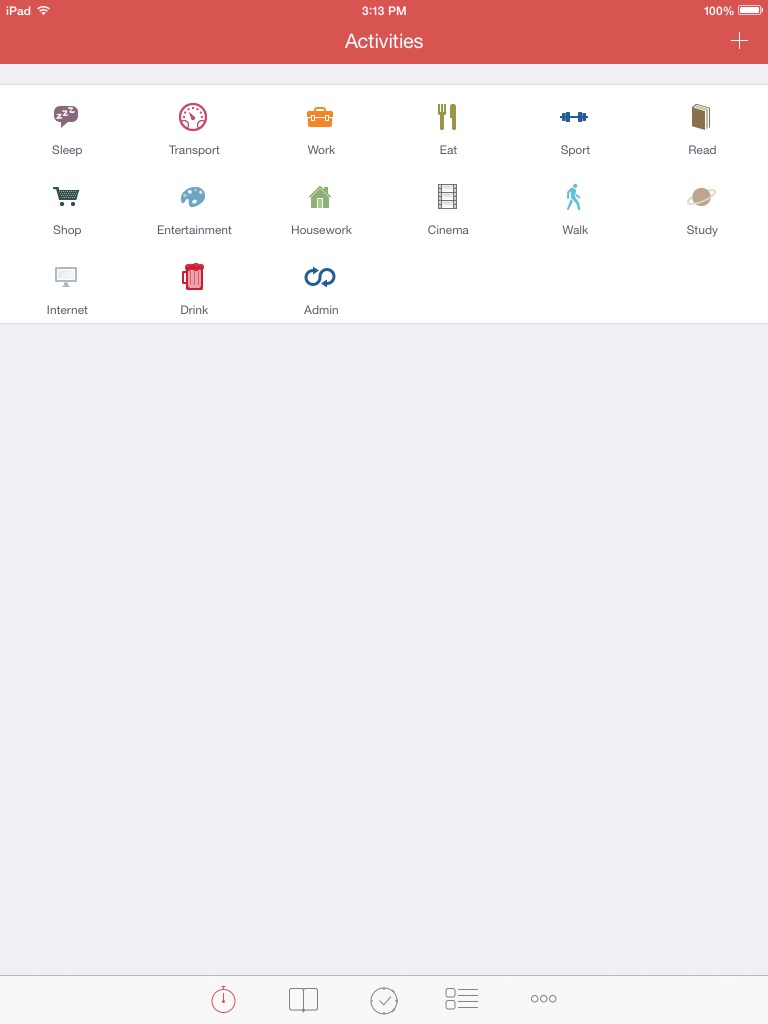
Here are a few iPad screenshots:


Create and Track a TPS Report Goal


Activities
Activities


Today View
Today View


Find the app for free (for now) here.


The developer(s) of aTimeLogger 2 kindly supplied me with a review license when it was a paid app.

Review of Morris Proctor’s Logos 5 Training Manual Set

Logos 5 Training ManualAs often as I use Logos Bible Software for personal study, preaching, and teaching preparation, I’ve found the easily digestible guides by Morris Proctor to speed up my learning process in ways that even regular weekly use can’t. When Logos 5 first released, I read and reviewed Proctor’s “What’s New?” guide. And in my review of Logos 5 Gold, I found that guide and his two-volume Logos Bible Software Training Manual to be immensely helpful, especially in explaining the newly released (at that time) Bible Sense Lexicon.

That two-volume set is now on sale for 50% off. The product page describes it:


  • Volume 1 covers the necessary features you need to know to jumpstart your mastery of this incredible Bible study tool. Includes 33 chapters and 220 pages.
  • Volume 2 picks up where Volume 1 leaves off. The additional sections (242 pages) continue to help you unleash the power of Logos Bible Software 5.


It’s kind of ironic that the best one-stop shop of a training manual for Logos in 2014 would be a print edition (which is not available in Logos itself), but I actually have appreciated having that format. (And it’s cheaper and easier to get to than seminars, though I’m sure those are useful, too.) Having the manual in print makes it easier to keep focused on the software as I’m trying out the things the guide suggests.

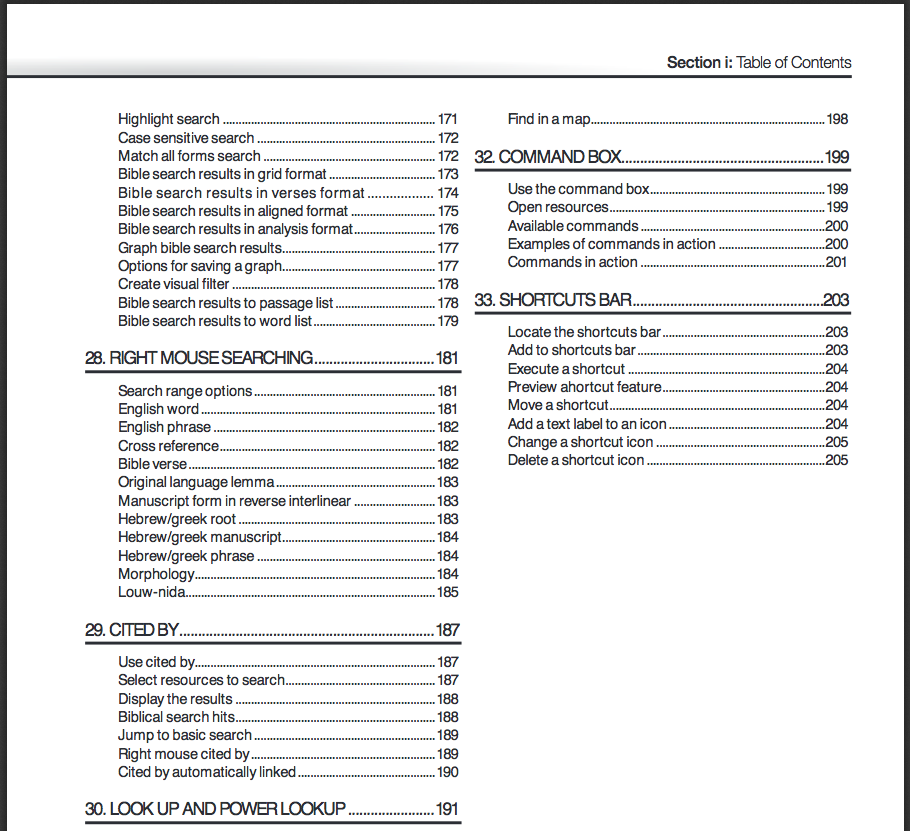
Just to give you an idea of the level of detail, here’s a snapshot of the Table of Contents for volume 1:


MP Seminars TOC 1


I felt at times when using the manual that the author was selling the product to the reader (“And there’s even more,” he notes on “Bible Searching,” and, “Those days are long gone,” he says about parallel printed editions of Bibles). I just chalked this up to his enthusiasm for the software, which is, indeed, an asset. (Though I still use plenty of books in print.)

Proctor’s explanations are clear, simple, and accompanied by screenshots that are well-labeled and easy to follow. The guides offer excellent attention to detail, including the suggestion of keystroke shortcuts to perform different tasks. Follow this link to see some of Proctor’s blog posts at Logos, which are similar in content and style to what’s in the manual. Having a spiral-bound binding is nice, too, because it means the books lay flat when set next to the computer you’re using.

You can check out a multi-page sample of the manual here, and find the product at MP Seminars’ site. Definitely recommended if you want to learn Logos 5.


Thanks to MP Seminars for sending me the two-volume Logos Bible Software Training Manual to review. See also my review of MP Seminars’ “What’s New” guide to Logos 5.

Never Make Another Keyboard Typo Again

TextExpander_icon


Next to OmniFocus and Accordance, TextExpander has become one of my most frequently open computer and iOS applications.

It’s not that typing is all that hard, per se, but there are some things (TextExpander calls them “Snippets”) that we tend to hammer out frequently on a keyboard:

  • An address
  • A signature
  • An out-of-office auto-reply
  • Directions to your house
  • Repeated typos!

TextExpander does just what its name suggests: it allows you to type text abbreviations that automatically expand into pre-selected text. So I can write “.omni” and my long OmniFocus task capture email address pops up instantaneously.

You can even have a Snippet include hyperlinked text and bold formatting. If I (theoretically) had become mildly obsessed with using OmniFocus to track all my tasks and projects lately, I might save the snippet “oomni” to expand to the following:

OmniFocus 2 allows for more complex project management. Projects and Contexts are a great way to break a bigger endeavor down into its component steps (Projects), or organize them according to the environs in which you do them (Contexts): Office, iPad, Computer, Errands, etc. The Forecast view shows you both appointment and tasks in one place. Or you can just make a quick entry in the Inbox, and then decide how to categorize it later.

(Note–the above paragraph came from the snippet.)

There’s also a wonderful “Accented Words” section so that I can always type résumé correctly (snippet is resume’) without having to remember how to type accents. There’s a nice “HTML and CSS” pre-defined set of snippets, too, which are useful in blogging, Website writing, etc.

The most amazing feature? You can create a snippet and then have the cursor positioned in the middle of the expansion. This could be useful, for example, when you’re citing the same source in a research paper, but need to just change the page number with each citation.

The Preferences let you make some nice customizations. Here are a few:


TextExpander Preferences


The iOS version–TextExpander Touch–is universally useful now that iOS 8 supports third-party keyboards. You can use it (via switching keyboards) in Gmail, text messaging (“;txt” can expand to mean, “leaving soon, home in five minutes”), and more. The keys don’t pop up/out as much as the regular iOS keyboard does; it’s not a very easy keyboard to type in. But if you’re not using it as a primary keyboard and are just typing your snippet abbreviations into it, it works well enough.


IMG_2126


And, conveniently, TextExpander on Mac and TextExpander Touch can sync all your snippets seamlessly and automatically.

Learn more about the Mac app here and the iOS version (for iPad and iPhone) here.


The folks at Smile Software kindly supplied me with a license of TextExpander and TextExpander Touch for the purposes of writing this review, but with no expectation as to its content.

5 iPad Apps I Use Every Day

Here are 5 iPad apps I use every* day:
 

Calendars 5 icon1. Calendars 5

Readdle‘s Calendars 5 seamlessly integrates both tasks and appointments into an aesthetically pleasing display. Moving things around and making new entries is really simple, too–just drag and drop or tap. Most of the time when I’m creating a task, setting an appointment, or checking something off, I want to do it quickly and with as few taps as possible. Calendars 5 makes that possible. View options on iPad are Tasks, Day, Week, Month, and Year. See my full review of the app here.

Calendars 5 has widgets in the iOS 8 “Today” view, so you can look at your day with a single swipe down on your iPad.
 

OmniFocus-for-iPad-10242. OmniFocus 2

This is the only app to make both this list and my 351 Words on 4 Mac Apps I Use Every Day. The integration of OmniFocus 2 on iPad and OmniFocus on Mac is tight. There’s a slight delay in the sync function (which uses Omni servers), but otherwise what I update in one place updates in the other. And, because I can link it to Apple’s Calendar and Reminders, which both sync with Readdle’s Calendars 5, the latter (see above) syncs quite nicely with OmniFocus. You can keep it updated easily via Siri voice commands, too.

OmniFocus 2 allows for more complex project management. Projects and Contexts are a great way to break a bigger endeavor down into its component steps (Projects), or organize them according to the environs in which you do them (Contexts): Office, iPad, Computer, Errands, etc. The Forecast view shows you both appointment and tasks in one place. Or you can just make a quick entry in the Inbox, and then decide how to categorize it later.

Read more about OmniFocus 2 for iPad here.
 

3. BlogPad Pro

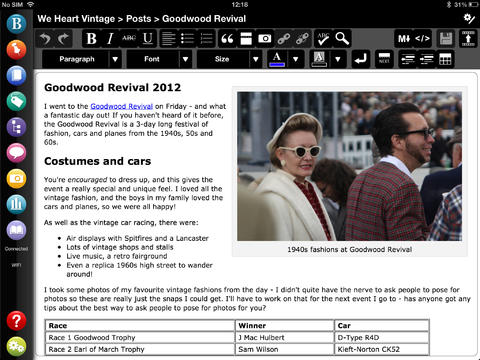
It still needs to be updated to work more smoothly in iOS 8, but BlogPad Pro is a far easier app to write a blog post on than WordPress’s own app. (Words on the Word is a WordPress blog.) You can start new posts, edit existing posts that you started on a computer, moderate comments, and check blog stats. The layout looks like the app belongs in iOS 6, but I actually sort of like that heavier look. Here are a few screenshots from their app page:


BlogPadPro 1


BlogPadPro 2


4. Mail

I haven’t really explored options for good third-party mail clients, but I like Apple’s native Mail app. There’s nothing flashy to it, but it is functional and easy to navigate.
 

5. Sky Force 2014

I’m not all productivity apps. The one iPad game I play is Sky Force 2014. It’s fun, challenging, and a great way to zone out. And… it’s free!


Time drain of choice....
Time drain of choice….


You might also like to read 351 Words on 4 Mac Apps I Use Every Day. Next I’ll post about the iPhone apps I use most.


*Disclaimer: Some days I don’t use the iPad mini at all, but when I do, the above are the first ones I tap on. Thanks to Readdle, Omni Group, and BlogPadPro for the review downloads of Calendars 5, OmniFocus 2, and BlogPadPro, respectively.

Nisus Writer Pro: The (2014) Kansas City Royals of Word Processing

No offense to Microsoft Word and Apple’s Pages, but neither one had really hit the spot for a go-to Mac word processor for me. Even after years of using Word, drawing a table or making columns seems harder than necessary. And the new Pages is clunky and seems like it wants to hide my saved documents from me.

KC RoyalsI started using Scrivener this summer, but, as Scrivener is the first to acknowledge, that program is not designed for tweaking the layout and final draft of a document. A number of Scrivener users I interact with recommend Nisus Writer Pro.

I’ve been using it regularly for about a month, and see no need to use another word processing program from now on. Nisus Writer Pro is to my word processing what the Kansas City Royals are to baseball right now: fresh, fun, powerful, and totally adept at getting the job done.

It’s a sophisticated program, with a lot of customization options I’ve barely begun to use. But the first time I used it I was able to almost immediately–without even reading the Help!–get my document to do the handful of things I wanted it to do.

So far, like the KC Royals, Nisus Writer Pro has a 1.000 winning percentage with me. Here are 6 things about NWP I really like, one for each of the Royals’ playoff wins as of the time of this post’s being published:


1. The layout is clean and easy to navigate right away


Check it out (click to enlarge):


NWP Document


At the very top of the screenshot you’ll see the Word Count in the footer (i.e., of every page). This is easy to set up–the Insert menu gives you the option to insert Automatic Numbers there, one of which is the word count, which I like to have in front of me as I whittle down my weekly sermons to something that will keep all of us awake.


2. Native file format is RTF


This means your NWP documents are fairly universal. You can open aforementioned Word (.docx) documents easily. Pages (.pages) is another story, but I think I’m over it.

One bummer (not Nisus’s fault): finding a good app for iPad that plays nicely with .rtf files is difficult, so I’m still looking for a consistent way to get from iOS to my Dropbox-saved NWP documents. (Textilus has been recommended; I’m working on getting that up and running now.)


3. The customizable palette groups get the job done


Setting up margins, headers, footers, even multiple-columned documents is easy to do via the palettes (the bar on the right of the document above). AND… you can create your own palette, customized with the tasks and functions from the Palette Library that you most use. Here’s one I created:


NWP AKJ Palette


You can also hide the palette so you’ve just got the document in front of you. Via palettes you control styles, font/formatting, tables, drawing, etc.


4. Bibliography made easy


One of the drop-down menus has an “Activate Bookends” command. There’s some nifty integration between that program and Nisus Writer Pro.


Strong, Fast
Strong, Fast

5. Support is strong


NWP’s User Guide clocks in at 500 pages. Yes, I read it all for this review–no, not really. But it’s an invaluable reference. Download it here. The staff I’ve interacted with is really great. And there are active user forums.


6. Nisus Writer Pro is fast


This late 2008 MacBook o’ mine is the little (computer) engine that could. But it’s slowing down. Word and Pages (sorry, Microsoft and Apple! I didn’t intend to use your products as foils) both run sluggishly sometimes on this machine, but Nisus Writer Pro never has. It starts right up, closes right down, and never is glitchy in between.


You can see a lot more of the features of Nisus Writer Pro here, where you can also download a free 15-day trial, while you await Game 3 of Royals vs. Orioles.


The folks at Nisus kindly supplied me with a license of NWP for the purposes of review.

7 New Features in Accordance 11

Acc 11_Simply Brilliant_logo


Accordance 11 has a projected release date of late October.

So far, via the Accordance Forums and their Facebook page, they have revealed 5 new features of Accordance 11 in advance of its release. (Actually 7ish, if you count a couple you can see in their podcast–see #6 and #7 below.) I use Accordance nearly every day, so expect a full review of 11 when it comes.

Everything in this post comes from something Accordance has publicly mentioned or shown; I have no insider info about new features, and if I did, I wouldn’t blog it anyway. 🙂 But, read on….


1. New categories for organizing Tools

As Accordance puts it, “23 new and useful categories for your books for better organization and easier access.”


23 Tools Categories


2. “Search All” has changed to “Research”

A forum post by a staffer cryptically says, “Search All is now Research, but the biggest difference can be found in the results!” See photo here. UPDATE: It’s no longer cryptic. Check this out.


3. Selective Easy Install (i.e., install only what you want)

This gives the user at last “the ability to selectively choose which titles to install from Collections or bundled titles.” See here for a screenshot.


4. New Collections

Here you can compare what’s in the new Collections. You can upgrade now, with the promise of a download of Accordance 11 when it’s ready.


5. Custom Upgrade pricing

An Accordance blog post explains clearly here how the new upgrade pricing system works.

And Dr. Tim Jenney shows off the new Collections in this podcast:


6. Take your own notes on Tools

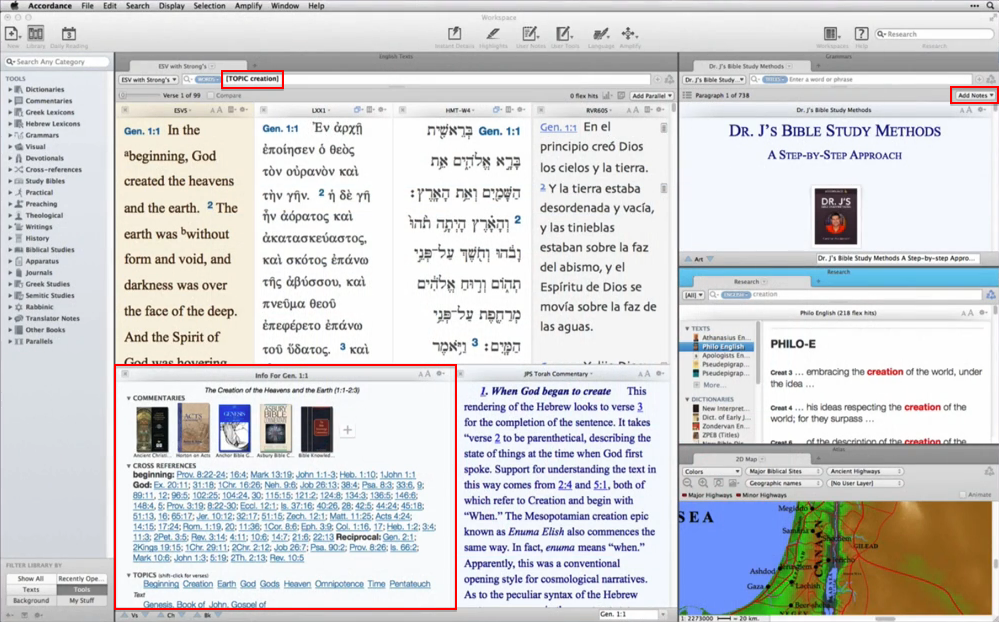
It would appear from Dr. J’s setup in the podcast above that users can now take their own notes on Tools (commentaries, books, dictionaries, etc.). This has not been possible so far in Accordance. It’s a welcome addition.


7. Some kind of verse-by-verse passage guide

Logos has a Passage Guide (at least since Logos 4) that helps you quickly see all your resources that correspond to the passage or verse you are studying. It appears from Dr. J’s setup that Accordance 11 will introduce something similar. Can’t wait to see it–given how good Accordance programmers are at writing code, I’m sure it will move very quickly with the user through a passage.


Here, by the way, is a screen grab from the podcast, highlighting some of the above–the “TOPIC” search Dr. J’s Workspace has seems keyed somehow to the passage guide (or whatever Accordance will call it). It’s low-res, so go watch the first 30 seconds of the podcast in HD, pause it, and see for yourself.


Acc 11_Dr. J Workspace_New


More to come….

Calendars 5: A Better Calendar App for iPhone and iPad

Calendars 5At first I scoffed a bit at the idea of another calendar app for iOS. What’s wrong with Apple’s native “Calendar” app?

Well, it’s a fine app, and it gets the job done. You can sync your schedule across multiple devices–it’s how my family keeps our days and weeks organized. I add an event and it populates in any other place that my wife or I would check it.

Its interface feels a little less streamlined or smooth than one would like, but a calendar app is a calendar app, right?

Well, yes, for the most part. But Readdle’s Calendars 5 app is even better than the Calendar app that comes pre-installed on every iPhone and iPad. Look at this:


IMG_2039
Calendars 5 in iPhone


(Independence? We celebrate it twice around here.)

If I had a lot more events on June 28, I would simply swipe right gently to reveal them, while the whole rest of the screen/week would stay in place. This is the Week view, the one I use most often. There are also Tasks, List, Day, and Month views. You can easily tap (or just drag and drop) your way into creating new items or making schedule changes.

What is the Tasks view, you ask? It’s anything in your Reminders app! So from your calendar app (without switching to another app), you can see your tasks. (Integrated work flow is the only way to really get stuff done effectively, I think.)

You can even see on June 28 above: Calendars 5 combines appointments and tasks into each day, so you can easily keep track of everywhere you have to be and everything you have to do.

Once you set up sync (also very easy), anything that you change in Calendars 5 also updates in your iCal/Calendar app (and vice versa), and any task you add here updates in your Reminders app (and vice versa). This means you can say, “Siri, remind me tomorrow to…,” and if you it synced, the reminder shows up in your calendar view right in Calendars 5.

It never occurred to me that I’d have less mental clutter by using a single mechanism (app) to track appointments and tasks. Maybe I sound overly ebullient, but… this is a really sweet app. You should get it if you can.

Thanks to the folks at Readdle for the gratis download codes for the review, given with no expectation as to what I’d write. Though now that I’ve used Calendars 5, I’d pay for it if I had to. It’s been that helpful to me–and it looks really good, too.

You can get Calendars 5 here. $6.99 may feel like a lot for an app, but you get it on both iPad and iPhone (and they sync), so if you rock both devices, it’s like two-for-the-price-of-one.

Calendars 5 is also part of Readdle’s Ultimate Productivity Bundle, which includes PDF Expert 5 (I like that app, too–see my video review here). The Bundle comes with the elegant Scanner Pro and Printer Pro, that lets you print wirelessly from your iOS devices. See the discounted Bundle in action here, and check out purchase information here.