I’m fortunate to be a Scrivener iOS beta tester. The iOS version of the app is coming soon, and it’s looking great. I just used it, in fact, as my primary writing app during a writing week I went away for. Not a crash in sight.
I’m sworn to secrecy, but I believe I can say that those of us using Markdown on iPad and iPhone because we had to will be able to move back into rich text on iOS full time.
I have also at long last completed the paperwork to become a Scrivener affiliate, which means that if you or a friend purchase the app through the below links, this blog gets a 20% commission (at no extra charge to you).
I write about Scrivener here and here, if you need convincing.
I can also say, since the developer publicly has, that Scrivener for iOS runs on iPads and iPhones, supports multi-tasking, and features Dropbox sync between iOS and OS X.
While you wait for the iOS app, here are the links for purchasing Scrivener
I have just become aware of Annie Dillard’s funny and smart little book, The Writing Life. She perfectly captures the ebb and flow–the exhilaration and desperation–that awaits any writer who is serious about putting life to paper.
I’ve only read one chapter so far, but look how it begins:
When you write, you lay out a line of words. The line of words is a miner’s pick, a woodcarver’s gouge, a surgeon’s probe. You wield it, and it digs a path you follow. Soon you find yourself deep in new territory. Is it a dead end, or have you located the real subject? You will know tomorrow, or this time next year.
If it is this way for Annie Dillard, I have hope as a writer, too.
Dillard knows the paradoxes of writing, and will help the writer to not feel insane, if only by acknowledging the (hopefully temporary) insanity of all who try to write a book:
Writing every book, the writer must solve two problems: Can it be done? and, Can I do it? Every book has an intrinsic impossibility, which its writer discovers as his first excitement dwindles. The problem is structural; it is insoluble; it is why no one can ever write this book. Complex stories, essays, and poems have this problem, too–the prohibitive structural defect the writer wishes he had never noticed. He writes it in spite of that. He finds ways to minimize the difficulty; he strengthens other virtues; he cantilevers the whole narrative out into thin air, and it holds. And if it can be done, then he can do it, and only he. For there is nothing in the material for this book that suggests to anyone but him alone its possibilities for meaning and feeling.
One more:
Write as if you were dying. At the same time, assume you write for an audience consisting solely of terminal patients. That is, after all, the case. What would you begin writing if you knew you would die soon? What could you say to a dying person that would not enrage by its triviality?
If this piques your interest, Brain Pickings did a lengthier post about this miraculously true book here.
Now that your Field Notes: Sweet Tooth Edition have arrived (and they do not disappoint!), what are you going to put them in? Your pocket, of course. But unless you’re wearing chaps, you can’t put your notebook into your pocket and into leather at the same time.
Well, actually you can. And there’s hardly a better way to do it than with Popov Leather’s perfectly constructed and reasonably priced Leather Field Notes Cover. Popov has a wide array of leather covers (here). In this post I review the Driftwood leather cover with pockets ($49). You can protect your pocket notebooks, make them smell good, have pockets in your pockets, and avoid chaps–all with one piece of gear.
The packaging, if I may quote Kendrick Lamar, is A1:
It looks great out of the wrapper–there’s even a personalization option:
The only lack I could perceive in this top-notch piece of EDC gear is a place to easily keep a pen. (And maybe, too, a way to keep the notebook shut, but it stays flat and closed on its own just fine.)
I made a slight modification to mine so I could have a pen with it at all times:
Inside on the left are two card slots for credit cards, cash, business cards, driver’s license, and so on:
When you order, you can select the color of thread–the blue pops, but not too much. It looks great.
And if you haven’t gathered already from the images above, the stitching is flawless (and done by hand):
Already the leather is softening and getting a distinctive look. What kind of leather, you ask? Horween’s Chromexcel, of course. And have I mentioned how detailed the Popov Leather site is? Lots of makers are using Horween, but why? Popov tells you.
I’ve got two use cases for this notebook cover that have worked really well.
Setup the First: Into the left slot goes the notebook I use for weekly meal menus and handwritten recipes or food prep notes. The right slot holds the notebook I use for shopping lists. (I know… that’s getting a little specialized on the Field Notes.) But then I can keep grocery store receipts in the card pockets and have everything in one place, which helps not just with long-range menu planning, but also budget tracking.
Setup the Second: Daily note-taking with more catch-all pocket notebooks. Card pockets for little notes and other scraps of paper.
So this one is a winner. A Popov Tweet suggests a pen loop may be in the works for future editions, but Field Notes covers with loops are the rarer breed anyway. Bonus: you get a free Field Notes notebook inserted into the cover.
The look, feel, smell, and craftsmanship of the Driftwood Leather Field Notes Cover are about as good as it gets. Check it out here.
Thanks to Popov Leather for sending the Driftwood cover for the purposes of the review. Their kindness in sending the sample did not keep me from an honest and objective assessment in my review. I also cross-posted this review at the new Words on the Goods.
The full-featured writing app for Mac and Windows is at last on its way to iOS, soon to enter beta testing.
Here are some interesting details from the developer:
Scrivener for iOS will run on most iOS devices – the only requirement is that it can run iOS 9 and above.
It runs on iPhones as well as iPads (although certain features that require more space—such as the corkboard—are iPad-only).
It supports the multi-tasking features of the iPad Pro.
Scrivener for iOS will not support iCloud (at least for now) – syncing will be done via Dropbox. I’ll write a post explaining why soon. (You’ll be able to leave your desktop project open while you’re off using it on your mobile device, though.)
The rise of the brilliant app 2Do notwithstanding, I continue to utilize OmniFocus as my task management hub. I was eager, then, to try out The Omni Group’s outlining app, OmniOutliner.
Think of OmniOutliner as a thought structuring app, suitable for both creating and organizing content. You can use it for any of the following scenarios:
making a grocery list
taking notes in class
writing a paper (and re-arranging sections easily)
planning and following through with a project
tracking and categorizing expenses
writing and editing your podcast script
There are multiple other uses for the app–I’ve made good use of it in sermon preparation, as you’ll see below. Right away the Mac and iOS apps take you to a templates screen so you can get started without delay:
On this and all images in the post, click or tap to enlarge
What’s Awesome About OmniOutliner
Getting content into OmniOutliner is fairly easy. It’s not as intuitive as just opening a blank Word document and typing, but it’s simple enough to open an outline and start writing.
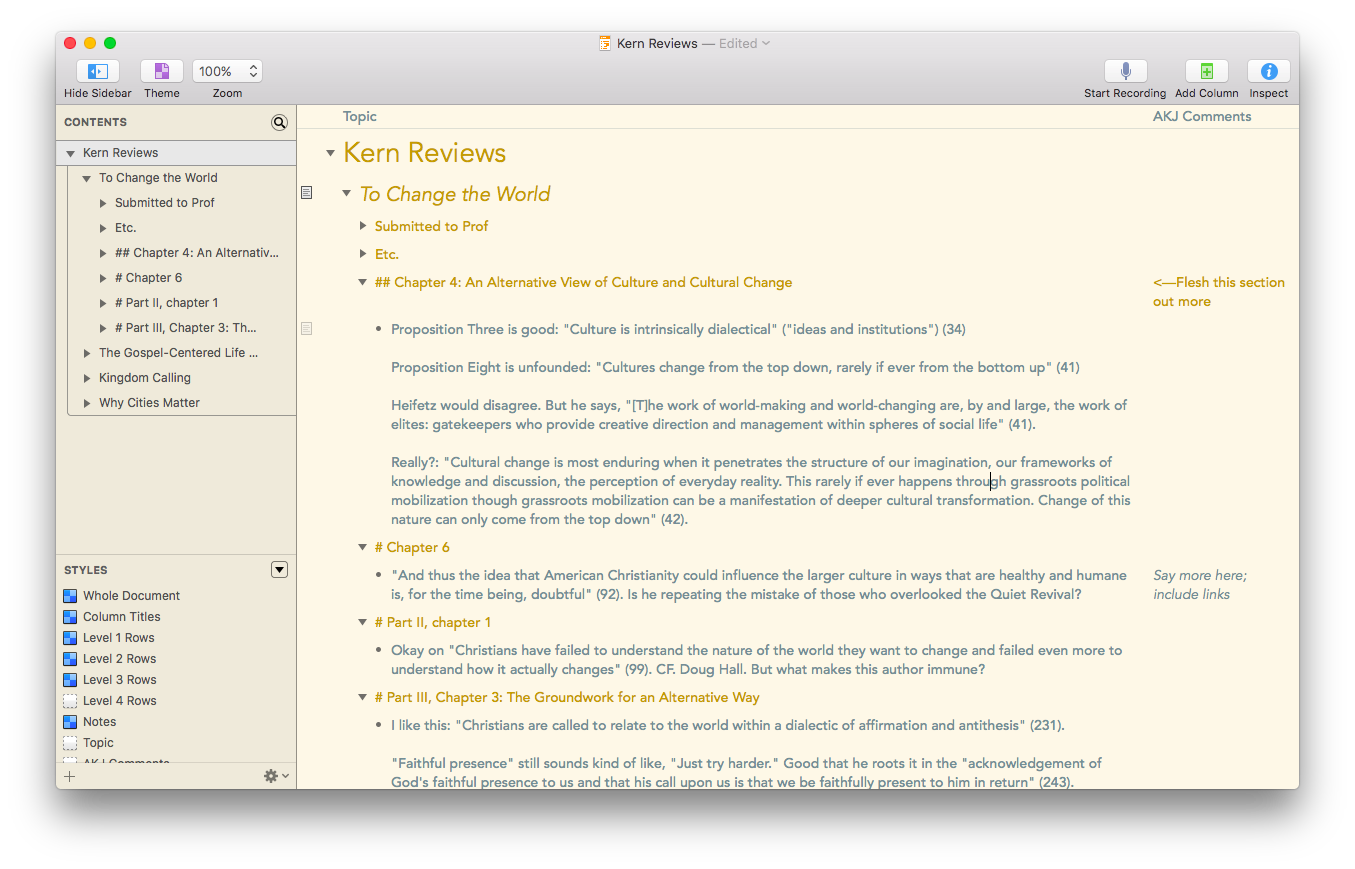
Once you’ve gotten your outline going, being able to fold and unfold (collapse and expand) entire parts of the outline is a huge asset. If I’ve broken a book review down into parts, for example, I can just collapse the sections I don’t want to see at the moment:
Then there is the organizing power of OmniOutliner: you can take any node and indent or outdent it. You can drag sections of the outline around to quickly re-order them. And you can make batch edits when selecting multiple parts of your outline.
Perhaps the most helpful feature to me has been the ability to add notes to content, which you can then either hide or show. In this simple outline, I’ve set the note at the top to display (in grey), while the one toward the bottom remains hidden.
You can show the sidebar, which allows you to move back and forth between a lot of content in one outline. When preaching on David’s odious sin against Bathsheba and her husband, I utilized an outline that included both my sermon structure and accompanying research. You can see that reflected in the sidebar, at left, even while my Topic column could remain focused on a smaller portion.
You can add media (audio recordings and video) to your outline. Your files would be huge, but if you wanted to use OmniOutliner for classroom notes, you could also add a live recording of the session, straight into your outline.
And then there is the styling. My goodness. You can tweak every aspect imaginable of your outline.
I found this feature set to be impressive but overwhelming. For my purposes, I didn’t need to do a whole lot by way of formatting, but the options are there should you need them.
To that end, the help files for OmniOutliner are incredible. So is their support team! There are user manuals you can download in multiple formats, and they are outstanding. In a couple of sittings, I read some 100 pages of the iBook version of the OmniOutliner for iOS manual. Yes, it was that interesting! Other app developers should take notes.
OmniOutliner is also available as a universal iOS app, working on both iPhone and iPad. You can sync across devices using Omni’s own server or your own.
The keyboard shortcuts available for iPad make OmniOutliner a serious contender for best writing app for those who are trying to make a serious go of it on iPad instead of computer. Omni Group’s Ken Case announced the shortcuts last November.
This means that the iOS OmniOutliner app is close to parity with the Mac app. This rarely seems to be the case with other apps, where iOS versions tend to lag behind their desktop counterparts.
OmniOutliner has had Split View and Slide Over in iOS for just about as long as iOS 9 has been released.
One other really cool thing: you can import the OPML file format from a mind map to move from mind mapping straight into OmniOutliner.
If that workflow interests you, read more about it here.
What’s Lacking
A few things are lacking in OmniOutliner:
I’ve experienced a couple of crashes when exporting my outline to other formats
The precision and plethora of styling options makes the app feel wooden and clunky at times, especially when you want to just sit down and write
If I want constant access to, say, a section of text in the second half of my outline, while I work on the first half, there is no way to split the screen or freeze a section so I can see easily disparate parts of my outline at once
There is no word count feature (!). Omni has indicated this could come in 2016, but not having it has kept me from making OmniOutliner my go-to writing app
(Note: if you have OmniOutliner Pro for Mac (twice the price of the regular OO), you can go to the forums for an AppleScript that will help you with word count, but this is more than the average user should be expected to do.)
More Info
Byte for byte, OmniOutliner is worth your considering as your primary writing app. If you don’t need to be as structured with your writing, it may not be your top choice. Its integration across iOS and OS X, though, make it a possible go-to repository for collecting and organizing information.
You can find out more about OmniOutliner here and here.
Thanks to the fine folks at The Omni Group, the makers of OmniOutliner, for giving me downloads for the Mac (OmniOutliner Pro) and iOS apps for this review. See my other AppTastic Tuesday reviews here.
“How do you discern an addiction?” Richard Foster asks. “Very simply, you watch for undisciplined compulsions.”
I’d add, watch also for things that enable those compulsions.
If checking a tiny screen is a compulsion, notifications enable the habit.
In my case, I chose to delete Facebook off my phone altogether, but still having an account led me either to (a) check it through a mobile Web browser or (b) re-download the app to my phone. And Facebook for me, was not worth working toward the discipline of even limited interaction. Why not just be done with it and spend my time on other things? So I am finding other ways to stay in touch with the friends and family members that constituted my final reason for remaining on that platform.
* * * * *
But I still experience a desire to check my phone–for something. I could never not have an email account, and I use text messaging too often to go back to a ground line alone. And I am out and about enough that Google Maps and Safari are useful to me when on the go.
What about notifications?
I was in the working world way too long before I realized that (a) you could turn off new email notifications in Microsoft Outlook and (b) you could close Outlook and open it only when you wanted to check email. I know. Novel ideas.
They apply to the phone, too. You don’t need email notifications on your phone–you can turn off sounds, lock screen notifications, and badge app icons, so that you only know if a new email comes in when you are checking at a designated time. That way you don’t have to resist the urge to see what new email just came in while you’re changing lanes on the highway! The compulsion-enabler that is a notification won’t even be there.
Same thing with text messages–it’s rare that you’ll receive an urgent cry for help via text or email, so make sure your phone ringer is on, and put some or all text messages on Do Not Disturb. You can still keep your badge app icon on, so that if you have gone a whole two hours without texting and can’t stand it anymore, you can simply look at the icon on your screen and see if you’ve gotten anything new. But we don’t really need a noise or vibration every time one comes in.
So, too, with other apps–I’m glad to know, Ebay, that there are new items available for bidding that match my saved search, but can’t it wait? That notification–whether it’s a banner or a badge app icon I MUST PROCESS AND CLEAR OUT–is unnecessary.
* * * * *
If I may be so bold as to advise you, reader: allow yourself to go through your apps. Which ones do you really need notifying you there is something new, and which ones merely enable a compulsion to check your phone? And, most of all, relax–you can always pick up the phone to check anything you need to at any time. But with notifications at bay, you will start to experience the constant device checking less and less as an undisciplined compulsion.
* * * * *
Stay tuned for more related confessions and reflections:
On Facebook, Off Facebook, On Twitter, Off Twitter… On Instagram
Taking Email Off Your Phone (Mostly)
Why I’m Taking the 16 GB iPhone Upgrade over 64 GB
Pre-Dinner, Child-Induced Frenzy and My Escape Screen
It took my quitting Facebook to realize I have an iPhone addiction.
I’ve quit Facebook in the past, signing off with an epic status (soon to disappear, of course) that detailed why I was leaving. It’s not you; it’s me… but also you. I wasn’t intending to be pietistic. It’s just that it’s difficult for the “Why I’m Quitting Facebook” line-in-the-sand not to come across as a little holier-than-thou.
So the last time I quit—and I trust it really is the last time—I didn’t comment on it. I don’t even remember if I had a “Here’s my email” post—I just sort of left.
I’d taken the Facebook app off my iPhone at least a dozen times—only to re-download it again within a few days each time. It’s so inefficient to look at a tiny, few-inch screen and just keep swiping through. I could see more of my News Feed (or whatever they call it now) way faster on a computer! But the phone was so handy, and the Facebook app—as poorly developed as it is—was just a-reach-into-the-pocket away.
* * * * *
No, I didn’t go through Facebook withdrawal. That social media platform is actually pretty unremarkable, my wonderful friends and family members notwithstanding. It’s just that I was right back on my phone, now flicking through my Twitter feed.
If you read the tech pundits long enough, you’ll wonder: How is Twitter even in business anymore? But leaving Facebook made me latch on to that bizarre platform even more tightly.
It got even worse once I downloaded Tweetbot. (This is usually the point in my blog post where I give you an App Store affiliate link, on which I earn approximately 0.00000000000001% commission, but nobody needs to be on Twitter more, and the App Store is an enabler, so I eschew the hyperlink.)
Tweetbot allows you to set up adjacent columns, each of which can be a curated list of folks you follow on Twitter. How fun it (really) was to check out all my “Writing Implements” people on Twitter and see what they had to say about fountain pens. And my “App Developers” list? Those folks are hilarious—some of the best social commentary (especially about Twitter-the-company) that you’ll find anywhere.
But I had simply replaced Facebook with not-quite-but-still-kind-of-Facebook, and then started spending even more time on Twitter.
* * * * *
The same process followed—delete Tweetbot off the phone, check it on the computer. Re-download it to my phone since I was accessing it on the computer anyway. Get frustrated with myself. Check Twitter to assuage the feelings of Twitter-induced guilt. Etc.
So I finally gave up browsing Twitter for Lent. Tweetbot is gone, and I only still have my Twitter handle because this blog automatically Tweets with a link to a new post. I’m otherwise not on it, for the most part.
“How do you discern an addiction?” Richard Foster asks. “Very simply, you watch for undisciplined compulsions.”
You know you’re addicted to your phone when you delete one social networking app and—within a day—your compulsion to just check something leads you to replace it with another.
* * * * *
Stay tuned for more related confessions and reflections:
On Facebook, Off Facebook, On Twitter, Off Twitter… On Instagram
Notification Weaning
Why I’m Taking the 16 GB iPhone Upgrade over 64 GB
Pre-Dinner, Child-Induced Frenzy and My Escape Screen
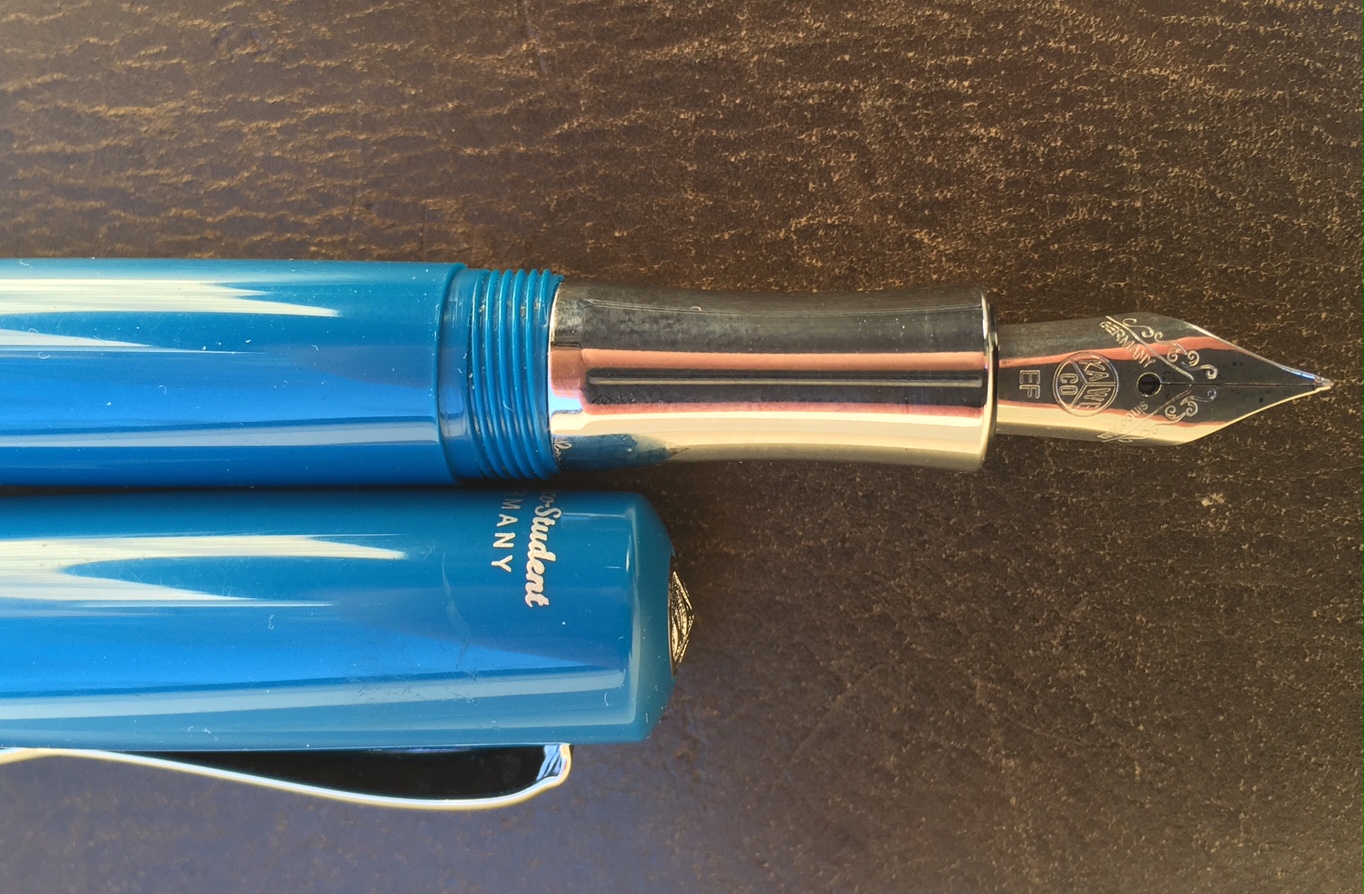
Ah, Kaweco: The German writing implement company is almost a century older than I am, yet I just learned of them this last year. Now in addition to my review of their SKETCH UP pencil, I bring you a review of the Kaweco STUDENT Fountain Pen. The color of the pen is Vintage Blue; the nib is Extra Fine.
The STUDENT Fountain Pen’s Construction
The STUDENT Fountain Pen feels just about perfect in the hand–ballpoint pen writers will find it to be of suitable length. It’s sturdy but not heavy.
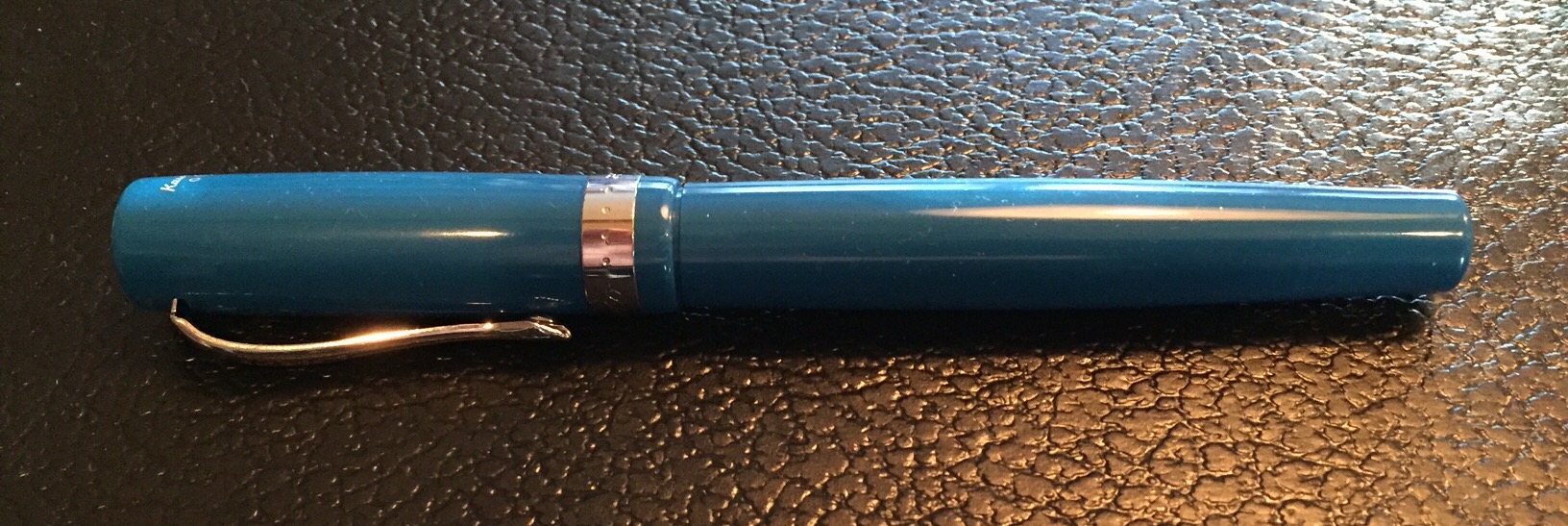
And it looks great:
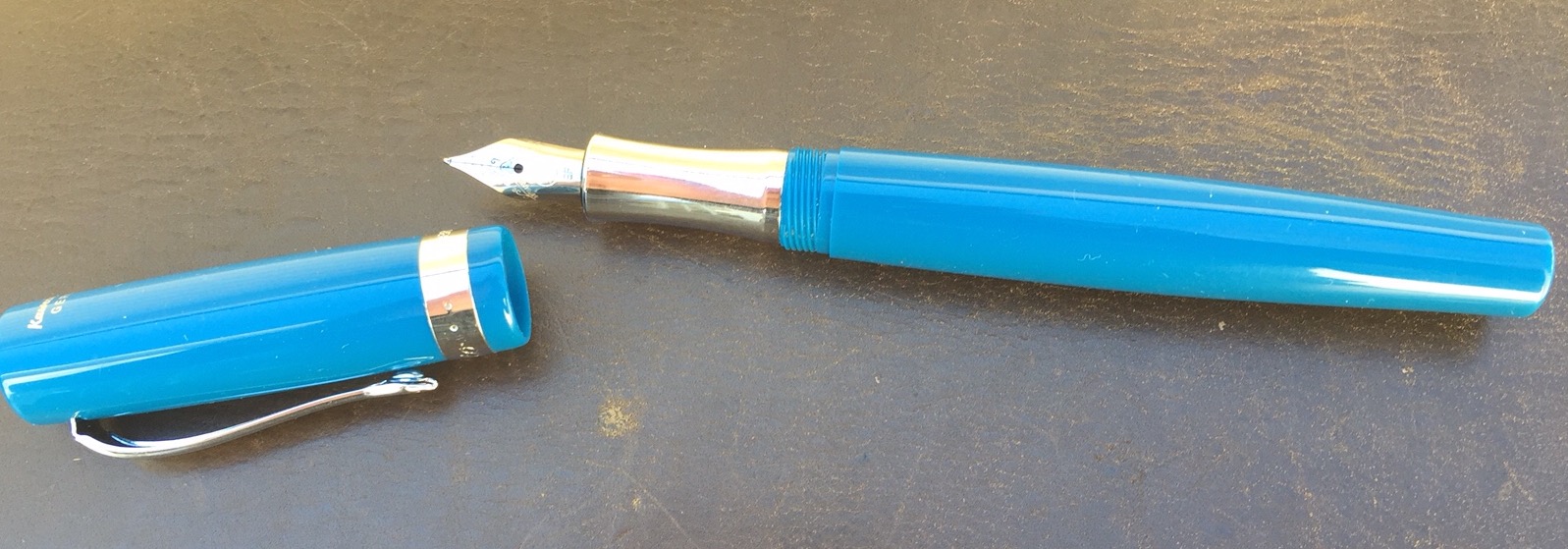
Here it is with the cap off:
It can fit just fine into a pants pocket, though you may not want it bumping up against your keys. (I prefer a case for my fountain pens.) You will notice in the image above that there is a built-in clip. The vintage blue color and silver clip make it look really good in a front shirt pocket–and it will stay there, too.
Writing with the Pen
I’m still new to the world of fountain pens, but I do know that even flow in fountain pens is not a given. With the STUDENT pen it’s all smooth sailing. This particular pen ships with royal blue ink, which looks fantastic. It’s easy–even for fountain pen neophytes–to buy and pop in ink cartridge refills.
As to using this pen posted or unposted (i.e., with the cap on or off), I suspect the intention is to use it however you prefer. The downside to keeping the cap off, of course, is that you might lose it! With the STUDENT fountain pen, long periods of writing might call for keeping it unposted, so as to slightly reduce its weight.
Finally, I passed the pen over to a fellow fountain pen user for this thoughts:
Nice, even ink flow. The pen is amply sized. I have medium to large hands and found that when the cap was posted the feel was hefty but comfortable and well-weighted. A smaller hand could use the pen unposted. I liked the rich blue of the barrel. Not gaudy, but also not muted.
You can check out Kaweco’s STUDENT fountain pen line here. (This pen is Item #10000781, and came with a nice tin gift box.) And if you are so inclined you can order the STUDENT pen via JetPens or Most Wanted Pens.
Many thanks to the fine folks at Kaweco for the pen for review! Check them out here.







 Words on the Word