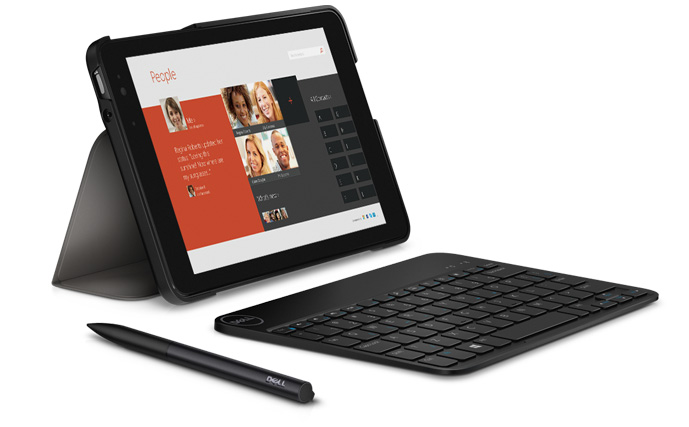
A Review of the Dell Venue 8 Pro Tablet


Image via Dell
Image via Dell


I’ve been impressed by the Dell Venue 8 Pro in my use of it these past few months. I recorded my initial impressions here.

This post completes my two-part review of the device by way of a three-question Q and A session. (Leading up to this review I’ve benefited from conversations with R. Mansfield, who knows the Dell Venue 8 Pro–hereafter, DV8P–well.)


How Does the Dell Venue 8 Pro Compare to an iPad?


See… I knew you were going to ask that question! Here are five points of comparison.

First, the iPad still does not allow the user to view and use more than one app on the screen at a time. Why this continues to be the case is unclear to me, but the DV8P lets you have two apps open at once. So you can read an article from your Facebook feed without leaving Facebook. Or you can go to a Web link that pops up in a Kindle book you’re reading, while not having to leave and then navigate back to the Kindle app. Advantage: DV8P.

Second, the DV8P is more compact than a full-sized iPad, but close in dimensions to the iPad Mini. The DV8P is longer and skinnier, by a little bit. Its 8-inch screen size (measured diagonally) just edges out the iPad Mini’s 7.9 inches. To hold it feels about the same as the iPad Mini, though. Advantage: Both.

Third, the Dell Venue Pro is both tablet and personal computer. You can use it as both. You can run full-on Windows programs from the Desktop side, which Apple’s iOS on iPad does not permit.

I love being able to access full-bodied programs on this little tablet. Much as I appreciate Accordance’s iOS mobile app, for example, being able to use the full desktop version–but not having to be at a desktop or laptop–is awesome. Advantage: DV8P.

Fourth, the gesture-based interface of the iPad gives the user more options. Or is more intuitive. Or something. I know “intuitive” is a fuzzy word in software and hardware reviews. Of course, I’m way more used to an iPad than the Dell Venue Pro, but the former is easier to just pick up and tap and swipe your way around. Advantage: iPad Mini.

Finally, battery life on the 8 Pro leaves something to be desired, especially in comparison with the iPad Mini. Battery life when the device is in use is fine, but it does not hold charge very well when it idles/sleeps. If I put the tablet to sleep with full battery life, don’t use it at all for a couple days, then come back to it, it’s completely out of charge. I’ve never had this issue with the iPad mini. (And I’m not the only DV8P user to notice this, either.) Advantage: iPad Mini.


Does it Replace a Computer?


Because you have the computing capabilities of a desktop computer in your hands, one could think about the Dell Venue 8 Pro as a possible replacement for a computer.

With the loaner review unit Dell sent me, they also included a stylus (with a responsive point) and a keyboard. Each of these are essential companions when using Windows and navigating full-bodied programs like Word or Accordance or whatever else. (Not the least reason for which is that the touch points on Windows apps are too small for even tiny fingers.)


Accordance
Accordance on the DV8P (click or open in new tab/window to enlarge)


Being able to use–on a portable tablet–programs/apps that you could until now have to get to a desktop or laptop to use… is really sweet. If you don’t want to be limited by Android’s environment or iOS apps, the tablet-as-computer could make sense.

However, a limitation is in the memory size. The Dell Venue 8 Pro comes in 32GB or 64GB models, but even the latter is too small to make this your one-and-only computer (think: lots of images and movies stored). The Dell Venue 11 Pro model, however, has a hard drive up to 256 GB, which is definitely workable for making the DVP your only computing device.

Speaking of, here are the specs of the machine (compared to the 11) from Dell:


Screen Shot 2015-04-28 at 9.47.25 PM


Does Abram K-J of Words on the Word
Recommend this Device?


I would be too tied to the Apple app ecosystem to be able to move all my work over to the DV8Pro, much as I like the device. I’d have no way to run OmniFocus, for example. Or Nisus Writer Pro. I could easily still access Evernote, and other such apps.

But if you’re already rocking in the Windows free world, with no Mac or iOS-only apps to consider, this small but powerful device is worth looking into. (I can’t say from experience how it compares to the Microsoft Surface.) It’s reasonably priced, too. And while I experienced more learning curve with the Dell Venue 8 Pro than I did when I first picked up an iPad, after a while it becomes intuitive, and convenient to have more computing power than one would expect in a tablet.


Thanks to the fine folks at Dell for loaning me a Venue 8 Pro 5000 Series Tablet to test for the review. Check out the Dell tablet page here.

Big-Time Deals on NIV Application Commentaries (NIVAC) in Accordance, Logos, and Olive Tree

NIVAC Accordance sale


Zondervan’s NIV Application Commentary series is on mega-sale, with each of the ebooks selling at $7.99 in Accordance, Logos, and Olive Tree.

I really liked Psalms vol. 1 in this series. The Genesis, Luke, and Galatians volumes were stand-by commentaries when I preached through those books, too.

Here is where you can find more details on the sale, which Zondervan rarely offers in any other e-format than Kindle:

Accordance // Logos // Olive Tree

Book Review: Jesus, the Temple and the Coming Son of Man

Mark 13 is one of the most difficult chapters of the Bible to interpret and understand. From the “abomination of desolation” to the claim of Jesus that “this generation will not pass away until all these things have taken place,” the chapter is full of statements that could refer either to the near (historical) or far (apocalyptic) future.

Robert H. Stein’s goal in writing Jesus, the Temple and the Coming Son of Man: A Commentary on Mark 13 is to finish the sentence, “I, Mark (the author), have written Mark 13:1-37, because…”. Stein, author of the Baker Exegetical Commentary on the New Testament volume on Mark, is one of the best commentators one could hope to read on such a challenging and important chapter.

Here is Stein’s outline of Mark 13, in his words (p. 49):


  • 13:1-4: Jesus’ prediction of the destruction of the temple (and Jerusalem) (chapter 3 of this book)
  • 13:5-23: The coming destruction of the temple (and Jerusalem) and the sign preceding it (ch. 4)
  • 13:24-27: The coming of the Son of Man (ch. 5)
  • 13:28-31: The parable of the fig tree and the coming destruction of the temple (and Jerusalem) (ch. 6)
  • 13:32-37: The parable of the watchman and the exhortation to be alert for the coming of the Son of Man (ch. 7)


The majority of the book (chapters 3-7) is taken up with Stein’s exposition of each verse in Mark 13. Chapter 1 defines the goal of the book: “to understand what the author of the Gospel we call Mark meant and sought to convey by the present text of Mark 13” (39). Stein focuses especially on what Mark meant to “teach his readers by the Jesus traditions that he chose to include in this chapter, his arrangement of these traditions and his editorial work in the recording of this material” (45). Chapter 2 is “Key Issues Involved in Interpreting Mark 13.”

Chapter 8 is a really nice add-on, which consists of Stein’s “interpretive translation” of Mark 13. What a great idea! You can read the chapter in one sitting and see right away how Stein interprets it. This could be a really good starting point for the reader, as could the excellent and detailed “Outline” starting on p. 9 (basically an annotated table of contents).

Stein offers at the outset a nice tour of the so-called quests for the historical Jesus, and how that relates to reading Mark. But Stein doesn’t seem to think the authorship (Mark) or genre (historical narrative) of Mark matters much to the purpose of this short commentary. I find his views here less than compelling, but that didn’t keep me from being convinced by the rest of the book.

Two key points the book makes will give a sense of Stein’s approach:

  1. Stein differentiates between three settings we need to keep in mind: “the first involving the teaching of the historical Jesus to his disciples, the second involving the situation of the early church between the death and resurrection of Jesus and the writing of the Gospels, and the third involving the situation in which and for which the Evangelist Mark wrote his Gospel” (47).
  2. Because of the above point, Stein can tease out different settings and time-frames that different portions of Mark 13 refer to. He says, for example, “Mark does not see the coming of the Son of Man [AKJ: the apocalyptic imagery in 13:24-27] as part of Jesus’ answer (13:5-23) to the disciples’ twofold question (13:4) concerning the destruction of the temple” (72).

Throughout the book Stein keeps in view the distinction between the soon-to-come, 1st century future (destruction of the temple) and the distant, unknown day of the coming of the Son of Man. Stein acknowledges that it is “easy to intermix these two horizons [two settings in time] of the text, and the result is confusion and lack of clarity in understanding either setting in time” (100). Much of the chapter, Stein argues (but not all), anticipates the destruction of the Jerusalem temple in A.D. 70.

You don’t need to know Greek to make good use of this text, but Stein does keep (transliterated) Greek in front of him so he can analyze the text at the word and phrase level. He is really good, too, at using a broader biblical context to help explain specific parts of Mark 13.

I read the book cover-to-cover in a few sittings—it was that intriguing! As detailed and in-depth as Stein’s reasoning is, it reads really nicely: his tone is conversational, which makes it easy to try to sort through some tough hermeneutical issues. Stein’s is certainly not the only possible interpretation of Mark 13, but it’s a persuasive one.


Thanks to the fine folks at IVP Academic for the review copy. Find the book here at IVP’s site, or here on Amazon.

Hours Time Tracking App: Usually $7, Now Free

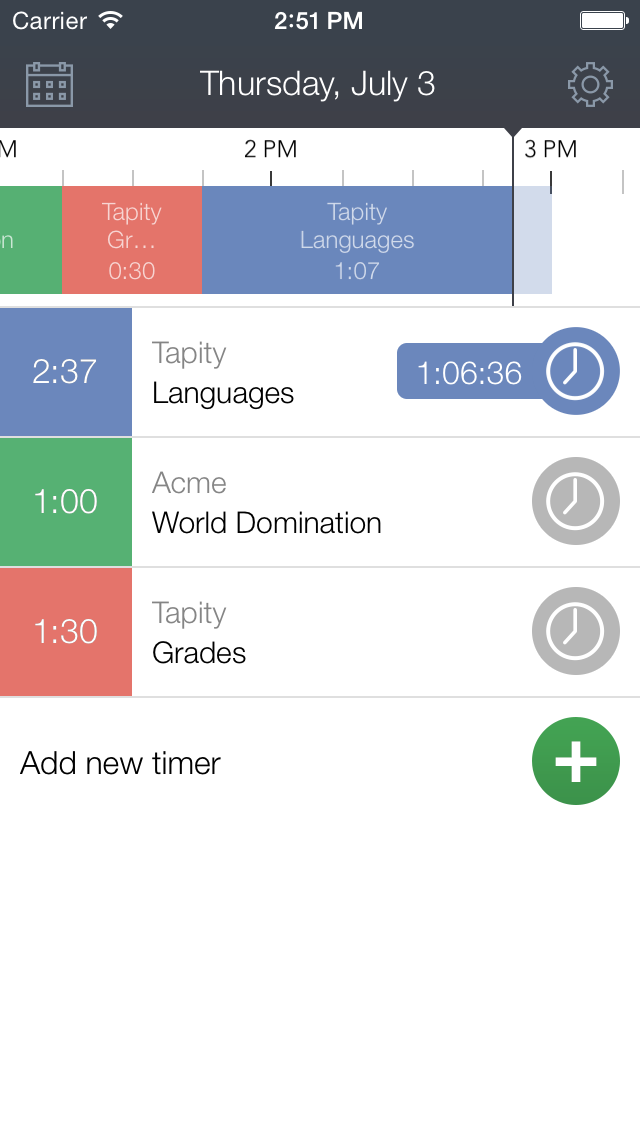
Hours-Icon-512While OfficeTime is my go-to iOS app for tracking where I spend my working hours, I often use the Hours app to track my time doing chores, writing projects, and other related tasks. (I most often access it through its really handy Today widget, and just swiped down to start a timer to see how long this blog post takes!)

Normally $6.99, now the app is free, to celebrate the release of the Apple Watch and the accompanying Hours app. (P.S. What do you call apps on the Apple Watch? Applets? Seeds?)

It’s got a beautiful interface, decent exporting features, and is really easy to use without thinking about–which is as a time-tracking app should be.


Image from Tapity Press Kit


Check it out here, or read more about the app here. Also, those of you who use and enjoy it now–it’s coming to Mac soon.

Ulysses for Mac (and iPad), Reviewed (2/2)

Ulysses-Mac-1024x1024


I enjoy my writing medium more than ever before, now that I’m writing daily in Ulysses.

I started to review the app here; now I conclude my review of Ulysses for Mac.


3. Getting Text Out of Ulysses


You need to know a little bit about Markdown to fully utilize Ulysses. This is from their help manual, which takes the form of a series of interactive Sheets in the app:

“Ulysses uses so-called minimal markup to define, not format or style, text passages. The full list of available definitions is accessible via ⌘9, and it should have you covered left to right. From headlines to lists, to images and footnotes, you simply assign meaning to text passages by entering some easy to remember shortcuts.”

(P.S. I just used that keyboard shortcut and drop-down menu to make the above a block quote… or I could have just typed in “>” before the quotation.)

It’s taken me a little time to learn Markdown (though there’s really not that much to it), but once you have, you can take advantage of Ulysses’s export options.

Again, from the help files:

“Now for the fun part: Ulysses can output your writing to a host of standard formats, such as Plain Text, RTF, HTML, ePub and even PDF. It does so by translating your plain text input based on the definition of the minimal markup. If your brain starts to hurt, here’s a simple example…”

Markup in Ulysses
Markup in Ulysses

Here’s why I could write this two-part blog post series in Ulysses (using Markdown), export it to html in WordPress, and then have you read it now as if nothing ever happened: Ulysses “will translate the emphasized passage to semantically correct <em>, and the headline will be tagged with <h2>.”

The idea here is that once you know and use Markdown, you don’t really have to do much by way of thinking about formatting.

When you’re ready to export, you can click to bring up the window at right (or type the shortcut ⌘6):

Quick Export.ee71088e320440328497c3009a53a17e

From here you can preview, copy your text to clipboard, save it to a file, or open it with various apps. (I use Nisus Writer Pro to open my Ulysses sheet as a text file.) You can see your text as RTF, PDF, HTML, plain text, or even a nicely formatted ePub so you can publish your own ebook. Ulysses automatically converts your markup to its proper formatting in the finished product.

The Quick Export function is varied and rich enough, but it takes some fussing to get your text to look how you want it. (This fussing starts to defeat the purpose, in my opinion, of the supposed simplicity of using Markdown.) You can go to Preferences and add your own Styles, so can customize how your text exports, if you need more than just the default Styles Ulysses gives you.


Styles in Ulysses
Styles in Ulysses


But this is more effort than unaccustomed writers may appreciate having to make.

There is a Style Exchange where users post their own formatted style sheets, which you can download to your own Ulysses.

And if you do decide to go all in with Ulysses (I’m there), there is a reference guide you can work through to figure out how to make your own Styles to export just how you want.

(See also here for a succinct overview on Ulysses’s blog about exporting.)


4. Ulysses as a Writing Experience


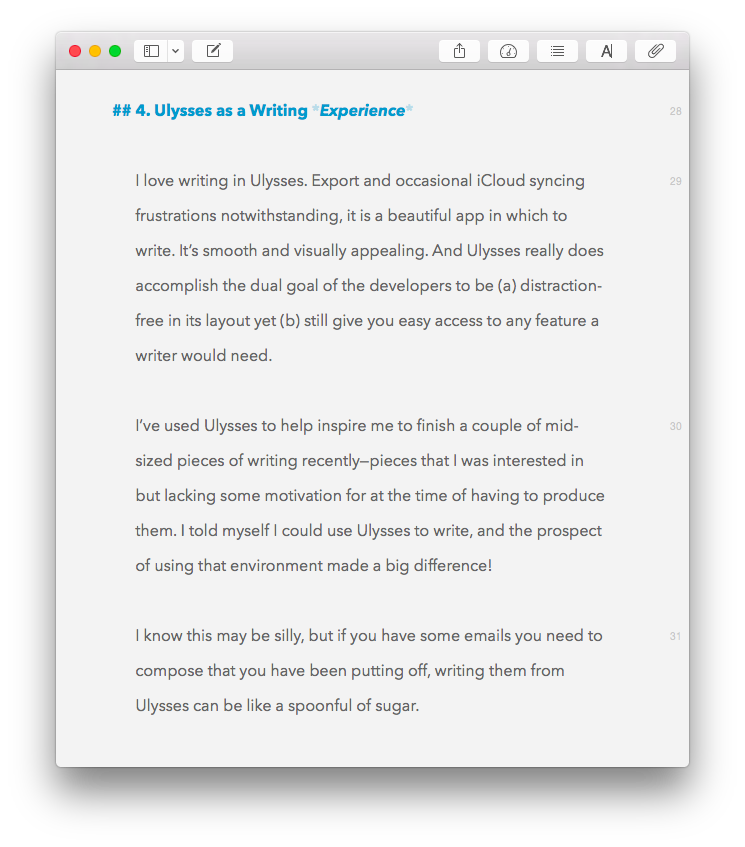
I love writing in Ulysses. Required export efforts and occasional iCloud syncing frustrations notwithstanding, it is a beautiful app in which to put down and rearrange words. It’s smooth and visually appealing. And Ulysses really does accomplish the dual goal of the developers to be (a) distraction-free in its layout yet (b) still give you easy access to any feature a writer would need.

You can keep notes and goals aligned to a given Sheet (i.e., document), and view them from the Attachments pane, or detach them and see them as their own free-floating windows. This really enhances the experience of writing in Ulysses. You can also bookmark paragraphs and favorite Sheets, so navigating through stacks of writing is easier than you’d expect.

I’ve used Ulysses to help inspire me to finish a couple of mid-sized pieces of writing recently—pieces that I was interested in but lacking some motivation for at the time of having to produce them. I told myself I could use Ulysses to write, and the prospect of using that environment made a big difference!

I know this may be silly, but if you have some emails you need to compose that you have been putting off, writing them from Ulysses can be like a spoonful of sugar.


A Few Desiderata


There are a few things I’d like to see Ulysses offer in future updates, the lack of which have detracted (even if slightly) from my experience of using the app:

  1. I would love there to be an easier way to adjust formatting in the Quick Export options (i.e., having something like the equivalent of a formatting toolbar which you can select for output, rather than having to do it through Styles). Also, I haven’t found a way to easily adjust image sizing (from Ulysses) when exporting a Sheet to a blog post–a process itself which could stand to be more fully automated.
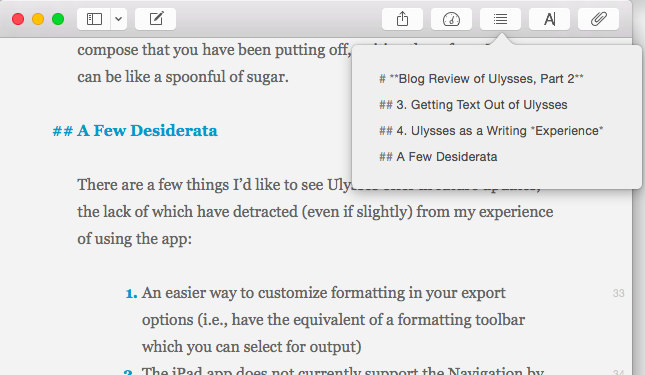
  2. The iPad app does not currently support the Navigation by headings feature I so appreciate in Mac. In fact, the same icon/button is present in iPad, but does something totally different. 


    Navigating by Headings
    Navigating by Headings


    I do hasten to add, however, that the Ulysses for iPad app is stellar, easily one of the best apps in the App Store and my current favorite app for iPad.

  3. It would be lovely if there were a way to include the word count as part of the Editor screen. It’s easy enough to find it in the Statistics or Goals portion of the Attachment pane (and both of these pop-ups can be torn off and left free-floating), but a simple word count bar at the top or bottom of the Editor would be nice. The iPad app does offer something along these lines.
  4. I believe this is mostly the fault of the iPad’s lack of support for .rtf, but getting writing from Ulysses on iPad into a format that is .rtf-ready (not to mention .rtf itself) is just about impossible. If you can hop over to Ulysses on a computer, it’s doable, but iPad alone won’t really work for moving your content to rich text.

By the way, my love for Scrivener has not changed, and it’s still a fuller-featured environment for getting lots of research and snippets organized—and has its own really nice distraction-free writing mode.

But Ulysses is on iPad now, too (Scrivener: not yet, but close-ish), and it’s beautiful on the Mac, so when I’m doing long periods of writing, I primarily use Ulysses at as many points along the way as I can.


You can download a free demo trial of Ulysses for Mac here. More about the iPad app is here. Check it out, and play around with it for a bit. It’s helped me really rediscover my love of writing.


Thanks to The Soulmen Gbr, developers of Ulysses, for giving me a download for the review. See my other AppTastic Tuesday reviews (yes, this one is a few days early) here.

BibleWorks 10, Just Released


BibleWorks 10 just came out today. From the press release:

After four years of intensive development, BibleWorks 10 is now available – with a substantial list of valuable additions that will enhance your ability to study God’s Word. Please click HERE to watch our introductory video.

In BibleWorks 10 you will find an impressive array of new search capabilities, along with some important exegetical resources, that significantly enhance its already substantial toolbox:

• High-resolution tagged images of the Leningrad Codex
• Two new NT manuscript transcriptions
• Nestle-Aland GNT 28th Edition
• New English Translation of the Septuagint
• Danker’s Concise Greek-English Lexicon of the NT
• Instant lemma form usage info for Greek and Hebrew
• 1,200+ high resolution photos of the Holy Land
• EPUB reader & library manager
• Complete audio Greek NT
• Customizable window colors
• Dynamically adjustable program text size
• Mac and PC versions.

We have a series of videos
HERE that give you more info on each of these!

I hope to write more soon. Check out www.bibleworks.com in the meantime. 

PCalc: A Stylish and Full-Featured Scientific Calculator App

PCalc Icon

Looking for a good scientific calculator that your kids (or roommate) won’t make off with, because it’s downloaded as an app to your iOS device? (Which your kids or roommate might also abscond with, but still….)

PCalc is a beautifully-designed, dynamic calculator for iPhone and iPad, available in the App Store. Below I review the definitely-worth-its-$9.99 app. There is a free, “lite” version available here.

PCalc functions with zero lag, and has a really nice layout, which you can change to suit your preferences:


This image via TLA Systems Ltd.


I liked that view so much I didn’t even think to look for different display options till weeks later. But then I found this:


Orientation View w Ticker


And this:


Another nother View


And also this:


Another View


The developer describes the app thus:

PCalc is ideal for scientists, engineers, students, programmers, or indeed anybody looking for a feature-rich calculator for the iPad, iPhone, or iPod touch.

It includes an extensive set of unit conversions, a paper tape, an optional RPN mode, engineering and scientific notation, as well as support for hexadecimal, octal and binary calculations.

My favorite feature–that I’ve not seen in any of the other five or six calculator apps I had downloaded and promptly deleted from my phone–is that PCalc can run conversions for you: currency, in the kitchen (good for those of us who still can’t go fluid ounces to cups, which is ALL of us), energy units and more.


Conversion_Cooking


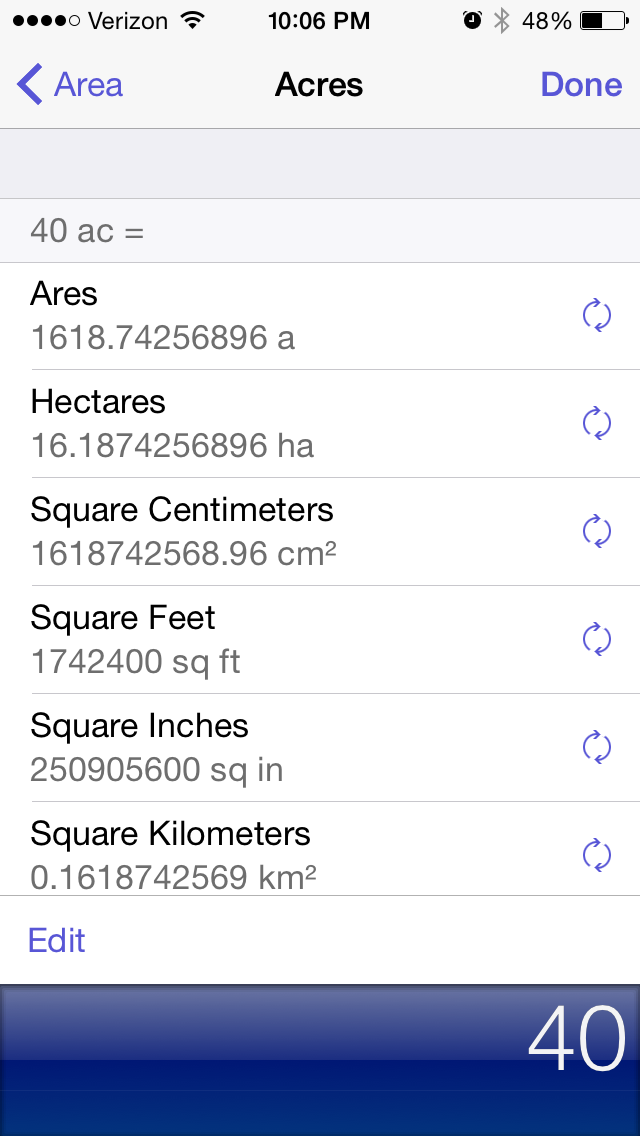
Listening to the new Kendrick Lamar, I might want to know how many square miles 40 acres is. With PCalc, I have my answer within a few taps:


Conversion_Area


It has a bunch of Constants stored, to which you can add your own:


Constants


Constants_Atomic


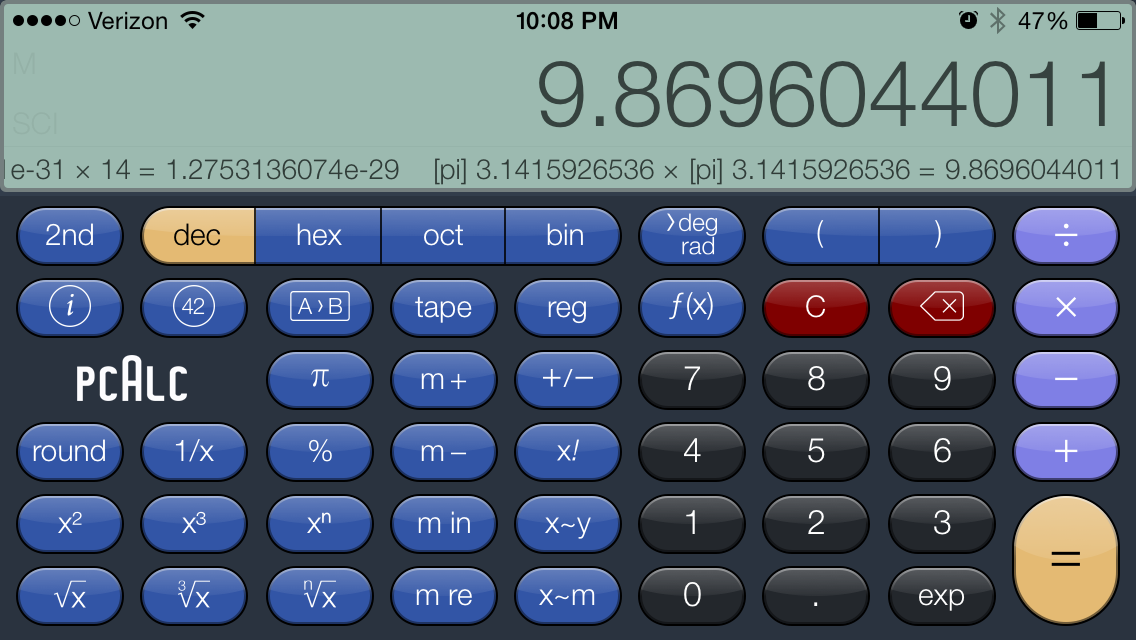
There are also a ton of functions this app can perform that I probably would have loved in my high school Calculus class, but would have trouble with now. You can do more when you rotate to landscape mode:


Landscape View


Note the Ticker Tape underneath the number up top… that’s your computation history! You can even swipe back from the results screen to have PCalc re-perform your last operations.

This is a highly advanced calculator. I can’t say whether science and math students can put away their TI-80-whatevers, but they should at least download PCalc first.

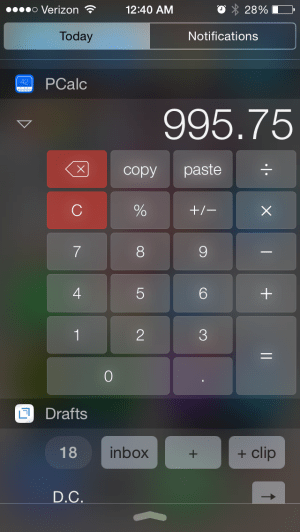
Need to quickly figure a tip, or something else? Without even unlocking your device, swipe down to the Today view and find the best-looking, most functional widget you’ll probably see on iOS 8:


Even Apple’s own Calculator app does not have access from the swipe-down Today view.

PCalc is a fantastic app, and the last non-graphing, scientific calculator app you’ll ever put on your phone. See the full feature list here, and look at many more screenshots here.


Thanks to TLA Systems, the makers of PCalc for iOS, for giving me a download of the app for this review. See my other AppTastic Tuesday reviews here.

Free Online Accordance Webinar I’m Teaching Thursday

Accordance Live Online Training


On Thursday I’ll be presenting an online training Webinar for Accordance Bible SoftwareSetting Up Workspaces.

The webinar is free, and you can register here. It begins at 2:00 p.m. EST and goes until 3:00.

Here is what I’ll cover:

1. Terminology: Panes, Tabs, Zones, Workspaces


2. Setting Up a Simple Workspace: Bible, Commentary, User Notes


3. Setting Up a More Robust Workspace: Multiple Bible Texts, Multiple Commentaries, and Tools


4. Creating Different Workspaces for Different Tasks


5. Multiplying the Power of Workspaces: Sessions


6. Additional Q and A

Accordance has quite a few other free online trainings coming up, too. Check them all out.

Kierkegaard: “Christ Enters Through Closed Doors”


Søren Kierkegaard, in an 1837 journal, wrote this about the so-called “doubting Thomas” post-resurrection Gospel account:

If Christ is to come in order to dwell in me, that has to transpire in accordance with the heading of the gospel for the day in the calendar: “Christ enters through closed doors.”