The LEGO Movie: The Essential Guide

LEGO Movie Essential Guide


We are big fans around here of The LEGO Movie. My then-six-year-old offered a review of The Official Movie Handbook and the Junior Novel. My favorite two parts of that interaction were: “Emmet…falls out of a tower that, like, goes past heaven,” and his description of Bad Cop as “a bad police.” (No, I’m the only one who watches The Wire around here.)

DK’s Essential Guide does a great job of covering the movie. It has colorful two-page spreads of the main characters (Emmet, Wyldstyle, Benny, and more), as well as sections like “Emmet’s Big Idea” and “Everything is Awesome,” so you can learn all the lyrics to the movie’s catchy tune. “To the Kraglizer” shows both Benny’s Spaceship and Emmet’s Construction Mech–you get to see not just scenes of the movie, but the sets as they are currently packaged and offered by LEGO now.

A two-page “Behind the Scenes” section closes the book with Q and A, including such questions as “How much of The LEGO Movie set was developed as real LEGO models?”

The book is a bedtime (and daytime) favorite with my four-year-old and seven-year-old. They keep coming back to it. It’s great for bedtime reading, because, although we can’t read all 64 pages before bed, I can tell the kids we’ll read three characters, which can easily keep us engaged for 10 minutes. There’s a lot to pore over here. (MetalBeard’s short “Guide to Pirate Speak” on page 47 was fun.)

Here’s a look inside The Essential Guide, from the publisher’s UK page:


DK LEGO_Awesome


DK LEGO_Wyldstyle


DK LEGO_Master Builders


Lots of entertainment is waiting to be had here–our DK Essential Guide to the Cars movie is a well-loved household item, now missing its fold-out insert (from so much love). The LEGO Movie: The Essential Guide is already similarly appreciated around here, though all the pages are so far still in tact!


Thanks to DK Publishing for the review copy, given with no expectation as to the content of the review. Find The Lego Movie: The Essential Guide here at Amazon (affiliate link) or here at DK’s site.

From Scratch and Sniff Chip ‘N’ Dale to Jacob’s Travels

Scratch and Sniff feature available in iOS 9 only


I had a “scratch and sniff” Chip ‘N’ Dale Rescue Rangers Spanish-language comic book when I first learned Spanish in high school.

I know–I can’t believe I just started a post with that sentence, either.

Silly as it was, the comic was an enjoyable way for me to practice reading a new language. I kept it for way too long and only in the last couple years threw it out. (The “sniff” of the front cover had long since stopped working.)

I’ve tried to step up my efforts lately in improving my biblical Hebrew reading, especially as I preach through Genesis in church. My now seven-year-old son has at times joined me in our Hebrew-learning adventures, always at his request. Most recently we worked together to review EKS Publishing’s enjoyable and accessible First Hebrew Primer.

Og the Terrible may be the more apt Hebrew-learning comparison to my Spanish-language Chip ‘N’ Dale comic. Og appears in a series of adventures featuring Prayerbook Hebrew and a dragon. (Might the Jewish/Christian apostle Paul have said Og helped the Scripture to be fire-breathed?)

JacobsTravelsCoverI’ve not read Og (yet!), but EKS Publishing has a series of Hebrew and English children’s books revolving around biblical characters.

The one at left–Jacob’s Travels–has been on our bookshelf for some time. We return to it on a fairly regular basis, sometimes reading the Hebrew text slowly, sometimes just reading the book in its English translation.

The back cover describes the book:

Jacob’s Travels begins and ends with Jacob encountering the Divine. This retelling of the story from Genesis, told in Hebrew and English, is a reminder of God’s constant presence in our lives. At a time when he feels most alone, this realization brings Jacob great comfort, inspiring one of the most memorable lines in the Bible: “Surely God is in this place and I did not know it!”

The translation is smooth and readable, with a more “literal” translation in the back of the book for those learning Hebrew. There’s also a glossary at the back for those who want to steer clear of the English and see how well they can do with just the Hebrew.

The book is probably better geared toward older children or even Hebrew-learning adults, as there is a high text-to-picture ratio.

It’s fun to read, though, and certainly more edifying than (no offense) the Rescue Rangers.

You can find the book here (Amazon) or here (EKS Publishing). EKS’s other children’s books are here.

2 Exceptional Jewish Commentaries on Genesis, Part 2: The Torah: A Modern Commentary

This fall I’m preaching through Genesis. Two Jewish commentaries have been exceedingly helpful and illuminating as I prepare each week. Yesterday I praised Nahum M. Sarna’s Genesis (JPS Torah Commentary). Here I highlight another commentary I’ve thoroughly enjoyed reading.


2. The Torah: A Modern Commentary


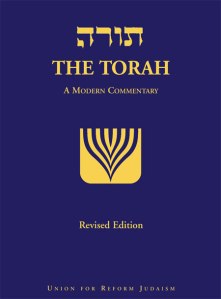
Torah Modern CommentaryLike the JPS Torah Commentary, the Modern Commentary includes the Hebrew text (with pointed vowels and cantillation marks) and English translation. Most of the Torah is in the new Jewish Publication Society (JPS) translation (with updates for gender-sensitivity), but the English translation of Genesis is the work of the late Rabbi Chaim Stern.

Most noticeable in Stern’s translation is his use of “the Eternal” to translate the tetragrammaton (YHVH). The Preface to the Revised Edition explains:

The root meaning of the divine name in Hebrew is “to be,” and the name “Eternal” renders that name according to its meaning rather than its sound. That is, it conveys the overtones that an ancient Israelite would have heard when encountering YHVH as a name.

Between introductions, verse-by-verse Commentary, Essays, and Gleanings (insights from rabbinic commentaries and modern-day interpreters), there’s a wealth of useful information here.

For example, last Sunday I began to wonder whether the story of Babel (Genesis 11:1-9) was, among other things, an anti-empire polemic. Moving through the “Gleanings” in the Modern Commentary, I found the following early sources:

As the tower grew in height it took one year to get bricks from the base to the upper stories. Thus, bricks became more precious than human life. When a brick slipped and fell the people wept, but when a worker fell and died no one paid attention.
MIDRASH

And:

They drove forth multitudes of both men and women to make bricks; among whom, a woman making bricks was not allowed to be released in the hour of childbirth, but brought forth while she was making bricks, and carried her child in her apron, and continued to make bricks.
BARUCH

The commentary nicely blends cultural background, sensitivity to the history of Jewish interpretation, and application-ready insights, as here in the comment on Genesis 12:1-9:

For while Abram’s story must be read as the biography of an individual, he (and this applies to the other patriarchs as well) is more than an individual. The Torah sees the patriarch as the archetype who represents his descendants and their fate.

I especially appreciate how Accordance Bible Software lays out the commentary and all its sections; I’ve been using it in that medium (click to enlarge).


Torah Modern Commentary


The publisher offers quite a generous (70 or so pages) .pdf sample of the Torah Modern Commentary, which you can read here.

You can find The Torah: A Modern Commentary here at the publisher’s page or here at Amazon.

2 Exceptional Jewish Commentaries on Genesis, Part 1: The JPS Torah Commentary

This fall I’m preaching through Genesis. Two Jewish commentaries have been exceedingly helpful and illuminating as I prepare each week. In a short series of two brief posts, I highlight each.


1. The JPS Torah Commentary: Genesis


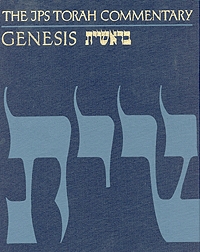
JPS Torah GenesisI’m a sucker for beautifully constructed books, and this is one. Nahum M. Sarna’s Genesis has the full Hebrew text of Genesis (with vowel points and cantillation marks), an English translation (the Jewish Publication Society’s New JPS translation), incisive commentary, and 30 Excursuses at the back of the book.

Already at Genesis 1:2 I found the commentary quoteworthy enough to cite it in a sermon. It notes that the Hebrew term create is used only of God:

It signifies that the product is absolutely novel and unexampled, depends solely on God for its coming into existence, and is beyond the human capacity to reproduce.

There’s this gem on Cain and Abel, where Cain’s sacrifice points to “a recurrent theme in the Bible–namely, the corruption of religion.” Sarna tersely (yet effectively) comments:

An act of piety can degenerate into bloodshed.

And in Genesis 6, where the reader struggles to understand how a loving God could all but eradicate his creation, the introductory essay to “Noah and the Flood” reads:

The moral pollution is so great that the limits of divine tolerance have been breached. The world must be purged of its corruption.

He goes on:

The totality of the evil in which the world has engulfed itself makes the totality of the catastrophe inevitable.

Every passage of the commentary I read is like this–the perfect blend of lexical analysis and devotional implication. Sarna makes good use of ancient Jewish sources, so the reader gets the sense that she or he is really being exposed to thousands of years of Jewish interpretation.

This has often been the first commentary to which I turn after reading the text.

You can find it here at the publisher’s page or here at Amazon. I waited a long time to purchase this volume, since it’s not cheap. This summer I found it on ebay, and have been grateful to own it since!


Next post, I’ll highlight the second of two Jewish commentaries on Genesis that I’ve been enjoying–The Torah: A Modern Commentary. UPDATE 10/16/14: See that review (part 2) here.

5 iPad Apps I Use Every Day

Here are 5 iPad apps I use every* day:
 

Calendars 5 icon1. Calendars 5

Readdle‘s Calendars 5 seamlessly integrates both tasks and appointments into an aesthetically pleasing display. Moving things around and making new entries is really simple, too–just drag and drop or tap. Most of the time when I’m creating a task, setting an appointment, or checking something off, I want to do it quickly and with as few taps as possible. Calendars 5 makes that possible. View options on iPad are Tasks, Day, Week, Month, and Year. See my full review of the app here.

Calendars 5 has widgets in the iOS 8 “Today” view, so you can look at your day with a single swipe down on your iPad.
 

OmniFocus-for-iPad-10242. OmniFocus 2

This is the only app to make both this list and my 351 Words on 4 Mac Apps I Use Every Day. The integration of OmniFocus 2 on iPad and OmniFocus on Mac is tight. There’s a slight delay in the sync function (which uses Omni servers), but otherwise what I update in one place updates in the other. And, because I can link it to Apple’s Calendar and Reminders, which both sync with Readdle’s Calendars 5, the latter (see above) syncs quite nicely with OmniFocus. You can keep it updated easily via Siri voice commands, too.

OmniFocus 2 allows for more complex project management. Projects and Contexts are a great way to break a bigger endeavor down into its component steps (Projects), or organize them according to the environs in which you do them (Contexts): Office, iPad, Computer, Errands, etc. The Forecast view shows you both appointment and tasks in one place. Or you can just make a quick entry in the Inbox, and then decide how to categorize it later.

Read more about OmniFocus 2 for iPad here.
 

3. BlogPad Pro

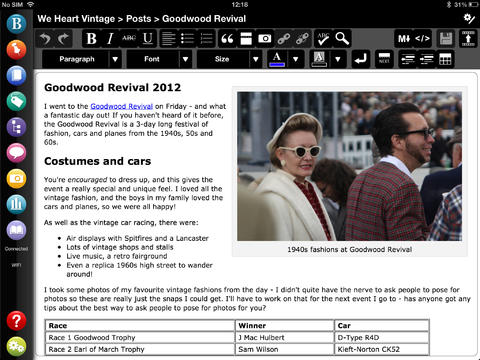
It still needs to be updated to work more smoothly in iOS 8, but BlogPad Pro is a far easier app to write a blog post on than WordPress’s own app. (Words on the Word is a WordPress blog.) You can start new posts, edit existing posts that you started on a computer, moderate comments, and check blog stats. The layout looks like the app belongs in iOS 6, but I actually sort of like that heavier look. Here are a few screenshots from their app page:


BlogPadPro 1


BlogPadPro 2


4. Mail

I haven’t really explored options for good third-party mail clients, but I like Apple’s native Mail app. There’s nothing flashy to it, but it is functional and easy to navigate.
 

5. Sky Force 2014

I’m not all productivity apps. The one iPad game I play is Sky Force 2014. It’s fun, challenging, and a great way to zone out. And… it’s free!


Time drain of choice....
Time drain of choice….


You might also like to read 351 Words on 4 Mac Apps I Use Every Day. Next I’ll post about the iPhone apps I use most.


*Disclaimer: Some days I don’t use the iPad mini at all, but when I do, the above are the first ones I tap on. Thanks to Readdle, Omni Group, and BlogPadPro for the review downloads of Calendars 5, OmniFocus 2, and BlogPadPro, respectively.

Nisus Writer Pro: The (2014) Kansas City Royals of Word Processing

No offense to Microsoft Word and Apple’s Pages, but neither one had really hit the spot for a go-to Mac word processor for me. Even after years of using Word, drawing a table or making columns seems harder than necessary. And the new Pages is clunky and seems like it wants to hide my saved documents from me.

KC RoyalsI started using Scrivener this summer, but, as Scrivener is the first to acknowledge, that program is not designed for tweaking the layout and final draft of a document. A number of Scrivener users I interact with recommend Nisus Writer Pro.

I’ve been using it regularly for about a month, and see no need to use another word processing program from now on. Nisus Writer Pro is to my word processing what the Kansas City Royals are to baseball right now: fresh, fun, powerful, and totally adept at getting the job done.

It’s a sophisticated program, with a lot of customization options I’ve barely begun to use. But the first time I used it I was able to almost immediately–without even reading the Help!–get my document to do the handful of things I wanted it to do.

So far, like the KC Royals, Nisus Writer Pro has a 1.000 winning percentage with me. Here are 6 things about NWP I really like, one for each of the Royals’ playoff wins as of the time of this post’s being published:


1. The layout is clean and easy to navigate right away


Check it out (click to enlarge):


NWP Document


At the very top of the screenshot you’ll see the Word Count in the footer (i.e., of every page). This is easy to set up–the Insert menu gives you the option to insert Automatic Numbers there, one of which is the word count, which I like to have in front of me as I whittle down my weekly sermons to something that will keep all of us awake.


2. Native file format is RTF


This means your NWP documents are fairly universal. You can open aforementioned Word (.docx) documents easily. Pages (.pages) is another story, but I think I’m over it.

One bummer (not Nisus’s fault): finding a good app for iPad that plays nicely with .rtf files is difficult, so I’m still looking for a consistent way to get from iOS to my Dropbox-saved NWP documents. (Textilus has been recommended; I’m working on getting that up and running now.)


3. The customizable palette groups get the job done


Setting up margins, headers, footers, even multiple-columned documents is easy to do via the palettes (the bar on the right of the document above). AND… you can create your own palette, customized with the tasks and functions from the Palette Library that you most use. Here’s one I created:


NWP AKJ Palette


You can also hide the palette so you’ve just got the document in front of you. Via palettes you control styles, font/formatting, tables, drawing, etc.


4. Bibliography made easy


One of the drop-down menus has an “Activate Bookends” command. There’s some nifty integration between that program and Nisus Writer Pro.


Strong, Fast
Strong, Fast

5. Support is strong


NWP’s User Guide clocks in at 500 pages. Yes, I read it all for this review–no, not really. But it’s an invaluable reference. Download it here. The staff I’ve interacted with is really great. And there are active user forums.


6. Nisus Writer Pro is fast


This late 2008 MacBook o’ mine is the little (computer) engine that could. But it’s slowing down. Word and Pages (sorry, Microsoft and Apple! I didn’t intend to use your products as foils) both run sluggishly sometimes on this machine, but Nisus Writer Pro never has. It starts right up, closes right down, and never is glitchy in between.


You can see a lot more of the features of Nisus Writer Pro here, where you can also download a free 15-day trial, while you await Game 3 of Royals vs. Orioles.


The folks at Nisus kindly supplied me with a license of NWP for the purposes of review.

7 New Features in Accordance 11

Acc 11_Simply Brilliant_logo


Accordance 11 has a projected release date of late October.

So far, via the Accordance Forums and their Facebook page, they have revealed 5 new features of Accordance 11 in advance of its release. (Actually 7ish, if you count a couple you can see in their podcast–see #6 and #7 below.) I use Accordance nearly every day, so expect a full review of 11 when it comes.

Everything in this post comes from something Accordance has publicly mentioned or shown; I have no insider info about new features, and if I did, I wouldn’t blog it anyway. 🙂 But, read on….


1. New categories for organizing Tools

As Accordance puts it, “23 new and useful categories for your books for better organization and easier access.”


23 Tools Categories


2. “Search All” has changed to “Research”

A forum post by a staffer cryptically says, “Search All is now Research, but the biggest difference can be found in the results!” See photo here. UPDATE: It’s no longer cryptic. Check this out.


3. Selective Easy Install (i.e., install only what you want)

This gives the user at last “the ability to selectively choose which titles to install from Collections or bundled titles.” See here for a screenshot.


4. New Collections

Here you can compare what’s in the new Collections. You can upgrade now, with the promise of a download of Accordance 11 when it’s ready.


5. Custom Upgrade pricing

An Accordance blog post explains clearly here how the new upgrade pricing system works.

And Dr. Tim Jenney shows off the new Collections in this podcast:


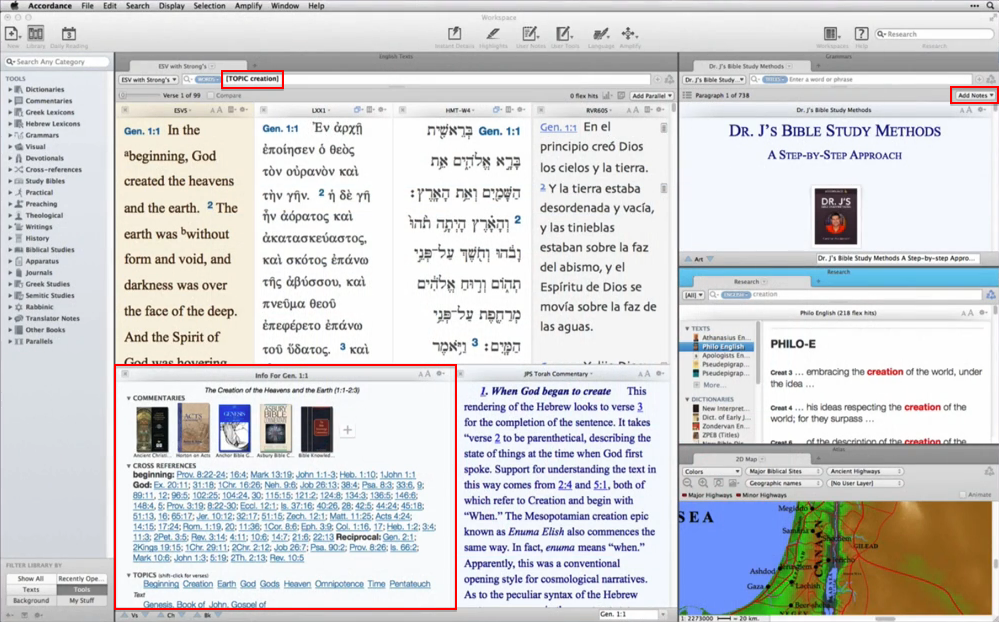
6. Take your own notes on Tools

It would appear from Dr. J’s setup in the podcast above that users can now take their own notes on Tools (commentaries, books, dictionaries, etc.). This has not been possible so far in Accordance. It’s a welcome addition.


7. Some kind of verse-by-verse passage guide

Logos has a Passage Guide (at least since Logos 4) that helps you quickly see all your resources that correspond to the passage or verse you are studying. It appears from Dr. J’s setup that Accordance 11 will introduce something similar. Can’t wait to see it–given how good Accordance programmers are at writing code, I’m sure it will move very quickly with the user through a passage.


Here, by the way, is a screen grab from the podcast, highlighting some of the above–the “TOPIC” search Dr. J’s Workspace has seems keyed somehow to the passage guide (or whatever Accordance will call it). It’s low-res, so go watch the first 30 seconds of the podcast in HD, pause it, and see for yourself.


Acc 11_Dr. J Workspace_New


More to come….

You Have 10 Days to Get Yourself a Bonhoeffer Hoodie or T-Shirt

This is easily the most awesome piece of clothing I have ever seen:


Bonhoeffer Hoodie


And the Teespring “campaign” that offers it has enough pre-orders that it will go into production again! So you can order one now before the window closes.

Read details about Teespring and how it works here. You can go get the shirt ($20) or hoodie ($30) here.

New Hebrew Reader’s Bible This Fall

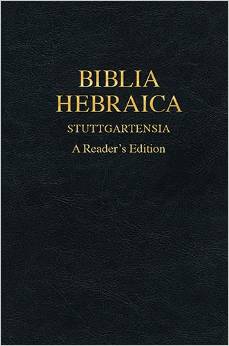
BHS Reader's EditionThis fall Hendrickson will publish a new Hebrew Reader’s Bible.

Hendrickson says it is:

A helpful language reference tool for students, pastors, and scholars. The BHS Reader’s Edition is for those who have a basic understanding of Biblical Hebrew and desire to read and study the Hebrew Bible. With this book alone (and a year’s study of Hebrew), students are able to read the Hebrew Bible in its entirety.

Zondervan already has such a Bible, which is the first Hebrew Bible from which I ever read (cue strings). But BHS Reader’s Edition has vocabulary helps for even more words, as well as verb parsings.

Here are the main features, in the words of the publisher:

  • Complete text of the Biblia Hebraica Stuttgartensia, checked against the Leningrad Codex
  • All words that occur fewer than 70 times are parsed and contextually defined in the apparatus
  • Glossary listing of all other words
  • Improved layout of poetic text
  • All weak verb forms are parsed
  • High quality paper does not bleed through

UPDATE: One of the authors (not Moses, though) notes that it includes full Hebrew paradigms, too. Looks like it will really be a one-stop shop for Hebrew Bible reading!

You can pre-order now through CBD or Amazon (affiliate link that helps support Words on the Word).

Once I get a look, I’ll report back!

Calendars 5: A Better Calendar App for iPhone and iPad

Calendars 5At first I scoffed a bit at the idea of another calendar app for iOS. What’s wrong with Apple’s native “Calendar” app?

Well, it’s a fine app, and it gets the job done. You can sync your schedule across multiple devices–it’s how my family keeps our days and weeks organized. I add an event and it populates in any other place that my wife or I would check it.

Its interface feels a little less streamlined or smooth than one would like, but a calendar app is a calendar app, right?

Well, yes, for the most part. But Readdle’s Calendars 5 app is even better than the Calendar app that comes pre-installed on every iPhone and iPad. Look at this:


IMG_2039
Calendars 5 in iPhone


(Independence? We celebrate it twice around here.)

If I had a lot more events on June 28, I would simply swipe right gently to reveal them, while the whole rest of the screen/week would stay in place. This is the Week view, the one I use most often. There are also Tasks, List, Day, and Month views. You can easily tap (or just drag and drop) your way into creating new items or making schedule changes.

What is the Tasks view, you ask? It’s anything in your Reminders app! So from your calendar app (without switching to another app), you can see your tasks. (Integrated work flow is the only way to really get stuff done effectively, I think.)

You can even see on June 28 above: Calendars 5 combines appointments and tasks into each day, so you can easily keep track of everywhere you have to be and everything you have to do.

Once you set up sync (also very easy), anything that you change in Calendars 5 also updates in your iCal/Calendar app (and vice versa), and any task you add here updates in your Reminders app (and vice versa). This means you can say, “Siri, remind me tomorrow to…,” and if you it synced, the reminder shows up in your calendar view right in Calendars 5.

It never occurred to me that I’d have less mental clutter by using a single mechanism (app) to track appointments and tasks. Maybe I sound overly ebullient, but… this is a really sweet app. You should get it if you can.

Thanks to the folks at Readdle for the gratis download codes for the review, given with no expectation as to what I’d write. Though now that I’ve used Calendars 5, I’d pay for it if I had to. It’s been that helpful to me–and it looks really good, too.

You can get Calendars 5 here. $6.99 may feel like a lot for an app, but you get it on both iPad and iPhone (and they sync), so if you rock both devices, it’s like two-for-the-price-of-one.

Calendars 5 is also part of Readdle’s Ultimate Productivity Bundle, which includes PDF Expert 5 (I like that app, too–see my video review here). The Bundle comes with the elegant Scanner Pro and Printer Pro, that lets you print wirelessly from your iOS devices. See the discounted Bundle in action here, and check out purchase information here.