I’ve reviewed enough software to know over-hyped copy writing when I see it, so I was initially skeptical at the Things app’s claim to be “a delightful and easy to use task manager” (my italics).
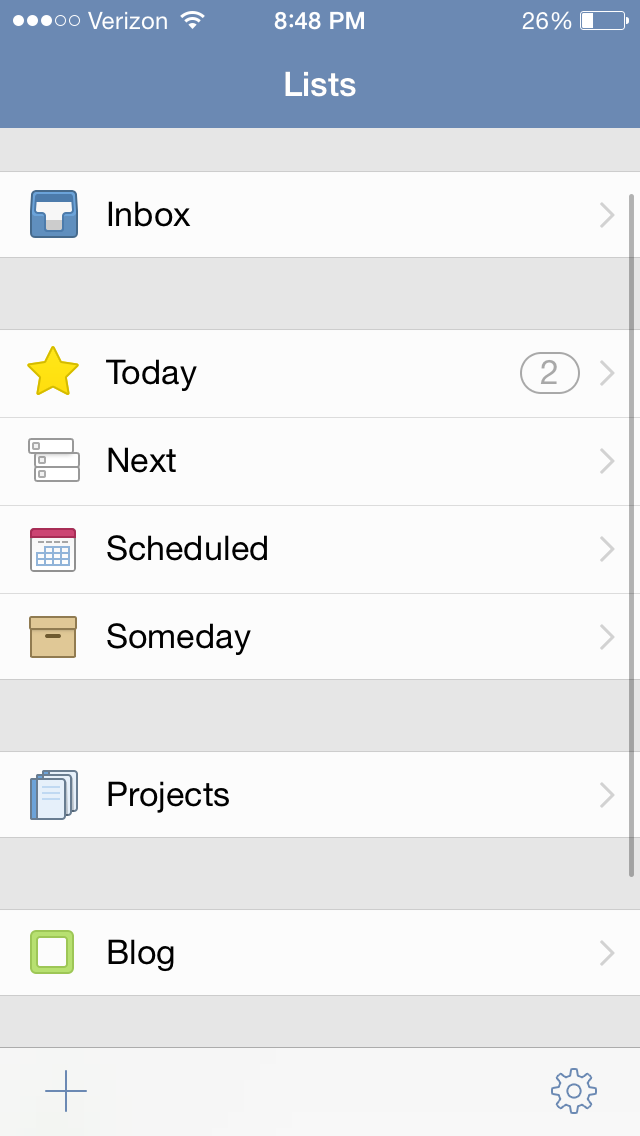
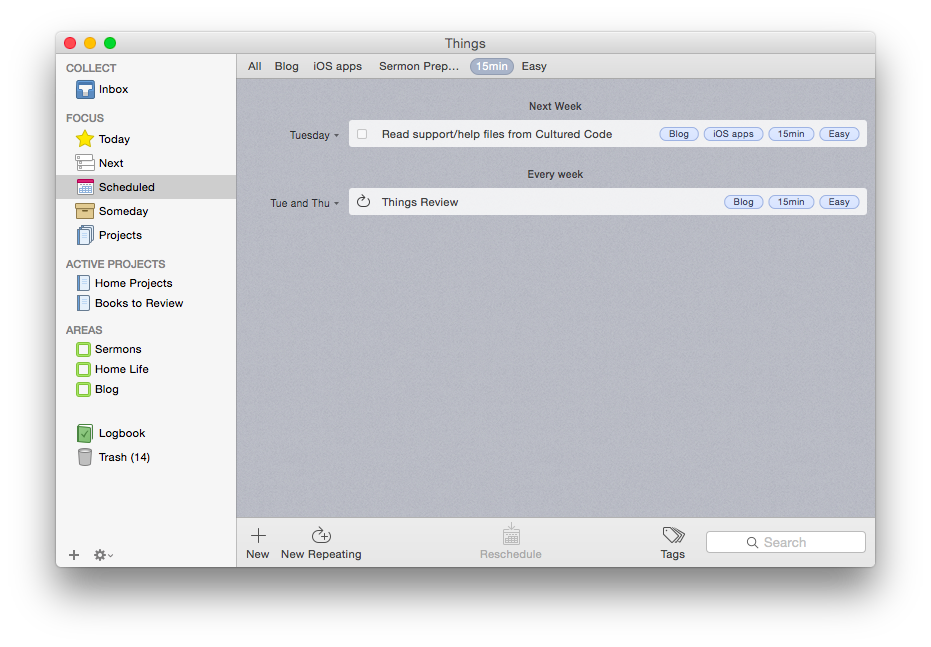
But its aesthetic and usability really are pleasing and enjoyable. The layout is very simple and clean. It has almost a cartoonish (in a comforting way) feel to it. It looks like this:
Mac OSX version (click image to enlarge)
iPhone version
Readers of this blog (especially patient ones) know that I’m a user of OmniFocus, but I’ve also been putting Things through its paces these last few months.
Today is the list for to-dos that you want to start before the day ends. They’re your priorities.
Next is home for all of the to-dos you could start at any time. It’s a good place to look when putting together your Today list, or when you’ve finished everything there and you need more to do.
Scheduled is for to-dos that you’d like to start on a later date, either because there’s nothing you can do to start them yet, or you’d just rather be reminded of them on a specific day.
Someday is the place for to-dos that you might like to get to, but you’re not sure when. Regularly review what you’ve added here to decide if it’s time to act.
It all starts with the Inbox, where you can put items until you’re ready to decide when to do them. Things also allows you to organize by multi-step Projects and Areas of Responsibility, as well as make extensive use of Tags.
Strengths
Things syncs instantaneously via its own cloud service across multiple devices. This makes using it on both a phone and a computer, for example, really easy—you never have to worry about an outdated notification showing up on your device. This is one of the few drawbacks of OmniFocus—if you don’t keep OF open and make sure it’s synced on all your devices, you’ll get a reminder on your iPhone to complete a task you already checked off on your computer. This is not an issue with Things, and it takes away an extra step in the task management process, so you can direct that energy to actually working through your task list.
Things is head and shoulders above other task management apps in this regard.
Things has a really nice tagging system. No GTD-style “contexts,” per se, though you could certainly use your tags as contexts if you wanted to. You can even assign sub-tags to your tags, a feature I really like. So I can tag a task under the category “Blog,” but also assign sub-tags such as “Future post” and “Learn apps.” I used this tagging system to track thank-you notes last Christmas—writing down presents (and who they were from) as we opened them, and then sorting by tag (giver) so that I knew what all I was thanking someone for when I came to their note! Handy, indeed.
The desktop app is feature-rich. As you might expect, in addition to seamless sync with the mobile apps, the desktop version of Things (pictured above) is fuller-bodied than the iOS apps. There is the Quick Entry feature, where a keyboard shortcut (no matter what app you’re using in the foreground, so long as Things is open somewhere) will let you enter a task before you forget. There is a really smooth way of accessing, displaying, and adjusting all your tags (where Things really shines). Editing a task is fast. And it looks good.
The iOS apps have a useful Today widget. Some Today widgets are better than others, and this one is good. You can view items due today, check them off (both without ever opening the app), and tap on New To-Do to be taken to the Things app to make a new entry.
Siri and Things work together (quite nicely). You can set up Things so that reminders you voice dictate to Siri go right into that app as tasks. So that you can use Things safely while driving. As OmniFocus is my task management app of choice, a comparison again is inevitable: to get Siri-generated reminders to show in OF, you have to actually open OF and let it sync. Not so in Things: the reminder goes to your Things Inbox for processing immediately.
Limitations
There are some things that Things can’t do, which I had hoped it could.
There is no way (whether in iOS or OSX) to attach photos or files to an item. I find this a noteworthy lack. In OmniFocus and Evernote you can take a photo of something and immediately set it up with a to-do reminder. Sometimes life’s “inputs” come as visuals, and taking a picture and setting a due date is easiest. That’s not doable in Things. (You can link to actual files on a desktop, but that’s not the same as attaching the file itself, and the file doesn’t show up on an iPad.) There is a “Notes” field that attaches to your to-do, which is essential, though that field just accepts text entry.
The cosmos (or just your co-workers and bosses) also like to give to-do items via email. There’s no way to automate moving from an email into a task in Things. In OmniFocus you can just forward an email to your special OmniFocus email address, and it automatically becomes a task in your inbox. Todoist, like Outlook, can let you turn an email into a task in just a click, without even having to forward it anywhere. Evernote even lets you send an email as a Note to a specific Notebook with Tags, if you phrase your subject line right. Things may add this email-in-to-Inbox feature in the future, but for now, you have to take the extra step of copy-pasting an email into a new task yourself. Not as automated as I’d have liked.
You can get to a new task via the + button on the bottom right screen on iOS—so entering a new task right away is easy—but there is not the “Save +” option that other apps offer… so you have to add an extra tap when doing a rapid-fire brain dump. (This is not as much an issue on the desktop version of the app.)
You can set up repeating tasks, but not easily. This process was not as immediately intuitive as the rest of the app is. Things’s support page (which is awesome) details how you can do it from iOS and OSX. But, wow, did I spend a lot of time figuring out the very specific way in which this must be done in Things—and a couple of methods that you’d think would get you there… don’t.
Conclusion
So many reviews of task management apps affirm that there’s a personal element to what app works best for you. One user’s “intuitive” is another user’s, “Huh?” I’ve bought into the OmniFocus methodology and layout (mostly), which is intuitive enough but not easy out of the box. Things, on the other hand, is easy to figure out how to use right away without using a manual. The “Today” part of the app functions as a sort of daily review, though I prefer OmniFocus’s Forecast and actual Review perspectives. But you might be totally different on that!
In terms of complexity and capability, I’d put Things somewhere between Reminders and OmniFocus. It’s far more robust than Reminders, but not quite the souped-up to-do app some users might need. (Although one could just use the robust tagging system to customize Things for higher levels of complexity.)
Things is well-designed, looks great, and the seamless sync is a huge plus. Try it for yourself here (download link) with a free trial.
Thanks to the fine folks at Cultured Code, the makers of Things, for giving me downloads for the Mac and iOS apps for this review. See my other AppTastic Tuesday reviews here.
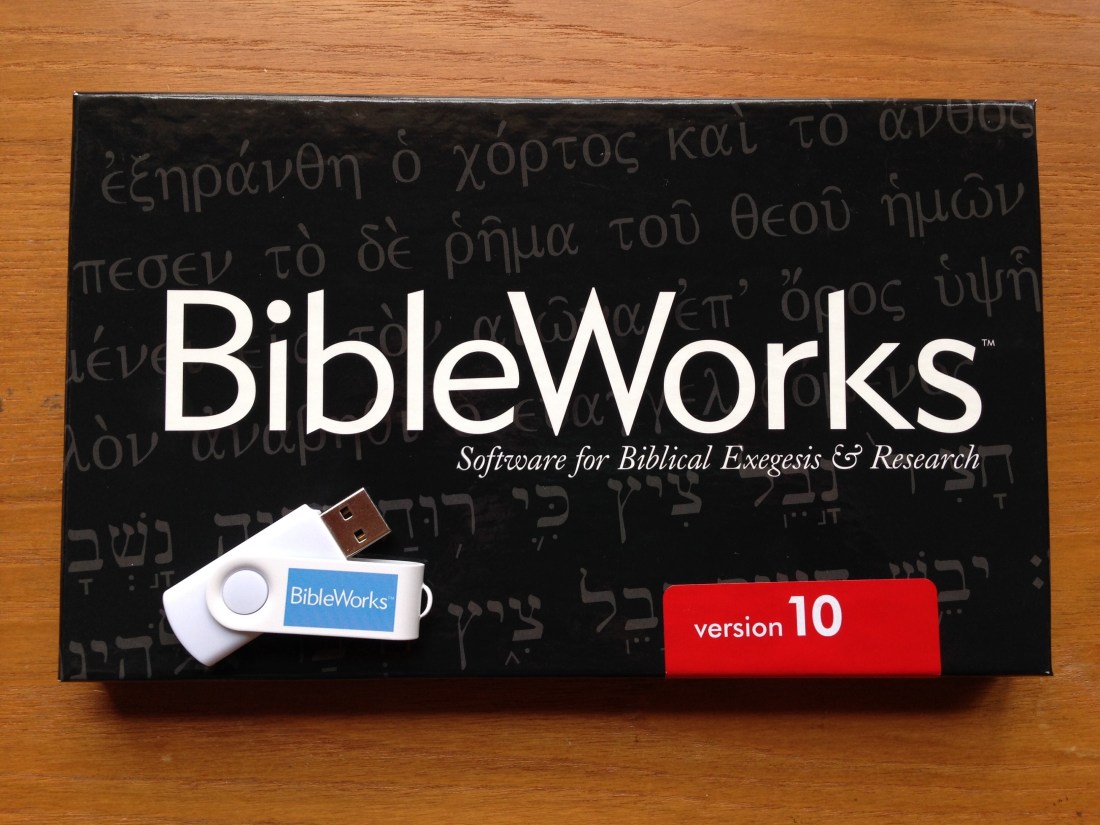
My inordinately strong appreciation of Bible software started with BibleWorks 7. BibleWorks 10 was just released, and it came yesterday to my mailbox on a thumb drive.
Go to www.bibleworks.com to see what’s new. After I’ve had a chance to install and use it, I’ll write a review here.
Accordance Bible Software has just posted the video recording of a recent webinar I taught, Sermon Preparation in Action with Accordance. Here‘s the one-page handout so you can see what I cover in the just-over one hour presentation. Live webinars are coming up, and include a Q and A time not shown in the video below. (The next one is May 21–sign up or learn more here.)
Here’s the video, with Accordance’s description below. (If you’re reading this blog post via email, you may need to go to the original post to watch the video.)
In this previously recorded webinar, pastor Abram Kielsmeier-Jones demonstrates how he uses Accordance for sermon preparation. Anyone who preaches or teaches the Bible regularly will benefit from watching Abram’s presentation. Originally recorded on April 27, 2015.
Accordance has quite a few other online trainings coming up. Check them all out.
I’ve been impressed by the Dell Venue 8 Pro in my use of it these past few months. I recorded my initial impressions here.
This post completes my two-part review of the device by way of a three-question Q and A session. (Leading up to this review I’ve benefited from conversations with R. Mansfield, who knows the Dell Venue 8 Pro–hereafter, DV8P–well.)
How Does the Dell Venue 8 Pro Compare to an iPad?
See… I knew you were going to ask that question! Here are five points of comparison.
First, the iPad still does not allow the user to view and use more than one app on the screen at a time. Why this continues to be the case is unclear to me, but the DV8P lets you have two apps open at once. So you can read an article from your Facebook feed without leaving Facebook. Or you can go to a Web link that pops up in a Kindle book you’re reading, while not having to leave and then navigate back to the Kindle app. Advantage: DV8P.
Second, the DV8P is more compact than a full-sized iPad, but close in dimensions to the iPad Mini. The DV8P is longer and skinnier, by a little bit. Its 8-inch screen size (measured diagonally) just edges out the iPad Mini’s 7.9 inches. To hold it feels about the same as the iPad Mini, though. Advantage: Both.
Third, the Dell Venue Pro is both tablet and personal computer. You can use it as both. You can run full-on Windows programs from the Desktop side, which Apple’s iOS on iPad does not permit.
I love being able to access full-bodied programs on this little tablet. Much as I appreciate Accordance’s iOS mobile app, for example, being able to use the full desktop version–but not having to be at a desktop or laptop–is awesome. Advantage: DV8P.
Fourth, the gesture-based interface of the iPad gives the user more options. Or is more intuitive. Or something. I know “intuitive” is a fuzzy word in software and hardware reviews. Of course, I’m way more used to an iPad than the Dell Venue Pro, but the former is easier to just pick up and tap and swipe your way around. Advantage: iPad Mini.
Finally, battery life on the 8 Pro leaves something to be desired, especially in comparison with the iPad Mini. Battery life when the device is in use is fine, but it does not hold charge very well when it idles/sleeps. If I put the tablet to sleep with full battery life, don’t use it at all for a couple days, then come back to it, it’s completely out of charge. I’ve never had this issue with the iPad mini. (And I’m not the only DV8P user to notice this, either.) Advantage: iPad Mini.
Does it Replace a Computer?
Because you have the computing capabilities of a desktop computer in your hands, one could think about the Dell Venue 8 Pro as a possible replacement for a computer.
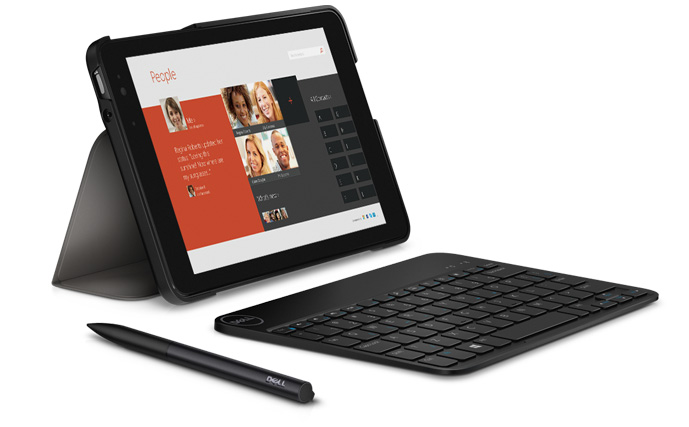
With the loaner review unit Dell sent me, they also included a stylus (with a responsive point) and a keyboard. Each of these are essential companions when using Windows and navigating full-bodied programs like Word or Accordance or whatever else. (Not the least reason for which is that the touch points on Windows apps are too small for even tiny fingers.)
Accordance on the DV8P (click or open in new tab/window to enlarge)
Being able to use–on a portable tablet–programs/apps that you could until now have to get to a desktop or laptop to use… is really sweet. If you don’t want to be limited by Android’s environment or iOS apps, the tablet-as-computer could make sense.
However, a limitation is in the memory size. The Dell Venue 8 Pro comes in 32GB or 64GB models, but even the latter is too small to make this your one-and-only computer (think: lots of images and movies stored). The Dell Venue 11 Pro model, however, has a hard drive up to 256 GB, which is definitely workable for making the DVP your only computing device.
Speaking of, here are the specs of the machine (compared to the 11) from Dell:
Does Abram K-J of Words on the Word
Recommend this Device?
I would be too tied to the Apple app ecosystem to be able to move all my work over to the DV8Pro, much as I like the device. I’d have no way to run OmniFocus, for example. Or Nisus Writer Pro. I could easily still access Evernote, and other such apps.
But if you’re already rocking in the Windows free world, with no Mac or iOS-only apps to consider, this small but powerful device is worth looking into. (I can’t say from experience how it compares to the Microsoft Surface.) It’s reasonably priced, too. And while I experienced more learning curve with the Dell Venue 8 Pro than I did when I first picked up an iPad, after a while it becomes intuitive, and convenient to have more computing power than one would expect in a tablet.
Thanks to the fine folks at Dell for loaning me a Venue 8 Pro 5000 Series Tablet to test for the review. Check out the Dell tablet page here.
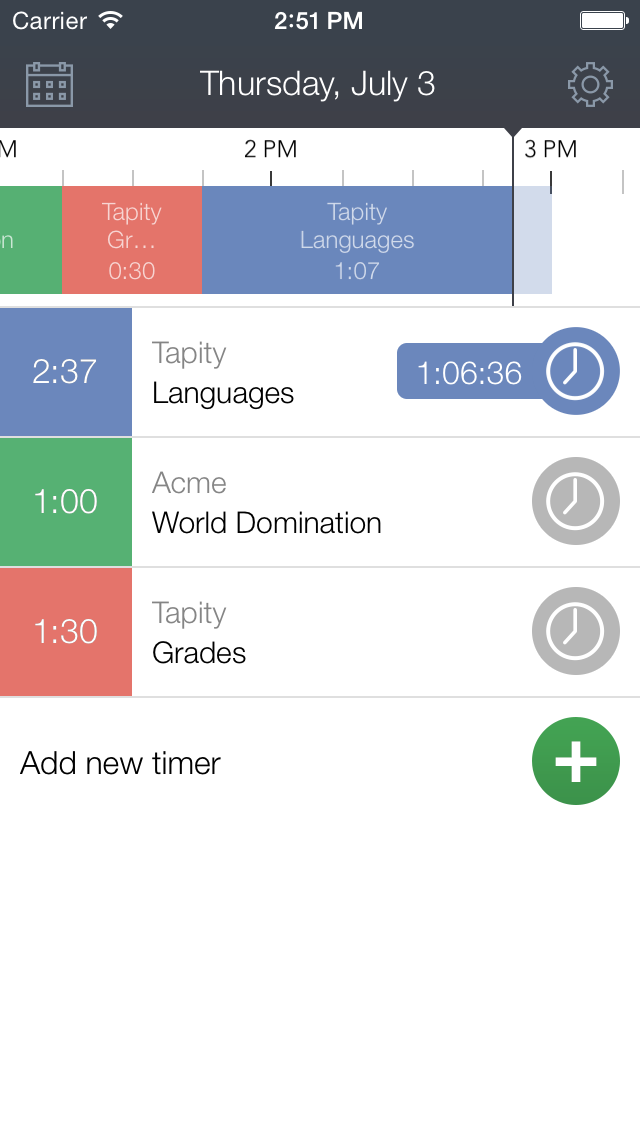
While OfficeTime is my go-to iOS app for tracking where I spend my working hours, I often use the Hours app to track my time doing chores, writing projects, and other related tasks. (I most often access it through its really handy Today widget, and just swiped down to start a timer to see how long this blog post takes!)
Normally $6.99, now the app is free, to celebrate the release of the Apple Watch and the accompanying Hours app. (P.S. What do you call apps on the Apple Watch? Applets? Seeds?)
It’s got a beautiful interface, decent exporting features, and is really easy to use without thinking about–which is as a time-tracking app should be.
Image from Tapity Press Kit
Check it out here, or read more about the app here. Also, those of you who use and enjoy it now–it’s coming to Mac soon.
I enjoy my writing medium more than ever before, now that I’m writing daily in Ulysses.
I started to review the app here; now I conclude my review of Ulysses for Mac.
3. Getting Text Out of Ulysses
You need to know a little bit about Markdown to fully utilize Ulysses. This is from their help manual, which takes the form of a series of interactive Sheets in the app:
“Ulysses uses so-called minimal markup to define, not format or style, text passages. The full list of available definitions is accessible via ⌘9, and it should have you covered left to right. From headlines to lists, to images and footnotes, you simply assign meaning to text passages by entering some easy to remember shortcuts.”
(P.S. I just used that keyboard shortcut and drop-down menu to make the above a block quote… or I could have just typed in “>” before the quotation.)
It’s taken me a little time to learn Markdown (though there’s really not that much to it), but once you have, you can take advantage of Ulysses’s export options.
Again, from the help files:
“Now for the fun part: Ulysses can output your writing to a host of standard formats, such as Plain Text, RTF, HTML, ePub and even PDF. It does so by translating your plain text input based on the definition of the minimal markup. If your brain starts to hurt, here’s a simple example…”
Markup in Ulysses
Here’s why I could write this two-part blog post series in Ulysses (using Markdown), export it to html in WordPress, and then have you read it now as if nothing ever happened: Ulysses “will translate the emphasized passage to semantically correct <em>, and the headline will be tagged with <h2>.”
The idea here is that once you know and use Markdown, you don’t really have to do much by way of thinking about formatting.
When you’re ready to export, you can click to bring up the window at right (or type the shortcut ⌘6):
From here you can preview, copy your text to clipboard, save it to a file, or open it with various apps. (I use Nisus Writer Pro to open my Ulysses sheet as a text file.) You can see your text as RTF, PDF, HTML, plain text, or even a nicely formatted ePub so you can publish your own ebook. Ulysses automatically converts your markup to its proper formatting in the finished product.
The Quick Export function is varied and rich enough, but it takes some fussing to get your text to look how you want it. (This fussing starts to defeat the purpose, in my opinion, of the supposed simplicity of using Markdown.) You can go to Preferences and add your own Styles, so can customize how your text exports, if you need more than just the default Styles Ulysses gives you.
Styles in Ulysses
But this is more effort than unaccustomed writers may appreciate having to make.
There is a Style Exchange where users post their own formatted style sheets, which you can download to your own Ulysses.
And if you do decide to go all in with Ulysses (I’m there), there is a reference guide you can work through to figure out how to make your own Styles to export just how you want.
(See also here for a succinct overview on Ulysses’s blog about exporting.)
4. Ulysses as a Writing Experience
I love writing in Ulysses. Required export efforts and occasional iCloud syncing frustrations notwithstanding, it is a beautiful app in which to put down and rearrange words. It’s smooth and visually appealing. And Ulysses really does accomplish the dual goal of the developers to be (a) distraction-free in its layout yet (b) still give you easy access to any feature a writer would need.
You can keep notes and goals aligned to a given Sheet (i.e., document), and view them from the Attachments pane, or detach them and see them as their own free-floating windows. This really enhances the experience of writing in Ulysses. You can also bookmark paragraphs and favorite Sheets, so navigating through stacks of writing is easier than you’d expect.
I’ve used Ulysses to help inspire me to finish a couple of mid-sized pieces of writing recently—pieces that I was interested in but lacking some motivation for at the time of having to produce them. I told myself I could use Ulysses to write, and the prospect of using that environment made a big difference!
I know this may be silly, but if you have some emails you need to compose that you have been putting off, writing them from Ulysses can be like a spoonful of sugar.
A Few Desiderata
There are a few things I’d like to see Ulysses offer in future updates, the lack of which have detracted (even if slightly) from my experience of using the app:
I would love there to be an easier way to adjust formatting in the Quick Export options (i.e., having something like the equivalent of a formatting toolbar which you can select for output, rather than having to do it through Styles). Also, I haven’t found a way to easily adjust image sizing (from Ulysses) when exporting a Sheet to a blog post–a process itself which could stand to be more fully automated.
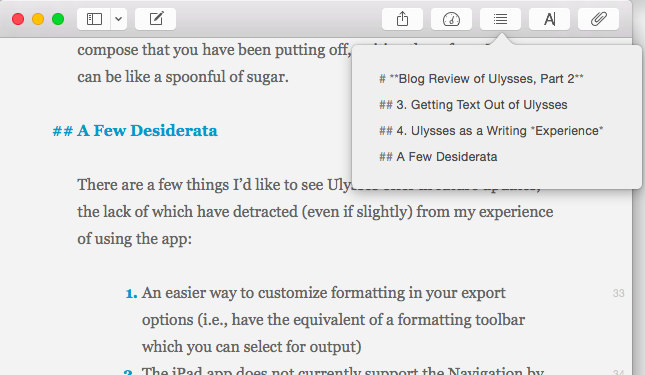
The iPad app does not currently support the Navigation by headings feature I so appreciate in Mac. In fact, the same icon/button is present in iPad, but does something totally different.
Navigating by Headings
I do hasten to add, however, that the Ulysses for iPad app is stellar, easily one of the best apps in the App Store and my current favorite app for iPad.
It would be lovely if there were a way to include the word count as part of the Editor screen. It’s easy enough to find it in the Statistics or Goals portion of the Attachment pane (and both of these pop-ups can be torn off and left free-floating), but a simple word count bar at the top or bottom of the Editor would be nice. The iPad app does offer something along these lines.
I believe this is mostly the fault of the iPad’s lack of support for .rtf, but getting writing from Ulysses on iPad into a format that is .rtf-ready (not to mention .rtf itself) is just about impossible. If you can hop over to Ulysses on a computer, it’s doable, but iPad alone won’t really work for moving your content to rich text.
By the way, my love for Scrivener has not changed, and it’s still a fuller-featured environment for getting lots of research and snippets organized—and has its own really nice distraction-free writing mode.
But Ulysses is on iPad now, too (Scrivener: not yet, but close-ish), and it’s beautiful on the Mac, so when I’m doing long periods of writing, I primarily use Ulysses at as many points along the way as I can.
You can download a free demo trial of Ulysses for Mac here. More about the iPad app is here. Check it out, and play around with it for a bit. It’s helped me really rediscover my love of writing.
Thanks to The Soulmen Gbr, developers of Ulysses, for giving me a download for the review. See my other AppTastic Tuesday reviews (yes, this one is a few days early) here.
Looking for a good scientific calculator that your kids (or roommate) won’t make off with, because it’s downloaded as an app to your iOS device? (Which your kids or roommate might also abscond with, but still….)
PCalc is a beautifully-designed, dynamic calculator for iPhone and iPad, available in the App Store. Below I review the definitely-worth-its-$9.99 app. There is a free, “lite” version available here.
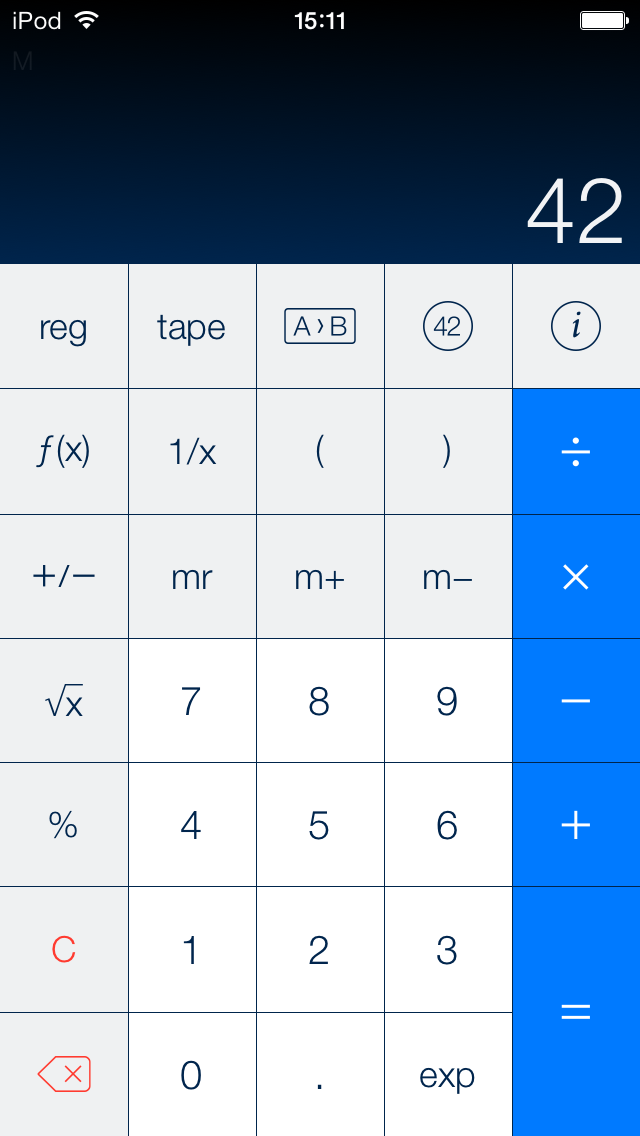
PCalc functions with zero lag, and has a really nice layout, which you can change to suit your preferences:
This image via TLA Systems Ltd.
I liked that view so much I didn’t even think to look for different display options till weeks later. But then I found this:
PCalc is ideal for scientists, engineers, students, programmers, or indeed anybody looking for a feature-rich calculator for the iPad, iPhone, or iPod touch.
It includes an extensive set of unit conversions, a paper tape, an optional RPN mode, engineering and scientific notation, as well as support for hexadecimal, octal and binary calculations.
My favorite feature–that I’ve not seen in any of the other five or six calculator apps I had downloaded and promptly deleted from my phone–is that PCalc can run conversions for you: currency, in the kitchen (good for those of us who still can’t go fluid ounces to cups, which is ALL of us), energy units and more.
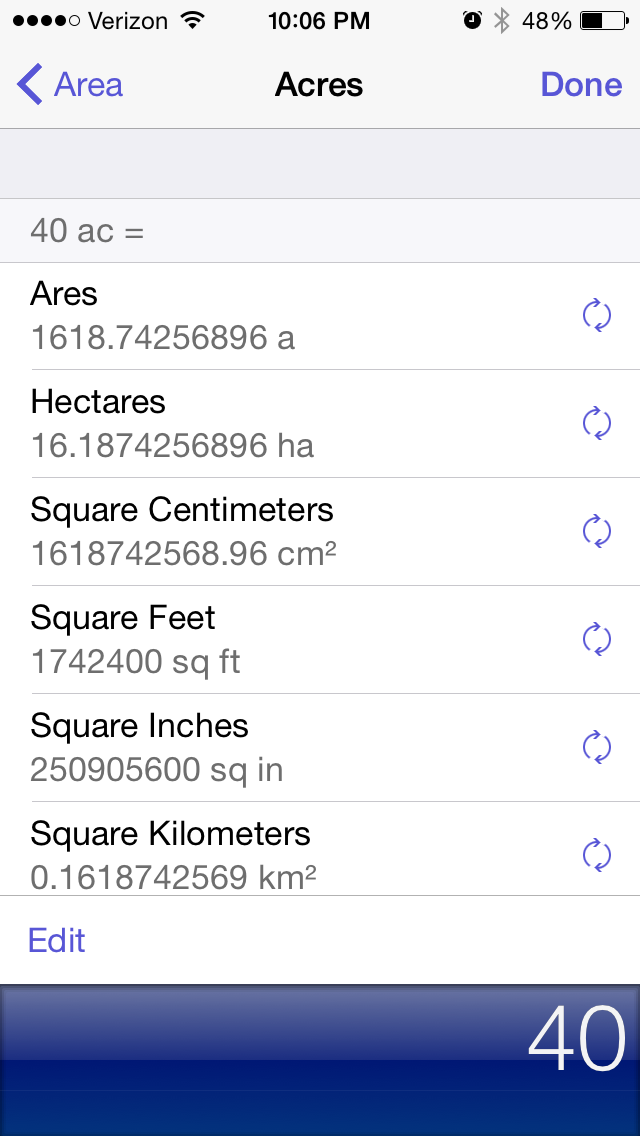
Listening to the new Kendrick Lamar, I might want to know how many square miles 40 acres is. With PCalc, I have my answer within a few taps:
It has a bunch of Constants stored, to which you can add your own:
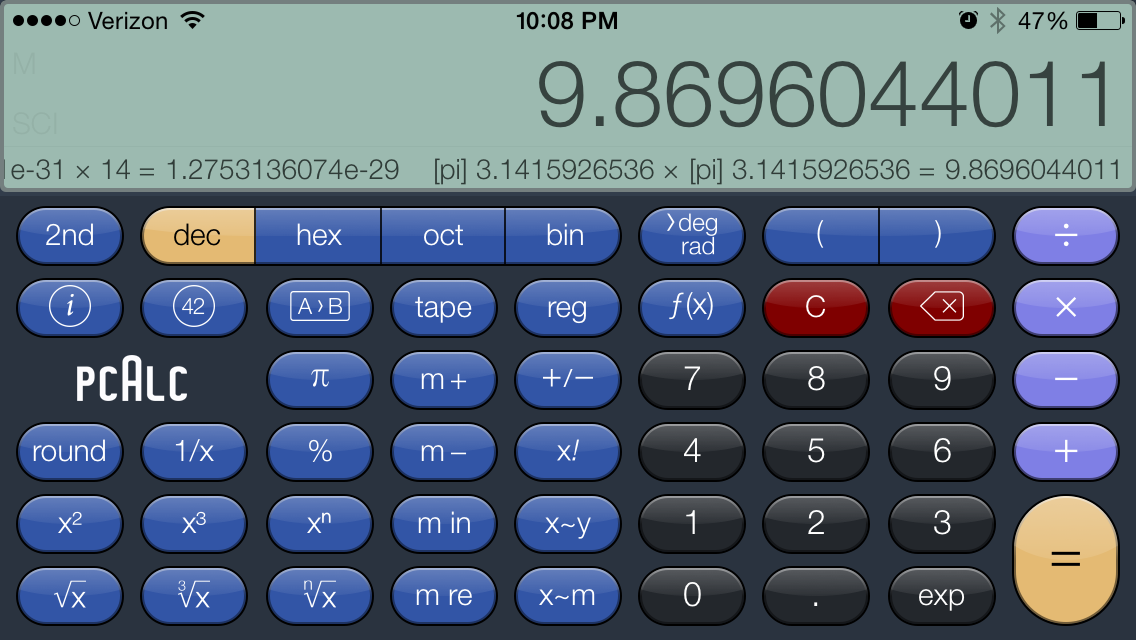
There are also a ton of functions this app can perform that I probably would have loved in my high school Calculus class, but would have trouble with now. You can do more when you rotate to landscape mode:
Note the Ticker Tape underneath the number up top… that’s your computation history! You can even swipe back from the results screen to have PCalc re-perform your last operations.
This is a highly advanced calculator. I can’t say whether science and math students can put away their TI-80-whatevers, but they should at least download PCalc first.
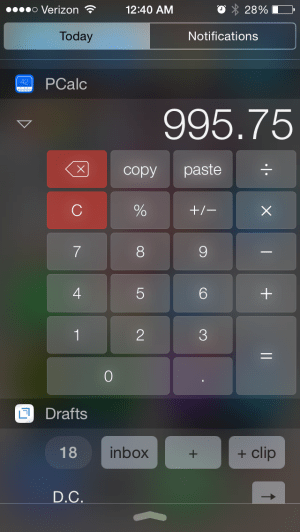
Need to quickly figure a tip, or something else? Without even unlocking your device, swipe down to the Today view and find the best-looking, most functional widget you’ll probably see on iOS 8:
Even Apple’s own Calculator app does not have access from the swipe-down Today view.
PCalc is a fantastic app, and the last non-graphing, scientific calculator app you’ll ever put on your phone. See the full feature list here, and look at many more screenshots here.
Thanks to TLA Systems, the makers of PCalc for iOS, for giving me a download of the app for this review. See my other AppTastic Tuesday reviews here.
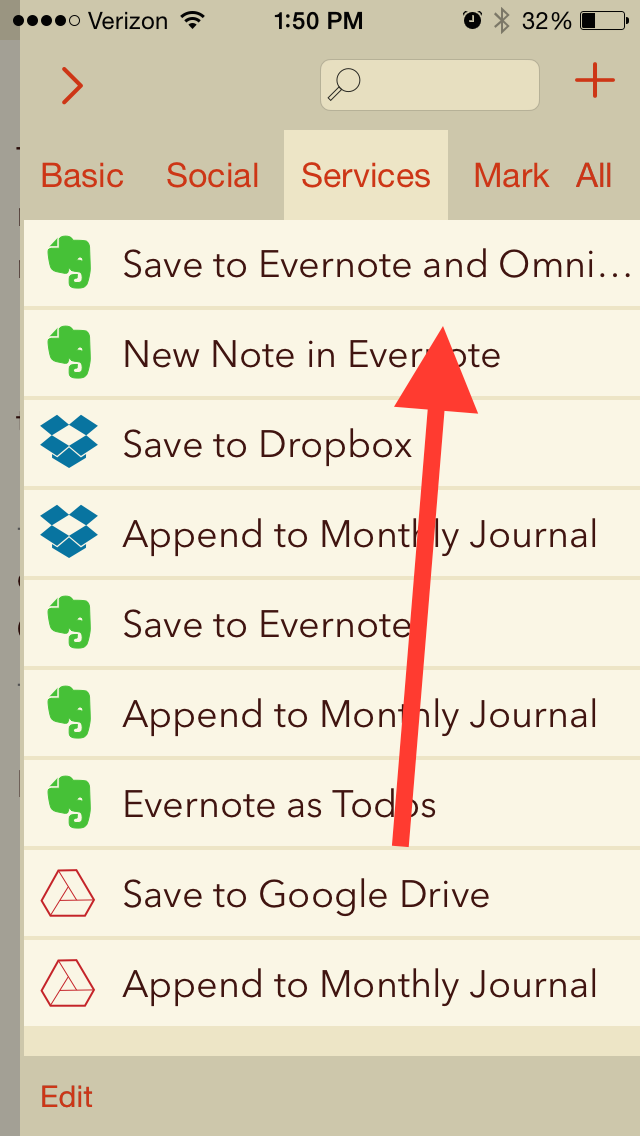
I can hardly believe the technology on a little iPhone exists to do this, but this is now how I am going to take and process meeting notes from here on out.
This means I simply open the Drafts app (which is quite aesthetically pleasing, and fast, too) and take meeting notes there…including marking action steps with the checkbox keyboard shortcut key (!).
Then I tap the action above, and all my meeting notes are saved as an Evernote note, with all the checkboxes I made automatically converting to OmniFocus tasks.
Many, many thanks to Agile Tortoise for the awesome app and to @rosscatrow for the action above to install into Drafts 4. A good step forward in my ongoing quest to stay organized.





















 Words on the Word