The video is of professional quality. You don’t even really think about this as you watch, which is a good thing. It is just David Sparks, his OmniFocus (Mac and iOS, excellent explanations, and you.
Sparks covers all of the basics, and then some. You get in-depth tutorials on how to use Due Dates (sparingly!) or Defer Dates, navigating your way through Projects, what Contexts are and how to use them, keeping your Inbox clear, integrating OF with other workflows like email and TextExpander, and much more. From Capture to Review, the Field Guide has it covered.
There are two nice touches that I especially appreciated:
Sparks is funny. You see him working on a project called Flat Earth Manifesto in the video. But he avoids the pitfall that some tech writers get into, which is being overly cute or annoyingly glib. He uses humor perfectly.
He shows you some of his unique Custom Perspectives in OF. This alone may be worth the price of the field guide. I have already copied his settings that he shows to set up my own Perspectives like his. Even though I have been using the app for a good while now, and consider myself fairly proficient with it, my productivity with OmniFocus has definitely increased since adding these Perspectives.
As you can see in the above shot, you can navigate by chapter, and scroll through all of them to see a sort of Table of Contents of the whole Field Guide.
Here is a short clip so you can get a feel for the approach and content.
Learning OmniFocus is an investment of time. Some people will balk at spending money to learn how to use the software they already spent good money on. But for $10, with well over two hours of top-notch content, the serious OmniFocus user should get to this field guide as soon as possible. Easily 5/5 stars.
A new breed of task management app seems to be proliferating in the App Store as of late: the habit tracker.
The idea behind a habit-building app is not just to help you cross things off your list, but to actually build the kinds of repetitive practices you’d like to be a part of your everyday life.
Streaks is one such app, and perhaps the one with the most aesthetically pleasing presentation.
What I Like About Streaks
The first thing to appreciate about Streaks is its layout:
You can change colors from the default orange to 11 other options:
As you complete (or miss) habits, the app makes it easy to access statistics from the main screen with just a tap. Check this out:
The reminders are customizable, so they can be as obtrusive or unobtrusive as you want them to be, depending on what you need to get your habits in place:
Checking off habits is satisfying. You just hold down the circle till it fills in:
If you missed a day, Streaks knows it:
There are a ton of habit icons from which to choose, and they look better than any I’ve seen in other comparable apps (some of which are just icon-less lists):
Setting up habits is quite easy:
What I Found Lacking
Probably the biggest miss in the app is that there is no way to adjust a habit you forgot to check off more than one day ago. If you missed marking a habit yesterday, you’re all set, but you can’t check off habits you completed two days ago but didn’t note. I lost some streaks this way (at least within the app) when I was on vacation last month. I was completing habits, but not on my phone as often as usual; there’s no way to adjust to get your statistics to reflect such a reality.
I would love for future updates to Streaks to include some sort of sound when you fill in a habit circle. This is just personal preference, though.
Streaks maxes out at six habits that you can be tracking at a time. The developers have a reason for this–it’s hard to maintain more habits than that on a regular basis, but the limitation does not allow for as great user control as some other apps do.
One other lack: you can’t make a habit to do something, say, three times a week, without also having to specify the days. So I can have “Exercise” three times a week, but only if I assign days (Monday, Wednesday, and Friday)–I couldn’t set it up for any three days.
Final Words and Where to Get the App
Limitations notwithstanding, Streaks is easily one of the three best habit-tracking apps for iOS. It’s clearly designed with the user experience in mind, which makes charting habits through this app fun. As long as you can stay on top of tracking your practices each day, Streaks is a worthy aid in helping establish regular life patterns.
It’s Friday, so hopefully you’re winding down a bit and thinking about how to relax rather than how to be more productive–so file this away for Monday (or read it now if you work weekends).
Here are two resources–one paid and one free–to help stay on top of email and tasks.
1. Dispatch App
I’ve never understood the logic of apps that allow you to “snooze” email. Handle it once and move on, I think. Emails are often calendar appointments or tasks in disguise, and our Inboxes are no place to be keeping tasks. Inbox Zero is elusive (though see here), so an app that helps you get your Inbox messages into tasks quickly is appreciated. This is the goal of Dispatch app, newly available on iPad. Check it out here.
2. Free Podcasts from GTD
You might also check out free podcasts from David Allen‘s Getting Things Done:
Our GTD podcasts are here to support you at every stage of your GTD practice. You will hear interviews with people from all walks of life about their journey with GTD, from beginners to those who have been at it for years. The podcasts include personal and professional stories, as well as practical tips about GTD systems for desktop and mobile, using apps and paper. Start listening now and you’ll be well on your way to stress-free productivity.
Prune is a really fun and enjoyably challenging game for iOS.
It’s got a simple, minimalist, beautiful design. David Sparks of MacSparky even used a screenshot from the game for his iPad lock screen!
You start with a screen like this:
Then you swipe up to start your tree growing.
You can pinch to zoom to get a closer look, which you will need as your tree grows in multiple directions. When it is time to prune the tree, which you do to get it to grow toward the light, just swipe your finger across the branch you wish to cut, and it will fall off.
You beat a level by pruning to create the predetermined amount of blossoms on your tree.
The graphics, music, and sound effects are all beautiful and relaxing.
You will want to avoid things like red suns, or your beloved tree burns up:
Not like this
But like this
Once you spend the $3.99 on the app, there are no further in-app purchases or ads.
One might be forgiven for wondering how engaging an app with this premise can be, but it really is fun to play. Apart from its gorgeous design and responsive controls, users will quickly find they are eager to make progress through the game’s various levels. Prune came recommended, and it’s been even better than expected.
If I could have the sync of Things, the layout and tagging and look of 2Do, the simplicity of Todoist, and the power and custom perspectives of OmniFocus, I’d have my perfect task management app. And I’D BE A PRODUCTIVITY MACHINE. Well, no, I’d still have to do all the tasks. (And life is more than doing stuff, anyway.)
But the answer to the question in the header above is that each task management app I’ve tried does not quite fit all my preferences. We adjust, of course, and it’s this phenomenon that has coders writing new task management apps as we speak. Maybe I’m just picky, though I’m far from the only one.
That’s all preface to why you are reading yet another task management app review on this blog. Here I consider 2Do.
Where 2Do (IMHO) Falls Short
Allow me to get the critiques out of the way first, because I really do like this app–a lot. And it has the most aesthetically pleasing interface out of any task management app I’ve used (OmniFocus, Things, Todoist…). But there are a few things that I would hope could be improved.
1. Sync is good (via Dropbox), but not quite instantaneous.
A recent release offered some significant improvement in sync speed, i.e., push sync. (2Do syncs via Dropbox, iCloud, Toodledo, or your CalDAV server.) Tasks and changes don’t sync instantaneously across devices (like Apple’s Reminders do), but this is more due to Apple’s limitations on third-party apps than any shortfall on 2Do’s part. Still, it’s a minor hassle when using the app. Things keeps leading the way here. More on 2Do’s sync methods is here.
TL;DR: Cross-device syncing with 2Do is about as good as it gets, but not perfect.
2. You can’t really email a task in to the app, per se.
There are workarounds, but there is no easy and direct way to convert or forward emails to tasks from wherever you are. This, in my view, is a key necessity of a good task management app. Outlook, OmniFocus, Todoist, and Evernote all allow this, for example.
You can convert a Mac Mail message right to a 2Do task, however, described here, and that may be all some users need. There’s also a workaround using Toodledo that allows you to email tasks to 2Do, but non-users of Toodledo would have to create a new account and learn a new app to be able to do that. (It will be enough to learn 2Do.) For iOS email-to-task conversion, folks might consider the Dispatch app. But here’s to hoping 2Do adds support for email-to-task automation in a future release–one of the few things missing in this slick app.
That I have no additional major critiques than these is actually significant, since I’m a little picky when it comes to this kind of app. And now, on to the good stuff…
Ways in Which 2Do is Just Plain Awesome
1. Photo attachments
You can attached a photo (whether from your Camera Roll or one you take from within the 2Do app) or voice memo to a task. For many, this is just how life works–we want to take a picture of a bill and convert it to a task to remind us to pay it. Or we think of an idea and want to speak it rather than type it. 2Do allows you to make these inputs into tasks.
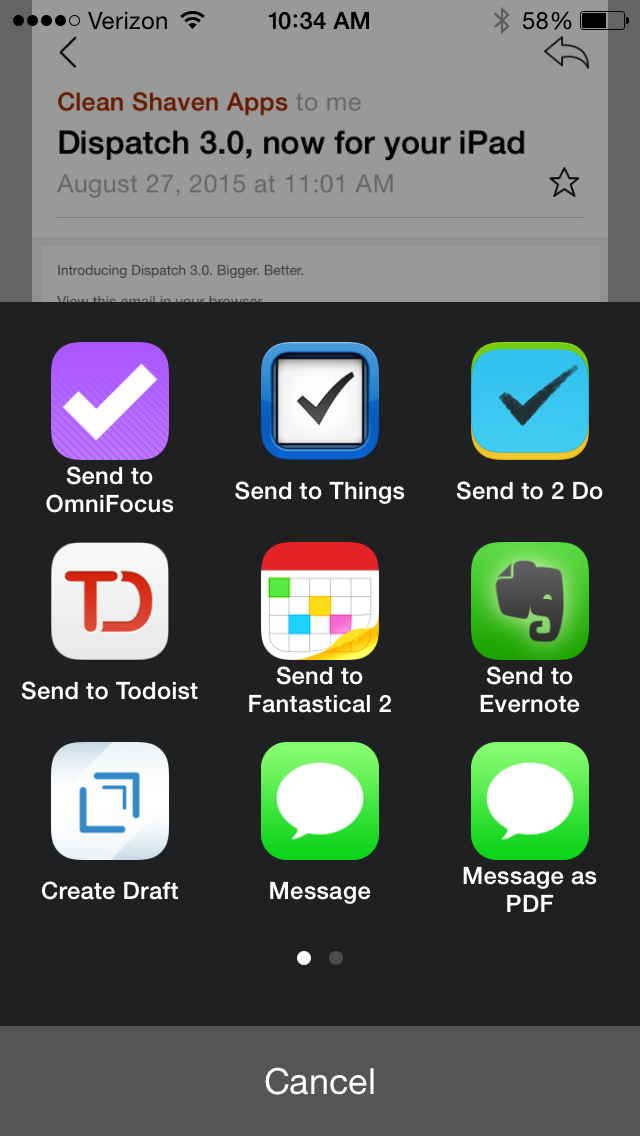
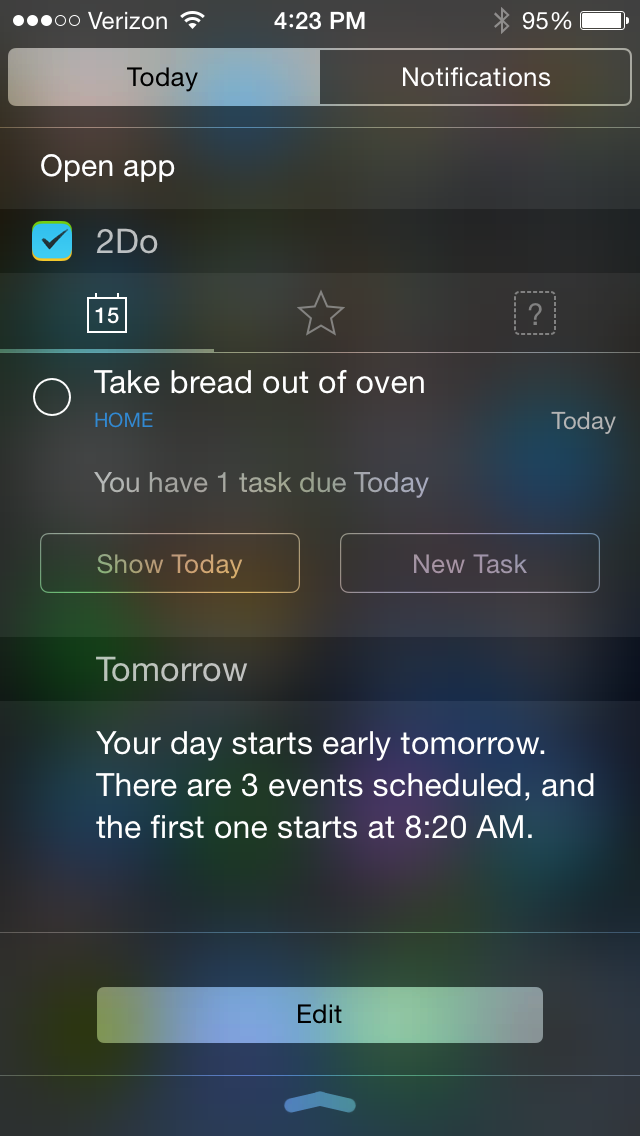
2. 2Do has a nice Today widget and good Share extensions in iOS.
They look like this, and give you a way to access the app from just about anywhere on an iPhone or iPad:
3. It’s easy to set up actions and tasks, recurring and otherwise.
Quickly adding multiple tasks to get things off your mind is a cinch:
Image via 2Do
What about setting recurring tasks? Easy as pie.
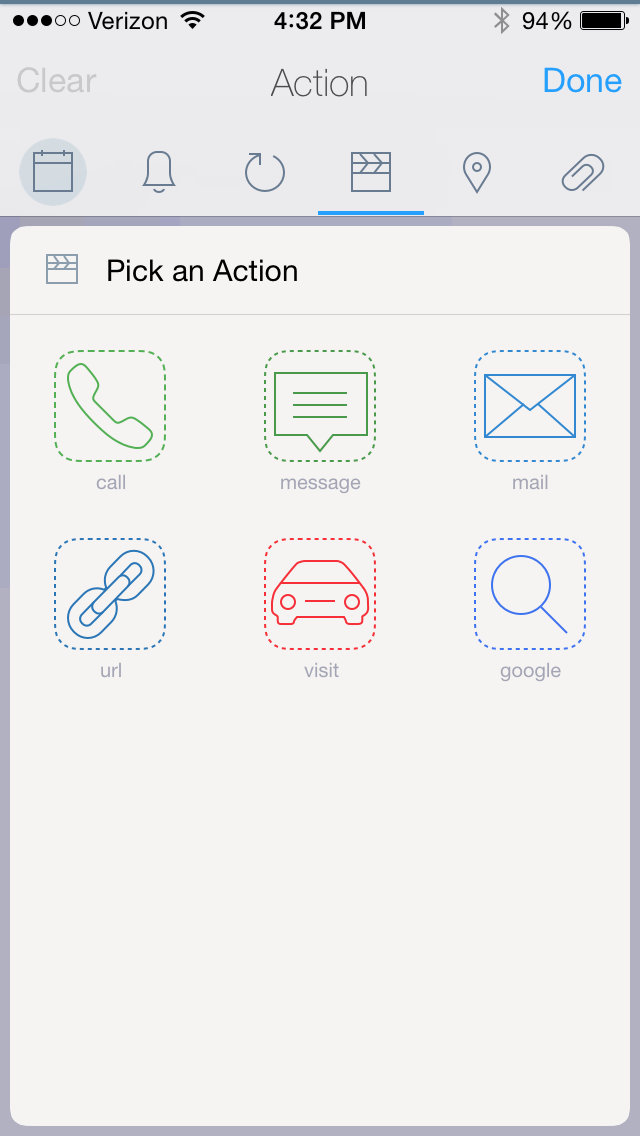
You can even “Pick an Action” in a task.
Selecting “Message,” I then get this option:
Want to make a shopping list, you say? 2Do has a nifty List (checklist) feature you can use:
4. There is good calendar integration.
Calendar integration–yes! It’s like Calendars 5, only far more robust than the task list in that app.
The app has even found a really elegant and easy way around the scroll wheel, for when you want to assign your task to both a due date and a due time:
So a task that’s all set up (no tags shown here) looks like this:
I’ve got a picture I took of an eye exam reminder, attached to the task, an action within the task to call (I just tap the green part and it dials), a reminder, a date and time… pretty smooth.
5. Did I mention how amazing it looks?
Here, I’ll show you:
Click to enlarge
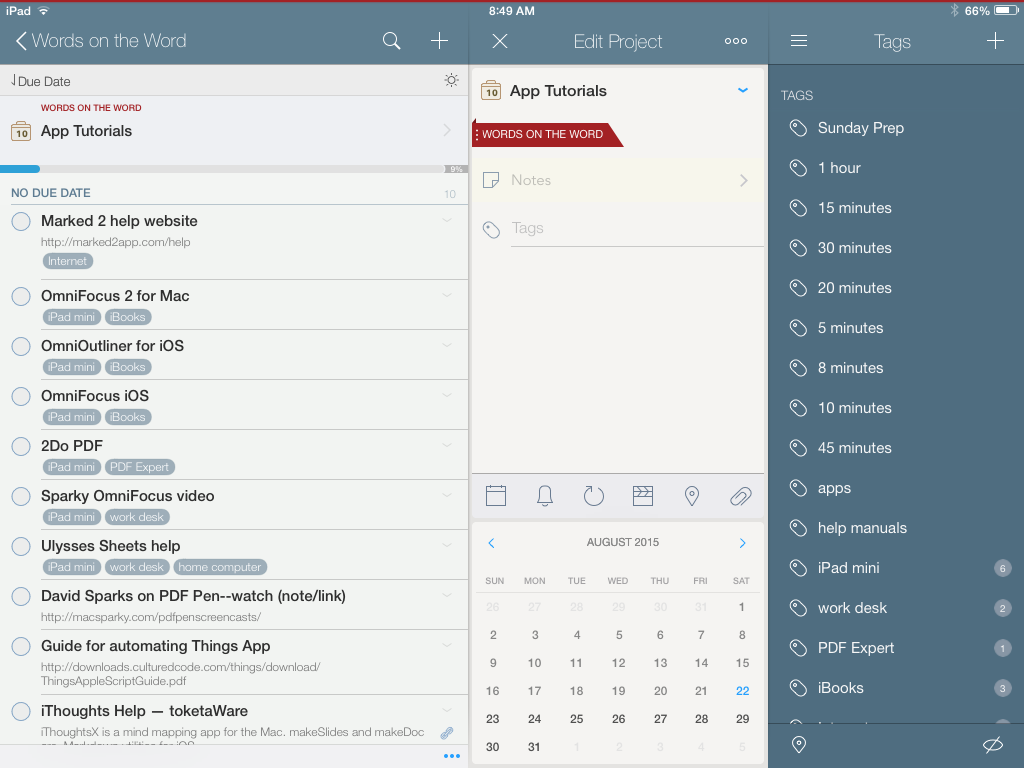
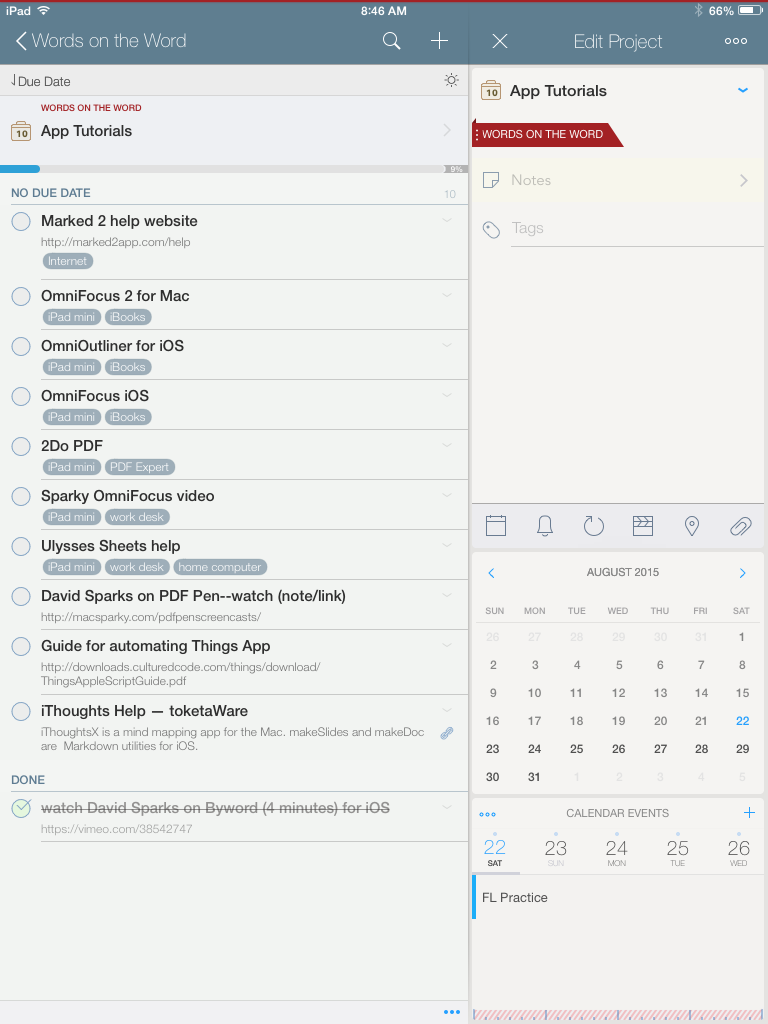
The iPhone and iPad apps look even better:
Click to enlarge
Note how 2Do shows you your tasks and your integrated calendar all together.
6. The iOS apps are some of the best-made apps in the App Store.
The makers of 2Do have really carefully thought this app through, including subtle touches like having a project’s color appear as a faint band on top of that project’s screen. You can easily swipe around from tasks to projects to tags to lists… navigation is very easy, and pretty.
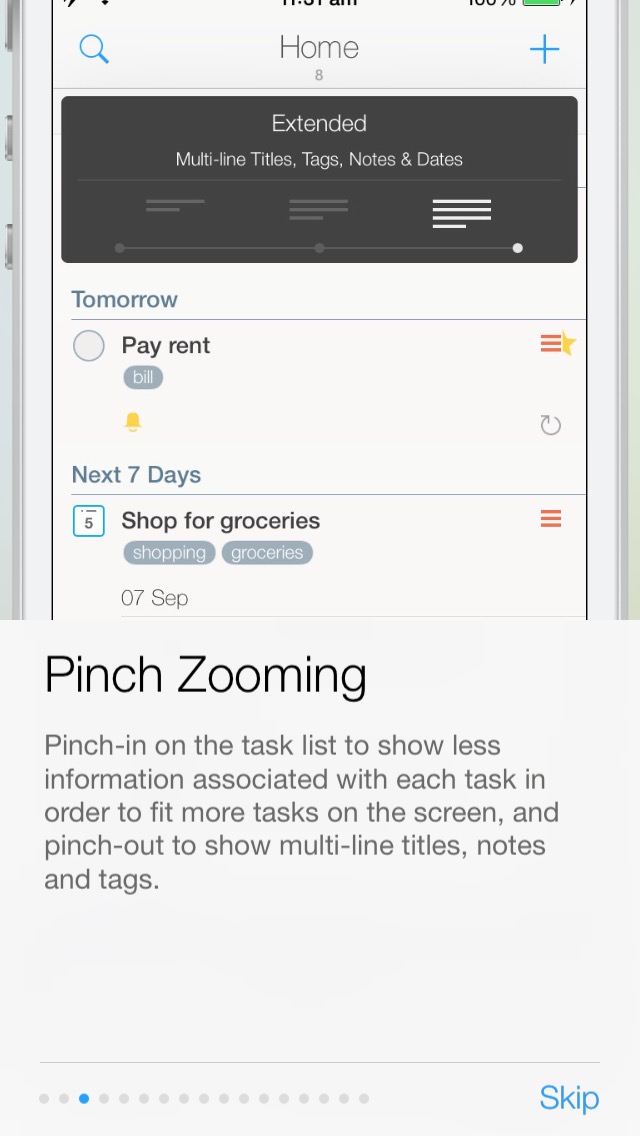
You can even pinch zoom:
Image via 2Do
7. It’s got the power of OmniFocus, but with Tags.
You can see the Tags list in the images above. This allows you to customize your workflow to your heart’s content. You can also set up and save Smart Lists, i.e., searches you want to save to come back to. This is equivalent to OmniFocus’s custom perspectives. But something about actual tags makes it feel even more flexible.
—
There’s much more to say about this app, but I’m already at 1,000 words. If you want to learn more, you can find further documentation here.
If you’re starting from scratch with a task management app and have some money to spend, I can think of no good reason not to invest in 2Do, even over other options. It really is enjoyable to use. It’s powerful enough to help you track and execute multiple projects at once, yet simple enough to learn and start using right away.
You can find it in the App Store here (for Mac) and here (for iOS).
Thanks so much to the makers of 2Do for giving me a download in iOS and OSX for the review. Check out the app’s site here. I know this is a few days early for Apptastic Tuesday, but I couldn’t wait.
First things first–who is even doing design for Cultured Code’s app Things? Because that design team is the best in the biz. The two images in this post show as much.
Yesterday Cultured Code announced a significant improvement to how Things syncs data across devices. Once again, they’re ahead of the pack in this regard. From their blog announcement:
Shortly after Things Cloud launched, we released a feature called Local Push. It makes sync instantaneous as long as Things is open on your devices (and they’re on the same local network). But of course the app is often closed on your mobile device—so it won’t receive the push, and won’t be in sync until you manually launch the app later.
Today’s new version of Things Cloud solves this problem by sending your devices a push from the cloud (regardless of what network they’re connected to). This means that most of the time you’re in sync even before you launch the app.
And then they give you this sweet visual representation:
… which is quite nicely explained in full at their blog. Read the whole thing here.
And be on the lookout for Things 3. I’ll do my best to cover it here once it releases.
It was probably about my fourth time unsuccessfully digging through the same bag of old cables before I got in touch with Belkin for the one I really needed: an auxiliary 3.5 mm cable to plug my phone into the back of some speakers.
The look of the cable is unremarkable, but the only person I’ve ever met who cared about aesthetics in cables this small was the guy at Radio Shack who tried to convince my old college roommate and me that we were idiots for buying a pink aux cable when we could spend a dollar more for a black one. (We rocked the pink.)
I’ve been making good use of this Belkin AUX cable, especially while in the kitchen. It’s durable and does exactly what it should.
Here are the summary features, from Belkin:
Auxiliary cable connects any two devices with 3.5mm port
Sleek cable with metallic finish
Available in five colors to match your device
Designed to withstand heavy use
4-foot length ideal for use everywhere
It works at home, it works in the car, and it coils up nicely for transport. I’ve never had the audio cut out or give feedback while listening via the cable.
At four feet long, it’s all the length you need–not too much, not too little.
Given its durability, the $20 asking price is fair, though some buyers may want to seek out more budget-conscious options–even if they are pink.
But I expect to make use of this (stylish gold) cable for many more hours of audio.
Thanks to Belkin for the review sample, so I could write this review. Receiving the cable for review purposes did not influence the content or nature of this write-up.
I’m pretty tied to the Apple ecosphere of apps when it comes to productivity: OmniFocus, Drafts, MindNode, Ulysses, etc. Three major exceptions are Scrivener, Evernote, and Accordance. But otherwise–whether this has happened consciously or not–most of the apps I use regularly are Mac-only.
Todoist is the rare task management app that is available on every platform. And I mean every platform. It even has a Web-based interface, if you don’t want to have to fire up the app on your computer:
Not only that, it integrates with just about everything. This itself is reason to consider Todoist as a primary task management app.
In this post, I review Todoist Premium, considering at the end whether it could, for me, replace OmniFocus.
Here’s a short video from the makers of Todoist, which offers a quick overview:
What’s Awesome about Todoist
First, what’s awesome about Todoist.
1. It looks good. Really good.
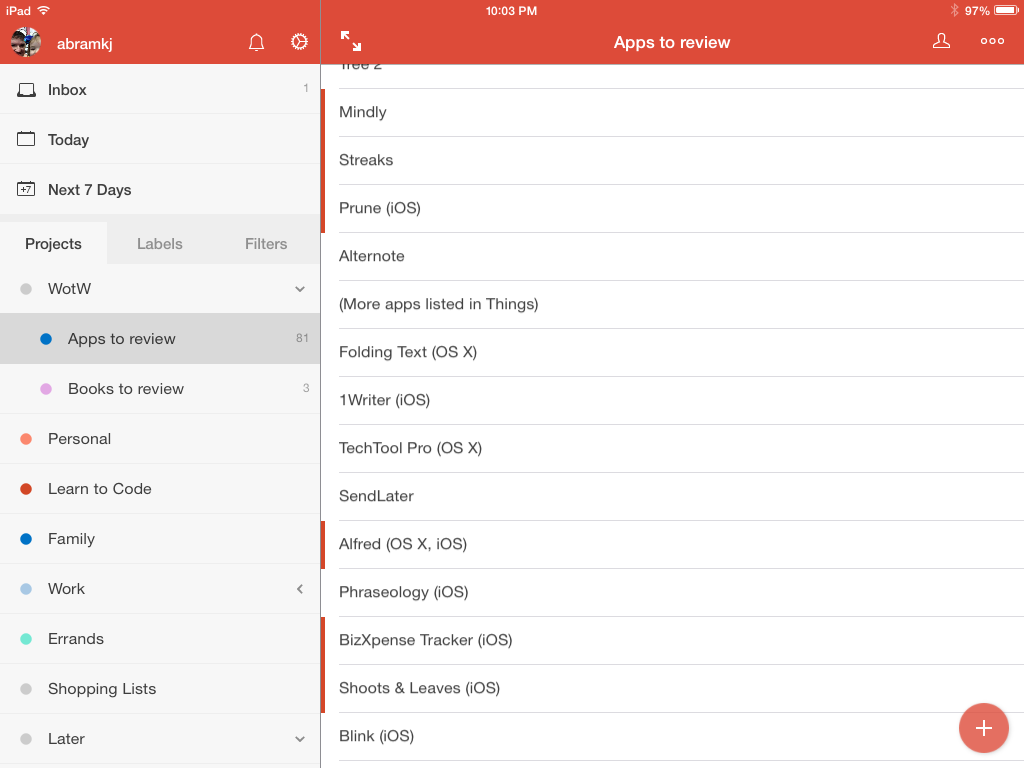
Here it is in landscape mode on an iPad mini:
At first I thought it was overly simple, sort of blasé. But the more I’ve used Todoist, the more I appreciate the layout. No clutter, easy to read, pleasing to the eyes. (And you can tweak the color scheme, too.)
2. The sync: It Just Works.
Todoist’s sync across devices is natural and fast. It’s much more like Things than (previous versions of) OmniFocus. I don’t even really think about it, which is what you hope would be true. No manual anything required.
3. Todoist is everywhere (almost).
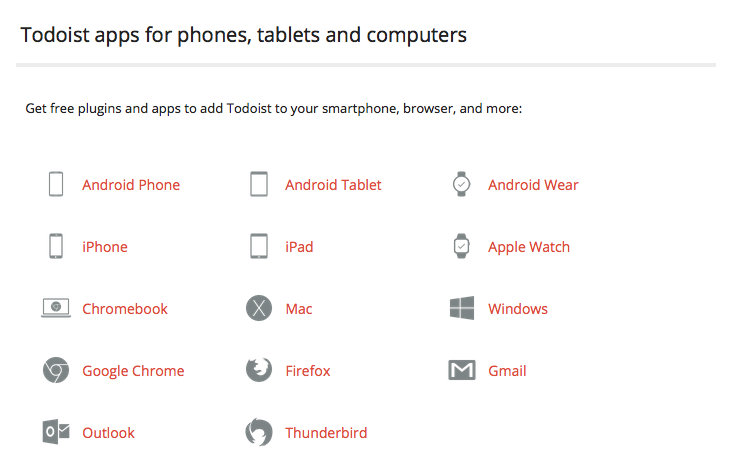
It’s the most ubiquitous and app-integrated task management app on the market. Look, it’s even in my Firefox browser!
Click to enlarge image
There’s a Gmail plug-in, too. This, unfortunately, is only available with Chrome–which is too much of a CPU hog for me. But it looks good.
Todoist doesn’t offer a Mac Mail plug-in, but as you’ll see below, you can email a task right into a Todoist project, so that’s not a big deal.
4. Labels and Filters
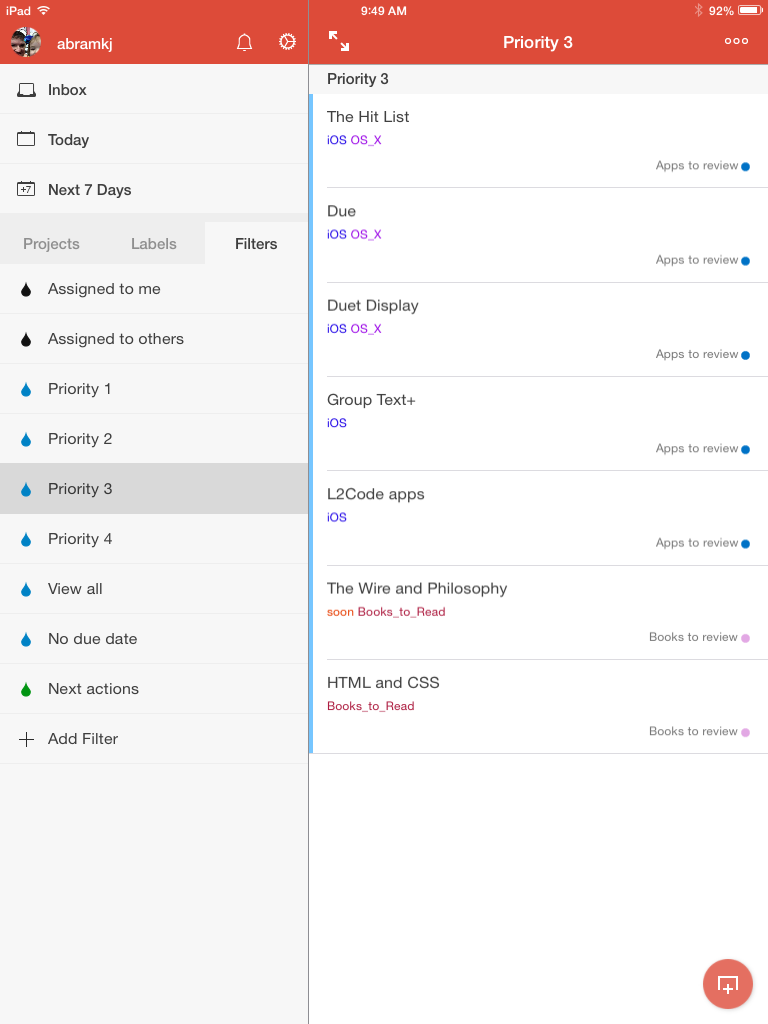
I don’t know Todoist like I know OmniFocus, but Labels and Filters would appear to be the app’s heart and soul. Sure, there’s an Inbox you can use for GTD-style capture (from anywhere). Yeah, you can set up different Projects for organizing your tasks. But Labels allow you to assign contexts and anything else you like to your tasks (expected task duration?). Then you can filter your tasks by Labels or priority or any other saved search:
Annoying is the fact that when you create a new Label, if there are two words or more, Todoist automatically inserts an underscore. So one label of mine is now “Waiting_For.” I’m sure I’ll get used to it, but it feels a little AOL-ish.
I’m sure there are Label and Filter ninja reading this post, and there’s much more to say about them–Todoist can do quite a bit here. So check out this page and this page for more.
5. Easy task input
Todoist understands natural language, so entering tasks intuitively is no problem. It’s easy to enter tasks in rapid-fire fashion, too, so you can do a brain dump well with Todoist.
6. Email reminders
Todoist assigns an email address to a Project of your choice, so I can email tasks (or forward actionable emails) directly to my Inbox. This is a must-have for me in a task management app. You can include attachments, too.
Speaking of email… you can also have Todoist email you reminders of your tasks. At first I thought this was redundant (well… it is). But even though I’m seeing the same task twice (maybe a GTD no-no?), I have found the added reminder helpful.
What I Don’t Particularly Like about Todoist
1. The Premium, subscription-based model
Of course. It would be ridiculous to expect a sophisticated app with task notes, attachments, email reminders, fast sync, etc. to be free. There is a free Todoist, but it’s limited. Here’s some of what is in Premium, which is about $29/year:
But I’ve never liked subscription-based models. Sure, if you work for a big company that’s paying for it, I can see it working. But what users otherwise want to pay $150 to use the app for the next five years? Other apps with one-time purchases end up being cheaper. If you don’t have Premium, or let it expire, you can no longer add notes or attachments to your tasks–serious GTDers (and other task management obsessives) will need Premium.
2. The interface is not so customizable.
You can change your start screen, but not on iOS, that I could find. You’re pretty tied in to the layout Todoist gives you.
3. For GTDers: No weekly review option
My weekly review–a built-in feature of OmniFocus–is what allows me to set due dates sparingly, a key practice for effective project and task management. Todoist’s Karma is fun, but feels gimmicky. And their GTD page has suggestions for something like a weekly review (it would be easy enough to set up a recurring task for it, employing Filters and Labels as needed), but I have gotten so used to OmniFocus’s Review function that not having one already in the app is tough. But it won’t be a deal breaker for a lot of folks.
Concluding Evaluation
If I were to stop using Apple products tomorrow, I’d get Todoist up and running right away.
How does Todoist Premium rate with apps like OmniFocus and 2Do and Things? It’s right up there, and maybe—given its cross-functionality and fast sync—the best of the batch. But the subscription model is just something I can’t latch on to. Some will have no problem with this.
When I set out to write this review, I was planning to conclude it with, “Yet another app falls short of OmniFocus….” But Todoist really doesn’t. Sure, OF beats it in some regards, but Todoist outperforms OmniFocus in other key areas.
So if you’re one of those handful of disaffected OF users, or if, heaven forbid, you’re not keeping track of your commitments in writing at all–and if you have $30/year to spend–Todoist Premium might just be your new, sole task management app.
Thanks to the fine folks at Doist, the makers of Todoist, for giving me 6 months of Todoist Premium so I could write this review. See my other AppTastic Tuesday reviews here.
Drafts is the only app that lives in my dock on both iPad and iPhone. I was skeptical before I reviewed it. Now I use it more the Phone “app” on my phone.
Best of all is the customizable keyboard, from which you can trigger a bunch of actions to perform on the text in your draft: send as Message, Email, make into OmniFocus list, send to Evernote journal, make into a mind map, etc., etc., amen.
Here’s how part of mine looks:
If you use your iOS device (iPhone or iPad) to boost your organization and productivity, this is an essential app. You can, for example, do this amazing thing and this even more amazing thing.
Best of all, it’s now 30% off for a Back to School sale. I’ve never seen it cheaper.
The Drafts action you’re going to need is “Open in….”
I’ve given this action (which comes already installed with Drafts) its own “Run Action” key on the customizable Drafts keyboard, with its own icon from the emoji keyboard. My keyboard in Drafts looks like this:
Now the amazing part, and it’s just three steps:
1. Outline the text of your mind map in Drafts.
Here’s a bit of voice-dictated text:
To get going, use Siri to record what will be your first node.
To get to a second node, simply say, “New line, new line” and say what your next node will be.
If you want to do sub-nodes (i.e., “children”) after you have dictated your main/parent node, say, “New line,” and then have Siri indent your sub-node with the “tab key” command. Then dictate that sub-node or child.
You can add more parent, child, and sibling topics similarly.
2. Run your “Open in…” action in Drafts.
I simply tap my “Run action” key, which automatically triggers the “Open in…” action:
Select Mind Node and…
3. View your mind map in MindNode.
Because of MindNode’s iCloud-enabled sync setup, you can now view (and modify) your mind map in iOS or OSX platforms.
Joey Lawrence put it best:
The above is an adaptation/re-posting of a previous post on voice dictating a mind map. That post used the app iThoughts, but I learned shortly after posting that even though MindNode doesn’t have the x-callback-url support that iThoughts does, Drafts’s “Open in…” feature makes the same process possible with just one extra tap. Rad.




















 Words on the Word