It was probably about my fourth time unsuccessfully digging through the same bag of old cables before I got in touch with Belkin for the one I really needed: an auxiliary 3.5 mm cable to plug my phone into the back of some speakers.
The look of the cable is unremarkable, but the only person I’ve ever met who cared about aesthetics in cables this small was the guy at Radio Shack who tried to convince my old college roommate and me that we were idiots for buying a pink aux cable when we could spend a dollar more for a black one. (We rocked the pink.)
I’ve been making good use of this Belkin AUX cable, especially while in the kitchen. It’s durable and does exactly what it should.
Here are the summary features, from Belkin:
Auxiliary cable connects any two devices with 3.5mm port
Sleek cable with metallic finish
Available in five colors to match your device
Designed to withstand heavy use
4-foot length ideal for use everywhere
It works at home, it works in the car, and it coils up nicely for transport. I’ve never had the audio cut out or give feedback while listening via the cable.
At four feet long, it’s all the length you need–not too much, not too little.
Given its durability, the $20 asking price is fair, though some buyers may want to seek out more budget-conscious options–even if they are pink.
But I expect to make use of this (stylish gold) cable for many more hours of audio.
Thanks to Belkin for the review sample, so I could write this review. Receiving the cable for review purposes did not influence the content or nature of this write-up.
I’m pretty tied to the Apple ecosphere of apps when it comes to productivity: OmniFocus, Drafts, MindNode, Ulysses, etc. Three major exceptions are Scrivener, Evernote, and Accordance. But otherwise–whether this has happened consciously or not–most of the apps I use regularly are Mac-only.
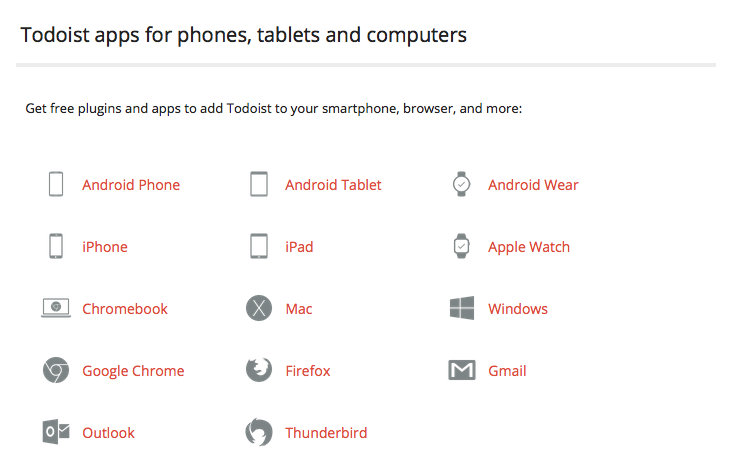
Todoist is the rare task management app that is available on every platform. And I mean every platform. It even has a Web-based interface, if you don’t want to have to fire up the app on your computer:
Not only that, it integrates with just about everything. This itself is reason to consider Todoist as a primary task management app.
In this post, I review Todoist Premium, considering at the end whether it could, for me, replace OmniFocus.
Here’s a short video from the makers of Todoist, which offers a quick overview:
What’s Awesome about Todoist
First, what’s awesome about Todoist.
1. It looks good. Really good.
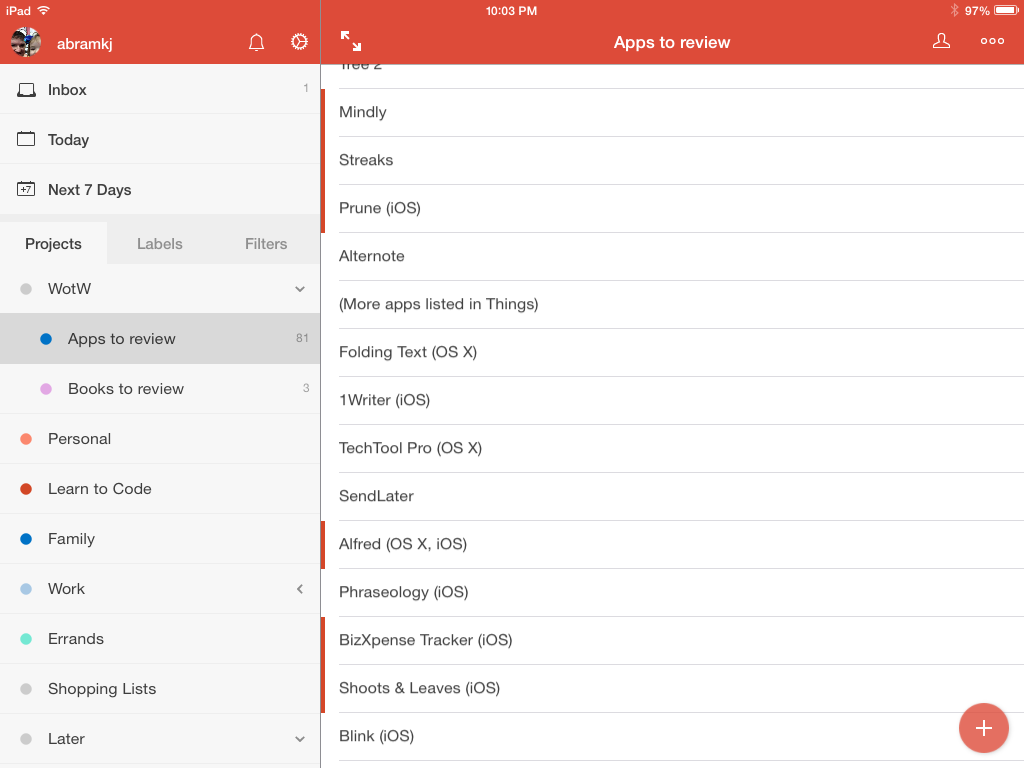
Here it is in landscape mode on an iPad mini:
At first I thought it was overly simple, sort of blasé. But the more I’ve used Todoist, the more I appreciate the layout. No clutter, easy to read, pleasing to the eyes. (And you can tweak the color scheme, too.)
2. The sync: It Just Works.
Todoist’s sync across devices is natural and fast. It’s much more like Things than (previous versions of) OmniFocus. I don’t even really think about it, which is what you hope would be true. No manual anything required.
3. Todoist is everywhere (almost).
It’s the most ubiquitous and app-integrated task management app on the market. Look, it’s even in my Firefox browser!
Click to enlarge image
There’s a Gmail plug-in, too. This, unfortunately, is only available with Chrome–which is too much of a CPU hog for me. But it looks good.
Todoist doesn’t offer a Mac Mail plug-in, but as you’ll see below, you can email a task right into a Todoist project, so that’s not a big deal.
4. Labels and Filters
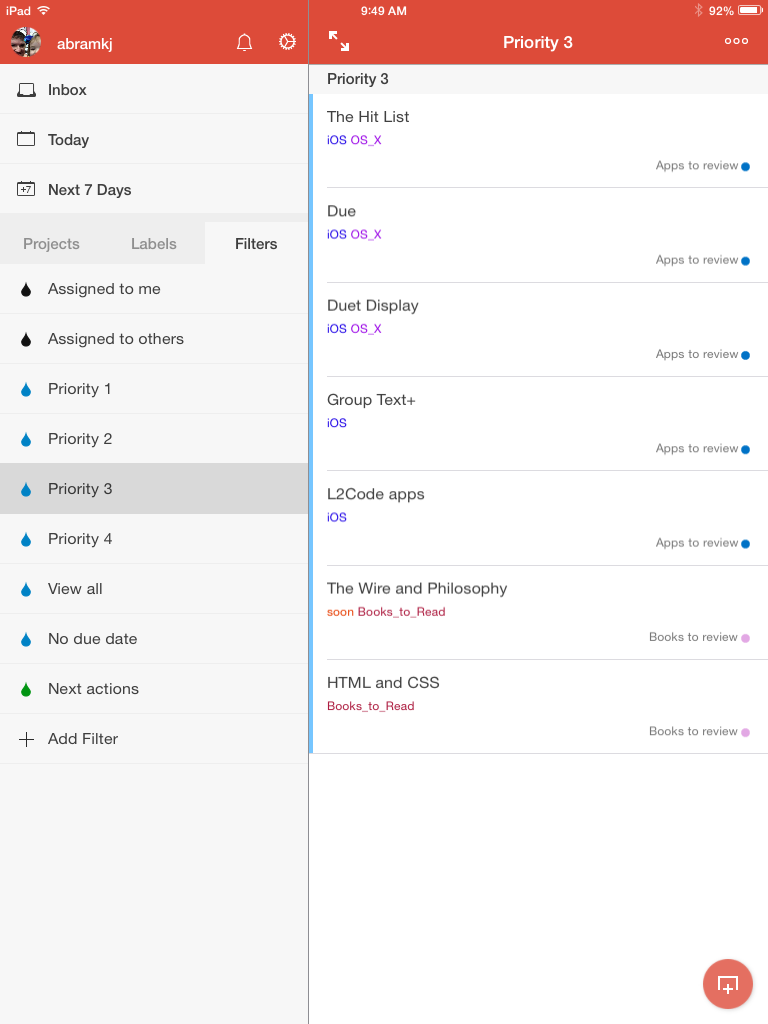
I don’t know Todoist like I know OmniFocus, but Labels and Filters would appear to be the app’s heart and soul. Sure, there’s an Inbox you can use for GTD-style capture (from anywhere). Yeah, you can set up different Projects for organizing your tasks. But Labels allow you to assign contexts and anything else you like to your tasks (expected task duration?). Then you can filter your tasks by Labels or priority or any other saved search:
Annoying is the fact that when you create a new Label, if there are two words or more, Todoist automatically inserts an underscore. So one label of mine is now “Waiting_For.” I’m sure I’ll get used to it, but it feels a little AOL-ish.
I’m sure there are Label and Filter ninja reading this post, and there’s much more to say about them–Todoist can do quite a bit here. So check out this page and this page for more.
5. Easy task input
Todoist understands natural language, so entering tasks intuitively is no problem. It’s easy to enter tasks in rapid-fire fashion, too, so you can do a brain dump well with Todoist.
6. Email reminders
Todoist assigns an email address to a Project of your choice, so I can email tasks (or forward actionable emails) directly to my Inbox. This is a must-have for me in a task management app. You can include attachments, too.
Speaking of email… you can also have Todoist email you reminders of your tasks. At first I thought this was redundant (well… it is). But even though I’m seeing the same task twice (maybe a GTD no-no?), I have found the added reminder helpful.
What I Don’t Particularly Like about Todoist
1. The Premium, subscription-based model
Of course. It would be ridiculous to expect a sophisticated app with task notes, attachments, email reminders, fast sync, etc. to be free. There is a free Todoist, but it’s limited. Here’s some of what is in Premium, which is about $29/year:
But I’ve never liked subscription-based models. Sure, if you work for a big company that’s paying for it, I can see it working. But what users otherwise want to pay $150 to use the app for the next five years? Other apps with one-time purchases end up being cheaper. If you don’t have Premium, or let it expire, you can no longer add notes or attachments to your tasks–serious GTDers (and other task management obsessives) will need Premium.
2. The interface is not so customizable.
You can change your start screen, but not on iOS, that I could find. You’re pretty tied in to the layout Todoist gives you.
3. For GTDers: No weekly review option
My weekly review–a built-in feature of OmniFocus–is what allows me to set due dates sparingly, a key practice for effective project and task management. Todoist’s Karma is fun, but feels gimmicky. And their GTD page has suggestions for something like a weekly review (it would be easy enough to set up a recurring task for it, employing Filters and Labels as needed), but I have gotten so used to OmniFocus’s Review function that not having one already in the app is tough. But it won’t be a deal breaker for a lot of folks.
Concluding Evaluation
If I were to stop using Apple products tomorrow, I’d get Todoist up and running right away.
How does Todoist Premium rate with apps like OmniFocus and 2Do and Things? It’s right up there, and maybe—given its cross-functionality and fast sync—the best of the batch. But the subscription model is just something I can’t latch on to. Some will have no problem with this.
When I set out to write this review, I was planning to conclude it with, “Yet another app falls short of OmniFocus….” But Todoist really doesn’t. Sure, OF beats it in some regards, but Todoist outperforms OmniFocus in other key areas.
So if you’re one of those handful of disaffected OF users, or if, heaven forbid, you’re not keeping track of your commitments in writing at all–and if you have $30/year to spend–Todoist Premium might just be your new, sole task management app.
Thanks to the fine folks at Doist, the makers of Todoist, for giving me 6 months of Todoist Premium so I could write this review. See my other AppTastic Tuesday reviews here.
The new school year is almost year. (Some folk in the South have already started!)
If you’re a pastor or professor who is looking to reinvigorate your sermon prep or teaching workflow, Accordance Bible Software is a great tool. It’s also an indispensable aid for seminarians. (Speaking of which: Back to School sale.)
This coming week Accordance is offering a host of free webinars. I’ve attended a few of these, and they’re always informative and well-done. I also teach a couple webinars now, which is a lot of fun. I’m leading one on Friday:
Setting Up Workspaces with Abram K-J Friday, August 21, 12:00 – 1:00 PM
Abram will gear this session toward the basic-level Accordance user. The webinar is interactive throughout, offering users a chance to see how to set up, customize, and save a Workspace in Accordance.
Here is what I’ll cover:
1. Terminology: Panes, Tabs, Zones, Workspaces
2. Setting Up a Simple Workspace: Bible, Commentary, User Notes
3. Setting Up a More Robust Workspace: Multiple Bible Texts, Multiple Commentaries, and Tools
4. Creating Different Workspaces for Different Tasks
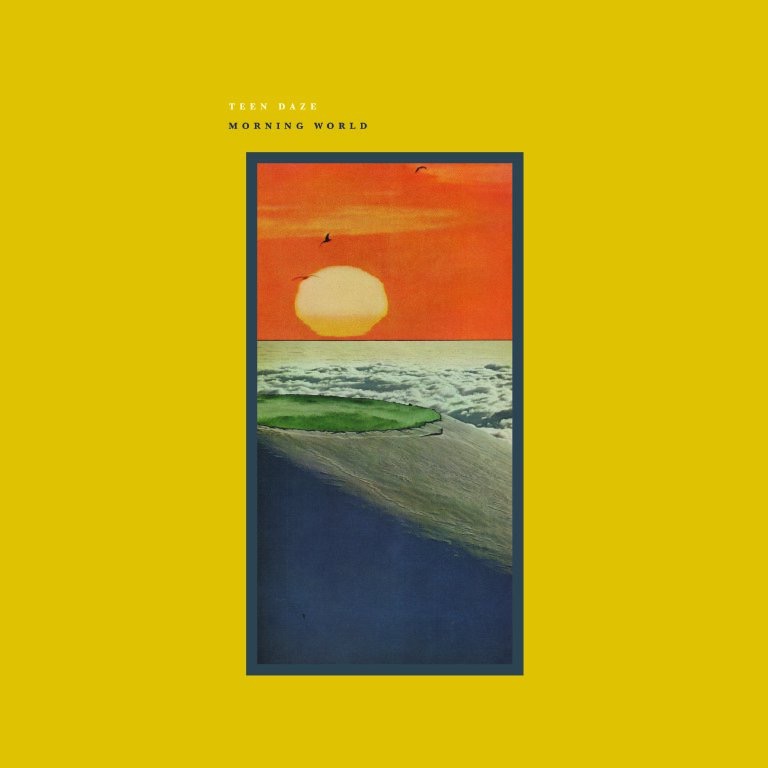
It’s already August, so I’ll just call it now: Teen Daze’s Morning World is 2015’s Album of the Year.
Two weeks ago I had never heard of Teen Daze, impoverished soul that I was. The lush, arpeggiated riff that opens the album on “Valley of Gardens” drew me immediately in.
Then Jamison, genius behind Teen Daze, sweetly sings:
I went down
To see what the pond had collected.
A valley of gardens
Muted the sound of the hills.
And the rain had ended
I can smell the leaving of winter.
Blue and green, now:
I feel them in every sentence.
…which is a good thing, because there aren’t that many sentences on this record. Jamison doesn’t need many lyrics, though, because (a) the ones he uses are plenty evocative and (b) the music is expressive, creative, intricately layered, and speaks for itself.
After my first listen or two, I described Teen Daze’s sound as if The Lassie Foundation were covering Badly Drawn Boy songs, with some mid-1990s James Iha (Smashing Pumpkins) sprinkled in. The drums are perfect, the riffs are unforgettable, and the production (John Vanderslice, mastered by Bob Weston) is outstanding.
But then on about my fourth listen through, I noticed the strings. Oh, those strings. They really make the album. Cello and rock and roll were made for each other. And these parts are perfectly orchestrated.
Morning World somehow has a way of evoking so many bands I’ve loved over the last couple decades, yet with its own unique sound.
The title track, “Morning World,” is what my college roommate might have called “the perfect pop song.” Its 4:15 duration could easily be 10 minutes, and you wouldn’t mind. Jamison asks in his falsetto:
Should I, drift back
Drift back, into a dream.
Into a dream?
The album pulls the listener into this dream—no, not the dream of the 90s, but visions of the Garden of Eden (“finally a place of endless wonder”). If Teen Daze is suggesting Morning World could have been the Garden’s soundtrack, it’s hard to argue.
But despite the promise that “We can live forever,” and the desire to “believe that this is forever,” mid-album (and the lyrics only allude to it, allowing the music to do the work) the listener realizes something has gone wrong in the Garden. The rest of the record comes to grips with what it means when “forever” actually has an end.
Morning World—released today—is actually a fairly significant departure from Teen Daze’s previous work. I went back and listened to three previous albums, and there’s barely a live drum set or unprocessed guitar part to be found. That older, ambient, synth-heavy stuff is awesome in its own right (and still has a place here), but the new sound serves Teen Daze’s music well.
Also—Teen Daze took just 10 days to make this album. Yes, 10 days—6 for recording and 4 for mixing. There are a few times when this shows–a couple muffled guitar notes here and there–but that comes across and mostly endearing and just adds to the album’s charm. You’d otherwise never know this genius record took less than two weeks to bring to completion.
Get this album as soon as you can, put on a pair of headphones, turn off your device notifications, and enjoy what is easily the best album of the year. Find it here (iTunes) and here (Amazon).
——
Thanks to the good folks of Force Field PR for the album download for review.
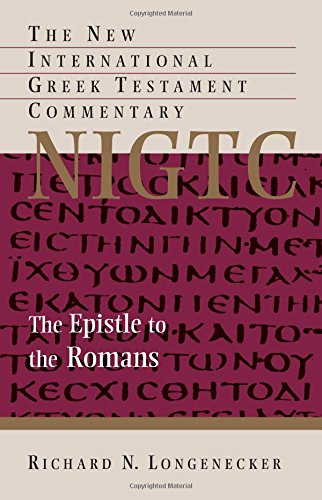
Does the Church need another commentary on Romans?
Time will tell. But Richard N. Longenecker’s Romans volume in the NIGTC series is about to be released.
Today Eerdmans announced a sneak peek PDF with Table of Contents and Preface, which you can find here.
I like Longenecker’s turn of phrase when he says Romans “has been, in very large measure, the heartland of Christian thought, life, and proclamation.”
He also notes:
Indeed, 2 Pet 3:16 bears eloquent testimony to the church’s mingled attitudes of (1) deep respect for Paul’s letters generally (and Romans in particular), yet also (2) real difficulties in trying to understand them, and (3) a realization of possibilities for serious misinterpretation, when it says of Paul’s letters that they “contain some things that are hard to understand, which ignorant and unstable people distort, as they do the other Scriptures, to their own destruction.” In fact, despite all its appearances of being straightforward and clear, no other NT writing presents greater difficulties with respect to “style,” “stance,” and “audience” (to recall Erasmus’s three categories of difficulty) than does Romans.
Drafts is the only app that lives in my dock on both iPad and iPhone. I was skeptical before I reviewed it. Now I use it more the Phone “app” on my phone.
Best of all is the customizable keyboard, from which you can trigger a bunch of actions to perform on the text in your draft: send as Message, Email, make into OmniFocus list, send to Evernote journal, make into a mind map, etc., etc., amen.
Here’s how part of mine looks:
If you use your iOS device (iPhone or iPad) to boost your organization and productivity, this is an essential app. You can, for example, do this amazing thing and this even more amazing thing.
Best of all, it’s now 30% off for a Back to School sale. I’ve never seen it cheaper.
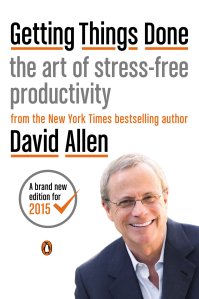
The wedding of productivity literature and thoughtful anthropology (let alone spirituality) seems to be woefully uncommon, but David Allen strikes me as a spiritually attuned writer. That’s why I think it’s no stretch to call some of his insights into personal productivity “soul-piercing.” Or, at least, one can better provide oneself good soul care when implementing Allen’s GTD (Getting Things Done) principles.
Readers of this blog know of my new-found use of OmniFocus, which is really just one possible tool (out of several) that helps one practice Getting Things Done.
Here are two total gems from Allen’s new, re-tooled GTD 2.0:
What you do with your time, what you do with information, and what you do with your body and your focus relative to your priorities–those are the real options to which you must allocate your limited resources. The substantive issue is how to make appropriate choices about what to do at any point in time. The real work is to manage our actions.
He says this as a reaction to talk of “managing time” or even “managing priorities.” Allen says you can’t manage time (“you don’t manage five minutes and wind up with six”) and don’t manage priorities (rather, “you have them”). That seems at first like semantics, but his point is:
Things rarely get stuck because of lack of time. They get stuck because what “doing” would look like, and where it happens, hasn’t been decided.
So the focus becomes managing our actions. And this is still relative to our priorities.
Phew. Love it. (Also, guilty as charged.)
Here’s the second gem:
Getting things done requires two basic components: defining (1) what “done” means (outcome) and (2) what “doing” looks like (action). And these are far from self-evident for most people about most things that have their attention.
I’m (actually, finally) reading Getting Things Done cover to cover. It’s already a breath of fresh air. Find it here.
The Drafts action you’re going to need is “Open in….”
I’ve given this action (which comes already installed with Drafts) its own “Run Action” key on the customizable Drafts keyboard, with its own icon from the emoji keyboard. My keyboard in Drafts looks like this:
Now the amazing part, and it’s just three steps:
1. Outline the text of your mind map in Drafts.
Here’s a bit of voice-dictated text:
To get going, use Siri to record what will be your first node.
To get to a second node, simply say, “New line, new line” and say what your next node will be.
If you want to do sub-nodes (i.e., “children”) after you have dictated your main/parent node, say, “New line,” and then have Siri indent your sub-node with the “tab key” command. Then dictate that sub-node or child.
You can add more parent, child, and sibling topics similarly.
2. Run your “Open in…” action in Drafts.
I simply tap my “Run action” key, which automatically triggers the “Open in…” action:
Select Mind Node and…
3. View your mind map in MindNode.
Because of MindNode’s iCloud-enabled sync setup, you can now view (and modify) your mind map in iOS or OSX platforms.
Joey Lawrence put it best:
The above is an adaptation/re-posting of a previous post on voice dictating a mind map. That post used the app iThoughts, but I learned shortly after posting that even though MindNode doesn’t have the x-callback-url support that iThoughts does, Drafts’s “Open in…” feature makes the same process possible with just one extra tap. Rad.
On the one hand, the burgeoning field of Septuagint studies still has few enough publications that any new work is potentially significant. On the other hand, there still seems to be an acute need for works that bridge the gap between New Testament Greek readers and LXX specialists.
Resources like †Rod Decker’s Koine Greek Reader (which pays decent attention to the Septuagint) or even the old Conybeare and Stock (which has some LXX portions with explanatory footnotes) are few and far between.
I’ve been asking Kregel for probably three years now whether they’d consider publishing a dedicated Septuagint reader. Little did I know one was already in the works.
It releases this fall. Karen Jobes is its author. Here’s some copy from Kregel that describes the book:
Interest in the Septuagint today is strong and continues to grow. But a guidebook to the text, similar to readers and handbooks that exist for students of the Greek New Testament, has been lacking. Discovering the Septuagint: A Guided Reader fills that need. Created by an expert on the Septuagint, this groundbreaking resource draws on the editor’s experience as an educator to help upper-level college, seminary, and graduate students cultivate skill in reading the Greek Old Testament.
This reader presents, in canonical order, ten Greek texts from the Göttingen Septuaginta Vetus Testamentum Graecum and the Rahlfs-Hanhart Septuaginta critical edition. It explains the syntax, grammar, and vocabulary of more than 700 verses from select Old Testament texts representing a variety of genres, including the Psalms, the Prophets, and more.
The texts included in this volume were chosen to fit into a 15-week semester, reading about 50 verses a week. The texts selected 1) Are examples of distinctive Septuagint syntax or word usage and/or 2) Exemplify the amplification of certain theological themes or motifs by the Septuagint translators within their Jewish Hellenistic culture and/or 3) Are used significantly by New Testament writers.
More specifically:
Each study includes:
Introduction—briefly discussing the particular Greek text and its key features.
English translation—using the New English Translation of the Septuagint.
Text notes—providing verse/phrase–level explanations of the Greek syntax and grammar.
Use in the New Testament.
Select bibliography.
Parses more difficult verbal forms, gives alternate ways of reading the text, and discusses significant critical issues of the text.
Calls attention to vocabulary and syntax unique to the Septuagint.
References standard Septuagint grammars, lexicons, and other resources.
No cover art yet, but the book is a-coming. You’ll hear more here later.











 Words on the Word