7 New Features in Accordance 11

Acc 11_Simply Brilliant_logo


Accordance 11 has a projected release date of late October.

So far, via the Accordance Forums and their Facebook page, they have revealed 5 new features of Accordance 11 in advance of its release. (Actually 7ish, if you count a couple you can see in their podcast–see #6 and #7 below.) I use Accordance nearly every day, so expect a full review of 11 when it comes.

Everything in this post comes from something Accordance has publicly mentioned or shown; I have no insider info about new features, and if I did, I wouldn’t blog it anyway. 🙂 But, read on….


1. New categories for organizing Tools

As Accordance puts it, “23 new and useful categories for your books for better organization and easier access.”


23 Tools Categories


2. “Search All” has changed to “Research”

A forum post by a staffer cryptically says, “Search All is now Research, but the biggest difference can be found in the results!” See photo here. UPDATE: It’s no longer cryptic. Check this out.


3. Selective Easy Install (i.e., install only what you want)

This gives the user at last “the ability to selectively choose which titles to install from Collections or bundled titles.” See here for a screenshot.


4. New Collections

Here you can compare what’s in the new Collections. You can upgrade now, with the promise of a download of Accordance 11 when it’s ready.


5. Custom Upgrade pricing

An Accordance blog post explains clearly here how the new upgrade pricing system works.

And Dr. Tim Jenney shows off the new Collections in this podcast:


6. Take your own notes on Tools

It would appear from Dr. J’s setup in the podcast above that users can now take their own notes on Tools (commentaries, books, dictionaries, etc.). This has not been possible so far in Accordance. It’s a welcome addition.


7. Some kind of verse-by-verse passage guide

Logos has a Passage Guide (at least since Logos 4) that helps you quickly see all your resources that correspond to the passage or verse you are studying. It appears from Dr. J’s setup that Accordance 11 will introduce something similar. Can’t wait to see it–given how good Accordance programmers are at writing code, I’m sure it will move very quickly with the user through a passage.


Here, by the way, is a screen grab from the podcast, highlighting some of the above–the “TOPIC” search Dr. J’s Workspace has seems keyed somehow to the passage guide (or whatever Accordance will call it). It’s low-res, so go watch the first 30 seconds of the podcast in HD, pause it, and see for yourself.
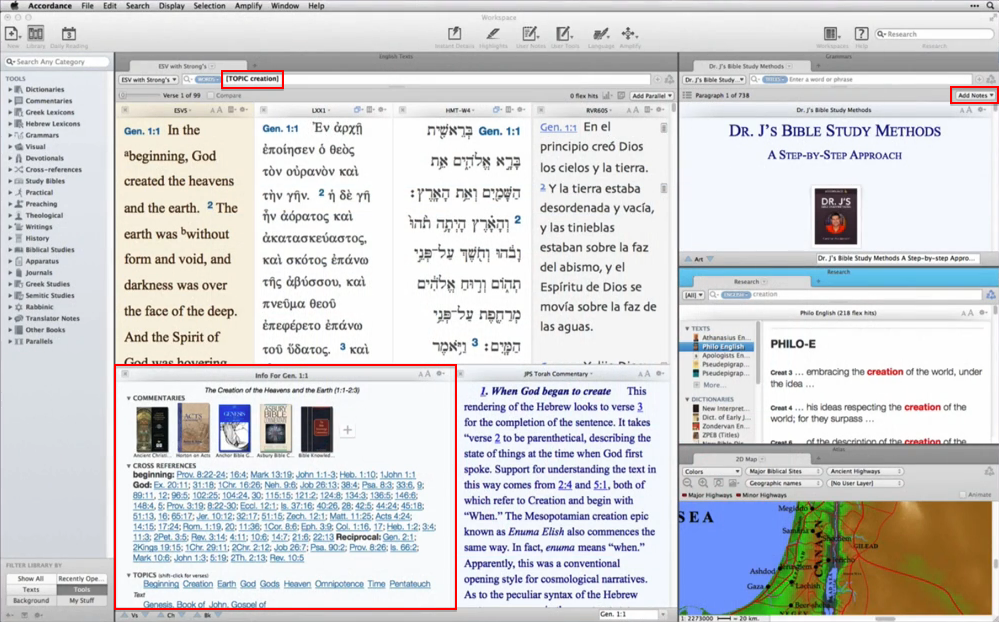
 

Acc 11_Dr. J Workspace_New


More to come….

Calendars 5: A Better Calendar App for iPhone and iPad

Calendars 5At first I scoffed a bit at the idea of another calendar app for iOS. What’s wrong with Apple’s native “Calendar” app?

Well, it’s a fine app, and it gets the job done. You can sync your schedule across multiple devices–it’s how my family keeps our days and weeks organized. I add an event and it populates in any other place that my wife or I would check it.

Its interface feels a little less streamlined or smooth than one would like, but a calendar app is a calendar app, right?

Well, yes, for the most part. But Readdle’s Calendars 5 app is even better than the Calendar app that comes pre-installed on every iPhone and iPad. Look at this:


IMG_2039
Calendars 5 in iPhone


(Independence? We celebrate it twice around here.)

If I had a lot more events on June 28, I would simply swipe right gently to reveal them, while the whole rest of the screen/week would stay in place. This is the Week view, the one I use most often. There are also Tasks, List, Day, and Month views. You can easily tap (or just drag and drop) your way into creating new items or making schedule changes.

What is the Tasks view, you ask? It’s anything in your Reminders app! So from your calendar app (without switching to another app), you can see your tasks. (Integrated work flow is the only way to really get stuff done effectively, I think.)

You can even see on June 28 above: Calendars 5 combines appointments and tasks into each day, so you can easily keep track of everywhere you have to be and everything you have to do.

Once you set up sync (also very easy), anything that you change in Calendars 5 also updates in your iCal/Calendar app (and vice versa), and any task you add here updates in your Reminders app (and vice versa). This means you can say, “Siri, remind me tomorrow to…,” and if you it synced, the reminder shows up in your calendar view right in Calendars 5.

It never occurred to me that I’d have less mental clutter by using a single mechanism (app) to track appointments and tasks. Maybe I sound overly ebullient, but… this is a really sweet app. You should get it if you can.

Thanks to the folks at Readdle for the gratis download codes for the review, given with no expectation as to what I’d write. Though now that I’ve used Calendars 5, I’d pay for it if I had to. It’s been that helpful to me–and it looks really good, too.

You can get Calendars 5 here. $6.99 may feel like a lot for an app, but you get it on both iPad and iPhone (and they sync), so if you rock both devices, it’s like two-for-the-price-of-one.

Calendars 5 is also part of Readdle’s Ultimate Productivity Bundle, which includes PDF Expert 5 (I like that app, too–see my video review here). The Bundle comes with the elegant Scanner Pro and Printer Pro, that lets you print wirelessly from your iOS devices. See the discounted Bundle in action here, and check out purchase information here.

Accordance 11: Coming (Very) Soon

Accordance 11 Collections


Accordance 11 is coming soon. Very soon–by the end of October.

In an email announcement today, Accordance noted:

Exciting news! We are preparing our next major upgrade for release towards the end of October. During the next several weeks we’ll be telling you more about Accordance 11 and the many advances it will bring to your studies.


This week we are announcing the exciting new modules that are being added to each Version 11 Collection. Each of these Collections includes Accordance 10 and 11, so you can use Accordance 10 now, and get 11 immediately upon release.

New to the store already in Accordance 11 is the chance to “Custom Upgrade,” which provides users with a discounted collection rate if they already own modules contained in that collection.

See the announcement here.

They haven’t said much yet about what Accordance 11 contains, but today’s newsletter does note “23 new and useful categories for your books for better organization and easier access” in Tools, as shown here:


23 Tools Categories


I use Accordance every day (or almost every day). Accordance 10 is already an excellent program. Can’t wait to see what 11 brings. Subscribe to this blog or check back to hear more as it unfolds.

Video Review of PDF Expert 5 on iOS8

PDF Expert 5 icon Having a good way to keep track of and annotate PDFs across multiple devices is important to me. PDF Expert 5 makes it easy, with a quick, high-powered, and intuitive app. It works great in iOS 8 already. The book I use in the video review below is a good one in its own right. It’s called Learning from Life: Turning Life’s Lessons into Leadership Experience, by Marian N. Ruderman and Patricia J. Ohlott. You can find it at the Center for Creative Leadership here or here, as part of CCL’s Ideas into Action Guidebook series. Here’s PDF Expert 5 on an iPhone (make sure you use the settings gear in the embedded video to watch in HD; you can also view full screen):  


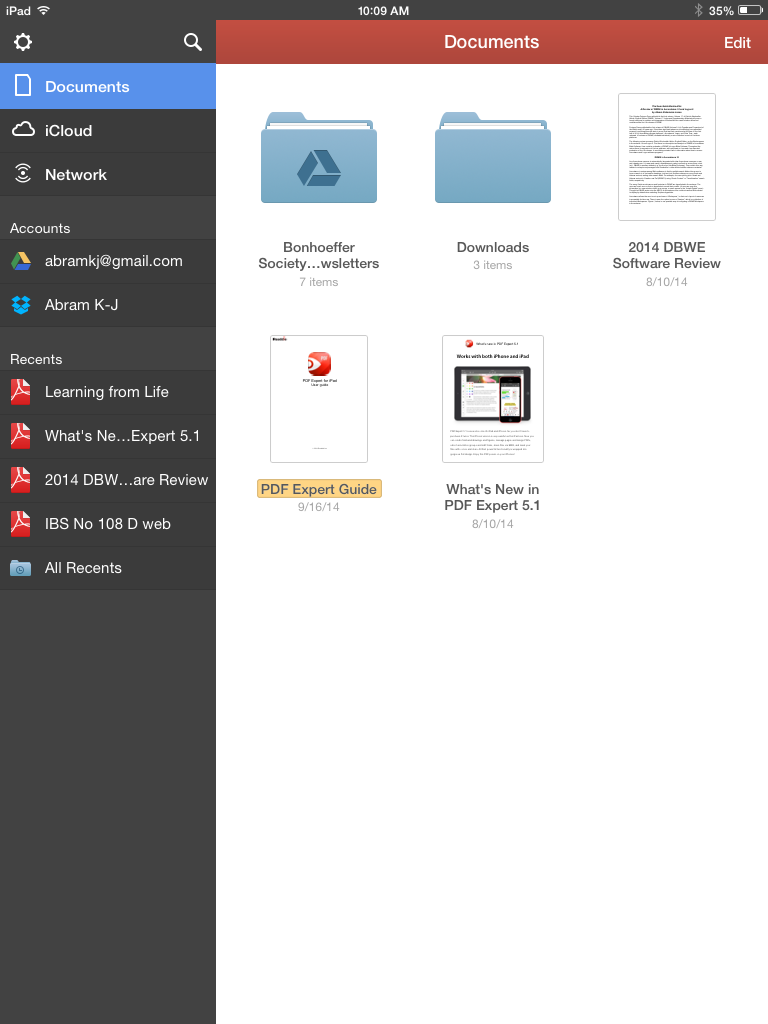
Here are a couple of shots of what it looks like on an iPad.  


Documents Screen  


Especially useful on iPad is the ability to have multiple documents open at once as tabs:  


Reading Screen  


Thanks to the folks at Readdle for the chance to review! Learn more about PDF Expert here. (P.S. I made the video above using the handy Reflector app. Reflector mirrors your iOS device to a computer, from which you can record your screen.)

351 Words on 4 Mac Apps I’ve Been Using Every Day

Here are 4 Mac apps I use every day:

OmniFocus1. OmniFocus

This is turning into Organize-Me Central. I figured out today how to install extensions in Firefox and Chrome on OSX, so that I can save any Web article I want to read later as an action step in Omni Focus. It syncs seamlessly across Mac, iPad, and iPhone, too. There’s a bit of a learning curve to it, but I’ve made the decision to try to run all of my tasks, appointments, and notes through OmniFocus.

I even figured out, using their Clip-o-Tron 3001, how to turn Mac Mail messages into tasks with a keyboard shortcut. (Email inboxes are not a good place to keep tasks, you realize.)

OmniFocus 2 for iPad just came out, and works very well so far with iOS 8. Check out their site here.

TextExpander_icon2. TextExpander

TextExpander does something simple but sweet: it allows you to type text abbreviations that automatically expand into something larger. There are some preset “Snippets,” as well as the option to create your own. For example, “ddate” will insert the current date into any document. I’ve even got “.autoreply” set to convert to this text (I’m using TextExpander for the below):

Thanks for writing. I’m out of the office and away from email Tuesday. I’ll get back to you as soon as possible after that.

Thanks,

Abram K-J

It’s also available on iPhone and iPad, and you can sync your Snippets across devices. Pretty awesome. Read more about it here.

accordance 10 lamp3. Accordance

I’ve written a lot about Accordance, including a six-part review of Accordance 10. It’s my go-to Bible software on Mac.

Accordance is on Windows now, too, and has an iOS app for iPad and iPhone. Find Accordance on the Web here.

Scrivener Logo4. Scrivener

What a word processing program! (But, also, so much more). Writers love this app, and I can see why. I recorded my initial impressions of Scrivener here (where I used it to write a paper). It’s my primary organizing tool each week for sermon writing.

Check out Scrivener here. No iOS apps… yet.

Soon I’ll post about some handy iOS apps I’ve been using.

Apple’s iOS 8 is Live (Just Make Sure You’ve Got Room for It)

iOS 8


With the iPhone 6 now shipping, iOS 8 has just gone live.

MacRumors has two really great roundups that detail the features of the new operating system for iPad and iPhone. Here is their main roundup page. And here they note “some of the more interesting but smaller additions and refinements made to Apple’s mobile operating system throughout the beta testing period.”

A couple highlights from the article:

Identify songs – Siri now includes Shazam integration. If you ask Siri, “What song is playing?”, it will cause her to listen to the ambient sound, using Shazam to identify music.

Find which app is using the most battery life – iOS 8 includes a new Settings option that allows you to view battery usage by app, monitoring the battery drain of specific apps so those that draw a lot of power can be shut down. As of beta 2, it also displays how much battery is drained when there’s no cellular coverage.

Also, there is an improved keyboard:

Described as Apple’s “smartest keyboard ever,” QuickType is designed to offer word suggestions while typing. As a user is typing, the keyboard will provide words and phrases that a user is likely to choose next, even taking into account the different writing styles a person might use in different apps like Mail and Messages.

I’m especially curious to check out the Health app.

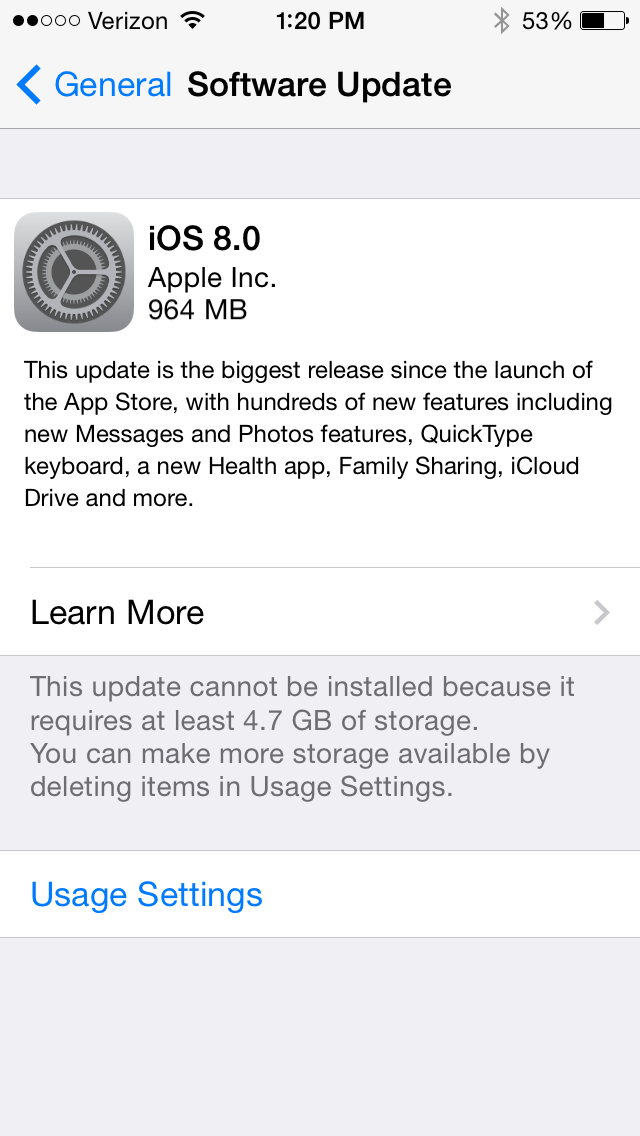
Just make sure you’ve got plenty of room for the install:


iOS 8 install


UPDATE: A friend on Twitter clarifies that you can download the new iOS if your device is connected to a computer, in which case you don’t need to clear up all the space required for the installation.

Size Comparison of iPhone 6 vs. iPhone 6 Plus

iPhone 6 sizes

The iPhone 6 just set a new pre-order record for Apple phones. The biggest question folks who are in the market will probably have is: How big is the iPhone 6? vs. How big is the iPhone 6 Plus?

There’s a handy printout you can download here to see what an iPhone 5, iPhone 6, and iPhone 6 Plus all look like next to each other.

Or you could do what this guy did.

The Best Case You Can Get for Your iPad Mini

My favorite iPad mini case has been replaced with another one from the same company.

INVELLOP now has a slightly heavier-duty leatherette case for iPad mini that works with both the first-generation and the retina mini model.

Usually when I review gear I list pros and cons. INVELLOP’s new case, however, has really only one slight drawback, which I note below.

I find the case to be just about the perfect combination of protection and slimness.

This is what it looks like, in a few views:

In viewing mode
In viewing mode
Front of case, closed
INVELLOP 3
Back of case, closed
INVELLOP 4
Inside of the case

Here’s why I haven’t put any other case on my iPad since getting this one:

  • The cutouts (headphone jack, volume control, camera lens) are perfectly sized
  • The case covers both front and back of the iPad; it’s all one piece
  • Though I still sometimes take the case off for extended periods of reading or watching, it’s really easy to hold the iPad in one hand with the case folded back
  • I actually have dropped the iPad a couple times (on the carpet, thankfully) since getting this case… and it’s been fine (phew!)
  • After a few months of use, there is just the slightest bit of wear on the case, but it’s holding up very nicely
  • Closing the screen flap puts the device to sleep; opening it wakes it–this functions perfectly
  • At the time of this post, you can get the case for about $20 at Amazon (affiliate link to help fund ye ole blog)
  • The inside of the screen cover has microfiber, which has not scratched the screen at all
  • The screen cover is in thirds so that you can put your iPad upright (in landscape mode) in two different positions (for viewing or typing)
  • There are magnets that keep the front cover secured in place when you fold it back

The only minor critique I have is that it’s slightly heavier (by a couple ounces, maybe) than the previous iteration of this case. But that’s a small price to pay for the greater protection and classier feel. Two thumbs up. This feels like everything you’d want an iPad mini case to be.

Thanks to INVELLOP for the review sample. The case reviewed above can be found at Amazon here. You can find my other gear reviews here.

Review of Bear Motion iPhone 5c Case

Time for some tech talk. At Words on the Word I’ve reviewed software, as well as aspects of iOS and its apps. I’ve done gear reviews, too. This post is my review of Bear Motion’s Full Housing Case for iPhone 5c.

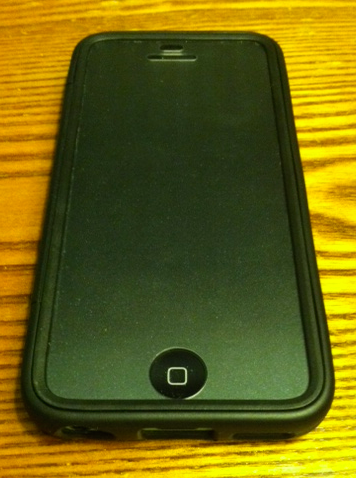
Here’s what it looks like:

Back of the case
Back of the case
Front of the case
Front of the case
Empty case
Empty case

Here are the pros and cons of this case:

Pros

  • Though it looks a little cheap (and the cost is, indeed, low), it seems to be, in fact, fairly well-made
    • The holes (to access camera, headphone jack, home button, etc.) are cut out just right
    • I may or may not have dropped my phone a couple times in this case, and it was well-protected
    • It protects the screen; it protects the body; it protects the whole phone (and the case is all one piece)
  • It’s not very bulky; doesn’t add much to the phone
  • The fit is secure and snug, but it’s still easy to get the phone in and out
  • The price is currently $6.99, which is a good deal
  • I’ve taken it on a bunch of runs–it has performed well in this setting, both gripping to my hand without sliding out and keeping my phone from getting sweaty

Cons

  • The screen cover has a speckled or slightly filmy look to it, which is fine in regular light, but in the sunlight it makes the screen noticeably darker than it would be without the cover and, therefore, almost impossible to read
  • It isn’t the most stylish iPhone case I’ve ever seen, but that’s not a huge deal
  • On rare occasion the thick plastic screen compromises the touch sensitivity of the device

Though I don’t exactly have a plethora of cases from which to choose, this is the case that is currently housing my phone, and has been since I got it. That’s its own testimonial, I think. Especially for the price, Bear Motion’s case is a quite solid option.

Thanks to Bear Motion for the review sample. They make plenty of other cases for various devices, too. The case reviewed above can be found at Amazon here (affiliate link). Bear Motion’s brand page at Amazon is here.