Comment Here for a Chance to Win a Foldable Bluetooth Keyboard

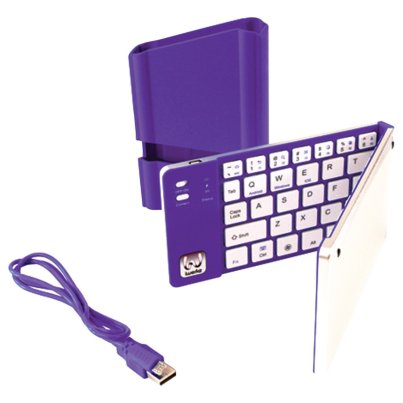
iWerkz Foldable Bluetooth Keyboard


If you are looking for a bluetooth (wireless) keyboard to pair with your mobile device or tablet, and would like a chance to win one for free, you’ve clicked on the right link.

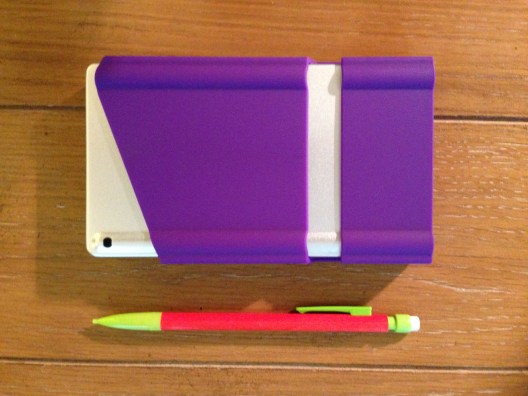
I recently engaged in more than 20 hours of classroom lecture, using just an iPad mini and the bluetooth keyboard pictured above for note-taking. Everything I needed for the class could fit in my pocket:


iWerkz Keyboard Folded


I’ll post a full review of the keyboard soon. It was a welcome time-saver with a strong battery life, and easy to pair with my device.

It also, according to its product page, works with iPhone and Android devices.

The folks at iWerkz have offered me an additional keyboard (purple, as shown above) for giveaway here at Words on the Word.


Here’s how you can enter:


Simply comment on this blog post with a short sentence on how you’d use the keyboard. Or you can just say hi. For a second entry, share the link to this post on your Facebook, Twitter, via mind meld, etc., and let me know in the comments section that you did.

I’ll select the winner using a random number generator.

If you don’t want to wait for the results of the giveaway, you can find the keyboard on sale at Amazon here.

The giveaway is open through Monday, August 18, 11:59 p.m. EDT. On Tuesday I’ll notify the winner and post about it both here and in the comments below. (fine print: free shipping of keyboard to U.S. address only)

The Best Case You Can Get for Your iPad Mini

My favorite iPad mini case has been replaced with another one from the same company.

INVELLOP now has a slightly heavier-duty leatherette case for iPad mini that works with both the first-generation and the retina mini model.

Usually when I review gear I list pros and cons. INVELLOP’s new case, however, has really only one slight drawback, which I note below.

I find the case to be just about the perfect combination of protection and slimness.

This is what it looks like, in a few views:

In viewing mode
In viewing mode
Front of case, closed
INVELLOP 3
Back of case, closed
INVELLOP 4
Inside of the case

Here’s why I haven’t put any other case on my iPad since getting this one:

  • The cutouts (headphone jack, volume control, camera lens) are perfectly sized
  • The case covers both front and back of the iPad; it’s all one piece
  • Though I still sometimes take the case off for extended periods of reading or watching, it’s really easy to hold the iPad in one hand with the case folded back
  • I actually have dropped the iPad a couple times (on the carpet, thankfully) since getting this case… and it’s been fine (phew!)
  • After a few months of use, there is just the slightest bit of wear on the case, but it’s holding up very nicely
  • Closing the screen flap puts the device to sleep; opening it wakes it–this functions perfectly
  • At the time of this post, you can get the case for about $20 at Amazon (affiliate link to help fund ye ole blog)
  • The inside of the screen cover has microfiber, which has not scratched the screen at all
  • The screen cover is in thirds so that you can put your iPad upright (in landscape mode) in two different positions (for viewing or typing)
  • There are magnets that keep the front cover secured in place when you fold it back

The only minor critique I have is that it’s slightly heavier (by a couple ounces, maybe) than the previous iteration of this case. But that’s a small price to pay for the greater protection and classier feel. Two thumbs up. This feels like everything you’d want an iPad mini case to be.

Thanks to INVELLOP for the review sample. The case reviewed above can be found at Amazon hereYou can find my other gear reviews here.

Scrivener is 50% Off in the App Store Right Now

Scrivener Logo

Scrivener is 50% off at the Mac App Store right now. Not sure how long this sale will last, but it’s now $22.99, which is well worth the value Scrivener looks to provide, especially to writers. I posted about writing a paper with Scrivener here. The link to the sale in the App Store is here. (HT: Brian Renshaw for pointing it out!)

Writing My First Paper Using Scrivener

During my first few minutes using Scrivener 2, I kept thinking the most apt comparison was “word processor on steroids.” But that’s not quite accurate. For one, there are no negative side effects here—save for the commitment the user will have to put in to learn a flexible, layered, and impressive program. And Scrivener is about as far from a word processor as LeBron James is now from Miami.

How Quickly Could I Get Started? (In About 40 Minutes)

I had a paper due this weekend for a grad school class I’m taking. I wanted to use Scrivener to write it, since I thought it would simplify the process. Yes, Scrivener processes words, but it’s really a program for writing project management. Its product page says:

Enter Scrivener: a word processor and project management tool that stays with you from that first, unformed idea all the way through to the final draft. Outline and structure your ideas, take notes, view research alongside your writing and compose the constituent pieces of your text in isolation or in context. Scrivener won’t tell you how to write—it just makes all the tools you have scattered around your desk available in one application, leaving you free to focus on the words.

Scrivener is fast and easy to install. When you open it for the first time, you see an interactive tutorial you can work through:
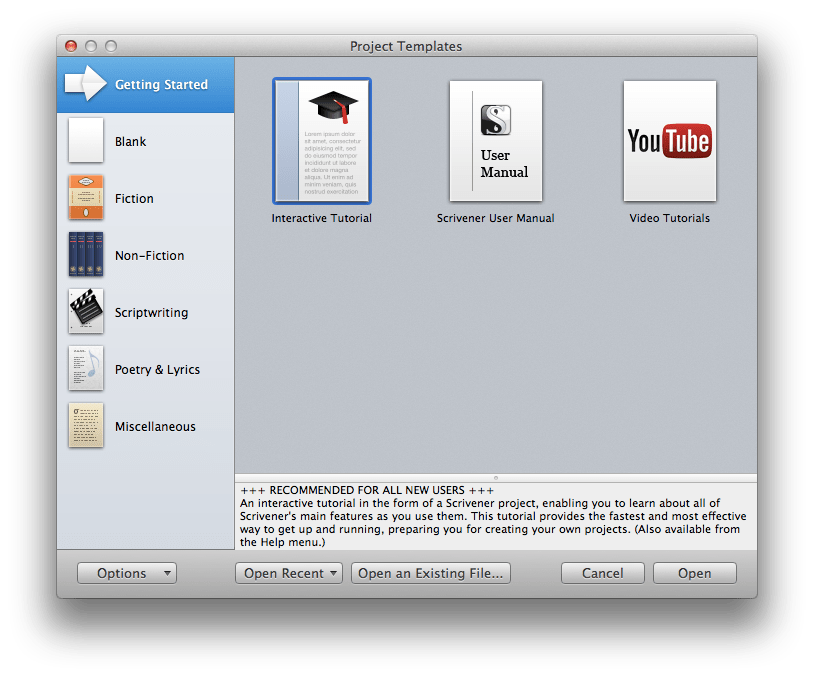
Scrivener_Getting StartedBut it says it will take “couple of hours if you go through it thoroughly,” and I needed to get started sooner than that on the paper. (I’ll go through the whole tutorial as soon as I can; it’s really well done.)

There are also tutorial videos here. A lot of them. I’ll admit to being somewhat overwhelmed at first. Scrivener is, after all, the kind of program you need to spend at least a little time to learn how to use, even if you’re already relatively computer-savvy. But it promises to be time well spent.

As an experiment, I decided to watch the ten-minute overview (the first video at the link above, “An Introduction to Scrivener”) to see if it was enough to get me “up and running as quickly as possible,” as the video description suggested. I had never used Scrivener before this month.

Sure enough—10 minutes later (plus another 30 minutes or so searching the forums, help files, and user manual) I was up and running, using Scrivener for the first time to complete a grad school writing assignment.

Writing a Paper More Efficiently

The paper I was writing requires multiple sections and is a topic I’d written about before. I also had some readings to integrate into the paper. And, of course, I wanted to keep the syllabus and specific requirements in front of me as I wrote.

So, after opening a preset template based on the Chicago Manual of Style, I got my project ready. Here’s what it looks like in Scrivener. To you Scrivener power users: this is a pretty basic setup, and I’m still learning what all I can do. To you who are not familiar with Scrivener: I’ll note below what each of the portions of the screenshot is. (Click on image to enlarge.)

Scrivener Paper LayoutThe leftmost column is the Binder. This looks a bit like a Mac’s Finder folders. Here is where I laid out my paper. The preset template took care of the “Title Page” and “Works Cited” formatting; I just had to fill them in. I outlined the “Main Content.” Underneath that is “Research,” a set of .pdfs and other files I dragged in. Instead of switching between Preview, Word, and multiple windows in multiple programs, I could access everything I needed from the “Binder,” once I put it there. This meant that once I took a few minutes to set up the project, I only needed this one app open to complete the writing assignment, start to finish.

The “Ideas” section in the Binder, by the way, allows you to do a virtual version of creating notecards, for later rearrangement and integration into the paper.
Scrivener LogoThe middle panes (the largest ones) comprise the Editor, which is where I wrote the paper. One really cool thing about this is you can have it all be one big pane, or you can open two panes at once. In the above screenshot, I’m writing my paper in the top editor pane and accessing a previous writing for reference in the bottom pane.

At right is the Inspector. This is versatile and can be used to select one of six different sub-panes. In the view above I have open a short synopsis of the section I’m writing (here I copied from the assignment so I knew what I was supposed to be writing), as well as some general Project Notes I wanted to keep before me for each section of the paper.

After I had written the paper, I selected Compile from the File menu, and Scrivener gave me a myriad of easy-to-navigate options for how I wanted to export my paper into a word processor for final formatting. I exported it to Word and only had to do a very few tweaks to have my paper come out properly formatted–including the footnotes.

More to Follow

Literature & Latte kindly supplied me with a license of Scrivener for the purposes of review. There is much, much more to the program than what I have outlined above, and I’ll write more later. I came to Scrivener this week just wondering if I could learn its basics fast enough to use it right away to write a paper, and in a way that would save me time compared to my normal workflow. This was very much the case when I had finished. I only wish I had known about the program much sooner in my graduate studies!

Want to check it out? (I recommend it.) Here you can download a free trial, for Mac or Windows. (It’s a generous trial period, too.) You can read more about Scrivener’s features here.

Review of Bear Motion iPhone 5c Case

Time for some tech talk. At Words on the Word I’ve reviewed software, as well as aspects of iOS and its apps. I’ve done gear reviews, too. This post is my review of Bear Motion’s Full Housing Case for iPhone 5c.

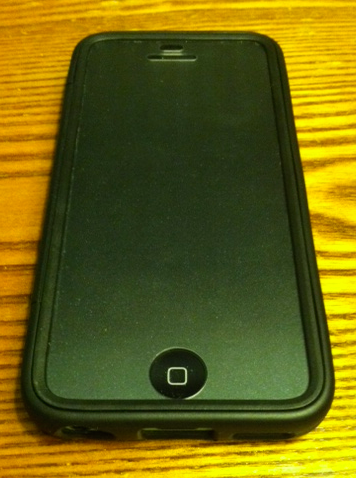
Here’s what it looks like:

Back of the case
Back of the case
Front of the case
Front of the case
Empty case
Empty case

Here are the pros and cons of this case:

Pros

  • Though it looks a little cheap (and the cost is, indeed, low), it seems to be, in fact, fairly well-made
    • The holes (to access camera, headphone jack, home button, etc.) are cut out just right
    • I may or may not have dropped my phone a couple times in this case, and it was well-protected
    • It protects the screen; it protects the body; it protects the whole phone (and the case is all one piece)
  • It’s not very bulky; doesn’t add much to the phone
  • The fit is secure and snug, but it’s still easy to get the phone in and out
  • The price is currently $6.99, which is a good deal
  • I’ve taken it on a bunch of runs–it has performed well in this setting, both gripping to my hand without sliding out and keeping my phone from getting sweaty

Cons

  • The screen cover has a speckled or slightly filmy look to it, which is fine in regular light, but in the sunlight it makes the screen noticeably darker than it would be without the cover and, therefore, almost impossible to read
  • It isn’t the most stylish iPhone case I’ve ever seen, but that’s not a huge deal
  • On rare occasion the thick plastic screen compromises the touch sensitivity of the device

Though I don’t exactly have a plethora of cases from which to choose, this is the case that is currently housing my phone, and has been since I got it. That’s its own testimonial, I think. Especially for the price, Bear Motion’s case is a quite solid option.

Thanks to Bear Motion for the review sample. They make plenty of other cases for various devices, too. The case reviewed above can be found at Amazon here (affiliate link). Bear Motion’s brand page at Amazon is here.
Running Multiple Searches at Once in Accordance’s IVP Dictionaries

Here’s another quick tip for Accordance users. This one has been there a long time, but I just noticed:

My most regular use of General Tools in Accordance (Bible dictionaries, books, etc.) is to search them for each week’s passage that I’m preaching on. For example, I’ll search the IVP Dictionary of Jesus and the Gospels first by Scripture reference and then by English content and/or section heading. (The tool may have information relevant to me that is best found with one or the other search.)

I already was aware that you could add a second search field for an “AND” search, but I just realized yesterday that you can also select “OR” (from a drop-down menu) before you select your second search field and term:

Accordance OR Search

So now in one search setup (which I can save for next time), I can have this Accordance tool return hits for every time it mentions either Matthew 28 by reference or the Great Commission in the English content… and even throw in another “or” of “Discipleship” in the Entry field (dictionary section titles).

The search above, by the way, yields 199 hits… which continues to make IVP’s Dictionary of Jesus and the Gospels a good preaching companion.

Quick Tip: Simulate Three Panes at Once in Accordance iOS

A quick tip for Accordance users:

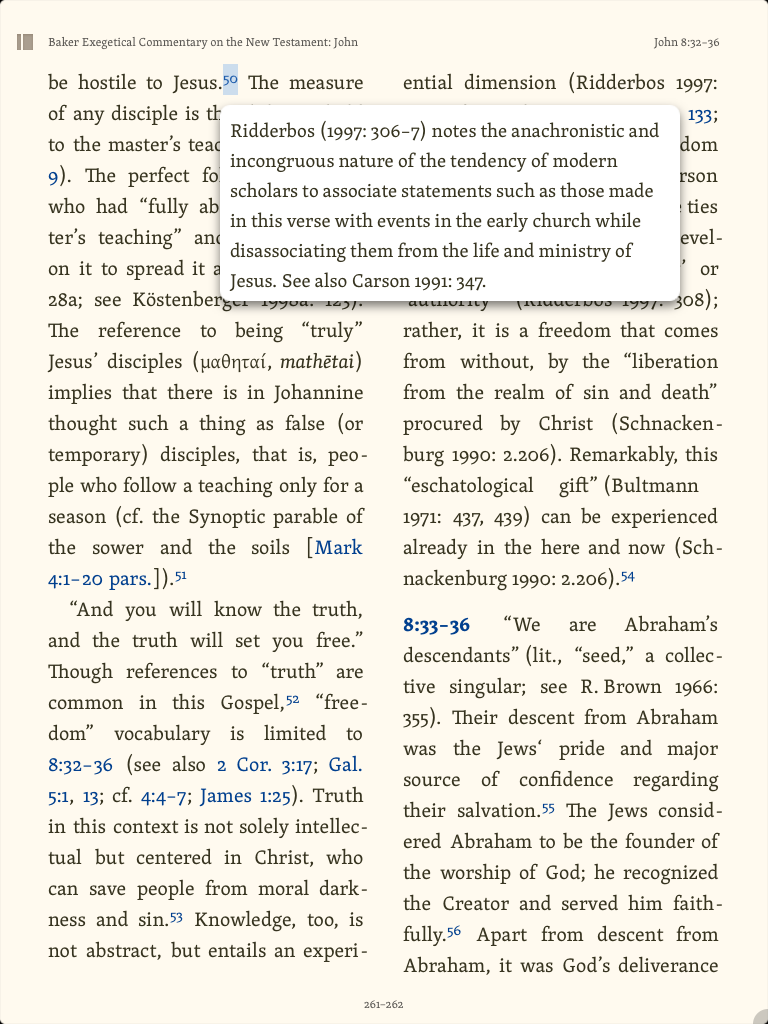
Though Accordance for iOS currently offers the ability to just have two panes open at a time, I have found a good workaround that simulates the effect of having three texts or tools readily available at once.

This image is from an iPhone, in landscape mode. (Click or open in a new tab to enlarge.)

Reading Obadiah
Reading Obadiah

The left pane is the Hebrew text of Obadiah. For my second pane (on the right) I select a tool (commentary) of some sort that has hyperlinked individual verses, which I can then tap (“19,” above) to have a popover English translation show up.

I’ve been making my way through Obadiah in Hebrew like this, for a forthcoming review (6/9/14 UPDATE: now posted here). This way I can read the Hebrew, have a commentary open, and easily get an English translation, all from the same screen.

RIP, Sony Bluetooth Wireless Speaker: Splash-Proof, but Not Highway-Proof….


side and input
R.I.P.

Remember the Sony Bluetooth Speaker I reviewed? Want to hear a funny story about it?

After using the speakers for a Sunday morning class, I put them on top of our family van as I was strapping in one of the kids. I got my almost-two-year-old daughter strapped in, we were all happy, the kids had done great in church, and we were going out to eat–a rare treat on a Sunday afternoon. The sun was even shining.

So with everyone strapped in and on our way to family lunch, about 10 minutes into our drive–when we were on the highway, of course–I heard a loud thud at the top of the car and saw in my peripheral vision a blur of pink and purple bouncing around behind me as I sped away.

WHAT WAS THAT?

Oh. The speakers. That I had left on top of the van.

I had received the speakers gratis as a review sample, but I had become fond of them. They were quite convenient for toting around and using in various settings. It was especially nice to amplify music without any wires.

I quickly decided that, yes, I did want to go back to get these speakers. But being on the highway, I would have to exit, get on the highway going the other direction, exit again, and go back the way I came.

By the time we neared the spot of the incident, it had been about 8 minutes. Surely some car–or multiple cars–had by now demolished my precious pink-and-purple players of Passion Pit, Pavement, and Petra.

But, no.

THEY WERE STILL THERE.

I slowed down and turned on my hazards to get off to the shoulder to (carefully, only when there were no cars) walk into the highway to retrieve my speakers.

They were right there, miraculously between the two lanes. A hundred cars must have passed them, leaving them mercifully in tact.

As I pulled over and slowed to a stop, the car behind me obliviously moved across the lane divider to pass me and…

Yep.

RAN OVER MY SPEAKERS.

Well, not just ran over. CRUSHED them.

They broke into a hundred pieces, and the car just cruised on by.

Top 10 Tasks for Which I Use Logos Bible Software

Here are, in no particular order, the top 10 tasks for which I use Logos Bible Software. Most of these uses are for preaching and teaching preparation, or for when I’m preparing to lead a Bible study. This post is a visual tour, so if you want to see any image in more detail, you can click to enlarge it or open it in a new tab or window.

10. To look up a word in a dictionary.

Here’s a word l00k-up in the Anchor Yale Bible Dictionary, which I can do from an already-open text, or as a stand-alone, searchable dictionary. Here I move from the article on Jesus I was reading to an article on “Tax Collector”:

Looking Up a Word in Anchor Bible Dictionary

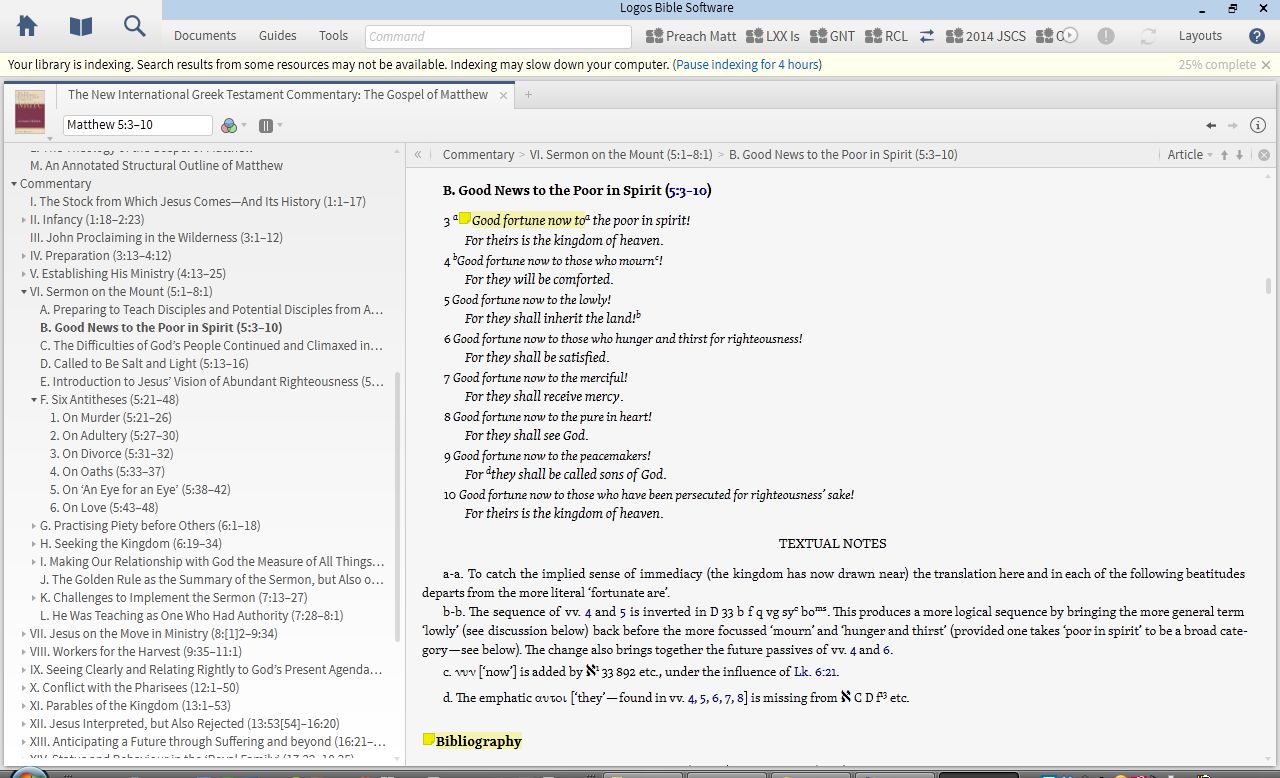
9. To annotate commentaries.

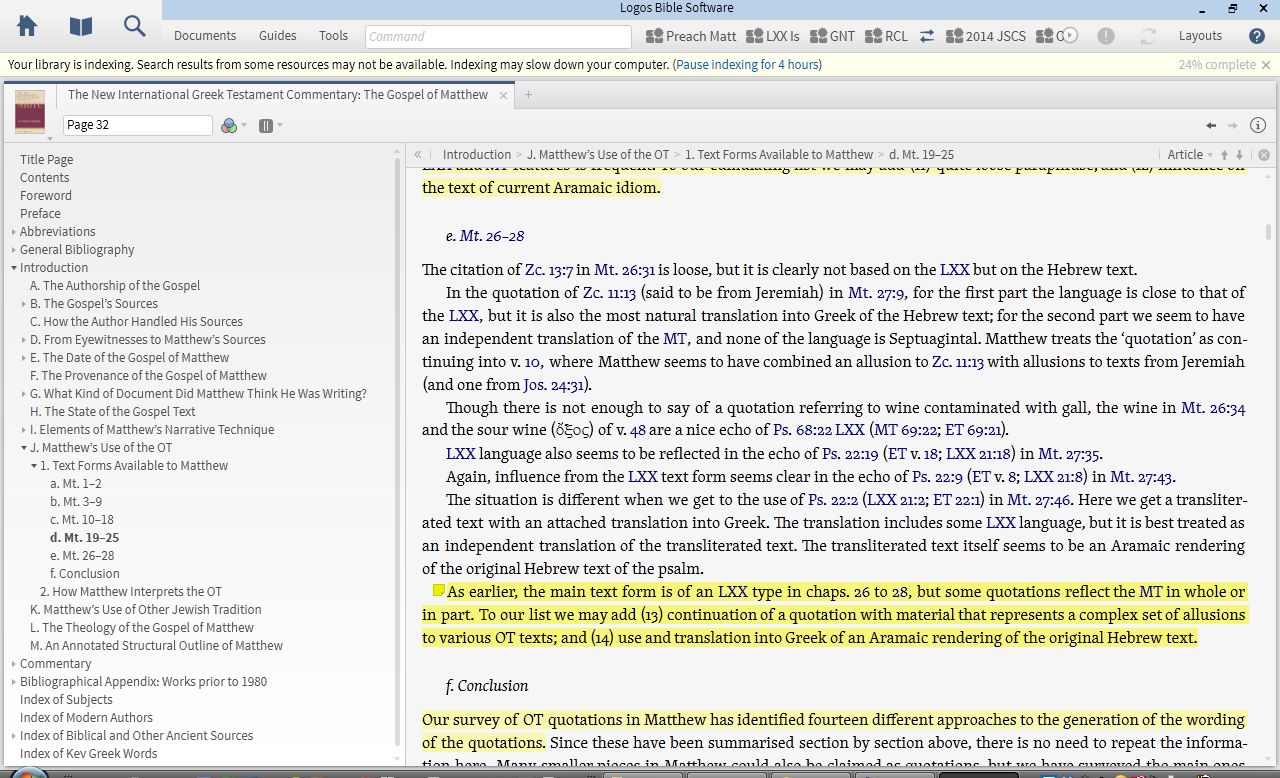
Here you can see both highlights (which sync seamlessly across devices) and a notes icon from where I have recorded my own reactions:

Commentary Reading on Logos on a PC

 8. To create (and then search) my own defined collection of resources.

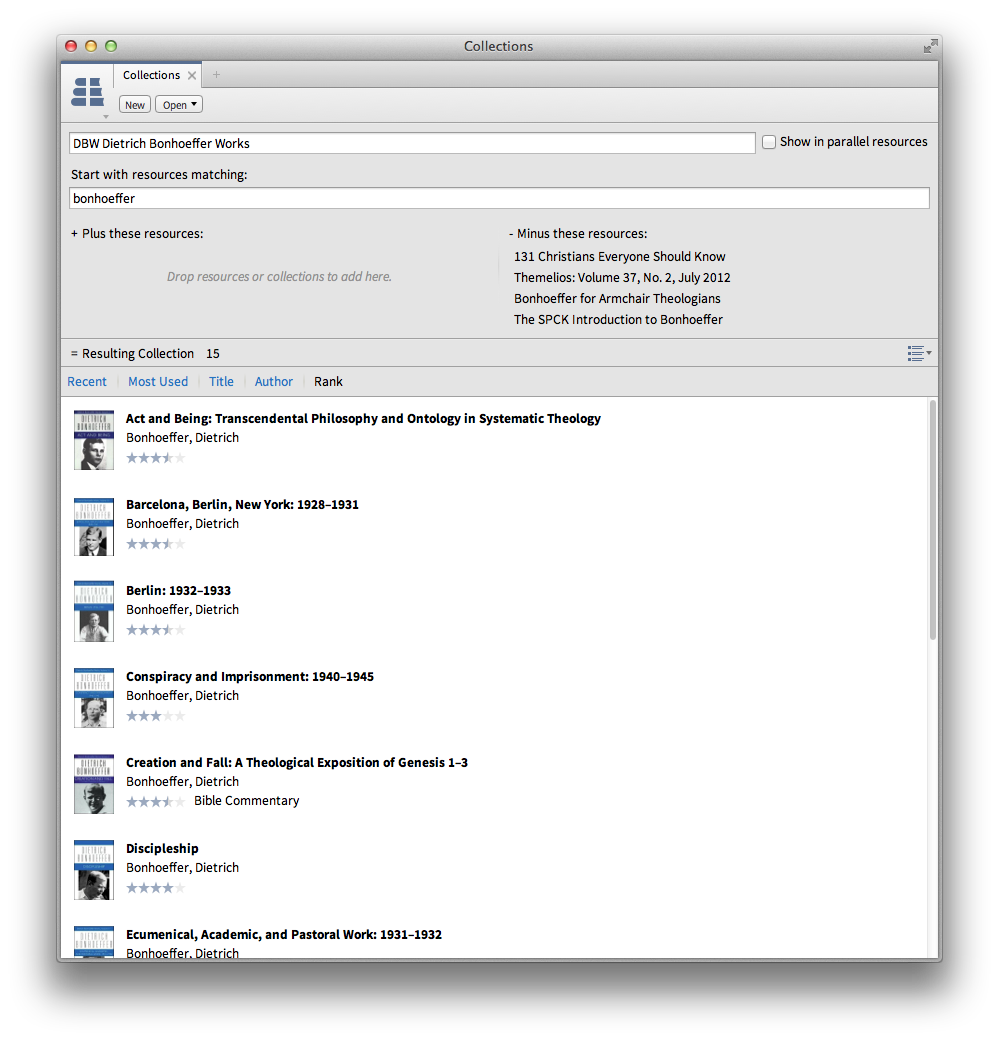
This way I can search through all the volumes I have of the Dietrich Bonhoeffer Works:

Custom-Defined Collection in Logos for Mac

7. To navigate through a book via Table of Contents sidebar.

As at left here:

Sidebar Table of Contents

6. As a portable library.

Here’s the searchable library view in Logos in iOS, where one can access almost all of one’s library. In iOS you can access all of your resources with an Internet connection without having to download them. You can also download them, so that you don’t have to use data or a wireless connection. I like the flexibility that offers.

iOS Logos library
iOS Logos Library

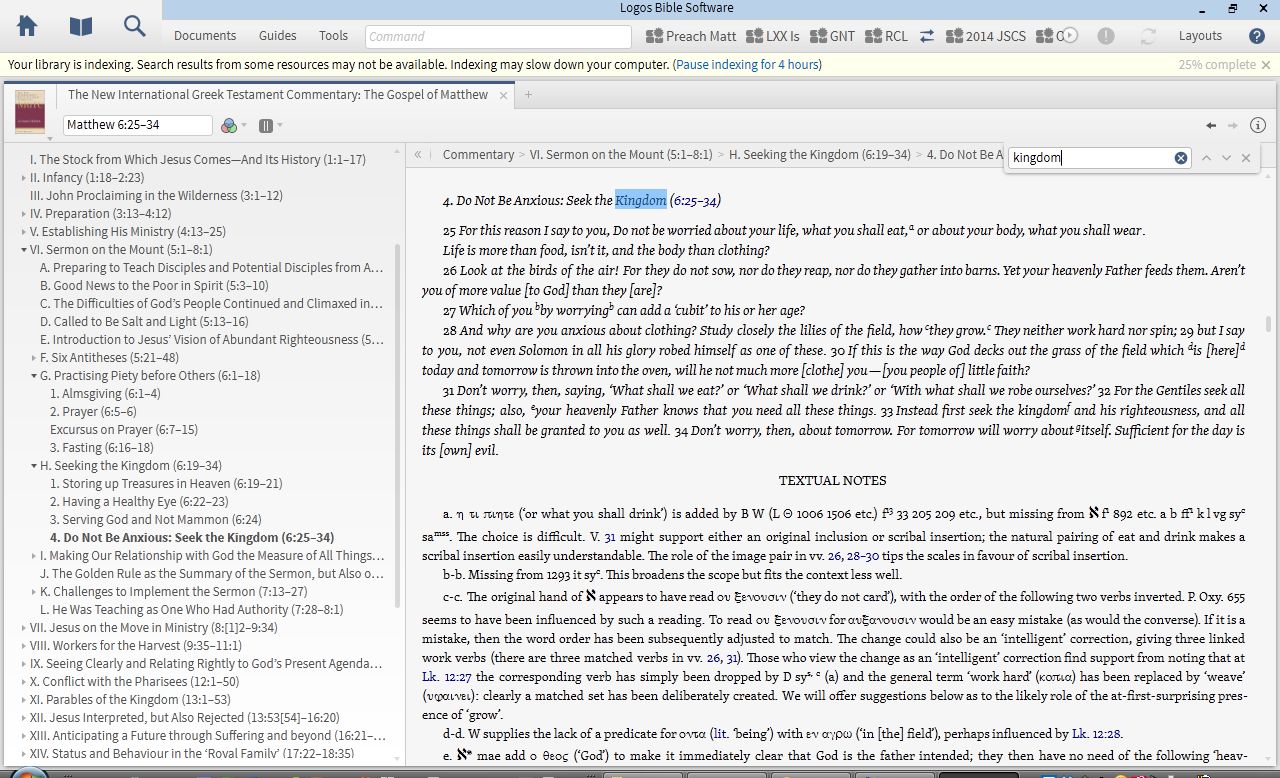
5. For keyword searching a commentary.

This is particularly useful when I want to know not just what a commentary says about a passage, but how it traces a theme throughout the book.

Keyword searching NIGTC Matthew for "Kingdom"
Keyword Searching NIGTC Matthew for “Kingdom”

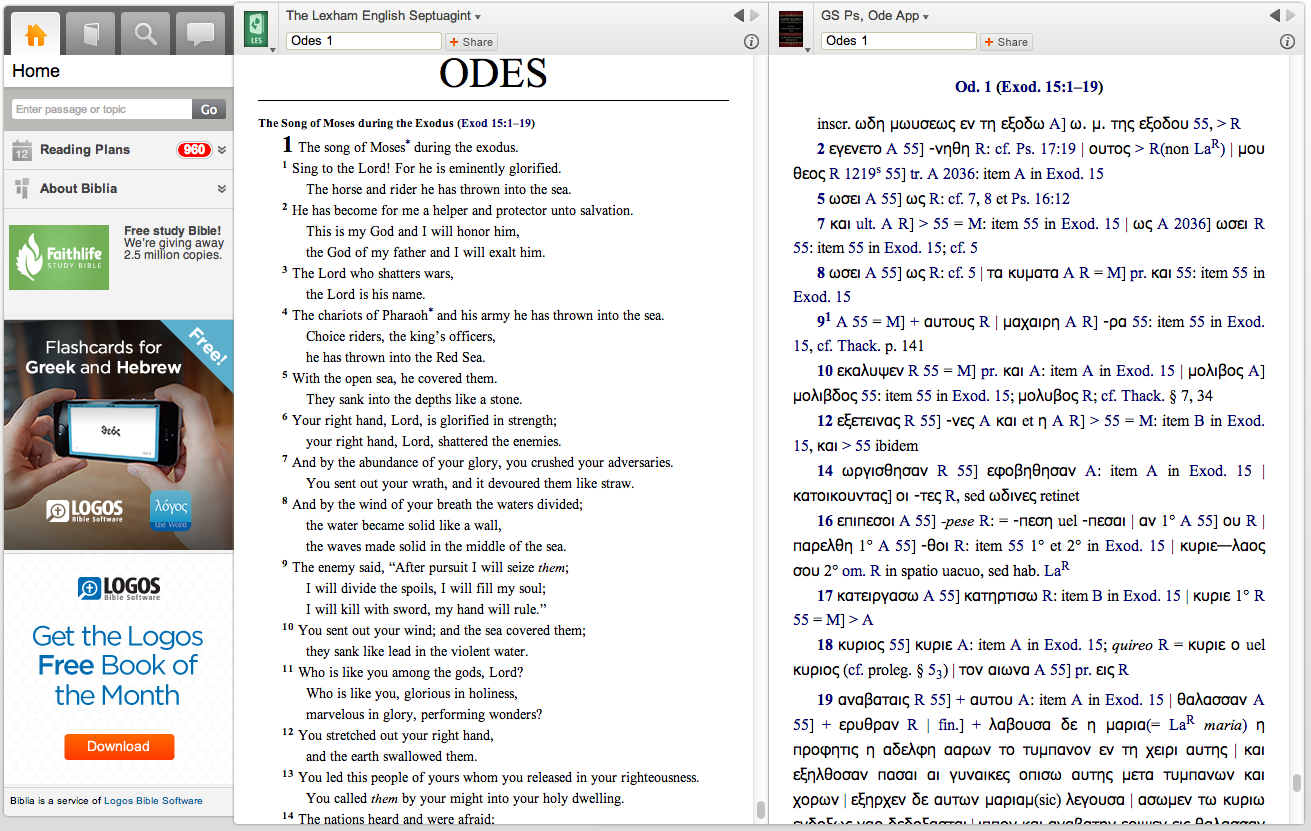
4. Via Logos’s Biblia.com, for quick reference to my Logos library from anywhere with Web access.

Here I am looking at the Odes in Greek and English translation:

Reading the Septuagint at Biblia.com

3. For pulling up at once all I have in my library on a given passage.

Logos’s Passage Guide is available on whatever device you have Logos in; here it is in iOS. Using a split screen, I can read one commentary (and highlight it), as well as see other hyperlinked options to explore:

Passage Guide in Logos iOS

2. For touching footnotes to pull them up.

This I can do in iOS:

Tapping a Hyperlinked Footnote Brings It Up

1. For reading through a book of the Bible, with help.

Here is a layout I used often for when I read with a group of folks through Greek Isaiah in a Year. I could compare multiple Greek texts, a Hebrew text, English translations, lexicons, notes, and more:

Multi-Text and Multi-Resource Layout

The major advantages in Logos are its connections of resources to each other, system of hyperlinks, and ability to sync (notes, highlights, and where you left off reading) across devices. Not only that, but even compared to Amazon Kindle and iBooks, they have the most extensive store/library of resources for biblical studies that I know of. There’s a lot more you can do in Logos than what I’ve highlighted above. You can find all my Logos reviews gathered here.

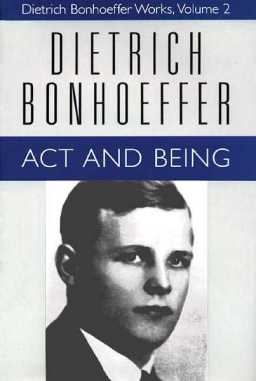
Dietrich Bonhoeffer Works (16 Volumes) for $100

Bonhoeffer in Olive Tree

For just a few more days, Dietrich Bonhoeffer Works (DBW) (16 volumes) are $100 in Olive Tree Bible software. I have not seen DBW in Olive Tree, but have reviewed the app here. Their iOS and desktop apps are free, so if you like Bonhoeffer and have the cash, this is probably the best price for his complete works in English that one will ever find.

(Except for checking the books out from your local theological library, which is even cheaper!)

UPDATE: It would appear this sale has ended, a couple days before the date Olive Tree had given me via FB. Despite the miscommunication, the folks at Olive Tree have let me know the set may go on sale again in the future. To your library!