Calendars 5: A Better Calendar App for iPhone and iPad

Calendars 5At first I scoffed a bit at the idea of another calendar app for iOS. What’s wrong with Apple’s native “Calendar” app?

Well, it’s a fine app, and it gets the job done. You can sync your schedule across multiple devices–it’s how my family keeps our days and weeks organized. I add an event and it populates in any other place that my wife or I would check it.

Its interface feels a little less streamlined or smooth than one would like, but a calendar app is a calendar app, right?

Well, yes, for the most part. But Readdle’s Calendars 5 app is even better than the Calendar app that comes pre-installed on every iPhone and iPad. Look at this:


IMG_2039
Calendars 5 in iPhone


(Independence? We celebrate it twice around here.)

If I had a lot more events on June 28, I would simply swipe right gently to reveal them, while the whole rest of the screen/week would stay in place. This is the Week view, the one I use most often. There are also Tasks, List, Day, and Month views. You can easily tap (or just drag and drop) your way into creating new items or making schedule changes.

What is the Tasks view, you ask? It’s anything in your Reminders app! So from your calendar app (without switching to another app), you can see your tasks. (Integrated work flow is the only way to really get stuff done effectively, I think.)

You can even see on June 28 above: Calendars 5 combines appointments and tasks into each day, so you can easily keep track of everywhere you have to be and everything you have to do.

Once you set up sync (also very easy), anything that you change in Calendars 5 also updates in your iCal/Calendar app (and vice versa), and any task you add here updates in your Reminders app (and vice versa). This means you can say, “Siri, remind me tomorrow to…,” and if you it synced, the reminder shows up in your calendar view right in Calendars 5.

It never occurred to me that I’d have less mental clutter by using a single mechanism (app) to track appointments and tasks. Maybe I sound overly ebullient, but… this is a really sweet app. You should get it if you can.

Thanks to the folks at Readdle for the gratis download codes for the review, given with no expectation as to what I’d write. Though now that I’ve used Calendars 5, I’d pay for it if I had to. It’s been that helpful to me–and it looks really good, too.

You can get Calendars 5 here. $6.99 may feel like a lot for an app, but you get it on both iPad and iPhone (and they sync), so if you rock both devices, it’s like two-for-the-price-of-one.

Calendars 5 is also part of Readdle’s Ultimate Productivity Bundle, which includes PDF Expert 5 (I like that app, too–see my video review here). The Bundle comes with the elegant Scanner Pro and Printer Pro, that lets you print wirelessly from your iOS devices. See the discounted Bundle in action here, and check out purchase information here.

Video Review of PDF Expert 5 on iOS8

PDF Expert 5 icon Having a good way to keep track of and annotate PDFs across multiple devices is important to me. PDF Expert 5 makes it easy, with a quick, high-powered, and intuitive app. It works great in iOS 8 already. The book I use in the video review below is a good one in its own right. It’s called Learning from Life: Turning Life’s Lessons into Leadership Experience, by Marian N. Ruderman and Patricia J. Ohlott. You can find it at the Center for Creative Leadership here or here, as part of CCL’s Ideas into Action Guidebook series. Here’s PDF Expert 5 on an iPhone (make sure you use the settings gear in the embedded video to watch in HD; you can also view full screen):  


Here are a couple of shots of what it looks like on an iPad.  


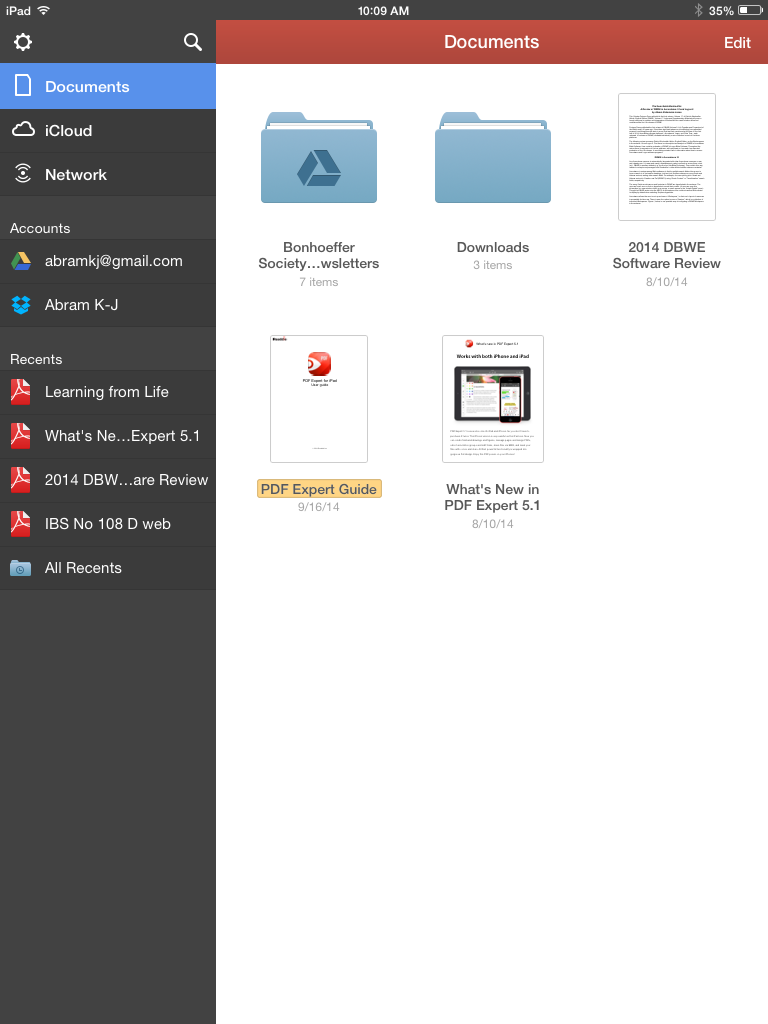
Documents Screen  


Especially useful on iPad is the ability to have multiple documents open at once as tabs:  


Reading Screen  


Thanks to the folks at Readdle for the chance to review! Learn more about PDF Expert here. (P.S. I made the video above using the handy Reflector app. Reflector mirrors your iOS device to a computer, from which you can record your screen.)

351 Words on 4 Mac Apps I’ve Been Using Every Day

Here are 4 Mac apps I use every day:

OmniFocus1. OmniFocus

This is turning into Organize-Me Central. I figured out today how to install extensions in Firefox and Chrome on OSX, so that I can save any Web article I want to read later as an action step in Omni Focus. It syncs seamlessly across Mac, iPad, and iPhone, too. There’s a bit of a learning curve to it, but I’ve made the decision to try to run all of my tasks, appointments, and notes through OmniFocus.

I even figured out, using their Clip-o-Tron 3001, how to turn Mac Mail messages into tasks with a keyboard shortcut. (Email inboxes are not a good place to keep tasks, you realize.)

OmniFocus 2 for iPad just came out, and works very well so far with iOS 8. Check out their site here.

TextExpander_icon2. TextExpander

TextExpander does something simple but sweet: it allows you to type text abbreviations that automatically expand into something larger. There are some preset “Snippets,” as well as the option to create your own. For example, “ddate” will insert the current date into any document. I’ve even got “.autoreply” set to convert to this text (I’m using TextExpander for the below):

Thanks for writing. I’m out of the office and away from email Tuesday. I’ll get back to you as soon as possible after that.

Thanks,

Abram K-J

It’s also available on iPhone and iPad, and you can sync your Snippets across devices. Pretty awesome. Read more about it here.

accordance 10 lamp3. Accordance

I’ve written a lot about Accordance, including a six-part review of Accordance 10. It’s my go-to Bible software on Mac.

Accordance is on Windows now, too, and has an iOS app for iPad and iPhone. Find Accordance on the Web here.

Scrivener Logo4. Scrivener

What a word processing program! (But, also, so much more). Writers love this app, and I can see why. I recorded my initial impressions of Scrivener here (where I used it to write a paper). It’s my primary organizing tool each week for sermon writing.

Check out Scrivener here. No iOS apps… yet.

Soon I’ll post about some handy iOS apps I’ve been using.

Apple’s iOS 8 is Live (Just Make Sure You’ve Got Room for It)

iOS 8


With the iPhone 6 now shipping, iOS 8 has just gone live.

MacRumors has two really great roundups that detail the features of the new operating system for iPad and iPhone. Here is their main roundup page. And here they note “some of the more interesting but smaller additions and refinements made to Apple’s mobile operating system throughout the beta testing period.”

A couple highlights from the article:

Identify songs – Siri now includes Shazam integration. If you ask Siri, “What song is playing?”, it will cause her to listen to the ambient sound, using Shazam to identify music.

Find which app is using the most battery life – iOS 8 includes a new Settings option that allows you to view battery usage by app, monitoring the battery drain of specific apps so those that draw a lot of power can be shut down. As of beta 2, it also displays how much battery is drained when there’s no cellular coverage.

Also, there is an improved keyboard:

Described as Apple’s “smartest keyboard ever,” QuickType is designed to offer word suggestions while typing. As a user is typing, the keyboard will provide words and phrases that a user is likely to choose next, even taking into account the different writing styles a person might use in different apps like Mail and Messages.

I’m especially curious to check out the Health app.

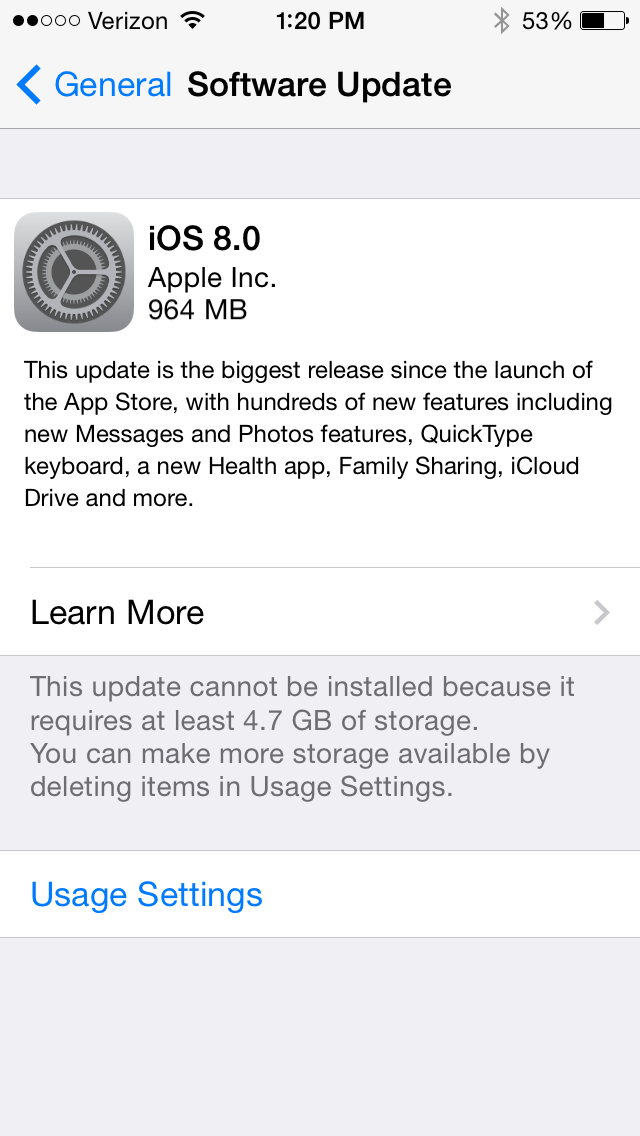
Just make sure you’ve got plenty of room for the install:


iOS 8 install


UPDATE: A friend on Twitter clarifies that you can download the new iOS if your device is connected to a computer, in which case you don’t need to clear up all the space required for the installation.

And the Winner Is…

iWerkz Keyboard Folded

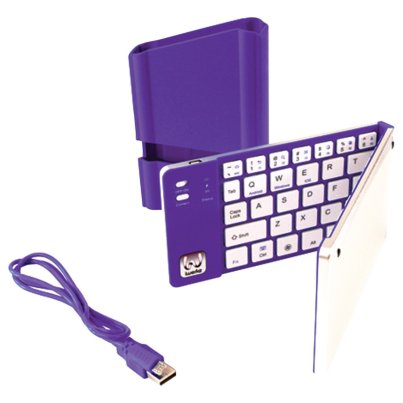
Congratulations to Rick Mansfield, winner of the MyWerkz foldable Bluetooth keyboard. I used a random number generator to select the winner. Way to go, Rick, and enjoy! (P.S. See his nifty blog here.)

I’ll post my review of the keyboard soon. Until then, see my gathered tech gear posts here. Thanks to all who entered and shared. 

Comment Here for a Chance to Win a Foldable Bluetooth Keyboard

iWerkz Foldable Bluetooth Keyboard


If you are looking for a bluetooth (wireless) keyboard to pair with your mobile device or tablet, and would like a chance to win one for free, you’ve clicked on the right link.

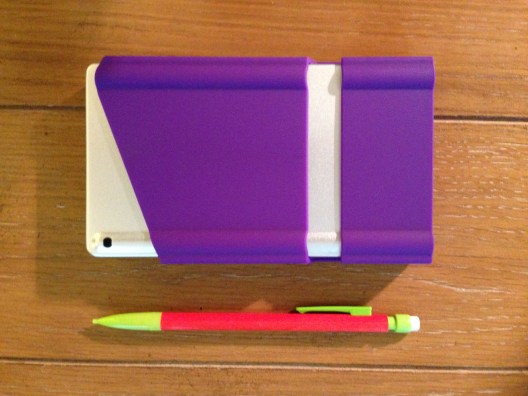
I recently engaged in more than 20 hours of classroom lecture, using just an iPad mini and the bluetooth keyboard pictured above for note-taking. Everything I needed for the class could fit in my pocket:


iWerkz Keyboard Folded


I’ll post a full review of the keyboard soon. It was a welcome time-saver with a strong battery life, and easy to pair with my device.

It also, according to its product page, works with iPhone and Android devices.

The folks at iWerkz have offered me an additional keyboard (purple, as shown above) for giveaway here at Words on the Word.


Here’s how you can enter:


Simply comment on this blog post with a short sentence on how you’d use the keyboard. Or you can just say hi. For a second entry, share the link to this post on your Facebook, Twitter, via mind meld, etc., and let me know in the comments section that you did.

I’ll select the winner using a random number generator.

If you don’t want to wait for the results of the giveaway, you can find the keyboard on sale at Amazon here.
The giveaway is open through Monday, August 18, 11:59 p.m. EDT. On Tuesday I’ll notify the winner and post about it both here and in the comments below. (fine print: free shipping of keyboard to U.S. address only)

The Best Case You Can Get for Your iPad Mini

My favorite iPad mini case has been replaced with another one from the same company.

INVELLOP now has a slightly heavier-duty leatherette case for iPad mini that works with both the first-generation and the retina mini model.

Usually when I review gear I list pros and cons. INVELLOP’s new case, however, has really only one slight drawback, which I note below.

I find the case to be just about the perfect combination of protection and slimness.

This is what it looks like, in a few views:

In viewing mode
In viewing mode
Front of case, closed
INVELLOP 3
Back of case, closed
INVELLOP 4
Inside of the case

Here’s why I haven’t put any other case on my iPad since getting this one:

  • The cutouts (headphone jack, volume control, camera lens) are perfectly sized
  • The case covers both front and back of the iPad; it’s all one piece
  • Though I still sometimes take the case off for extended periods of reading or watching, it’s really easy to hold the iPad in one hand with the case folded back
  • I actually have dropped the iPad a couple times (on the carpet, thankfully) since getting this case… and it’s been fine (phew!)
  • After a few months of use, there is just the slightest bit of wear on the case, but it’s holding up very nicely
  • Closing the screen flap puts the device to sleep; opening it wakes it–this functions perfectly
  • At the time of this post, you can get the case for about $20 at Amazon (affiliate link to help fund ye ole blog)
  • The inside of the screen cover has microfiber, which has not scratched the screen at all
  • The screen cover is in thirds so that you can put your iPad upright (in landscape mode) in two different positions (for viewing or typing)
  • There are magnets that keep the front cover secured in place when you fold it back

The only minor critique I have is that it’s slightly heavier (by a couple ounces, maybe) than the previous iteration of this case. But that’s a small price to pay for the greater protection and classier feel. Two thumbs up. This feels like everything you’d want an iPad mini case to be.

Thanks to INVELLOP for the review sample. The case reviewed above can be found at Amazon hereYou can find my other gear reviews here.

RIP, Sony Bluetooth Wireless Speaker: Splash-Proof, but Not Highway-Proof….


side and input
R.I.P.

Remember the Sony Bluetooth Speaker I reviewed? Want to hear a funny story about it?

After using the speakers for a Sunday morning class, I put them on top of our family van as I was strapping in one of the kids. I got my almost-two-year-old daughter strapped in, we were all happy, the kids had done great in church, and we were going out to eat–a rare treat on a Sunday afternoon. The sun was even shining.

So with everyone strapped in and on our way to family lunch, about 10 minutes into our drive–when we were on the highway, of course–I heard a loud thud at the top of the car and saw in my peripheral vision a blur of pink and purple bouncing around behind me as I sped away.

WHAT WAS THAT?

Oh. The speakers. That I had left on top of the van.

I had received the speakers gratis as a review sample, but I had become fond of them. They were quite convenient for toting around and using in various settings. It was especially nice to amplify music without any wires.

I quickly decided that, yes, I did want to go back to get these speakers. But being on the highway, I would have to exit, get on the highway going the other direction, exit again, and go back the way I came.

By the time we neared the spot of the incident, it had been about 8 minutes. Surely some car–or multiple cars–had by now demolished my precious pink-and-purple players of Passion Pit, Pavement, and Petra.

But, no.

THEY WERE STILL THERE.

I slowed down and turned on my hazards to get off to the shoulder to (carefully, only when there were no cars) walk into the highway to retrieve my speakers.

They were right there, miraculously between the two lanes. A hundred cars must have passed them, leaving them mercifully in tact.

As I pulled over and slowed to a stop, the car behind me obliviously moved across the lane divider to pass me and…

Yep.

RAN OVER MY SPEAKERS.

Well, not just ran over. CRUSHED them.

They broke into a hundred pieces, and the car just cruised on by.

Top 10 Tasks for Which I Use Logos Bible Software

Here are, in no particular order, the top 10 tasks for which I use Logos Bible Software. Most of these uses are for preaching and teaching preparation, or for when I’m preparing to lead a Bible study. This post is a visual tour, so if you want to see any image in more detail, you can click to enlarge it or open it in a new tab or window.

10. To look up a word in a dictionary.

Here’s a word l00k-up in the Anchor Yale Bible Dictionary, which I can do from an already-open text, or as a stand-alone, searchable dictionary. Here I move from the article on Jesus I was reading to an article on “Tax Collector”:

Looking Up a Word in Anchor Bible Dictionary

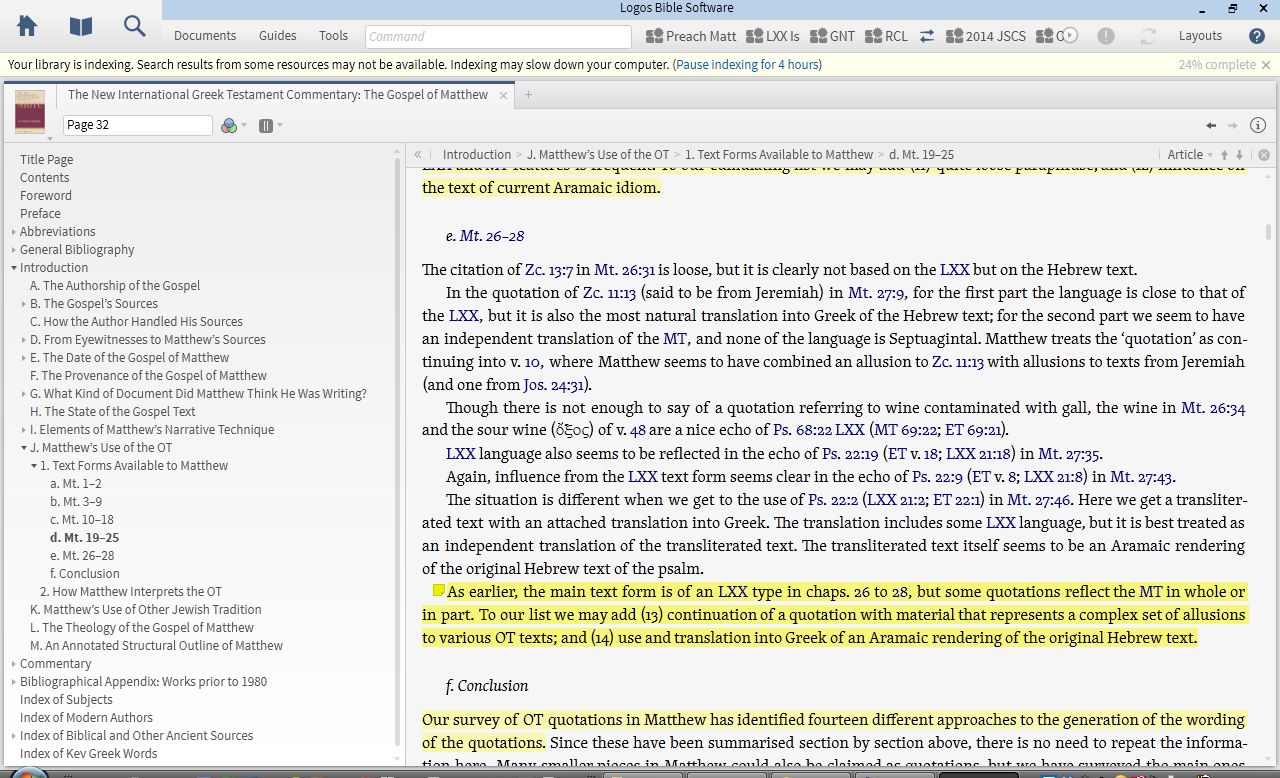
9. To annotate commentaries.

Here you can see both highlights (which sync seamlessly across devices) and a notes icon from where I have recorded my own reactions:

Commentary Reading on Logos on a PC

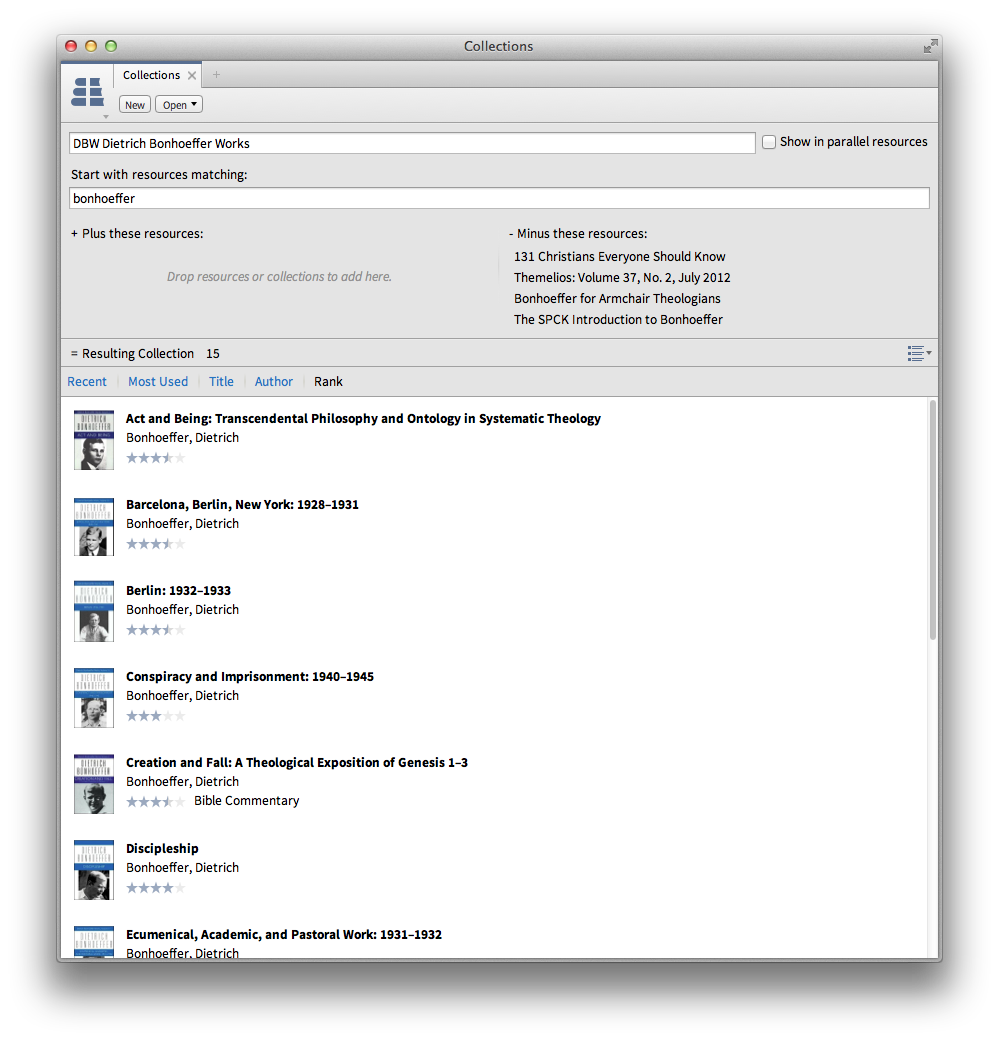
 8. To create (and then search) my own defined collection of resources.

This way I can search through all the volumes I have of the Dietrich Bonhoeffer Works:

Custom-Defined Collection in Logos for Mac

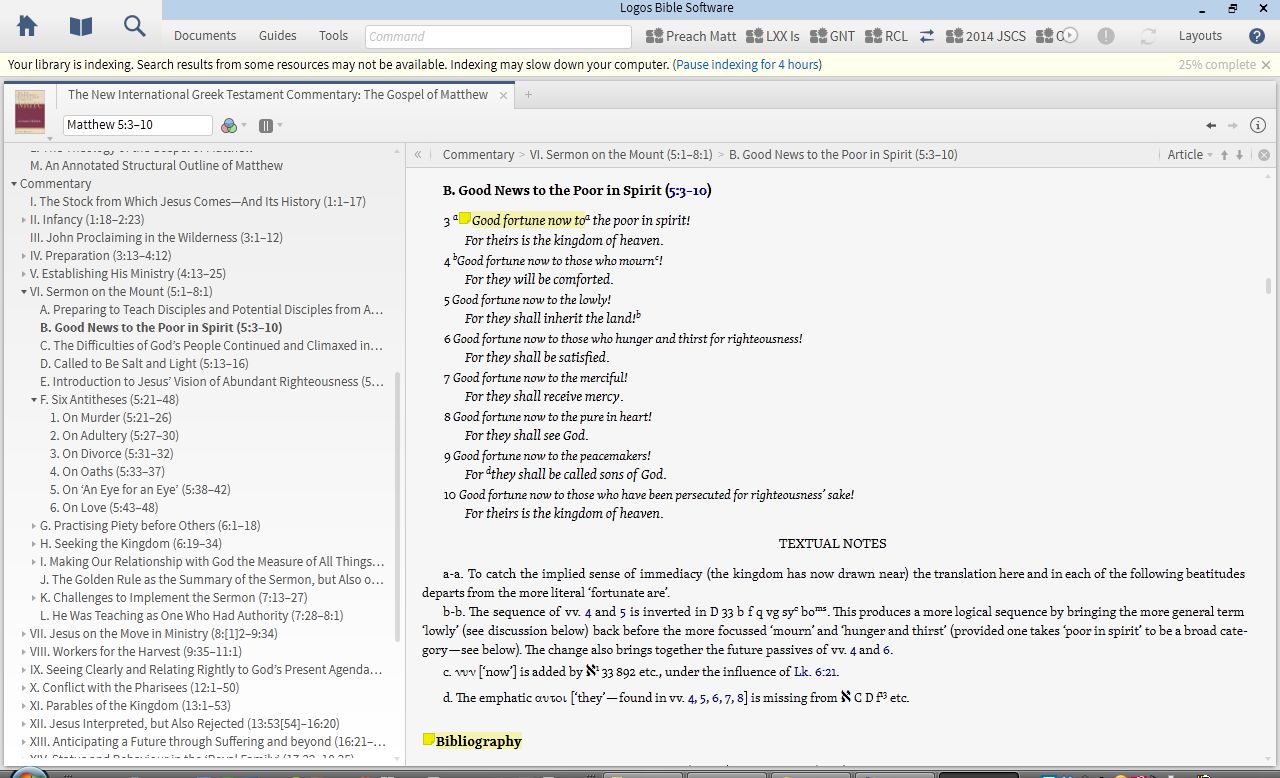
7. To navigate through a book via Table of Contents sidebar.

As at left here:

Sidebar Table of Contents

6. As a portable library.

Here’s the searchable library view in Logos in iOS, where one can access almost all of one’s library. In iOS you can access all of your resources with an Internet connection without having to download them. You can also download them, so that you don’t have to use data or a wireless connection. I like the flexibility that offers.

iOS Logos library
iOS Logos Library

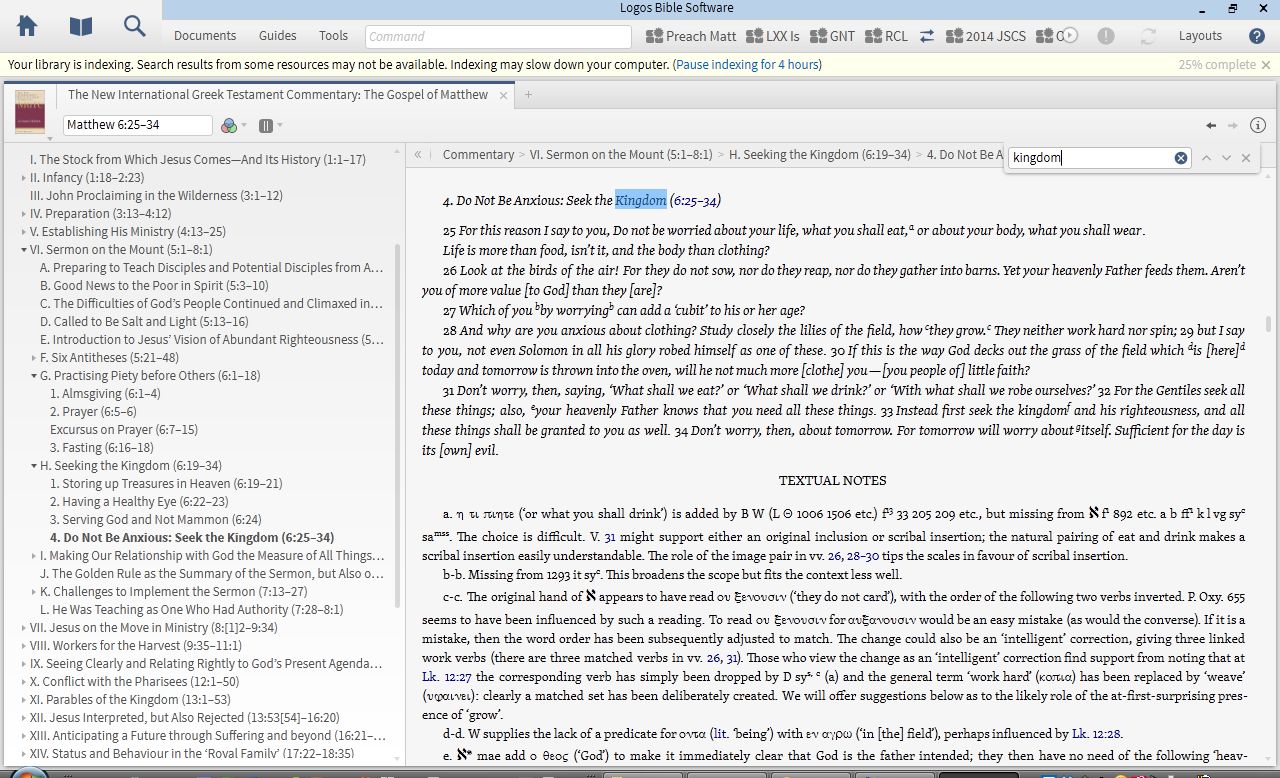
5. For keyword searching a commentary.

This is particularly useful when I want to know not just what a commentary says about a passage, but how it traces a theme throughout the book.

Keyword searching NIGTC Matthew for "Kingdom"
Keyword Searching NIGTC Matthew for “Kingdom”

4. Via Logos’s Biblia.com, for quick reference to my Logos library from anywhere with Web access.

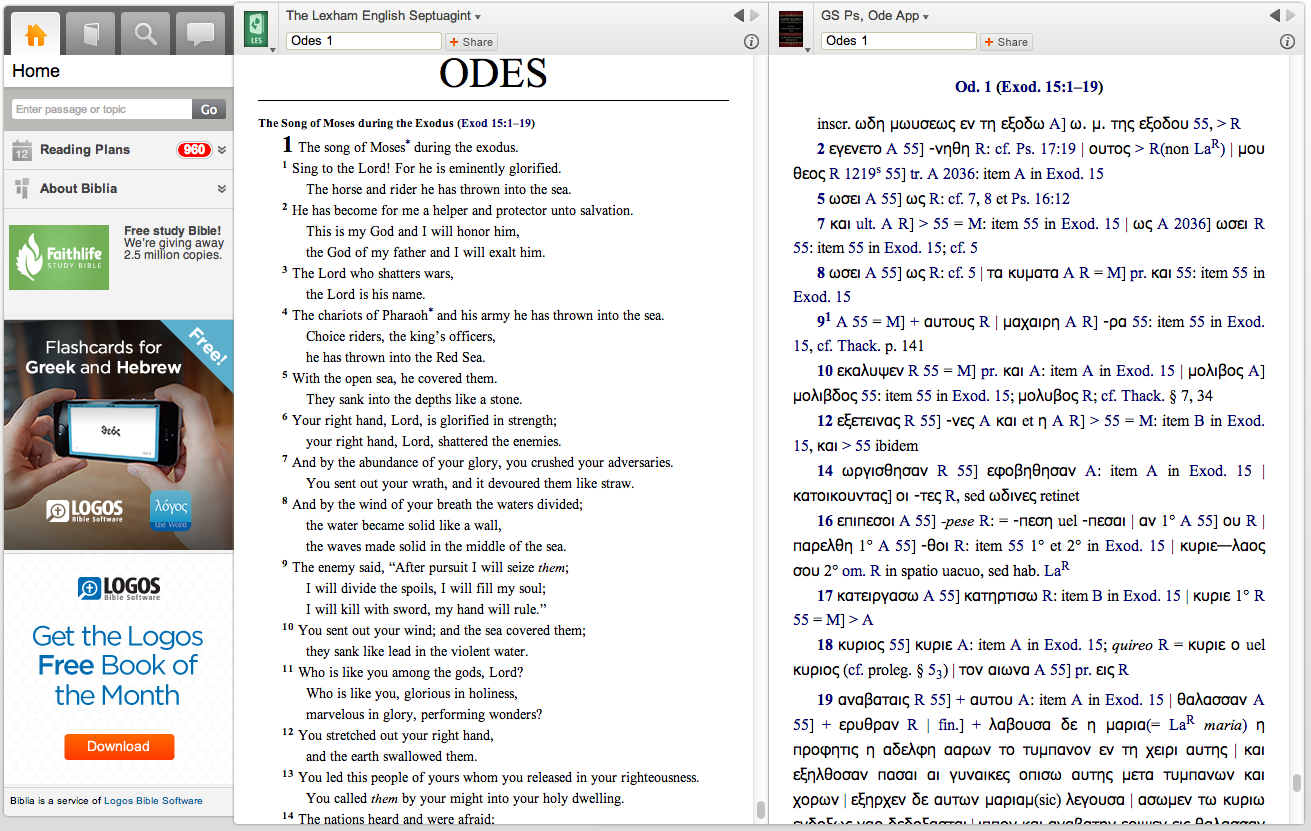
Here I am looking at the Odes in Greek and English translation:

Reading the Septuagint at Biblia.com

3. For pulling up at once all I have in my library on a given passage.

Logos’s Passage Guide is available on whatever device you have Logos in; here it is in iOS. Using a split screen, I can read one commentary (and highlight it), as well as see other hyperlinked options to explore:

Passage Guide in Logos iOS

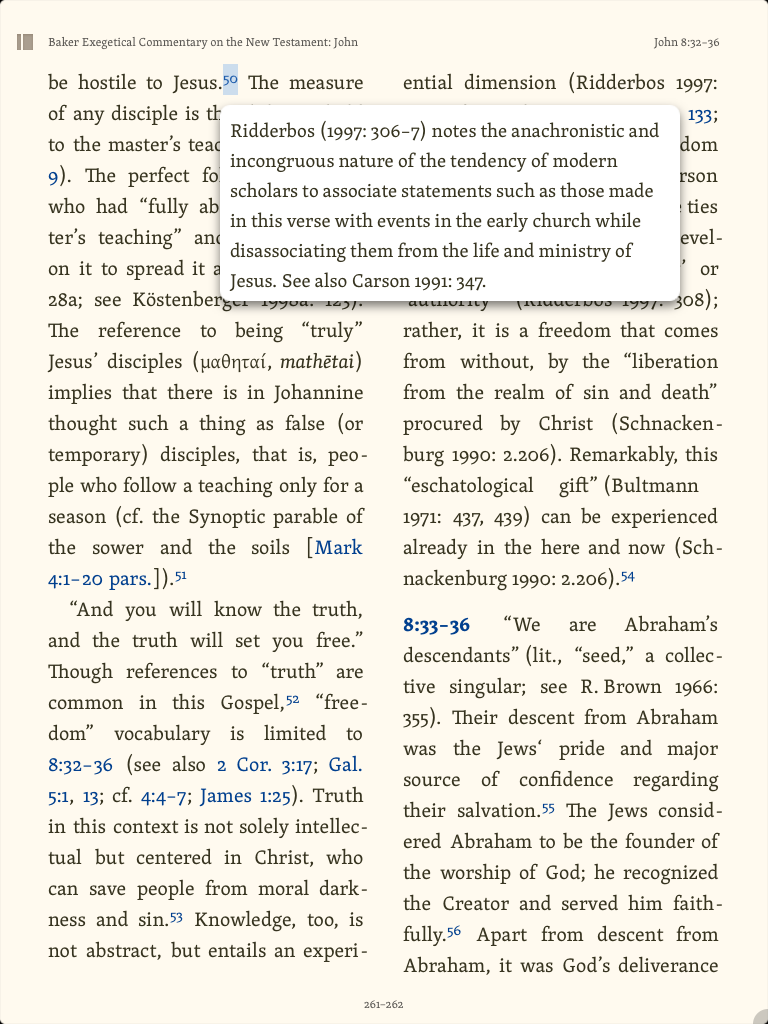
2. For touching footnotes to pull them up.

This I can do in iOS:

Tapping a Hyperlinked Footnote Brings It Up

1. For reading through a book of the Bible, with help.

Here is a layout I used often for when I read with a group of folks through Greek Isaiah in a Year. I could compare multiple Greek texts, a Hebrew text, English translations, lexicons, notes, and more:

Multi-Text and Multi-Resource Layout

The major advantages in Logos are its connections of resources to each other, system of hyperlinks, and ability to sync (notes, highlights, and where you left off reading) across devices. Not only that, but even compared to Amazon Kindle and iBooks, they have the most extensive store/library of resources for biblical studies that I know of. There’s a lot more you can do in Logos than what I’ve highlighted above. You can find all my Logos reviews gathered here.